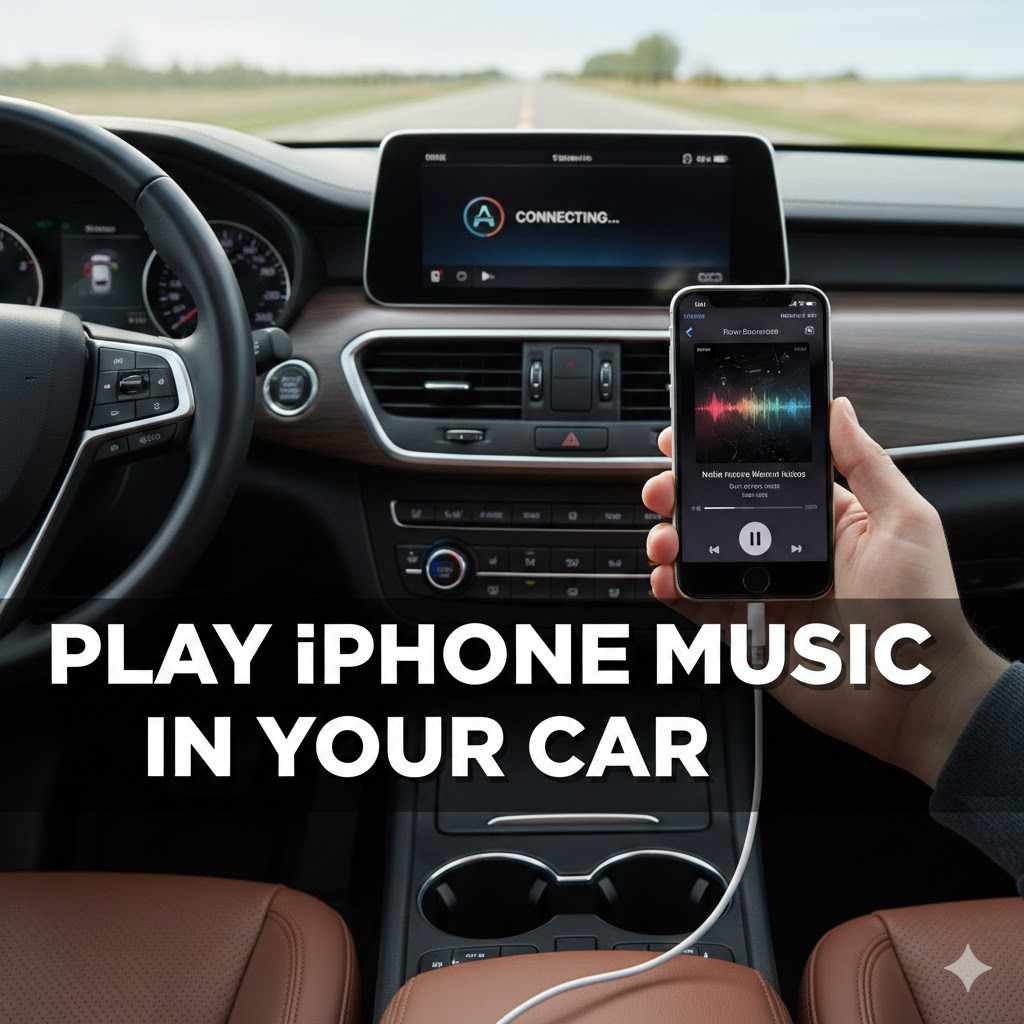
How to Play iPhone Music In Your Car
Many people wonder How to Play Music from iPhone to Your Car Radio. It seems like it should be simple, but sometimes it can be a bit confusing for beginners. Don’t worry, though.
This guide will show you exactly what to do, step by step. We will cover all the easy ways to get your favorite songs from your phone to your car speakers. Let’s get started and make your drives more enjoyable.
Connect Your iPhone To Your Car Stereo
Getting your iPhone music to play through your car speakers is a common goal for many drivers. The convenience of having your personal playlist accessible while on the road is a major draw. However, the process isn’t always straightforward, especially if you’re not familiar with car audio systems or iPhone connectivity options.
This section focuses on the fundamental methods of establishing a link between your iPhone and your car’s sound system. We’ll explore the most popular and reliable techniques, ensuring you can easily stream your audio content.
Using An Auxiliary (AUX) Cable
An auxiliary cable, often called an AUX cable, is a simple and effective way to connect your iPhone to your car stereo. This method uses a standard 3.5mm audio jack, which most modern iPhones still support via an adapter if needed, and which most car stereos have. It’s a direct audio connection, meaning the sound travels physically from your phone to your car’s speakers.
This often results in good sound quality and requires minimal setup. The main requirement is that both your iPhone and your car stereo have the appropriate ports.
- What is an AUX Cable?
An AUX cable is a type of audio cable that has a 3.5mm connector on each end. This connector is the same size as the headphone jack found on many phones, older MP3 players, and some laptops. The cable carries an analog audio signal.
When you plug one end into your iPhone and the other into your car’s AUX input, your car stereo receives that analog signal and plays it through its speakers. It’s a straightforward, wire-based connection.
- How to Use an AUX Cable
To use an AUX cable, you first need the cable itself. If your iPhone doesn’t have a headphone jack, you’ll need a Lightning to 3.5mm headphone jack adapter. Next, locate the AUX input port on your car stereo.
It’s usually on the front panel or sometimes in the glove compartment. Plug one end of the AUX cable into your iPhone (or the adapter) and the other end into the car’s AUX port. Then, turn on your car stereo and select the “AUX” input source.
Your iPhone’s audio should now play through the car speakers.
- Advantages of AUX Cable Connection
The biggest advantage of using an AUX cable is its simplicity and reliability. There are no complex wireless pairings or software issues to deal with. You simply plug it in, select the source, and go.
This direct connection often provides excellent sound quality, as it avoids the compression that can sometimes occur with Bluetooth. Furthermore, AUX cables are inexpensive and widely available. They don’t require any power to operate, making them a very practical choice for long trips.
Utilizing Bluetooth Connectivity
Bluetooth technology has become a standard feature in most modern cars and smartphones, offering a wireless way to connect your iPhone to your car stereo. This method allows for hands-free calling and audio streaming without the need for any cables. It offers great convenience, as you don’t have to physically connect your phone each time you get in the car.
Once paired, your iPhone can automatically connect to your car’s system when it’s within range, making it incredibly user-friendly for daily commutes and longer journeys.
- What is Bluetooth and How It Works for Audio
Bluetooth is a short-range wireless technology standard used for exchanging data between fixed and mobile devices over short distances. For audio streaming, Bluetooth uses profiles like A2DP (Advanced Audio Distribution Profile) to transmit stereo audio signals wirelessly from one device to another. Your iPhone and car stereo communicate via Bluetooth radio waves.
When you initiate a connection, they establish a secure link, allowing your phone to send audio data that the car stereo then decodes and plays through its speakers. This wireless transmission is efficient and generally maintains good sound quality.
- Pairing Your iPhone via Bluetooth
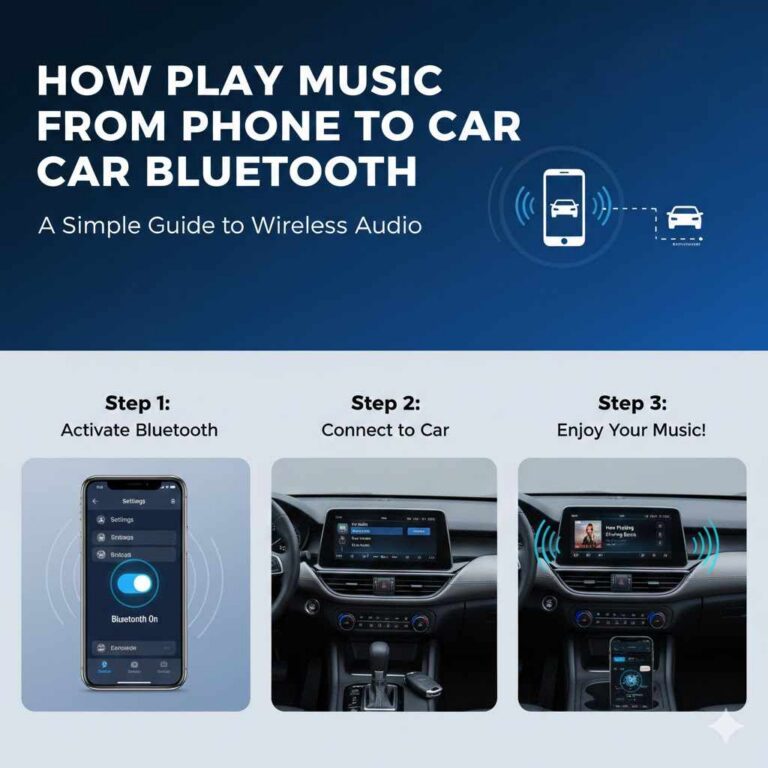
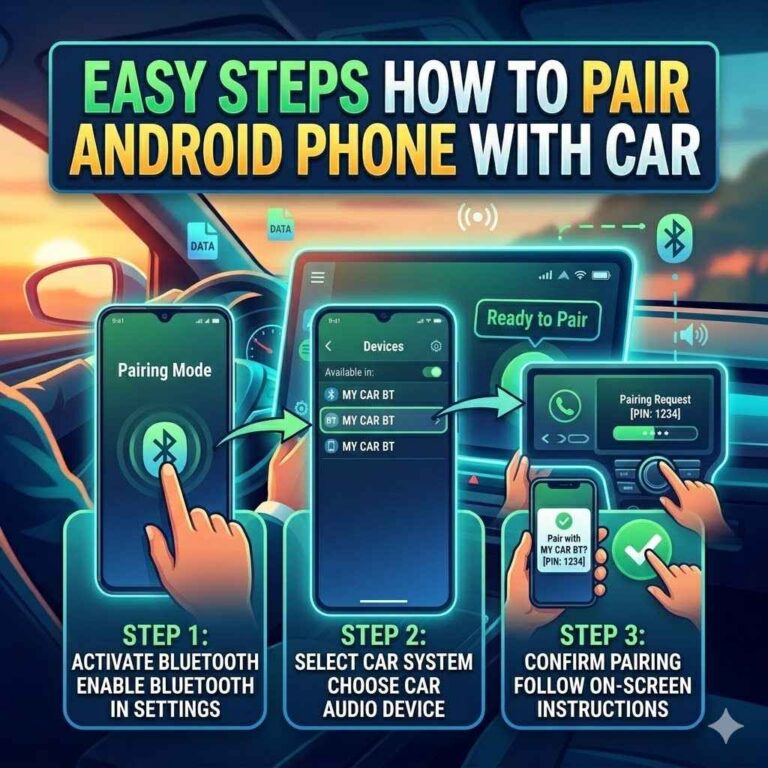
To pair your iPhone with your car’s Bluetooth system, first, make sure Bluetooth is enabled on both your iPhone and your car. On your iPhone, go to Settings > Bluetooth and turn it on. On your car stereo, access its Bluetooth settings, usually through a menu button or a dedicated Bluetooth button.
Your car stereo will then search for available devices, and your iPhone should appear in the list. Select your car’s name on your iPhone, and you might be prompted to confirm a pairing code or simply tap “Pair.” Once connected, your iPhone will indicate that it’s paired with your car.
- Playing Music and Making Calls
After successful pairing, you can play music from any app on your iPhone, such as Apple Music, Spotify, or podcasts. Simply start playing your audio on the iPhone and ensure your car stereo is set to the Bluetooth audio source. You can control playback (play, pause, skip) using your car stereo’s controls or your iPhone.
Bluetooth also enables hands-free calling. When a call comes in, it will appear on your car’s display, and you can answer or decline it using your car’s buttons. The conversation will be routed through the car’s speakers and microphone.
Leveraging Apple CarPlay
Apple CarPlay is a more advanced integration system that projects a simplified, car-friendly version of your iPhone’s interface directly onto your car’s infotainment screen. It’s designed to provide a safer and more intuitive way to use your iPhone’s features while driving. CarPlay offers access to maps, music, messaging, and calls with a focus on large icons and simplified controls.
It requires a compatible car stereo or an aftermarket head unit that supports CarPlay, and it typically connects via a USB cable, although some systems offer wireless CarPlay.
- What is Apple CarPlay?
Apple CarPlay is an Apple-developed system that allows iPhone users to connect their device to a car’s dashboard infotainment system. It mirrors essential iPhone apps and features onto the car’s display, making them easier to see and use while driving. Instead of fumbling with your iPhone, you can control navigation, music playback, messaging, and more through your car’s touchscreen, buttons, or voice commands via Siri.
It prioritizes safety by minimizing distractions.
- How to Connect Using CarPlay
To use Apple CarPlay, ensure your car is equipped with CarPlay compatibility. Most newer vehicles come with this feature. You’ll need a compatible iPhone (iPhone 5 or later).
Connect your iPhone to the car’s USB port using a high-quality Lightning cable. Your car’s display should then prompt you to launch CarPlay. If it doesn’t automatically appear, look for a CarPlay icon on your car’s infotainment screen.
Once connected, you’ll see a familiar iPhone-like interface optimized for driving.
- CarPlay Features and Benefits
CarPlay offers a seamless experience for accessing your iPhone’s core functions. You can use Apple Maps or Google Maps for navigation, with turn-by-turn directions appearing right on your car’s display. Music apps like Apple Music and Spotify are fully integrated, allowing you to browse playlists and albums easily.
You can send and receive text messages using Siri, which reads messages aloud and lets you dictate replies. The system also supports popular third-party apps like WhatsApp and Audible. The primary benefit is enhanced safety and convenience.
Connecting via USB Cable
Connecting your iPhone to your car stereo using a USB cable is another common and reliable method. This approach is straightforward and often provides a stable connection for both charging your iPhone and playing audio. Many car stereos, especially those with aftermarket head units or newer factory-installed systems, are designed to recognize iPhones as an audio source when connected via USB.
This can sometimes offer superior sound quality compared to Bluetooth and eliminates the need for wireless pairing, making it a very dependable option for daily use.
Understanding USB Audio Transfer
When you connect your iPhone to your car via USB for audio, your phone sends digital audio data through the cable to the car stereo. The car stereo then has a built-in Digital-to-Analog Converter (DAC) that converts this digital signal into an analog one that can be amplified and played through the car’s speakers. This process is similar to how your phone’s internal DAC works when you listen through headphones.
The quality of the connection can be very high because the data is transferred directly without wireless interference, and the car’s audio system handles the conversion.
- USB Cable Requirements
For USB audio playback, you’ll need a compatible USB cable. This is typically the Lightning to USB cable that comes with your iPhone. Ensure the cable is in good condition, as damaged cables can cause connection issues or interrupt audio playback.
It’s also important that your car stereo has a USB port that is capable of handling audio input. Some car USB ports are designed only for charging, while others support media playback. Check your car’s manual to confirm its capabilities.
- Steps for USB Connection
Begin by locating the USB port in your car. This is often found on the dashboard, in the center console, or in the glove compartment. Connect one end of your USB cable to your iPhone and the other end to the car’s USB port.
Your iPhone may display a “Trust This Computer” prompt; you’ll need to tap “Trust” for the connection to work. On your car stereo, navigate to the audio source menu and select “USB” or “iPod” as the input. Your car stereo should then recognize your iPhone, and you can browse and play music directly from the car’s interface.
- Benefits of USB for Audio
Using a USB connection for audio playback offers several benefits. It provides a very stable connection that is less prone to dropouts than Bluetooth. You can often control your iPhone’s music library directly from your car stereo’s controls, including browsing albums, artists, and playlists.
Additionally, connecting via USB usually charges your iPhone simultaneously, ensuring your phone stays powered up during your drive. For many, the sound quality from a direct USB connection is superior to wireless methods, as it bypasses potential compression.
When Your Car Doesn’t Have Modern Ports
Some older car models might not have a USB port or an AUX input. This can seem like a significant challenge when trying to connect a modern iPhone. However, there are still ways to get your music playing.
These solutions involve adapters or wireless transmitters that can bridge the gap between your iPhone and your car’s existing audio system, even if it’s just an old-fashioned radio. These methods might require a bit more setup, but they can effectively bring your digital music library to your older vehicle.
- FM Transmitters Explained
An FM transmitter is a small device that plugs into your iPhone’s charging port or headphone jack and broadcasts your iPhone’s audio signal to a specific FM radio frequency. You set the transmitter to a clear FM frequency, and then tune your car radio to that same frequency. The car radio receives the broadcast from the transmitter, playing your iPhone’s audio through the car speakers.
Many FM transmitters also have Bluetooth capabilities, allowing you to connect your iPhone wirelessly to the transmitter itself, then transmit to your car radio.
- Using an Adapter for Headphone Jack
If your car has an AUX input but your iPhone lacks a headphone jack, you will need a Lightning to 3.5mm headphone jack adapter. This small adapter plugs into your iPhone’s Lightning port and provides a standard 3.5mm female jack. You can then plug a standard AUX cable into this adapter and connect it to your car’s AUX input.
This is a very common scenario for many iPhone users with cars that have an AUX port but no Bluetooth or USB audio support.
- Cassette Adapters for Older Cars
For very old cars that only have a cassette player, a cassette adapter is a clever solution. This adapter looks like a cassette tape but has a cable with a 3.5mm plug attached. You insert the adapter into the cassette player and plug the cable into your iPhone’s headphone jack or a Lightning adapter.
The cassette player then reads the audio from the cable as if it were a tape, playing your iPhone’s music through the car speakers. It’s a nostalgic but effective way to enjoy digital music.
Troubleshooting Common Connection Issues
Even with the best technology, you might sometimes run into problems trying to connect your iPhone to your car. These issues can range from Bluetooth pairing failures to audio cutting out unexpectedly. Fortunately, most of these problems have simple solutions.
This section will guide you through some of the most common connection issues and provide clear steps to resolve them, ensuring you can get back to enjoying your music without frustration. We’ll cover basic checks and more specific fixes for different connection types.
Bluetooth Pairing Problems
Bluetooth pairing can sometimes be finicky. If your iPhone isn’t showing up in your car’s Bluetooth device list, or if the pairing process fails, there are a few things to try. First, ensure Bluetooth is actually turned on for both devices.
Sometimes, simply toggling Bluetooth off and then back on can resolve temporary glitches. You might also need to “forget” a previously paired device on either your iPhone or your car and then attempt to pair them again from scratch. If your car has been paired with many devices, it might have reached its limit, and you may need to delete old pairings.
- Resetting Bluetooth Connections
A common fix for persistent Bluetooth issues is to reset the Bluetooth settings on both your iPhone and your car. On your iPhone, go to Settings > General > Transfer or Reset iPhone > Reset > Reset Network Settings. This will erase all saved Wi-Fi passwords and Bluetooth pairings, so you’ll need to re-enter them.
For your car, consult your owner’s manual for instructions on how to reset the Bluetooth system, which might involve a menu option or holding down certain buttons. After resetting, try pairing your iPhone again as if it were the first time.
- Checking for Interference
Bluetooth signals can be affected by interference from other electronic devices or even certain materials. Physical obstructions between your iPhone and the car stereo, such as a metal console or thick seat, can weaken the signal. Other wireless devices operating on similar frequencies, like Wi-Fi routers or some older cordless phones, can also cause interference.
Try to minimize potential sources of interference by moving other devices away or ensuring a clear line of sight between your phone and the car’s Bluetooth receiver. Sometimes, simply moving your phone to a different position in the car can help.
- Software Updates
Outdated software on either your iPhone or your car’s infotainment system can lead to compatibility issues. Ensure your iPhone is running the latest version of iOS. You can check for updates in Settings > General > Software Update.
For your car, software updates are typically performed by a dealership or through specific update procedures outlined in your car’s manual. Keeping both systems up-to-date is crucial for optimal performance and compatibility. This also helps fix known bugs that might affect connectivity.
Audio Quality and Sound Issues
If your music sounds distorted, choppy, or too quiet, it’s likely an audio quality issue. This can stem from the connection type, the audio source, or your car’s audio settings. For example, if you’re using a compressed audio file or a low-quality streaming service, the sound might not be as clear.
Similarly, if your car stereo’s equalizer is set incorrectly, it can negatively impact the sound.
- Checking Audio Source Settings
The quality of your music source matters. If you are streaming music, ensure you have selected a high-quality audio setting within the streaming app itself (e.g., Spotify’s “Very High” quality, Apple Music’s lossless audio settings). If you are playing local files on your iPhone, ensure they are in a high-fidelity format like AAC or FLAC if possible.
Low-bitrate MP3s will inherently sound worse. Also, check your iPhone’s own audio settings; sometimes, options like “Sound Check” can normalize volume, which can affect perceived loudness but also consistency.
- Car Stereo EQ and Volume Settings
Your car’s stereo system has its own set of audio controls, including an equalizer (EQ) and volume settings. If your music sounds muffled, try adjusting the EQ settings to boost treble or mid-range frequencies. If it sounds too boomy, you might need to reduce the bass.
Ensure the volume on both your iPhone and your car stereo is set to a reasonable level. Turning either one up too high can cause distortion. It’s often best to set your iPhone’s volume to about 75-80% and then use your car stereo’s volume for fine-tuning.
- Troubleshooting AUX Cables
If you’re using an AUX cable and experiencing static, crackling, or no sound at all, the cable itself might be the problem. Try using a different AUX cable to see if that resolves the issue. Ensure the cable is fully plugged into both your iPhone (or adapter) and the car’s AUX port.
Sometimes, debris can get lodged in the ports, preventing a clean connection. Gently clean both ports with compressed air or a dry cotton swab. If you’re using an adapter, make sure it’s functioning correctly by testing it with other devices.
Best Practices for Seamless Music Playback
To ensure a smooth and enjoyable experience whenever you play music from your iPhone in your car, there are several best practices to follow. These tips cover everything from device maintenance to connection management. By adopting these habits, you can minimize interruptions and maximize the quality of your in-car audio.
This section provides actionable advice to help you get the most out of your setup, regardless of how you choose to connect.
- Keep Your iPhone Charged
Running out of battery while driving is never ideal, especially if you rely on your iPhone for navigation or music. Whenever possible, connect your iPhone to your car’s charger, whether it’s a dedicated USB port, a cigarette lighter adapter, or even through the USB connection used for audio playback. This ensures your phone remains powered, preventing it from shutting down unexpectedly and interrupting your music or calls.
A charged phone also tends to perform better overall.
- Organize Your Music Library
Having a well-organized music library on your iPhone makes it much easier to find and play the songs you want while driving. Use playlists to group songs by mood, genre, or activity. Download your favorite albums or playlists for offline listening, especially if you frequently drive through areas with poor cell service.
This prevents buffering issues and ensures your music continues playing without interruption, regardless of your connectivity status. Clear organization also makes it safer to select music while stopped.
- Regularly Update Your Apps and Software
As mentioned in the troubleshooting section, keeping your iPhone’s operating system (iOS) and your music apps up-to-date is essential for smooth performance. Software updates often include bug fixes and performance improvements that can enhance Bluetooth connectivity, CarPlay stability, and overall app functionality. Regularly checking for and installing these updates will help prevent potential compatibility issues and ensure you’re using the most reliable versions of your software.
This proactive approach saves a lot of headaches down the line.
- Understand Your Car’s Audio System
Take some time to learn the specific audio features and controls of your car’s stereo system. Knowing how to switch between input sources, adjust the equalizer, and manage Bluetooth settings will make the entire process much more efficient. Refer to your car’s owner’s manual if you’re unsure about any functions.
Understanding your car’s capabilities will help you troubleshoot issues more effectively and optimize your listening experience. For example, some cars have advanced sound modes that can enhance different types of music.
Frequently Asked Questions
Question: What is the easiest way to play music from my iPhone to my car?
Answer: The easiest way often depends on your car’s features. If your car supports Apple CarPlay, that’s usually the most seamless. Otherwise, a direct Bluetooth connection or using an AUX cable are very straightforward methods for most users.
Question: Do I need a special app to play music from my iPhone in my car?
Answer: No, you don’t need a special app. You can use any music app on your iPhone, like Apple Music, Spotify, or podcasts, and play them through your car stereo once connected via Bluetooth, CarPlay, USB, or AUX.
Question: Will playing music from my iPhone drain my car battery?
Answer: No, playing music from your iPhone will not drain your car battery. Your car’s audio system powers the playback. In fact, connecting via USB often charges your iPhone, preventing battery drain.
Question: Why does my Bluetooth audio cut out sometimes?
Answer: Bluetooth audio can cut out due to interference from other devices, a weak signal between your phone and car, or if your phone’s battery is very low. Updating software and moving your phone can help.
Question: Can I play music from my iPhone if my car is very old?
Answer: Yes, even with older cars, you can usually find a solution. Options like FM transmitters or cassette adapters allow you to play iPhone music through older car radios and tape decks.
Conclusion
Getting your iPhone music into your car is simple with the right method. Whether you use a cable like AUX or USB, or go wireless with Bluetooth or CarPlay, your favorite songs can fill your ride. Just follow the steps for connecting and troubleshooting.
Enjoy your music on every drive.