How to Make Wireless Apple Carplay: Easy Steps for Seamless Connectivity
Imagine driving without the hassle of tangled cables or fumbling with your phone every time you want to use Apple CarPlay. What if you could enjoy all its features wirelessly, making your trips safer and more enjoyable?
If you’ve ever wondered how to make wireless Apple CarPlay work in your car, you’re in the right place. This guide will walk you through simple steps to unlock that freedom, so you can stay connected effortlessly while keeping your focus on the road.
Ready to transform your driving experience? Let’s dive in.
Apple Carplay Basics
Apple CarPlay helps you use your iPhone safely while driving. It shows apps on your car’s display. You can control music, maps, calls, and messages easily. CarPlay makes driving less distracting and more fun.
This section covers the basics of Apple CarPlay. You will learn what it is and why wireless CarPlay is helpful.
What Is Apple Carplay
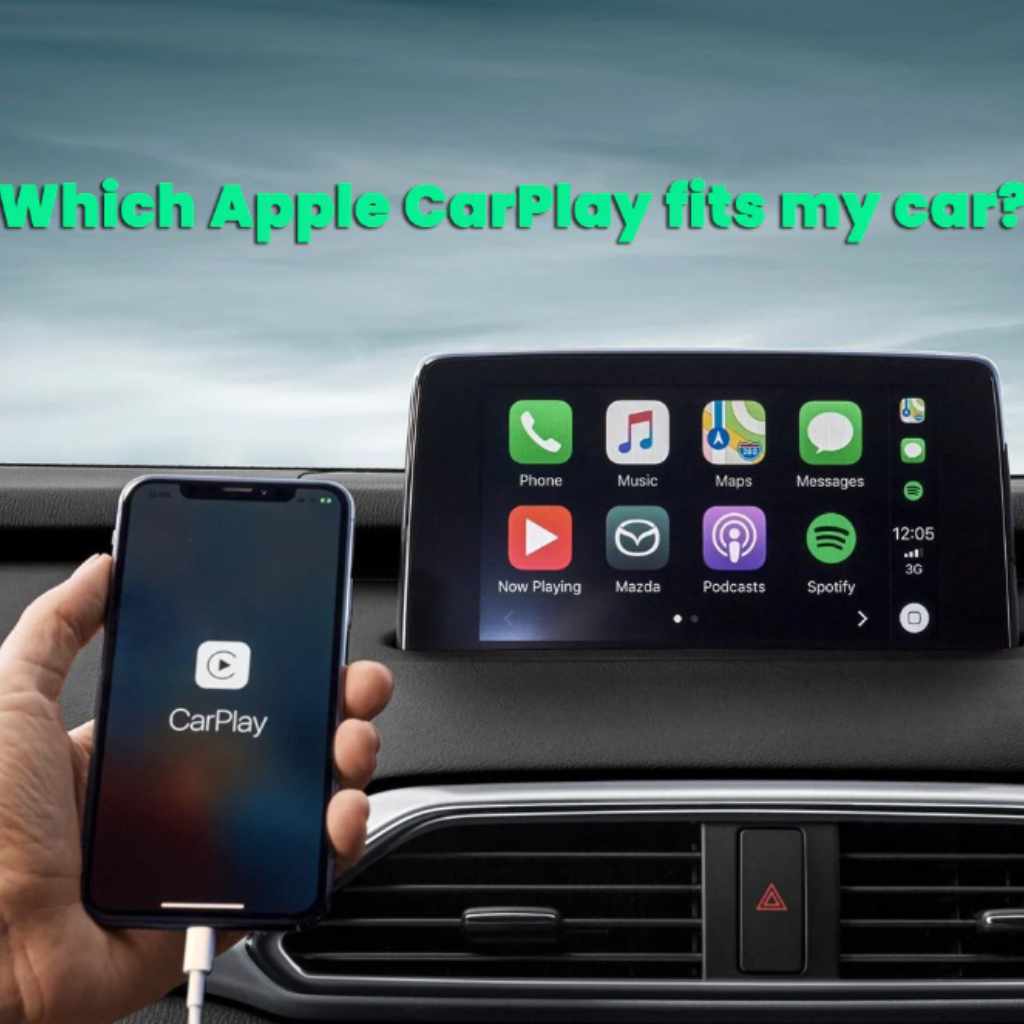
Apple CarPlay is a system that connects your iPhone to your car. It shows your phone’s screen on the car’s display. You can use apps without holding your phone. It works with voice commands through Siri. This keeps your focus on the road. Many cars support CarPlay through a USB cable or wirelessly.
Benefits Of Wireless Carplay
Wireless CarPlay lets you connect your iPhone without cables. This means no tangled wires in your car. It starts automatically when you enter the car. You can move your phone freely inside the car. Wireless connection feels more modern and clean. It improves convenience and safety while driving.
Requirements For Wireless Setup
Setting up wireless Apple CarPlay needs some key items. These items ensure smooth connection and better use. Knowing what you need saves time and avoids frustration. Below are the main requirements for a wireless setup.
Compatible Iphone Models
Wireless Apple CarPlay works with iPhone 5 and newer models. The iPhone must run iOS 9 or later. Newer iPhones like iPhone X, 11, 12, and 13 have better support. Older models may connect but not wirelessly. Check your iPhone model and iOS version first.
Car And Head Unit Compatibility
Your car or head unit must support wireless CarPlay. Many 2016 and later models do. Some vehicles need a firmware update. Factory-installed systems often support wireless CarPlay. Aftermarket units from brands like Pioneer or Alpine may also work. Confirm your car’s system before buying accessories.
Necessary Accessories
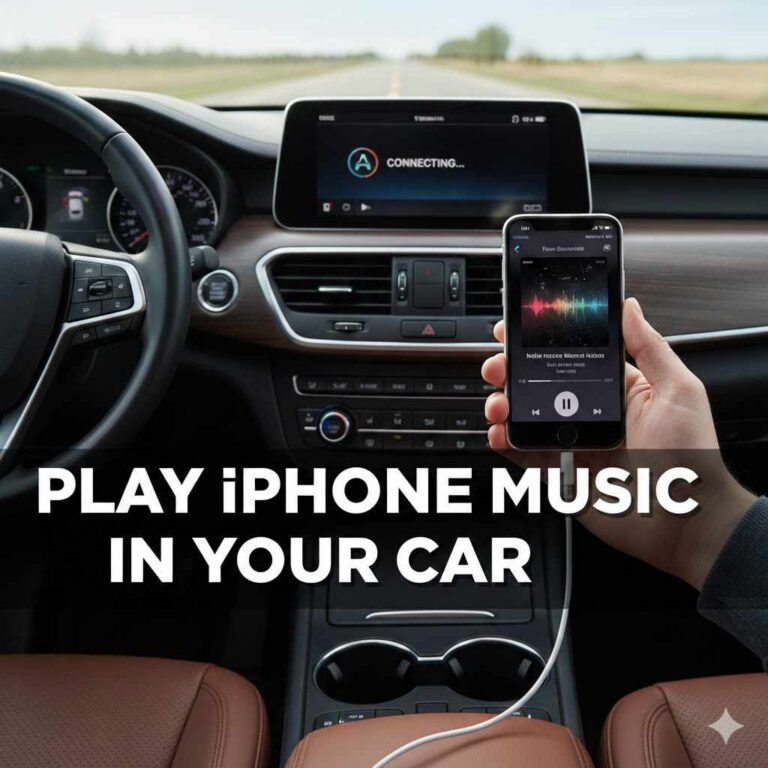
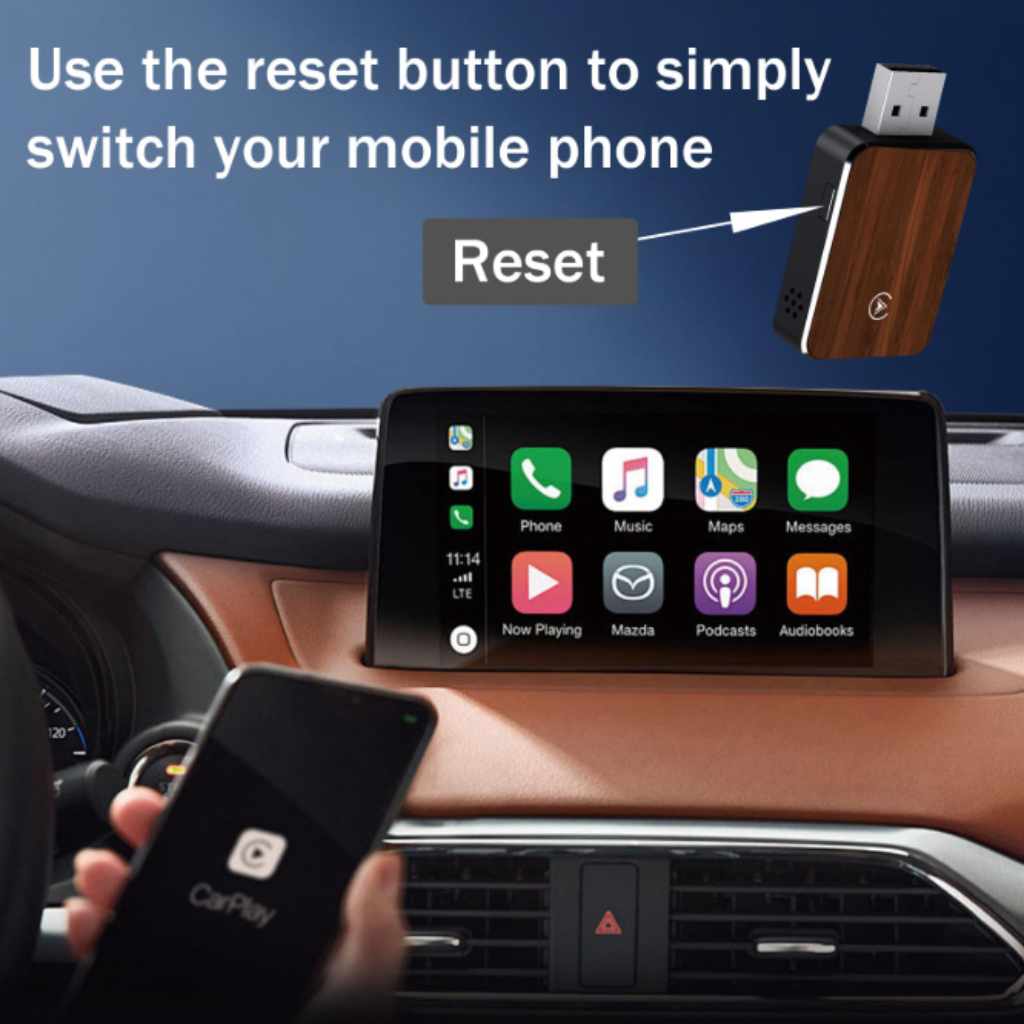
A wireless CarPlay setup may require some accessories. A wireless CarPlay adapter can help older cars. These adapters connect via USB and enable wireless use. A good Wi-Fi and Bluetooth connection in the car is important. Also, keep your iPhone charged for a stable link.
Preparing Your Devices
Preparing your devices is a key step to use Wireless Apple CarPlay smoothly. Make sure your iPhone and car system are ready. This helps avoid connection issues and saves time.
Follow simple steps to get your devices set up correctly before starting the pairing process.
Update Ios And Firmware
Check your iPhone for the latest iOS update. Go to Settings > General > Software Update. Install any available updates.
Also, update your car’s infotainment system firmware. This update improves compatibility with Wireless CarPlay.
Keeping both devices updated ensures they work well together without bugs.
Enable Bluetooth And Wi-fi
Turn on Bluetooth and Wi-Fi on your iPhone. These connections allow your phone to communicate wirelessly with your car.
Go to Settings and switch on both Bluetooth and Wi-Fi. Keep them active during the pairing process.
Without these, Wireless CarPlay will not connect or work properly.
Reset Previous Connections
Remove old or unused Bluetooth connections from your iPhone. Go to Settings > Bluetooth, then tap the “i” next to old devices.
Tap Forget This Device to clear them. This avoids interference during pairing.
Also, reset your car’s Bluetooth list if possible. This clears past pairings and helps start fresh.
Step-by-step Wireless Carplay Setup
Setting up Wireless Apple CarPlay is easier than you think. Follow these simple steps to connect your iPhone to your car without cables. This guide helps you enjoy hands-free control and a cleaner dashboard.
Pairing Iphone With Car
Start by turning on your car’s Bluetooth. On your iPhone, open Settings and tap Bluetooth. Find your car’s name under Devices and tap it. A pairing code may appear on both screens. Confirm the code to complete pairing.
Connecting Via Wi-fi
After pairing, your car asks to connect via Wi-Fi. Accept the connection on your iPhone. This link carries the CarPlay data faster than Bluetooth. Your car and phone now communicate wirelessly and smoothly.
Testing The Connection
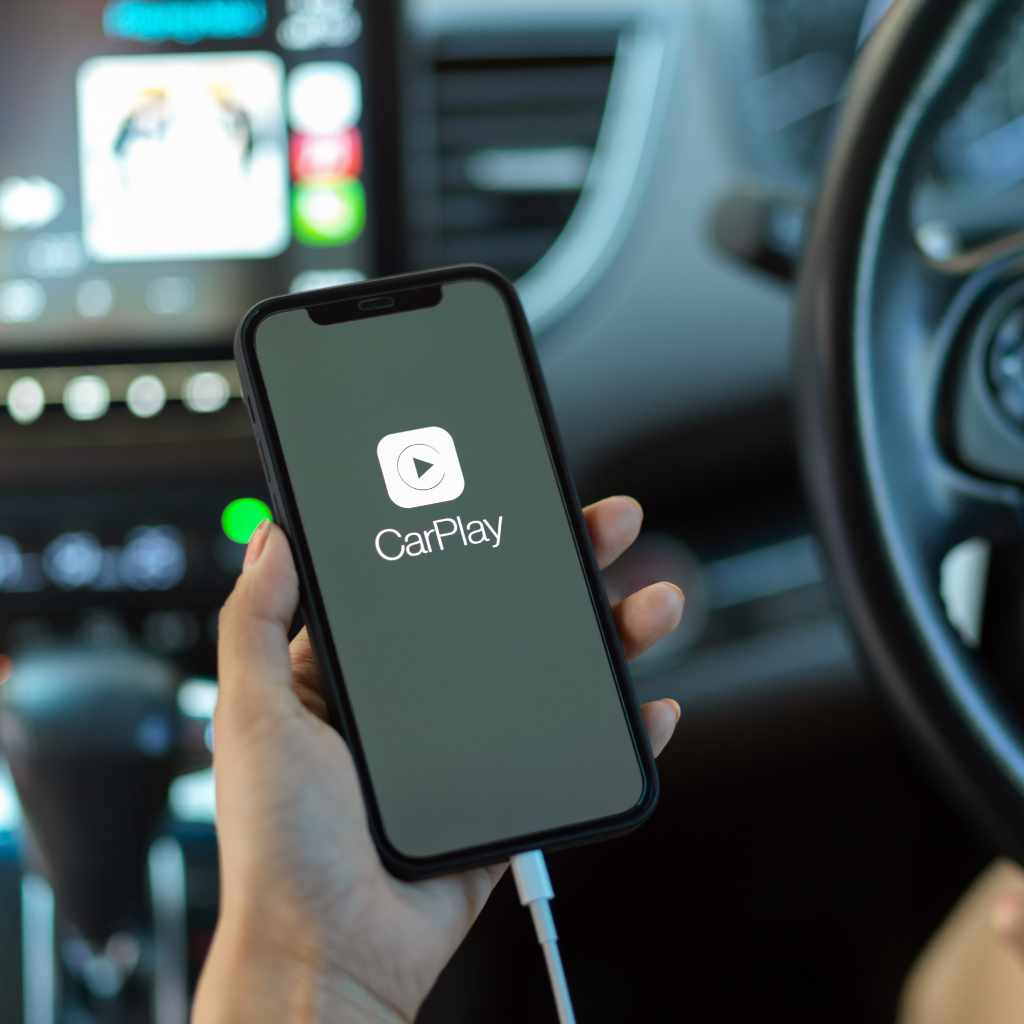
To test, look for the CarPlay icon on your car’s screen. Tap it to open the CarPlay interface. Try using Siri or opening an app like Maps. If everything works, your Wireless CarPlay is ready to use.
Troubleshooting Tips
Troubleshooting wireless Apple CarPlay can solve many common problems. Simple fixes often restore smooth use quickly. This section covers key tips to handle connection and signal issues. Follow these steps to enjoy uninterrupted CarPlay experience.
Fixing Connection Issues
Start by checking your iPhone’s Bluetooth and Wi-Fi are on. Both must be active for wireless CarPlay to work. Look for your car’s system in the Bluetooth list and connect manually if needed. Restart your car’s infotainment system to clear temporary glitches. Turn off Airplane mode if it is on.
Make sure your iPhone and car support wireless CarPlay. Some older models only support wired connections. Update your iPhone to the latest iOS version. Updates often fix bugs affecting CarPlay connections.
Improving Signal Strength
Keep your iPhone close to the car’s display unit. Distance can weaken the wireless signal and cause drops. Remove any phone cases or metal objects that block signals. Avoid placing your phone near other wireless devices that cause interference.
Park in an open area without tall buildings or trees around. These can block signals and reduce connection quality. If signal issues persist, try using a wireless charger designed for your car model.
When To Reset Devices
Reset your iPhone’s network settings if connection problems continue. This clears saved networks and Bluetooth pairings but fixes hidden issues. Reset your car’s infotainment system to factory settings if needed. This removes old data that may cause conflicts.
Only reset devices after trying other troubleshooting steps. Backup important data before resets to avoid losing information. Resets often solve stubborn connection and signal problems.
Enhancing Your Wireless Carplay Experience
Enhancing your Wireless Apple CarPlay experience makes driving safer and more fun. You can tailor the system to fit your needs and habits. Small changes improve ease of use and keep your focus on the road. Discover how to customize the interface, use voice commands, and manage notifications effectively.
Customizing Carplay Interface
Arrange apps on the CarPlay screen to find them quickly. Hide apps you do not use to reduce clutter. Choose a wallpaper that suits your style. Custom layouts help you stay organized during drives. Personal touches make your experience more comfortable.
Using Voice Commands
Talk to Siri to control CarPlay without touching the screen. Make calls, send messages, and get directions by voice. Voice commands keep your hands on the wheel and eyes on the road. Practice simple phrases to improve response speed. This feature boosts safety and convenience.
Managing Notifications
Set which alerts appear on your CarPlay display. Limit distracting messages while driving. You can mute notifications during trips for focus. Important alerts still come through so you do not miss them. Managing notifications keeps you informed without interruptions.
Frequently Asked Questions
What Devices Support Wireless Apple Carplay?
Wireless Apple CarPlay is supported on iPhones running iOS 9 or later. Compatible car models and aftermarket systems with Wi-Fi and Bluetooth also support it. Check your car’s manual or manufacturer website for specific compatibility details.
How Do I Connect Iphone To Wireless Apple Carplay?
To connect, enable Bluetooth and Wi-Fi on your iPhone. Then, pair your iPhone with your car’s infotainment system. Follow on-screen prompts to complete the wireless setup. After the first connection, CarPlay usually connects automatically.
Can I Upgrade My Car For Wireless Apple Carplay?
Yes, you can upgrade your car with aftermarket wireless CarPlay adapters or head units. These devices enable wireless connectivity if your vehicle originally supports wired CarPlay. Ensure the product is compatible with your car model before purchase.
Does Wireless Apple Carplay Affect Phone Battery Life?
Using wireless CarPlay may consume more battery than wired connections. It uses Wi-Fi and Bluetooth, which can drain your phone faster. It’s advisable to keep your phone charged or use a car charger during use.
Conclusion
Making wireless Apple CarPlay works with the right tools and steps. Start by checking your car and phone compatibility. Use a reliable adapter or connect through Bluetooth and Wi-Fi. Keep your device updated for smooth performance. Practice these steps to enjoy hands-free control while driving.
Stay safe and focused on the road. Wireless CarPlay adds convenience without extra cables. Try it today and feel the difference in your drive. Simple, useful, and easy to set up.