How to Connect an iPhone to a Car Stereo: Bluetooth, AUX, USB & CarPlay
To connect an iPhone to a car stereo that has no Bluetooth or CarPlay, use a cable: a 3.5 mm aux cable if the stereo has an aux jack, or a USB cable if the stereo lists iPhone playback in its manual. Which cable fits depends on one thing first, whether your iPhone has a Lightning or a USB-C port. This guide covers the connector check, aux and USB steps, source selection, and what to try when the iPhone says an accessory is not supported.
Choose Connection Method
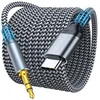 |
Best USB-C iPhone Aux Cable Pick MORELECS USB C to 3.5mm Audio Aux Cable, 3.3 ft, for Car Stereo A one-way cable from a USB-C iPhone to a car aux jack: the listing describes a built-in DAC chip, 3.3, 6.6 and 10 foot lengths, and says it does not work with iPhone 14 or older.
|
As an Amazon Associate we earn from qualifying purchases. Spec-based pick from the listing, not a hands-on test.
Start with what the stereo has on its front panel or in its manual, because the port decides the method. Bluetooth and CarPlay are easiest when the stereo has them; the wired routes below cover the rest.
| What the stereo has | iPhone method | Where to read more |
|---|---|---|
| A round 3.5 mm AUX or MP3-LINK jack | Aux cable, or the Apple adapter plus a standard aux cable | Connect Via Auxiliary Cable below |
| A USB port, with iPhone or smartphone playback in the manual | USB cable from the iPhone to that port | Use USB Connection below |
| A USB port that the manual lists only for power or storage sticks | Treat it as a charging port, not an audio input | Use USB Connection below |
| Only an FM or AM radio | FM transmitter in the 12 volt socket | See the Bluetooth, CarPlay and FM section below |
| Bluetooth or CarPlay that works | Wireless pairing or CarPlay | See the Bluetooth, CarPlay and FM section below |
Check Your iPhone Connector First
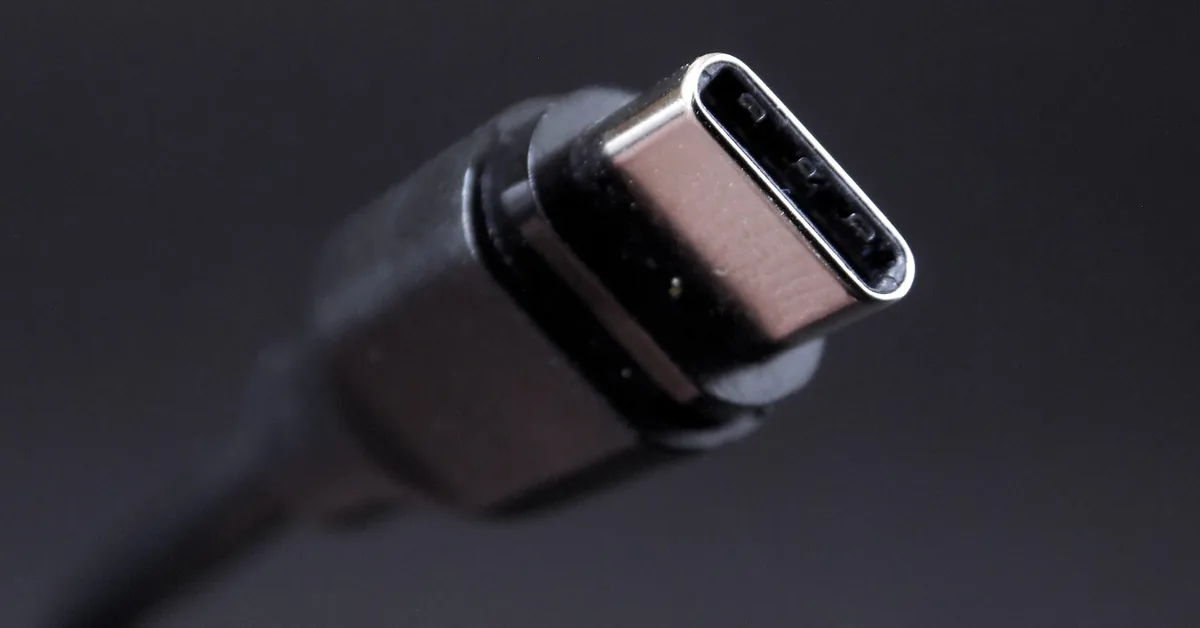
Every wired method starts with the iPhone’s own port. Per the Apple Support page on the USB-C connector (published September 17, 2026), iPhone 15 and later models have a USB-C connector. The page says the cable that comes with the iPhone supports charging and USB 2 speeds, and that non-compliant devices and cables might not work as expected. Apple also lists two audio adapters for the USB-C port: the USB-C to 3.5 mm Headphone Jack Adapter and the USB-C to Lightning Adapter.
iPhones that have a Lightning connector use the older adapter. Apple’s headphone adapter page (published September 9, 2024) says the Lightning to 3.5 mm Headphone Jack Adapter works with an iPhone, iPad or iPod touch that has a Lightning connector and needs iOS 10 or later.
| iPhone port | Adapter for 3.5 mm aux (per Apple) | Cable for a car USB port |
|---|---|---|
| USB-C (iPhone 15 and later) | USB-C to 3.5 mm Headphone Jack Adapter, or a USB-C to 3.5 mm cable | USB-C to USB-A cable, or USB-C to USB-C if the car port is USB-C |
| Lightning (earlier models with that port) | Lightning to 3.5 mm Headphone Jack Adapter, iOS 10 or later | Lightning to USB-A cable |
| 30-pin dock connector (iPhone 4S and earlier) | Not covered by the Apple pages we read | Apple 30-pin USB cable, the cable one car stereo manual names for these phones |
Connect Via Auxiliary Cable
An aux connection is the simplest wired route because it needs no software support from the stereo. The iPhone sends audio out through its connector, the cable carries it to the stereo’s 3.5 mm jack, and you pick AUX as the stereo source. Some stereos label the jack MP3-LINK instead: one Philips car audio manual, the CE152, describes that jack as the connection for the audio output socket, usually the headphone socket, of an external device.
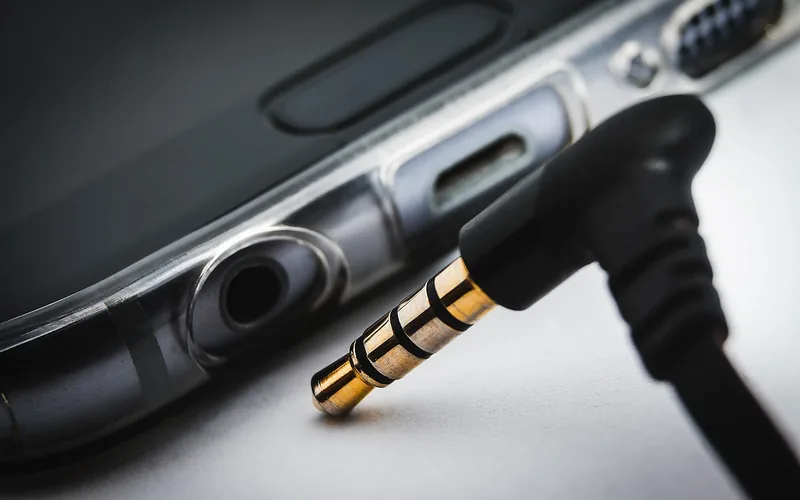
- Pick the cable by port: a USB-C to 3.5 mm cable for an iPhone 15 or later, or an Apple Lightning adapter plus a standard 3.5 mm cable for a Lightning iPhone.
- Plug the iPhone end in fully: a half-seated connector is a possible cause of one-sided or crackling sound, so push until it stops.
- Plug the other end into the stereo’s AUX jack and switch the stereo to its AUX source.
- Start playback on the iPhone and raise the iPhone volume to a high but undistorted level, then set the loudness with the stereo’s volume knob.
- Route the cable away from the pedals and gear shifter before you drive, and set the music up while parked.
The hero pick in the box above is a cable of the second type. Its listing says the cable has a built-in DAC chip, which converts the phone’s digital audio signal to analog stereo output, and that it works with USB-C phones such as the iPhone 15 and later but not with iPhone 14 or older. The same listing says it is one-way, phone to stereo only, so it will not carry a microphone for calls. These are the seller’s statements, not our test results.
Use USB Connection
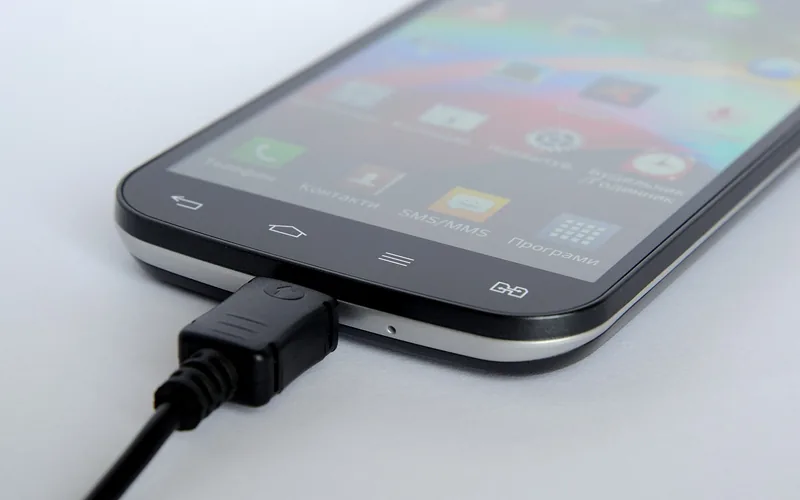
A USB cable can do two jobs: charge the iPhone, or carry audio. A car port does not always do both. Per the Apple Support page on connecting an iPhone to your car (published January 9, 2026), USB playback works with iPhone, iPad and iPod touch, and its CarPlay instructions say to plug the iPhone into the USB port marked with a CarPlay or smartphone icon. If your stereo is not a CarPlay unit, the same page tells you to check the car manual for how to connect an Apple device, which is the step most guides skip.
A real manual shows why. The Philips CE152 car audio manual has a Play from an iPod/iPhone section. It lists the supported phones as iPhone 4S, iPhone 4, iPhone 3GS and iPhone 3G, tells you to connect an Apple 30-pin USB cable to the front USB socket, and says the display shows [iPod/USB] once the system recognizes the phone. A modern iPhone is not on that list, so that stereo’s iPhone mode would not be expected to work with one. We found no printed date in the PDF text we read, so treat the list as that one unit’s, not a rule for all stereos.
Your own stereo’s manual is the deciding document. Look for these phrases in its USB section:
- iPod/iPhone or iOS device playback: the stereo can read music from the phone, and the manual names the supported models or iOS versions.
- USB storage or MP3 playback only: the port reads flash drives, so an iPhone will not play through it.
- Charging only or power output only: the port is for power, so use the aux jack, Bluetooth or an FM transmitter for audio.
- CarPlay or smartphone icon: the port is built for wired CarPlay, covered in the pairing guide linked above.
The iPhone Wired Accessories setting
iOS can also block a USB accessory until the phone is unlocked. The Apple Support page on USB and other accessories (published October 23, 2025) says to go to Settings, Privacy & Security, then Wired Accessories. On USB-C iPhones the options are Always Ask, Ask for New Accessories, Automatically Allow When Unlocked (the default) and Always Allow; on Lightning iPhones only the last two apply. If you do not unlock the phone, it will not communicate with the accessory and the accessory might not charge, though the phone still charges from a USB power adapter while locked. After you unlock it, the accessory stays connected even if the phone locks again. So unlock the iPhone before you plug it into a stereo that expects data.
Apple’s page on the USB-C to Lightning Adapter (published June 25, 2026) says it supports charging, data and audio, with data up to 480 Mbps (USB 2), and that some adapter, cable and car combinations can disrupt wired CarPlay, where a direct USB-A to USB-C cable is the fix.
Select the iPhone Source on the Stereo
A connected cable does nothing until the stereo is on the matching input. Press the source or mode button until the display shows the right name. On the Philips unit the manual describes a Select a source step, a USB or iPod/iPhone input shown as [iPod/USB], and an MP3-LINK input for the aux jack.
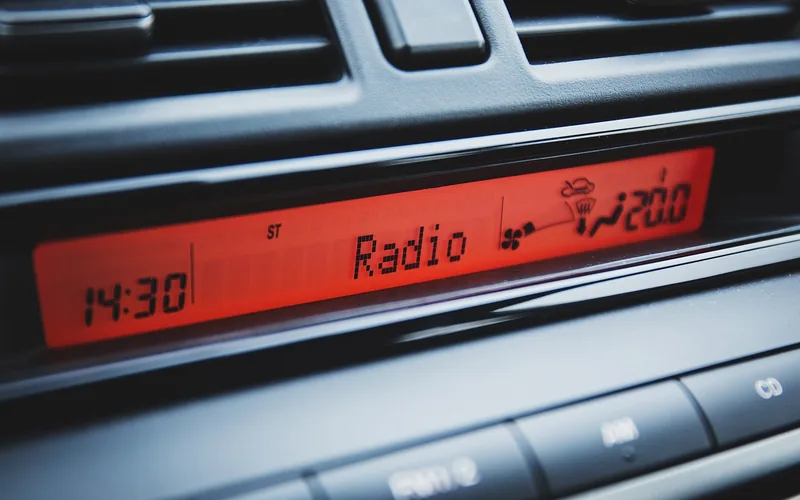
Once the right source is active, the iPhone side is simple. Start a song in Music or another audio app. Per Apple’s iPhone User Guide section on streaming audio, the Playback Destination button on the app, the Lock Screen and Control Center lets you choose where audio goes, which helps if the sound is still coming from the phone speaker. Over a wired aux connection, set the loudness with the stereo’s volume knob and skip tracks on the phone.
Bluetooth, CarPlay and FM When a Cable Will Not Work
Some situations rule out a cable: a stereo with no aux jack, a USB port that is power only, or a cable that would run across the shifter. Then step up to wireless. Our iPhone to car phone system guide covers Bluetooth pairing and CarPlay in iPhone-specific steps, and our chooser for hooking up a phone to your car compares every method in one table. For an older stereo, our older stereo guide for connecting a phone walks through what each stereo type supports, and the guide to adding Bluetooth to a car covers FM transmitters.
Troubleshoot Connection Issues
When a wired iPhone connection fails, work from the cheapest fix to the most involved one. The USB steps below follow the Apple Support page on connecting an iPhone to your car, and the iOS accessory behavior comes from the Apple Support page on USB and other accessories.
- Unlock the iPhone and leave it on the Home screen: Apple says to make sure the device is unlocked and on the Home screen for USB playback, and an accessory plugged in while the phone is locked may not communicate.
- Restart the iPhone and the car: turn the stereo off and on, then reconnect.
- Try another cable and another port: Apple lists this directly. A cable that only charges will power the phone but carry no data, and a non-compliant USB-C cable might not work as expected.
- Check the iPhone’s charging port for debris or damage and make sure the connector is fully inserted.
- Reconnect after unlocking: Apple’s accessory page says to disconnect, unlock the device and reconnect the accessory when it is not recognized. Also review Settings, Privacy & Security, Wired Accessories.
- Update the iPhone and the stereo: Apple recommends the latest iOS and the latest stereo firmware from the car maker, with update steps in the car manual.
- Try a different audio app: if Music plays but a third-party app does not, Apple says to contact that app’s developer.
If the stereo never shows a source for the iPhone, the manual is the next stop. A stereo that lists only old iPhone models, like the Philips example, will not recognize a newer phone over USB, so use the aux jack, Bluetooth or an FM transmitter.
When to Stop and Ask a Professional
- Never plug in, switch sources or choose songs while driving. Set everything up while parked; if you need a cable, route it away from the pedals and shifter.
- A hot, smelly or visibly damaged cable, adapter or port means stop using it. Replace the cable and have a shop look at the port if the damage is in the car.
- If the stereo is a factory unit tied to the dash screen, steering controls or a factory amplifier, ask the dealer or an installer before you wire in any adapter. This site cannot tell you what a specific car supports.
Frequently Asked Questions
How do I connect my iPhone to a car stereo without Bluetooth?
Use the 3.5 mm aux jack if the stereo has one: a USB-C to 3.5 mm cable for an iPhone 15 or later, or Apple’s Lightning to 3.5 mm adapter and a standard cable for a Lightning iPhone. Then switch the stereo to AUX and play music on the phone. With no aux jack, use a USB port the manual lists for iPhone playback, or an FM transmitter.
Can I connect an iPhone to a car stereo with a USB cable?
Yes, if the USB port supports iPhone playback. Apple says USB playback works with iPhone, but a port may be power only, and some stereos list only certain iPhone models, as the Philips CE152 manual does. Check the manual’s USB section and unlock the iPhone before plugging it in.
Why does my iPhone say an accessory is not supported or will not connect over USB?
Apple’s accessory page says a locked iPhone will not communicate with a USB accessory, and it may not charge the accessory. Unlock the phone, reconnect, and try another cable or port.
Do I need an adapter to use an aux cable with an iPhone?
It depends on the port. A Lightning iPhone needs Apple’s Lightning to 3.5 mm adapter, which Apple says needs iOS 10 or later. A USB-C iPhone can use Apple’s USB-C to 3.5 mm adapter or a USB-C to 3.5 mm cable. An adapter for the wrong port will not fit.
Will an aux cable let me take calls through the car stereo?
Usually not. Our pick’s listing says its cable is one-way, phone to stereo only, so calls are not carried through it. For hands-free calls use Bluetooth.
Conclusion
Match the cable to the iPhone first, then match the method to the stereo: aux for the widest compatibility, USB only when the manual lists iPhone playback, and Bluetooth or FM when neither fits. Unlock the iPhone, try a second cable, and keep the stereo firmware current before you assume anything is broken.
Products related to this article
Sponsored / affiliate links. As an Amazon Associate I earn from qualifying purchases. I may earn additional commission from eligible campaigns.