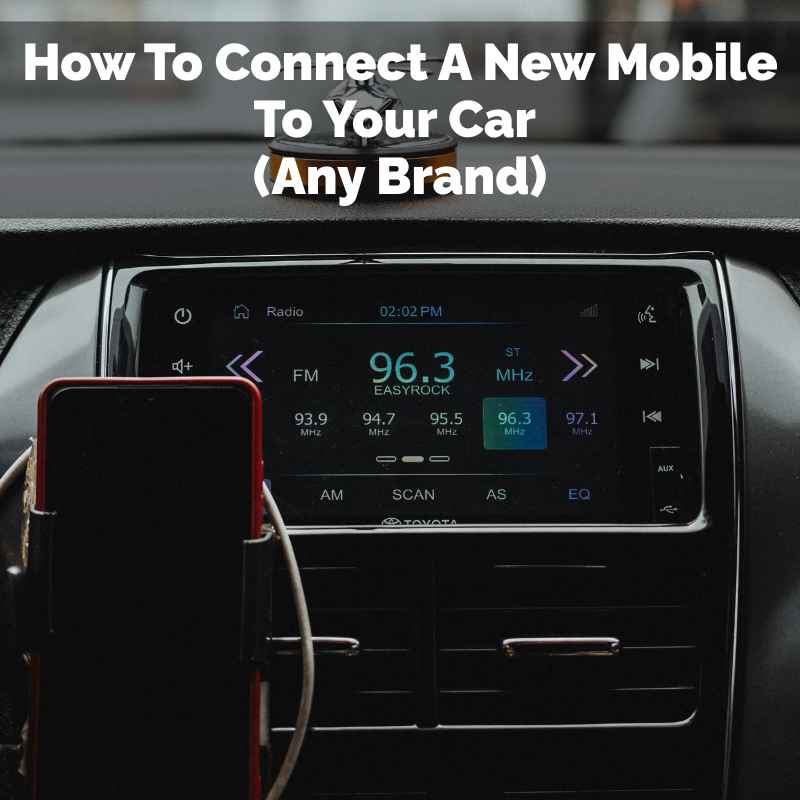
How To Connect A New Mobile To Your Car (Any Brand)
Connecting your new mobile to your car allows for safe hands-free calls, easy music playback, and GPS navigation. This guide covers common methods like Bluetooth and USB for any car brand, ensuring you can enjoy your phone’s features on the go.
Understanding Car Connection Methods
Most cars made in the last ten years offer ways to connect your phone. The most popular method is Bluetooth. It’s wireless.
This lets your phone talk to your car’s system. You can stream audio. You can also take calls without wires getting in the way.
It’s very convenient.
Another common way is using a USB cable. This often charges your phone too. It can also let your car’s system control apps.
Think music players or navigation apps. Some cars use Apple CarPlay. Others use Android Auto.
These systems mirror your phone’s screen on your car’s display. They make using phone apps safer while driving.
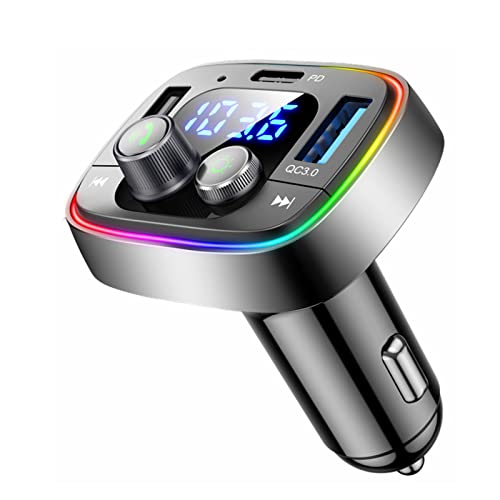
Older cars might not have these options built-in. You might need an adapter. Or you might use a separate Bluetooth speaker or car charger.
But for most modern vehicles, Bluetooth and USB are the key players. We’ll focus on these as they cover most situations. You’ll see how straightforward it can be once you know the steps.
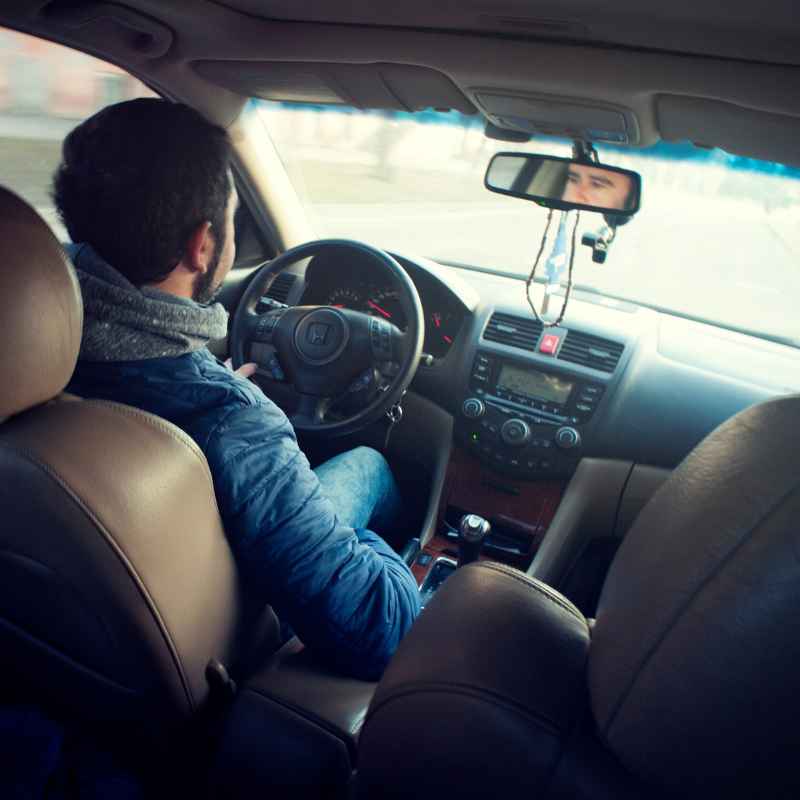
Connecting via Bluetooth: The Wireless Wonder
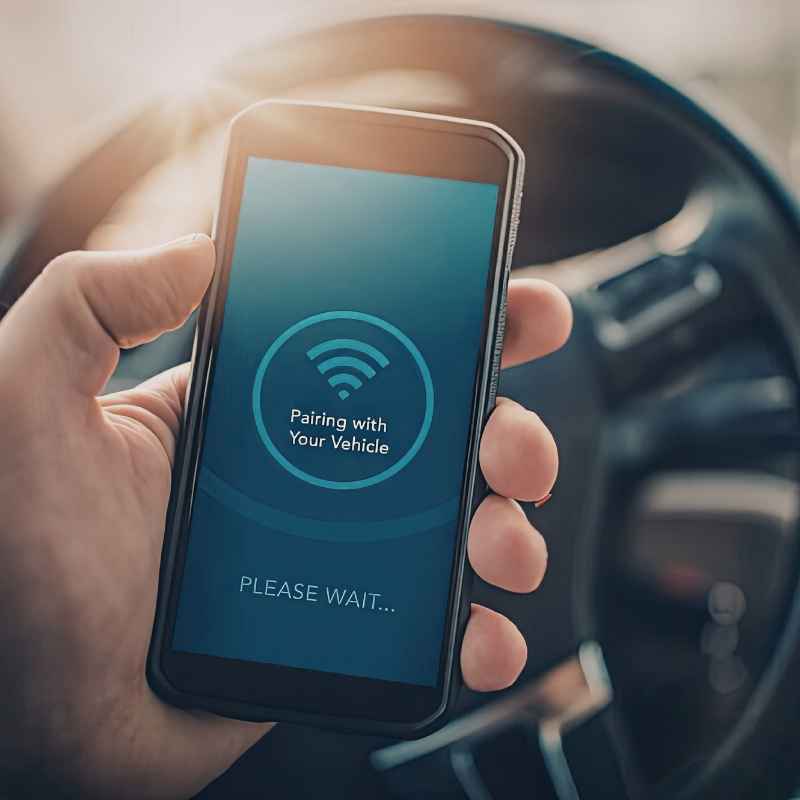
Bluetooth is like a short-range radio. It creates a temporary link between devices. Your phone and your car are the devices here.
For this to work, both your phone and your car’s system need to be able to use Bluetooth. Most new phones have it. Most cars from the last decade do too.
The first step is to turn on Bluetooth on your phone. You can usually find this in your phone’s Settings app. Look for a “Bluetooth” option.
Tap it to turn it on. You’ll see a list of nearby devices. Your phone will also become discoverable.
This means other devices can find it.
Next, you need to put your car’s system into pairing mode. This is where car brands can differ a bit. Usually, you’ll go to your car’s media or phone menu.
Look for an option like “Pair Device,” “Add Phone,” or “Bluetooth Setup.” The car’s screen will then search for your phone. It might show a list of available devices. Select your phone’s name from the list.
Your car and phone will then try to connect. You might see a message asking you to confirm a PIN code or a pairing request on both devices. They should show the same code.
If they match, confirm the pairing. Once paired, your phone will likely connect automatically whenever you get in your car. You can then stream music or make calls.
Bluetooth Pairing Checklist
- Enable Bluetooth on Phone: Go to Settings > Bluetooth and turn it on.
- Make Phone Discoverable: Ensure your phone is visible to other devices.
- Access Car’s Media/Phone Menu: Find the Bluetooth settings in your car.
- Initiate Pairing Mode: Select “Pair Device” or similar.
- Select Phone from Car’s List: Choose your phone’s name when it appears.
- Confirm Pairing Code: Match the code shown on both devices.
- Allow Permissions: Grant access for contacts and call logs if prompted.
Sometimes, the car system will show a PIN. Your phone might ask you to enter it. Or, both devices might just show a PIN to confirm.
This code is just a safety step. It makes sure you’re pairing with the correct device. It prevents random people from connecting to your car.
After successful pairing, your car might ask for permission. This is to access your contacts. It also lets it see your call history.
Allowing this is helpful. It lets you make calls from your car’s screen. You can also see who is calling.
It makes the hands-free experience much better. This whole process might take a few minutes the first time.
Using USB for a Direct Connection
Connecting via USB is often very straightforward. You’ll need a good quality USB cable. The one you use to charge your phone usually works fine.
Plug one end into your phone’s charging port. Plug the other end into a USB port in your car. These ports are often found on the dashboard or in the center console.
Once plugged in, your phone might ask what you want to do with the USB connection. You might see options like “Charging only,” “File Transfer,” or “Media Sync.” For using apps like Android Auto or Apple CarPlay, you’ll want to select the option related to file transfer or media. Sometimes, the car’s system will recognize it automatically.
If your car supports Android Auto or Apple CarPlay, this is where it gets really cool. Your car’s screen will then show a simplified version of your phone’s interface. You can use Google Maps or Waze for navigation.
You can play music from Spotify or Apple Music. You can also send and receive text messages using voice commands. It’s designed to be safe for drivers.
To use Android Auto, you need an Android phone (usually Android 6.0 or newer). You’ll also need the Android Auto app installed. For Apple CarPlay, you need an iPhone (usually iPhone 5 or newer).
Both systems work best with a wired USB connection. This ensures a stable link and also charges your phone.
USB Connection Quick Guide
Phone Screen Prompt:
- Look for a notification like “USB for.”
- Select “File Transfer” or “Media Sync”
- Avoid “Charging Only” if you want data transfer.
Car System Recognition:
- CarPlay or Android Auto should launch automatically.
- If not, check your car’s media source menu for your phone.
- Ensure the app is updated on your phone.
If your car doesn’t have built-in Apple CarPlay or Android Auto, a USB connection might still work for playing music. Your car’s stereo might show your phone as a media source. You can then control music playback directly from the car’s stereo buttons.
This is a good option if wireless isn’t available. It also keeps your phone charged.
Make sure to use a reliable USB cable. Cheap or damaged cables can cause connection issues. They might charge slowly or not transfer data at all.
It’s worth trying a different cable if you run into problems. A good cable is a small investment for a big improvement in usability.
Navigating Your Car’s Infotainment System
Every car’s screen is a little different. They are called infotainment systems. Think of it as your car’s mini computer.
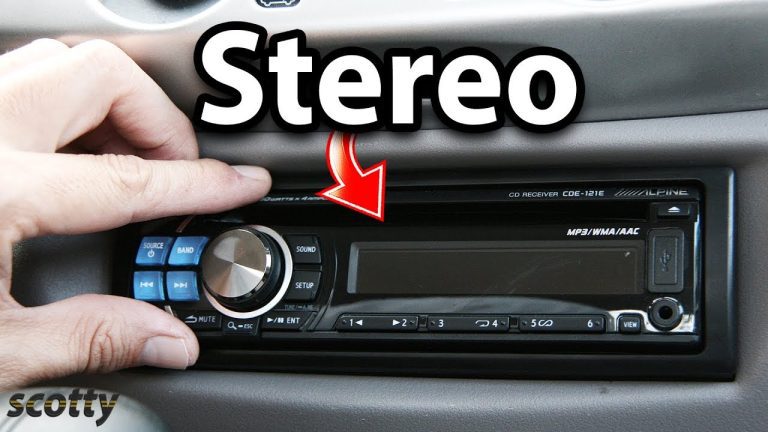
It controls the radio, navigation, and phone connections. Learning to use it is key. Most systems use touch screens.
Some have physical buttons too.
On the main screen, you’ll usually see icons for different functions. There’s typically a “Phone” icon. There’s one for “Audio” or “Media.” You might see “Navigation” if your car has it built-in.
To connect your phone, you’ll spend most of your time in the “Phone” or “Settings” menus.
In the “Phone” menu, you’ll find options for Bluetooth. You’ll also see lists of paired devices. If you’ve connected before, your phone should appear here.
If it’s not connected, you might see an option to connect it. Or you might need to go through the pairing process again.
The “Audio” or “Media” menu is where you choose your sound source. If you’re connected via Bluetooth, you’ll select “Bluetooth Audio.” If you’re using USB with Apple CarPlay or Android Auto, the system might switch to that automatically. Or you might see your phone’s app icons appear on the car’s screen.
Common Car Infotainment Icons
- Phone Icon: Usually looks like a handset. For calls and contacts.
- Music Note Icon: For radio, CD, USB, or Bluetooth music.
- Gear Icon: For system settings, Bluetooth setup, and display options.
- Navigation Arrow Icon: For GPS maps if built-in.
If your car has physical knobs and buttons, they usually control volume and tuning. Some buttons might also let you skip tracks. Voice commands are also very common now.
You can often say “Call Mom” or “Play music” to control functions. This is a big safety feature.
Don’t be afraid to explore. When you’re parked, take a few minutes to tap around. See what each button and icon does.
Your car’s owner’s manual is also a great resource. It has detailed diagrams and instructions for your specific model. It can clarify any confusing settings.
When Your Phone Won’t Connect: Troubleshooting Tips
It’s a bummer when your phone doesn’t connect. This happens to many people. The good news is, there are simple fixes.
Most connection issues are not serious problems.
First, try the simplest solution: restart both devices. Turn off your car’s engine. Then, restart your phone completely.
Turn the car back on. This can often clear temporary glitches. It’s like giving both systems a fresh start.
Next, check that Bluetooth is enabled on your phone. And make sure it’s in discoverable mode if you’re pairing. Sometimes, a phone update can turn Bluetooth off.
Or a setting might have changed. Double-check this first. It’s an easy mistake to overlook.
For Bluetooth, if your phone is already paired but not connecting, try “forgetting” the device. On your phone, go to Bluetooth settings. Find your car’s name in the list of paired devices.
Tap on it and select “Forget” or “Unpair.” Then, try pairing them again from scratch. This removes any old or corrupted connection data.
Troubleshooting Flowchart
Problem: No Connection
Step 1: Restart Everything
- Turn off car.
- Restart phone.
- Turn car back on.
Step 2: Check Settings
- Is Bluetooth ON on phone?
- Is car in pairing mode?
Step 3: Forget and Re-pair
- Remove car from phone’s Bluetooth list.
- Remove phone from car’s Bluetooth list.
- Start the pairing process over.
Step 4: Check Cable/Port (USB)
- Use a different USB cable.
- Try a different USB port in the car.
- Ensure phone is set to File Transfer/Media.
Step 5: Update Software
- Update car’s infotainment software (if possible).
- Update phone’s operating system.
If you’re using a USB connection, try a different USB cable. Some cables are only for charging. They don’t have the wires needed for data transfer.
A good quality, shorter cable often works best. Also, try a different USB port in your car. Sometimes one port works better than others.
Ensure your phone’s operating system is up to date. Likewise, check if your car’s infotainment system has any software updates available. You might need to visit your car dealer for this.
Outdated software can cause compatibility issues. These can prevent your new phone from connecting correctly.
Connecting Different Brands: The Universal Guide
While car brands have different interfaces, the core principles of connection are the same. Whether you drive a Ford, Toyota, Honda, or a luxury German car, you’ll likely use Bluetooth or USB.
For Ford vehicles, you might encounter their SYNC system. It uses Bluetooth and supports Apple CarPlay/Android Auto. The menus are usually found under “Phone” or “Settings.”
Toyota cars often feature Entune or Audio Multimedia systems. These also support Bluetooth and often Apple CarPlay or Android Auto on newer models. Look for “Phone” or “Setup” on the touchscreen.
Honda vehicles use systems like Display Audio or infotainment systems. Bluetooth pairing is typically straightforward through the “Phone” or “Settings” menu. Many Honda models now also support Apple CarPlay and Android Auto.
General Motors (GM) cars (Chevrolet, Cadillac, GMC, Buick) use systems like Chevrolet MyLink or Cadillac CUE. They have robust Bluetooth features and support Apple CarPlay/Android Auto. The connection process is usually found in the “Phone” or “Connectivity” settings.
Brand-Specific Tips (General)
Ford SYNC: Look for “Phone” > “Add Device” for Bluetooth. For CarPlay/Android Auto, plug in via USB and follow on-screen prompts.
Toyota Entune: Go to “Apps” or “Settings” and select “Bluetooth” or “Phone Projection” for CarPlay/Android Auto.
Honda Display Audio: Access “Phone” or “Settings” for Bluetooth pairing. USB connection is needed for CarPlay/Android Auto.
GM MyLink/CUE: Navigate to “Phone” or “Settings” > “Bluetooth.” For phone projection, connect via USB.
When in doubt, consult your car’s owner’s manual. It’s tailored to your specific vehicle. It will have exact steps for pairing your phone via Bluetooth.
It will also explain how to use features like Apple CarPlay or Android Auto if your car supports them.
The key is to find the “Phone,” “Bluetooth,” or “Connectivity” section in your car’s system. Once you’re there, the steps are usually very similar across most brands. It’s about making the devices discoverable and then confirming the connection.
Enhancing Your Driving Experience
Once your phone is connected, your driving experience changes. Hands-free calling means you can stay in touch safely. You can answer calls without taking your hands off the wheel.
Your car’s speakers will play the other person’s voice. You can talk using the car’s microphone.
Music streaming is another big benefit. You can access your entire music library or streaming services like Spotify. Play your favorite playlists.
The car’s controls can often manage playback. This means you don’t have to look at your phone. You can skip songs or adjust volume easily.
Navigation is perhaps the most improved feature. Using Google Maps or Waze through Apple CarPlay or Android Auto is fantastic. The directions appear on your car’s screen.
This is much safer than looking at a phone mounted on your dash. You get clear visual cues and voice prompts.
Benefits of Connected Phones
- Safety: Hands-free calls reduce distraction.
- Convenience: Easy access to music and navigation.
- Entertainment: Stream podcasts, audiobooks, and music.
- Information: Get real-time traffic updates and weather.
- Productivity: Respond to messages with voice commands.
Voice commands are a game-changer. Most systems allow you to speak commands. You can say things like “Navigate to work,” “Call Mom,” or “Play my workout playlist.” The car’s system understands your voice.
It then performs the requested action. This keeps your attention focused on the road ahead.
Remember to set up your phone connections before you start driving. It’s best to do all the pairing and configuration when your car is parked. This ensures you’re not fiddling with settings while on the move.
A few minutes of setup can make every drive smoother and more enjoyable.
When to Seek Professional Help
In most cases, connecting a phone to a car is a straightforward process. You can usually figure it out yourself. However, there are times when you might need more help.
If you’ve tried all the troubleshooting steps and your phone still won’t connect, it might be a deeper issue. This could be with your car’s infotainment system itself. Or it could be a rare compatibility problem with your specific phone model.
Your car’s owner’s manual is always the first place to look. If it doesn’t have the answer, the next step is to contact your car dealership. They have technicians who are experts on your car’s specific system.
They can diagnose complex issues. They can also perform software updates that you can’t do yourself.
When to Call the Experts
- Persistent Connection Failures: After multiple troubleshooting attempts.
- Car Infotainment System Errors: If the screen is frozen or acting strangely.
- Software Update Needs: If your car requires a dealer-installed update.
- Unusual Behavior: If the system behaves erratically even after reboots.
- Newer Phone, Older Car: Sometimes, very new phones may have compatibility quirks with much older car systems.
You can also sometimes find help through online forums specific to your car model. Many car manufacturers have online support resources. These can provide step-by-step guides and FAQs.
Sometimes other owners have faced similar issues and found solutions.
For your phone, if you suspect it’s the phone itself having trouble, contact your phone’s manufacturer support. However, most phone issues with car connectivity are software-related and can be fixed with updates or re-pairing. The car system is usually the more complex part.
Frequently Asked Questions
How do I know if my car supports Bluetooth?
Most cars made after 2010 have Bluetooth. Look for a Bluetooth symbol on your car’s stereo or dashboard. Check your car’s owner’s manual.
You can also often find this information on the manufacturer’s website by entering your car’s model and year. Sometimes, a “Phone” or “Settings” menu on your car’s screen will have a Bluetooth option.
Can I connect my phone if my car is old?
If your car is older and doesn’t have built-in Bluetooth or USB ports, you can still add connectivity. Consider a Bluetooth car adapter that plugs into your car’s aux input or cigarette lighter. You can also use a separate Bluetooth speaker for calls and music.
For navigation, you would rely on your phone’s screen.
What is the difference between Bluetooth and USB connection?
Bluetooth is wireless and good for calls and basic audio streaming. USB offers a more stable connection, charges your phone, and is required for advanced features like Apple CarPlay and Android Auto, which mirror your phone’s interface on the car screen for safer app usage.
Why does my phone keep disconnecting from the car?
This can happen for several reasons. Try restarting both devices. Ensure your phone’s Bluetooth is on and discoverable.
Try “forgetting” the car from your phone’s Bluetooth list and re-pairing. Check for software updates on both your phone and car. A weak Bluetooth signal or interference can also cause drops.
Do I need a special app for Apple CarPlay or Android Auto?
Yes. On Android phones, you need to download and install the Android Auto app from the Google Play Store. For iPhones, Apple CarPlay is usually built into the iOS operating system.
You generally don’t need to download a separate app for CarPlay, but ensure your iPhone is updated.
Can I use my phone’s GPS through my car speakers without CarPlay/Android Auto?
Yes, if your phone is connected via Bluetooth. When you start GPS navigation on your phone, it will usually route the audio prompts through your phone’s speaker. If your car’s Bluetooth audio is active, these prompts might come through your car speakers.
You can often adjust this setting on your phone. However, the visual map will not appear on your car’s screen.
Conclusion
Connecting your new mobile to your car is more accessible than ever. By understanding Bluetooth and USB options, and knowing how to navigate your car’s system, you can easily link up. Even if your car isn’t the latest model, there are ways to get your phone integrated.
This makes every drive safer and more enjoyable. Don’t let the different buttons and menus intimidate you. Take it step by step, and soon you’ll be cruising with your favorite music and hands-free calls.
Products related to this article
Sponsored / affiliate links. As an Amazon Associate I earn from qualifying purchases. I may earn additional commission from eligible campaigns.