Display Phone on Car Screen: Simple Step-by-Step Guide
Displaying your phone on your car screen enhances safety and convenience by allowing you to use navigation, music, and calls without looking down at your handheld device. This guide will walk you through the various methods, from wired connections to wireless mirroring, ensuring you can easily connect your smartphone to your vehicle’s infotainment system.
In short, displaying your phone on your car screen is achievable through USB connections, Bluetooth, or dedicated apps like Apple CarPlay and Android Auto, offering a safer and more integrated mobile experience while driving.
Key Takeaways
- Displaying your phone on your car screen is primarily done via USB cables, Bluetooth, or built-in systems like Apple CarPlay and Android Auto.
- USB connections offer stable performance and charging, while Bluetooth is convenient for audio and calls but less ideal for screen mirroring.
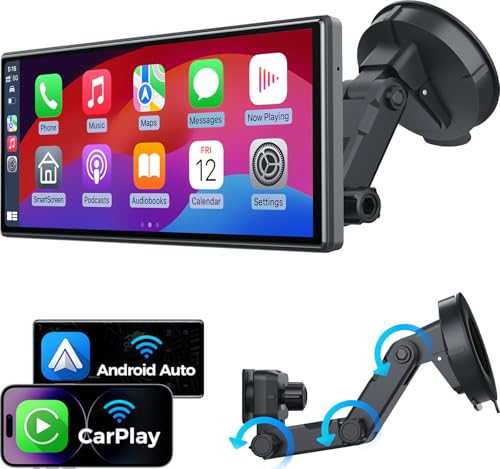
- Apple CarPlay and Android Auto are the most integrated solutions, replicating your phone’s interface on the car’s display for optimized use while driving.
- Ensure your car’s infotainment system and phone are compatible with the chosen connection method for a seamless experience.
- Always prioritize safety by setting up your phone connection before driving.
What is Phone Mirroring to a Car Screen?
Phone mirroring, also known as screen mirroring or screen casting, is a technology that allows you to display the content of your smartphone’s screen onto a larger display, such as your car’s infotainment system. This means you can see and interact with your phone’s apps, maps, music, and messages directly on your car’s dashboard. It’s designed to make using your phone’s functions easier and safer while you’re on the road.
The primary goal of phone mirroring is to consolidate your digital life into a single, accessible interface within your vehicle. Instead of fumbling with your phone, you can use your car’s touchscreen or physical controls to operate your device. This significantly reduces distractions, as your eyes can stay closer to the road ahead, and your hands can remain on the steering wheel.
How to Display Your Phone on Your Car Screen Using a USB Cable
Connecting your phone to your car screen via a USB cable is a common and reliable method. This approach typically provides a stable connection, ensures your phone stays charged, and offers the best performance for screen mirroring applications. Most modern smartphones and car infotainment systems support this type of connection.
To start, you’ll need a high-quality USB cable that is compatible with both your phone and your car’s USB port. Avoid using cheap or damaged cables, as they can lead to connection issues or slow data transfer. Once connected, your car’s system should recognize your phone.
You might need to grant permission on your phone to allow data access or screen mirroring.
- Compatibility Check: Ensure your car’s system and phone support USB mirroring or a specific protocol like Android Auto or Apple CarPlay.
- Cable Quality: Use a certified USB cable (e.g., MFi certified for iPhones) for optimal performance and durability.
- Connection Process: Plug one end into your phone and the other into the designated USB port in your car.
- Permissions: Follow on-screen prompts on both your phone and car to grant necessary permissions for data transfer and screen sharing.
- Troubleshooting: If connection fails, try a different USB cable, a different USB port in the car, or restart both devices.
This method is often the backbone for using advanced systems like Apple CarPlay and Android Auto. While it physically connects your devices, the software protocols handle the actual mirroring and app integration.
Utilizing Bluetooth for Phone Integration
Bluetooth is a wireless technology that allows for short-range data exchange between devices. In cars, it’s most commonly used for hands-free calling and streaming audio. While not ideal for full screen mirroring, it’s a convenient way to connect your phone for essential functions.
Pairing your phone via Bluetooth is usually straightforward. You’ll typically find a Bluetooth menu in your car’s infotainment system and in your phone’s settings. Once paired, you can make and receive calls using your car’s speakers and microphone, and play music or podcasts from your phone through the car’s audio system.
| Feature | Pros | Cons |
|---|---|---|
| Hands-Free Calling | Convenient, safer than handheld calling. | Limited functionality beyond calls. |
| Audio Streaming | Easy access to music, podcasts, and audiobooks. | Requires separate controls on phone or car. |
| Wireless Connection | No cables needed, clutter-free. | Can be prone to interference; not suitable for video mirroring. |
While Bluetooth is excellent for audio and calls, it doesn’t display your phone’s interface on the car screen. For that, you’ll need more advanced solutions.
What is Apple CarPlay?
Apple CarPlay is a system developed by Apple that allows iPhone users to connect their device to a compatible car’s infotainment system. It essentially mirrors a simplified version of your iPhone’s interface onto the car’s display, prioritizing driving-safe apps like Maps, Music, Phone, Messages, and podcasts.
CarPlay is designed with a focus on safety and ease of use. Its interface features larger icons and simpler menus, making it easier to interact with while driving. You can control CarPlay using your car’s touchscreen, physical buttons, knobs, or voice commands via Siri.
This integration ensures you can access essential phone functions without taking your eyes off the road for extended periods.
- Access to Apps: Supports core apps like Maps, Music, Phone, Messages, Podcasts, and a growing list of third-party apps (e.g., Spotify, WhatsApp).
- Voice Control: Integrated Siri support allows for hands-free operation for navigation, sending messages, making calls, and controlling music.
- Interface: Features a simplified, icon-based dashboard optimized for driving.
- Connection: Primarily connects via USB cable, though some newer vehicles support wireless CarPlay.
- Compatibility: Requires an iPhone 5 or later and a CarPlay-compatible car.
How to Use Apple CarPlay
Getting Apple CarPlay up and running is a straightforward process. First, ensure your iPhone is running iOS 7.1 or later and that your car is equipped with CarPlay compatibility. Most modern vehicles come with this feature built-in, or it can be an aftermarket addition.
Once you’ve confirmed compatibility, connect your iPhone to your car’s USB port using a certified Lightning cable. Your iPhone will prompt you to allow CarPlay access. On your car’s infotainment screen, the CarPlay icon should appear.
Tap it to launch the interface. If you have a wireless CarPlay-compatible vehicle, you’ll need to pair your iPhone via Bluetooth first, and then a prompt may appear to initiate CarPlay.
- Check Compatibility: Verify your iPhone and car support Apple CarPlay.
- Connect Your iPhone: Plug your iPhone into the car’s USB port using a Lightning cable. For wireless, pair via Bluetooth first.
- Grant Permissions: Allow CarPlay access on your iPhone when prompted.
- Launch CarPlay: Tap the CarPlay icon on your car’s infotainment display.
- Use Siri: Press and hold the voice command button on your steering wheel or say “Hey Siri” to control functions hands-free.
You can customize the layout of your CarPlay apps by going into your iPhone’s Settings > General > CarPlay. This allows you to arrange the apps in the order you prefer.
What is Android Auto?
Android Auto is Google’s solution for connecting your Android smartphone to a car’s infotainment system. Similar to Apple CarPlay, it projects a simplified, driving-optimized version of your phone’s interface onto the car’s screen. It provides access to navigation, music, communication apps, and other driving-friendly applications.
Android Auto is designed to minimize distractions and maximize convenience while driving. Its interface features large icons, clear text, and a straightforward layout. You can control Android Auto using your car’s touchscreen, steering wheel controls, or voice commands through Google Assistant.
This allows drivers to manage essential tasks without compromising their attention to the road.
- App Integration: Works with Google Maps, Waze, Spotify, WhatsApp, Google Assistant, and many other compatible apps.
- Voice Commands: Powered by Google Assistant, allowing for hands-free control of navigation, calls, texts, and music playback.
- User Interface: Features a clean, intuitive dashboard that adapts to different screen sizes and aspect ratios.
- Connection: Typically connects via USB, with increasing support for wireless Android Auto in newer vehicles.
- Compatibility: Requires an Android phone running Android 6.0 (Marshmallow) or higher and an Android Auto-compatible car.
How to Use Android Auto
To use Android Auto, you’ll first need an Android smartphone running Android 6.0 (Marshmallow) or later. Ensure your car’s infotainment system is compatible with Android Auto. Most new vehicles offer this feature, and it can also be added via aftermarket head units.
Connect your Android phone to your car’s USB port using a reliable USB cable. You may need to download the Android Auto app from the Google Play Store if it’s not pre-installed on your phone (newer Android versions have it integrated). Follow the on-screen prompts on both your phone and car to grant permissions and complete the setup.
For wireless Android Auto, your phone and car must both support it, and you’ll typically pair via Bluetooth first.
- Check Requirements: Confirm your Android phone meets the minimum OS version and your car supports Android Auto.
- Connect Your Phone: Plug your phone into the car’s USB port. For wireless, pair via Bluetooth and follow the on-screen instructions.
- Grant Permissions: Accept the terms and conditions and grant the necessary permissions on your phone.
- Launch Android Auto: The Android Auto interface should appear on your car’s screen.
- Use Google Assistant: Say “Hey Google” or press the voice command button on your steering wheel for hands-free control.
You can customize the app order within Android Auto by accessing its settings on your phone.
What are Other Screen Mirroring Methods?
Beyond the integrated systems like Apple CarPlay and Android Auto, there are other methods for mirroring your phone’s screen to your car display, though they often come with limitations or require specific hardware.
Some cars offer proprietary mirroring solutions. These are often specific to the car manufacturer and may only work with certain phone brands or models. These can be less standardized than CarPlay or Android Auto and might not offer the same level of safety features or app compatibility.
Additionally, some aftermarket head units come with built-in screen mirroring capabilities that can work with various Android apps, allowing you to display your phone’s screen directly.
- Manufacturer-Specific Apps: Some car brands develop their own apps (e.g., MirrorLink) that allow limited phone integration.
- Aftermarket Head Units: Many third-party car stereos include built-in screen mirroring features that can be activated via USB or Wi-Fi.
- HDMI Adapters: For vehicles with an HDMI input, you can use an HDMI adapter for your phone to mirror its screen directly. This is less common in cars.
- Wireless Mirroring Dongles: Devices like Miracast or proprietary dongles can enable wireless screen mirroring, but compatibility can be an issue.
- Limitations: These methods may lack the user-friendly interface, safety features, and app support of CarPlay and Android Auto.
| Feature | USB Connection (General) | Bluetooth | Apple CarPlay / Android Auto | Other Mirroring Apps/Methods |
|---|---|---|---|---|
| Screen Display | Possible with specific apps or systems. | No. Only audio and call data. | Yes, optimized interface. | Yes, but can be less stable or compatible. |
| Charging | Yes. | No. | Yes (via USB connection). | Varies; often requires USB for power. |
| Safety Features | Depends on the app used. | Hands-free calls. | High, with simplified UI and voice control. | Lower, can be more distracting. |
| App Support | Limited to what the car system supports. | Audio apps only. | Specific list of optimized apps. | Potentially full phone mirroring, but not driving-optimized. |
| Setup Complexity | Moderate. | Easy. | Easy to Moderate. | Moderate to High. |
When choosing a mirroring method, consider your phone’s operating system, your car’s capabilities, and your primary needs while driving.
How to Ensure Compatibility
Ensuring your phone and car are compatible is crucial for a successful connection. The most important factor is the infotainment system in your vehicle. Does it support Apple CarPlay, Android Auto, or a specific mirroring protocol?
Check your car’s owner’s manual or the manufacturer’s website for details on infotainment system features. For smartphones, make sure your device runs a recent enough operating system. For instance, iPhones need to be iPhone 5 or newer for CarPlay, and Android phones generally need Android 6.0 or higher for Android Auto.
- Check Your Car’s Manual: Look for mentions of “Apple CarPlay,” “Android Auto,” “screen mirroring,” or “smartphone integration.”
- Manufacturer Website: Car manufacturers often have detailed specs for their infotainment systems.
- Phone Specifications: Verify your iPhone or Android phone meets the OS requirements for CarPlay or Android Auto.
- USB Port Functionality: Ensure the USB port in your car is capable of data transfer, not just charging. Some cars have dedicated ports for smartphone integration.
- Software Updates: Keep both your phone’s operating system and your car’s infotainment system software up to date.
- Third-Party Apps: If using other mirroring apps, check their specific compatibility lists for phones and car head units.
If your car is older and doesn’t have built-in smartphone integration, you might consider an aftermarket head unit that offers these features.
Important: Always set up your phone connection before you start driving. Adjusting settings or troubleshooting while on the move can be extremely dangerous.
Common Mistakes to Avoid
Users often encounter issues when trying to connect their phones to car screens due to common mistakes. Being aware of these can save you time and frustration.
One of the most frequent errors is using the wrong type of USB cable. Not all USB cables are created equal; some are only for charging and cannot transfer data, which is essential for screen mirroring. Another mistake is not granting the necessary permissions on the phone or car system, which prevents the connection from establishing.
- Using the Wrong USB Cable: Opt for high-quality data-transfer cables, not just charging cables.
- Forgetting Permissions: Always grant requested access on both your phone and car screen.
- Outdated Software: Ensure your phone’s OS and car’s infotainment system are updated.
- Incorrect USB Port: Some cars have specific USB ports designated for smartphone integration.
- Bluetooth Interference: If using wireless connections, ensure other Bluetooth devices aren’t causing interference.
- Not Restarting Devices: A simple restart of your phone and car system can often resolve connection glitches.
Warning: Never attempt to operate complex phone functions or adjust settings while your vehicle is in motion. Pull over to a safe location if you need to make significant changes.
Frequently Asked Questions
What is the difference between screen mirroring and Apple CarPlay/Android Auto?
Screen mirroring generally displays your phone’s entire interface on the car screen, which can be distracting and is often not optimized for driving. Apple CarPlay and Android Auto project a simplified, driving-optimized interface that prioritizes safety and ease of use for specific apps like navigation, music, and communication.
Can I use my phone’s apps that are not supported by CarPlay or Android Auto?
Generally, no. Apple CarPlay and Android Auto only allow access to apps that have been specifically designed and approved by Apple and Google for in-car use. This is a safety measure to prevent drivers from being overwhelmed by too many options.
However, the list of supported apps is continually growing.
Do I need a data plan for Apple CarPlay or Android Auto?
Yes, many functions within Apple CarPlay and Android Auto require a data connection. Navigation apps like Google Maps and Waze, streaming music services, and online messaging all consume data. If you have a limited data plan, consider using offline maps or pre-downloaded content where possible.
How can I update my car’s infotainment system for better phone integration?
Check your car manufacturer’s website or contact your dealership. Updates are often provided via USB drive or through the dealership service center. Keeping your car’s software updated can improve performance, add new features, and enhance compatibility with newer phone models and operating system versions.
Is wireless Apple CarPlay or Android Auto as reliable as a wired connection?
Wireless connections are convenient but can sometimes be less reliable than wired ones, especially in areas with a lot of wireless interference. Wired connections generally offer a more stable connection, better battery charging, and may reduce latency. However, for most users, modern wireless implementations are quite robust and offer a seamless experience.
Final Thoughts
Displaying your phone on your car screen significantly enhances your driving experience, offering safer access to navigation, music, and communication. Whether you choose the integrated power of Apple CarPlay or Android Auto, or a simple USB connection, ensuring compatibility and prioritizing safety through proper setup are key. By following these guidelines, you can enjoy a more connected and convenient journey.
Products related to this article
Sponsored / affiliate links. As an Amazon Associate I earn from qualifying purchases. I may earn additional commission from eligible campaigns.