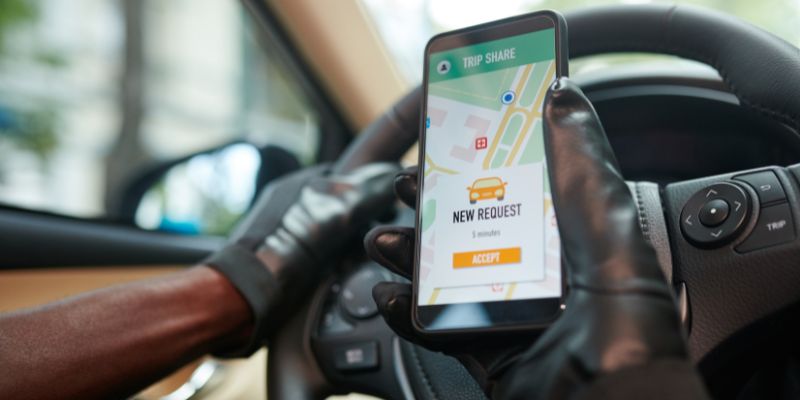
I love using my phone’s apps on my car’s screen!
Last summer, I drove to a family picnic and wanted to use my phone’s map app on my car’s big screen. Figuring out how to mirror phone to car screen was a game-changer! It made navigation easy and kept my hands free. In this article, I’ll share simple steps to mirror your phone to your car’s screen. Whether you’re new to this or a tech pro, you’ll find clear tips and tricks. I’ll explain what you need, easy methods, and mistakes to avoid. Let’s make your drives safer and more fun!
What Is Phone-to-Car Screen Mirroring?
Screen mirroring lets your phone’s display show on your car’s screen. It’s like putting your phone’s apps, maps, or music on a bigger screen for easy use while driving.
Why Mirror Your Phone?
Mirroring helps you stay safe by keeping your eyes on the road. You can use navigation apps, play music, or take calls without touching your phone.
How Does It Work?
Your phone connects to your car’s system using cables or wireless tech like Apple CarPlay or Android Auto. It sends your phone’s screen to the car’s display.
Tools You Need to Mirror Your Phone
You don’t need much to start mirroring. Here’s what you’ll likely need:
- A smartphone (iPhone or Android).
- A car with a compatible screen (check your car’s manual).
- A USB cable or wireless connection (like Bluetooth or Wi-Fi).
- Apps like Apple CarPlay, Android Auto, or MirrorLink.
Tip: Always check your car’s manual to see if it supports mirroring. Some older cars may need extra devices.
Table 1: Common Tools for Phone Mirroring
| Tool | Description | Cost |
|---|---|---|
| USB Cable | Connects phone to car for wired mirroring | $5-$20 |
| CarPlay/Android Auto | Built-in car systems for mirroring | Free (if car supports) |
| Ottocast Device | Wireless adapter for older cars | $50-$100 |
Caption: Basic tools to mirror your phone to your car’s screen.
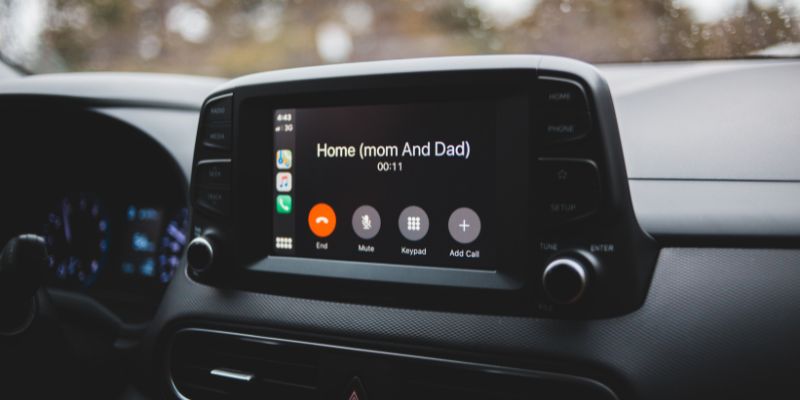
How to Mirror Phone to Car Screen: Step-by-Step
Let’s walk through the easiest ways to mirror your phone. I’ll cover both iPhone and Android methods.
For iPhone Users: Apple CarPlay
Apple CarPlay is a super easy way to mirror your iPhone. Here’s how I set it up in my car:
- Plug your iPhone into your car’s USB port with a Lightning cable.
- Look for the CarPlay icon on your car’s screen. Tap it.
- If prompted, unlock your iPhone and allow CarPlay.
- Your phone’s apps (like Maps or Music) will appear on the car’s screen.
Tip: For wireless CarPlay, pair your iPhone via Bluetooth in your car’s settings.
For Android Users: Android Auto
Android Auto works like CarPlay but for Android phones. Here’s what I did with my friend’s Android:
- Download the Android Auto app from the Google Play Store.
- Connect your phone to your car with a USB cable.
- Follow the car’s screen prompts to set up Android Auto.
- Your phone’s screen will mirror to the car’s display.
Tip: Some cars support wireless Android Auto. Check your car’s settings for Wi-Fi pairing.
Using MirrorLink for Older Phones
MirrorLink is another option for some cars and phones. It’s less common but works for older devices.
- Check if your car and phone support MirrorLink (visit MirrorLink’s website).
- Install the MirrorLink app on your phone.
- Connect via USB or Bluetooth.
- Select MirrorLink on your car’s screen.
Note: MirrorLink stopped updates in 2023, so it’s not ideal for new phones.
Table 2: Comparing Mirroring Methods
| Method | Phone Type | Connection | Best For |
|---|---|---|---|
| Apple CarPlay | iPhone | USB/Wireless | Newer cars, iPhone users |
| Android Auto | Android | USB/Wireless | Android users, modern cars |
| MirrorLink | Older phones | USB/Bluetooth | Older cars/phones |
Caption: Compare popular ways to mirror your phone to your car.
Benefits of Mirroring Your Phone
Mirroring makes driving safer and more fun. Here are my favorite perks:
- Big screen navigation: Maps are easier to see on your car’s display.
- Hands-free control: Use voice commands to play music or call friends.
- Better entertainment: Stream music or podcasts safely.
Drawbacks to Watch Out For
Mirroring isn’t perfect. Here are some issues I’ve faced:
- Some cars need expensive adapters for wireless mirroring.
- Older phones may not work with new car systems.
- Battery drain can happen with constant mirroring.
Tip: Keep a charger in your car to avoid battery issues.
Alternative Ways to Connect Your Phone
If your car doesn’t support CarPlay or Android Auto, try these options:
- Bluetooth Audio: Stream music without full mirroring.
- Aux Cable: Connect your phone for audio-only playback.
- Aftermarket Devices: Devices like Ottocast add mirroring to older cars.
Visual Idea: A diagram showing a phone connected to a car via USB or wireless for CarPlay/Android Auto.
My Top Tips for Easy Mirroring
From my own trial and error, here’s what works best:
- Check compatibility first. Not all cars or phones support every method.
- Use a good cable. Cheap cables can cause connection issues.
- Update your phone. New software fixes mirroring bugs.
Common Mistakes to Avoid
I’ve made these slip-ups, so you don’t have to:
- Forgetting to unlock your phone: Some systems need it unlocked to start.
- Using outdated apps: Update CarPlay or Android Auto regularly.
- Ignoring car settings: Check your car’s manual for mirroring options.
Table 3: Troubleshooting Mirroring Issues
| Problem | Cause | Fix |
|---|---|---|
| No connection | Bad cable | Try a new USB cable |
| Apps don’t show | Outdated software | Update phone and car system |
| Laggy mirroring | Weak signal | Move closer to car’s Wi-Fi |
Caption: Quick fixes for common phone mirroring problems.
Safety Tips for Mirroring While Driving
Mirroring is awesome but stay safe. I learned this the hard way:
- Set up mirroring before you drive.
- Use voice commands to avoid touching the screen.
- Don’t watch videos while driving—it’s dangerous and illegal in many places.
Visual Idea: A simple chart showing safe vs. unsafe mirroring actions (e.g., voice commands vs. texting).
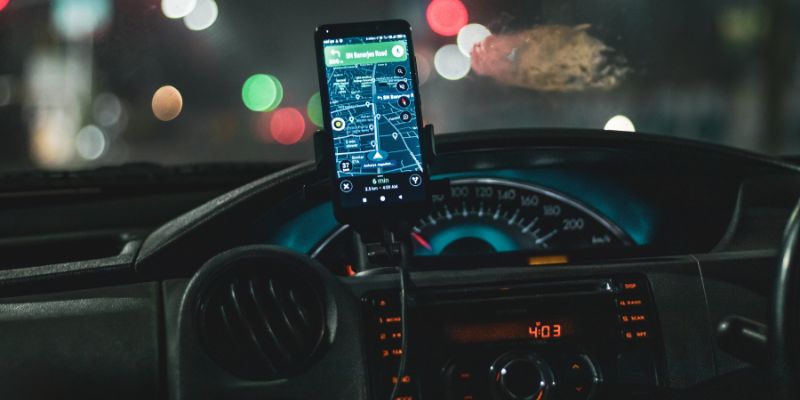
Personal Story: My Mirroring Journey
When I got my first car with a big screen, I was thrilled but confused. I tried mirroring my iPhone using a cheap cable, and it kept disconnecting! After some research, I bought a better cable and updated my phone. Now, I use CarPlay to play music and navigate on every trip. It’s like having a mini-computer in my car!
Visual Idea: A screenshot mockup of a car screen showing a navigation app via CarPlay.
Conclusion
Mirroring your phone to your car’s screen is easy and makes driving better. You can use maps, music, or calls safely with tools like CarPlay or Android Auto. Try the steps I shared, and avoid common mistakes like using a bad cable. Start with a simple setup, and soon you’ll love the big-screen experience. Have fun trying it out! Share your favorite mirroring tips in the comments or tell a friend about this trick. Safe driving!
Frequently Asked Questions
How Do I Know If My Car Supports Mirroring?
Check your car’s manual or look for CarPlay, Android Auto, or MirrorLink in the infotainment settings. Most cars made after 2016 support at least one of these.
Can I Mirror My Phone Without a Cable?
Yes, if your car supports wireless CarPlay or Android Auto. Pair your phone via Bluetooth or Wi-Fi in your car’s settings.
Why Won’t My Phone Connect to My Car?
It could be a bad cable, outdated software, or incompatible systems. Try a new cable, update your phone, and check your car’s manual.
Is Mirroring Safe While Driving?
Mirroring is safe if you use voice commands and set it up before driving. Avoid touching the screen or watching videos to stay focused.
Can I Mirror Videos to My Car Screen?
Some systems block video mirroring for safety. You can use apps like YouTube via Ottocast, but only when parked.
What If My Car Doesn’t Support Mirroring?
Buy an aftermarket device like Ottocast or upgrade your car’s head unit to support CarPlay or Android Auto.
How Much Does Mirroring Cost?
Basic mirroring with CarPlay or Android Auto is free if your car supports it. Wireless adapters cost $50-$100. Cables are $5-$20.