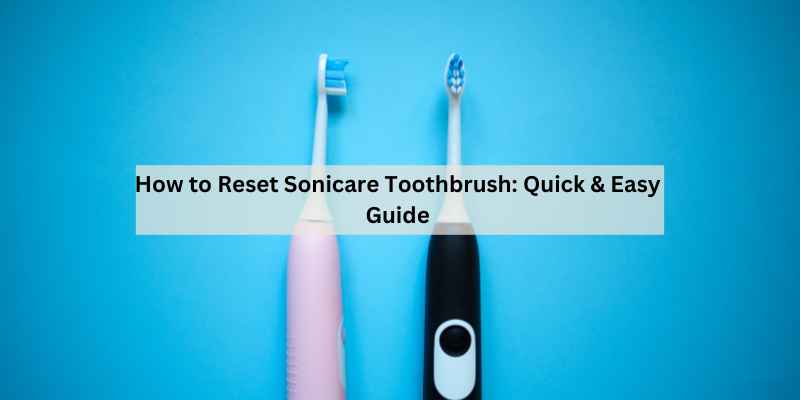
How To Reset Sonicare Toothbrush
Your Sonicare starts acting up. The handle vibrates weakly, the brush head light blinks amber even after you swapped in a fresh head, or the app keeps losing connection. Before you toss it in a drawer or buy a new one, try a reset. Most Sonicare issues aren’t hardware failures — they’re software glitches or simple memory errors that a reset clears in under a minute.
This guide walks you through every reset method, from the universal button sequence to model-specific combos. You’ll also learn how to reset the brush head reminder, fix Bluetooth pairing, and what to do when a standard reset fails. I’ll show you how to tell the difference between a reset and a factory restore, so you don’t wipe your settings when you only needed to clear a blinking light.

PDAPTMAG
Replacement Charger Base for Philips Sonicare Electric…
- 1. Perfect Replacement: Output power is consistent with the original charger base, perfect replacement for the HX6100 charging bas…
- 2. Waterproof Design: Inner of this charger made with premium and environmental plastic material, the surface made of insulated AB…
- 3. Easy to travel: This charger supports AC 110-220V voltage input, which can be used in most countries, making your travel more c…
If your charger base has seen better days, a reliable replacement like the PDAPTMAG replacement charger base keeps your Sonicare powered up without the original’s price tag. It works with most HX3000 through HX9000 series models and supports dual voltage for travel.
Why You Might Need to Reset Your Sonicare
Resets fix specific symptoms, not random ones. Here’s what a reset can solve:
- Blinking or flashing lights — especially the green or amber brush head light that won’t turn off.
- Weak vibration or no vibration at all — the motor runs but feels sluggish, or the handle is completely dead.
- App connection problems — your Sonicare won’t pair with the Philips app, or it drops connection mid-brush.
- Erratic behavior — the brush starts on its own, changes modes without input, or gets stuck in one mode.
- After a battery drain — the handle died completely and now behaves strangely when recharged.
Note what a reset does not fix: physical damage, a dead battery that won’t hold a charge, or a broken charging coil. If your handle fell in water or the charging pins are corroded, no button sequence will save it.
Before You Start: Identify Your Model (and Find the Model Number)
Your model number is printed on the handle, near the bottom. Look for a silver or white label with “HX” followed by four digits — like HX9332 or HX6912. Some newer models print the number directly on the plastic, so check around the power button too.
If you can’t find the number, check the box or your Amazon order history. The model number matters because reset sequences differ. A DiamondClean uses a different combo than an Essence.
Here’s a quick reference for the main families:
| Series | Common Models | Reset Method |
|---|---|---|
| DiamondClean | HX9332, HX9352, HX9362 | Hold power button for 10 seconds |
| DiamondClean Smart | HX9924, HX9954, HX9974 | Hold power button for 10 seconds, then re-pair via app |
| ProtectiveClean | HX6803, HX6817, HX6877 | Hold power button for 10 seconds |
| EasyClean | HX6511, HX6530 | Hold power button for 10 seconds |
| HealthyWhite | HX6711, HX6730, HX6912 | Hold power button for 10 seconds |
| FlexCare | HX6911, HX6932 | Hold power button for 10 seconds |
| Essence | HX5411, HX5611 | Hold power button for 5 seconds, release, then press again |
Some older models, like the original FlexCare, use a different reset. If your model isn’t listed, the universal method below works for most Sonicare handles made after 2026.
The Universal 5-Step Reset (Works on Most Models)
This is the first thing to try, regardless of your model. It clears the handle’s memory without erasing your preferred modes.
- Unplug the charger base from the wall.
- Remove the brush head from the handle.
- Press and hold the power button for 10 seconds. You might feel a slight vibration or see a light flash — that’s normal.
- Release the button and wait 5 seconds.
- Reattach the brush head, plug the charger back in, and place the handle on the base.
That’s it. The handle should power on normally. If the blinking light persists, move on to the model-specific instructions below.
One thing I’ve noticed: this reset works best when the handle is off the charger. Resetting while charging can interrupt the power flow and leave the handle in a weird state where it won’t respond to buttons at all.
Model-Specific Reset Instructions
DiamondClean and DiamondClean Smart
DiamondClean handles have a touch-sensitive power button, which makes them a bit finicky. Press and hold the button for 10 seconds. You’ll see the battery light flash — that confirms the reset. Release and wait for the handle to power off completely.
For DiamondClean Smart models with Bluetooth, you’ll need to re-pair with the app after resetting. Open the Philips Sonicare app, go to Settings, find “Add a device,” and follow the pairing prompts. The handle should appear within 30 seconds.
ProtectiveClean and EasyClean
These models use the same 10-second hold, but there’s a quirk. If the brush head reminder light is blinking, you might need to hold the button for 15 seconds instead. That extra 5 seconds clears the reminder timer along with the general memory.
EasyClean models (like the HX6511) sometimes respond to a 5-second hold followed by a quick press. Try the 10-second hold first, then the 5+press if it doesn’t work.
HealthyWhite and FlexCare
HealthyWhite handles (HX6711, HX6730) reset with the standard 10-second hold. FlexCare models are slightly different — they need a 10-second hold, but you must do it while the handle is on the charger. Unplug the charger first, then hold the button.
I’ve seen conflicting advice about FlexCare, so test both ways if the first attempt fails.
Essence and Essence+
Essence models are the simplest. Press and hold the power button for 5 seconds, release, then press it again quickly. The handle will vibrate once to confirm. No need to unplug anything.
If your Essence has a replaceable battery (some do), a reset won’t help if the battery itself is dead. You’ll need to replace the battery or the handle.
How to Reset the Brush Head Replacement Light
The brush head reminder light is a separate system from the main handle memory. It tracks how long you’ve used the current brush head and lights up when it’s time to replace it — usually after 3 months of normal use.
Here’s the logic: a green light means the head is fine. An amber or orange light means it’s time to swap it. A blinking amber light means you’re overdue.
To reset the reminder after installing a new brush head:
- With the handle off, press and hold the power button for 10 seconds.
- Release when the light flashes or the handle vibrates.
- Place the handle on the charger for a few seconds.
- Remove it and power on. The light should be gone.
If the reminder light stays on, the handle might not have registered the new brush head. Take the head off, wipe the metal shaft with a dry cloth, and reattach it firmly. Then repeat the reset.
One caveat: some users report the reminder light returns after a few days. That’s usually a sign the brush head sensor is dirty, not that the reset failed. Clean the shaft and try again.
How to Reset Bluetooth Pairing (App-Connected Models)
App-connected Sonicare models (DiamondClean Smart, ProtectiveClean 6100, 6300) use Bluetooth to sync your brushing data. If the app shows “device offline” or won’t connect, a pairing reset is the fix.
- Open the Philips Sonicare app on your phone.
- Go to Settings and select “Remove device” or “Forget this device.”
- Turn off Bluetooth on your phone.
- On the toothbrush, hold the power button for 10 seconds to clear the handle’s Bluetooth memory.
- Turn Bluetooth back on and open the app.
- Select “Add a device” and follow the prompts.
This usually takes under 2 minutes. If the handle doesn’t appear, check that it’s fully charged — a low battery can prevent Bluetooth discovery.
A factory restore is different from a pairing reset. A pairing reset only clears the Bluetooth connection. A factory restore wipes all your settings, including personalized modes and brush head reminders. Use a factory restore only when nothing else works.
Troubleshooting: What to Do If the Reset Doesn’t Work
You’ve tried the universal reset, the model-specific combo, and the brush head light is still blinking. Don’t panic. There are two more things to try.
Hard Reset (Drain and Recharge)
A hard reset drains the handle completely, which clears all residual charge from the internal capacitors. This often fixes issues that button resets can’t touch.
- Unplug the charger.
- Turn the handle on and let it run until the battery dies completely. This can take 20-30 minutes if the battery is mostly charged.
- Leave the handle off the charger for 24 hours. Yes, a full day.
- Plug the charger back in and let the handle charge fully — about 16 hours for a completely dead battery.
- Power on and test.
This method is slow but effective. I’ve used it on a ProtectiveClean that wouldn’t hold a charge, and it came back to life after the full drain.
Make sure you’re using a genuine Philips charger or a compatible replacement. A cheap third-party charger with the wrong output can cause charging issues that no reset will fix.
When to Contact Philips Support
If a hard reset doesn’t work, the problem is likely hardware. Contact Philips support with your model number and the specific symptom. They can tell you if it’s under warranty — most Sonicare handles have a 2-year warranty, and some models offer extended coverage if you registered the product.
Common hardware failures that resets can’t fix:
- Battery that won’t hold a charge for more than a day
- Motor that runs intermittently or makes grinding noises
- Charging coil that’s cracked or corroded
- Water damage from submersion
If your handle is out of warranty, weigh the repair cost against a new handle. Sometimes a replacement is cheaper than a repair.
Frequently Asked Questions
Will resetting my Sonicare erase my brushing history?
No. A standard reset only clears the handle’s memory, not the data stored in the app. Your brushing history syncs to the Philips app and stays there even after a reset. A factory restore, however, will disconnect the handle from the app and you’ll need to set it up as a new device.
How do I reset my Sonicare without the charger?
You don’t need the charger for most resets. Simply remove the brush head and hold the power button for 10 seconds. The charger is only needed for the hard reset method, which requires a full drain and recharge.
Why is my Sonicare blinking green but not turning on?
A green blinking light usually means the handle is in pairing mode or the battery is critically low. Plug it into the charger and wait 10 minutes. If it still won’t turn on, try the 10-second reset. If the light persists, the battery may need replacement.
Can I reset a Sonicare with wet hands?
You shouldn’t. Sonicare handles are water-resistant, not waterproof. Pressing buttons with wet hands can force moisture into the seams, especially if the button is worn. Dry your hands completely before handling the reset.
How often should I reset my Sonicare?
Only when you have a problem. There’s no benefit to resetting a handle that works fine. Frequent resets don’t harm the handle, but they’re unnecessary. If you’re resetting more than once a month, something else is wrong — check the brush head, charger, or battery.
Final Verdict: Keep Your Sonicare Running Like New
Resetting your Sonicare is a 30-second fix for most issues, and a day-long fix for stubborn ones. Here’s what to remember:
- Start with the universal 10-second hold before anything else.
- Know your model number — it determines the exact reset sequence.
- The brush head reminder light resets separately from the main handle memory.
- Bluetooth pairing resets clear the connection but not your app data.
- A hard reset (24-hour drain) fixes issues that button resets can’t.
- Never reset with wet hands or while the handle is actively charging.
- If two resets don’t fix the problem, it’s likely hardware — contact Philips support.
One last tip: keep your charger base clean. A dusty or corroded charging surface can cause intermittent charging problems that look like software glitches. Wipe the base and the handle’s charging contacts with a dry cloth every few weeks, and you’ll avoid most phantom issues altogether. If your charger is worn out, a replacement base like the one from PDAPTMAG is a cheap fix that keeps your Sonicare going without the cost of a new handle.
Products related to this article
Sponsored / affiliate links. As an Amazon Associate I earn from qualifying purchases. I may earn additional commission from eligible campaigns.
 Auto Car Dent Repair Puller Head Paintless-Dent Repair Removal Kit for Slide Hammer Pulling Tab Adapter Pulling Tabs Car Aluminum-alloy Puller Head Adapter Screw Glue-tabs for Slide Hammer and
 EL-50449 Ford TPMS Relearn Tool TPMS Reset Tool Tire Pressure Sensor Reset, TPMS relearn, tire Rotation, tire Replacement, clearing TPMS Warning Light