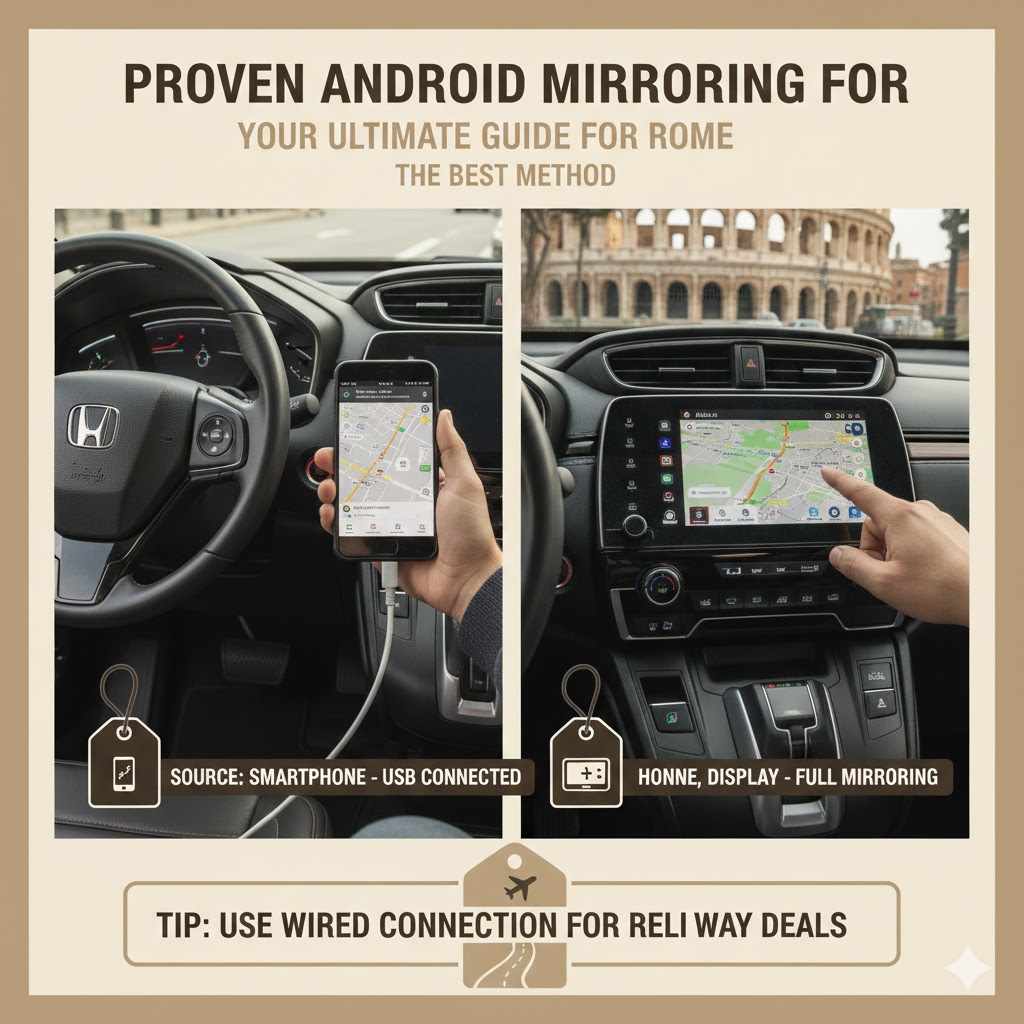
Proven Android Mirroring for Honda: The Best Method
For Android users, the best and safest way to connect your phone to your Honda is by using the official Android Auto app, not screen mirroring. Android Auto is designed for driving, providing easy access to maps, music, and messages on your car’s screen. True screen mirroring is not a standard feature and can be unsafe while driving.
Hello there! It’s your friend, Md Meraj. Are you trying to get your Android phone to work with your Honda’s screen? It can be a real headache when technology doesn’t just work. You see ads for “screen mirroring,” but your car doesn’t seem to cooperate. Many drivers, especially those with a Honda Accord, ask me how to get screen mirroring to work when they mention CarPlay.
First, let’s clear up one simple thing: CarPlay is for iPhones, and Android Auto is for Android phones. It’s a common mix-up, so don’t worry!
The good news is that connecting your Android phone is easy once you know the right way. Forget about complicated “mirroring” for a moment. We’re going to use the official, Honda-approved method that is safer and more reliable. In this guide, I’ll walk you through every step to get your phone and car working together perfectly.
Understanding the Key Difference: Android Auto vs. Screen Mirroring
Before we plug anything in, it’s important to understand the two main ways a phone can connect to your car’s display. They sound similar, but they are very different, especially when it comes to safety and ease of use.
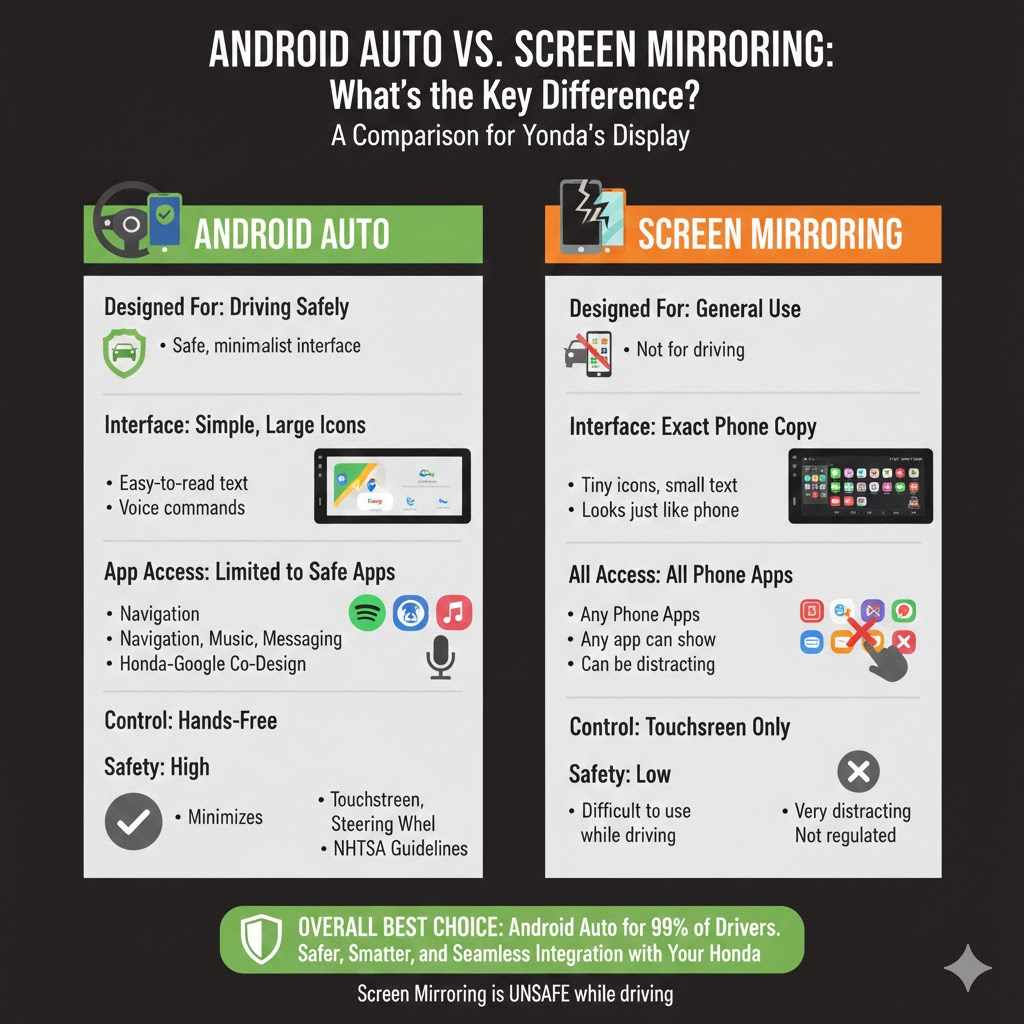
Screen Mirroring is exactly what it sounds like. It shows a direct copy of your phone’s screen on the car’s display. Every app, notification, and menu looks just like it does on your phone. While this seems great, it’s not designed for driving. Trying to tap tiny icons or read small text on your car’s screen can be distracting and dangerous.
Android Auto is a smarter, safer system. Instead of just copying your phone’s screen, it creates a new, simple interface specifically for your car. It features large buttons, easy-to-read text, and voice commands. It only allows you to use apps that are safe for driving, like Google Maps, Waze, Spotify, and messaging apps that read your texts aloud. Honda and Google designed it this way to keep your eyes on the road.
Here’s a simple table to show you the difference:
| Feature | Android Auto | Screen Mirroring |
|---|---|---|
| Designed For | Driving Safely | General Use (Not for driving) |
| Interface | Simple, large icons, easy to read | Exact copy of your phone screen |
| App Access | Limited to approved driving apps | Access to all phone apps |
| Control | Touchscreen, steering wheel buttons, voice commands | Touchscreen only (often difficult to use) |
| Safety | High (minimizes distraction) | Low (can be very distracting) |
For 99% of drivers, Android Auto is the best choice. It’s what your Honda is built for, and it provides the best experience. Let’s get it set up!
The Best Method: Setting Up Android Auto in Your Honda
This is the official, safest, and most reliable way to connect your Android phone. We’ll go through it step-by-step. Don’t worry, it’s easier than it sounds!
Step 1: Check Your Honda and Phone Compatibility
First things first, let’s make sure your car and phone are ready. Most newer Hondas support Android Auto, but it’s always good to check.
- Your Phone: You need a phone running Android 8.0 (Oreo) or higher. Most phones from the last several years will work just fine. You’ll also need a good data plan.
- Your Honda: Android Auto became a standard or optional feature on most Honda models around 2016 or 2017.
Here is a general guide for when popular Honda models got Android Auto. Always check your specific car’s owner manual or settings to be sure.
| Honda Model | Model Year Android Auto Became Available (Generally) |
|---|---|
| Accord | 2016 and newer |
| Civic | 2016 and newer |
| CR-V | 2017 and newer |
| Pilot | 2017 and newer |
| Ridgeline | 2017 and newer |
| Odyssey | 2018 and newer |
Step 2: Get the Right Supplies
You only need two things for this process, but one of them is very important.
- Your Android Phone: Make sure it’s charged up.
- A High-Quality USB Cable: This is the #1 cause of connection problems! Do not use a cheap, gas station cable. Use the original cable that came with your phone or a high-quality, data-certified cable from a brand like Anker or Belkin. A bad cable can cause constant disconnects and frustration.
Step 3: Connect Your Phone for the First Time (Wired)
Ready? Let’s make the magic happen. For the very first connection, you must use the USB cable, even if your car supports wireless Android Auto.
- Start Your Honda: Turn your car on and make sure it’s in Park.
- Unlock Your Phone: Have your phone unlocked and on the home screen.
- Find the Right USB Port: Look for a USB port in your Honda’s center console or dashboard. It will often have a smartphone symbol or a square icon next to it. This is the data port. Other ports might only provide power for charging.
- Plug In Your Phone: Connect the high-quality USB cable to your phone and then to the car’s data USB port.
-
Follow the On-Screen Prompts:
- On your phone, you’ll see a series of pop-ups. You will need to download the Android Auto app if you don’t have it, and then grant it several permissions (like access to contacts, maps, and microphone). Say “Yes” or “Allow” to all of these. This is necessary for the system to work correctly.
- On your Honda’s screen, a message will appear asking if you want to enable Android Auto. Select “Enable” or “Always Enable.”
- Success! After a few moments, the Android Auto interface should appear on your Honda’s screen. You’ll see familiar apps like Maps, Spotify, and Phone with large, easy-to-use icons.
That’s it! You are now connected. You can control everything using your car’s touchscreen, steering wheel controls, or by saying “Hey Google” to use voice commands.
Going Wireless with Android Auto
Some newer Honda models (typically 2021 and later, depending on the trim) support wireless Android Auto. This is super convenient as you don’t need to plug in your phone every time you get in the car.
To set up wireless Android Auto:
- First, you must complete the initial wired setup described above. This pairs your phone with the car.
- After the first connection, unplug your phone. Your Honda’s screen may ask if you want to enable wireless connection for this device in the future. Say yes!
- Make sure your phone’s Bluetooth and Wi-Fi are turned on.
- The next time you start your car, your phone should connect automatically to Android Auto without needing the cable. It might take about 30 seconds to connect.
Troubleshooting Common Connection Problems
Sometimes things don’t go smoothly. Don’t get frustrated! Here are the most common issues and how to fix them. Remember, I’m here to help.
Problem: My phone isn’t connecting at all.
- The Cable is Key: I can’t say this enough. Try a different, high-quality USB cable. 90% of the time, this is the problem. Make sure it’s a data cable, not just a charging cable.
- Check the USB Port: Are you plugged into the correct data port in your Honda? Try another port if you have one.
- Restart Everything: The oldest trick in the book works wonders. Turn your car off. Restart your phone. Then try connecting again.
- Update Your Apps: Go to the Google Play Store on your phone and make sure the Android Auto app and all your other apps (Google Maps, Spotify, etc.) are fully updated.
Problem: Android Auto keeps disconnecting.
- It’s Almost Always the Cable: A slightly damaged or low-quality cable will cause the connection to drop, especially when you go over a bump. Replace the cable.
- Clean Your Ports: Gently clean the charging port on your phone and the USB port in your car with a soft, dry brush or a puff of compressed air. Lint and dust can cause a poor connection.
- Disable Battery Optimization: On your phone, go to Settings > Apps > Android Auto > Battery. Make sure the setting is “Unrestricted” or “Not Optimized.” Sometimes, your phone’s power-saving features can shut down the app.
Problem: The screen is black or frozen.
- Restart the System: Unplug your phone. On your Honda’s infotainment system, press and hold the audio power/volume knob for about 10 seconds until the system reboots. Then try connecting your phone again.
- Check Phone Settings: Some phones have video output settings that can interfere. Make sure your screen resolution is set to default.
Taking a moment to troubleshoot usually solves the problem. Be patient, and start with the simplest solution first—the cable!
What About True Screen Mirroring? The Advanced (and Risky) Option
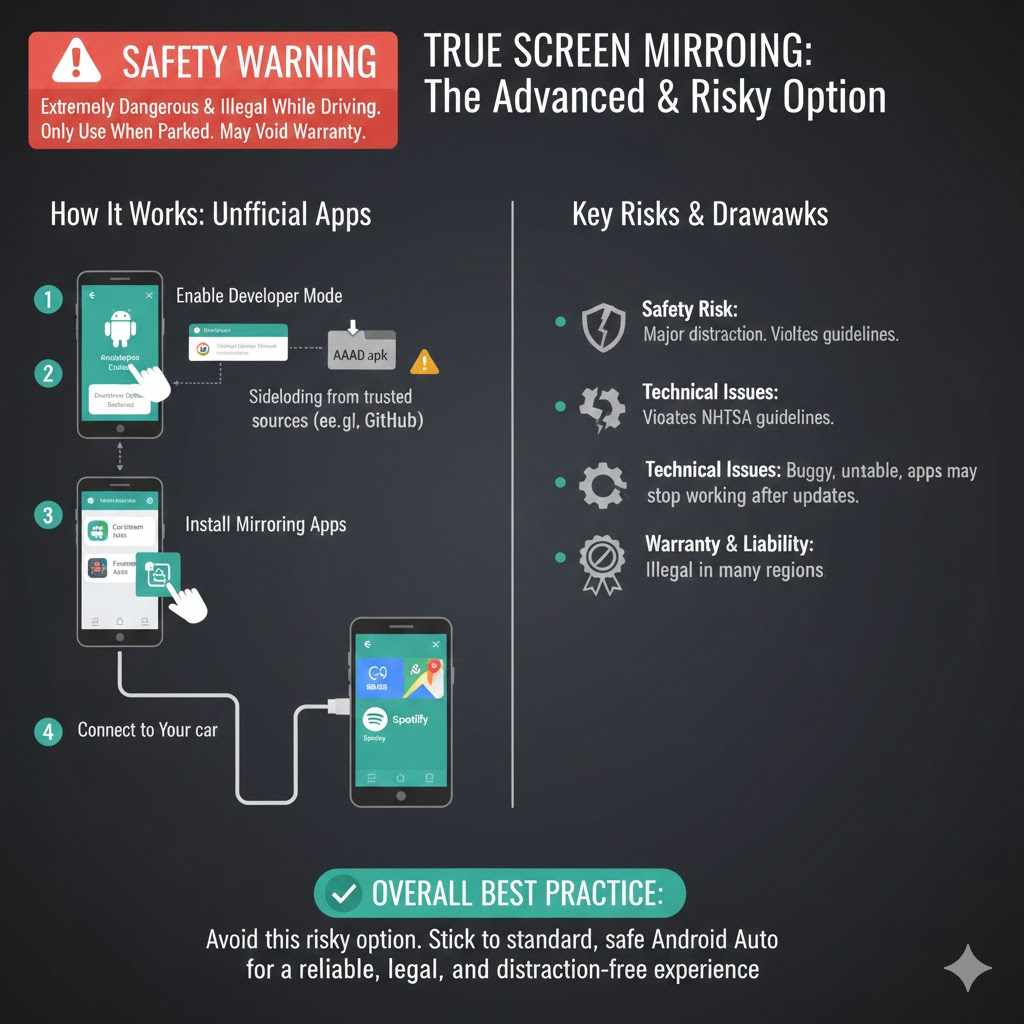
I know some of you are still curious about full screen mirroring. Maybe you want to watch a YouTube video while you’re parked and waiting for someone, or use an app that isn’t supported by Android Auto. It is possible, but I need to give you a very strong warning.
SAFETY WARNING: Using third-party apps to mirror your screen while driving is extremely dangerous and illegal in many places. It is a major distraction. Please, only attempt this if you plan to use it while your vehicle is safely in Park. Modifying your system with unofficial apps can also cause instability and may void parts of your car’s warranty. The official advice from safety experts like the National Highway Traffic Safety Administration (NHTSA) is to avoid distracted driving at all costs.
With that said, for the technically curious, here’s how it works. You can’t just download an app from the Google Play Store. You need to use a third-party installer to get unapproved apps onto Android Auto.
How it Works: Unofficial Apps
The most common method involves an app called AAAD (Android Auto Apps Downloader). This app allows you to install other apps that can then mirror your screen or play videos, like CarStream or Fermata Auto.
This process is for advanced users and involves several steps:
- Enable Developer Mode in Android Auto: On your phone, open the Android Auto app, go to Settings, and tap on the version number at the bottom 10 times until it says “Developer options enabled.”
- Download the Installer: You must find and download the AAAD APK file from a trusted source online (like GitHub) and install it on your phone. This is called “sideloading.”
- Install Mirroring Apps: Open AAAD and use it to download and install an app like CarStream.
- Connect to Your Car: When you plug your phone into your Honda, CarStream will now appear as an app you can open on your car’s display.
Again, this is not a simple or recommended process. It can be buggy, the apps can stop working after an update, and it carries risks. For the vast majority of drivers, sticking with the standard Android Auto is far better, safer, and more reliable.
FAQs: Your Android and Honda Questions Answered
1. Why can’t I just mirror my screen? Why do I have to use Android Auto?
It all comes down to safety. Honda and Google want to ensure you have access to your phone’s features without taking your eyes off the road. Android Auto’s simple, voice-controlled interface is designed specifically for that. Full screen mirroring is too distracting for a moving vehicle.
2. Can I use Android Auto wirelessly in my Honda Accord?
It depends on the year and trim level. Generally, 2021 and newer Honda models in higher trims (like EX-L or Touring) support wireless Android Auto. If yours doesn’t, you will need to use a high-quality USB cable. There are also third-party wireless adapters you can buy, which plug into your USB port and connect to your phone wirelessly.
3. Can I watch Netflix or YouTube on my Honda screen with Android Auto?
Officially, no. Standard Android Auto does not support video streaming apps for safety reasons. The only way to do this is by using the advanced, unofficial methods mentioned earlier, which should only be used when the car is parked.
4. My phone is connected, but I don’t hear any sound. What’s wrong?
Check two things. First, make sure your car’s audio source is set to Android Auto (not FM radio or Bluetooth Audio). Second, check the volume on both your phone and your car stereo. Sometimes the phone’s media volume is turned all the way down.
5. What’s the difference between connecting with Android Auto and just using Bluetooth?
Bluetooth is great for making hands-free calls and streaming audio. Android Auto does all of that PLUS it displays apps like Google Maps or Waze on your car’s big screen, allows you to see and reply to messages with your voice, and integrates everything more deeply with your car’s controls.
6. Is Android Auto free to use?
Yes! The Android Auto app and service are completely free. However, it does use your phone’s mobile data for things like streaming music or using maps, so make sure you have a good data plan.
7. My older Honda doesn’t have Android Auto. Can I get it?
If your car doesn’t have it built-in, you can’t add it to the factory system. However, you can replace your car’s factory stereo with an aftermarket head unit from brands like Pioneer, Kenwood, or Sony that supports Android Auto. This can be a great upgrade for an older vehicle.
Conclusion: A Smarter and Safer Drive
Connecting your Android phone to your Honda doesn’t have to be a mystery. By forgetting the confusing idea of “screen mirroring” and embracing the power of Android Auto, you unlock a world of convenience and safety.
Remember the simple steps we covered: check your compatibility, use a high-quality USB cable, and follow the on-screen prompts. This official method is reliable, easy to use, and designed to keep you focused on what matters most—driving safely.
While advanced options for true mirroring exist, they come with risks and are best avoided by most drivers. Stick with Android Auto, and you’ll have your navigation, music, and messages right where you need them, all controlled with your voice or a simple tap. Now you can enjoy a more connected and stress-free journey in your Honda. Happy driving!