How to Auto-Play Spotify With Apple CarPlay
It can be a little tricky to get your favorite music to start playing right away when you connect your iPhone to your car. Many people wonder How to Auto-Play Spotify with Apple CarPlay because sometimes it just doesn’t happen. You might plug in your phone, and then you have to remember to open Spotify and hit play.
That’s why knowing the simple steps to make it happen automatically is super helpful. This guide will show you exactly how to set it up so your music starts as soon as you hit the road. We’ll cover everything you need to know to get your Spotify tunes playing automatically.
Setting Up Spotify Auto-Play For Apple CarPlay
Getting Spotify to play automatically when you connect your iPhone to your car via Apple CarPlay is a common goal for many drivers. This feature ensures that your music starts playing as soon as you plug in your phone or your car connects wirelessly, saving you the hassle of manually opening the app and selecting a playlist. This can be particularly useful for daily commutes or longer road trips where seamless audio integration is desired.
Understanding the settings involved can significantly enhance your driving experience by removing small but noticeable interruptions to your audio enjoyment. This section will guide you through the primary methods and settings that enable this convenient auto-play function.
Checking Your iPhone Settings
Your iPhone’s settings play a big role in how apps behave with Apple CarPlay. Making sure Spotify is allowed to run in the background and is prioritized for auto-launching is key. Sometimes, a simple toggle switch can make all the difference.
These settings are usually found within the main Settings app on your iPhone, under the CarPlay section.
- General CarPlay Settings: Your iPhone has a central hub for all CarPlay related preferences. Here, you can manage which apps appear on your CarPlay screen and how they interact. Ensure that Spotify is listed as an available app and that it’s not being restricted in any way. Sometimes, a fresh install or re-adding the app to CarPlay can resolve issues.
- Background App Refresh: This iPhone setting allows apps to update content in the background. While not directly for auto-playing music, it ensures Spotify is ready to go when you need it. If this is turned off, Spotify might take longer to load or respond, potentially interfering with smooth auto-play. To check this, go to Settings > General > Background App Refresh and find Spotify.
- Siri & Search Settings: Siri can be instrumental in launching apps. For Spotify to auto-play, Siri needs permission to access and control apps. Ensure that “Allow Siri & Search” is enabled for Spotify. This allows CarPlay to communicate with Siri to initiate music playback through your preferred app.
CarPlay App Configuration
Beyond your iPhone’s general settings, the way Spotify itself is configured within CarPlay matters. CarPlay aims to simplify your interaction, so it often remembers your last used audio app. However, there are specific settings within CarPlay itself that can influence auto-play behavior.
- CarPlay Display Order: When you connect to CarPlay, the apps you see are often arranged based on your usage. If Spotify isn’t the first audio app you select after connecting, it might not be the one that defaults to auto-play. You can reorder your CarPlay apps by going to Settings > General > CarPlay > > Customize. Drag Spotify to the top of your preferred audio apps.
- Last Used Audio Source: CarPlay is designed to resume where you left off. If you were listening to Spotify the last time you used CarPlay, it’s highly likely to auto-play the next time you connect. This “memory” feature is fundamental to a seamless audio experience. Ensure you finish your drives with Spotify playing if you want it to be the auto-play app.
- Third-Party App Permissions: Spotify, like other music apps, needs permission to integrate with CarPlay. This is usually granted when you first connect your iPhone to your car. If you ever denied permissions or accidentally removed Spotify from CarPlay, you might need to re-add it. To do this, go to your iPhone’s Settings > General > CarPlay, select your car, and tap “Customize.”
Troubleshooting Auto-Play Issues
Sometimes, even with the right settings, auto-play doesn’t work as expected. This can be frustrating, but most issues have simple fixes. Common problems include software glitches, outdated app versions, or connectivity problems.
This section covers the most frequent issues and provides clear, actionable solutions to get your Spotify auto-playing smoothly again.
Common Glitches and Solutions
Software glitches are a frequent cause of unexpected behavior in any electronic device, including your iPhone and car’s infotainment system. These can occur due to temporary conflicts between apps or system processes. Restarting devices is often the first and most effective step to resolve these minor issues.
- Restart Your iPhone: A simple restart can clear temporary memory issues and reset background processes that might be preventing Spotify from auto-playing. Turn your iPhone off completely, wait about 30 seconds, and then turn it back on. This often resolves many minor software hiccups.
- Restart Your Car’s Infotainment System: Similar to your iPhone, your car’s system can also experience temporary glitches. The method to restart varies by car model. Some have a dedicated restart button, while others require you to turn the car off and on again, or even disconnect the car battery for a few minutes (consult your car’s manual for this).
- Update Spotify and iOS: Outdated software is a common source of bugs and compatibility issues. Ensure you have the latest version of the Spotify app installed from the App Store. Also, make sure your iPhone is running the most recent version of iOS. Go to Settings > General > Software Update to check for iOS updates.
Connection Problems
The connection between your iPhone and your car’s CarPlay system is the backbone of the auto-play feature. If this connection is unstable or not properly established, auto-play will likely fail. This includes both wired (USB) and wireless connections.
- Check Your USB Cable (Wired Connection): If you use a USB cable, a faulty or non-certified cable can cause connection issues. Always use Apple-certified (MFi) cables. Try a different, known-good USB cable to rule out the cable as the problem. Ensure the USB port on your car is clean and free of debris.
- Verify Bluetooth and Wi-Fi (Wireless CarPlay): For wireless CarPlay, a stable Bluetooth and Wi-Fi connection is essential. Ensure both are enabled on your iPhone and that your car’s system is set up for wireless CarPlay. Sometimes, forgetting your car’s Bluetooth connection on your iPhone and re-pairing can fix issues. Also, ensure no other device is hogging your Wi-Fi or Bluetooth bandwidth.
- Reset Network Settings: If connection issues persist, resetting your iPhone’s network settings can sometimes help. This will erase all saved Wi-Fi passwords and Bluetooth pairings, so you’ll need to reconnect to your home Wi-Fi and re-pair Bluetooth devices. Go to Settings > General > Transfer or Reset iPhone > Reset > Reset Network Settings.
CarPlay System Glitches
Occasionally, the issue might lie with the Apple CarPlay system itself within your car. This can be due to software conflicts or temporary errors within the car’s internal software.
- Remove and Re-add Your iPhone: In your car’s infotainment settings, there’s usually an option to manage connected iPhones. Try removing your iPhone from the CarPlay list and then reconnecting it as if it were a new device. This forces the system to re-establish all connections and permissions.
- Check Your Car’s Manual: Different car manufacturers implement CarPlay slightly differently. Your car’s owner’s manual may have specific troubleshooting steps or recommendations for CarPlay connectivity and app behavior. It might also detail how to reset or update your car’s infotainment system software.
- CarPlay Restrictions: Ensure that no restrictions are accidentally enabled on your iPhone that might prevent CarPlay apps from launching or playing audio. Go to Settings > Screen Time > Content & Privacy Restrictions. If these are on, check that CarPlay and other relevant app settings are allowed.
Advanced Settings and Considerations
While basic settings usually solve auto-play issues, there are some advanced considerations and less common settings that can influence how Spotify behaves with Apple CarPlay. Understanding these can help if you’re still facing difficulties or want to fine-tune your experience further.
Spotify App Specific Settings
Spotify itself has a few settings that can indirectly affect its integration with CarPlay and its auto-play functionality. While Spotify doesn’t have a direct “auto-play on CarPlay connect” toggle, certain settings related to playback and connectivity can play a role.
- Playback Settings: Within the Spotify app settings on your iPhone, look for options related to audio quality and streaming. While these don’t directly control auto-play, ensuring consistent settings can help prevent playback interruptions. For instance, setting streaming quality to “Automatic” or a specific high quality can ensure smooth delivery once playback begins.
- Connect to Other Devices: Spotify has a feature to “Connect to devices.” While this is primarily for controlling playback on other Spotify Connect-enabled speakers or devices, ensuring this feature is not set to override your current playback session is important. If it’s constantly trying to switch playback to another device, it could interfere with CarPlay.
- Offline Mode: If you frequently use Spotify in offline mode, ensure your music is downloaded and accessible. While CarPlay typically streams music, having offline content ready can prevent issues if streaming connections are spotty. This ensures that even if there are connectivity problems, Spotify has something to play.
CarPlay Wireless vs. Wired
The method of connection—wired via USB or wireless—can sometimes influence auto-play behavior. Wireless CarPlay offers more convenience but can sometimes be less stable than a wired connection.
- Wired Connection Benefits: A wired connection is generally more stable and provides a direct data path between your iPhone and the car. This can lead to more reliable auto-play functionality as there are fewer variables like Bluetooth or Wi-Fi interference to consider. For the most consistent auto-play experience, a wired connection is often recommended.
- Wireless CarPlay Setup: For wireless CarPlay to work, your iPhone must support it (iPhone 5 or later, running iOS 12 or later) and your car’s infotainment system must be compatible. After the initial setup, your iPhone will automatically try to connect to your car’s CarPlay system when it’s in range and CarPlay is enabled. Ensuring your iPhone’s Wi-Fi and Bluetooth are on is critical for this.
- Troubleshooting Wireless Connection Drops: If you experience frequent drops with wireless CarPlay, try moving your iPhone closer to the car’s infotainment system or reducing interference from other wireless devices. Sometimes, simply forgetting and re-pairing the wireless CarPlay connection in your car’s settings can resolve intermittent issues.
Impact of Car Model and Infotainment System
It’s important to recognize that Apple CarPlay is integrated into your car’s specific infotainment system. The way each car manufacturer designs and implements this system can lead to slight variations in how apps behave.
- Manufacturer Software Updates: Car manufacturers regularly release software updates for their infotainment systems. These updates can improve CarPlay performance, fix bugs, and enhance app compatibility. Check your car manufacturer’s website or your dealership to see if there are any available updates for your car’s system. Keeping your car’s software up-to-date is crucial.
- CarPlay Integration Differences: Some car systems might have unique protocols for how they manage audio sources and app launching. For example, certain cars might prioritize built-in audio systems over CarPlay apps for initial launch. Familiarizing yourself with your car’s specific audio settings within its native infotainment menu can sometimes reveal options that affect CarPlay app behavior.
- Example: Toyota Camry 2023 vs. BMW 5 Series 2024: A Toyota Camry might handle the initial launch of Spotify through CarPlay slightly differently than a BMW 5 Series. The Camry might default to the last used audio source, while the BMW could have more granular settings for app prioritization. Understanding these differences means consulting your car’s specific manual for CarPlay instructions.
Real-Life Examples and Scenarios
Seeing how others have solved the auto-play puzzle can be very illuminating. Real-world examples and common scenarios help illustrate the practical application of these settings and troubleshooting steps.
Scenario 1: The Daily Commuter
Sarah drives the same route to work every day. She loves listening to her “Morning Motivation” playlist on Spotify. Initially, she had to manually open Spotify every time she connected her iPhone to her car’s Apple CarPlay.
This small step was an annoyance at the start of her busy day.
- Sarah first checked her iPhone’s Settings > General > CarPlay and ensured her car was listed.
- She then tapped “Customize” and dragged the Spotify app to the top of her preferred audio apps list.
- She made sure her iPhone had Background App Refresh enabled for Spotify.
- The next morning, she plugged in her iPhone, and to her delight, her “Morning Motivation” playlist started playing automatically. The simple rearrangement of apps made all the difference.
Scenario 2: The Road Tripper
Mark was planning a long road trip and wanted seamless music playback without any fiddling. He noticed that sometimes Spotify would auto-play, and other times it wouldn’t, depending on what music app he used last.
- Mark decided to use a wired USB connection for stability. He ensured he was using a certified Apple MFi cable.
- Before starting his trip, he made sure his iPhone and the Spotify app were updated to the latest versions.
- He also reset his car’s infotainment system to clear any potential glitches.
- During the trip, the connection remained stable, and Spotify consistently auto-played his chosen driving playlist every time he started the car or reconnected after a stop. The combination of a stable connection and updated software ensured reliability.
Scenario 3: The New User Frustration
David recently got a new car with Apple CarPlay. He’s a big Spotify user and was confused why his music wasn’t starting automatically. He tried plugging his phone in, but his car’s native radio app would always take over.
- David went into his iPhone’s Settings > General > CarPlay and tapped on his car’s name.
- He noticed that Spotify was on the second page of apps. He dragged it to the first page and placed it as the first app.
- He then went into his car’s actual infotainment settings and looked for any options related to “default audio source” or “CarPlay app priority.” He found a setting that allowed him to select a preferred audio app.
- After setting Spotify as the preferred app within his car’s system settings, Spotify began to auto-play as soon as he connected his iPhone. This showed the importance of checking both iPhone and car system settings.
Understanding Auto-Play Mechanics
The auto-play function in Apple CarPlay isn’t a magic trick; it’s based on a combination of user settings, app behavior, and system logic. Understanding how these pieces fit together can demystify the process and make troubleshooting much easier.
CarPlay’s Preferred App Logic
Apple CarPlay is designed to be intuitive. When you connect your iPhone, it tries to predict which app you’ll want to use. This prediction is primarily based on your recent activity and the order of apps you’ve set up.
- Last Used App Dominance: The most common reason for auto-play is simply using an app the last time you drove. CarPlay remembers your last audio choice. If you finished your drive with Spotify playing, it will likely launch and play it again next time. This “carry-over” behavior is a core feature.
- App Order Importance: As mentioned, the order of apps in your CarPlay settings is significant. If you have multiple audio apps (like Apple Music, Podcasts, and Spotify), the one listed first in your “Customize” settings is often given priority if there’s no clear “last used” app. Placing Spotify at the top increases its chances of auto-launching.
- Siri’s Role: Siri can also influence app launching. When you connect to CarPlay, your car’s system might prompt Siri to ask what you’d like to listen to. If you’ve previously set Siri to launch Spotify for music requests, this can contribute to its auto-play behavior. This is why Siri permissions are important.
How Spotify Integrates
Spotify integrates with CarPlay by adhering to Apple’s CarPlay framework. This framework allows third-party apps to present a simplified interface on your car’s display and to respond to system commands, including launch requests.
- CarPlay API Usage: Spotify uses Apple’s CarPlay Application Programming Interface (API) to display its controls and playback information on the car screen. This API dictates how apps can be presented and how they interact with the CarPlay system. Spotify’s developers ensure their app is compliant with this framework.
- Background Services: For auto-play to work, Spotify needs to run essential background services on your iPhone. These services monitor when CarPlay connects and trigger the app to launch. Features like Background App Refresh are crucial for these services to operate efficiently without draining your battery.
- Data Streaming Reliability: Auto-play relies on Spotify being able to start streaming music quickly. This means the app needs to have a good connection to Spotify’s servers. If your cellular data is slow or unstable, even if the app launches, it might buffer or fail to play music, indirectly affecting the perceived auto-play success.
Factors Affecting Auto-Play
Several external factors can influence whether Spotify auto-plays, sometimes in ways that are not immediately obvious.
- Car’s Internal Clock and Software: The car’s own infotainment system clock and software can sometimes affect CarPlay’s behavior. A reset of the car’s system can help synchronize these components. Also, ensure your car’s firmware is up-to-date, as manufacturer updates often address CarPlay performance.
- iPhone Battery Level: In rare cases, if your iPhone’s battery is critically low, it might aggressively manage background processes to save power. This could potentially prevent Spotify from launching automatically. Keeping your iPhone charged, especially when using CarPlay, is a good practice.
- Simultaneous App Usage: If you have multiple audio apps open and actively being used on your iPhone before connecting to CarPlay, it can sometimes create a conflict. It’s best to close or pause other audio apps on your iPhone before connecting to CarPlay to ensure Spotify has a clear path to auto-play.
Frequently Asked Questions
Question: Can I force Spotify to auto-play every time without fail?
Answer: While you can set it up to be highly likely, there isn’t a guaranteed “force” button. Factors like your last used app, app order, and car system preferences all play a role. Following the steps in this guide maximizes your chances.
Question: Do I need a premium Spotify account for auto-play with CarPlay?
Answer: No, you do not need a Spotify Premium account. The auto-play feature works with both free and premium accounts, as long as you have a stable internet connection for streaming.
Question: What if Spotify doesn’t show up in my CarPlay settings?
Answer: First, ensure Spotify is installed on your iPhone. Then, try restarting your iPhone and car’s infotainment system. You may need to go to your iPhone’s Settings > General > CarPlay and ensure your car is recognized.
If it’s still not there, try deleting and reinstalling Spotify.
Question: Does the order of apps in iPhone settings affect CarPlay auto-play?
Answer: Yes, the order of apps in your iPhone’s CarPlay customization screen is important. Apps listed on the first page are generally more accessible and prioritized, increasing the likelihood of your preferred app, like Spotify, being the one that auto-plays.
Question: Can I set different auto-play apps for different cars?
Answer: Yes. Apple CarPlay settings are tied to your car. When you connect your iPhone to a specific car, CarPlay remembers your preferences for that particular vehicle.
You can customize the app order and behavior for each car you use.
Summary
Getting Spotify to automatically play when you connect to Apple CarPlay is achievable. By checking your iPhone settings, arranging your CarPlay apps, and ensuring stable connections, you can enjoy seamless music. If issues arise, simple steps like restarting devices or updating software often solve them.
Follow these tips to make your driving soundtrack start instantly.
Products related to this article
Sponsored / affiliate links. As an Amazon Associate I earn from qualifying purchases. I may earn additional commission from eligible campaigns.
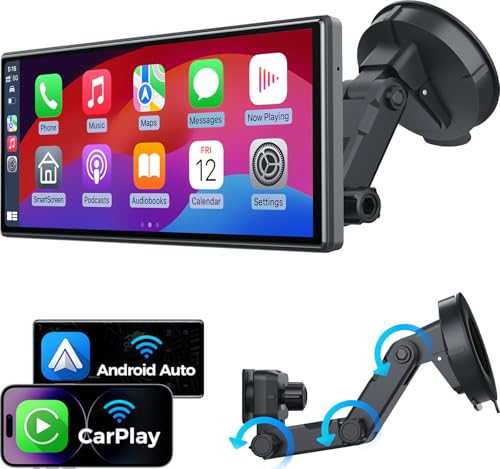 JATAZA 10.26" Wireless Apple Carplay Screen for Car, Secure Strong Bracket, Portable Apple CarPlay& Android Auto Car Stereo with GPS Navigation, Bluetooth, Mirror Link, Voice Control,Fits All Vehicles
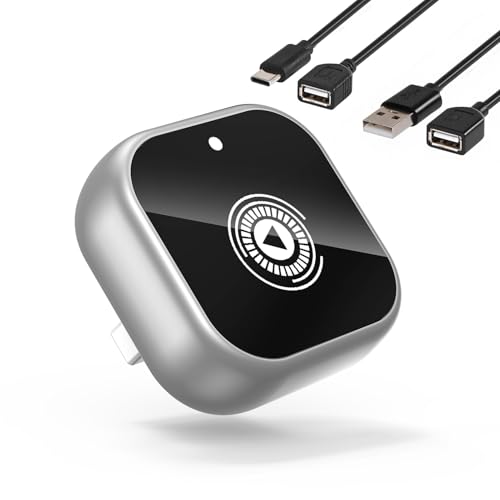 Wireless CarPlay Adapter for Cars with Built-in Wired Apple CarPlay Plug and Play, Mini-USB Design, Fast Stable Connection, for iPhone with USB/Type-C Port