Why Can’t I Hear Waze In My Car? Essential Guide
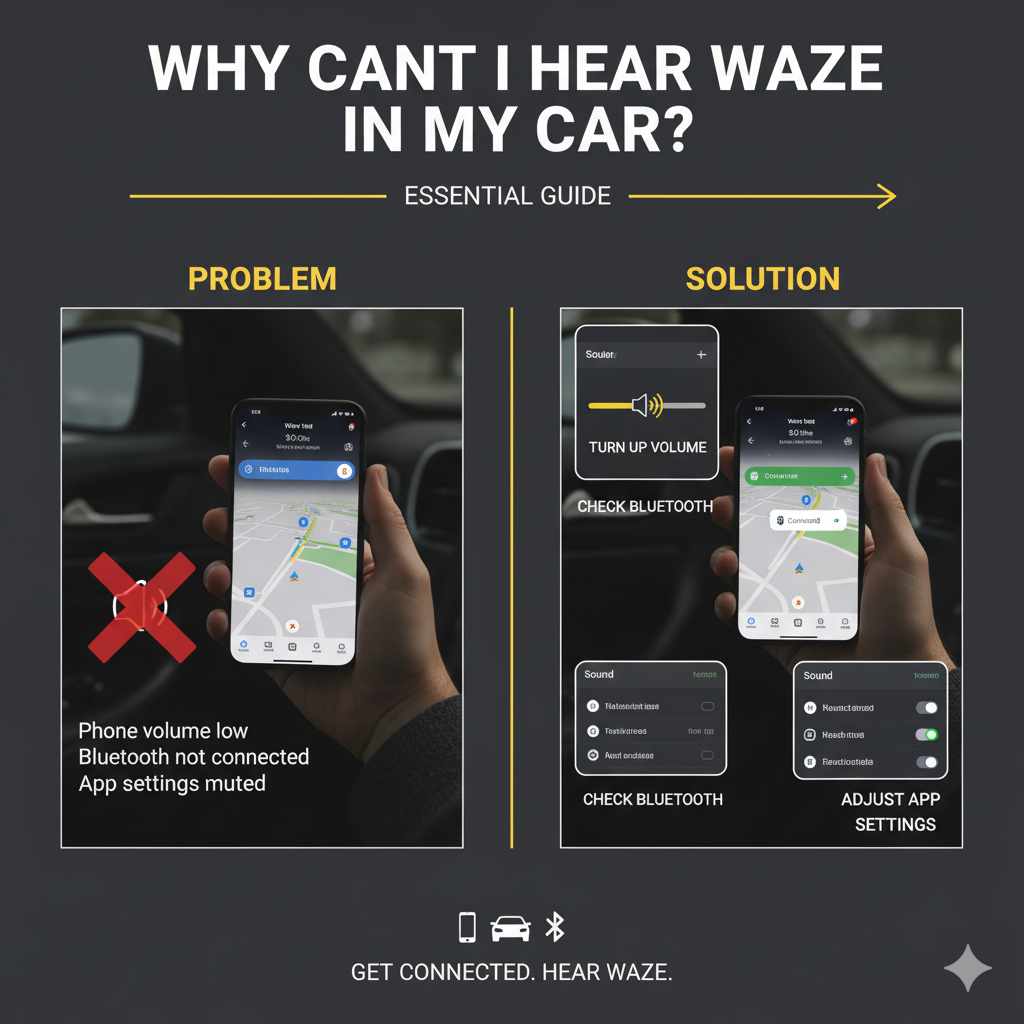
Can’t hear Waze in your car? Don’t worry! Your Waze navigation voice might be muted, volume set too low, or it could be a Bluetooth or connection issue. This guide walks you through simple fixes to get Waze talking again.
It’s unnerving when you’re navigating a new route and your trusty Waze app goes silent. You’re relying on those voice prompts to tell you when to turn, where to go, and to alert you to traffic jams, but… crickets. This can turn a smooth drive into a stressful one, making you wonder if your phone or car has suddenly forgotten how to make noise. But before you panic, know that this is a super common issue, and usually, it’s a quick fix. We’re going to break down exactly why you can’t hear Waze in your car and guide you step-by-step to get those helpful directions back loud and clear!
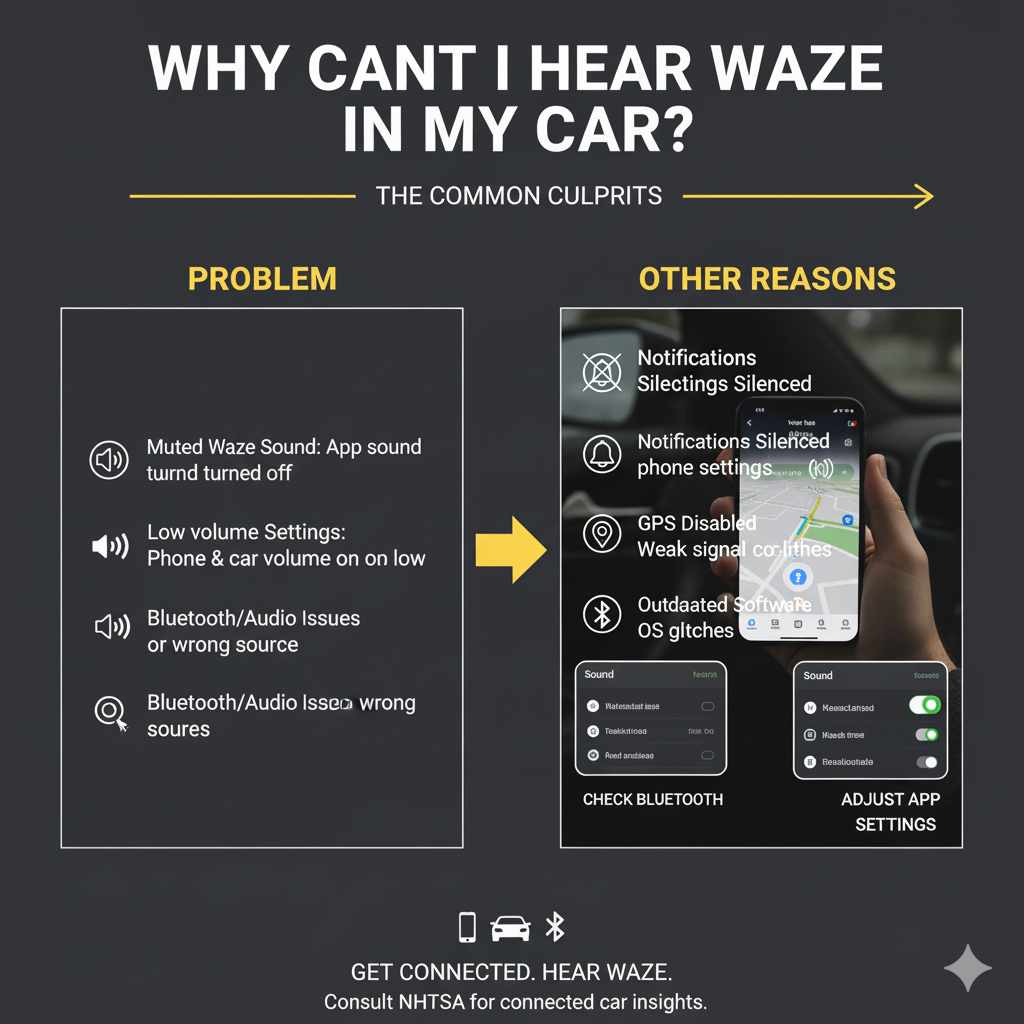
Why Can’t I Hear Waze In My Car? The Common Culprits
When Waze stops talking, it’s rarely a sign of a major technical failure. More often than not, it’s a simple setting that’s been accidentally changed, or a small conflict between your phone and your car’s audio system. Let’s look at the usual suspects:
- Muted Waze Sound: The most straightforward reason – the app itself might have its sound turned off.
- Low Volume Settings: Both your phone and your car’s audio system have volume controls that affect Waze.
- Bluetooth or Audio Source Issues: If Waze is trying to play through your car’s stereo via Bluetooth, and the connection isn’t right, you won’t hear it.
- Phone Notifications Silenced: Sometimes, other phone settings can override app sounds.
- GPS or Location Services Disabled: While less common for sound issues, Waze needs a good signal to function, indirectly impacting its ability to prompt you.
- Outdated App or Phone Software: Old versions can sometimes have glitches.
Step-by-Step Troubleshooting: Getting Waze Talking Again
Let’s tackle these one by one. We’ll start with the easiest checks and move to slightly more involved ones. Grab your phone, and let’s get started!
Step 1: Check Waze’s In-App Volume Settings
This is the most frequent culprit. Waze has its own volume control separate from your phone’s general volume.
- Open the Waze app on your phone.
- Tap on My Waze in the bottom menu.
- Tap the Settings cog icon (usually in the top left).
- Scroll down and tap on Voice & sound.
- Under the “Voice instructions” section, look for the volume slider. Make sure it’s not all the way to the left (muted). Drag it towards the right to increase the volume of Waze’s prompts.
- You can also tap “Test voice” to hear a sample prompt and confirm the volume is set correctly.
Step 2: Adjust Your Phone’s Media Volume
Waze, when playing through your phone’s speaker or Bluetooth, uses your phone’s media volume. If this is low, Waze will be quiet.
- On most Android phones: Press the physical volume up button on the side of your phone. A volume slider will appear. Tap the three dots (or settings icon) on the slider to see different volume types. Make sure the “Media” or “Volume” slider is turned up.
- On iPhones: Go to Settings > Sounds & Haptics. Under “Ringer and Alerts,” make sure the “Change with Buttons” slider is up, or drag it manually. Ensure the main volume slider is also up.
Step 3: Verify Your Bluetooth Connection (If Applicable)
If you’re trying to hear Waze through your car’s speakers, the Bluetooth connection is key. Here’s how to ensure it’s working correctly:
A. Check Phone’s Bluetooth Settings
- Go to your phone’s Settings.
- Tap on Bluetooth.
- Make sure Bluetooth is turned ON.
- Ensure your car’s stereo or infotainment system is listed as connected. If not, tap on your car’s name to connect.
B. Check Car’s Audio Source
Your car’s stereo needs to be set to receive audio from your phone via Bluetooth.
- On your car’s infotainment system, navigate to the Audio or Source menu.
- Select Bluetooth as the audio source.
- Sometimes, cars have separate settings for “Phone Calls” audio and “Media” audio. Ensure that “Media” audio is enabled for your phone.
C. “Play Audio Over Bluetooth” in Waze
Waze has a specific setting to control how it plays audio when connected to Bluetooth.
- Open Waze and go to My Waze > Settings > Voice & sound.
- Look for an option like “Play audio over Bluetooth” or “Bluetooth audio”. Make sure this is toggled ON. If it’s off, Waze might try to play through your phone speaker even when connected to the car.
D. Restart Bluetooth Connection
Sometimes a simple refresh fixes things:
- Turn off Bluetooth on your phone.
- Turn off your car’s stereo system.
- Wait about 30 seconds.
- Turn your car’s stereo back on.
- Turn your phone’s Bluetooth back on and re-pair if necessary.
Step 4: Test Waze Playback Outside Your Car
To isolate whether the issue is with Waze/your phone or your car’s audio system, try playing Waze without Bluetooth.
- Disconnect your phone from the car’s Bluetooth.
- Make sure your phone’s media volume is up.
- Start navigation in Waze and see if you can hear the prompts through your phone’s speaker.
- If you can hear it now, the problem lies with the Bluetooth connection or your car’s audio settings. If you still can’t hear it, the issue is likely with the Waze app or your phone’s general audio settings.
Step 5: Check Your Phone’s Notification Settings
Even if your phone’s media volume is up, other notification settings can sometimes mute specific app sounds.
- On Android: Go to Settings > Apps > Waze > Notifications. Ensure that notifications are allowed and that specific categories (like “Navigation Alerts” or “Voice Guidance”) are not silenced or blocked.
- On iPhone: Go to Settings > Notifications > Waze. Make sure “Allow Notifications” is toggled ON. Also, check if “Sounds” is enabled.
- Do Not Disturb: Ensure your phone’s “Do Not Disturb” mode is turned OFF or configured to allow Waze notifications. You can usually find this in your phone’s quick settings or main settings menu.
Step 6: Ensure Location Services (GPS) are Enabled for Waze
While this directly affects navigation accuracy, a strong GPS signal is crucial for Waze to function and provide prompts. If GPS is off, Waze might not even start giving directions.
- On Android: Go to Settings > Location and ensure it’s turned ON. Then, go to Settings > Apps > Waze > Permissions and ensure “Location” is set to “Allow all the time” or “Allow only while using the app.”
- On iPhone: Go to Settings > Privacy & Security > Location Services and ensure it’s ON. Then, tap on Waze in the list and set Location to “Always” or “While Using the App.”
Step 7: Update Waze and Your Phone’s Operating System
Outdated software can cause a variety of glitches, including audio problems. Keeping your apps and phone updated is good practice.
- Update Waze: Open the Google Play Store (Android) or App Store (iPhone), search for Waze, and tap “Update” if an update is available.
-
Update Phone OS:
- Android: Go to Settings > System > System update.
- iPhone: Go to Settings > General > Software Update.
Step 8: Check Wi-Fi vs. Cellular Data Settings
While this is less likely to cause a complete lack of sound, sometimes audio playback can be affected by how Waze is downloading map data or other information. Ensure Waze has stable internet access, whether via Wi-Fi or cellular data.
For specific Wi-Fi/Cellular settings within Waze on Android, you might find options under Settings > General > Network usage. On iPhone, these settings are usually managed at the OS level under Settings > Waze, where you can enable “Background App Refresh” or check cellular data usage.
Step 9: Reset Waze Settings (Advanced Step)
If none of the above work, you can try resetting Waze to its default settings. This will clear any custom configurations you’ve made within the app but won’t delete your saved locations.
- Open Waze.
- Go to My Waze > Settings cog.
- Scroll all the way to the bottom and look for an option like “Reset Waze” or “Reset settings”. (Note: This option might vary slightly between app versions and operating systems).
- Follow the on-screen prompts. You will likely need to re-enter your destination and potentially re-configure some of your preferred settings afterward.
Waze Audio Settings Explained
Understanding the different audio components can help you pinpoint the issue. Here’s a quick breakdown of where Waze sounds come from:
| Setting/Component | What it Controls | How to Adjust |
|---|---|---|
| Waze In-App Volume | The loudness of Waze’s voice prompts and alerts. | Waze App > My Waze > Settings > Voice & sound > Volume slider. |
| Phone Media Volume | The overall volume for all audio played through your phone’s speakers or connected devices (including Waze, music, videos). | Press phone volume up button, then tap settings icon on slider; or Settings > Sounds & Haptics (iPhone) / Sound & vibration (Android). |
| Phone Call Volume | Loudness of phone calls. This is separate from Media volume but can sometimes affect how other audio is routed if your car prioritizes call audio. | Usually adjusted during a phone call, or found in phone’s Sound settings. |
| Bluetooth Audio Profile | When connected to a car, this determines if audio is streamed as media or as a phone call. Waze should ideally use the Media profile. | Phone’s Bluetooth settings for the specific car connection, or car’s infotainment system settings. |
| Car Stereo Volume | The master volume for your car’s sound system. | Physical volume knob or buttons on your car’s dashboard/head unit. |
Troubleshooting Specific Scenarios
Let’s consider some common situations where you might not hear Waze.
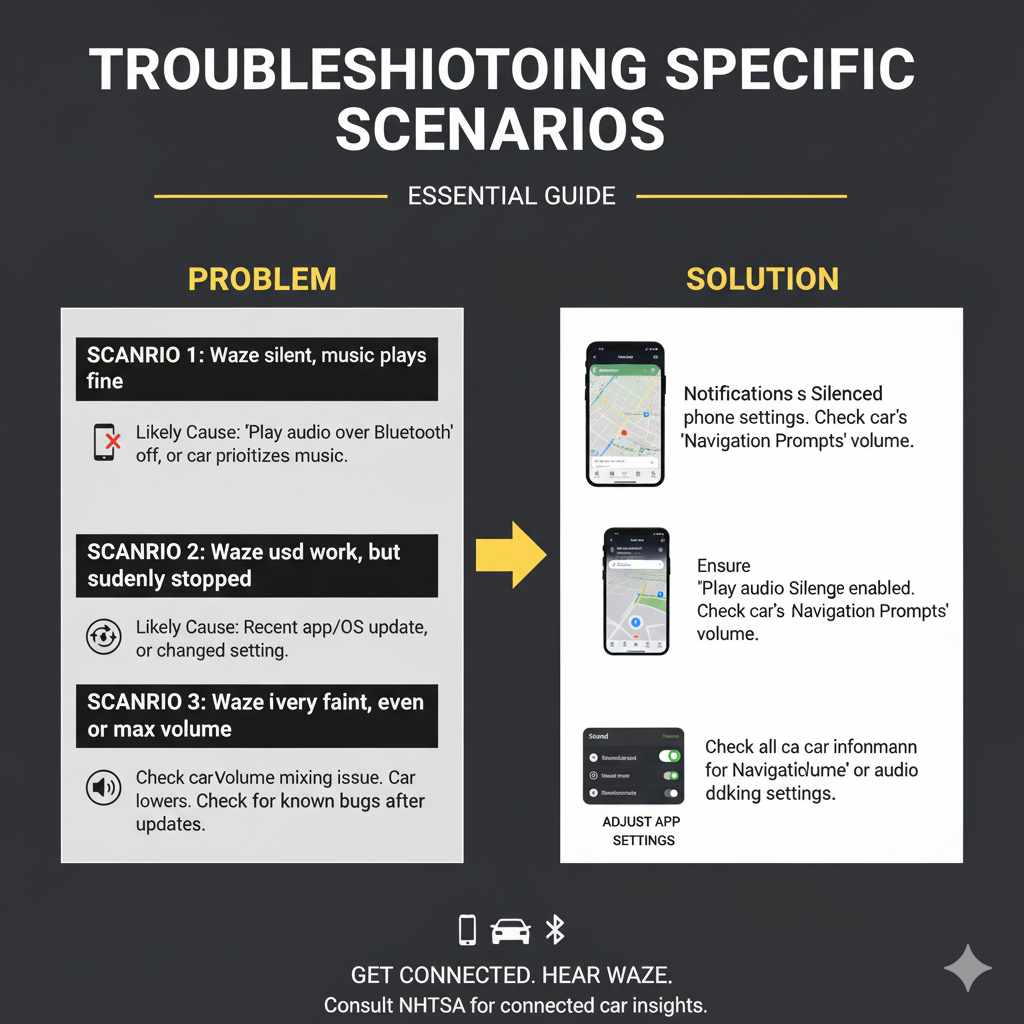
Scenario 1: Waze is silent, but music plays fine through Bluetooth.
Likely Cause: Waze’s “Play audio over Bluetooth” setting might be off, or your car’s system is prioritizing music stream over navigation prompts.
Solution: Ensure “Play audio over Bluetooth” is enabled in Waze’s Voice & sound settings. Also, check your car’s audio settings to see if there’s a “Navigation Prompts” or “Voice Guidance” volume that might be turned down within your car’s system itself.
Scenario 2: Waze used to work, but suddenly stopped.
Likely Cause: A recent app update, OS update, or a change in a setting (perhaps during a phone or car software update) is the most probable reason.
Solution: Go through all the steps above carefully, paying close attention to Bluetooth and Waze’s “Voice & sound” settings. If the issue started right after an update, check Waze’s announcement pages or forums for known bugs.
Scenario 3: I hear Waze, but it’s very faint, even with maximum volume.
Likely Cause: This points to an issue with volume mixing between Waze and your car’s audio. Your car’s system might be lowering Waze’s volume to accommodate other sounds.
Solution: Double-check that your phone’s Media Volume is up, Waze’s volume is up, and critically, check your car’s infotainment system for a setting that specifically controls the volume balance between navigation prompts and other media. Some systems allow you to adjust how much Waze “ducking” happens (how much it lowers other audio).
For those who rely on their vehicle’s intricate systems, resources like the National Highway Traffic Safety Administration (NHTSA) offers insights into connected car technologies, which Waze often interacts with.
Frequently Asked Questions About Waze Audio
Q1: Why does Waze stop talking when I get a phone call?
A: This is normal Waze behavior. When a phone call comes in, Waze will pause its voice prompts to allow you to hear the call clearly. Once the call ends, Waze should automatically resume your navigation prompts. If it doesn’t, you might need to tap “Resume” on the Waze notification or restart navigation.
Q2: Can I use Waze with my car’s built-in navigation system?
A: Generally, no. Waze is a standalone smartphone app. While your car’s system may offer its own navigation, Waze typically runs on your phone and can output audio through your car’s stereo via Bluetooth or an auxiliary cable. Some newer car systems (like those supporting Apple CarPlay or Android Auto) might allow Waze to display on your car’s screen, but it’s still the phone running the app.
Q3: My phone is connected to car Bluetooth, but Waze audio still comes from my phone. What’s wrong?
A: This is usually due to the “Play audio over Bluetooth” setting in Waze being turned off, or your car’s Bluetooth trying to route Waze as a phone call instead of media. Make sure the Waze setting is ON and confirm your car’s audio source is set to ‘Bluetooth’ and not ‘Phone’ for media playback.
Q4: How do I make Waze louder than my music?
A: In Waze’s settings, under “Voice & sound,” you can adjust the main Waze volume. Additionally, many car audio systems have a setting to adjust the volume of “Navigation Prompts” relative to “Media.” Look for options like “Volume balance” or “Prompt volume” in your car’s infotainment system menus.
Q5: Does Waze use data when I’m not connected to Wi-Fi?
A: Yes, Waze uses cellular data for real-time traffic updates, map data, and search functionality when you’re not on Wi-Fi. If you have a limited data plan, be mindful of this. You can download maps for offline use in some areas, but live traffic information will always require a connection.