Why Does My Bluetooth Keep Disconnecting in My Car? Easy Fixes for a Stable Connection
Your car’s Bluetooth keeps disconnecting likely due to a software glitch, interference from other devices, or a low phone battery. The easiest fix is to restart your phone and your car’s infotainment system. If that fails, un-pairing and then re-pairing your phone often creates a fresh, stable connection and solves the problem for good.
You’re driving along, listening to your favorite podcast or jamming to a great song. Suddenly, silence. You glance at your car’s dashboard and see the dreaded “Bluetooth Disconnected” message. It’s frustrating, distracting, and can ruin the flow of your drive. If you’re tired of this interruption, you’ve come to the right place.
This is one of the most common tech issues drivers face, but the good news is that you can usually fix it yourself in just a few minutes. You don’t need to be a mechanic or a tech genius. I’m here to walk you through the simple, step-by-step solutions that will get your audio streaming smoothly again. Let’s get that connection stable and your music back on!
Understanding Why Your Car’s Bluetooth Fails
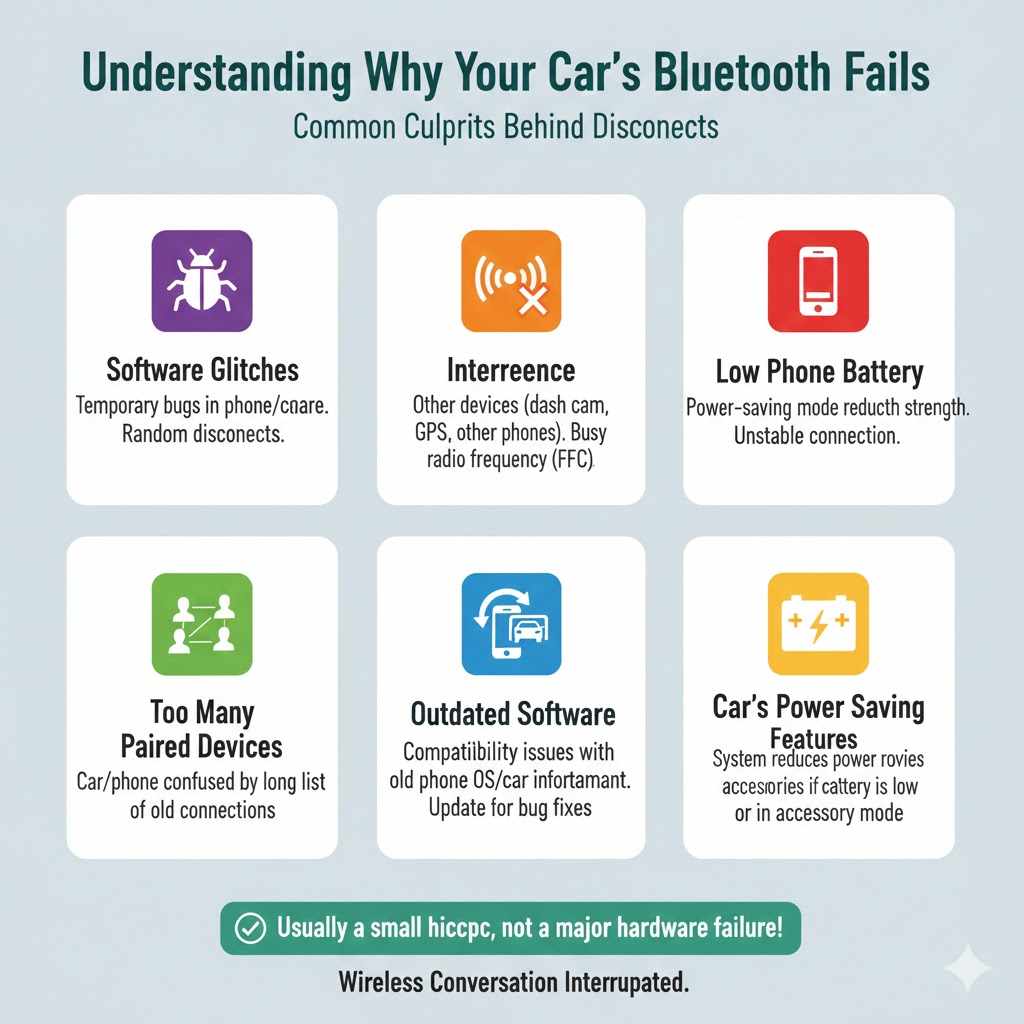
Before we jump into the fixes, it helps to know what might be causing the problem. Your car’s Bluetooth connection is a wireless conversation between your phone and your car’s audio system. Like any conversation, it can be interrupted. Most of the time, the cause is simple and easy to correct.
Common Culprits Behind Bluetooth Disconnects
- Software Glitches: Sometimes, the software on your phone or in your car gets a little confused. A temporary bug is often the main reason for random disconnects.
- Interference: Bluetooth operates on a busy radio frequency. Other devices in your car, like a dash cam, a GPS unit, or even another passenger’s phone, can interfere with the signal. The Federal Communications Commission (FCC) notes that Bluetooth shares this space with many other devices.
- Low Phone Battery: Many smartphones have a power-saving mode that kicks in when the battery is low. This mode often reduces the power sent to features like Bluetooth to conserve energy, leading to a weak or unstable connection.
- Too Many Paired Devices: If your car’s system has a long list of previously paired phones, it can get confused about which one to connect to. The same goes for your phone if it’s paired with many different Bluetooth devices.
- Outdated Software: If your phone’s operating system (like iOS or Android) or your car’s infotainment software is out of date, it can cause compatibility issues. Updates often include important bug fixes for Bluetooth connectivity.
- Car’s Power Saving Features: Some cars have aggressive battery management systems that may turn off accessories or reduce power to them if the car’s battery is low or if the car is not fully on (e.g., in accessory mode).
As you can see, the problem is rarely a major hardware failure. It’s usually a small hiccup that we can smooth out with a few simple steps.
Step-by-Step Guide to Fix Your Car’s Bluetooth Connection
Let’s walk through the solutions, starting with the easiest and most common fixes. Try these in order. Chances are, your problem will be solved in the first few steps.
Step 1: The Universal Fix – Turn It Off and On Again
This sounds almost too simple, but it works wonders for most electronic issues. A quick restart can clear out temporary glitches and reset the connection.
- Turn off Bluetooth on your phone. Wait about 10 seconds, then turn it back on. See if it reconnects automatically.
- Restart your phone. A full reboot of your phone clears its temporary memory and can resolve many software-related problems.
- Restart your car’s infotainment system. The easiest way to do this is to simply turn your car completely off, wait a minute, and then turn it back on. This forces the audio system to reboot.
For a surprising number of people, this is all it takes. If your Bluetooth is still disconnecting, move on to the next step.
Step 2: Check Your Phone’s Settings and Battery
Sometimes, your phone itself is the cause. Let’s make sure its settings are optimized for a strong connection.
- Check Battery Level: Is your phone’s battery below 20%? If so, plug it into your car’s charger. Many phones automatically enter a low-power mode which can weaken the Bluetooth signal. Charging it often restores full power to the connection.
- Disable Power-Saving Mode: Even if your battery isn’t low, a manually enabled power-saving mode can interfere. Go to your phone’s settings, find the battery or power-saving options, and turn them off temporarily to see if that solves the issue.
- Check Bluetooth Settings: Go into your phone’s Bluetooth settings and tap on the info icon next to your car’s name. Make sure permissions for things like “Phone Calls,” “Media Audio,” and “Contact Sharing” are all enabled. If these are turned off, the connection might drop when trying to use one of those features.
Step 3: Reduce Signal Interference
Your car can be a crowded place for wireless signals. Reducing potential interference can strengthen your Bluetooth connection.
- Move your phone closer to the dashboard. Bluetooth has a limited range, usually around 30 feet in open space. In a car filled with metal and plastic, this range can be much shorter. Keeping your phone in a dashboard mount or a center console cubby is better than in your pocket, purse, or the back seat.
- Disconnect other devices. If you have other Bluetooth devices connected to your phone (like a smartwatch or wireless earbuds), try disconnecting them temporarily. Your phone might be struggling to maintain multiple connections at once.
- Unplug other electronics. Try unplugging other devices from your car’s USB or 12V power outlets, such as dash cams or cheap phone chargers. Sometimes, these can emit electrical interference that disrupts the Bluetooth signal.
Step 4: The Most Reliable Fix – Forget and Re-Pair
This is the most effective solution for persistent disconnection issues. Over time, the saved connection profile between your phone and car can become corrupted. Starting fresh fixes this almost every time.
- “Forget” the Car on Your Phone: Go to your phone’s Bluetooth settings. Find your car in the list of “My Devices” or “Paired Devices.” Tap on it and select “Forget This Device” or “Unpair.”
- Delete the Phone from Your Car: Now, go to your car’s infotainment screen. Navigate to the Bluetooth or Phone settings menu. Find your phone in the list of paired devices and select the option to “Delete” or “Remove” it.
- Restart Everything: Turn your car off. Restart your phone. This extra step ensures both devices have completely cleared the old connection data.
- Pair Again: Turn your car back on. Turn on your phone’s Bluetooth. Follow the on-screen instructions in your car to pair a new device. Your phone should discover the car, and you can complete the pairing process. Make sure to accept any permission requests for contacts and messages.
This fresh handshake between your devices is often all that’s needed to create a solid, lasting connection.
Step 5: Clear the Bluetooth Cache (Android Users)
If you have an Android phone, you have an extra tool in your toolbox. Your phone stores temporary data, or a “cache,” for Bluetooth to help it connect faster. Sometimes, this cache can become corrupted.
- Open your phone’s Settings app.
- Go to Apps or Application Manager (this may vary by phone model).
- You may need to tap a menu (three dots) and select “Show system apps.”
- Scroll down and find an app called “Bluetooth” or “Bluetooth Share.”
- Tap on it, then go to “Storage.”
- Tap the “Clear Cache” button. Do not tap “Clear Data,” as this might erase all your saved pairings.
- Restart your phone and try connecting to your car again.
This process doesn’t delete your paired devices but cleans out the temporary files that could be causing trouble.
Step 6: Update Your Software
Updates are crucial. They don’t just add new features; they fix bugs and improve how your devices talk to each other. Outdated software is a common source of Bluetooth problems.
Updating Your Phone
Check if your phone has a pending software update. These updates often contain patches that improve Bluetooth stability and compatibility.
- For iPhone: Go to Settings > General > Software Update.
- For Android: Go to Settings > System > System Update (or search for “update”).
You can find official instructions on the Apple Support site or your Android manufacturer’s website.
Updating Your Car’s Infotainment System
This one is a bit trickier but can be very important, especially for newer cars. Car manufacturers periodically release software updates for their infotainment systems to fix bugs and improve performance.
- Check your owner’s manual: It should tell you how to check for and install updates.
- Look for an update option in the system settings: Many modern cars can download updates over Wi-Fi.
- Visit the manufacturer’s website: You might be able to download the update to a USB drive and install it in your car yourself.
- Ask your dealership: During your next service appointment, ask them to check if your car’s firmware is up to date.
Troubleshooting Summary Table
Here’s a quick-glance table to help you decide which fix to try first based on how much time and effort it takes.
| Solution | Time Required | Difficulty | When to Try It |
|---|---|---|---|
| Restart Phone & Car | 1-2 minutes | Very Easy | Always try this first for any random disconnect. |
| Check Phone Battery & Settings | 1 minute | Very Easy | If disconnects happen when your battery is low. |
| Forget and Re-Pair | 3-5 minutes | Easy | This is the best solution for persistent, ongoing issues. |
| Clear Bluetooth Cache (Android) | 2 minutes | Easy | A good step for Android users if re-pairing doesn’t work. |
| Update Software | 10-30 minutes | Easy to Medium | If the problem started after a phone update or persists after all other steps. |
Step 7: Reset Network Settings on Your Phone
This should be one of your last resorts, as it will erase all your saved Wi-Fi networks and Bluetooth pairings. However, it can solve deep-seated connectivity issues.
- On iPhone: Go to Settings > General > Transfer or Reset iPhone > Reset > Reset Network Settings.
- On Android: Go to Settings > System > Reset options > Reset Wi-Fi, mobile & Bluetooth.
After doing this, you will need to re-enter your Wi-Fi passwords and re-pair all your Bluetooth devices, including your car.
When Nothing Else Works: Could It Be a Hardware Problem?
If you have tried all the steps above and your Bluetooth still disconnects—especially if it happens with multiple different phones—there might be an issue with your car’s Bluetooth module. This is rare, but it can happen.
Signs of a potential hardware issue:
- The Bluetooth option is grayed out or cannot be turned on in your car’s menu.
- Your phone cannot find the car’s Bluetooth signal at all.
- The connection drops every few seconds, no matter what you do.
In this case, your best bet is to visit your dealership or a trusted car audio specialist. They have diagnostic tools that can test the hardware and determine if a replacement part is needed.
Frequently Asked Questions (FAQ)
1. Can a phone case cause Bluetooth problems in my car?
Generally, a standard plastic or silicone case will not interfere with your Bluetooth signal. However, very thick cases or cases with metal components (like magnetic mounts or battery packs) can sometimes weaken the signal. If you suspect your case is the problem, try removing it and see if the connection improves.
2. Does Bluetooth use a lot of my phone’s battery?
Modern Bluetooth technology (versions 4.0 and higher) is called Bluetooth Low Energy (BLE) and is very efficient. While streaming audio does use more power than just having Bluetooth on, it shouldn’t drain your battery dramatically. If your battery drains quickly while using Bluetooth, it might be a sign of an older phone with a degrading battery.
3. Why does my Bluetooth connect for calls but not for music?
This is usually a settings issue. On your phone, go to your Bluetooth settings and find your car’s connection. Tap the settings icon next to it. You should see separate toggles for “Phone Audio” and “Media Audio.” Make sure “Media Audio” is turned on. If it’s off, your phone will only send call audio to the car.
4. My car is an older model. Can I improve its Bluetooth?
If your older car has a factory Bluetooth system that is unreliable, you might have limited options for updating it. However, a simple and effective solution is to buy a third-party Bluetooth-to-Aux adapter. This small device plugs into your car’s auxiliary (AUX) port and creates its own reliable Bluetooth connection for you to pair your phone with.
5. How often should I update my car’s infotainment software?
Unlike phones, cars don’t get updates as frequently. It’s a good idea to check for an update once a year or ask your mechanic to check during your regular service appointments. If you are not experiencing any issues, you don’t necessarily need to update it. However, if you get a new phone, updating the car’s software can help ensure compatibility.
6. Can having too many apps open on my phone cause Bluetooth to disconnect?
Yes, it can. If your phone is older or low on memory (RAM), running many apps in the background can cause it to struggle. The operating system might shut down processes, including Bluetooth services, to save resources. Closing apps you aren’t using can sometimes help stabilize the connection.
7. Is it safe to do these fixes myself?
Absolutely! All the troubleshooting steps described in this guide are software-based and completely safe for you and your vehicle. You are not modifying any physical parts of your car. These steps are the same ones a technician would try first, and you can easily do them yourself and save a trip to the shop.
Conclusion: Enjoying a Stable, Uninterrupted Drive
A dropping Bluetooth connection is an annoying problem, but it’s rarely a serious one. As we’ve covered, the solution is usually found in a few simple software tweaks. By following these steps—starting with a simple restart, moving on to re-pairing your device, and keeping your software updated—you can solve this issue for good.
Don’t let tech frustrations get in the way of your drive. Taking a few minutes to troubleshoot the connection will lead to countless hours of uninterrupted music, podcasts, and hands-free calls. You’ve got this! Now you know exactly what to do the next time your Bluetooth acts up, giving you the confidence to handle it like a pro.