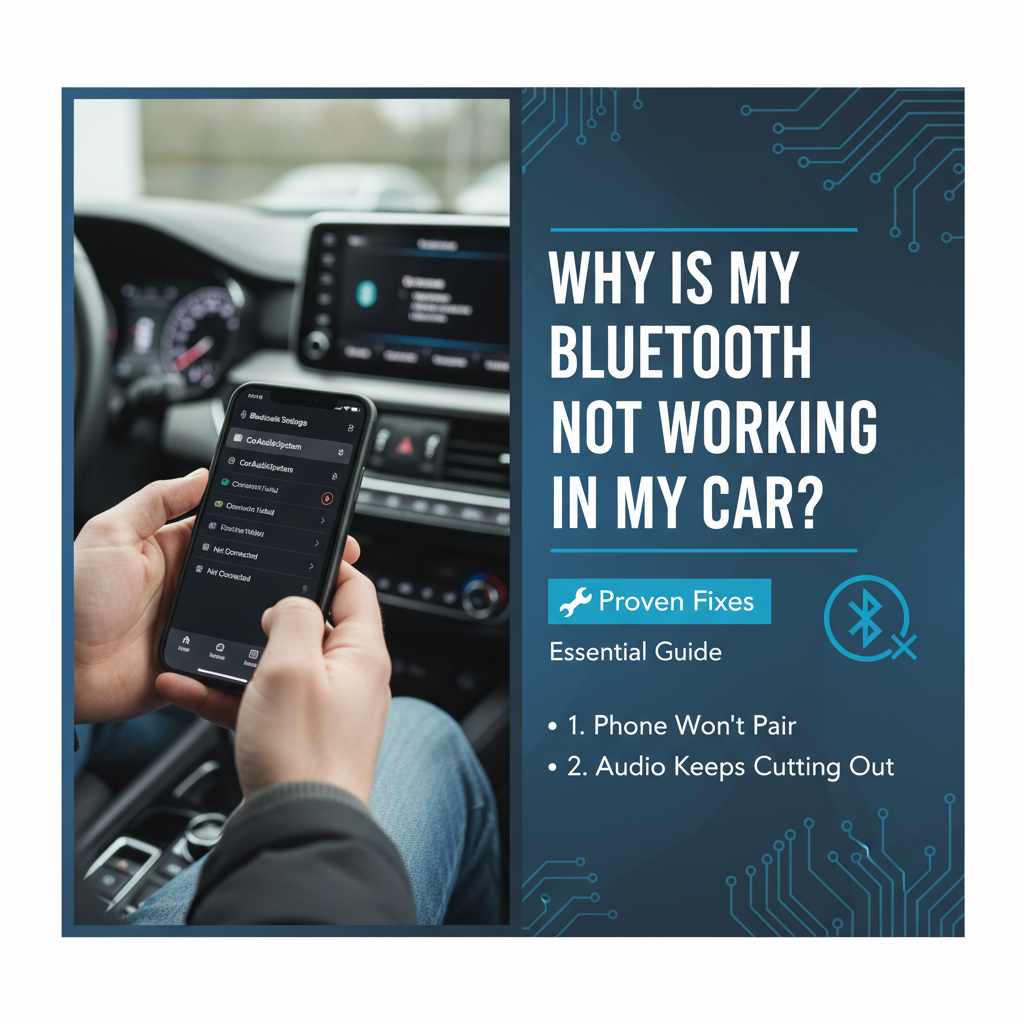
Why Is My Bluetooth Not Working In My Car? Proven Fixes.
If your car’s Bluetooth isn’t working, it’s often due to simple connection issues, outdated software, or temporary glitches. Start by restarting your phone and car system, re-pairing your device, and checking for updates. Most common Bluetooth problems can be fixed with these straightforward steps, getting your music and calls streaming again quickly.
It’s a sunny day, you’re ready for your commute, and you hit play on your favorite podcast. But wait… no sound. Your car’s Bluetooth, usually your reliable co-pilot for music and calls, has decided to take a day off. It’s a common and frustrating problem that can leave you feeling disconnected and a little helpless. But don’t worry! You don’t need to be a car expert to get your Bluetooth working again. We’ll walk through some easy fixes, step-by-step, to reconnect you to your drive.
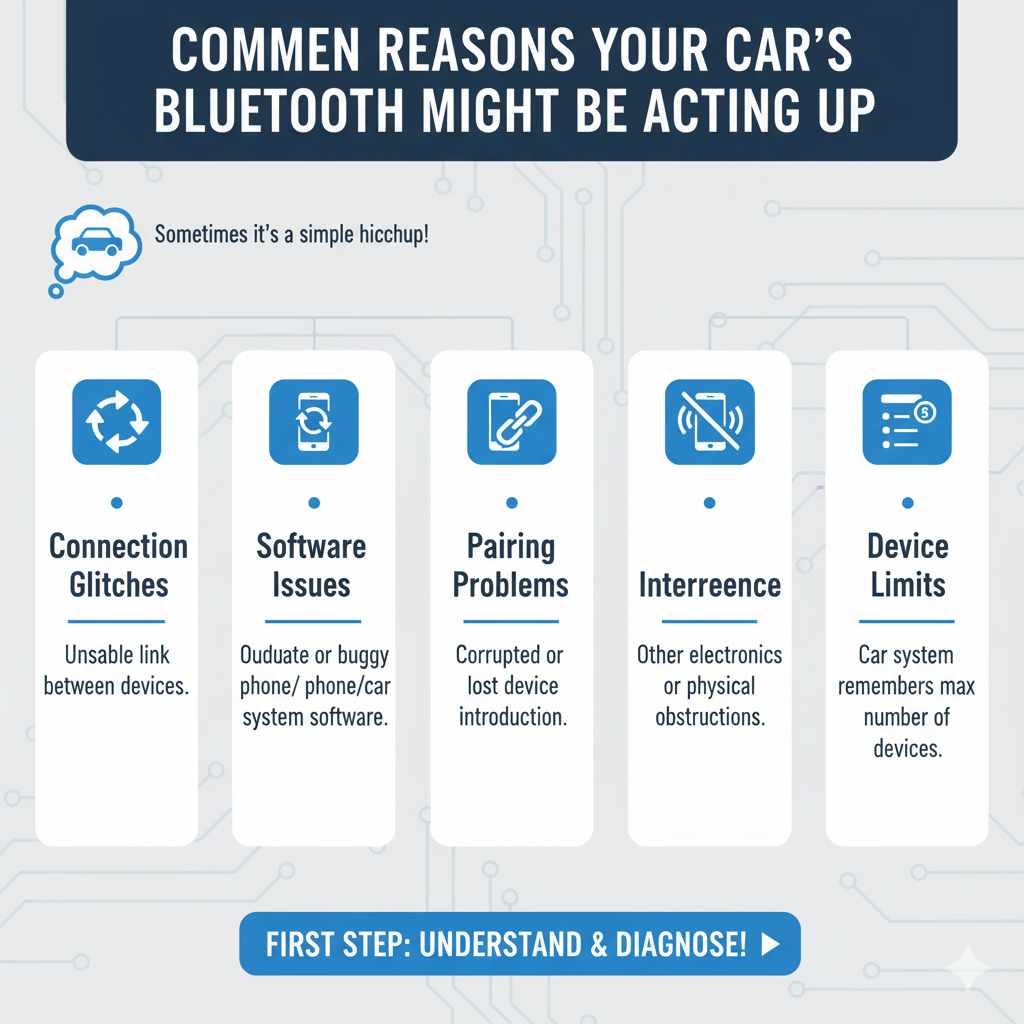
Common Reasons Your Car’s Bluetooth Might Be Acting Up
Many things can cause your car’s Bluetooth to stop cooperating. Sometimes it’s a simple mix-up, other times it might be a tiny electronic hiccup. Understanding these common causes is the first step to fixing them. They range from easy-to-spot issues to things that require looking a bit deeper, but all are manageable without needing a mechanic.
- Connection Glitches: Bluetooth relies on a stable connection. If this link is interrupted, your devices won’t talk to each other.
- Software Issues: Both your phone and your car’s infotainment system have software. If either is out of date or has a temporary bug, it can affect Bluetooth.
- Pairing Problems: Devices need to be properly “introduced” (paired) to connect. Sometimes this pairing gets corrupted or lost.
- Interference: Other electronic devices or even physical obstructions can sometimes interfere with Bluetooth signals.
- Device Limits: Some car systems can only remember a certain number of Bluetooth devices.
Step-by-Step Fixes to Get Your Car’s Bluetooth Working
Let’s tackle this problem head-on with a series of simple solutions. We’ll start with the quickest and easiest fixes and move towards more involved steps. You’ll be streaming your favorite playlists or taking hands-free calls in no time!
1. The Universal Fix: Restart Everything!
This is the golden rule of troubleshooting for almost any electronic device, and your car’s Bluetooth is no exception. A simple restart can clear out temporary glitches and re-establish connections.
- Turn Off Your Car’s Bluetooth: Go into your car’s infotainment system settings and find the Bluetooth menu. Turn it off.
- Turn Off Your Phone’s Bluetooth: On your smartphone, go to your Bluetooth settings and toggle it off.
- Wait a Moment: Give both devices a minute to fully power down their Bluetooth functions.
- Turn Your Car Off and On: Switch off your car’s engine completely, open the driver’s door for a few seconds (this helps ensure the car’s electronics fully reset), then start the car again.
- Turn On Your Phone’s Bluetooth: Go back to your phone’s settings and turn Bluetooth back on.
- Turn On Your Car’s Bluetooth: Navigate back to your car’s Bluetooth settings and turn it back on.
- Check Connection: See if your phone automatically connects or if you can manually connect it through your car’s system.
2. Re-Pair Your Phone with Your Car
Sometimes, the existing pairing between your phone and car gets corrupted. Deleting the old connection and creating a new one can solve a lot of issues.
Steps to Re-Pair Your Device:
The exact steps might vary slightly depending on your car’s make and model, but the general process is the same.
- Forget Device on Your Phone: On your smartphone, go to Bluetooth settings. Find your car’s name in the list of paired devices, tap on it, and select “Forget Device,” “Unpair,” or “Remove.”
- Delete Phone from Car’s System: In your car’s infotainment system, go to the Bluetooth settings. Find your phone’s name and select the option to delete or remove it from the list of paired devices.
- Restart Both Devices (Again): Do the quick restart from Step 1. This clears any lingering data from the old pairing.
-
Initiate New Pairing:
- From your car: Go to your car’s Bluetooth settings and select “Add New Device” or “Pair Device.” Follow the on-screen prompts.
- From your phone: Go to your phone’s Bluetooth settings and scan for new devices. Your car’s Bluetooth name should appear. Select it.
- Confirm Pairing: You’ll likely see a PIN code on both your phone and car screen. Ensure they match and confirm the pairing. You might also be asked to allow access to contacts and call history.
3. Check for Software Updates
Just like your smartphone, your car’s infotainment system runs on software. Updates often include bug fixes, performance improvements, and can resolve Bluetooth connectivity issues. Outdated software is a surprisingly common culprit.
Where to Find Updates:
- Infotainment System Updates: Many newer cars allow you to check for and install these updates directly through the car’s settings menu. Some may require downloading an update to a USB drive from the manufacturer’s website and installing it in the car.
- Smartphone Updates: Ensure your phone’s operating system (iOS or Android) is up to date. Go to your phone’s Settings > General > Software Update (iOS) or Settings > System > System update (Android).
Pro Tip: If your car requires a USB update, be sure to download the correct version for your specific vehicle model and year from the manufacturer’s official website. Using the wrong update could cause more problems.
4. Ensure Bluetooth is Enabled and Discoverable
It sounds obvious, but sometimes the simplest things get overlooked. Double-check that Bluetooth is actually turned on and that your phone is set to be discoverable by other devices.
On Your Smartphone:
- Check Settings: Navigate to your phone’s Bluetooth settings and ensure the toggle is switched to “On.”
- Visibility: Most smartphones automatically become discoverable when you are on the Bluetooth settings screen. If you’re having trouble, check if there’s an explicit “Discoverable” or “Visible” option you need to enable for a short period.
In Your Car:
- Check Infotainment Settings: Go into your car’s audio or connectivity settings and confirm that Bluetooth is turned on. Some cars have a specific Bluetooth menu where you can see connected devices and pairing options.
- “Discoverable” Mode: In some car systems, there’s an option to make the car’s Bluetooth discoverable if you’re trying to pair a new device.
5. Check Your Phone’s Connection Limits
Most car Bluetooth systems can only remember a certain number of paired devices. If you’ve paired many phones or devices over time, your car might have reached its limit.
How to Check and Manage:
- Go into your car’s Bluetooth settings.
- Look for a list of “Paired Devices” or “Saved Devices.”
- Count how many devices are listed.
- If you’re at or near the limit (this limit varies by car, often between 5-10 devices), you’ll need to “forget” or delete older, unused devices from the car’s list to make room for your current phone.
6. Clear Your Car’s Bluetooth Cache (Advanced, but Possible)
Similar to how computers and phones have a cache that stores temporary data to speed things up, your car’s infotainment system might have one. Clearing this can resolve stubborn glitches.
Note: This is not available on all car systems and the procedure can be complex. Consult your car’s owner’s manual.
- Owner’s Manual is Key: Your car’s manual is the best resource for this. Look for sections on “Infotainment System,” “System Reset,” or “Troubleshooting.
- Potential Reset Options: Some systems might have a “Reset Settings” or “Restore Factory Defaults” option. Be aware this might reset other preferences like radio presets or navigation settings.
- Dealer Assistance: If you can’t find information in your manual or are uncomfortable, a dealership service center can often perform this for you.
7. Test with Another Device
To determine if the problem lies with your phone or your car, try pairing a different Bluetooth-enabled device.
- Use a Friend’s Phone: Ask a friend to try pairing their smartphone with your car’s system.
- Use a Bluetooth Speaker/Headphones: If your car has Bluetooth audio output features (for music, not hands-free calls), see if it connects to a Bluetooth speaker or headphones.
If another phone pairs successfully with your car, the issue is likely with your original phone. If no other device can connect to your car, the problem is likely with the car’s Bluetooth system.
8. Check for Device Interference
Bluetooth operates on a 2.4 GHz frequency, which is also used by many other wireless devices. While usually not a major issue, sometimes interference can cause dropouts or connection failures.
- Turn off other nearby Bluetooth devices: Temporarily disable Bluetooth on other devices that might be close to your car (e.g., smartwatches, other phones, portable speakers).
- Limit USB device usage: Some in-car USB chargers can emit electrical noise that interferes with Bluetooth. Try disconnecting non-essential USB devices.
- Physical obstructions: While less common, extreme physical obstructions between your phone and the car’s Bluetooth antenna (often located in the dashboard or console) could theoretically cause issues.
9. Check Phone Case Compatibility
In rare cases, a bulky or metallic phone case can interfere with your phone’s Bluetooth signal. While it seems unlikely, it’s worth considering if all other steps have failed.
- Remove Case: Try removing your phone case and see if the Bluetooth connection improves.
- Test with a Different Case: If removing the case helps, try a different, less obstructive case.
External Resource: For more in-depth technical information on Bluetooth technology and potential interference sources, you can refer to resources like the official Bluetooth website, which explains the technology behind it.
Troubleshooting Based on Device
Sometimes, the problem is more specific to either your phone or your car. Here’s a quick guide to help you pinpoint the issue:
| Symptom | Likely Cause | Primary Area to Troubleshoot |
|---|---|---|
| Phone won’t connect to any car Bluetooth systems. | Issue with the phone’s Bluetooth hardware, software, or settings. | Your Smartphone |
| Car Bluetooth won’t discover your phone, but connects to others. | Problem with your car’s Bluetooth receiver or its settings. | Your Car’s Infotainment System |
| Bluetooth connects but audio cuts out or is choppy. | Potential signal interference, outdated software, or low phone battery. | Both Phone & Car (focus on interference and software) |
| Car says “Bluetooth Device Limit Reached.” | Too many devices saved in the car’s memory. | Your Car’s Infotainment System |
| Phone connects for calls, but not for media audio. | Bluetooth profile settings are incorrect or incomplete. | Both Phone & Car (check specific profiles in settings) |
Note on Bluetooth Profiles: Bluetooth uses different “profiles” for different functions, like Hands-Free Profile (HFP) for calls and Advanced Audio Distribution Profile (A2DP) for music. When you pair your phone, ensure both your phone and car settings allow these profiles. You can usually find this in the Bluetooth device details on your phone or within your car’s audio/phone settings.
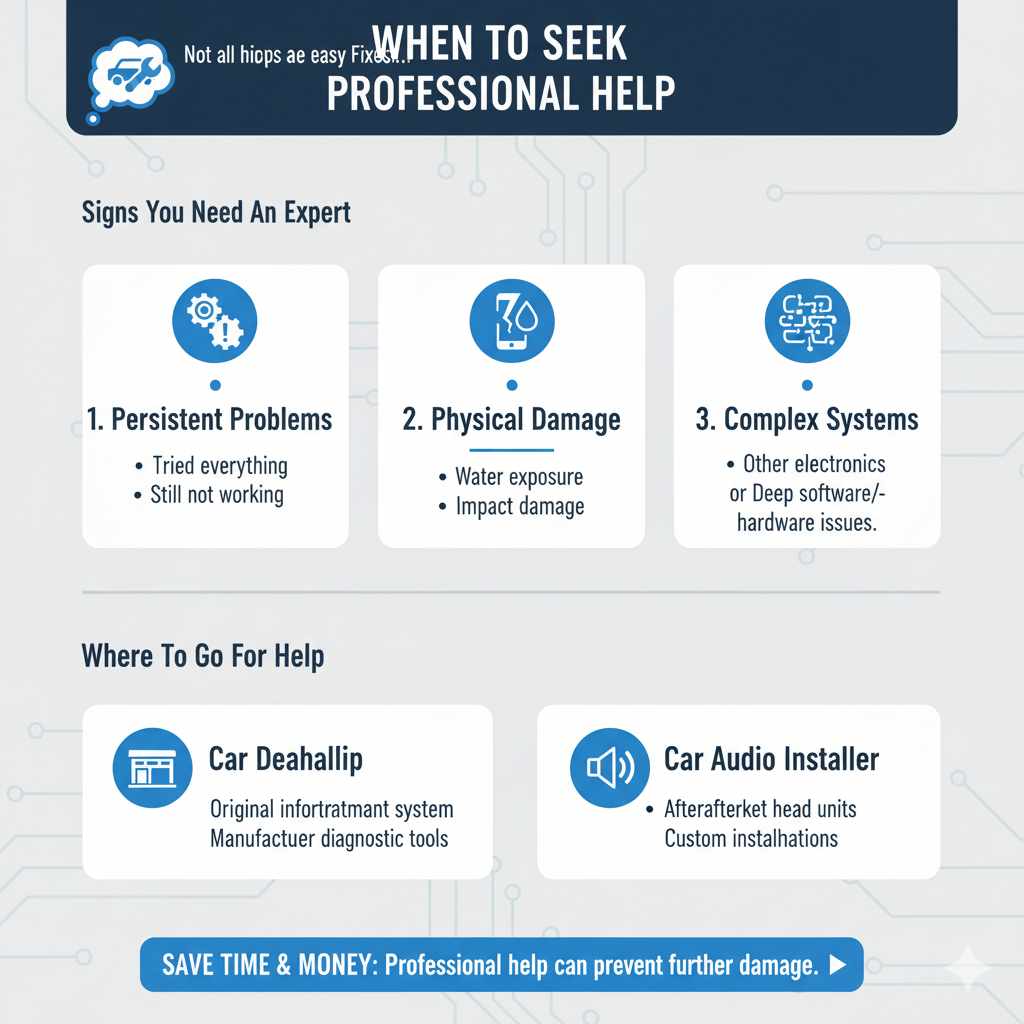
When to Seek Professional Help
While most Bluetooth issues are fixable with these steps, there are times when a professional might be needed.
- Persistent Problems: If you’ve tried all the above steps multiple times and your Bluetooth still won’t work, it might be time to consult a professional.
- Physical Damage: If your car’s infotainment system has been recently exposed to water or has suffered any physical impact, there could be internal damage.
- Complex Systems: Some advanced infotainment systems might have deeper software or hardware issues that require specialized tools and knowledge.
Where to Go: Your car dealership’s service department is the best place for issues specific to your car’s original infotainment system. They have access to manufacturer diagnostic tools and software. For aftermarket head units, contact the manufacturer of that unit or a reputable car audio installer.
Frequently Asked Questions (FAQ)
1. Why does my Bluetooth keep disconnecting?
Frequent disconnections can be caused by software glitches, interference from other devices, low battery on your phone, or older/corrupted pairing data. Try restarting both devices, re-pairing them, and ensuring your phone and car have the latest software updates. Moving away from other wireless devices can also help.
2. Can I use my phone while it’s connected via Bluetooth?
Yes, you can absolutely use your phone while it’s connected via Bluetooth. In fact, the system is designed for this. You can make and receive calls, play music, or use navigation apps with audio prompts through your car’s speakers, all while your phone is safely stowed away. Just ensure your phone allows the necessary permissions for Bluetooth access.
3. How far can my phone’s Bluetooth reach in my car?
Standard Bluetooth has an effective range of about 30 feet (10 meters). In a car, however, the physical structure of the vehicle can reduce this range significantly. Typically, you’ll want your phone to be within the cabin, generally within 10-15 feet, for a stable connection, especially for music streaming.
4. My car isn’t showing up on my phone’s Bluetooth list. What should I do?
First, ensure that Bluetooth is turned on for both your phone and your car. Then, make sure your car’s system is in “discoverable” or “pairing” mode. This is usually found in the Bluetooth settings of your car’s infotainment system. If it still doesn’t appear, try restarting both your phone and your car, and then resetting the car’s Bluetooth connection.
5. My car shows connected, but there’s no sound. What’s wrong?
This often happens if the car is connected via the hands-free profile but not the media audio profile. Check your car’s audio source settings and select “Bluetooth Audio” or similar. On your phone, go to the Bluetooth settings for your car’s connection and ensure that “Media Audio” is enabled, not just “Phone Calls.”
6. How do I update my car’s Bluetooth software?
This varies greatly by manufacturer. Some cars update automatically via Wi-Fi or cellular connection, while others require you to download updates from the manufacturer’s website to a USB drive and install them in the car. Check your car’s owner’s manual or the manufacturer’s support website for specific instructions for your vehicle model.
Conclusion
Dealing with a car Bluetooth that suddenly stops working can be a real headache, disrupting your commute and your peace of mind. However, as we’ve explored, most of the time, the solution is much simpler than you might think. By systematically going through these troubleshooting steps – from a quick restart to re-pairing your devices and checking for updates – you can often resolve the issue yourself. Remember to be patient, and don’t get discouraged if the first attempt doesn’t work. With a little persistence, you’ll likely get your tunes and calls flowing wirelessly again. Happy and connected driving!