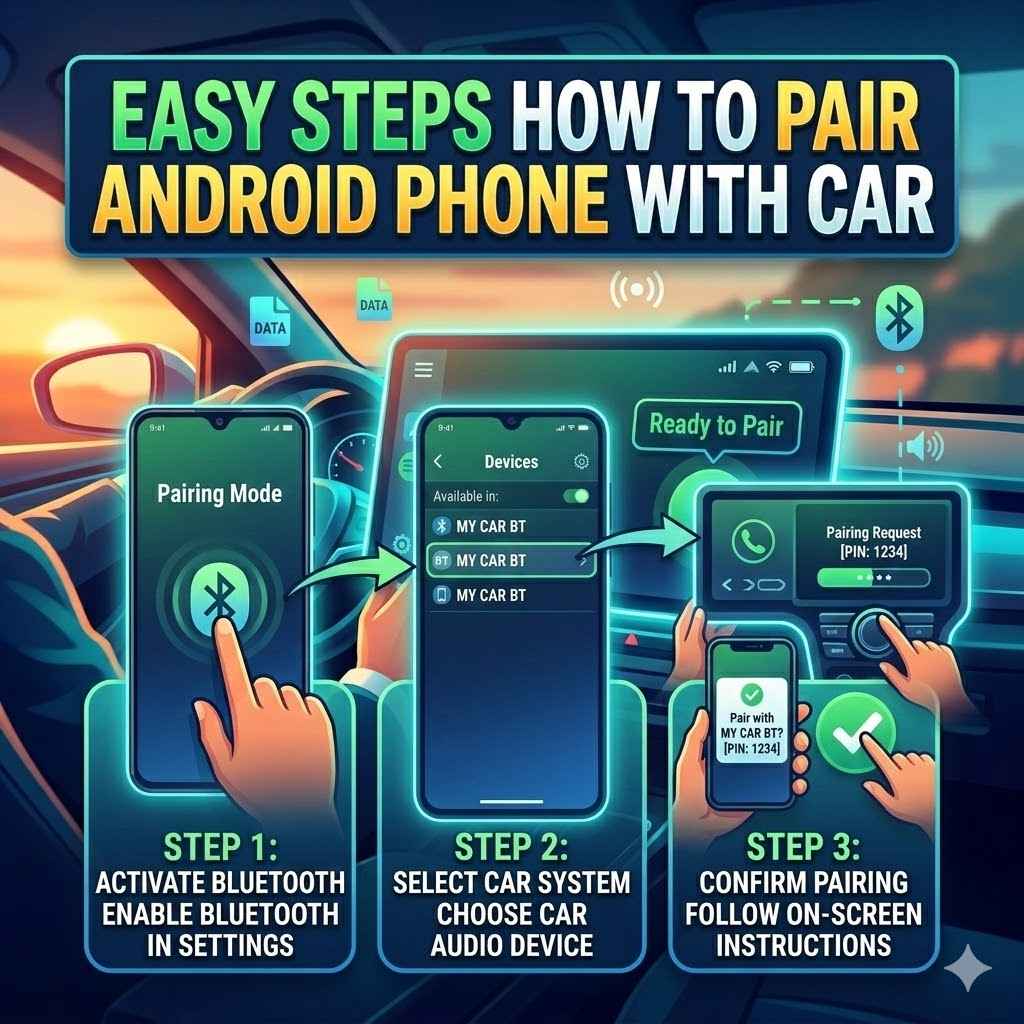
Easy Steps How to Pair Android Phone With Car
Connecting your Android phone to your car’s Bluetooth radio can sometimes feel a bit tricky, especially if you’re new to it. Many people find the process confusing, wondering where to start or what buttons to press. Don’t worry, it’s actually quite simple once you know the right steps.
This guide will show you exactly how to pair an Android phone with a car Bluetooth radio in an easy, step-by-step way. Let’s get your phone and car talking to each other so you can enjoy music and calls safely.
Connecting Your Android Phone Via Bluetooth To Your Car
This section walks you through the core process of making your Android phone and car’s Bluetooth system work together. We will cover finding the Bluetooth settings on both devices and initiating the pairing sequence. It is important to get these initial steps right for a successful connection.
We will explain each part clearly so you can follow along easily, even if you have never done this before.
Locating Bluetooth Settings on Your Android Phone
Your Android phone has a hidden menu for all its wireless connections. This is where you’ll turn on Bluetooth. It’s usually found within the main settings app.
- Accessing SettingsFirst, find the Settings app on your Android phone. It often looks like a gear or a wrench icon. Tap it to open.
- Finding Bluetooth MenuOnce in Settings, look for an option related to “Connections,” “Connected devices,” or simply “Bluetooth.” Tap on this. You might have to scroll down a bit to find it.
-
Turning On BluetoothInside the Bluetooth menu, you will see a switch or a toggle. Make sure this switch is turned on. It usually turns blue or green when active.
Your phone will then start searching for nearby Bluetooth devices.
Finding Bluetooth Settings in Your Car
Your car’s stereo system also needs to be ready to connect. Most cars have a similar process to enable their Bluetooth. This usually involves navigating through the car’s infotainment system.
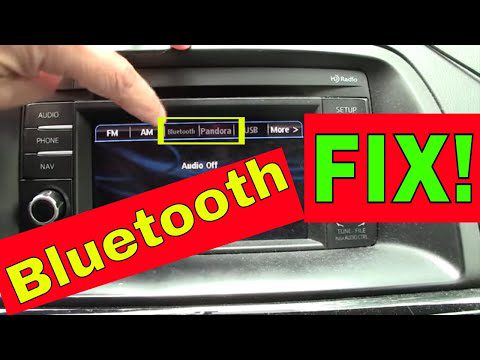
- Accessing Car’s Media or Phone MenuStart your car’s engine and turn on the stereo. Look for buttons labeled “Menu,” “Setup,” “Phone,” or “Audio.” Press the appropriate button to enter the system’s settings.
- Locating Bluetooth or Phone Pairing OptionWithin the car’s menu, search for options like “Bluetooth,” “Pair Device,” “Phone Setup,” or “Connect Phone.” Select this option to make your car’s Bluetooth visible and ready to pair.
- Making the Car DiscoverableYou may need to select an option that says “Pair New Device” or “Add Device.” This tells your car to broadcast its Bluetooth signal so your phone can find it. The car’s display might show a message like “Ready to Pair.”
Initiating the Pairing Process
With both devices ready, you can now connect them. This is the moment they talk to each other to establish a secure link.
-
Selecting Your Car on Your PhoneOn your Android phone’s Bluetooth screen, you should now see a list of available devices. Look for the name of your car’s Bluetooth system. This name is often displayed on your car’s screen or found in your car’s manual.
Tap on your car’s name.
- Confirming the Pairing CodeYour phone and car will likely display a pairing code, often a four-digit number. Make sure the codes match on both devices. If they do, confirm the pairing by tapping “Pair,” “Connect,” or “OK” on both your phone and your car’s screen.
- Granting PermissionsYour phone might ask for permission to access your contacts and call history. This allows you to make and receive calls through the car’s system and see caller ID. It is generally safe to grant these permissions for full functionality.
Troubleshooting Common Pairing Issues
Troubleshooting Common Pairing Issues
Sometimes, things don’t go perfectly smooth. This part helps you fix common problems when you how to pair an Android phone with a car Bluetooth radio. We will look at why connections might fail and what simple fixes you can try.
Getting through these common hiccups means you’ll have your phone connected in no time.
Bluetooth Not Discoverable
This is when your phone can’t find the car, or the car can’t find the phone.
- Check if Bluetooth is OnEnsure Bluetooth is active on both your Android phone and in your car’s system. Sometimes the setting can accidentally turn off.
- Restart DevicesTurn off Bluetooth on both your phone and car, wait a few seconds, and then turn it back on. Sometimes a simple restart clears temporary glitches.
- Forget Previous PairingsIf you’ve connected to this car before, or your phone has connected to many devices, it might be confused. On your phone, go to Bluetooth settings, tap on your car’s name, and select “Forget” or “Unpair.” Do the same on your car’s system if possible, removing your phone’s profile. Then, try pairing again from scratch.
Pairing Failed or Code Mismatch
This happens when the devices try to connect but can’t complete the process.
- Verify Pairing CodesAlways double-check that the four-digit PIN shown on both your phone and car screen matches exactly. If they don’t match, cancel the pairing and start over. Some cars use a default code like 0000 or 1234, though this is less common now.
- Reduce InterferenceOther wireless devices can sometimes interfere with Bluetooth signals. Try to minimize the number of active Bluetooth devices nearby. Also, ensure your phone and car are relatively close to each other during the pairing process.
-
Update SoftwareCheck if your Android phone has any pending software updates. Sometimes, these updates include fixes for Bluetooth connectivity. Similarly, some car manufacturers offer updates for their infotainment systems.
Consult your car’s manual or dealership for more information.
Connection Drops Frequently
Your phone connects but then disconnects randomly.
- Check Phone Battery and Signal StrengthA low phone battery can sometimes cause unstable connections. Ensure your phone is adequately charged. Also, while less common for Bluetooth, a very weak cellular signal might theoretically impact some hands-free functions that rely on data.
- Disable Battery Optimization for Bluetooth AppsSome Android phones aggressively manage battery usage and might close Bluetooth-related apps in the background. Go to your phone’s Battery settings, find any apps related to Bluetooth or System UI, and disable battery optimization for them. This ensures they stay active.
- Test with Another PhoneIf possible, try pairing a different Android phone with your car. If the other phone connects and stays connected reliably, the issue might be with your specific phone’s Bluetooth hardware or software. If the other phone also has problems, the issue is likely with the car’s Bluetooth system.
Tips for Optimal Bluetooth Connection and Usage
Tips for Optimal Bluetooth Connection and Usage
Once you’ve successfully learned how to pair an Android phone with a car Bluetooth radio, you’ll want to make sure it works as smoothly as possible every time. These tips will help you get the best performance from your car’s Bluetooth system and your Android phone. They cover how to maintain the connection and use it effectively for calls and audio.
Setting Up Your Phone for Automatic Reconnection
Most modern phones and cars are designed to reconnect automatically. However, ensuring this happens smoothly is key.
- Ensure Bluetooth is Always OnKeep Bluetooth enabled on your Android phone. When you turn on your car, it should detect your phone and connect without you needing to do anything, assuming it was paired successfully before.
- Prioritize Your Car in Phone SettingsSome Android phones allow you to set preferred Bluetooth devices. Go into your Bluetooth settings, tap on your car’s name, and see if there’s an option to “Prioritize” or “Make Connection Reliable.” This tells your phone to favor this connection.
- Check Car’s Auto-Connect SettingsYour car’s infotainment system may also have settings related to automatic connection. Check your car’s manual or its settings menu for options like “Auto Connect,” “Connect on Startup,” or similar. Ensure these are enabled.
Optimizing Audio and Call Quality
Getting clear sound for music and calls is important for a good driving experience.
-
Adjust Volume Levels CarefullyStart with both your phone’s media volume and your car’s audio volume at a moderate level. Avoid turning either to maximum, as this can cause distortion. Gradually increase the volume on both devices until you reach a comfortable listening level.
This helps maintain optimal audio fidelity.
- Ensure Microphone is UnobstructedIf you use your car’s hands-free calling, make sure the car’s built-in microphone is not covered by anything. Its location varies by car model, but it’s usually a small hole on the ceiling console or near the rearview mirror. Clear any objects that might be blocking it.
- Disable Bluetooth Audio Codec if Issues AriseWhile advanced, sometimes a specific Bluetooth audio codec can cause issues. Most phones default to the best available codec (like LDAC or aptX if supported). If you experience audio glitches, you might explore your phone’s Developer Options (you may need to enable this first by tapping the build number seven times in About Phone) to see if you can select a different audio codec, though this is rarely necessary for basic pairing.
Managing Multiple Devices
Many people have more than one Bluetooth device. Here’s how to handle them.
- Disconnect Unused DevicesIf you have multiple Bluetooth devices paired with your phone (like headphones or a smartwatch), disconnect the ones you aren’t currently using. This prevents your phone from trying to connect to the wrong device or getting confused.
- Understand Device PrioritySome cars can connect to two phones simultaneously, but usually, only one can be actively used for calls at a time. Your car’s system will typically use the phone that was connected first or the one designated as primary. If you need to switch, you might have to manually select the desired phone from the car’s menu.
- Regularly Clean Up Old PairingsOver time, your phone and car will accumulate a list of previously paired devices. Periodically, go into the Bluetooth settings on both your phone and your car and remove any devices you no longer use. This keeps the lists clean and reduces the chance of connection conflicts.
Benefits of Using Bluetooth Connectivity in Your Car
Benefits of Using Bluetooth Connectivity in Your Car
Once you’ve mastered how to pair an Android phone with a car Bluetooth radio, you unlock a range of convenient features. Bluetooth makes your drive safer and more enjoyable. It moves beyond just basic phone calls to offer a richer media experience.
Enhanced Safety While Driving
Keeping your hands on the wheel and your eyes on the road is paramount. Bluetooth significantly contributes to this by enabling hands-free operation.
- Hands-Free CallingThe most obvious safety benefit is the ability to make and receive phone calls without picking up your phone. You can answer a call with a button press on your steering wheel or dashboard and speak to the caller through your car’s speakers. This drastically reduces distractions associated with fumbling for your phone.
- Voice Commands for Navigation and CallsMany Android phones and car systems allow voice commands through the Bluetooth connection. You can use your voice to set navigation destinations, find points of interest, or call contacts. This further minimizes the need to interact physically with your phone, keeping your focus on driving.
- Reduced Risk of FinesIn many regions, holding a phone while driving is illegal and carries hefty fines. Using Bluetooth keeps you compliant with these laws, avoiding penalties and promoting responsible driving habits.
Seamless Access to Entertainment
Beyond calls, Bluetooth transforms your car into a mobile entertainment hub.
- Streaming Music and PodcastsYou can stream all your favorite music playlists, podcasts, and audiobooks directly from your Android phone to your car’s sound system. This means you don’t need auxiliary cords or CDs. The sound quality is generally excellent, providing a rich listening experience.
- Accessing Audiobooks and Radio AppsAny audio content played on your phone can be channeled through your car’s speakers. This includes content from streaming services like Spotify, Apple Music, or Google Play Music, as well as spoken word content from various apps. The convenience of having your entire audio library accessible is a major advantage.
- Integration with Navigation Voice PromptsWhen you use a navigation app on your phone, like Google Maps or Waze, the voice directions can be played through your car’s speakers via Bluetooth. This often integrates seamlessly with your music, lowering the music volume when directions are given and then returning it to normal afterward.
Convenience and Efficiency
Bluetooth simplifies many daily driving tasks.
- Quick Setup and Auto-ConnectionOnce paired, your phone and car will usually connect automatically each time you start your car. This means your music and phone are ready to go without any manual intervention, saving time and hassle.
- Simplified Contact ManagementPairing often allows your car’s system to access your phone’s contact list. This means you can often dial numbers from your car’s screen or by asking your voice assistant to call a specific contact. Caller ID also displays on your car’s screen, letting you know who is calling before you answer.
- Software Updates for New FeaturesAs Android phones and car systems evolve, Bluetooth connectivity can be updated. This means new features or improvements to audio quality or call handling might become available through software updates, enhancing your driving experience over time.
Frequently Asked Questions
Question: How do I make sure my phone is compatible with my car’s Bluetooth?
Answer: Most modern Android phones and car Bluetooth systems are designed to be compatible. The best way to check is to ensure both your phone and car support the standard Bluetooth profiles like HFP (Hands-Free Profile) for calls and A2DP (Advanced Audio Distribution Profile) for audio streaming. These are very common.
Question: What if my car doesn’t have Bluetooth?
Answer: If your car lacks built-in Bluetooth, you can often add it using an aftermarket Bluetooth adapter that plugs into your car’s auxiliary (AUX) input or cigarette lighter port. These adapters create their own Bluetooth signal that you can connect your phone to.
Question: How long does it take to pair my Android phone with my car?
Answer: The initial pairing process usually takes just a few minutes. Once paired, the connection should be nearly instant every time you get into your car.
Question: Can I stream video from my phone to my car’s screen using Bluetooth?
Answer: No, Bluetooth is not designed for video streaming. It is primarily used for audio and phone call functions. For video, you would typically need a wired connection like USB or specialized systems like Android Auto or Apple CarPlay.
Question: Why does my car ask for my contacts and call history?
Answer: Your car’s Bluetooth system requests access to your contacts and call history so it can display caller ID, allow you to make calls from your car’s interface, and manage your call logs directly through the hands-free system.
Summary
Connecting your Android phone to your car’s Bluetooth radio is a straightforward process. You simply need to enable Bluetooth on both devices, make them discoverable, and then pair them through their respective settings. Should any issues arise, common fixes include restarting devices, forgetting previous pairings, and checking for software updates.
With a successful connection, you gain safe hands-free calling and easy access to your music and other audio content, making every drive more enjoyable and efficient.