How to Connect Your Phone to Your Car Stereo: Bluetooth, AUX, USB (2026)
You can connect your phone to your car stereo in four main ways: Bluetooth (wireless, most common), AUX cable (wired, best for older cars), USB (wired, also charges your phone), or an FM transmitter (for cars with no AUX or Bluetooth). The fastest method for most modern cars is Bluetooth — it takes under 2 minutes to pair and connects automatically on future drives. — see our related guide, How to Set the Clock on a Pioneer Car Stereo.
This guide covers every method step-by-step, including Android Auto, Apple CarPlay, and adapters for older cars without built-in Bluetooth. Whether you drive a new SUV or a 2003 sedan with a tape deck, one of these methods will work for you.
⚡ Quick Answer: How to Connect Phone to Car Stereo
Bluetooth: Settings → Bluetooth → select car name → pair. AUX: Plug 3.5mm cable into phone and AUX port, press AUX on stereo. USB: Plug in charging cable, select USB/Media on stereo. No Bluetooth or AUX: Use an FM transmitter ($20–$30) plugged into the 12V port. Older car with tape deck: Use a cassette adapter (~$10).
Why Connect Your Phone to Your Car Stereo?
Connecting your phone to your car stereo lets you play music, podcasts, or GPS directions through your car’s speakers. You get better sound quality than your phone’s tiny speaker, hands-free calls, and a safer way to enjoy your phone’s apps without looking at the screen.
Methods to Connect Your Phone
There are several ways to connect your phone to your car stereo. Each method depends on your car’s features and your phone type. Here’s what’s available: Bluetooth, AUX cable, USB, FM transmitter, and cassette adapter for older cars.
Bluetooth: The Wireless Way
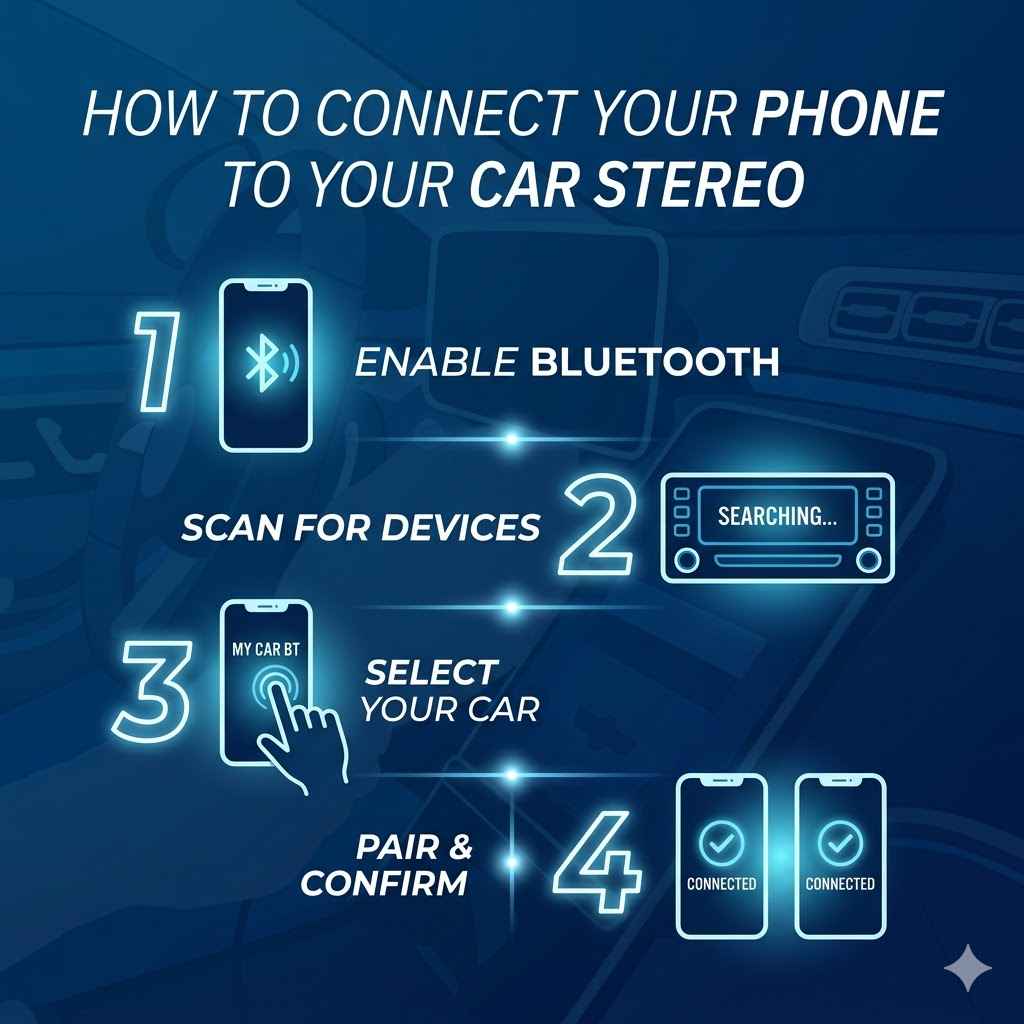
Bluetooth is the go-to for modern cars because it’s wireless, easy, and reconnects automatically. Most cars made after 2010 have it built in. Here’s how to set it up:
- Turn on your car’s stereo and find the Bluetooth menu (check your car’s manual or press the phone/BT button).
- Enable Bluetooth on your phone (Settings > Bluetooth).
- Select your car’s name from the list of available devices on your phone.
- Enter a PIN if prompted (usually shown on your car’s display or in the manual).
- Play music — it should stream through your car’s speakers instantly.
Pro Tip: If pairing fails, check that your phone isn’t already connected to another Bluetooth device like headphones. Disconnect other devices first, then retry the Bluetooth pairing.
| Feature | Pros | Cons |
|---|---|---|
| Bluetooth | Wireless, easy to set up, supports calls and music, auto-reconnects | May drain phone battery faster; older cars may not have it |
AUX Cable: Simple and Reliable
An AUX cable is perfect for cars with a 3.5mm AUX port. It’s cheap, sounds great, and works with any phone — though phones without a headphone jack need a USB-C or Lightning-to-3.5mm adapter. Here’s how:
- Plug one end of the AUX cable into your phone’s headphone jack (or adapter).
- Plug the other end into your car’s AUX port (usually near the stereo or center console).
- Press the “AUX” or “Line In” button on your car stereo.
- Play music from your phone — it’ll come through the speakers immediately.
Safety Tip: Keep the cable short and tucked away to avoid dashboard tangles while driving. If you get static, check the AUX cord connection at both ends — a loose plug is the most common cause.
USB Cable: Power and Audio in One
Many cars have USB ports that play audio and charge your phone simultaneously. USB also enables Android Auto and Apple CarPlay. Here’s how to connect:
- Connect a USB cable to your phone and your car’s USB port.
- Select “USB” or “Media” on your car stereo.
- Choose music or apps from your phone — or use the car display for CarPlay/Android Auto.
- Enjoy clear audio and a charged phone at the same time.
Important: Not all USB ports support audio — some only charge. Check your car’s manual or look for a “USB Media” label on the port. Use your phone’s original charging cable for the best compatibility.
| Method | Cost | Ease of Use | Audio Quality | Charges Phone? |
|---|---|---|---|---|
| Bluetooth | Free (if built-in) | Easy | Good | No |
| AUX Cable | $5–$15 | Very Easy | Excellent | No |
| USB | $10–$20 | Moderate | Best | Yes |
| FM Transmitter | $20–$35 | Easy | Fair | Some models |
| Cassette Adapter | $8–$15 | Very Easy | Good | No |
Adapters for Older Cars
Got a car from the ’90s with a cassette player or no AUX port? Two adapter options work well:
- Cassette Adapter: Plug the adapter’s cassette into your car’s tape deck and connect the 3.5mm end to your phone. It works just like an AUX cable — clean sound with no interference.
- FM Transmitter: Plug it into your car’s 12V/cigarette lighter port, connect to your phone via Bluetooth, and tune your radio to a clear FM station. Spend $20–$30 on a quality brand (Anker, Belkin) to avoid static.
How to Stream Music from Phone to Car Radio
Streaming music wirelessly from your phone to your car radio works through Bluetooth. Once paired, open any music app — Spotify, Apple Music, YouTube Music — and it plays through your car speakers automatically. No extra steps needed after the initial pairing.
If you want to stream from a service that requires an internet connection (like Spotify or Pandora), make sure your phone has a cellular data connection or connect to a mobile hotspot. The car stereo itself doesn’t need internet — it just receives the Bluetooth audio signal from your phone.
For the best streaming experience: keep your phone within 30 feet of the stereo, avoid physical obstructions between phone and stereo, and set your phone’s media volume to 80–90% before adjusting your car’s stereo volume up.
How to Make Phone Calls Through Car Speakers
Once Bluetooth is paired, incoming and outgoing calls automatically route through your car’s speakers and use the car’s built-in microphone. This is hands-free calling and is supported by virtually all Bluetooth-equipped car stereos.
To make a call: dial from your phone as normal — the audio will automatically switch to the car speakers. To answer an incoming call, most steering wheels have a phone button, or you can accept it on your phone screen. To end the call, press the end button on your steering wheel or phone.
If the caller can’t hear you clearly, the car’s microphone may be dirty or positioned poorly. Try speaking more directly toward the headliner (where most car mics are located) and ensure there’s no loud music competing.
Benefits and Drawbacks
Each method has upsides and downsides. Bluetooth is wireless but may skip in areas with heavy wireless interference. AUX cables are cheap and reliable but need a headphone jack or adapter. USB offers the best audio quality and charges your phone, but requires a compatible data port. FM transmitters work for any car but can have static on busy radio markets. Pick what fits your car and budget.
Tips for a Smooth Connection
- Check Compatibility: Ensure your car stereo supports your chosen method — not all USB ports carry audio, and not all cars have AUX.
- Keep Cables Tidy: Use cable clips to keep cords off the dashboard and away from the gear shift.
- Update Firmware: Check your car’s manual or manufacturer website for stereo software updates — many Bluetooth issues are fixed by firmware updates.
- Set Volume Levels Correctly: Set your phone to 80% volume, then adjust the car stereo for best audio quality without distortion.
| Tip | How It Saves Money |
|---|---|
| Use Existing Cables | Avoid buying new AUX/USB cables — use what came with your phone |
| Buy Budget Adapters | Cassette adapters cost under $10 and last for years |
| Try FM Transmitter Before Replacing Stereo | $25 solution vs. $200+ aftermarket stereo installation |
Troubleshooting Common Issues
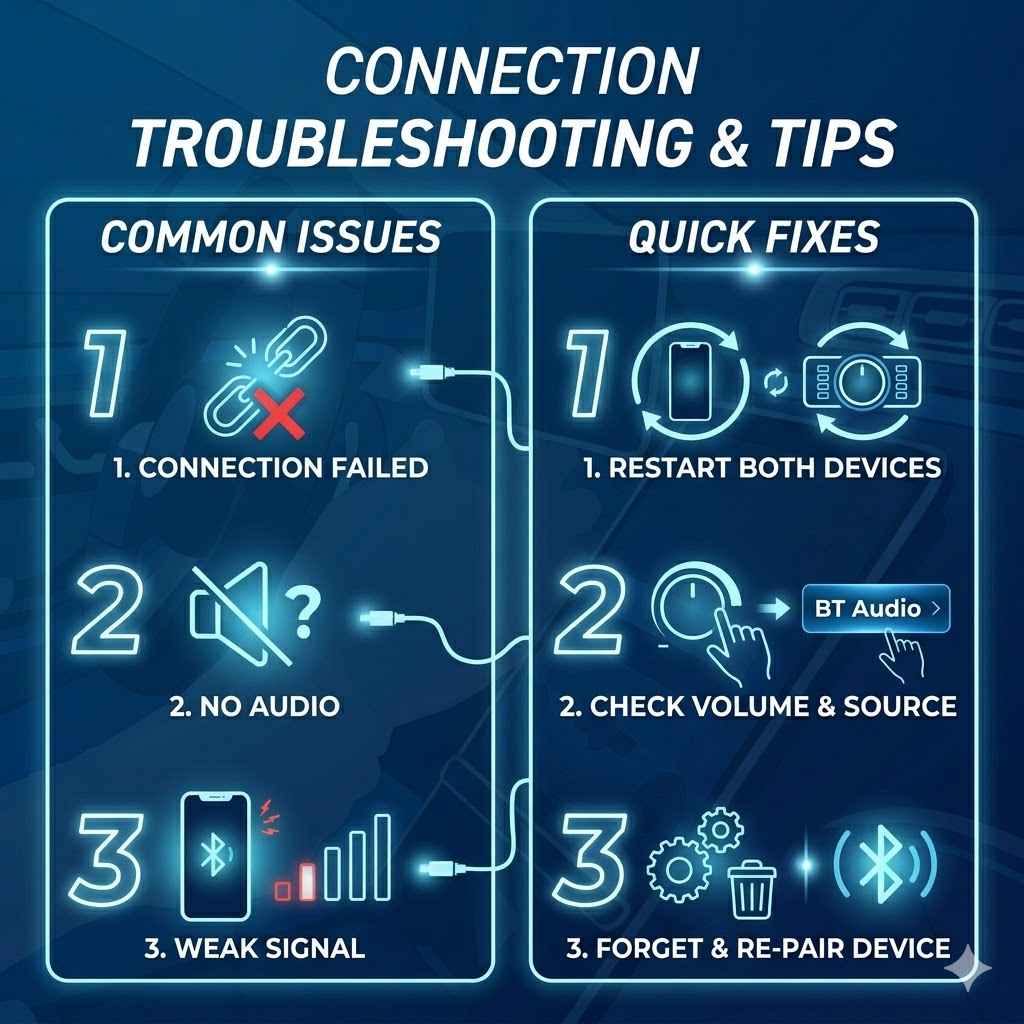
- No Sound? Check that your car stereo input matches your connection method (AUX, USB, or Bluetooth) — it’s easy to be on the wrong input source.
- Bluetooth Won’t Pair? Turn Bluetooth off and back on on both devices. Delete the car from your phone’s paired devices list and start fresh.
- Fuzzy Audio on FM Transmitter? Try a different frequency — move away from busy stations. The clearest channels are usually below 88.1 FM or above 107.9 FM.
- AUX Static? Wiggle the cable gently at both plug ends. Static usually means a loose or dirty connection — clean the port with a cotton swab.
For more troubleshooting, check out Crutchfield’s car audio guides — they have model-specific advice for most stereo brands.
Android Auto and Apple CarPlay
For newer cars, Android Auto and Apple CarPlay take phone integration up a level. They mirror your phone’s interface on your car’s display, giving you Spotify, Google Maps, and other apps on your car’s touchscreen with large, easy-to-tap buttons.
- Connect your phone to a USB port using a data cable (not all USB cables carry data — use the one that came with your phone).
- On first connection, follow the on-screen setup prompts for Android Auto or CarPlay.
- Future connections will launch automatically when you plug in.
- Wireless CarPlay/Android Auto (available on some 2019+ vehicles): Go to Settings → CarPlay/Android Auto on your phone and connect wirelessly via Bluetooth.
Beginner Tip: Start with a wired USB connection — it’s faster and more reliable than wireless for first-time setup. Switch to wireless later once you know it works.
Conclusion
Connecting your phone to your car stereo is easier than it looks. Bluetooth is the fastest for modern cars. AUX is the most reliable for older setups. USB gives you the best sound plus charging. And FM transmitters or cassette adapters solve the “no input” problem for any car. Try one on your next drive — it genuinely makes every commute better.
Frequently Asked Questions
What If My Car Doesn’t Have Bluetooth?
Use an AUX cable, USB, or an adapter. A cassette adapter (~$10) works for cars with a tape deck. An FM transmitter ($20–$30) works for any car with a radio — plug it into the 12V port, pair your phone to it, and tune the radio to its frequency. Both options are easy and affordable alternatives to Bluetooth.
Do I Need a Special Cable for USB?
Use your phone’s original charging cable (USB-C or Lightning). The key is that it must be a data cable, not just a charging cable — some cheap cables only charge and can’t carry audio. Check your car’s USB port specification in the manual to confirm it supports audio output.
Why Is My Bluetooth Audio Choppy?
Choppy Bluetooth audio is usually caused by interference from other wireless devices or being too far from the stereo. Move your phone closer to the stereo, turn off Wi-Fi on your phone (reduces interference), or switch to a wired AUX or USB connection for consistently clean sound.
Can I Use My Phone’s Headphone Jack?
Yes — if your phone has a 3.5mm headphone jack, plug in an AUX cable directly. For newer phones without a headphone jack (most iPhones and Android phones since 2019), you need a USB-C to 3.5mm adapter or Lightning to 3.5mm adapter — both cost under $10 on Amazon.
Are FM Transmitters Worth It?
Yes, for cars with no AUX or USB port — they’re far cheaper than replacing your stereo. Spend $20–$30 on a quality model from Anker or Nulaxy. Avoid very cheap ($5–$8) transmitters — they produce noticeable static. On a busy FM market (many cities), finding a clear channel can take a minute of scanning.
How Do I Set Up Android Auto or CarPlay?
Plug your phone into a USB port using a data cable. Your phone will prompt you to allow Android Auto or CarPlay. Accept, follow the on-screen setup, and you’re done. For wireless versions: enable wireless CarPlay/Android Auto in your phone’s Settings → CarPlay or Connected Devices, then connect via Bluetooth.
What’s the Cheapest Way to Connect My Phone?
An AUX cable ($5–$10) is the cheapest for cars that have an AUX port. A cassette adapter ($8–$15) is the cheapest option for cars with a tape deck. If your car only has a radio (no ports), an FM transmitter ($20–$30) is the lowest-cost solution without replacing the stereo.
Products related to this article
Sponsored / affiliate links. As an Amazon Associate I earn from qualifying purchases. I may earn additional commission from eligible campaigns.