How to Connect Bluetooth Sony Car Stereo: Easy Guide
Imagine cruising down the highway with your favorite playlist streaming effortlessly through your car speakers. It’s a simple pleasure that makes every drive more enjoyable.
If you’ve recently purchased a Sony car stereo or are thinking about it, you might be wondering how to make that Bluetooth connection magic happen. You’re not alone, and the good news is that connecting your Bluetooth Sony car stereo is easier than you might think.
By following a few straightforward steps, you’ll unlock a seamless audio experience that transforms your driving moments into memorable journeys. This guide will walk you through the process, ensuring you can enjoy your music, podcasts, or hands-free calls without hassle. Dive in, and discover how to connect your Sony car stereo to Bluetooth, making every ride a symphony of sound. Your perfect drive is just a connection away.
Preparation
Ensure your Sony car stereohas Bluetooth capability. Look for the Bluetooth symbol on the stereo. Check the user manual for Bluetooth features. Confirm your phone supports Bluetooth. Most smartphones today have Bluetooth. Verify both devices can connect together.
You need a smartphoneor device with Bluetooth. Keep your Sony car stereomanual nearby. Have your phone’s Bluetooth settings ready. A charging cable may be needed. Some devices require a USB cable for initial setup. Ensure your stereo is powered on and ready. Gather these items before starting.
Credit: www.sony-mea.com
Bluetooth Basics
Bluetooth is a way for devices to talk to each other. Wireless communication allows gadgets to connect without cables. Sony car stereos use Bluetooth to play music and make phone calls.
Bluetooth has some common terms. Pairing means two devices are connected. Discoverable mode lets other devices find your stereo. Passcode is a secret number to connect safely.
Knowing these terms helps you connect easily. Bluetooth version tells you the type of Bluetooth your device has. Newer versions might work better. Signal strength shows how well devices talk to each other. Strong signals mean better connection.
Setting Up The Stereo
First, find the power buttonon your Sony car stereo. Press it to turn the stereo on. Make sure the car is turned on too. The stereo screen should light up. If it doesn’t, check your car’s battery. The stereo needs power from the car to work.
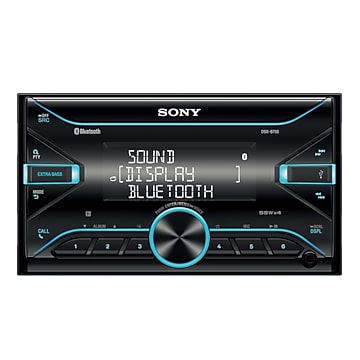
Next, go to the menuon the stereo’s screen. Look for the Bluetooth option. It might be under settings or connections. Tap on the Bluetooth menu. This will let you connect your devices. Make sure Bluetooth is turned on. The stereo will search for nearby devices.
Pairing Devices
Connecting a Bluetooth Sony car stereo is easy. First, turn on Bluetooth on your phone. Then, access the stereo’s Bluetooth settings. Select your phone from the list. Wait for confirmation. Enjoy your music wirelessly.
Enable Bluetooth On Phone
First, open your phone settings. Find the Bluetooth optionand tap it. Ensure Bluetooth is turned on. You will see a switch. Slide it to enable Bluetooth. Your phone is now ready to pair.
Search For Devices
Once Bluetooth is on, your phone will start searching. Look for the Sony car stereoin the list. Tap the stereo name to connect. Wait for a few seconds. Your phone and stereo will now pair. You might need to enter a passcode. Usually, it is “0000” or “1234”. Check your stereo manual for the exact code.
Establishing Connection
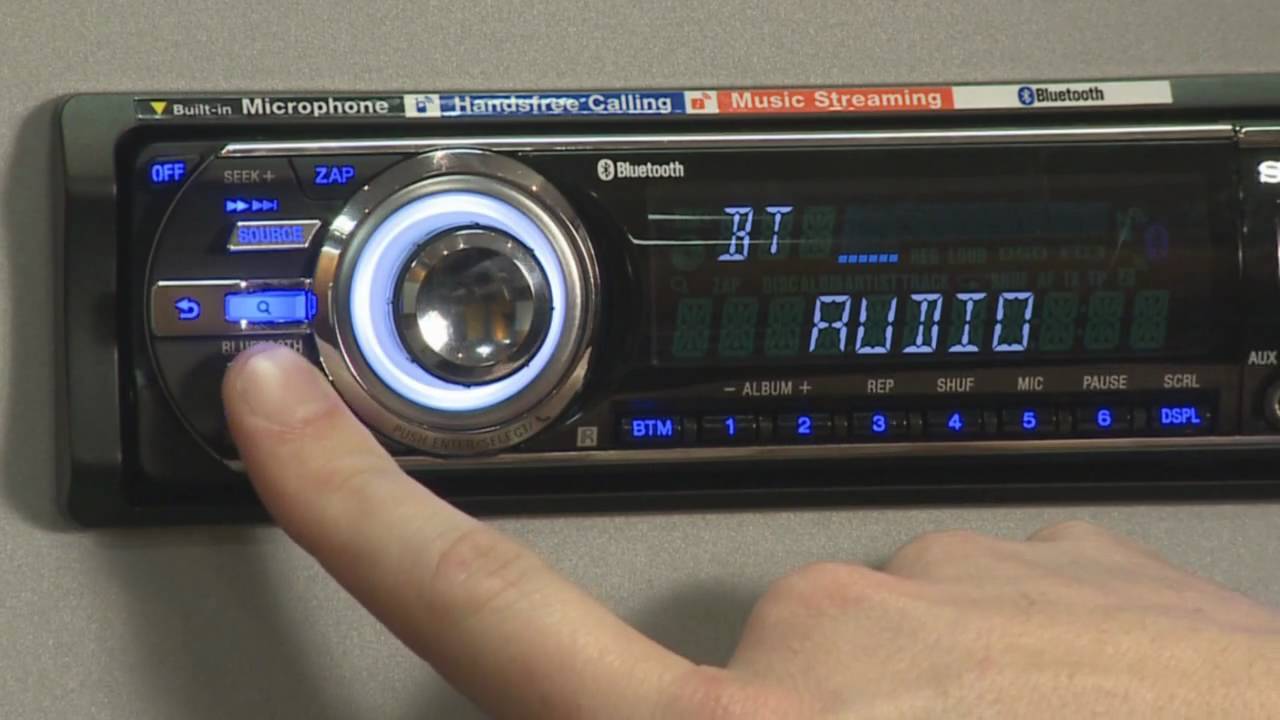
First, turn on your Sony car stereo. Next, find the Bluetooth menu on the stereo. Use the buttons to scroll and select options. Look for a menu item named “Bluetooth” or “Pairing.” Press the button to enter this menu. Now, activate Bluetooth on your phone. Check your phone’s Bluetooth settings. Find the stereo’s name on the list. It might say “Sony” or the model number.
Your stereo will ask for a code. Type “0000” or “1234” on your phone. These are common codes. Sometimes, the stereo shows a code on its screen. Enter that code on your phone. If the code is correct, both devices will connect. A confirmation message will appear on your phone and stereo. Enjoy playing music or making calls hands-free.

Credit: www.sony.com
Troubleshooting
Bluetooth might not connect with your Sony car stereo. First, check if Bluetooth is turned on in both devices. Ensure the stereo is visible to other devices. Restart both the phone and stereo. This can often solve connection problems. If the stereo asks for a password, use 0000 or 1234. Sometimes, removing old devices can help. Try connecting again after deleting some devices.
Sound may not come through the stereo. Volume must be up on both devices. Ensure the stereo is set to Bluetooth mode. If the sound is distorted, check for interference from other devices. Reset the stereo settings if needed. Update your phone’s software regularly. This can fix many sound issues. Test with another phone to confirm the problem.
Advanced Features
Hands-free calling is very useful. It lets you talk while driving. You can keep your hands on the wheel. Safety is important. Connect your phone to the Sony stereo. Use Bluetooth for easy connection. Make calls with one button press. The sound is clear. Your voice is heard well. You can hear the other person clearly too. Bluetooth technology makes it simple. It keeps you safe on the road.
Streaming music is fun. Listen to your favorite songs. Bluetooth connects your phone to the stereo. Play music from apps like Spotify. Enjoy high-quality sound. The stereo enhances your listening experience. No wires needed. Just connect and play. You can control music easily. Use buttons on the stereo. Change songs with simple clicks. Enjoy music while you drive.

Credit: www.youtube.com
Maintenance Tips
Connecting a Bluetooth Sony car stereo enhances driving experiences. Begin by enabling Bluetooth on your device and car stereo. Pair them by selecting ‘Bluetooth’ from the stereo menu, then find your device’s name. Confirm the connection to enjoy music and calls seamlessly.
Updating Software
Keep your Sony car stereo software updated. Check for updates often. New updates fix bugs and add features. Visit the Sony website for latest software. Download files to your computer. Use a USB to transfer files to the stereo. Follow instructions on the screen. Update ensures better performance and Bluetooth connectivity.
Regular Cleaning
Clean your car stereo often. Dust can affect buttons and screen. Use a soft cloth to wipe surfaces. Avoid using harsh cleaners. Dirt can block speakers. Clean speaker grills gently. Regular cleaning helps maintain stereo quality. A clean stereo looks good and works better.
Frequently Asked Questions
How Do I Put My Sony Bluetooth In Pairing Mode?
Turn on your Sony Bluetooth device. Press and hold the power button until the LED flashes. This indicates pairing mode. Check your device’s manual for specific instructions as some models might differ. Ensure the Bluetooth function is active on your connecting device to establish a connection.
How Do I Connect My Sony Music System To Bluetooth?
Turn on your Sony music system and activate Bluetooth mode. On your device, enable Bluetooth and search for available devices. Select your Sony music system from the list to connect. Follow any additional pairing instructions if prompted. Enjoy your music wirelessly.
How To Connect Bluetooth To Your Car Stereo?
Enable Bluetooth on your phone. Access car stereo settings and select Bluetooth pairing mode. Search for the car’s Bluetooth name on your phone. Connect to it by selecting the name. Confirm the connection if prompted, and your devices should now be paired successfully.
Why Won’t My Phone Connect To Sony Radio?
Ensure Bluetooth is enabled on both devices. Check compatibility and update firmware. Restart devices to fix connection issues.
Conclusion
Connecting your Bluetooth Sony car stereo is simple. Follow the steps provided for a smooth setup. Enjoy hands-free calls and music streaming with ease. Keep your device paired for hassle-free connectivity. Regularly update your stereo’s firmware for best performance. Check for compatibility with your smartphone before starting.
Troubleshooting tips can help resolve minor issues quickly. Stay informed by reading your stereo’s manual. Feel free to explore additional features once Bluetooth is connected. With these steps, you can enhance your driving experience effortlessly. Follow these guidelines and enjoy your journey with great sound.