How to Listen to Truck Radio on Your Phone
Many people want to listen to their truck radio on their phones. It can seem tricky at first. This guide makes it simple.
You will learn easy steps to get your favorite radio stations on your mobile device. We will show you how to do it quickly and easily.
Accessing Truck Radio Stations On Your Phone
This section explains the main ways you can enjoy your truck radio content directly on your smartphone. We will look at different methods, from official apps to streaming services, that bring your favorite radio stations right to your pocket. You can keep up with news, music, and talk shows no matter where you are, as long as you have your phone and an internet connection.
Using Official Radio Station Apps
Many radio stations have their own mobile applications. These apps are often the most direct way to listen. They are designed specifically to stream the station’s live broadcast.
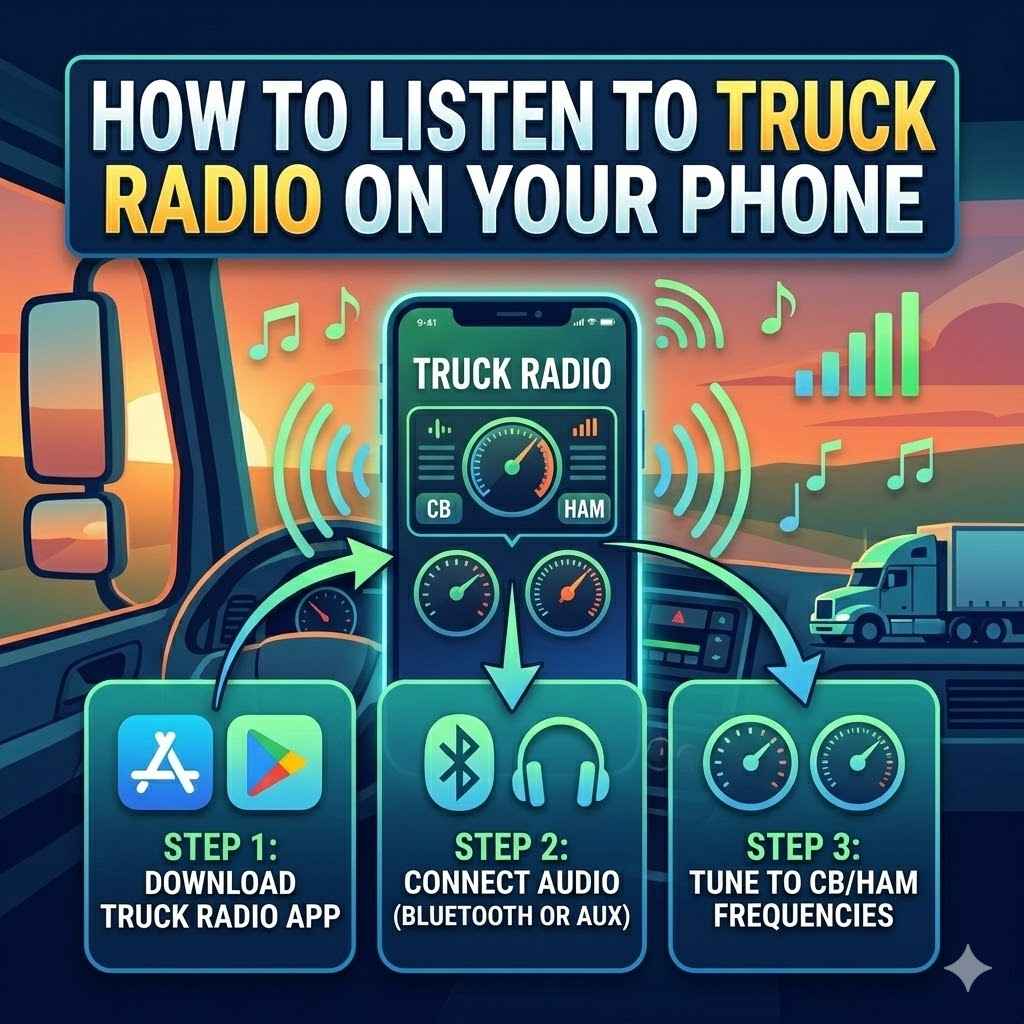
You can usually find these apps by searching the app store on your phone for the radio station’s name. Once downloaded, opening the app will often present a play button or an option to start listening live. This method is usually free, though some apps might offer premium features.
-
Finding Station Apps
To find an app, go to your phone’s app store, like the Apple App Store for iPhones or the Google Play Store for Android devices. Type the name of the radio station you want to listen to into the search bar. If the station has an official app, it will likely appear in the search results.
Look for the official logo to make sure you’re downloading the correct one.
-
Downloading and Installing
Once you find the app, tap the “Install” or “Get” button. Your phone will download and install the app automatically. This process usually takes just a few moments.
After installation, the app icon will appear on your home screen or in your app drawer.
-
Listening Live
Open the app by tapping its icon. Most apps will immediately offer a way to play the live stream. This might be a large play button or a section labeled “Live” or “Listen Now.” Tap this to start listening.
You can usually control the playback, like pausing or stopping the stream, directly within the app.
Streaming Services and Aggregators
Besides individual station apps, there are many services that gather numerous radio stations into one place. These are called radio aggregators or streaming platforms. They offer a vast library of stations from around the world, making it easy to discover new content or find your old favorites all within a single app or website.
Many of these services are free to use, though some may have paid versions with extra features.
-
What Are Aggregators
Radio aggregators are like a central hub for radio. Instead of downloading many different apps for each station, you download one app from an aggregator. This app then gives you access to thousands of radio channels.
You can often search by genre, location, or popularity. This makes finding music, news, or talk radio very convenient.
-
Popular Examples
Some well-known aggregators include TuneIn Radio, iHeartRadio, and myTuner Radio. TuneIn Radio is famous for its huge collection of live sports, news, music, and talk radio stations globally. iHeartRadio also provides access to many live radio stations plus custom artist stations.
These services are widely available on smartphones, tablets, and smart speakers.
-
Using Aggregator Apps
Download one of these aggregator apps from your phone’s app store. Open the app and explore the categories or use the search function to find your desired station. Once you select a station, you can usually play it directly.
Many of these apps also allow you to save your favorite stations for quick access later.
Connecting Via Bluetooth or Aux Cable
If you want to play audio from your phone through your truck’s speakers, you can use Bluetooth or an auxiliary (aux) cable. This is not about listening to your truck radio on your phone, but rather playing your phone’s audio through your truck’s system. It’s a common way to listen to music or podcasts from your phone in your vehicle.
Bluetooth Connection
Bluetooth is a wireless technology. It lets your phone and your truck’s audio system communicate. Your truck’s system needs to have Bluetooth capability for this to work.
First, you need to “pair” your phone with your truck’s system. This involves turning on Bluetooth on both devices and following on-screen prompts. Once paired, any audio playing on your phone will come out of your truck’s speakers.
-
Enabling Bluetooth
On your smartphone, go to the settings menu. Look for the Bluetooth option and turn it on. On your truck’s audio system, find the Bluetooth settings, usually through a “Setup,” “Phone,” or “Media” button.
Make sure Bluetooth is enabled on the truck system as well.
-
Pairing Devices
Your phone will search for available Bluetooth devices. Your truck’s system should also be discoverable. Select your truck’s system from the list on your phone.
You might be asked to confirm a pairing code on both devices. Once successful, your phone will show it’s connected.
-
Playing Audio
After pairing, select your truck’s audio system as the playback device on your phone. Then, play any audio from your phone. The sound will stream wirelessly to your truck’s speakers.
You can control volume and playback using your phone or your truck’s stereo controls.
Auxiliary (Aux) Cable Connection
An auxiliary cable, often called an aux cable, is a simple audio cable. It has a 3.5mm jack on both ends. One end plugs into your phone’s headphone jack (or an adapter if your phone doesn’t have one).
The other end plugs into the aux input port on your truck’s stereo system. This creates a direct wired connection for audio playback.
-
Finding the Aux Port
Look for a small, round port that resembles a headphone jack on your truck’s dashboard or center console. It’s often labeled “AUX,” “Auxiliary,” or has a similar icon. Not all trucks have this port.
-
Connecting the Cable
Plug one end of the aux cable into your phone. If your phone lacks a headphone jack, you’ll need an adapter that converts the charging port (like USB-C or Lightning) to a headphone jack. Plug the other end of the aux cable into the aux port on your truck’s stereo.
-
Selecting Aux Input
On your truck’s stereo, press the “Source,” “Mode,” or “Input” button until you select “AUX.” Your truck’s speakers will now play whatever audio is coming from your phone. You will control volume and playback directly from your phone.
Understanding Streaming Technologies
This section explains the technology that makes listening to live radio on your phone possible. It covers how audio signals travel from the radio station to your device over the internet. We will look at different types of internet connections and how they affect your listening experience, ensuring you can stream smoothly without interruptions.
How Internet Radio Streaming Works
Internet radio streaming is similar to how you watch videos online. Radio stations broadcast their audio signals over the internet. This audio is broken down into small digital packets.
These packets travel through the internet to your phone. Your phone then reassembles these packets and plays them back as continuous audio. This process requires a stable internet connection to avoid buffering or choppy sound.
The quality of the stream can depend on the station’s broadcast quality and your internet speed.
-
Digital Audio Packets
Radio stations convert their live audio into digital data. This data is then compressed and split into small pieces called packets. Think of it like sending a letter broken into postcards.
Each postcard has a part of the message and an address. These packets are sent individually across the internet.
-
Internet Transmission
The packets travel through a series of servers and routers on the internet. Your phone receives these packets. The internet is a vast network, and the path packets take can vary.
This is why a stable internet connection is important; if packets get lost or delayed, the audio can be affected.
-
Reassembly and Playback
Your phone’s app or streaming service collects these packets. It then puts them back in the correct order. This process is called buffering.
A buffer is like a small waiting area for audio packets. Once enough packets are gathered, the audio starts playing. If the internet connection is slow, the buffer might empty, causing pauses or skipping.
Wi-Fi vs. Cellular Data
When you stream radio on your phone, you use either Wi-Fi or your cellular data plan. Wi-Fi uses a local wireless network, often at home or in public places. Cellular data uses your mobile carrier’s network to access the internet.
Both have pros and cons for listening to radio.
-
Wi-Fi Benefits
Wi-Fi is generally free and doesn’t use up your monthly data allowance. If you have a strong Wi-Fi signal, it can provide a very stable connection for streaming. This is ideal for listening at home or in places with free Wi-Fi, like coffee shops or truck stops.
However, Wi-Fi availability can be limited.
-
Cellular Data Use
Cellular data allows you to stream from almost anywhere your phone has a signal. However, streaming audio consumes data. Listening for long periods can quickly add up and potentially lead to extra charges or slower speeds if you exceed your plan’s limit.
It’s important to monitor your data usage.
-
Choosing the Right Option
For the best experience, use Wi-Fi whenever possible. If Wi-Fi isn’t available, consider using cellular data, but be mindful of your data plan. Some apps offer lower quality streaming options to save data.
You can also download episodes of talk shows or podcasts beforehand if you’re using cellular data to avoid constant streaming.
Data Usage Considerations
Streaming audio, even though it’s not video, uses your internet data. The amount of data used depends on the audio quality and how long you listen. Higher quality streams use more data.
For example, listening to a high-quality stream for an hour might use around 100-150 MB of data. A lower quality stream might use half that amount. Understanding this helps you manage your phone’s data plan effectively, especially if you are on the road frequently.
-
Estimating Data Needs
Most radio streams offer different quality settings. A standard quality stream typically uses about 64 kilobits per second (kbps). A high-quality stream might be 128 kbps or even higher.
To estimate your data usage, multiply your stream’s kbps by 0.008 to get megabytes per hour. For example, 128 kbps x 0.008 = approximately 1 MB per minute, or 60 MB per hour.
-
Managing Data Consumption
To save data, choose the lowest audio quality setting that still sounds acceptable to you. Many apps let you adjust this in their settings. Also, download content like podcasts or recorded shows when you are on Wi-Fi.
This way, you can listen offline without using any cellular data. Some mobile plans offer unlimited music streaming from certain apps without using your data cap.
-
Data Monitoring Tools
Your smartphone has built-in tools to monitor data usage. You can check how much data each app is using. This helps you identify which apps are consuming the most data.
You can also set data warnings or limits in your phone’s settings to alert you when you’re approaching your monthly allowance.
Troubleshooting Common Issues
Even with the best methods, you might run into problems. This section helps you fix common issues you might face when trying to listen to your truck radio on your phone. We cover solutions for connection problems, app glitches, and audio quality issues, ensuring you can get back to listening quickly.
No Sound or Intermittent Audio
If you’re not hearing anything or the sound keeps cutting out, there are a few things to check. First, ensure the volume on your phone and in the app is turned up. Also, confirm that you haven’t accidentally muted your phone or put it on silent.
If you’re using Bluetooth or an aux cable, check that the connection is secure at both ends.
-
Volume and Mute Checks
Press the volume up button on your phone. Look at the screen to see the volume indicator. Make sure it’s not at zero.
Also, check if your phone is in silent mode. Sometimes there’s a physical switch or a setting in the quick access menu. Ensure the volume within the radio app itself is also turned up.
-
Connection Integrity
If using an aux cable, unplug it and plug it back in firmly. Try wiggling the cable slightly to see if it affects the sound. For Bluetooth, try disconnecting and reconnecting your phone from your truck’s system.
You might need to “forget” the device on both your phone and truck and then re-pair them.
-
App and Device Restart
Sometimes, simply closing and reopening the radio app can fix temporary glitches. If that doesn’t work, try restarting your phone. A fresh start can resolve many minor software issues that might be interfering with audio playback.
App Crashing or Freezing
If the radio app on your phone suddenly closes or stops responding, it’s frustrating. This can happen for various reasons. Your phone might be running too many apps at once, or the radio app itself might have a bug.
Keeping your phone’s operating system and the app updated can often prevent these issues.
-
Close Background Apps
Your phone might be struggling if too many apps are running in the background. Close any apps you are not currently using. This frees up your phone’s memory and processing power, which can help the radio app run more smoothly.
Access your recent apps list and swipe away the ones you don’t need.
-
Update Apps and Software
Developers frequently release updates to fix bugs and improve performance. Check your phone’s app store for any available updates for the radio app you are using. Also, ensure your phone’s operating system is up to date.
Go to your phone’s settings and look for software update options.
-
Clear App Cache
Sometimes, temporary files stored by the app (called cache) can become corrupted and cause problems. You can often clear the app’s cache through your phone’s settings. Go to Settings > Apps, find the radio app, and look for an option to clear cache.
Note that this will not delete your saved stations or settings.
Poor Audio Quality
If the radio sounds muffled, robotic, or has a lot of static, it’s usually due to the internet connection or the broadcast quality itself. A weak internet signal is a primary cause of poor audio. If you are streaming over cellular data, try moving to an area with better reception.
-
Check Internet Signal Strength
A poor internet connection is the most common reason for bad audio quality. If you’re on Wi-Fi, ensure you are close enough to the router. If you’re using cellular data, look at your phone’s signal bars.
If the signal is weak, the audio stream will suffer. Try moving to a location with a stronger signal.
-
Select Lower Audio Quality
As mentioned before, many apps allow you to choose the audio quality. If you’re experiencing issues, try selecting a lower quality setting. This reduces the amount of data needed, which can lead to a more stable and clearer stream, even with a weaker internet connection.
You can usually find this option in the app’s settings menu.
-
Verify Station Broadcast
Sometimes, the issue isn’t with your connection or phone, but with the radio station’s broadcast itself. If you can, try listening to a different station or using a different app to see if the problem persists. If other stations sound fine, the original station might be having technical difficulties on their end.
Safety When Listening On The Road
It’s crucial to stay safe while driving. This section offers advice on how to use your phone for listening to radio without compromising your focus on the road. We will cover best practices for setting up your phone and operating your apps safely, ensuring you can enjoy your audio content without distraction.
Minimize Distractions
The most important rule is to focus on driving. Setting up your audio before you start your journey is best. Avoid fiddling with your phone while the truck is moving.
If you need to change stations or adjust settings, pull over to a safe location first. Many modern trucks and car stereos offer voice commands, which can be a safer way to control your audio.
-
Setup Before Driving
Before you put the truck in gear, have your phone set up and your radio app running. Select your station, adjust the volume, and ensure the connection is stable. This way, you can concentrate on driving rather than looking for controls or making adjustments.
-
Use Voice Commands
If your phone or truck’s system supports voice commands, use them. Saying “Hey Siri” or “Okay Google” to play music or change stations allows you to keep your hands on the wheel and your eyes on the road. Familiarize yourself with these commands before you drive.
-
Pull Over If Needed
If you absolutely need to interact with your phone—perhaps to troubleshoot a connection or select a new station—find a safe place to pull over. This might be a rest stop, a parking lot, or the side of the road if it’s safe to do so. It only takes a moment of distraction to cause an accident.
Legal Considerations
Laws about using mobile phones while driving vary by state and country. In many places, holding your phone while driving is illegal. Even hands-free use can be a distraction.
Always be aware of the laws in your area. Understanding these regulations can help you avoid fines and, more importantly, stay safe.
-
Hands-Free Laws
Many regions have laws restricting the use of handheld mobile devices while driving. Some may even limit hands-free use. It’s essential to know the specific laws where you drive.
Ignorance of the law is not a defense against traffic violations.
-
Avoiding Fines
Fines for phone use while driving can be significant. Beyond the financial penalty, these violations can increase your insurance rates and even lead to license points. Following the rules ensures you avoid these negative consequences.
-
Prioritizing Safety
Ultimately, the most compelling reason to follow these laws is safety. Distracted driving is a leading cause of accidents. By minimizing your phone use, you protect yourself, your passengers, and other road users.
The few minutes saved by not pulling over are not worth the risk.
Optimizing Your Setup
To make listening as safe and easy as possible, consider how you mount your phone. A dashboard mount or a vent clip can keep your phone in your line of sight without requiring you to hold it. This helps you glance at your phone quickly if needed, rather than fumbling with it.
-
Phone Mounts
Using a phone mount is highly recommended. Options include dashboard mounts that stick to your dash, windshield mounts that use suction cups, or vent clips that attach to your air vents. Choose one that is stable and positions your phone within easy view.
-
Placement for Visibility
The ideal placement is where you can see the screen with a quick glance, without taking your eyes off the road for long. Some drivers prefer their phone placed slightly below their line of sight, on the dashboard, so they can look down without looking away from the road.
-
Accessibility of Controls
Ensure the mount allows you to easily tap the screen if absolutely necessary, or better yet, facilitates the use of voice commands. The mount should not obstruct your view of the road or important vehicle controls.
Frequently Asked Questions
Question: Can I listen to my truck radio on my phone without internet
Answer: Generally, no. Most methods of listening to radio on your phone require an internet connection, either through Wi-Fi or cellular data, to stream the audio live. Some apps may allow you to download content like podcasts or shows beforehand if you are on Wi-Fi, so you can listen offline.
Question: Is listening to truck radio on my phone free
Answer: Many radio station apps and streaming services are free to use for live listening. Some may have optional premium subscriptions that offer ad-free listening or additional features. Using cellular data for streaming will consume your data allowance, which might have associated costs depending on your mobile plan.
Question: Will listening to the radio on my phone drain my battery
Answer: Yes, streaming audio for extended periods can drain your phone’s battery. Using a cellular data connection and having the screen on will use more power than Wi-Fi. It’s a good idea to have a car charger or power bank available, especially for long drives.
Question: Can I listen to AM or FM stations on my phone
Answer: Yes, most AM and FM radio stations that broadcast live have online streams available through their own apps or through radio aggregator apps. You can access them just as you would any other internet radio stream.
Question: What is the difference between a radio app and a streaming service like Spotify
Answer: A radio app or streaming service like TuneIn focuses on live radio broadcasts and often user-curated content from existing radio stations. Services like Spotify are primarily for on-demand music streaming, where you choose specific songs or albums from a vast library, rather than listening to live broadcasts.
Conclusion
You can easily listen to your truck radio on your phone using various apps. Official station apps and aggregators stream content online. Remember to check your internet connection and manage your data.
Prioritize safety by setting up before driving and minimizing distractions. Enjoy your favorite radio on the go!