How to Unmute Ford Audio: Steering Wheel Fix + SYNC Reset
Ford audio usually gets stuck on mute because a steering wheel button (often the voice/phone call button) was pressed too long, or accidentally, sending a persistent mute signal to the radio — not because of a broken speaker or a settings bug most guides assume. Pressing the same button again, or running a SYNC power-cycle reset, clears it in most cases.
This guide covers the actual reset button combinations for SYNC/SYNC 3, the specific steering-wheel-button cause behind complaints on the Kuga, Edge, C-Max, Escape, Explorer, and F-150, and when a stuck mute signal means worn steering wheel buttons or a failing clockspring rather than a simple software glitch.
Quick Answer: To unmute Ford audio, press the Mute or Phone/Voice button on the steering wheel again — that button is the most common cause of audio getting stuck on mute in the first place. If that doesn’t work, power-cycle SYNC/SYNC 3 by holding the Power button and the right Seek/Skip button together for about 10 seconds (or Volume Down + Seek Right if your radio has no dedicated Power button). If the mute signal keeps returning even after a reset, worn steering wheel buttons or a failing clockspring may be sending a stuck signal, which usually needs a dealer or technician to fix.
Unmute Ford Audio: Troubleshooting Guide
Having trouble unmuting the audio on your Ford vehicle? Don’t worry, we’ve got you covered! In this troubleshooting guide, we’ll address some common audio issues you may encounter and provide you with possible solutions to ensure a seamless audio experience.
This troubleshooting guide provides step-by-step instructions on how to unmute the audio in Ford vehicles. Resolve audio issues quickly and easily with these easy-to-follow tips and get back to enjoying your favorite tunes on the road.
Common Audio Issues And Possible Solutions
Below are some common audio issues that Ford owners may face, along with recommended solutions to troubleshoot and resolve these problems:
- Issue: No sound coming from the speakers — possible fixes:
- Check the volume level and make sure it is not set to mute or too low.
- Ensure the audio system is not set to a different input source, such as Bluetooth or auxiliary.
- Verify that the speakers are connected properly and not damaged.
- Reset the audio system by disconnecting the battery for a few minutes, then reconnecting it.
- Issue: Audio cuts in and out intermittently — possible fixes:
- Check the cable connections, ensuring they are secure and not loose.
- If using Bluetooth, ensure that the device is placed within the recommended range and there are no obstructions.
- Update the audio system software to the latest version, as outdated software can cause connectivity issues.
- Consult the user manual for specific troubleshooting steps for your Ford model.
- Issue: Poor audio quality or distortion — possible fixes:
- Adjust the equalizer settings to optimize the audio output.
- Ensure that the audio files being played are of high quality and not corrupted.
- Clean the speakers to remove any potential dust or debris that may be affecting the sound quality.
- If using a streaming service, check your internet connection for potential bandwidth issues.
- Issue: Sound coming from only one speaker — possible fixes:
- Check the balance settings to ensure they are correctly configured.
- Inspect the speaker wiring for any loose connections or damage.
- Swap the speakers to determine if the issue lies with a specific speaker or the audio system itself.
- Issue: Audio system not responding to commands — possible fixes:
- Restart the audio system by turning off the vehicle and removing the fuse related to the audio system for a few minutes, then replacing it.
- Ensure that the audio system is not frozen by disconnecting the battery for a short period and then reconnecting it.
- Update the audio system firmware to the latest version to address any software glitches.
- Consult your Ford dealership for further assistance if the issue persists.
Remember, these troubleshooting steps are general recommendations, and the specific instructions may vary depending on your Ford vehicle model. Consult your vehicle’s user manual or contact your nearest Ford dealership for more personalized assistance.
By following these troubleshooting solutions, you’ll be able to unmute your Ford audio system and enjoy a seamless audio experience in no time!
Identifying Audio Mute Settings
Discover the simple steps to unmute your Ford audio system and enjoy your favorite tunes on the road. Learn how to identify and adjust the audio mute settings effortlessly.
Locating The Audio Mute Button Or Control
Are you struggling to find the audio mute option on your Ford vehicle? Don’t worry, we’ve got you covered. Here, we will help you identify the audio mute button or control on your Ford audio system.
To locate the audio mute button or control, follow these steps:
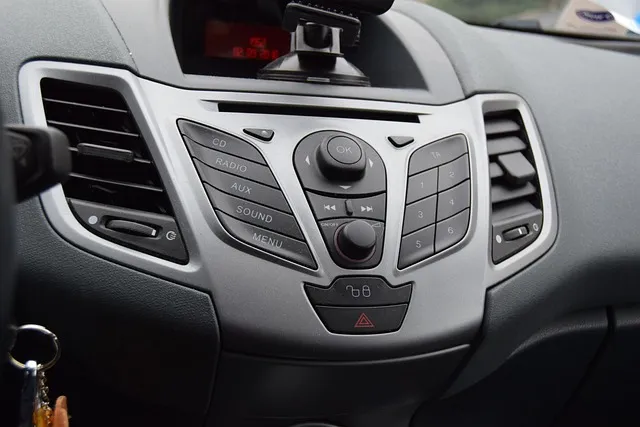
- Look for a dedicated mute button on the audio system: Some Ford vehicles have a physical button on the audio system specifically for muting the audio. It is usually labeled with a speaker icon crossed out or the word “Mute”.
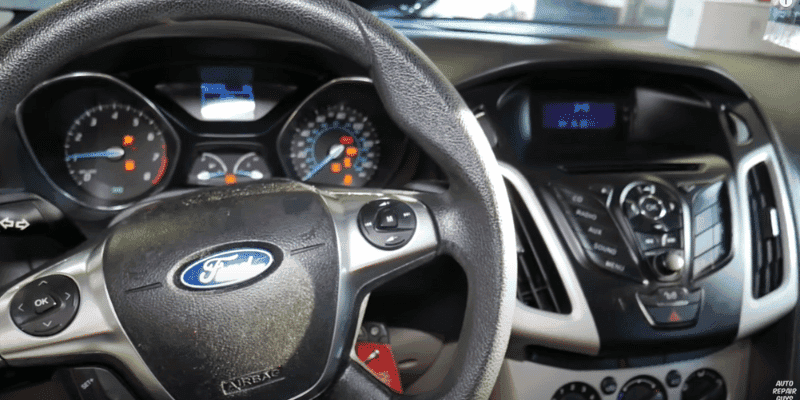
- Check the steering wheel controls: Many Ford vehicles offer audio control buttons on the steering wheel. Look for a button that has a speaker icon crossed out or a label that says “Mute”. This button allows you to conveniently mute the audio without taking your hands off the steering wheel.
- Explore the touchscreen display: If your Ford vehicle has a touchscreen display for the audio system, you may find the audio mute option within the menu. Look for an icon resembling a speaker with a line through it or a labeled option called “Mute”.
- Use voice commands: Some Ford vehicles support voice commands for audio controls. You can try saying phrases like “Mute audio” or “Turn off sound” to activate the audio mute function.
Once you have located the audio mute button or control, you can easily mute the audio to enjoy a quiet ride whenever you need it. It’s important to note that different Ford models may have variations in the location and design of the audio mute option, so refer to your vehicle’s manual for specific instructions if needed.
Fix Worn Buttons or Work Around a Stuck Mute

CRC QD Electronic Contact Cleaner (Hero Pick)
Best for: Worn or sticky steering wheel buttons that keep sending a stuck mute signal.
Why we picked it: Safe on plastic and electronics, matching exactly the fix this guide recommends for a worn mute/voice button before assuming the clockspring has failed.
Main drawback: Won’t help if the clockspring itself is actually failing — that needs a technician.
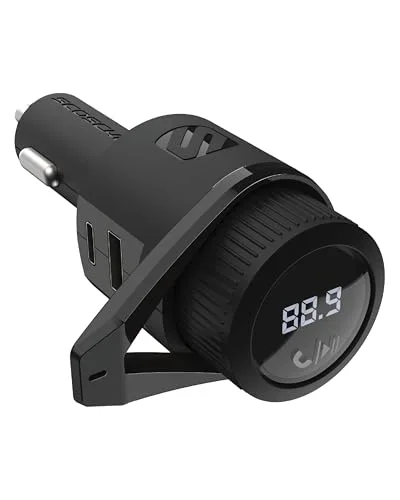 Scosche Bluetooth FM Transmitter A workaround for calls and music through the FM band if the factory system stays stuck on mute while you wait for a repair. Check on Amazon |
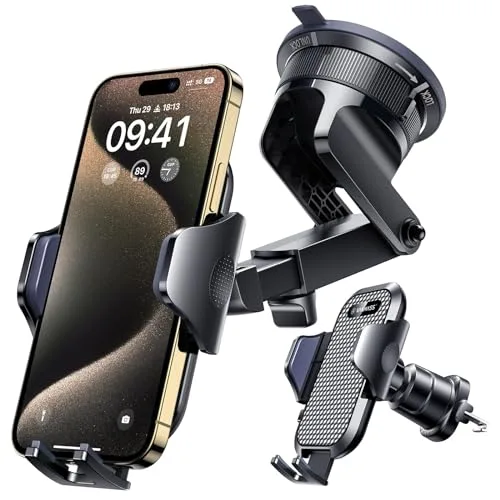 VANMASS Dashboard/Vent Phone Mount Keeps your phone visible for navigation or calls if you end up relying on the transmitter workaround for a while. Check on Amazon |
 AstroAI True RMS Digital Multimeter Useful for more technical readers checking continuity on the steering wheel wiring before deciding a clockspring is really at fault. Check on Amazon |
As an Amazon Associate we earn from qualifying purchases.
The Steering Wheel Button: The Real #1 Cause of Stuck Mute
Most guides list generic “check your settings” advice, but the single most-reported real-world cause of Ford audio getting stuck on mute is the steering wheel’s voice/phone call button. A brief press usually activates voice control or answers a call, but a long or accidental press can send a persistent mute command straight to the radio — the audio stays silent even though nothing looks wrong in the settings menu. This is the exact complaint behind many Kuga, Edge, C-Max, Escape, and Explorer reports of the radio “just going mute” with no warning.
The fix is usually the same button that caused it: press the Mute or Phone/Voice button on the steering wheel again to toggle it off. If that doesn’t clear it, power-cycle the head unit instead of just adjusting the volume:
- If your radio has a Power button: press and hold the Power button and the right Seek/Skip button together for about 10 seconds until the screen goes black and restarts.
- If your radio has no dedicated Power button: press and hold Volume Down and Seek Right together for about 10 seconds instead.
- If a power-cycle doesn’t clear it: disconnect the 12V battery for 5-10 minutes to force a full reset, then reconnect and test.
📊 If the mute keeps coming back even after a full reset, the steering wheel buttons themselves may be worn out or the clockspring (the coil that carries electrical signals through the steering column) may be failing, continuously sending a stuck mute signal to the radio’s computer. Cleaning the buttons with electronic contact cleaner can help a worn-button issue, but a bad clockspring or a radio that won’t clear the mute signal at all typically needs replacement by a technician. — Source: Wheels Joint

Resolving Mute Issues
Learn how to unmute the audio on your Ford vehicle with these simple steps. Resolve mute issues and enjoy your favorite tunes on the go.
Step-By-Step Process To Unmute The Ford Audio System:
- Check the mute button on the audio system: Make sure the mute button is not activated by pressing it and verifying that the audio starts playing again.
- Use the steering wheel controls: If your Ford vehicle has steering wheel controls, look for the mute button on the steering wheel. Press it to unmute the audio.
- Adjust the volume: Sometimes, the audio may appear to be muted when the volume is set too low. Turn up the volume using the appropriate buttons or knobs on the audio system.
- Check the audio source: Ensure that you have selected the correct audio source (e.g., FM radio, Bluetooth, CD) and that it is not on mute. Use the audio source selection buttons on your Ford audio system to switch to the desired source.
Troubleshooting Tips For Audio Mute Problems:
- Check the connections: Inspect the audio cables and connections to ensure they are properly plugged in and secure. Loose or faulty connections can cause audio mute issues.
- Restart the vehicle: Occasionally, a temporary glitch can cause the audio system to mute. Turn off the vehicle, wait a few seconds, and then start it again. This can potentially resolve minor software or system malfunctions.
- Check audio settings: Explore the audio settings menu on your Ford audio system to see if there are any specific settings related to mute or audio output. Make sure the settings are configured correctly.
- Update the audio system firmware: Visit the Ford website or contact your local Ford dealership to check if there are any available firmware updates for your audio system. Updating the firmware can often fix software-related issues.
- Perform a system reset: If all else fails, you can try performing a system reset on your Ford audio system. Consult your vehicle’s manual or contact Ford customer support for instructions on how to do this.
Remember, if you are unable to resolve the audio mute issues on your own, it is advisable to seek assistance from an authorized Ford service center. They have the expertise to diagnose and rectify any complex issues with your Ford audio system.
Updating Audio Firmware
Looking to unmute your Ford audio? Update the audio firmware with these simple steps to regain sound in your vehicle.
Keeping your Ford’s audio system up to date is crucial for maintaining optimal functionality and enjoying a seamless audio experience. Regular firmware updates ensure that your audio system is equipped with the latest enhancements and bug fixes. In this section, we will discuss the importance of software updates for audio functionality and provide a guide on how to check for and install the latest firmware update.
Importance Of Software Updates For Audio Functionality
- In the ever-evolving world of technology, software updates play a vital role in enhancing the performance of your Ford’s audio system.
- Firmware updates often include bug fixes that address issues with audio playback, connectivity, and overall system stability.
- New feature additions and improvements are frequently introduced in firmware updates, allowing for a more advanced and enjoyable audio experience.
- Regular updates ensure compatibility with the latest audio formats and protocols, preventing any potential audio compatibility issues down the road.
- By keeping your audio firmware up to date, you can stay ahead of potential security vulnerabilities and protect your vehicle’s audio system from potential threats.
How To Check For And Install The Latest Firmware Update
To ensure that your Ford’s audio system is running on the latest firmware, follow these steps:
- Check for available updates:
- Access the Ford SYNC system on your vehicle’s dashboard.
- Navigate to the Settings menu and select “Software Update” or a similar option.
- The system will search for updates and display the available firmware version, if any.
- Connect to a stable Wi-Fi network:
- Ensure that your vehicle is within range of a stable Wi-Fi network or use your mobile device’s hotspot functionality.
- Connect your Ford’s audio system to the Wi-Fi network by following the on-screen instructions.
- Download and install the firmware update:
- If an update is available, click on the “Download” button to initiate the process.
- Allow the system to download the update, which may take some time depending on the file size and internet speed.
- Once the download is complete, the system will prompt you to install the update.
- Follow the on-screen instructions to proceed with the installation.
- Restart and verify:
- After the installation is complete, the system will automatically restart.
- Verify that the firmware update was successful by confirming the updated version in the Settings menu.
By regularly updating your Ford’s audio firmware, you can ensure that your audio system is equipped with the latest enhancements, bug fixes, and improved compatibility. (For a similar reset procedure on an aftermarket unit, see how to reset a Pioneer car stereo.) Stay tuned for the next section, where we will explore other troubleshooting steps to unmute your Ford’s audio system.
Resetting The Audio System
Learn how to easily unmute the audio system in your Ford vehicle with these quick steps. Avoid the hassle of muted audio with this simple reset process.
Performing A Factory Reset To Resolve Mute Issues
Are you experiencing issues with your Ford audio system being on mute? Sometimes, a simple reset can do wonders in resolving this problem. Resetting the audio system to its factory settings can help eliminate any glitches or software malfunctions that might be causing the mute issue.
Here’s how you can perform a factory reset on your Ford audio system:
- To begin the process, turn on your vehicle’s ignition.
- Locate the ‘Audio’ or ‘Settings’ button on your Ford’s dashboard.
- Press and hold the button for about five seconds until you see a ‘reset’ or ‘factory reset’ option on the audio system display.
- Use the arrow buttons to navigate to the ‘reset’ option and press the ‘OK’ or ‘Enter’ button to initiate the reset process.
- Depending on the model of your Ford vehicle, it may take a few minutes for the factory reset to complete. During this time, make sure not to power off the vehicle or disconnect the battery.
- Once the factory reset is finished, your Ford audio system will automatically reboot and return to its default settings.
- Test the audio system by playing some music or adjusting the volume. The mute issue should now be resolved.
Performing a factory reset can often resolve minor audio system issues, including mute problems. If the mute issue persists even after the reset, it may be necessary to consult a Ford dealership or qualified technician for further assistance.
Backup And Restoration Of Audio System Settings
In some cases, you might want to back up your audio system settings before performing a factory reset. This allows you to restore your personalized settings once the reset is complete. Here’s how you can back up and restore your audio system settings:
- Before performing the factory reset, navigate to the ‘Settings’ menu on your Ford audio system.
- Look for an option that allows you to ‘save’ or ‘backup’ your settings. Select this option.
- Follow the on-screen instructions to save your current audio system settings to a USB drive or external storage device.
- Once the backup process is complete, safely remove the USB drive from your Ford’s audio system.
- After the factory reset is finished, insert the USB drive back into the audio system.
- Navigate to the ‘Settings’ menu and find the ‘restore’ or ‘load’ option.
- Select this option and choose the backup file from the USB drive.
- Follow the prompts to restore your previous audio system settings.
- Test the audio system to ensure that your personalized settings have been restored.
By backing up and restoring your audio system settings, you can easily maintain your preferred configurations even after performing a factory reset.
Remember, if you encounter any difficulties or the mute issue persists, it is best to seek professional assistance to ensure proper troubleshooting and resolution.
Checking Audio Connections
Learn how to quickly unmute the audio on your Ford vehicle by checking the audio connections. Follow these easy steps to ensure your audio is functioning properly and enjoy a hassle-free driving experience.
Ensuring Proper Connections Between Devices And The Audio System
Connecting various devices to the Ford audio system is essential for an immersive audio experience (see our guide on wiring car audio the right way if you’re installing an aftermarket system). To unmute the Ford audio, it’s important to check the audio connections and troubleshoot any common issues that may arise. By following these simple steps, you’ll be able to ensure a seamless audio connection:
- Check the physical connections:
- Examine the audio cables to make sure they are securely plugged into the appropriate ports.
- Ensure that the cables are not damaged or frayed, as this can affect the audio quality.
- Verify that all devices are properly connected and powered on.
- Confirm the Bluetooth connectivity:
- Access the Bluetooth settings on your Ford audio system and enable it.
- Activate the Bluetooth function on your device and search for available devices.
- Once your Ford audio system appears on the device’s Bluetooth list, select it to establish a connection.
- Adjust the audio input settings:
- Access the audio input settings on your Ford audio system and ensure that the correct input source is selected.
- Verify that the volume levels are appropriately adjusted and not muted.
- Verify the audio output settings on the devices:
- Check the volume settings on your device to ensure that it is not muted or set to a low volume level.
- Make sure the audio output is directed towards the Ford audio system and not to other devices.
- Reset the audio system:
- If the audio connections seem fine but the audio is still muted, try resetting the Ford audio system.
- Consult the user manual or reach out to Ford customer support to learn how to perform a system reset.
By following these troubleshooting steps, you can eliminate common connection issues and successfully unmute the Ford audio system. Enjoy a delightful audio experience while driving with your favorite tunes playing through the Ford audio system.
Contacting Ford Support
Need to unmute your Ford audio? Contact Ford Support for assistance in quickly resolving this issue and enjoying your favorite tunes on the go.
When To Contact Ford Customer Support For Audio-Related Issues:
- If you are experiencing persistent audio problems with your Ford vehicle, reaching out to Ford customer support can help you resolve the issue. Contact Ford support in the following situations:
- When you encounter a complete audio system failure, where there is no sound coming from the speakers at all.
- When you notice distorted or unclear audio output from the speakers.
- When specific audio features, such as Bluetooth connectivity or voice commands, are not functioning properly.
- When there are issues with the audio controls on the steering wheel or dashboard.
- When you believe there might be a technical malfunction with the audio hardware in your Ford vehicle.
Tips For Effectively Communicating And Getting Assistance:
- Keep the following tips in mind when reaching out to Ford customer support for audio-related issues:
- Clearly describe the audio problem you are facing, providing specific details about the symptoms.
- Mention any troubleshooting steps you have already taken to fix the issue.
- Be prepared to provide your Ford vehicle’s specific model and identification number, as well as the vehicle’s purchase date, if necessary.
- Stay patient and polite while communicating with Ford support representatives.
- Take note of any instructions or suggestions given by the support team and follow them carefully.
- Ask for clarification if you do not fully understand the troubleshooting steps or solutions provided.
- Request a service appointment if the issue cannot be resolved over the phone or through remote support.
- Keep record of the support ticket number or reference provided, for future reference.
Remember, contacting Ford support is the best way to address audio-related issues with your Ford vehicle. Utilize these tips to effectively communicate your concerns and obtain the assistance you need.
Frequently Asked Questions On How To Unmute Ford Audio
How Do I Unmute My Audio System?
To unmute your audio system, locate the mute button and press it to restore sound.
Why Does My Car Radio Say Mute?
If your car radio says “mute,” it means the volume is turned off or silenced.
Why Is My Ford Sync Not Playing Music?
If your Ford SYNC is not playing music, check if the Bluetooth is connected and the volume is turned up.
Why Is There No Sound On My Ford Sync 3?
There might be no sound on your Ford SYNC 3 due to a software glitch or a disconnected audio device.
Ford owners on model forums repeatedly trace a suddenly-muted radio back to the same culprit: an accidental long-press of the steering wheel’s phone or voice button, not a broken speaker or a settings problem — pressing the same button again clears it in most reported cases.
Conclusion
Unmuting the audio in a Ford vehicle is a simple task that can enhance your driving experience. By following the steps outlined in this blog post, you can easily troubleshoot any issues with your audio and regain the pleasure of listening to your favorite tunes or receiving important navigation instructions.
Remember to start by checking the volume settings, ensuring that your device is properly connected, and exploring any additional options specific to your Ford model. Taking the necessary steps to unmute the audio not only improves your driving experience, but also ensures the safety and convenience of everyone in the vehicle.
Don’t let a muted audio system hold you back from enjoying the full capabilities of your Ford. With a few easy adjustments, you can get back on track and enjoy a seamlessly integrated audio experience that matches the impressive performance of your Ford vehicle.
Products related to this article
Sponsored / affiliate links. As an Amazon Associate I earn from qualifying purchases. I may earn additional commission from eligible campaigns.