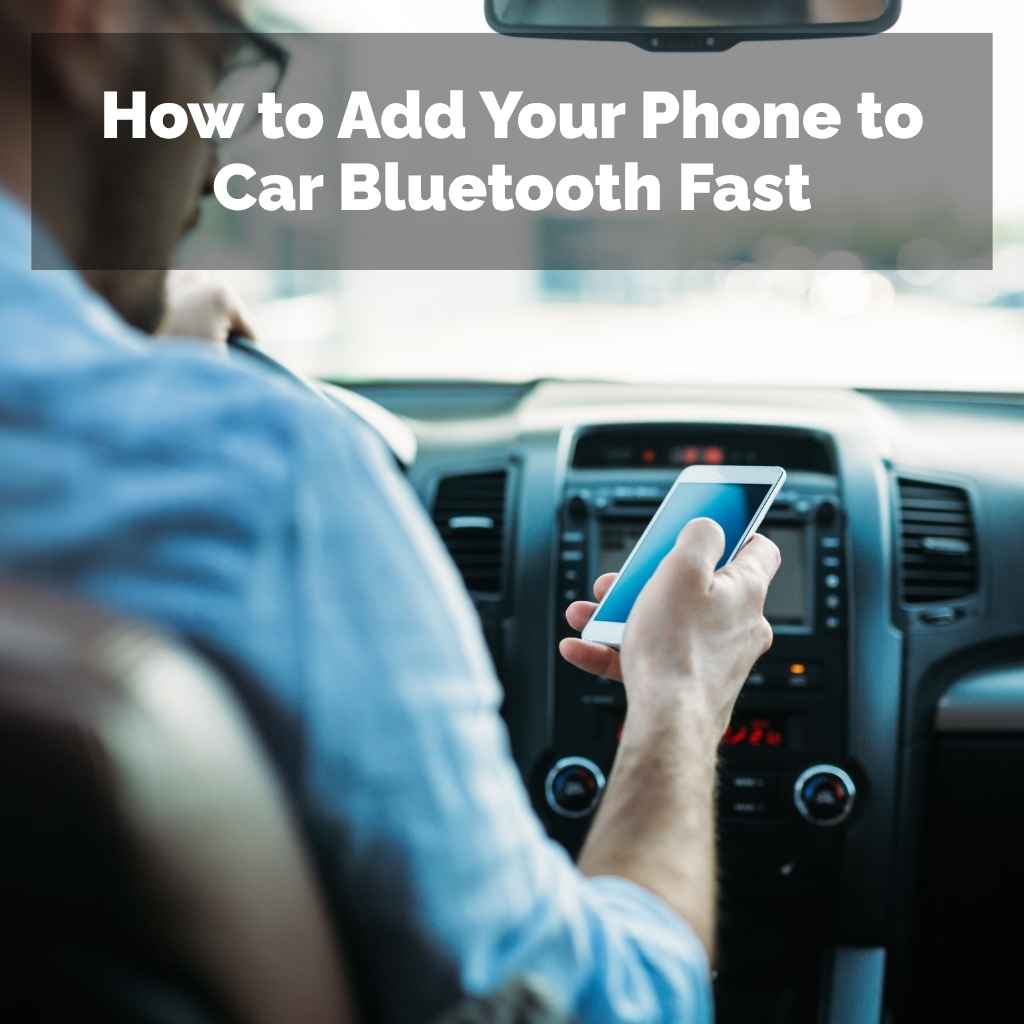
How to Add Your Phone to Car Bluetooth Fast
Connecting your phone to your car’s Bluetooth system can seem tricky, especially if you’re new to it. Many people find the instructions confusing or worry they might mess something up. But don’t worry!
It’s usually much simpler than it looks. This guide will walk you through it step-by-step, making how to add your phone to car Bluetooth fast and easy. You’ll be streaming music and taking calls hands-free in no time.
Connecting Your Phone to Car Bluetooth
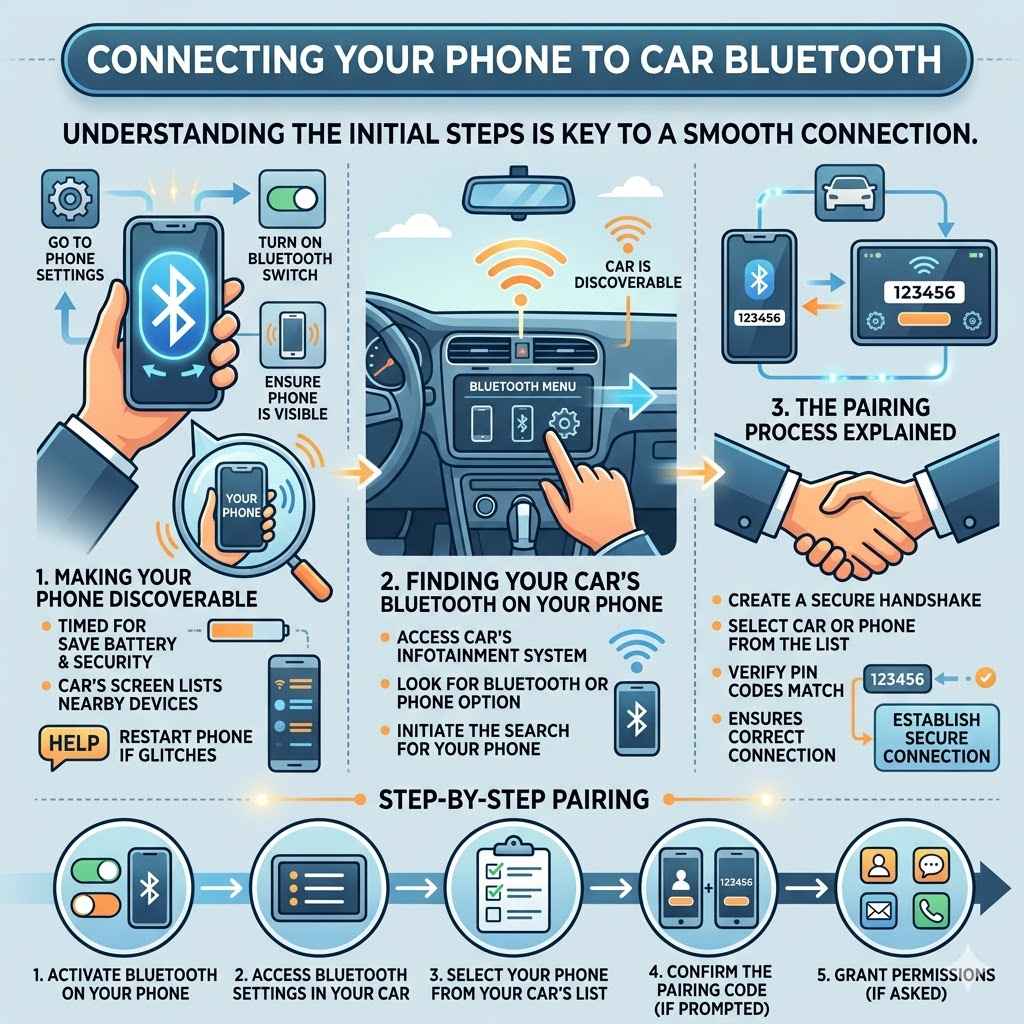
This section covers the basic steps to get your phone and car talking via Bluetooth. We’ll look at how to make your phone discoverable and find it from your car’s system. Understanding these initial steps is key to a smooth connection.
Making Your Phone Discoverable
Before your car can find your phone, your phone needs to be visible to other devices. This is like letting your phone wave hello to nearby gadgets. It’s a simple setting you can usually find in your phone’s main settings menu, under Bluetooth.
Turning this on temporarily allows your car’s system to see your phone. Most phones have a timer for this, so it turns off by itself after a few minutes to save battery and for security.
You’ll typically see a list of nearby Bluetooth devices on your car’s screen once it starts searching. Your phone’s name should appear there, allowing you to select it for pairing. If your phone doesn’t show up, double-check that Bluetooth is on and that it’s set to be discoverable.
Sometimes, restarting your phone can also help clear up any glitches.
Finding Your Car’s Bluetooth on Your Phone
On the flip side, your car’s system also broadcasts its presence. You’ll need to access your car’s infotainment system to begin the pairing process. Look for a menu option related to Bluetooth, phones, or devices.
This is where you’ll initiate the search for your phone.
Your car’s system might also be called “discoverable” or “pairable.” When it’s in this mode, it’s actively trying to connect with new phones. You’ll usually see your car’s Bluetooth name appear on your phone’s screen, similar to how your phone appears on the car’s screen. This two-way discovery is what makes pairing possible.
The Pairing Process Explained
Pairing is like creating a secure handshake between your phone and your car. Once both devices can see each other, you select your car from your phone’s list or your phone from your car’s list. Often, a PIN code will pop up on both screens.
You need to confirm that the codes match. Sometimes, you’ll need to type in a PIN if one doesn’t show automatically.
This PIN verification ensures you’re connecting to the correct device and prevents accidental connections to someone else’s nearby gadget. After confirming the PIN, your phone and car will establish a secure connection. This might take a few seconds.
Once connected, your car will usually display “Connected” or a similar message. Your phone might also show that it’s connected to “Car Audio” or the car’s name.
Step 1: Activate Bluetooth on Your Phone
Go to your phone’s settings. Find the Bluetooth option and turn it on. Make sure your phone is set to be discoverable.
This usually involves tapping a switch or button. Your phone will then be visible to other Bluetooth devices nearby.
Step 2: Access Bluetooth Settings in Your Car
On your car’s infotainment system, find the Bluetooth or Phone menu. This is often under settings or a dedicated phone button. Navigate to the option to add a new device or pair a phone.
Your car will then begin searching for available devices.
Step 3: Select Your Phone from Your Car’s List
Your car’s screen should show a list of found Bluetooth devices. Look for your phone’s name. Select your phone’s name to start the pairing process.
If you don’t see your phone, try refreshing the search on your car or ensuring your phone is still discoverable.
Step 4: Confirm the Pairing Code (if prompted)
Both your phone and car may display a numerical code. Check that these codes match. You might have to press “Pair,” “Yes,” or “Confirm” on both devices.
This confirms you’re connecting the right gadgets. If no code appears, the devices might pair automatically.
Step 5: Grant Permissions (if asked)
Your phone might ask for permission to access contacts, call history, or messages. Allowing these permissions lets you use features like hands-free calling and message alerts through your car’s system. It’s safe to grant these permissions for better integration.
Troubleshooting Common Bluetooth Connection Issues
Even with clear steps, sometimes things don’t go as planned. This part helps you solve those annoying problems that pop up. We’ll look at common reasons why your phone and car might not connect and how to fix them.
Getting past these hurdles is key to a reliable Bluetooth experience.
Why Bluetooth Might Not Connect
Several things can stop a Bluetooth connection. Your phone’s Bluetooth might be turned off, or it might be in a non-discoverable mode. Maybe the car’s Bluetooth system is already full with too many paired devices.
Sometimes, old or corrupt pairing data can cause issues. Distance between the devices also matters, though usually they just need to be close.
Software glitches on either the phone or the car’s system can also be culprits. For example, a recent phone update might have compatibility issues with your car’s older Bluetooth software. Your car’s system might need a reset or a software update to work with newer phones.
Even low battery on either device can sometimes affect Bluetooth performance.
Steps to Reset Your Bluetooth Connection
The first step is often to simply turn Bluetooth off and then back on again on your phone. If that doesn’t work, try restarting your phone. For your car, you can usually turn the car off and then back on.
This often clears temporary software bugs.
A more thorough reset involves “forgetting” the device on both your phone and your car. On your phone, go to Bluetooth settings, find your car’s name, and select “Forget” or “Unpair.” On your car’s system, go to its Bluetooth menu and delete your phone’s entry. After doing this on both, try pairing them again as if they were brand new devices.
This often solves persistent connection problems by clearing out any old, conflicting data.
When to Seek Further Assistance
If you’ve tried resetting and forgetting devices and still can’t connect, it might be time to look elsewhere. Your car’s manual is a great resource. It can offer specific troubleshooting tips for your car model.
Some modern cars have online support portals or forums where you can find solutions shared by other users.
If the problem persists, it could be a hardware issue with your car’s Bluetooth module or your phone. In this case, contacting your car dealership’s service department or your phone manufacturer’s support would be the next logical step. They can diagnose hardware problems and offer repair or replacement options if needed.
Example Scenario: Phone Not Showing Up
- User’s Problem: Sarah can’t find her iPhone 13 on her car’s Bluetooth menu. She has enabled Bluetooth on her phone and set it to discoverable.
- Troubleshooting Step 1: Sarah restarts her iPhone. She then goes back to her car’s Bluetooth menu and searches again. Her phone still doesn’t appear.
- Troubleshooting Step 2: Sarah checks her car’s manual and finds instructions to reset the car’s Bluetooth system. She follows the steps, which involve turning the car off and on and then re-entering the Bluetooth settings.
- Troubleshooting Step 3: After the car’s system resets, Sarah searches for her phone again. This time, her iPhone 13 appears on the list. She selects it, and the pairing process proceeds successfully.
Example Scenario: Pairing Code Mismatch
- User’s Problem: John is trying to pair his Android phone with his new SUV. The car displays a code, but his phone shows a different code.
- Troubleshooting Step 1: John cancels the current pairing attempt. He turns off Bluetooth on his phone and then turns it back on. He also turns his car off and restarts it to ensure a fresh connection attempt.
- Troubleshooting Step 2: John goes back into the car’s Bluetooth menu to add a new device. He selects his phone again. This time, both his phone and the car display the same pairing code.
- Troubleshooting Step 3: John confirms the matching code on both devices. The pairing is successful, and his phone connects to the car’s Bluetooth system, allowing him to use hands-free calling and music streaming.
Advanced Bluetooth Features and Tips
Once you’ve mastered the basic connection, there are more features to explore. This section looks at things like multiple device connections and how to get the best sound quality. Learning these tips can greatly improve your daily use of car Bluetooth.
Connecting Multiple Devices
Many modern cars allow you to pair more than one phone at a time. This is super handy if you and a passenger both want to connect their phones for music or calls. However, only one phone can typically be “active” for calls at any given moment.
Your car’s system usually prioritizes one phone as the primary device.
If both phones are connected, you might need to switch which phone is active for calls. This is often done through the car’s infotainment menu. For music streaming, many systems can handle multiple audio sources, but it’s usually one at a time.
Be aware that having too many devices constantly searching or connected can sometimes drain your phone’s battery faster.
Improving Audio Quality
Bluetooth audio quality can sometimes be a concern. The quality depends on the Bluetooth version supported by both your phone and your car. Newer Bluetooth versions, like Bluetooth 5.0 and above, offer better data transfer rates and stability, which can lead to clearer audio.
Another factor is the audio codec used. Codecs are like translators for digital audio. Common codecs like SBC are standard and work everywhere, but they might not offer the highest fidelity.
More advanced codecs like aptX or LDAC can provide near-CD quality sound if both your phone and car support them. Ensure your phone and car are updated to the latest software to potentially benefit from improved codec support.
Finally, the actual audio source matters. A low-quality MP3 file or a heavily compressed streaming service will sound worse than a high-resolution audio file, regardless of the Bluetooth connection. So, using good quality audio sources will make the biggest difference in how your music sounds.
Tips for Optimal Audio and Connectivity
Keep Software Updated: Regularly update your phone’s operating system and your car’s infotainment system software. Updates often include performance improvements for Bluetooth connectivity and audio processing. This is a simple step that can resolve many potential issues.
Use Higher Quality Audio Sources: If you stream music, choose a streaming service plan that offers higher bitrates. For downloaded music, opt for lossless formats like FLAC or WAV when possible. While Bluetooth has limitations, starting with a better source material will yield better results.
Check Bluetooth Version Compatibility: Newer Bluetooth versions offer faster speeds and better reliability. While older versions will still work, you might not get the best audio quality or connection stability. Knowing the Bluetooth version of your phone and car can help you manage expectations.
Minimize Interference: Other electronic devices can sometimes interfere with Bluetooth signals. Try to keep your phone close to the car’s Bluetooth receiver and avoid placing other strong electronic devices between them. This is less common with modern systems but can still be a factor in some cases.
Statistic: According to Statista, the adoption of Bluetooth 5.0 and later versions has steadily increased, with projections indicating that by 2025, over 90% of all newly shipped smartphones will feature Bluetooth 5.0 or higher. This suggests that compatibility with advanced Bluetooth features will become even more widespread.
Understanding Bluetooth Technology Briefly
This part helps you understand what’s happening behind the scenes when you connect your phone to your car. Knowing a bit about Bluetooth technology can make troubleshooting easier. It’s a simple way for devices to talk to each other wirelessly.
What is Bluetooth?
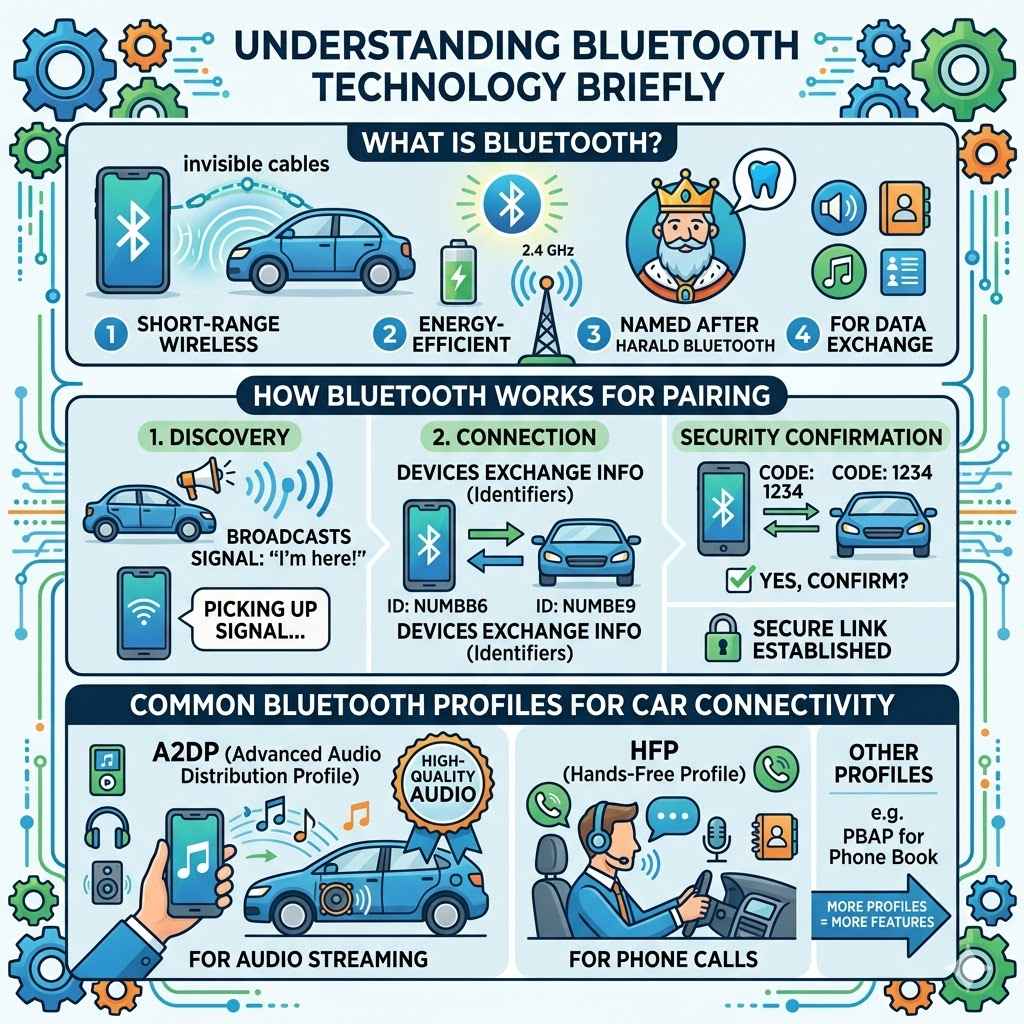
Bluetooth is a short-range wireless technology standard. It’s used for exchanging data between fixed and mobile devices over short distances. Think of it as a invisible cable that connects your phone to your car without any wires.
It operates in the 2.4 GHz industrial, scientific, and medical (ISM) radio bands.
The technology is named after a 10th-century Danish king, Harald Bluetooth. It was developed by a company called Ericsson. Its main purpose is to provide wireless connectivity for mobile phones, headsets, laptops, and other portable devices.
It’s designed to be energy-efficient, which is why it’s great for portable gadgets.
How Bluetooth Works for Pairing
When you pair two devices, they use a process called discovery and connection. First, one device (say, your car) broadcasts a signal saying, “I’m here, and I’m looking for devices to connect to.” Your phone, in discovery mode, picks up this signal. Then, your phone responds, saying, “I’m here too!”
The devices then exchange information, including unique identifiers. If they both agree to connect, they often exchange a PIN or a confirmation code. This security step ensures you’re pairing with the correct device.
Once confirmed, they establish a secure link. This link allows them to send and receive data, like audio streams or contact information, wirelessly.
Bluetooth Profiles (A2DP, HFP)
Bluetooth uses different “profiles” to define how devices communicate for specific tasks. Two common profiles for car connectivity are A2DP and HFP.
A2DP (Advanced Audio Distribution Profile) is used for streaming stereo audio. This is what enables you to play music from your phone through your car’s speakers. It’s optimized for high-quality audio playback, providing a good listening experience.
HFP (Hands-Free Profile) is used for making and receiving phone calls. This profile allows your car’s system to act as a speakerphone and microphone. It enables you to talk and listen to callers through your car’s audio system and use your voice to dial numbers.
Other profiles exist, like PBAP (Phone Book Access Profile), which allows your car to access your phone’s contacts. The more profiles your car and phone support and successfully implement, the more features you can use wirelessly.
Frequently Asked Questions
Question: How long does it take to pair my phone to my car?
Answer: Pairing typically takes between 30 seconds to 2 minutes. This includes finding the devices, confirming codes, and establishing the connection. The exact time can vary depending on your phone and car models.
Question: Can I connect my phone to my car without Bluetooth?
Answer: Yes, many cars allow you to connect via a USB cable. This connection often provides better audio quality and can also charge your phone. Some cars also support Apple CarPlay or Android Auto, which offer a more integrated smartphone experience.
Question: Why does my car keep disconnecting from my phone?
Answer: Frequent disconnections can be due to software glitches, outdated firmware on either device, or interference from other electronic devices. Try forgetting the device on both your phone and car and re-pairing them. Also, ensure both devices have the latest software updates.
Question: How many phones can I connect to my car at once?
Answer: Most cars allow you to pair multiple phones, but usually only one can be actively connected for calls and primary functions at any given time. Some advanced systems might support two simultaneous active connections, but this is less common.
Question: Is it safe to give my car access to my contacts?
Answer: Yes, it is generally safe. Accessing contacts via the Phone Book Access Profile (PBAP) allows your car to display your contact list and enable features like dialing by name. This data is stored securely within your car’s system and is not typically shared externally.
Summary
Learning how to add your phone to car Bluetooth fast is simple with these steps. You can easily pair your devices by making them discoverable and confirming the connection. Troubleshooting common issues like disconnections or failed pairing is also straightforward with resets and re-pairing.
Explore advanced features for better audio and multiple device use. You’ve got this!