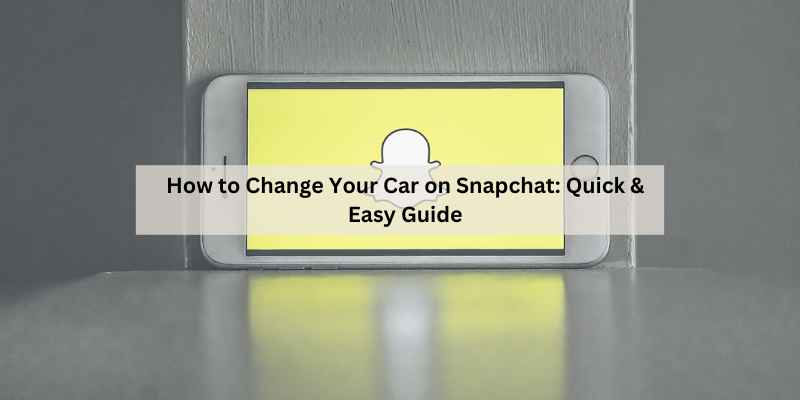
How to Change Your Car on Snapchat: The Complete Guide
You just bought a new car, or maybe you sold the old one and picked up something different. Then you open Snapchat and see that little car icon next to your Bitmoji still shows the beat-up hatchback you drove in high school. It’s a small thing, but it bugs you every time you open the app.
The good news is that changing your car on Snapchat takes less than a minute once you know where to look. The feature is buried in the profile settings, and Snapchat doesn’t make it obvious. This guide walks you through every step, covers the customization options, and explains what to do when the car won’t update.

Qifutan
Qifutan Dash Mounted Holders Phone Holders for…
- Versatile Car Phone Mount: Cell phone car mount boasts premium suction strength and an upgraded air vent clip, allowing for flexib…
- Strong Suction Performance: Car phone holder comes with a double-locked suction cup made of heat-resistant TPU material, guarantee…
- Fully Adjustable Design: Featuring a 360-degree rotating ball joint and an adjustable extension arm ranging from 3.7 inches to 5.9…
You’ll also learn how to set a custom car color, why your car sometimes reverts to the default, and whether you can use a real photo of your actual vehicle instead of the cartoon version. By the end, you’ll have your Snapchat car exactly how you want it.
While you’re customizing your digital ride, it’s worth thinking about how you use your phone in your actual car. A decent Qifutan car phone mount keeps your phone visible for navigation and Snapchat without you holding it, which is safer than juggling a phone while driving.
What Exactly Is the Car on Snapchat?
The car next to your Bitmoji is part of your Snapchat profile. It appears on your profile page, in chats, and on the map. It’s a small cartoon vehicle that represents your real-world car, and you can customize its color and type.
The feature is tied to your Bitmoji account, not your Snapchat account separately. That matters because if you ever change your Bitmoji or link a different Bitmoji account, your car settings can reset.
Snapchat offers a limited set of car types. You won’t find a specific 2026 Toyota Camry or a Ford F-150 with the exact trim. Instead, you pick from broad categories like sedan, SUV, truck, sports car, and a few others. The color options are more flexible, with a wide spectrum to choose from.
The car appears in three main places: your profile next to your Bitmoji, on the Snap Map when you have location sharing on, and in chat conversations. It’s purely cosmetic, but it’s a fun way to personalize your presence in the app.
Step-by-Step: How to Change Your Car on Snapchat
Here’s the exact process. It works on both iPhone and Android, though the menu labels can differ slightly depending on your version.
- Open Snapchat and tap your Bitmoji avatar in the top-left corner of the camera screen. This takes you to your profile.
- Tap the gear icon in the top-right corner to open Settings.
- Scroll down to the “Who Can…” section and look for “My Car.” On some versions, it’s under “Bitmoji” or “Avatar.”
- Tap “My Car” to open the car customization screen.
- Choose your car type from the horizontal list at the bottom. Swipe left or right to see all options.
- Pick a color from the color palette at the top. You can tap and drag to get an exact shade.
- Tap the back arrow to save. Your new car appears immediately on your profile.
That’s it. No confirmation prompt, no save button. The change is automatic once you go back.
If you don’t see “My Car” in Settings, your app might be outdated. Update Snapchat from your app store and check again. The feature has been around since 2026, so most accounts have it.
What If You Can’t Find the My Car Option?
Some users report that “My Car” doesn’t show up even after updating. This usually happens for one of three reasons: your Bitmoji isn’t linked properly, you’re on a Snapchat version that moved the menu, or the feature is temporarily unavailable in your region.
First, check that your Bitmoji is connected. Go to Settings, tap “Bitmoji,” and make sure it’s linked to your Snapchat account. If it’s not, link it and try again.
Second, try searching within Settings. Tap the search bar at the top of Settings and type “car.” If the option exists anywhere in the menu, it’ll show up in the results.
Third, log out and log back in. This refreshes your account data and often brings back missing options.
Customizing Your Car: Types, Colors, and Limitations
Snapchat’s car selection isn’t huge, but it covers the basics. As of the latest versions, you can choose from these types:
- Sedan (the default)
- SUV
- Truck (pickup)
- Sports car
- Convertible
- Hatchback
- Coupe
- Electric car (looks like a Tesla-style vehicle)
The color picker is more flexible. You get a full spectrum slider, not just preset swatches. That means you can match your actual car’s paint color pretty closely, even if it’s an unusual shade like burnt orange or British racing green.
One limitation: you can’t upload a real photo of your car. The cartoon representation is the only option. Also, there’s no way to add custom decals, wheels, or license plates. It’s a simple icon, not a full car builder.
The electric car option is worth noting. It’s a distinct body style, not just a sedan with a lightning bolt. If you drive a Tesla or another EV, this is the closest match.
Why Does My Car Keep Resetting?
This is a common complaint. You set your car to a red SUV, and a week later it’s back to the default gray sedan. Snapchat hasn’t officially explained why this happens, but the pattern points to a few causes.
First, if you ever unlink and relink your Bitmoji, the car resets. Second, clearing Snapchat’s cache or data can wipe the setting. Third, some users report the car resets after a major app update.
The fix is simple: just set it again. It takes 30 seconds. There’s no way to back up the setting, so you’ll have to redo it manually if it happens.
Using the Car on Snap Map
Your car also shows up on the Snap Map when you have location sharing enabled. On the map, your Bitmoji sits inside the car icon, and it moves along the roads as you drive. It’s a neat touch, and it makes you look like you’re actually driving around town.
The car on the map uses the same settings as your profile car. Change it in Settings, and the map updates automatically. There’s no separate map-only car option.
One thing to note: if you’re walking, your Bitmoji appears on foot. If you’re driving, the car appears. Snapchat determines this using your phone’s motion sensors and GPS speed. You can’t manually force the car to show up while you’re walking.
Comparing the Car Options on Snapchat
Here’s a quick comparison of the available car types based on what they look like and when you’d pick them.
| Car Type | Best For | Color Options | Notes |
|---|---|---|---|
| Sedan | Default, generic daily driver | Full spectrum | Looks like a compact or midsize sedan |
| SUV | Crossovers and larger family vehicles | Full spectrum | Taller body, boxier shape |
| Truck | Pickup owners | Full spectrum | Has a visible cargo bed |
| Sports car | Coupes and performance cars | Full spectrum | Low profile, sleek lines |
| Convertible | Open-top cars | Full spectrum | Top is always down in the icon |
| Hatchback | Small practical cars | Full spectrum | Shorter rear end than the sedan |
| Coupe | Two-door cars | Full spectrum | Similar to sports car but less aggressive |
| Electric | EV owners | Full spectrum | Distinct modern design |
The table makes it clear: the main difference is body shape. Color and type are the only variables. There’s no option to add a roof rack, a trailer, or any other accessory.
Frequently Asked Questions
Can I use a real photo of my car on Snapchat?
No. Snapchat only allows the cartoon car icons. You can’t upload a photo or use a custom image. If you want a photo of your actual car on your profile, you can add it as one of your profile photos or stories, but it won’t replace the car icon next to your Bitmoji.
Why is my car not showing up on the Snap Map?
Your car only appears on the map when you’re actively driving and location sharing is on. If you’re walking or stationary, your Bitmoji shows without the car. Check your location permissions in Snapchat Settings under “See My Location” and make sure it’s set to “Ghost Mode” off. Also, the map only updates when the app is open or running in the background.
Does changing my car on Snapchat affect my Bitmoji?
No. The car is a separate setting from your Bitmoji’s appearance. You can change your avatar’s outfit, hair, or face without touching the car, and vice versa. The two are independent except for the fact that the car appears alongside your Bitmoji.
Can I change my car from the Snapchat web version?
No. The My Car setting is only available in the mobile app. Snapchat’s web version, which is mostly for messaging and stories, doesn’t include profile customization options like the car. You’ll need to use your phone or tablet.
I changed my car but my friend still sees the old one. Why?
Snapchat caches data on both ends. Your friend’s app might still be showing the old car from a previous load. Ask them to close and reopen Snapchat, or pull down to refresh their chat list. The change usually propagates within a few minutes, but heavy server load can delay it.
What You Should Remember
Changing your car on Snapchat is genuinely simple once you know the menu path. Here’s what to keep in mind:
- Go to Profile → Settings → My Car to change it. No save button needed.
- You can choose from eight car types and any color from the full spectrum.
- Real photos aren’t supported. It’s cartoon-only.
- If the option is missing, update the app, check your Bitmoji link, or log out and back in.
- The car resets if you unlink your Bitmoji or clear app data. Re-set it manually.
- On the Snap Map, the car only shows while you’re actually driving.
- There’s no web version of this setting, so use the mobile app.
Once your digital car matches your real one, you can get back to using Snapchat without that nagging feeling that something’s off. And if you’re spending more time in your actual car, consider a phone mount that keeps your device within easy reach rather than fumbling with it. Check out how to attach your new phone to your car for a safe setup. You can also learn how to mirror your phone screen to your car for navigation, or get tips on pairing your phone to your car for hands-free calls.
Products related to this article
Sponsored / affiliate links. As an Amazon Associate I earn from qualifying purchases. I may earn additional commission from eligible campaigns.