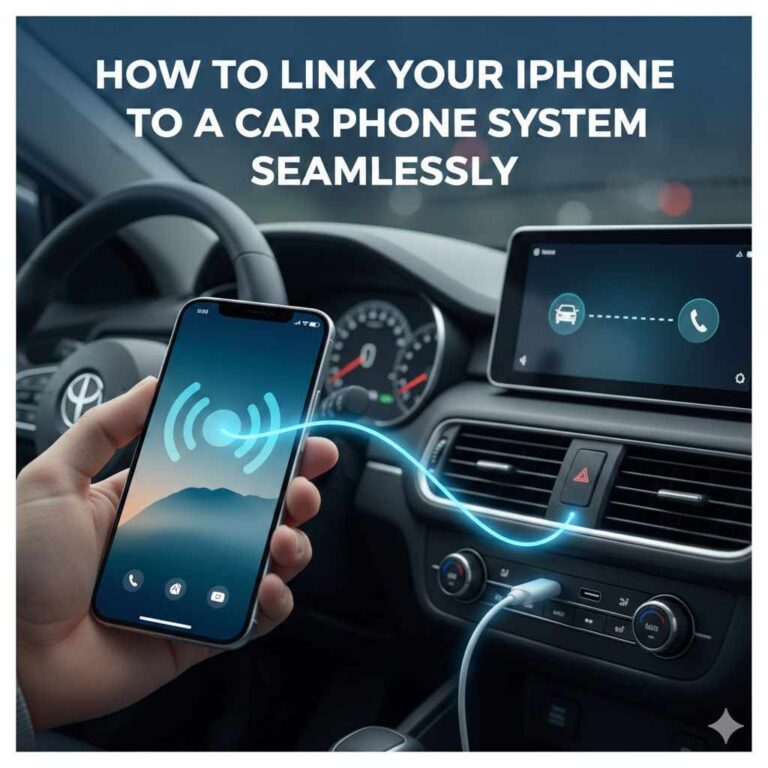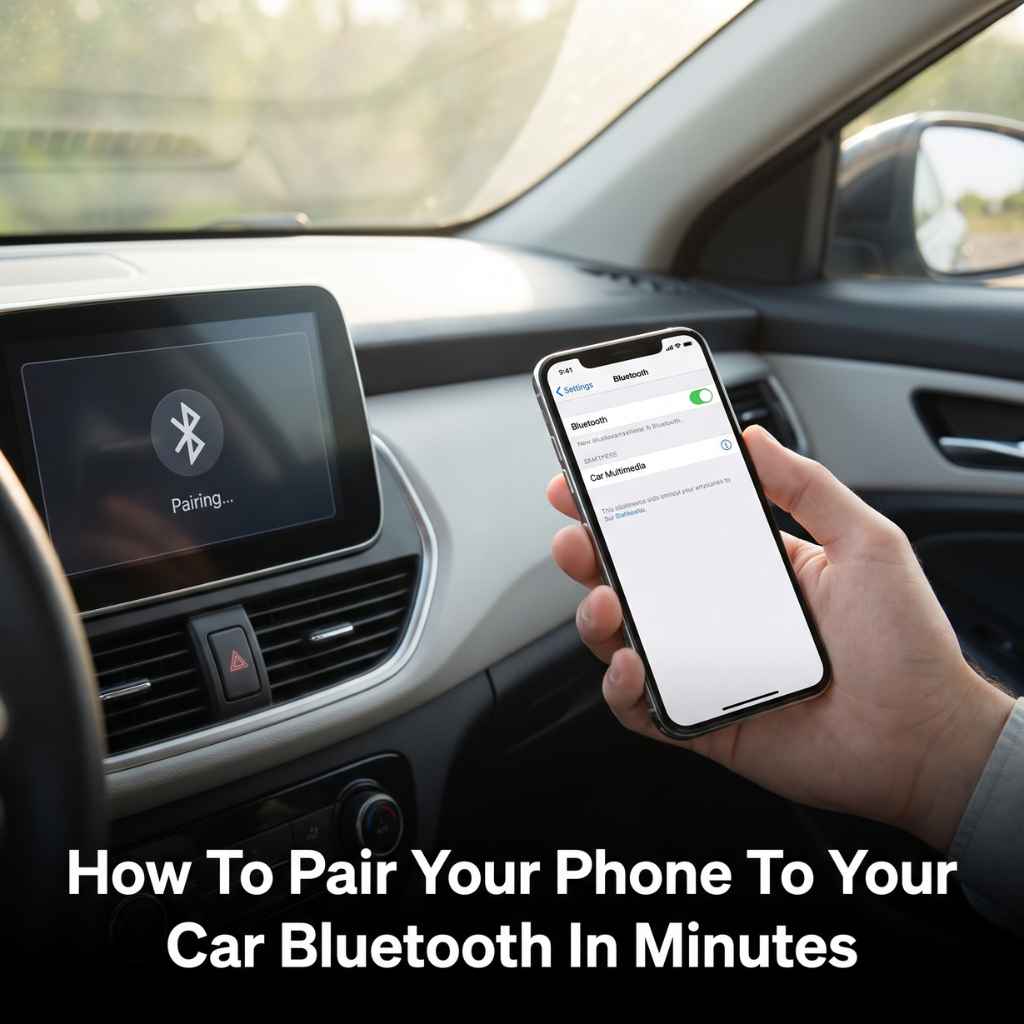
How To Pair Your Phone To Your Car Bluetooth In Minutes
Connecting your phone to your car via Bluetooth lets you use features like hands-free calling and music streaming safely. Most modern cars and phones support Bluetooth, making it a common and useful feature. The pairing process typically involves making your car’s system discoverable and then finding and selecting it on your phone.
Understanding Car Bluetooth Pairing
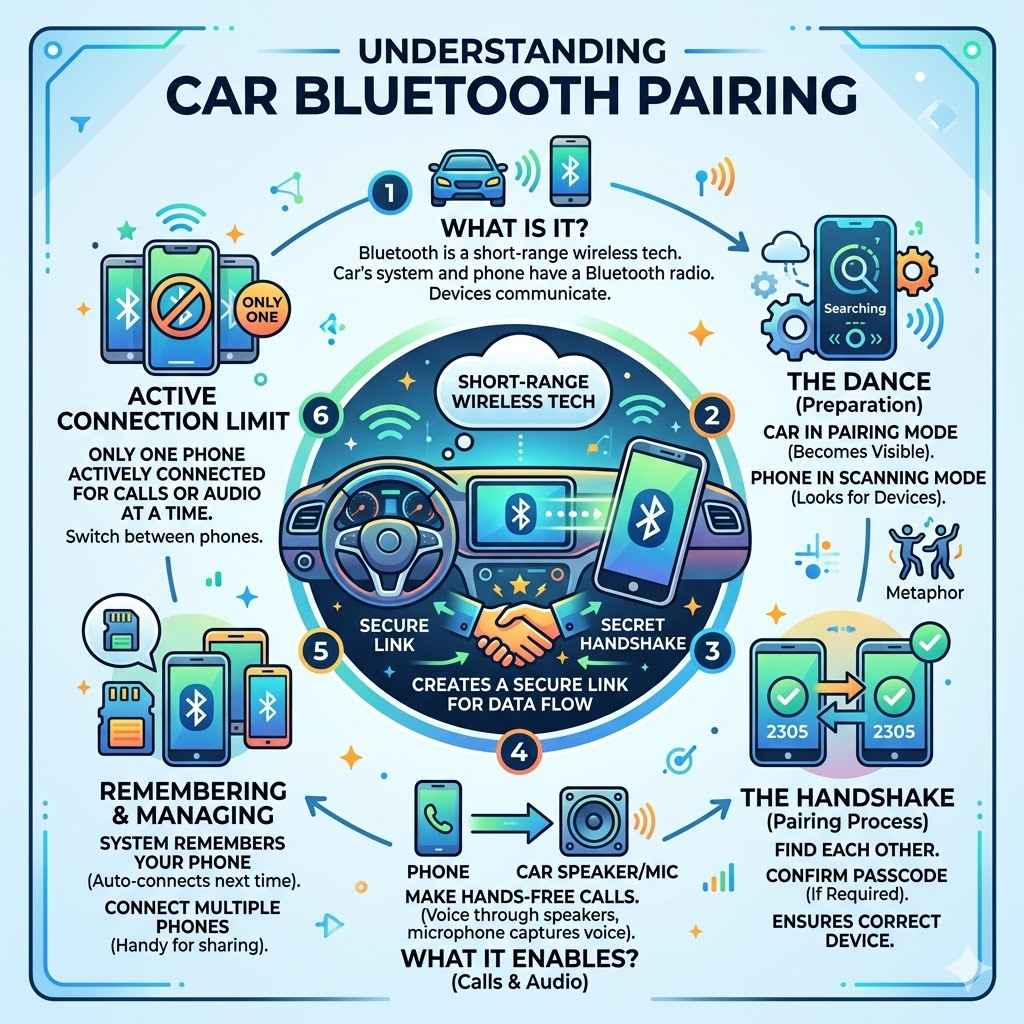
Bluetooth is a short-range wireless tech. It lets devices talk to each other. Your car’s system has a Bluetooth radio.
Your phone also has one. When you pair them, they create a secure link. This link lets data flow between them.
Think of it like a special secret handshake.
Your car needs to be in pairing mode. This makes it visible to your phone. Your phone also needs to be set to look for new devices.
It’s a bit like a dance. One leads, and the other follows. Once they find each other, you might need to confirm a code.
This ensures it’s the right device.
This process lets you do a lot of cool things. You can make calls without holding your phone. Your voice comes through the car speakers.
Your voice is picked up by the car’s microphone. You can also stream audio. This includes music, podcasts, and even GPS directions.
Some cars let you connect more than one phone. This is handy if you share a car. You can switch between phones easily.
However, only one phone can be actively connected for calls or audio at a time. The system usually remembers your phone too. So, you don’t have to pair it every single time.
My First Bluetooth Connection Nightmare
I remember the first time I tried to connect my new smartphone to my then-new-to-me used car. It was a crisp autumn afternoon. I had just finished grocery shopping and was eager to blast some upbeat tunes on the drive home.
My phone was full of great playlists. My car had this fancy-sounding Bluetooth system.
I popped the car into park. I tapped around on my phone’s settings. Then I looked at the car’s infotainment screen.
It was supposed to be easy, right? The manual said “discoverable mode.” I found a button that looked promising. I pressed it.
Nothing seemed to happen. My phone still couldn’t see the car.
Panic started to set in. Were my groceries going to melt? Was I going to drive in silence?
I tried turning my phone’s Bluetooth off and on. I even restarted my phone. Still no luck.
Then I looked at the car’s manual again. It said the car’s system needed to be set to “pairing mode” from its own menu.
It was tucked away in a sub-menu I hadn’t explored. Aha! I found it.
The car screen showed it was searching. My phone then suddenly popped up with “Car Multimedia System” as an option. I tapped it.
A PIN appeared on both screens. I confirmed it. Boom!
Connected. The relief was huge. It turned out to be a simple setting I’d missed.
Bluetooth Pairing Steps at a Glance
Step 1: Get your car ready. Put it in park. Turn on the ignition.
Most cars need the engine running or accessory power on.
Step 2: Activate pairing mode in your car. Look for “Bluetooth” or “Phone” settings on your car’s screen. Select “Add Device” or “Pair New Device.”
Step 3: Make your phone discoverable. On your phone, go to Bluetooth settings. Turn Bluetooth on.
It should start searching automatically.
Step 4: Select your car on your phone. Your car’s name should appear in your phone’s list of nearby devices. Tap it.
Step 5: Confirm the connection. You might see a PIN on both screens. Make sure they match.
Confirm on both devices.
Checking Your Car’s Bluetooth
First things first, make sure your car actually has Bluetooth. Many cars made in the last 10 years do. But older models might not.
Look for a Bluetooth symbol. It often looks like a stylized ‘B’. You might see it on the dashboard or steering wheel.
The car’s manual is your best friend here.
If your car has it, you need to know how to turn it on. This is usually in the car’s infotainment system. Think of it as the car’s computer.
You’ll likely find a “Settings” or “Setup” menu. Inside that, look for “Phone,” “Bluetooth,” or “Connectivity.”
Once you’re in the Bluetooth menu, you need to make the car discoverable. This is key. It tells other devices, like your phone, that it’s ready to connect.
The wording can change. It might say “Pair Device,” “Add Phone,” or “Make Discoverable.”
Some cars are picky about when you can pair. They often require the car to be parked. This is for safety.
They don’t want you messing with settings while driving. So, make sure your car is in park and the engine is on or in accessory mode.
If you have a smartphone, it also needs to be ready. Make sure your phone’s Bluetooth is turned on. You can usually find this in your phone’s main “Settings” app.
Then, find the “Bluetooth” section. Toggle it on.
Your phone will then start scanning for nearby Bluetooth devices. Your car, once in pairing mode, should show up in this list. It might have a name like “My Car,” “Car Audio,” or the car’s model name.
It’s important to pick the right one.
When you tap your car’s name on your phone, a pairing request usually pops up. This is a safety step. It confirms you want to connect these specific devices.
You might see a set of numbers, a PIN code. This code needs to match on both your phone and your car’s screen.
If the numbers match, you confirm the connection on both devices. Sometimes, it’s automatic. Your phone might say “Connected for calls and audio.” Your car’s screen will likely show your phone’s name connected.
What if your car doesn’t have built-in Bluetooth? You’re not out of luck. You can buy an external Bluetooth adapter.
These plug into your car’s auxiliary (AUX) port or cigarette lighter. They create their own Bluetooth signal that your phone can connect to. Then, your phone’s audio plays through the car’s speakers.
Phone Settings Checklist
Is Bluetooth ON? Check your phone’s main settings.
Is your phone visible? Some phones have a “discoverable” setting you need to enable for a short time.
Is the car’s name showing up? If not, try refreshing the scan on your phone.
Do you have enough battery? Low battery can sometimes cause connection issues.
Troubleshooting Common Connection Problems
Sometimes, the magic doesn’t happen on the first try. That’s okay. Connection issues are pretty common.
Let’s look at what might be going wrong. And how to fix it.
Problem: Car not appearing in phone’s list.
This is often the most frustrating. First, double-check that your car’s Bluetooth is on. And in pairing mode.
Look for a blinking light or an icon on the screen. Also, make sure your phone’s Bluetooth is on. Try turning your phone’s Bluetooth off and then on again.
Sometimes a simple refresh helps. Make sure your phone isn’t already connected to another Bluetooth device nearby, like headphones. Only one device can typically connect at a time.
Problem: Pairing fails or PIN doesn’t match.
This means the devices are talking, but they can’t agree on the secret code. Try the pairing process again. Make sure you’re entering the PIN correctly if one is required.
Some cars have a default PIN like “0000” or “1234”. Check your car’s manual for this. If it still fails, delete any old pairings from both your phone and your car.
Then try to pair them as if they were brand new.
Problem: Connected, but no audio or calls.
This is a common one. Your phone might be connected, but the car isn’t set to use it for audio or calls. On your phone’s Bluetooth settings, tap on your car’s name.
You should see options for “Call Audio” and “Media Audio.” Make sure both are checked. On your car’s system, check the audio source. It should be set to “Bluetooth” or your phone’s name.
Problem: Connection drops frequently.
This can be caused by interference. Other wireless signals can sometimes get in the way. Things like Wi-Fi hotspots or even microwave ovens can cause issues, though less likely in your car.
Make sure your phone and car’s software are up-to-date. Old software can have bugs. Try unpairing both devices and pairing them again.
Ensure your phone isn’t too far from the car’s system.
Problem: Can’t connect more than one phone.
Most car systems can store multiple phones. But they usually only actively connect one at a time for audio and calls. If you have two phones, your car will likely connect to the last one you used.
You might need to manually switch which phone is active through the car’s menu. Sometimes, you have to delete older phones from the car’s memory to make space for new ones.
Problem: Car system is confusing or has strange menus.
Car infotainment systems can be wildly different. Some are super simple. Others are like navigating a space shuttle.
Your car’s owner’s manual is your best friend here. It will have diagrams and step-by-step instructions specific to your car model. If you can’t find it, search online for your car’s make, model, and year plus “Bluetooth pairing.”
Problem: Phone won’t automatically connect.
Once paired, your phone and car should connect automatically. If they don’t, go into your phone’s Bluetooth settings. Find your car listed.
There might be an option to “forget” the device. Do this. Then, re-pair the phone to the car from scratch.
Also, check your car’s settings. Some systems have a “auto-connect” or “auto-pair” setting that might be turned off.
Sometimes, a quick restart of both devices can fix odd glitches. Turn your phone off and back on. Turn your car’s ignition off and then back on.
This clears temporary memory issues.
Quick Fixes Summary
- Restart: Turn phone and car systems off and on.
- Unpair: Remove the connection from both devices, then re-pair.
- Check Settings: Ensure “Call Audio” and “Media Audio” are enabled.
- Update: Make sure your phone’s OS and car’s software are current.
- Manual: Consult your car’s owner’s manual for model-specific steps.
Real-World Car Bluetooth Scenarios
Let’s talk about where and why Bluetooth pairing issues pop up in real life. It’s not just about the tech; it’s about how we use it.
The Commuter’s Dilemma: Sarah drives the same route to work every day. Her phone usually connects fine. But one morning, it refuses.
She’s late. The car’s system is a bit older. She realizes her phone updated overnight.
Sometimes, software updates can cause temporary hiccups with older Bluetooth versions in cars.
The Family Car Chaos: The Miller family shares an SUV. Dad paired his phone. Then Mom paired hers.
Then their teenage son paired his. Now, the car’s system gets confused. It’s trying to remember too many devices.
They need to go into the car’s settings and delete the older phone profiles to make it work smoothly again. They decide to only keep the active drivers’ phones in the system.
The Road Trip Glitch: The Johnson family is on vacation. They’re driving through remote areas. Their phone signal is weak.
The car’s Bluetooth seems to struggle with a stable connection. This isn’t always a Bluetooth problem. Sometimes, weak cellular signals can interfere with device communication.
Once they hit areas with better reception, the Bluetooth connection stabilized.
The Used Car Surprise: Mark bought a used car. The seller said it had Bluetooth. He gets home and can’t find the setting anywhere.
After a deep dive into the car’s manual and online forums, he discovers it’s an optional feature. His specific trim level didn’t come with it. He decides to buy a simple Bluetooth adapter that plugs into his AUX port.
It works like a charm.
The Navigation Navigatior: Emily uses her phone for GPS. The car’s navigation system is outdated. She wants her GPS voice prompts to come through the car speakers.
She pairs her phone. But then her music stops playing. She realizes she needs to go into her phone’s Bluetooth settings.
She makes sure “Media Audio” is enabled for her car. Now, both GPS and music work.
These real-life examples show that Bluetooth isn’t always a plug-and-play miracle. It depends on the car, the phone, the software versions, and even the environment. Understanding these scenarios helps you troubleshoot better.
Myth vs. Reality: Car Bluetooth
Myth: All cars made after 2010 have Bluetooth.
Reality: Bluetooth was often an optional upgrade. Check your car’s specific features.
Myth: If my phone is connected, audio and calls will automatically work.
Reality: You often need to confirm “Call Audio” and “Media Audio” permissions in phone settings.
Myth: My car can connect to unlimited phones.
Reality: Most cars store a limited number of devices. You may need to delete old ones.
Myth: Bluetooth drains my phone battery very quickly.
Reality: Modern Bluetooth uses very little power. The drain is usually minimal, especially compared to screen use.
What This Means For You
So, what’s the takeaway from all this? Knowing how your car’s Bluetooth works can save you a lot of headaches. It also makes your driving safer and more enjoyable.
When it’s normal: It’s normal for your phone to connect automatically most of the time after the initial pairing. It’s also normal to see your car listed as a connected device in your phone’s Bluetooth settings. Minor audio interruptions are rare but can happen if there’s strong interference.
When to worry: If you’ve tried all the basic steps and your phone and car still won’t pair, it might be time for a deeper look. If your car’s system seems glitchy or crashes often when you try to access Bluetooth, there could be a problem with the car’s infotainment system itself. This might need a dealer or mechanic to check.
Simple checks you can do:
- Check car’s software: Some car manufacturers offer software updates for their infotainment systems. See if your car is eligible.
- Check phone’s software: Always keep your smartphone’s operating system updated.
- Look for interference: If you suspect interference, try pairing in a different location.
- Reset car’s system: Some cars have a “factory reset” option for their infotainment system. Use this as a last resort, as it will erase all custom settings.
Understanding these points helps you know when to keep trying the simple fixes and when to seek more advanced help. Most of the time, it’s just a setting you missed or a quick restart needed.
Quick Tips for a Smooth Connection
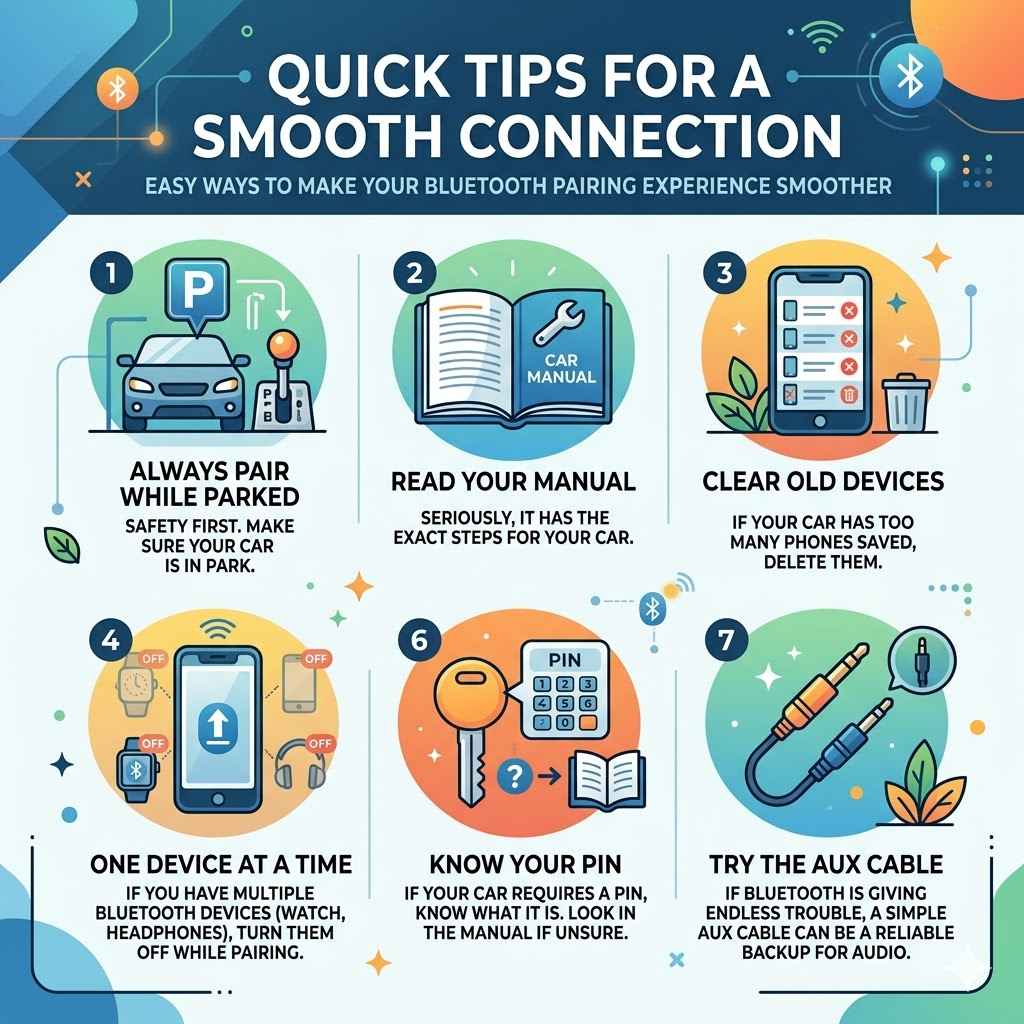
Here are some easy ways to make your Bluetooth pairing experience smoother:
- Always Pair While Parked: Safety first. Make sure your car is in park.
- Read Your Manual: Seriously, it has the exact steps for YOUR car.
- Clear Old Devices: If your car has too many phones saved, delete them.
- Keep Software Updated: Both your phone and car benefit from the latest updates.
- One Device at a Time: If you have multiple Bluetooth devices (watch, headphones), turn them off while pairing your phone to the car.
- Know Your PIN: If your car requires a PIN, know what it is. Look in the manual if unsure.
- Try the AUX Cable: If Bluetooth is giving you endless trouble, a simple AUX cable can be a reliable backup for audio.
Frequent Questions About Phone to Car Bluetooth
How do I know if my car has Bluetooth?
Look for a Bluetooth symbol (a stylized ‘B’) on your dashboard, steering wheel, or infotainment screen. Check your car’s owner’s manual for Bluetooth specifications. Many cars made after 2010 have it, but it was often an optional feature.
Why won’t my car find my phone’s Bluetooth?
Ensure Bluetooth is turned on for both your phone and your car. Make sure your car is in “pairing mode” or “discoverable mode.” Try restarting both your phone and your car’s infotainment system. Also, check that your phone isn’t already connected to another Bluetooth device.
My phone is connected, but I have no sound. What do I do?
Go into your phone’s Bluetooth settings and tap on your car’s name. Ensure that “Call Audio” and “Media Audio” are enabled. On your car’s system, check that the audio source is set to “Bluetooth.”
Can I connect two phones to my car at the same time?
Most cars can store multiple phones but only actively connect one phone at a time for calls and audio. You may need to manually switch between connected phones via your car’s infotainment system. Some systems allow a primary and secondary phone connection.
How do I update my car’s Bluetooth system?
Some car manufacturers offer software updates for their infotainment and Bluetooth systems. You might be able to download these from the manufacturer’s website and install them via a USB drive, or your car’s system might update automatically if it has Wi-Fi connectivity. Check your car’s manual or the manufacturer’s website.
What if my car’s Bluetooth is very old or slow?
Older Bluetooth versions might be slower or have fewer features. If performance is poor, consider an external Bluetooth adapter that plugs into your car’s AUX port. This can provide a more modern Bluetooth connection for audio streaming.
How often do I need to re-pair my phone to my car?
You typically only need to pair your phone to your car once. After the initial pairing, your phone and car should automatically connect whenever they are both on and within range, and Bluetooth is enabled on both.
Conclusion
Getting your phone connected to your car’s Bluetooth is a common task. While it can sometimes feel tricky, most issues are easily fixed. By following these steps and tips, you’ll be enjoying your music and calls hands-free in no time.
Happy driving!
Products related to this article
Sponsored / affiliate links. As an Amazon Associate I earn from qualifying purchases. I may earn additional commission from eligible campaigns.