How To Mirror Your Phone Screen To Your Car (Any Phone)
Mirroring your phone screen to your car allows safe access to apps like maps, music, and calls on your vehicle’s display. This guide explains common methods for both Android and iPhone, covering wired and wireless connections, and how to check your car’s compatibility for a seamless experience.
What is Phone Mirroring to a Car?
Phone mirroring, also called screen mirroring or tethering, is a way to show what’s on your phone’s screen onto another display. In this case, that other display is your car’s infotainment system. Think of it like an extension cord for your phone’s screen.
Whatever you do on your phone appears on your car’s dashboard screen. This is super handy for many reasons.
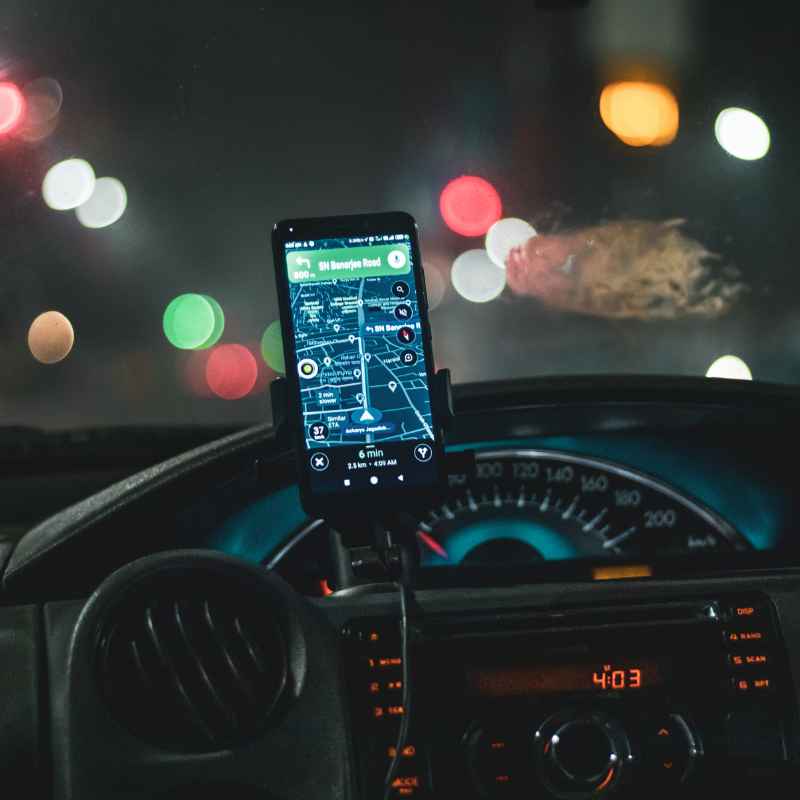
It means you can use your phone’s navigation apps with a bigger map view. You can also control your music playlists without fumbling with your phone. Most importantly, it helps you keep your eyes on the road.
You aren’t looking down at a small phone screen as much. This makes driving safer for everyone.
There are a few main ways this happens. Some cars use built-in systems. Others rely on connecting your phone directly.
We will go over both. The goal is to make your drive more connected and safer. You get the best of both worlds: your phone’s power and your car’s display.
My Own Phone Mirroring Mishap
I remember the first time I really wanted to mirror my phone. I was on a road trip with my family. We were heading to a new city, and I had a great playlist all ready to go.
My phone’s navigation was set up too. But my car’s radio was old-school. It only played CDs and the radio.
I felt so disconnected.
I spent the first hour of the drive trying to juggle my phone and the steering wheel. It was stressful! My kids were asking for music changes.
I was worried about missing a turn. Then, I saw a friend’s car. They had their phone’s map clearly displayed on their dashboard.
I felt a pang of envy. I thought, “There has to be a better way!”
That night, I dug into it. I learned about these mirroring technologies. It took some searching and a bit of trial and error.
But finally, I found a way to make it work. It was a game-changer for all my future drives. This experience taught me how important simple tech can be for everyday life.
Why Mirror Your Phone to Your Car?
Safer Navigation: Larger maps mean less distraction.
Easy Music Control: Access playlists and streaming apps easily.
Hands-Free Calls: Make and take calls with more convenience.
App Access: Use other compatible apps safely.
Share Content: Show photos or videos (when parked!).
How Phone Mirroring Works
Phone mirroring uses special technologies. These technologies let your phone and car talk to each other. They share screen information back and forth.
There are two main systems most cars use today. These are Apple CarPlay for iPhones and Android Auto for Android phones. Many newer cars support both.
Some cars also have their own specific mirroring systems. But CarPlay and Android Auto are the most common. They are designed for driving.
They make the apps you use look good and work well on a car screen. They simplify the interface too. This means fewer distractions when you drive.
CarPlay and Android Auto can work in two ways. They can connect using a USB cable. This is often the most stable connection.
It also charges your phone. Or, they can connect wirelessly via Bluetooth and Wi-Fi. Wireless is more convenient but might have a slight delay sometimes.
Beyond these, some cars offer a more general “screen mirroring” feature. This shows your phone’s screen exactly as it is. This works for iPhones with “Screen Mirroring” and Android phones with “Smart View” or similar.
However, this might not be as safe for driving. The app interfaces are not always simplified.
Connection Methods
1. USB Cable: Plug your phone into a USB port in your car. This is reliable and charges your phone.
2. Wireless: Connect via Bluetooth and Wi-Fi. No cables needed, but ensure good signal strength.
3. Built-in Car System: Some cars have unique mirroring tech. Check your car’s manual.
Connecting Your iPhone to Your Car
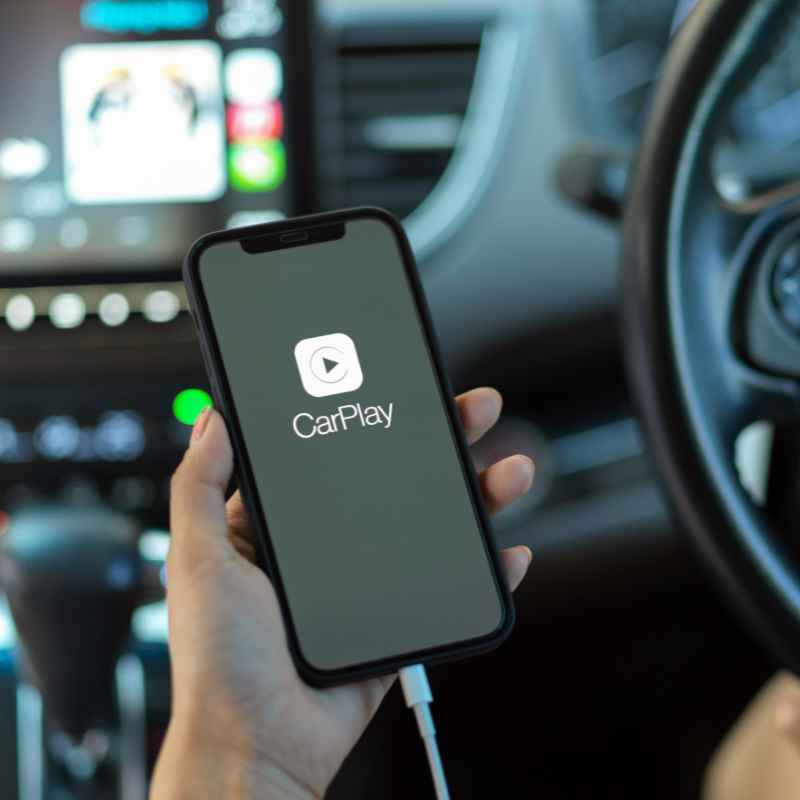
For iPhone users, Apple CarPlay is the go-to. Most modern iPhones support CarPlay. You’ll need a car that is also CarPlay compatible.
Many cars made in the last 5–7 years have this. You can check your car’s specifications or infotainment system menu for the CarPlay logo.
Using a USB Cable:
The easiest way is often with a USB cable. Make sure it’s a good quality cable, like the one that came with your iPhone. Plug one end into your iPhone’s charging port.
Plug the other end into a USB port in your car. Some cars have dedicated CarPlay USB ports. Others use any USB port.
Your iPhone should prompt you to allow CarPlay. Tap “Allow.” Your car’s screen will then show the CarPlay interface. It looks like a simplified version of your iPhone home screen.
You’ll see icons for maps, music, messages, and phone calls. You can also download other CarPlay-compatible apps from your iPhone’s App Store.
Going Wireless:
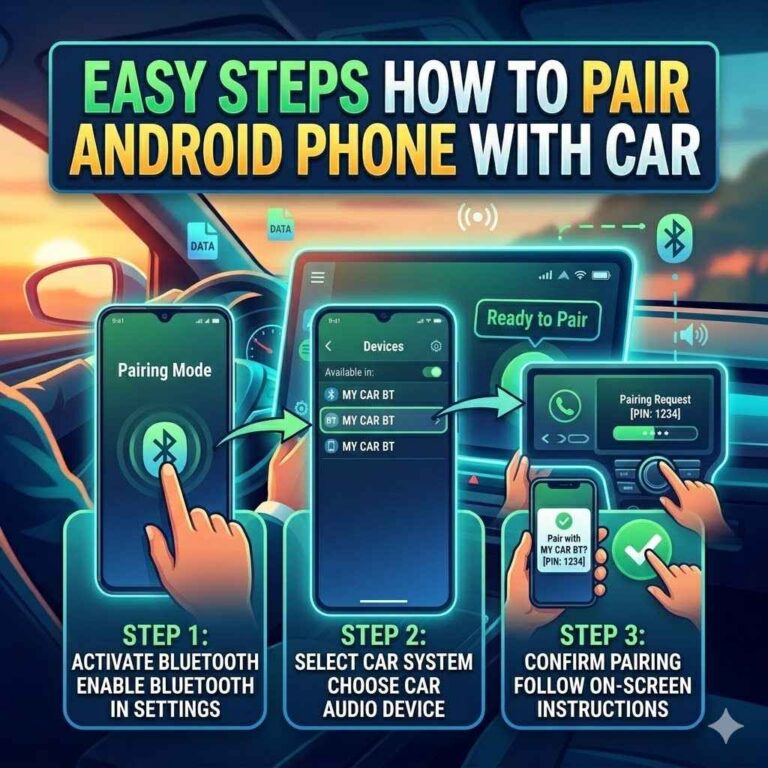
For wireless CarPlay, you first need to pair your iPhone with your car’s Bluetooth. Go to your iPhone’s Settings > Bluetooth. Make sure Bluetooth is on.
In your car, go to its Bluetooth settings and search for devices. Select your car from the list on your iPhone. Once paired, your car might ask if you want to use CarPlay.
Follow the on-screen prompts.
You might also need to connect your iPhone to your car’s Wi-Fi network for the first time. After the initial setup, it should connect automatically whenever you get in the car and are within range. This offers great convenience, but a USB connection can sometimes be more stable.
Important Note: Not all USB ports in cars support CarPlay. If one doesn’t work, try another. Also, ensure your iPhone’s iOS is up to date.
Software updates often improve compatibility.
iPhone CarPlay Checklist
iPhone Model: iPhone 5 or newer is recommended.
iOS Version: Latest iOS version for best performance.
Car Compatibility: Check your car’s manual or infotainment system for the CarPlay logo.
USB Cable: Use a certified Apple cable or a high-quality alternative.
Wireless Setup: Ensure Bluetooth and Wi-Fi are enabled on both devices.
Connecting Your Android Phone to Your Car
For Android users, Android Auto is the system you’ll likely use. Most recent Android phones work with Android Auto. Similar to CarPlay, your car needs to be compatible.
Look for the Android Auto logo or check your car’s manual.
Using a USB Cable:
The most common method is a USB connection. Get a good quality USB cable. Plug it into your Android phone’s charging port.
Then, plug the other end into a USB port in your car. Your phone will likely show a notification asking to use Android Auto. Tap “Allow” or “Use Android Auto.”
The car’s screen will then switch to the Android Auto interface. It’s similar to CarPlay in its simplified design. You’ll see icons for navigation, music, phone calls, and messages.
You can download Android Auto compatible apps from the Google Play Store on your phone. These apps will then appear in your car.
Going Wireless:
Wireless Android Auto is very convenient. First, your phone and car need to support wireless Android Auto. Pair your Android phone with your car via Bluetooth.
Go to your phone’s Settings > Connections > Bluetooth. Then, in your car’s Bluetooth settings, find and connect to your car’s system. You may need to enable Android Auto in your car’s settings too.
Once Bluetooth is paired, your phone might connect to your car’s Wi-Fi. This is often needed for the data transfer. Follow the on-screen prompts on both your phone and car.
You might need to set it up only once. After that, it should connect automatically when you start your car.
Troubleshooting Tips:
Sometimes, connections can be finicky. Ensure your Android phone’s software is updated. Make sure the Android Auto app is updated on your phone too.
If a USB port isn’t working, try a different one. Not all ports are designed for data transfer.
Android Auto Connection Guide
Phone Compatibility: Most Android phones running Android 6.0 or newer.
Car Compatibility: Look for the Android Auto symbol on your car’s display or in the manual.
USB Cable: Use a high-quality USB cable that supports data transfer.
App Update: Ensure the Android Auto app is updated on your phone.
Wireless Setup: Requires compatible phone and car; involves Bluetooth and Wi-Fi pairing.
Using General Screen Mirroring (Non-CarPlay/Android Auto)
Some cars might not support CarPlay or Android Auto. Or, you might want to mirror your phone’s screen exactly. Many phones have a built-in feature for this.
For iPhones, it’s called “Screen Mirroring.” For Android phones, it’s often called “Smart View,” “Screen Cast,” or “Miracast.”
How it Works:
These features use your phone’s Wi-Fi and sometimes Bluetooth. They send your phone’s display to a compatible receiver. In your car, this might be built into the infotainment system.
Or, you might need an adapter that plugs into your car’s display. Your car’s system needs to support receiving these signals.
For iPhone (Screen Mirroring):
On your iPhone, open the Control Center. Swipe down from the top-right corner (on newer iPhones) or up from the bottom (on older iPhones). Tap the “Screen Mirroring” icon (two overlapping rectangles).
Your iPhone will search for nearby AirPlay-compatible devices. Select your car’s display from the list. You might need to enter a code shown on your car’s screen.
For Android (Smart View/Screen Cast):
On your Android phone, swipe down from the top to open the Quick Settings panel. Look for “Smart View,” “Screen Cast,” “MirrorShare,” or similar. Tap this option.
Your phone will search for compatible devices. Select your car’s screen from the list. You might need to confirm the connection on your car’s display.
When to Use This:
This method shows your phone’s screen exactly. It’s good for showing photos or videos to passengers (when parked!). However, it’s generally less safe for navigation or music control while driving.
This is because the interface is not optimized for driving. The controls are small and might be distracting. Always prioritize CarPlay or Android Auto if available.
General Mirroring: What to Know
Exact Display: Shows your phone’s screen exactly as is.
Compatibility: Requires a compatible car system or adapter.
Use Case: Best for showing content when parked, less ideal for driving.
Focus: Apps are not optimized for driving with this method.
Safety First: Use CarPlay or Android Auto for driving functions.
Checking Your Car’s Compatibility
Before you get frustrated, the first step is always to check if your car supports phone mirroring. This is super important. Not all cars can do this.
Even new cars might not have all the features. Here’s how to find out.
1. Check Your Car’s Manual: This is the best place to start. Your owner’s manual will tell you exactly what your car’s infotainment system can do.
Look for sections on “Infotainment,” “Connectivity,” “Smartphone Integration,” “Apple CarPlay,” or “Android Auto.”
2. Look at Your Car’s Infotainment Screen: Turn on your car and go to the main menu of your car’s display. Look for icons or menus that mention CarPlay, Android Auto, “Phone Projection,” or a smartphone icon.
Sometimes, just plugging in your phone will trigger a prompt.
3. Check the USB Ports: If your car has USB ports, look closely at them. Sometimes, they have a small smartphone icon or the CarPlay logo next to them.
These are usually the ports intended for data transfer for mirroring. Other USB ports might be only for charging.
4. Online Search: You can also search online for your car’s make, model, and year, along with terms like “Apple CarPlay support” or “Android Auto compatibility.” Many automotive websites and forums will have this information.
5. Dealership or Manufacturer Website: If you’re still unsure, visit your car dealership. Or, check the official website for your car’s manufacturer.
They often have detailed lists of features for each model and trim level.
Having this information upfront saves a lot of time. It prevents you from trying to force a connection that just won’t work. Knowing your car’s capabilities is key to a smooth setup.
Compatibility Quick Scan
Owner’s Manual: Your primary source of truth.
Infotainment Screen: Look for CarPlay/Android Auto icons.
USB Port Markings: Icons can indicate data capability.
Online Search: Use car model + “CarPlay” or “Android Auto.
Manufacturer Info: Official websites and dealerships have details.
Choosing Between Wired and Wireless
Both wired and wireless connections have their pros and cons. The best choice for you depends on your preferences and what your car supports.
Wired Connection (USB):
This is often the most reliable option. When you plug in your phone, the connection is usually very stable. There’s less chance of dropped signals or lag.
This is great for long drives where you need a constant connection for navigation or music.
Another big plus is that a wired connection charges your phone. This is fantastic for long trips where your phone battery might drain quickly. You don’t need to worry about your phone dying halfway through your drive.
The downside? You have a cable running from your phone to the car’s dash. This can sometimes feel a bit messy.
You also need to make sure you have the right cable with you. And some cars have USB ports in awkward places, like the glove box.
Wireless Connection:
Wireless is all about convenience. No cables means a cleaner look inside your car. You can easily hop in and out of the car without fussing with plugs.
It feels more modern and streamlined.
The main drawback can be reliability. Wireless connections use Bluetooth and Wi-Fi. If there are a lot of other wireless signals around, or if your car’s system isn’t top-notch, you might experience occasional dropouts or a slight delay between what you do on your phone and what appears on the screen.
Also, wireless mirroring usually doesn’t charge your phone. So, if you’re on a long drive and using navigation heavily, your phone battery might still go down. You might need to plug in periodically anyway, or ensure you start with a full charge.
Recommendation: If your car supports both, try wireless first for its convenience. If you notice issues with stability or battery drain, switch to a wired connection. For critical navigation or if you’re on a long journey, wired is often the safer bet.
Wired vs. Wireless: The Breakdown
Wired (USB):
- Pros: Very stable, reliable, charges phone.
- Cons: Cable can be messy, need to plug in.
Wireless:
- Pros: Convenient, no cables, clean look.
- Cons: Can be less stable, no charging, potential for lag.
Using Apps Safely with Mirroring
The whole point of mirroring your phone to your car is to make things safer and easier. But it’s crucial to use these systems correctly. The interfaces of Apple CarPlay and Android Auto are designed with safety in mind.
They simplify how you interact with apps while driving.
Navigation Apps:
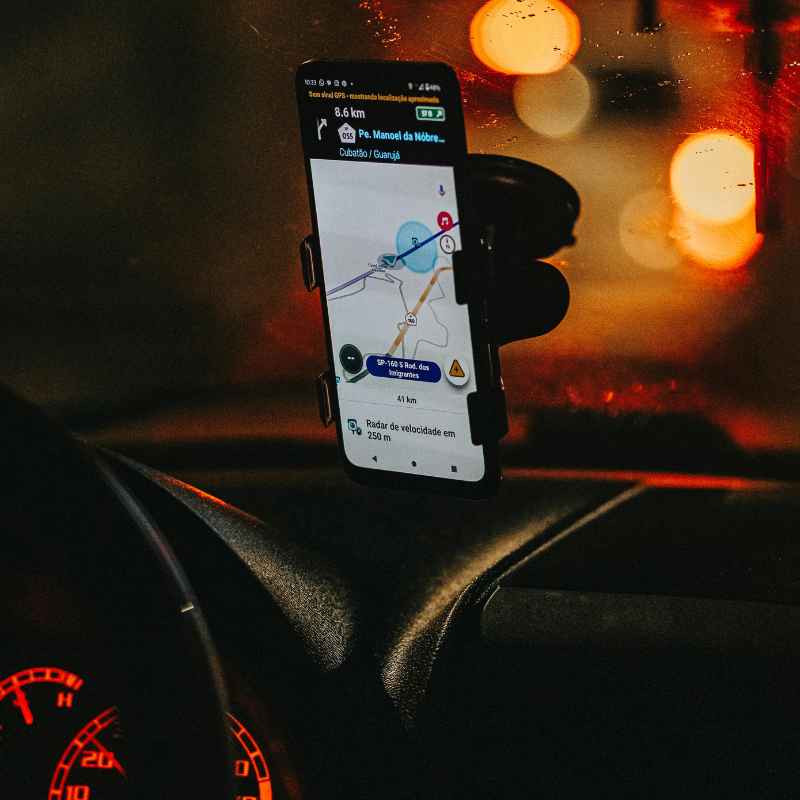
These are often the most used apps. With CarPlay and Android Auto, apps like Google Maps and Waze show a clear, large map. They offer voice commands for searching for places or getting directions.
You can say, “Hey Siri, navigate to the nearest gas station,” or “Ok Google, find the quickest route home.” This lets you keep your hands on the wheel.
Music and Audio Apps:
Playing music or podcasts is much simpler. You see large album art and clear controls to play, pause, skip, or adjust volume. Voice commands work here too.
You can ask to play a specific song, artist, or genre. This avoids you having to look for your phone to change the track.
Communication Apps (Calls and Messages):
Making calls is usually done through your phone’s contact list on the car screen or via voice command. For messages, CarPlay and Android Auto can read incoming messages aloud. You can then reply using voice dictation.
This means you don’t need to read texts on your phone, which is a huge safety risk.
What to Avoid:
While general screen mirroring shows everything, it’s best to avoid apps that are not optimized for driving. Apps with lots of small buttons, complex menus, or video content are distractions. Never use apps that require you to type extensively or scroll through long lists while the car is moving.
Settings and Preferences:
Take some time to set up your preferred apps in CarPlay or Android Auto. You can usually choose which apps appear on your car’s home screen. You can also set default navigation and music apps.
Doing this beforehand means you have the most important tools ready to go.
Smart App Use on the Road
Navigation: Use voice commands for directions and searches. Keep your eyes on the map displayed on the car screen.
Music: Select playlists or stations before you drive. Use voice commands to change music.
Messages: Let the system read texts to you. Reply with voice dictation.
Avoid Distractions: Do not use apps that require complex interaction while driving.
Setup Before Driving: Configure your app preferences before you start your journey.
Real-World Scenarios and Common Issues
Even with the best technology, things don’t always go perfectly. Many people run into common problems when trying to mirror their phones. Understanding these can help you fix them faster.
Scenario 1: Phone Won’t Connect
This is the most common issue. Cause: Bad cable, wrong USB port, software glitch, Bluetooth not paired. What to check: Try a different USB cable.
Ensure you’re using a data-transfer port. Restart your phone and your car’s infotainment system. For wireless, re-pair your Bluetooth and Wi-Fi connection.
Scenario 2: Lagging or Choppy Display
You see a delay between your phone and the car screen. Cause: Weak wireless signal, overloaded phone processor, older car system. What to check: If wireless, try a USB cable for a more stable connection.
Close other apps running in the background on your phone. Ensure your phone’s software is up to date.
Scenario 3: Certain Apps Don’t Appear
You can’t find an app you expect to be there. Cause: The app isn’t compatible with CarPlay or Android Auto. What to check: Look for the CarPlay or Android Auto logo on the app’s page in your phone’s app store.
Not all apps are designed for in-car use. Stick to essential driving apps.
Scenario 4: Voice Commands Don’t Work
You ask Siri or Google Assistant something, and it doesn’t respond or understand. Cause: Microphone issue, poor internet connection, incorrect activation phrase. What to check: Make sure your phone’s microphone isn’t covered.
Ensure you have a stable internet connection (especially for Google Assistant). Double-check the correct phrase to activate the assistant (e.g., “Hey Siri,” “Ok Google”).
Scenario 5: Carplay/Android Auto Disconnects Randomly
The connection drops unexpectedly. Cause: Loose cable connection, phone overheating, software bug. What to check: Ensure the USB cable is securely plugged in at both ends.
Let your phone cool down if it’s hot. Sometimes, a full system reset of your car’s infotainment system might be needed (check your manual for how).
These issues can be frustrating. But most can be solved with simple troubleshooting steps. Patience is key!
Common Problems & Quick Fixes
No Connection: Check cable, port, restart devices, re-pair Bluetooth.
Lagging Screen: Use USB, close apps, update software.
Missing Apps: Verify app compatibility with CarPlay/Android Auto.
Voice Command Issues: Check mic, internet, and activation phrases.
Random Disconnects: Secure cable, cool phone, consider system reset.
What This Means for Your Driving Experience
The ability to mirror your phone to your car significantly changes how you interact with your vehicle. It bridges the gap between your digital life and your commute. Understanding what this means for you is important.
Increased Convenience: Navigation is easier. Music is more accessible. You can manage calls and messages more simply.
This makes daily commutes and longer trips much more pleasant.
Enhanced Safety: This is the biggest benefit. By bringing familiar apps to a larger, often touch-sensitive screen on your dash, you reduce the need to look at your phone. Voice commands further enhance this.
It allows you to focus more on the road.
Staying Connected: You can stay informed and entertained without compromising safety. Get traffic updates, listen to your favorite podcasts, or send a quick message. It keeps you connected to your world, but in a controlled way.
Adaptation Required: It’s not just plug-and-play for everyone. You might need to adjust how you use certain apps. Learning the voice commands and interface takes a little practice.
But the payoff in ease and safety is well worth it.
Future-Proofing: As technology advances, more cars will come standard with these features. Understanding how they work now prepares you for future vehicle upgrades and the evolving ways we interact with our cars.
Ultimately, phone mirroring is about making your time in the car more productive, enjoyable, and most importantly, safer. It transforms your car from just a mode of transport into a more integrated part of your connected lifestyle.
Impact on Your Drive
Benefit: Smoother navigation and entertainment.
Safety Gain: Less phone handling, more road focus.
Connectivity: Stay informed without distraction.
Learning Curve: Requires some adaptation to new interfaces.
Future: Essential tech for modern vehicles.
Quick Tips for a Better Mirroring Experience
Want to make sure your phone mirroring works as smoothly as possible? Here are a few simple tips that make a big difference.
1. Update Everything: Keep your phone’s operating system (iOS or Android) and all your apps updated. Also, check if your car’s infotainment system has any software updates available.
Updates often fix bugs and improve compatibility.
2. Use Quality Cables: If you’re using a USB cable, don’t skimp on quality. Use the cable that came with your phone or a certified MFi (Made For iPhone) or USB-IF certified cable.
Cheap cables can cause connection issues or fail to transfer data.
3. Clean Your Phone’s Charging Port: Sometimes, lint and dust can build up in your phone’s charging port. This can prevent a good connection.
Use a can of compressed air or a small, non-metallic tool to gently clean it out.
4. Pre-Set Your Destinations: Before you start driving, set your navigation destination or choose your music playlist. This way, you aren’t fiddling with settings while on the move.
Most systems allow you to set favorites or recent destinations easily.
5. Practice Voice Commands: Get comfortable with the voice assistant. Learn the phrases needed to control your apps.
The more you use voice commands, the less you’ll need to touch your screen.
6. Manage Notifications: If you’re getting too many notifications popping up, it can be distracting. Go into your phone’s settings and adjust notification preferences for apps that appear in CarPlay or Android Auto.
You can often set them to be read aloud or silenced.
7. Know When to Park: For any task that requires more than a quick glance or a simple voice command, pull over safely. This includes setting up new apps, entering complex addresses, or troubleshooting connection issues.
Pro Tips for Smooth Mirroring
- Keep phone, apps, and car software updated.
- Use high-quality, certified USB cables.
- Clean your phone’s charging port regularly.
- Set destinations and music before you drive.
- Master voice commands for hands-free control.
- Adjust notification settings to reduce distractions.
- Park safely for any complex tasks or troubleshooting.
Frequently Asked Questions
Can I mirror my phone screen to any car?
No, not every car is equipped for phone mirroring. You need a car with a compatible infotainment system that supports technologies like Apple CarPlay or Android Auto, or a specific screen mirroring feature. Always check your car’s manual or specifications.
Is phone mirroring safe to use while driving?
Phone mirroring systems like Apple CarPlay and Android Auto are designed with safety in mind. They offer simplified interfaces and voice control. However, it’s crucial to use them responsibly.
Avoid complex interactions and always prioritize your driving. General screen mirroring that shows your phone’s exact screen might be less safe.
Do I need a special app to mirror my phone?
For Apple CarPlay and Android Auto, you don’t need a separate app on your phone to start the mirroring. The functionality is built into the operating system. However, the apps you want to use in your car (like maps or music apps) must be compatible with CarPlay or Android Auto and downloaded on your phone.
Why does my phone not connect to the car?
There are several reasons this might happen. Common issues include using a faulty or purely charging USB cable, plugging into a USB port that doesn’t support data transfer, outdated phone software, or a Bluetooth pairing problem. Try a different cable, port, restart your phone and car, or re-pair Bluetooth.
Can I watch videos on my car screen using phone mirroring?
While some general screen mirroring methods can display video, it’s generally not recommended or safe to watch videos while driving. Apple CarPlay and Android Auto intentionally limit video playback capabilities to prevent driver distraction. Video playback is typically only possible when the vehicle is parked.
How much data does phone mirroring use?
The data usage depends on the apps you use. Navigation apps like Google Maps or Waze use some data for real-time traffic and map updates. Music streaming apps will use data based on the quality you choose.
If you are using a wired connection, your phone is also charging, which doesn’t use data. Wireless connections use Wi-Fi or cellular data, so be mindful of your data plan.
Final Thoughts on Connecting Your Car and Phone
Mirroring your phone to your car is a fantastic way to upgrade your driving experience. It brings convenience and safety to your fingertips. By understanding the different connection methods and ensuring your devices are compatible, you can unlock a more connected and enjoyable journey.
Remember to always put safety first and adapt these tools to your driving needs.
Products related to this article
Sponsored / affiliate links. As an Amazon Associate I earn from qualifying purchases. I may earn additional commission from eligible campaigns.