How to Get Spotify To Automatically Play: Genius Tips
Tired of fiddling with your phone to start music? This guide shows you how to make Spotify play automatically when you get in your car, so your favorite tunes are ready when you are. Learn simple tricks to set it up in minutes and enjoy a seamless driving soundtrack without the hassle.
Imagine this: you hop into your car, turn the ignition, and your favorite playlist or podcast just starts playing. No fumbling with your phone, no lost signal trying to open the app. It’s the driving experience we all dream of! Sometimes, though, Spotify plays when you don’t want it to, or worse, it stays stubbornly silent.
We’ve all been there, and it can be frustrating when you’re just trying to get your day started or unwind on the drive home. But don’t worry, getting Spotify to play automatically, especially in your car, is totally achievable. We’ll walk through some clever, easy-to-follow steps that will have your music rolling like magic.
This guide is all about making your driving music experience smooth and effortless. We’ll cover the simplest ways to get Spotify to launch and play on command, so you can focus on the road. Let’s dive into how to make your Spotify app work for you, automatically.
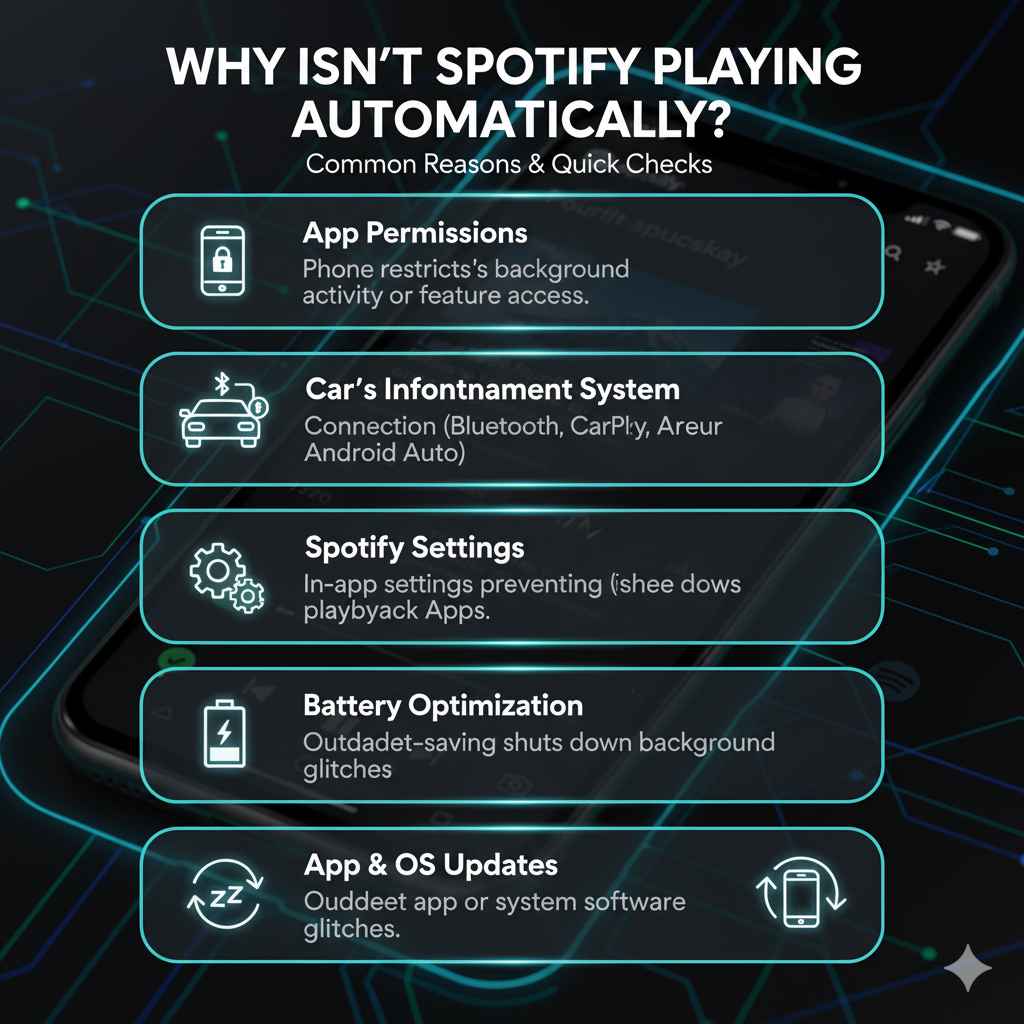
Why Isn’t Spotify Playing Automatically?
There are a few common reasons why Spotify might not be playing automatically when you expect it to. Sometimes, it’s a setting within Spotify itself, other times it might be related to how your phone connects to your car’s system, or even how your phone manages background apps.
- App Permissions: Your phone might be restricting Spotify from running in the background or accessing necessary features.
- Car’s Infotainment System: The connection between your phone and your car (Bluetooth, Android Auto, Apple CarPlay) might need a specific setup.
- Spotify Settings: Certain settings within the Spotify app might prevent automatic playback.
- Battery Optimization: Your phone’s power-saving features can sometimes close apps like Spotify to save battery.
- App Updates: Sometimes, an outdated app or an operating system glitch can cause unexpected behavior.
Genius Tips to Get Spotify to Automatically Play
Let’s get your Spotify playing automatically! We’ll start with the easiest methods and move to slightly more advanced setups. These tips are designed to be easy to understand, even if you’re not a tech whiz.
Method 1: Using Spotify’s Built-in Settings (If Available)
Spotify occasionally experiments with features, and some versions or platforms might have direct settings for automatic playback. While not always present, it’s worth checking!
Steps:
- Open the Spotify app on your phone.
- Go to your Settings.
- Look for options like “Autoplay,” “Playback,” or “Device Settings.”
- If you see a setting for “Autoplay” or “Start music automatically,” enable it.
Note: This feature isn’t consistently available for everyone or on every device. If you don’t see it, no worries, we have other great methods!
Method 2: Leveraging Bluetooth Auto-Launch
Many phones and car stereos can be set up to launch an app when a specific Bluetooth device (your car) is connected. This is one of the most popular and effective ways to get Spotify playing automatically.
For Android Users:
Android offers more customization here. You can often use a combination of Bluetooth settings and automation apps.
- Pair Your Phone: Ensure your phone is paired with your car’s Bluetooth system. Go to your phone’s Settings > Bluetooth & device connection > Bluetooth.
- Check Car Settings: On some car stereos, there’s an option to “Auto-connect” or “Auto-on” for Bluetooth audio. Make sure this is enabled.
-
Use Automation Apps (Recommended): Apps like Tasker (paid, powerful), Automate (free), or MacroDroid (free) are fantastic for this. Here’s a general idea using MacroDroid:
- Download and open MacroDroid.
- Tap on Add Macro.
- Trigger: Select Connectivity > Bluetooth Device Connected. Choose your car’s Bluetooth name from the list.
- Action: Select Applications > Launch Application. Choose Spotify from your app list.
- Optional Action: You can add another action to Media > Play/Pause Music or Media > Play Specific Track/Playlist if the app supports it. You might need to explore Spotify’s integration options within the automation app.
- Save your macro.
For a more in-depth guide on setting up Tasker or similar apps, check out resources like Android Central’s guide on automating app launches with Bluetooth.
For iPhone Users (iOS):
iOS is more restrictive, but Apple’s built-in Shortcuts app can achieve this.
- Pair Your iPhone: Make sure your iPhone is paired via Bluetooth to your car. Go to Settings > Bluetooth.
- Open the Shortcuts App: If you don’t have it, download it from the App Store.
-
Create a New Automation:
- Tap the Automation tab at the bottom.
- Tap the + icon in the top right corner.
- Select Create Personal Automation.
- Scroll down and tap Bluetooth.
- Under Device, tap Choose… and select your car’s Bluetooth name.
- Tap Next.
-
Add Actions:
- Tap Add Action.
- Search for Open App and select it.
- Tap the blue App placeholder and choose Spotify.
- Tap Next.
- Crucially: Turn OFF Ask Before Running, then tap Don’t Ask. This makes it truly automatic.
- Tap Done.
For a visual walkthrough, Apple’s official support site often has tutorials on creating automations: Apple Support – Shortcuts.
Method 3: Using Android Auto or Apple CarPlay
If your car supports Android Auto or Apple CarPlay, these systems are designed for seamless in-car phone integration and can often be configured to start Spotify automatically.
For Android Auto Users:
- Connect Your Phone: Ensure your phone is connected to your car via USB or wirelessly (if supported).
- Open Android Auto Settings: On your phone, go to Settings > Connected devices > Android Auto.
- Configure “Start Android Auto”: Look for an option like “Start Android Auto automatically” or “When to start Android Auto.” Set this to “When the car is connected” or a similar option that triggers upon connecting to your car’s system.
- Set Spotify as Default: Within Android Auto settings or sometimes accessible directly from the car’s screen, you can often select your preferred media app. If you choose Spotify, it’s more likely to launch when Android Auto starts.
- “Continue playing music” Feature: Some versions of Android Auto allow a “Continue playing music” option. When you start your car and Android Auto loads, it should resume your last played Spotify session.
For Apple CarPlay Users:
- Connect Your iPhone: Ensure your iPhone is connected to your car via USB or wirelessly.
- Open CarPlay Settings: On your iPhone, go to Settings > General > CarPlay.
- Select Your Car: Tap on your car’s name from the list.
- Launch Settings: Tap the settings cog.
- “Auto-Launch” (If Available): While CarPlay doesn’t have a direct “auto-launch specific app” setting like Android Auto, it does offer features to resume where you left off. Ensure your iPhone is set to automatically connect to CarPlay when your car is detected. This is usually enabled by default.
- Prioritize Spotify: When CarPlay launches, it typically shows your most recently used apps first. If you were last using Spotify, it should be prominently displayed and easy to tap. You can also arrange your CarPlay screen to have Spotify in a more accessible spot, accessible from CarPlay settings on your iPhone.
Method 4: Using Spotify Connect to an Existing Audio Source
This method involves having your car’s audio system already playing something (like radio or another app) and then directing Spotify to play through that existing connection. It’s not a true “auto-play from zero” but can be a quick way to switch.
- Turn on your Car’s Stereo: Get your car’s audio system running.
- Connect Your Phone via Bluetooth or Cable: Establish the connection.
- Open Spotify: Have the app ready.
-
As Spotify Connect:
- In the Spotify app, tap the “Devices Available” icon (it looks like a speaker or monitor).
- You should see your car’s Bluetooth or connected system listed. Select it.
- Now, when you hit play in Spotify, it should stream through your car’s speakers.
This method is useful if your car’s system doesn’t remember app preferences or if you don’t want to mess with automation apps.
Method 5: Adjusting Phone Settings for Battery Optimization
Aggressive battery saving can shut down apps like Spotify when they’re not actively in use, preventing them from launching automatically. You can adjust these settings.
For Android:
- Go to Settings > Battery > Battery Optimization (or similar path, like Apps > Special access > Battery optimization).
- Find Spotify in the list.
- Change its setting from “Optimized” to “Not optimized” or “Unrestricted.”
For iPhone:
iOS manages background app refresh differently. There isn’t a direct “don’t optimize” switch. However, ensure Background App Refresh is enabled for Spotify:
- Go to Settings > General > Background App Refresh.
- Make sure it’s turned On for Wi-Fi & Cellular.
- Scroll down and find Spotify in the list. Ensure the toggle next to it is green (On).
Troubleshooting Common Issues
Even with the best settings, sometimes things don’t work perfectly. Here are a few common hiccups and how to fix them:
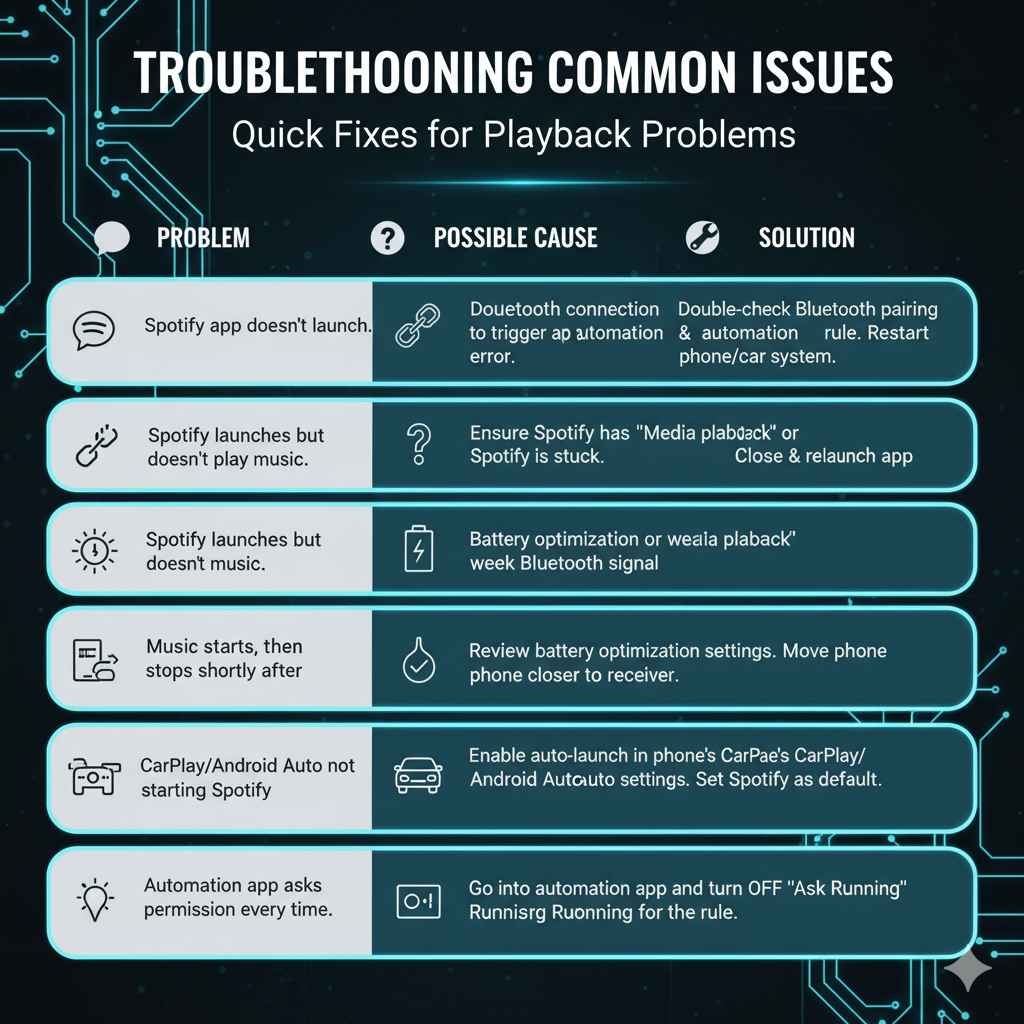
| Problem | Possible Cause | Solution |
|---|---|---|
| Spotify app doesn’t launch. | Bluetooth connection failed to trigger the app, or the automation rule has an error. | Double-check your Bluetooth pairing and ensure the automation app’s rule is correctly set up with the right Bluetooth device name. Restart your phone and car infotainment system. |
| Spotify launches but doesn’t play music. | App needs permission to play media, or Spotify is stuck. | Ensure Spotify has “Media” or “Audio playback” permissions if your phone prompts you. Try closing Spotify completely (swipe it away from recent apps) and letting the automation relaunch it. |
| Music starts, then stops shortly after. | Phone’s battery optimization is kicking in, or a weak Bluetooth signal. | Review battery optimization settings (Method 5). Try moving your phone closer to the car’s Bluetooth receiver or ensure there are no major obstructions. |
| CarPlay/Android Auto not starting Spotify. | CarPlay/AA settings are not configured for auto-launch, or Spotify isn’t the default/preferred app. | Go into your phone’s CarPlay/Android Auto settings and ensure auto-launch or resume options are enabled in your car’s specific settings. Make sure Spotify is set as the preferred media app within CarPlay/AA. |
| Automation app is asking permission every time. | “Ask Before Running” toggle is still on for the shortcut/macro. | Go back into your automation app (Shortcuts, MacroDroid, etc.) and find the specific rule. Ensure the “Ask Before Running” or similar prompt is turned OFF. |
Frequently Asked Questions (FAQs)
Q1: Do I need a Spotify Premium subscription for automatic playback?
No, you don’t need Spotify Premium for automatic playback in your car. The features we discussed involve launching the app and controlling it, which works for both Free and Premium users.
Q2: Will this work on any car and any phone?
It works on most modern smartphones (Android and iOS) and cars with Bluetooth connectivity or support for Android Auto/Apple CarPlay. Older cars without Bluetooth might require an auxiliary cable and a separate Bluetooth adapter, which complicates automatic playback significantly.
Q3: Is it safe to set up automatic music playback while driving?
The setup process itself is best done when parked. Once set up, the goal is that it works automatically without requiring you to touch your phone. Always prioritize driving safely and avoid interacting with your phone or car’s system while the vehicle is in motion.
Q4: What if my car doesn’t have Bluetooth or support Apple CarPlay/Android Auto?
For older cars, you might need to use a Bluetooth audio adapter that plugs into your car’s aux input. Then, you would set up your phone to automatically connect to that adapter (similar to Method 2) and launch Spotify.
Q5: Can I choose a specific playlist to play automatically?
Yes, most automation apps (like Tasker, MacroDroid) and iOS Shortcuts allow you to specify an action beyond just launching Spotify, such as “Play Playlist [Your Playlist Name]”. You might need to explore the specific commands available within your chosen automation tool. Some versions of Android Auto/CarPlay also have options to resume your last played content.
Q6: How do I update Spotify or my phone’s OS to ensure compatibility?
For Spotify, open your device’s app store (Google Play Store on Android, App Store on iOS) and search for Spotify. If an update is available, tap “Update.” For your phone’s OS, go to your phone’s Settings and look for “Software Update” or “System Update.” Always ensure you’re connected to Wi-Fi and your battery is charged before starting an OS update.
Conclusion
Getting Spotify to play automatically in your car can transform your daily commute from a chore into a more enjoyable experience. We’ve explored several effective methods, from simple Bluetooth connections and advanced automation apps to the integrated systems of Android Auto and Apple CarPlay. Remember to check your phone’s battery optimization settings and your car’s infotainment system for related features, as these often play a key role in a seamless setup.
By following these steps, you can ensure your favorite music or podcasts are ready to go the moment you start your engine. Don’t get discouraged if the first method doesn’t work perfectly; experiment with the options provided. With a little bit of tweaking, you’ll soon be enjoying effortless automatic playback. Happy listening on the road!