How To Play Music From Your Player In The Car
Many people love listening to their favorite tunes while on the road. But sometimes, getting your portable music player to work with your car’s sound system can feel a little tricky, especially if you’re new to it. It might seem like there are a lot of buttons and wires involved.
Don’t worry, though! It’s usually much simpler than it looks. This guide will walk you through exactly how to play music from a portable player in your car, step by step.
We’ll cover everything you need to know to get your music pumping.
Connecting Your Portable Music Player
This section will explore the various ways you can physically connect your portable music player to your car’s audio system. We will cover the most common methods, explaining what each connection type is and how it works. Understanding these connections is the first key step to enjoying your music on the go. We’ll also discuss the benefits and potential drawbacks of each.
Auxiliary (Aux) Input
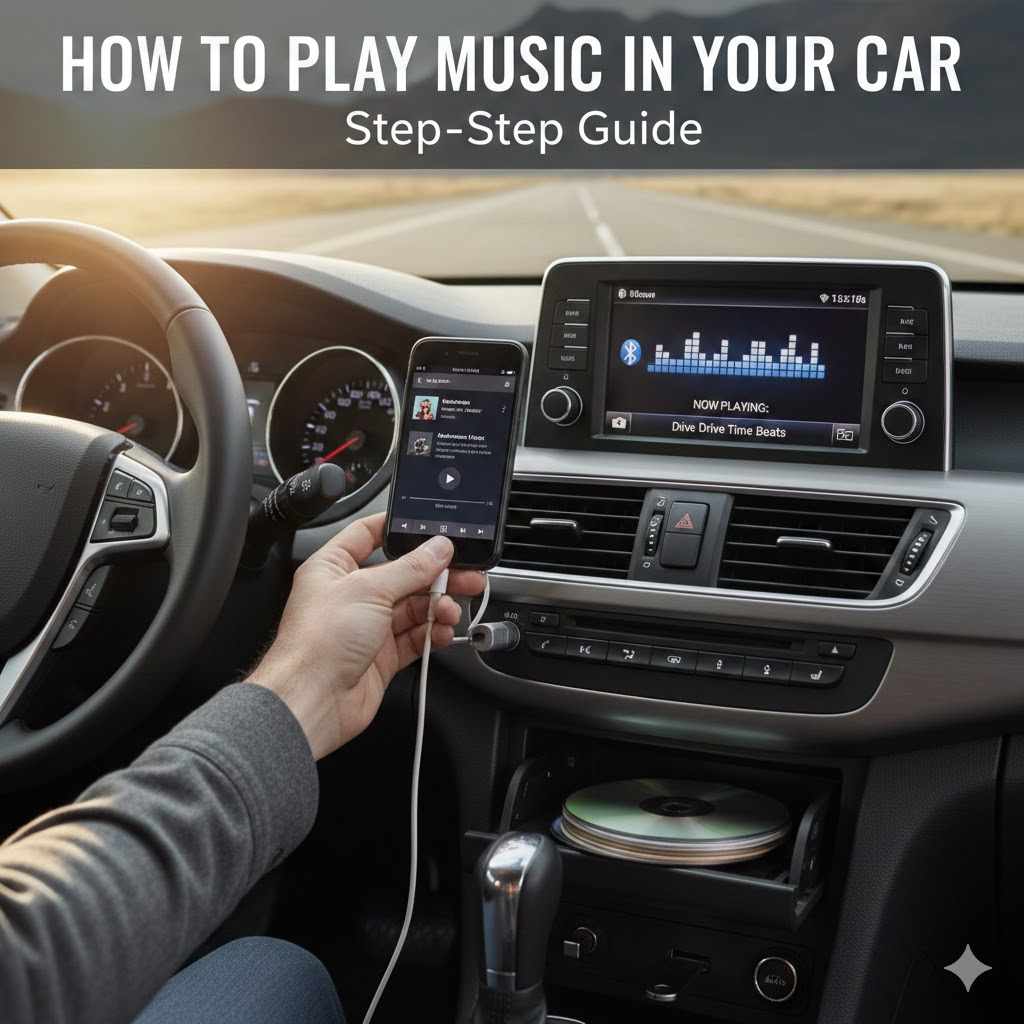
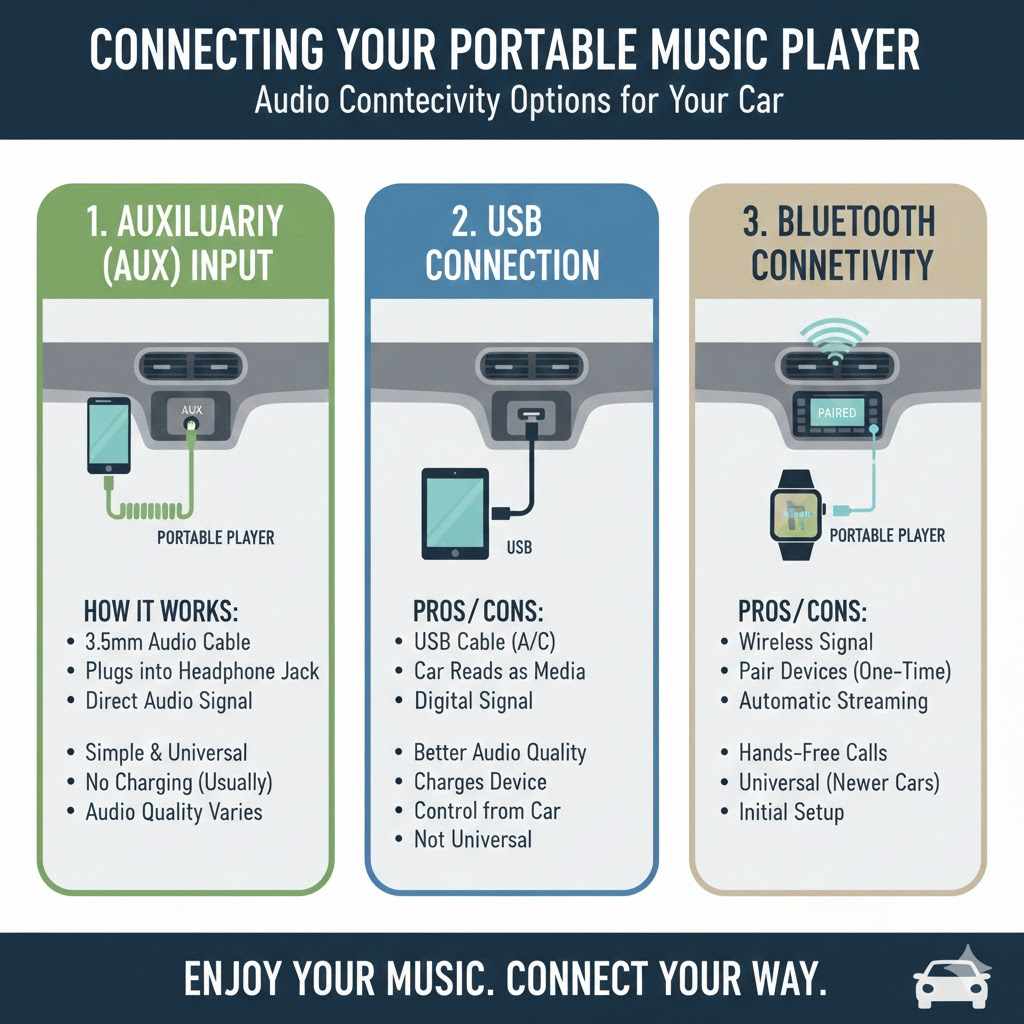
The auxiliary input, commonly called an “aux” port, is one of the most straightforward ways to connect your portable player. It’s a small round jack, usually found on your car’s dashboard, center console, or even in the glove compartment. You’ll need a 3.5mm audio cable, which is the same kind of cable you might use for headphones. One end plugs into your portable player’s headphone jack, and the other plugs into the car’s aux port.
When you plug in the aux cable, the car’s audio system recognizes that an external device is connected. It then sends the audio signal from your player directly through the car’s speakers. This bypasses the car’s internal radio tuner and CD player, meaning you’ll hear whatever audio is coming from your portable device. The volume control is typically managed through both your portable player and your car’s stereo system.
USB Connection
Many modern cars and portable players support a USB connection for audio playback. This method is often preferred because it can offer better audio quality and additional features. The USB port in your car might be a standard USB-A port, similar to what you’d find on a computer, or a USB-C port. You’ll use a USB cable that fits both your player and the car’s port.
When you connect via USB, your car’s infotainment system often recognizes your portable player as a media device. This allows you to control your music directly from the car’s stereo buttons or touchscreen. You might be able to browse playlists, skip tracks, and even see song information on your car’s display. Some systems can also charge your device while it’s connected.
Bluetooth Connectivity
Bluetooth is a wireless technology that allows devices to communicate with each other over short distances. If both your portable player and your car have Bluetooth capabilities, you can connect them wirelessly. This is a popular choice because it eliminates the need for any cables, giving your car’s interior a cleaner look.
To connect via Bluetooth, you’ll typically need to “pair” your devices. This involves making both your player and your car discoverable and then selecting your car from your player’s Bluetooth menu (or vice versa). Once paired, your car’s system will connect to your player automatically whenever they are both on and within range. This allows for wireless music streaming and often hands-free calling.
Getting the Best Sound Quality
Achieving the best sound from your portable player in your car involves a few considerations, even after you’ve made the physical connection. The quality of your audio can be influenced by the connection method, the settings on your devices, and even the type of music files you are playing. Let’s explore how to make sure your tunes sound as good as possible.
Understanding Audio File Formats
The type of audio file you play has a significant impact on sound quality. Common formats include MP3, AAC, FLAC, and WAV. MP3 and AAC files are compressed, meaning they have had some data removed to make the file size smaller. This can lead to a loss of detail in the audio.
FLAC (Free Lossless Audio Codec) and WAV (Waveform Audio File Format) are lossless formats. This means they retain all the original audio information, resulting in much higher fidelity sound. While these files are larger, if your portable player and car system support them, they will generally provide a superior listening experience. Most streaming services offer “high quality” or “lossless” options that utilize these formats.
Optimizing Device Settings
Both your portable player and your car’s audio system have settings that can affect sound quality. On your portable player, check for equalizer (EQ) settings. An EQ allows you to adjust bass, treble, and mid-range frequencies. Experiment with these settings to find a balance that sounds good to you and your car’s acoustics.
Similarly, your car’s stereo system may have its own EQ or sound enhancement features. Sometimes, disabling these “enhancements” can lead to a more natural sound. Many car audio systems also have a balance and fader control, which allows you to adjust the sound between the left and right speakers and the front and rear speakers. Setting these to the center is usually a good starting point.
Choosing Your Connection Wisely
The connection method you choose can affect audio fidelity. Generally, a wired connection like a USB or a high-quality aux cable can offer more stable and potentially better sound than Bluetooth, especially if your Bluetooth connection is weak or your devices don’t support advanced Bluetooth audio codecs like aptX or LDAC.
USB connections often transmit a digital audio signal directly, which your car’s superior digital-to-analog converter (DAC) can then process. Aux connections send an analog signal, and the quality depends heavily on the DAC in your portable player and the input stage of your car’s audio system. Bluetooth, while convenient, involves compression and wireless transmission, which can sometimes introduce minor quality losses, though modern Bluetooth standards have greatly improved this.
Troubleshooting Common Issues
Even with the best intentions, sometimes things don’t work perfectly when trying to play music from your portable player in your car. Common problems can include no sound, distorted audio, or the device not being recognized. Fortunately, most of these issues have simple solutions.
No Sound at All
If you’ve connected your player but can’t hear any sound, several things could be wrong. First, ensure your portable player is actually playing music. Check that the volume on your player is turned up. Then, check the volume on your car’s stereo system. Make sure the car stereo is set to the correct input source (e.g., AUX, USB, or Bluetooth).
Double-check that the cable is securely plugged into both your player and your car’s port. If you are using Bluetooth, confirm that the devices are still paired and connected. Try disconnecting and then reconnecting your player, or even turning both your player and your car’s stereo off and on again. Sometimes, a simple restart can resolve connectivity glitches.
Distorted or Low-Quality Audio
If the sound is fuzzy, crackly, or just sounds bad, there could be a few reasons. If you’re using an aux cable, try a different one, as damaged cables are a common culprit for poor audio. Ensure your portable player’s volume isn’t turned up so high that it’s causing distortion. Digital clipping, where the signal is too strong, can sound very unpleasant.
Check your portable player’s equalizer settings. If the bass is too heavy, it can distort, especially at higher volumes. Try turning down the bass or adjusting other EQ settings. If using Bluetooth, a weak signal or interference can cause audio degradation. Try moving your player closer to the car’s Bluetooth receiver or turning off other nearby wireless devices that might be causing interference.
Device Not Recognized
When you plug in your portable player via USB and your car doesn’t show it as a media device, it can be frustrating. First, try a different USB port if your car has more than one. Some USB ports might be for charging only. Make sure you are using a data-transfer capable USB cable, as some cheaper cables are designed only for charging and cannot transmit audio or data.
Try restarting both your portable player and your car’s infotainment system. If your player has a software update available, installing it might resolve compatibility issues. Some car systems require specific file formats on a USB drive. If you’re trying to play music directly from a USB drive (rather than a portable player connected via USB), ensure the files are in a format your car can read, like MP3 or WMA.
Advanced Connections and Features
Beyond the basic connections, there are more advanced ways to integrate your portable player with your car’s system, often providing richer experiences. These can include features like Apple CarPlay and Android Auto, which offer a more seamless smartphone integration. We’ll also touch upon using adapters and specialized cables for older car models.
Apple CarPlay and Android Auto
For iPhone users with a compatible car, Apple CarPlay offers a way to display a simplified iPhone interface on your car’s screen. This allows you to use familiar apps like Maps, Messages, Music, and Podcasts directly from your car’s touchscreen or voice commands. It’s designed to be safer and less distracting while driving.
Similarly, Android Auto provides a similar experience for Android phone users. It projects a car-optimized version of your phone’s interface, giving you access to Google Maps, Waze, Spotify, Google Play Music, and other compatible apps. Both systems require a USB connection between your phone and your car, though some newer vehicles support wireless CarPlay and Android Auto.
These systems are powerful because they leverage the processing power and internet connectivity of your smartphone. This means you get real-time traffic updates for navigation, access to your entire music library from streaming services, and the ability to send and receive messages using voice commands, all through your car’s controls. It’s a significant upgrade from simply playing music via an aux cable.
Using Adapters and Converters
If your car is older and lacks modern input options like Bluetooth or USB, you might still be able to connect your portable player using adapters. For example, if your car has a cassette tape player, you can buy a cassette adapter. This adapter looks like a cassette tape but has a 3.5mm aux input jack. You plug your portable player into the adapter with an aux cable, and then insert the cassette into your car’s player.
Another type of adapter is a Bluetooth transmitter that plugs into your car’s cigarette lighter or a 12V power outlet. These transmitters can receive Bluetooth signals from your portable player and then broadcast them on a specific FM radio frequency. You then tune your car’s radio to that frequency to hear the music. The audio quality can vary with this method due to radio interference.
Some older cars might have an RCA input or a proprietary connector. In these cases, you might need to find specialized adapter cables that convert your portable player’s output (usually 3.5mm aux) to the car’s specific input. Researching your car’s audio system and the specific connectors it has is crucial when looking for these types of adapters.
Voice Control Integration
Many modern cars, especially those equipped with Apple CarPlay or Android Auto, offer advanced voice control features. This allows you to manage your music playback without taking your hands off the wheel or your eyes off the road. You can use voice commands to play specific songs, artists, albums, or playlists.
For example, with Siri (for CarPlay) or Google Assistant (for Android Auto), you can say things like “Hey Siri, play ‘Bohemian Rhapsody’ by Queen” or “Hey Google, play my ‘Road Trip‘ playlist.” These systems are designed to understand natural language, making them intuitive to use. Even without CarPlay or Android Auto, some cars have their own built-in voice command systems that can control audio playback from connected devices.
Understanding Speaker Placement and Acoustics
The placement of your car’s speakers and the overall acoustics of the vehicle’s interior significantly impact how your music sounds. Most cars have speakers in the front doors, dashboard, and rear deck. Higher-end vehicles might also have speakers in the A-pillars, rear doors, or even under the seats.
The way sound waves reflect off the hard surfaces in your car – like the windshield, windows, and dashboard – can create echoes or alter the perceived sound. This is known as the car’s acoustic environment. A good equalizer setting can help compensate for some of these acoustic effects. For instance, if the bass sounds muddy, you might need to reduce the low frequencies.
Experimenting with your car’s balance and fader controls can also help optimize the sound for your listening position. If you’re usually the only person in the car, you might want to adjust the balance slightly towards the driver’s side. If you have passengers, a centered balance is usually best. Understanding how sound behaves in your car helps you make better adjustments to your audio settings.
Choosing the Right Portable Player
While this guide focuses on how to play music from a portable player in your car, the type of player you use can also make a difference. Different players offer varying features, storage capacities, and audio output quality. Choosing a player that suits your needs and is compatible with your car’s system is an important first step.
Smartphones as Portable Players
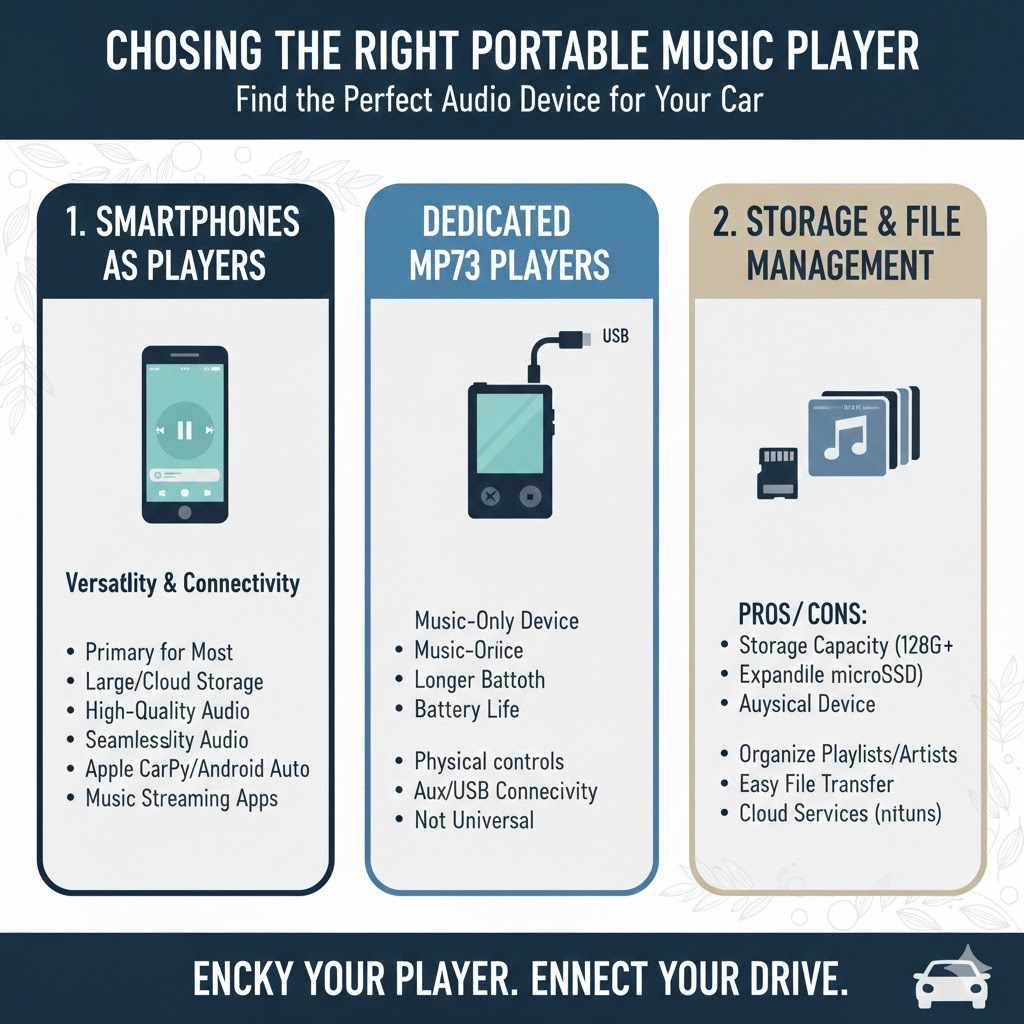
For most people today, their smartphone serves as their primary portable music player. Smartphones are incredibly versatile, offering large storage capacities (often expandable with cloud services), high-quality audio playback capabilities, and seamless integration with modern car systems via Bluetooth, USB, and dedicated apps like Apple CarPlay and Android Auto.
Their ability to stream music from services like Spotify, Apple Music, or Pandora directly into your car is a major advantage. The audio quality from modern smartphones is generally excellent, and they often feature advanced digital-to-analog converters (DACs) that handle audio processing very effectively. Updates to your phone’s operating system can also bring new features and improve compatibility with car systems over time.
Dedicated MP3 Players
Dedicated MP3 players, like those from brands such as Sony or SanDisk, are still a great option for users who want a device solely for music. These players often boast longer battery life than smartphones and may offer superior audio quality, especially high-resolution audio players designed for audiophiles.
Some dedicated players also offer more physical controls, which some users prefer for quick track skipping or volume adjustments without looking at a screen. Compatibility with car systems usually relies on an aux input or a USB connection. While they might not offer the same level of app integration as a smartphone, they are excellent for users who want a focused, high-quality music listening experience.
Storage Capacity and File Management
When choosing a portable player, consider how much music you intend to store. If you have a vast music library or prefer high-resolution audio files, you’ll need a player with ample storage space, perhaps 128GB, 256GB, or even more. Some players support expandable storage via microSD cards, offering flexibility.
Managing your music files is also important. Ensure your chosen player allows for easy organization of playlists, artists, albums, and genres. This will make it simpler to find the music you want to listen to while driving. If you’re using a smartphone, services like Google Drive or iCloud can help manage large music libraries that might not fit on your device’s internal storage.
Frequently Asked Questions
Question: What is the easiest way to play music from my phone in my car?
Answer: The easiest way is usually through Bluetooth if your car and phone support it. You just pair them once, and then your phone’s music streams wirelessly. If Bluetooth isn’t an option, a simple aux cable is the next easiest method.
Question: Do I need a special cable to connect my phone to my car’s USB port?
Answer: Yes, you typically need a USB cable that is designed for data transfer, not just charging. The type of connector (USB-A, USB-C, Lightning) will depend on your car and your phone.
Question: My car has an AUX input but no Bluetooth. What can I do?
Answer: You can use a standard 3.5mm aux cable to connect your portable player or smartphone to your car’s aux input. This is a reliable way to get audio, though it requires a physical connection.
Question: Can I play music from a USB drive in my car?
Answer: Many modern cars have USB ports that can read music files directly from a USB drive. You’ll need to make sure the music files are in a format your car supports, like MP3 or WMA.
Question: Why does my music sound bad when I play it through my car speakers?
Answer: Poor sound quality can be due to a bad cable, low-quality audio files, distortion from high volume settings on your player or car stereo, or even the acoustics of your car. Try different settings and check your cables.
Conclusion
Playing music from your portable player in your car is straightforward with the right connections. Whether you use an aux cable, USB, or Bluetooth, you can enjoy your favorite songs on the go. Explore different connection methods and settings to find what works best for your car and your device. Getting your tunes to play is now simple.