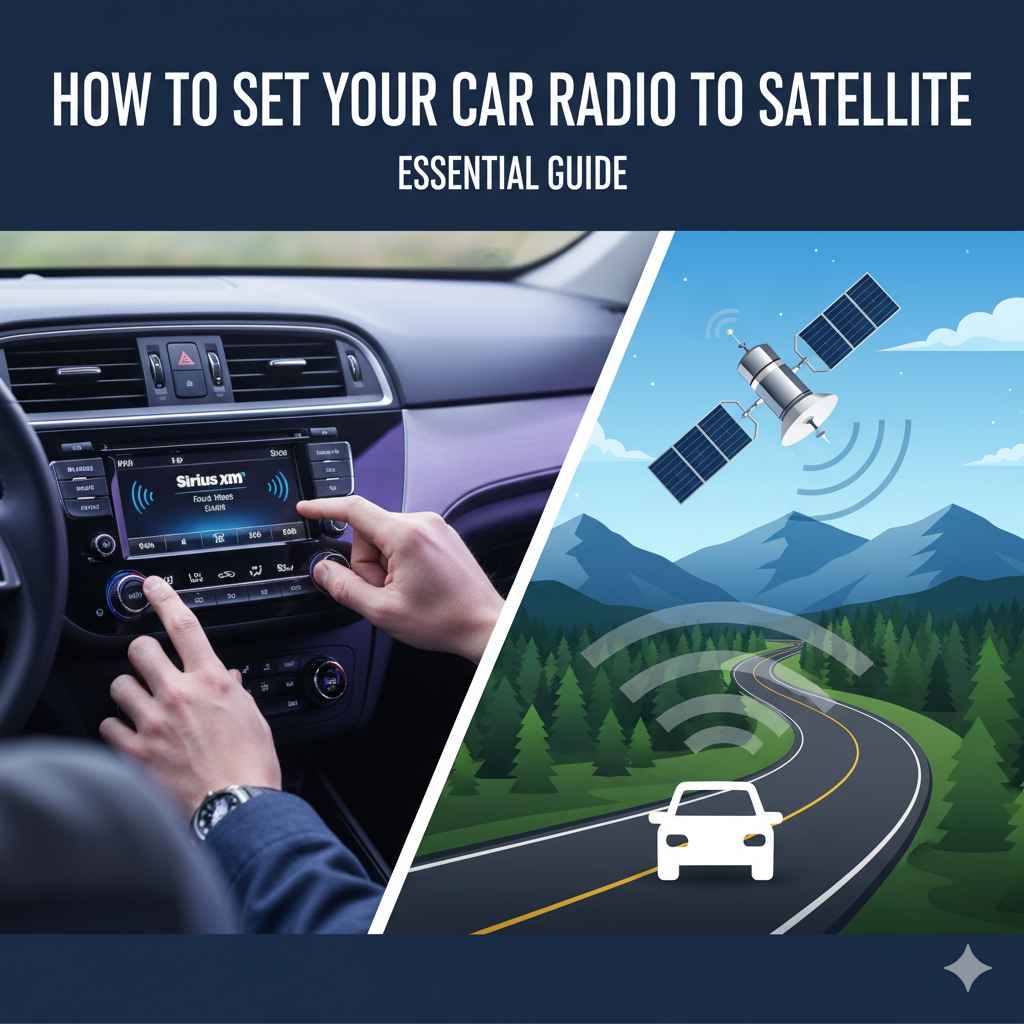
How to Set Your Car Radio to Satellite: Essential Guide
Discover how to set your car radio to satellite by turning on your satellite radio subscription, tuning to the correct input (usually AUX or SAT), and finding your favorite channels. This guide makes setting up satellite radio simple for any driver.
Ever felt lost in a sea of radio static or endless commercials? Satellite radio offers a fantastic escape with crystal-clear audio and a huge variety of channels, from music and news to comedy and sports. But if you’re new to it, figuring out “how to set your car radio to satellite” can feel a bit confusing, especially when faced with unfamiliar buttons or settings. Don’t worry! As your friendly automotive guide, I’m here to break it down. We’ll walk through this together, step-by-step, so you can enjoy your favorite satellite stations in no time. Ready to upgrade your drive?
Understanding Satellite Radio
Before we dive into the “how-to,” let’s quickly touch on what satellite radio is. Unlike traditional AM/FM radio which broadcasts through local towers, satellite radio uses satellites orbiting Earth to transmit signals. This means you get consistent reception across vast distances, from your hometown to cross-country road trips, without losing the signal.
The most popular satellite radio service in North America is SiriusXM, and most modern cars equipped for it come with this system. To use it, you’ll typically need a subscription, which you can activate online or by phone. Most new cars come with a trial period, so check your vehicle’s documentation or the infotainment system for details on how to get started.

Do You Already Have Satellite Radio Capability?
The first step in setting your car radio to satellite is to know if your car is equipped for it. Most vehicles made in the last 10-15 years might have the capability, especially higher trim levels. Here’s how to find out:
- Check Your Head Unit: Look for buttons or menu options labeled “SAT,” “XM,” or “Sirius.” Sometimes, you’ll see a satellite icon.
- Consult Your Owner’s Manual: This is your best friend! Your owner’s manual will explicitly state if your car has satellite radio and how to access it. If you’ve lost it, you can usually find a digital copy on the car manufacturer’s website.
- Look for an Antenna: Satellite radio systems require a specific antenna. Often, this is a small, fin-shaped antenna on the roof of your car, but it can also be a small mushroom cap-like antenna.
- Review Vehicle Specifications: If you know the make, model, and year of your car, you can often find its features listed online on automotive review sites.
Activating Your Satellite Radio Subscription
Once you’ve confirmed your car has satellite radio, the next hurdle is usually activation. If your car came with a trial, you might already have it set up. If not, or if your trial has expired, you’ll need to subscribe.
What You’ll Need:
-
Radio ID or ESN: This is a unique number for your satellite radio receiver. You can usually find it by:
- Navigating through your car’s radio menu to a “Radio Info,” “System Info,” or “About” screen. Look for “ESN” or “Radio ID.”
- Turning to a specific channel dedicated to showing this number, often channel 0 or 1.
- Checking the back or bottom of your satellite radio unit if it’s a portable one.
- Payment Information: Most subscriptions require a credit card or other payment method.
Activation Steps:
- Visit the Provider’s Website: For SiriusXM, head to siriusxm.com/getstarted.
- Enter Your Radio ID: You’ll be prompted to input the Radio ID or ESN you found.
- Choose a Subscription Plan: Browse the available plans. They differ in the number of channels included and pricing. Look for introductory offers or packages that suit your listening habits.
- Complete the Purchase: Follow the on-screen prompts to enter your payment details and confirm your subscription.
- Wait for Activation: Activation can take anywhere from a few minutes to a couple of hours. The system usually updates automatically. You might be instructed to leave your car running outdoors for a bit to receive the activation signal.
For more detailed information on activating SiriusXM, you can visit their official support page: SiriusXM Listener Care – Activation & Registration.
How to Set Your Car Radio to Satellite: Step-by-Step
Now for the main event! Here’s how to tune into your satellite radio channels.
Step 1: Power On Your Car and Radio
Start your car’s engine or turn the ignition to the accessory position (ACC). Then, turn on your car’s stereo system. Ensure the volume is up enough to hear clearly.
Step 2: Select the Satellite Radio Input
This is where many people get stuck. Your car’s stereo system likely has multiple “sources” or “inputs” – like FM, AM, CD, Bluetooth, AUX, and SAT. You need to switch to the satellite input.
- Look for a “Source” or “Input” Button: This button is usually on the main dashboard, near the radio display, or on the steering wheel controls.
- Cycle Through the Sources: Press the “Source” or “Input” button repeatedly. Your radio display will show each available source. Keep cycling until you see “SAT,” “SiriusXM,” or a satellite icon.
-
If You Don’t See a SAT Option: This might mean:
- Your car doesn’t have satellite radio capabilities.
- Your subscription isn’t activated yet (go back to the activation section).
- The satellite radio system is a separate unit (like a portable plug-in device) that connects via AUX or FM transmitter. In this case, you’d select the corresponding AUX or FM input instead of SAT.
Step 3: Browse and Select Channels
Once you’re on the satellite radio input, you’ll likely see the channel guide or the current channel playing. You can navigate through channels in a few ways:
- Channel Up/Down Buttons: Use the physical buttons on your dashboard or steering wheel to go to the next or previous channel.
- Tuning Knobs/Dials: Some systems have a large dial to scroll through channels.
- On-Screen Menus: Your car’s infotainment screen might offer a full channel guide. Look for a “Browse,” “Channel List,” or “Guide” option on the display. This is often the easiest way to find what you’re looking for.
- Direct Channel Entry: If you know the channel number, some systems allow you to type it in using the keypad or on-screen numbers.
Step 4: Discover Your Favorites
Satellite radio offers a vast array of content. Don’t be afraid to explore! Here are some popular categories to get you started:
- Music: From Pop and Rock to Country, Jazz, Classical, Hip-Hop, R&B, and dedicated genre channels for specific artists or eras.
- News and Talk: National news, political commentary, business news, sports talk, and various lifestyle shows.
- Sports: Live play-by-play for NFL, NBA, MLB, NHL, college sports, and dedicated sports news channels.
- Entertainment: Comedy channels, celebrity interviews, movie soundtracks, and more.
Many systems allow you to create “presets” for your favorite channels, just like with AM/FM radio. This makes it quick and easy to switch between them without browsing the entire guide.
Tips for the Best Satellite Radio Experience
To make sure you’re getting the most out of your satellite radio, here are a few extra tips:
- Keep Your Subscription Current: Ensure your subscription is always active to avoid interruptions in service.
- Understand Your Package: Double-check which channels are included in your subscription to avoid disappointment.
- Check for Updates: Occasionally, your car’s infotainment system might need software updates. These can sometimes improve radio performance. Consult your owner’s manual or dealer for info.
- Antenna Placement: For optimal reception, ensure your car’s satellite antenna isn’t obstructed by roof racks, cargo carriers, or large objects.
- Outdoor Activation: As mentioned, many activations require the vehicle to be parked outdoors to receive the satellite signal.
Satellite Radio vs. AM/FM Radio: A Quick Comparison
It’s helpful to see how satellite radio stacks up against the traditional options you might be used to.
| Feature | Satellite Radio (e.g., SiriusXM) | AM/FM Radio |
|---|---|---|
| Signal Source | Satellites orbiting Earth | Local broadcast towers |
| Coverage Area | Nationwide/Continental (consistent signal) | Limited by tower strength; fades with distance |
| Commercials | Very few, if any, on most music channels | Frequent commercials |
| Channel Variety | Hundreds of curated channels across many genres | Limited by local broadcasters; fewer specialized channels |
| Audio Quality | Generally clear, digital sound | Can be prone to static, interference, and lower fidelity |
| Cost | Requires a paid subscription | Free |
| Setup | Requires vehicle capability, activation, and subscription | Built into virtually all vehicles; no setup needed |
The choice between them often comes down to your preference for ad-free listening, wide variety, and consistent reception versus the cost-free availability of local programming.
Troubleshooting Common Issues
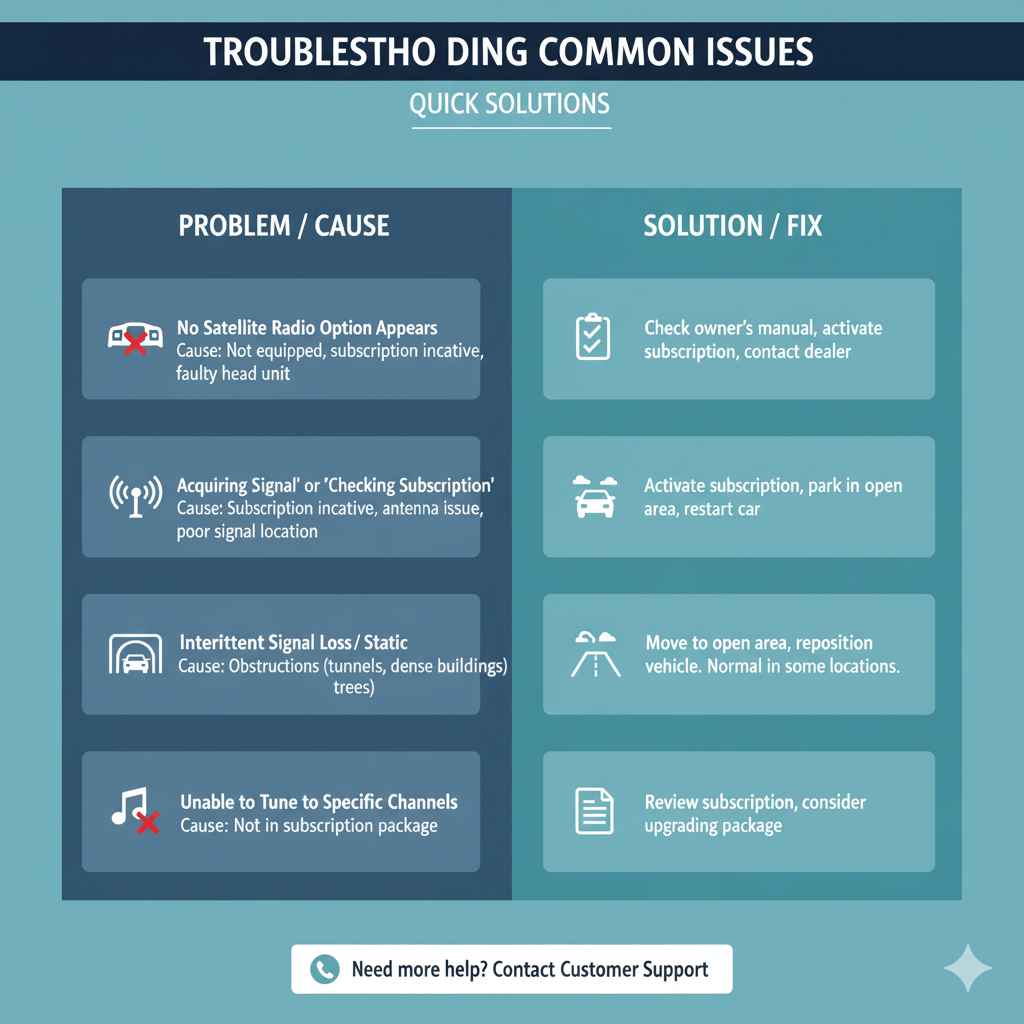
Even with clear instructions, sometimes things don’t work as planned. Here are a few common hiccups and how to fix them:
| Problem | Possible Cause | Solution |
|---|---|---|
| No Satellite Radio Option Appears | Car not equipped; subscription inactive; faulty head unit. | Check owner’s manual; activate subscription; contact dealer. |
| “Acquiring Signal” or “Checking Subscription” Message | Subscription not active; antenna issue; poor signal location. | Ensure subscription is active; park outdoors in an open area; restart car. |
| Intermittent Signal Loss / Static | Obstructions blocking satellite signal (tunnels, dense buildings, trees, cargo). | Reposition vehicle if possible; move to an open area. This is normal in certain locations. |
| Unable to Tune to Specific Channels | Channels not included in your subscription package. | Review your subscription details; consider upgrading if needed. |
| Radio Freezes or Becomes Unresponsive | Software glitch; temporary system error. | Turn the car off completely, wait 60 seconds, then restart. This is like rebooting your phone. |
If you encounter persistent issues, contacting the satellite radio provider’s customer support is always a good next step. They can often diagnose problems remotely and guide you through specific troubleshooting for your account and radio ID.
Frequently Asked Questions (FAQ)
Q1: Do I need a special stereo to get satellite radio??
A1: Yes, your car’s stereo system needs to be equipped with a satellite radio receiver, typically compatible with providers like SiriusXM. Most modern cars have this, but it’s always best to check your owner’s manual or look for satellite radio buttons/menus.
Q2: How much does satellite radio cost??
A2: Satellite radio typically requires a monthly or annual subscription fee. Prices vary depending on the service and the package you choose, but you can often find various deals and promotional offers, especially when first subscribing. Expect packages to range from roughly $10 to $30+ per month for full access.
Q3: Can I use satellite radio without a subscription??
A3: Generally, no. After an initial trial period (if offered) or if the system is brand new, you’ll need an active subscription to access the full range of satellite radio channels. Some systems might offer a limited number of free preview channels, but this is not the norm for full service.
Q4: What’s the difference between Sirius and XM??
A4: Sirius and XM were once competing satellite radio providers. They merged in 2008 to form SiriusXM. Today, SiriusXM is the sole provider of satellite radio in North America, offering a combined catalog of channels from both former services.
Q5: My car is old, can I still get satellite radio??
A5: If your car isn’t equipped with built-in satellite radio, you may still be able to enjoy it using a portable satellite radio receiver or a plug-and-play unit. These devices often connect to your car’s audio system via an AUX input or an FM transmitter, allowing you to tune into satellite channels through your existing speakers.
Q6: How do I know which channels are available on my satellite radio??
A6: The best way to see available channels is to browse the channel guide on your car’s radio display. You can also visit the satellite radio provider’s website (like SiriusXM) and look for their channel lineup. This will show you categories and specific channels included in different subscription packages.
Conclusion
Setting your car radio to satellite, whether it’s SiriusXM or another provider, opens up a world of entertainment and information that goes far beyond traditional broadcasting. By understanding how your system works, activating your subscription, and using the simple steps to tune in, you can transform your daily commute or long road trips into a more enjoyable experience. Remember, checking your owner’s manual is always the best first step, and don’t hesitate to explore the diverse channel offerings. With a little practice, you’ll be navigating and enjoying satellite radio like a pro, keeping boredom and static firmly in the rearview mirror. Happy listening!