How to Connect Phone to Car Stereo for Music
Many people want to play their favorite songs from their phones through their car speakers. Learning How to Connect Your Phone to Car Stereo for Music can seem tricky at first. There are different ways to do it, and knowing which one works for your car and phone is key.
Don’t worry if you’re new to this. This guide breaks it down into simple steps so you can enjoy your music anywhere. We’ll cover all the easy methods.
Connecting Your Phone To Car Stereo For Music Basics
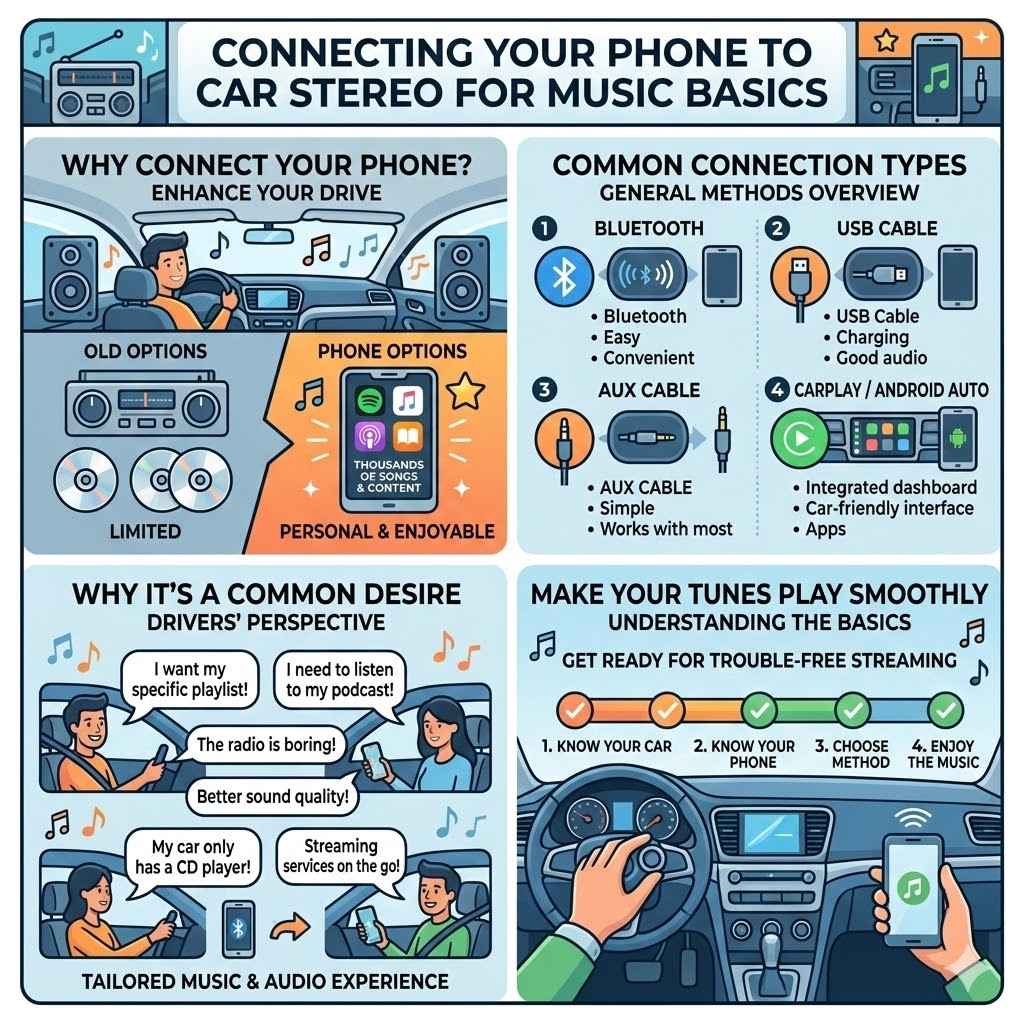
This section covers the fundamental reasons why people want to connect their phones to their car stereos and the general methods available. We’ll touch on why this is a common desire for drivers and introduce the different types of connections you might encounter. Understanding these basics will make the later steps much clearer.
We want to make sure you get your tunes playing smoothly.
Why Connect Your Phone to Your Car Stereo
The main reason people want to connect their phones is simple: better music. Most car stereos, especially older ones, have limited built-in music options. They might only play radio stations or CDs.
Smartphones, on the other hand, hold thousands of songs, podcasts, and audiobooks. They also give access to streaming services like Spotify or Apple Music. Connecting your phone means you can play exactly what you want, when you want, with the quality your car speakers can deliver.
This makes every drive more enjoyable and personal.
Common Connection Types Overview
There are a few popular ways to link your phone to your car’s sound system. The most common are through Bluetooth, a USB cable, or an AUX cable. Some cars also use Apple CarPlay or Android Auto, which are more advanced systems.
Each method has its own advantages. Bluetooth is wireless and easy. USB cables offer charging and good audio quality.
AUX cables are simple and work with almost any phone. CarPlay and Android Auto give you a car-friendly interface for your phone’s apps.
Using Bluetooth To Connect Phone To Car Stereo
Bluetooth is a very popular and convenient way to get music from your phone into your car. It’s wireless, meaning no messy cables to deal with. This section will walk you through the steps to pair your phone with your car’s Bluetooth system.
We’ll cover what to do if the connection doesn’t work right away. You’ll learn how to make sure your music plays loud and clear without any wires.
How Bluetooth Pairing Works
Bluetooth is a technology that allows devices to talk to each other wirelessly over short distances. For your phone and car, this means they can share audio signals. Your car stereo has a Bluetooth receiver, and your phone has a Bluetooth transmitter.
When you pair them, you’re creating a secure link so only your devices can communicate. This link is usually established by putting both devices into “pairing mode” and then selecting each other from a list on one of the devices. Once paired, they should automatically connect whenever they are both on and within range.
Steps For Bluetooth Pairing
Make sure Bluetooth is turned on on your phone. You can usually find this in your phone’s settings menu, often under “Connections” or “Network & Internet.” Look for the Bluetooth icon.
Turn on your car and make sure your car stereo is powered on. Some car stereos have a dedicated Bluetooth button, or you might need to go into the stereo’s settings menu to find the Bluetooth option.
Put your car stereo into Bluetooth pairing mode. This process varies greatly by car model. Some will automatically search for devices, while others require you to select “Add Device” or “Pair New Device” from the stereo’s menu. Your car’s manual will have specific instructions.
On your phone, scan for available Bluetooth devices. Your phone will show a list of nearby devices. Look for your car’s Bluetooth name (it might be something like “My Car,” “Car Audio,” or the car model name).
Select your car’s name from the list on your phone. You might be asked to confirm a pairing code (usually a four-digit number like 0000 or 1234, or a code displayed on both screens). Confirm the code if prompted on both devices.
Once paired, your phone should show “Connected” or “Paired” for your car’s Bluetooth. Your car stereo might also display a confirmation. Now, you can play music from your phone, and it should come through your car speakers. You might need to select “Bluetooth Audio” as the source on your car stereo.
Troubleshooting Common Bluetooth Issues
Sometimes, Bluetooth connections don’t work perfectly the first time. One common issue is that the devices can’t find each other. This often happens if one device isn’t in pairing mode.
Another problem is when devices are paired but won’t connect. Try turning Bluetooth off and then on again on both your phone and car. Restarting both devices can also fix temporary glitches.
If your car has a list of paired devices, try removing your phone and pairing it again. It’s also good to check if your car stereo has a limit on how many devices it can remember.
Example: Pairing an iPhone to a Toyota Camry
Let’s say you have an iPhone and a Toyota Camry. First, turn on your iPhone’s Bluetooth. Then, start your Camry and turn on the radio.
Press the “Setup” button on the Camry’s touchscreen. Select “Bluetooth,” then “Add Bluetooth Device.” Your car will now be searching. On your iPhone, go to Settings > Bluetooth and look for “My Car” or a similar name.
Tap it. You might see a confirmation code pop up on both screens. If they match, tap “Pair” on your iPhone and “Yes” on the car screen.
Your iPhone should then show “Connected.” You can now select “Audio” on your Camry’s radio and choose “Bluetooth” as the source to play music.
Benefits of Wireless Music Streaming
The biggest benefit of using Bluetooth is freedom from wires. This means your phone stays in your pocket or cup holder, not tangled up. It makes the car interior look cleaner and less cluttered.
Bluetooth also allows for hands-free calling, which is a major safety feature. You can answer calls without taking your hands off the steering wheel. While the audio quality is generally very good, some audiophiles might notice a slight difference compared to a wired connection.
However, for most daily listening, Bluetooth is more than sufficient and incredibly convenient.
Using USB To Connect Phone To Car Stereo
Connecting your phone to your car stereo using a USB cable is another great method. It not only lets you play music but often charges your phone at the same time. This section will guide you through the process of using a USB connection.
We’ll explain the different types of USB ports you might find and how to ensure you get the best sound and charging experience. This is a very reliable way to get your music playing.
USB Connection Basics
A USB (Universal Serial Bus) connection uses a cable to physically link your phone to your car’s stereo system. Most modern cars have USB ports, often located in the center console or dashboard. When you plug your phone in, your car stereo can read the audio files stored on your phone or stream audio from apps.
It’s like giving your car stereo direct access to your phone’s music library. This method generally provides excellent audio quality because the signal is digital and less prone to interference than analog signals. Plus, your phone gets power, so you don’t have to worry about it running out of battery during a long drive.
Types of USB Ports in Cars
Cars can have different types of USB ports. The most common is the standard USB-A port, which is the rectangular one you see on most chargers and computers. You’ll need a USB-A to your phone’s charging cable (like USB-C or Lightning).
Some newer cars might also have USB-C ports, which are smaller, oval-shaped ports that are reversible, meaning you can plug them in either way. Occasionally, you might see a USB port labeled with a smartphone icon or “iPod” icon. These are often specifically designed to work with media playback from devices like smartphones and may offer better compatibility for music and control features.
Steps For USB Connection
Find the USB port in your car. It’s usually in the center console, glove box, or dashboard.
Use a compatible USB cable to connect your phone to the car’s USB port. Make sure it’s a good quality cable, as cheap ones can sometimes cause connection issues or slow charging.
Your phone might prompt you to allow access to its data or media. You’ll usually need to select an option like “File Transfer,” “Media Transfer,” or “MTP” (Media Transfer Protocol). If you select “Charging Only,” you won’t be able to play music.
On your car stereo, select the USB source. This might be labeled “USB,” “iPod,” “Media,” or a similar option.
Once selected, you should be able to browse the music files on your phone directly through your car stereo’s interface or play music from apps. Your phone should also indicate that it’s charging.
Audio Quality and Charging Benefits
Using a USB connection usually offers superior audio quality compared to Bluetooth. This is because the digital signal from your phone is transferred directly to the car stereo without compression that can sometimes happen with wireless signals. This means your music will sound clearer and more detailed.
In addition to great sound, USB connections are excellent for charging. Most car USB ports provide enough power to charge your phone while you’re using it, keeping your battery topped up throughout your drive. This is especially useful for long trips or when using navigation apps that drain battery quickly.
When USB May Not Work
Sometimes, a USB connection might not work as expected. One reason is an incompatible cable. Using a charging-only cable or a damaged cable can prevent music playback.
Another common issue is the phone’s USB mode setting. If it’s set to “Charging Only” instead of “File Transfer” or “Media Transfer,” the car stereo won’t be able to access your music. Some older cars may also have USB ports that are only designed for charging or for specific devices like iPods and may not fully support newer smartphones for music playback.
Always check your car’s manual for specific USB compatibility details.
Using AUX Cable To Connect Phone To Car Stereo
The AUX (Auxiliary) cable method is one of the simplest ways to play music from your phone. It’s a direct audio connection that works with almost any phone and car stereo that has a headphone jack or an AUX input. This section will explain how to use an AUX cable, what kind of cable you need, and its advantages and disadvantages.
It’s a foolproof way to get your tunes playing.
What is an AUX Cable Connection
An AUX cable is a type of audio cable that has a 3.5mm male connector on both ends. This is the same size connector found on most headphone jacks. When you plug one end into your phone’s headphone jack and the other end into your car stereo’s AUX input port, you are creating a direct analog audio pathway.
Your phone sends the audio signal through the cable, and your car stereo plays it. This method is straightforward because it doesn’t rely on wireless signals or complex digital handshakes. It’s a universal standard that has been around for a long time.
Identifying AUX Ports
You can usually find the AUX input port on your car stereo. It’s typically a small, round hole labeled “AUX,” “Audio In,” or sometimes with a headphone icon. It’s often located on the front of the stereo, in the center console, or in the glove compartment.
On your phone, the AUX output is usually the standard headphone jack, which is slowly disappearing on newer phones but still present on many models. If your phone doesn’t have a headphone jack, you might need an adapter that converts your phone’s charging port (like USB-C or Lightning) into a headphone jack.
How To Connect Using AUX
- Locate the AUX input port on your car stereo and the headphone jack on your phone.
- Connect one end of a 3.5mm male-to-male AUX cable to your phone’s headphone jack.
- Connect the other end of the AUX cable to the AUX input port on your car stereo.
- Turn on your car stereo and select “AUX” as the audio source. This is usually done by pressing a button labeled “AUX” or cycling through the source options on the stereo.
- Play music from your phone. The sound should now come through your car speakers. You will control the music playback on your phone.
Pros and Cons of AUX Connection
The biggest advantage of an AUX connection is its simplicity and compatibility. It works with virtually any device that has a headphone jack and any car stereo with an AUX input. It’s also very reliable, with no pairing issues or software glitches to worry about.
The audio quality is generally good, as it’s a direct analog signal. However, there are some downsides. You need a physical cable, which can be a bit untidy.
Also, AUX connections do not charge your phone, so you might need a separate car charger if you’re on a long trip. You also have to control all music playback directly on your phone, as the car stereo cannot interact with your music library.
Sample Scenario: Road Trip Music Sharing
Imagine you’re on a road trip with a friend, and you both have different music tastes. Your car stereo is older and only has an AUX input. You can easily use an AUX cable to connect your phone and play your music.
Your friend can then plug in their phone when it’s their turn, or you can both plug in if you use a splitter cable that allows two devices to share one AUX input. This keeps everyone happy and ensures there’s a soundtrack for the entire journey. It’s a flexible solution for shared listening.
Advanced Phone To Car Stereo Connections
Modern cars often come with advanced systems like Apple CarPlay and Android Auto. These systems offer a much more integrated experience, allowing you to use your phone’s apps and features directly on your car’s display. This section explores how these systems work and how to set them up.
They truly transform your driving experience by bringing your digital life into your car safely.
Understanding Apple CarPlay
Apple CarPlay is a system developed by Apple that mirrors certain iPhone apps onto your car’s infotainment screen. It’s designed to minimize distractions while driving. You connect your iPhone using a USB cable (though wireless CarPlay is available in some newer cars).
Once connected, you’ll see a simplified interface on your car’s screen showing apps like Maps, Phone, Messages, Music, Podcasts, and Audiobooks. You can control these apps using your car’s touch screen, voice commands (Siri), or physical controls. CarPlay prioritizes safety with large icons and simple navigation.
Setting Up Apple CarPlay
Ensure your iPhone is running iOS 12 or later and your car is compatible with CarPlay.
Connect your iPhone to your car’s USB port using a high-quality Lightning cable. If your car supports wireless CarPlay, you’ll follow a different pairing process, often involving Bluetooth and Wi-Fi.
Your car’s infotainment system should automatically detect your iPhone and prompt you to enable CarPlay. If it doesn’t, look for a “CarPlay” icon or option in your car’s settings menu.
Follow any on-screen prompts on both your iPhone and car display to grant permissions and complete the setup.
Once set up, you can access CarPlay features by tapping the CarPlay icon on your car’s screen or by using Siri voice commands.
Understanding Android Auto
Android Auto is Google’s equivalent to Apple CarPlay. It allows you to connect your Android phone to your car’s display and access a range of compatible apps. Like CarPlay, it’s designed for safer driving, offering a streamlined interface and voice control via Google Assistant.
You can use it for navigation (Google Maps, Waze), music streaming (Spotify, YouTube Music), making calls, sending texts, and listening to podcasts. Android Auto can be used via a USB connection or wirelessly in some vehicles.
Setting Up Android Auto
Make sure your Android phone is running Android 6.0 (Marshmallow) or higher and download the Android Auto app from the Google Play Store if it’s not pre-installed. Check that your car is compatible.
Connect your Android phone to your car’s USB port using a high-quality USB cable. For wireless Android Auto, ensure your car and phone support it and follow the initial Bluetooth pairing instructions.
Your car’s infotainment system should automatically launch Android Auto or prompt you to do so. If not, find the Android Auto option in your car’s settings.
Grant the necessary permissions on your phone for Android Auto to access your contacts, location, and other data.
Once connected, you can use Google Assistant to control your apps with your voice or interact with the simplified interface on your car’s screen.
When To Use CarPlay Or Android Auto
You should use Apple CarPlay or Android Auto whenever you want a seamless and safe integration of your phone’s features while driving. These systems are ideal for navigation, as they display maps in a larger, more easily viewable format and provide clear voice directions. They are also excellent for managing your music and podcasts, allowing you to find and play your favorite audio content without fumbling with your phone.
If your car supports these systems and you frequently use navigation or streaming apps on the go, they are highly recommended. They significantly enhance the driving experience by making complex phone functions accessible and safe.
Benefits Of Integrated Systems
The main benefit of Apple CarPlay and Android Auto is safety. By bringing phone functions onto the car’s built-in screen, they reduce the need for drivers to look down at their phones. Voice control is a huge part of this, allowing you to perform tasks like sending messages or making calls hands-free.
Another benefit is convenience. You don’t have to juggle multiple devices or screens. Your car’s navigation, music, and communication all come together in one familiar interface.
This makes long drives less stressful and more enjoyable, turning your car into a more connected extension of your digital life.
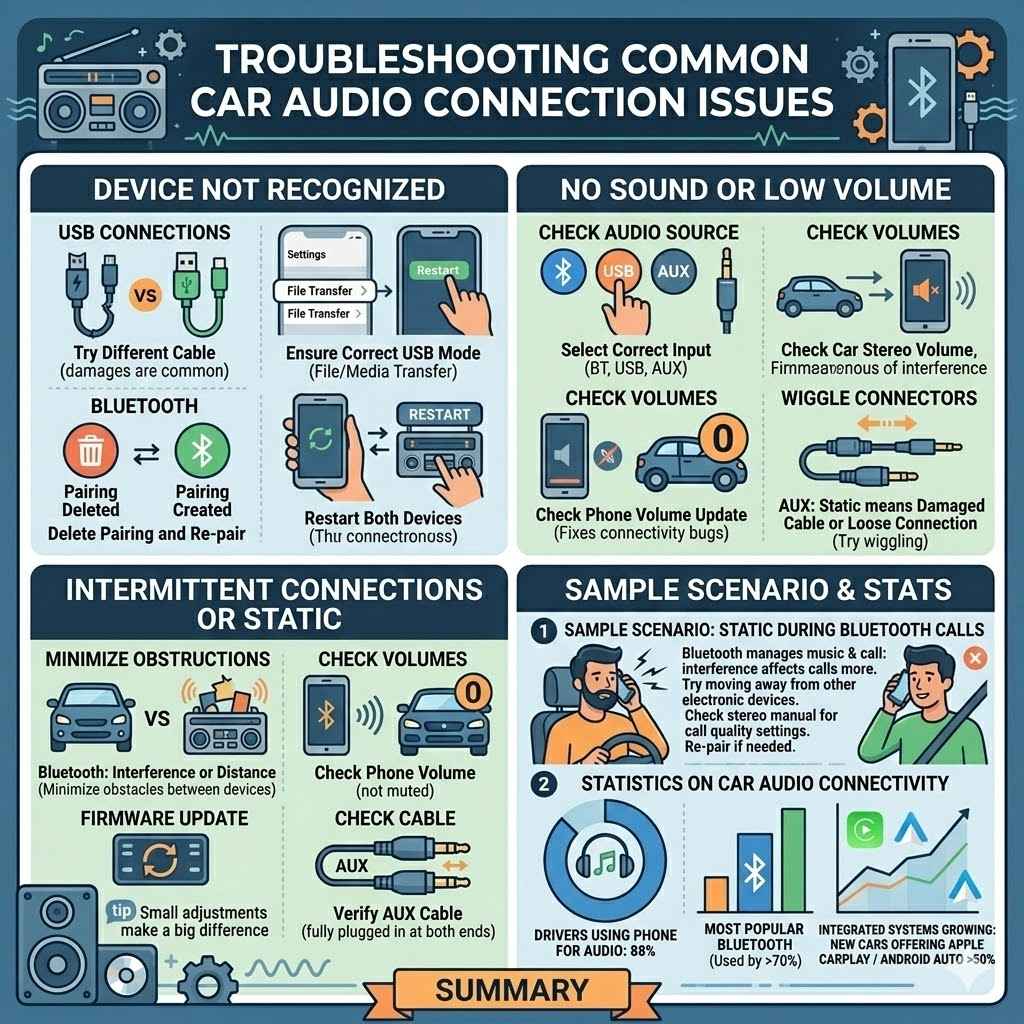
Troubleshooting Common Car Audio Connection Issues
Even with the simplest methods, you might run into problems connecting your phone to your car stereo. This section covers common issues and their solutions. We’ll help you figure out why your music isn’t playing and how to fix it so you can get back to enjoying your drive.
Sometimes, a small adjustment can make a big difference.
Device Not Recognized
This is a frequent problem, especially with USB connections. If your car stereo isn’t recognizing your phone, first try a different USB cable. Cheap or damaged cables are often the culprit.
Also, ensure your phone is set to the correct USB mode (File Transfer or Media Transfer, not Charging Only). Restarting both your phone and car stereo can also resolve temporary glitches. For Bluetooth, make sure both devices are discoverable and try deleting the old pairing from both your phone and car and re-pairing them.
No Sound Or Low Volume
If you’re connected but hear no sound or the volume is too low, check a few things. First, make sure the correct audio source is selected on your car stereo (e.g., Bluetooth, USB, AUX). Next, check the volume levels on both your phone and your car stereo.
Sometimes, one might be turned down very low, making it seem like there’s no sound. Also, ensure your phone isn’t muted. If using Bluetooth, try disconnecting and reconnecting.
For AUX, ensure the cable is fully plugged in at both ends.
Intermittent Connections Or Static
Experiencing dropouts or static can be very annoying. For Bluetooth, this can be caused by interference from other electronic devices or by being too far from the car stereo. Try to minimize obstructions between your phone and the car’s Bluetooth receiver.
Ensure your car’s firmware is up to date, as this can sometimes fix connectivity bugs. If you’re using an AUX cable, static might indicate a damaged cable or a loose connection. Try wiggling the connectors to see if it helps, or
Sample Scenario: Static During Bluetooth Calls
You’re connected via Bluetooth and everything is fine until you try to make a call. Suddenly, you hear static, and the other person can barely hear you. This often happens because Bluetooth is trying to manage both audio streaming and phone calls, and sometimes interference affects the call quality more.
First, try moving your phone away from other devices like GPS units or phone chargers that might be emitting radio waves. If the problem persists, check your car stereo’s manual for any settings related to call quality or Bluetooth audio profiles. Sometimes, simply unpairing and re-pairing the phone can resolve these specific call-related glitches.
Statistics On Car Audio Connectivity
Recent surveys show that a vast majority of drivers want to connect their smartphones to their car’s audio system. A study found that 88% of drivers regularly use their phones for music or podcasts in their cars. Bluetooth remains the most popular connection method, used by over 70% of those who connect their phones.
However, the adoption of Apple CarPlay and Android Auto is rapidly growing, with over 50% of new cars now offering these integrated systems. This trend highlights the increasing importance of seamless smartphone integration for an enjoyable and safe driving experience.
Frequently Asked Questions
Question: Can I connect my phone to my car stereo using wireless charging?
Answer: Wireless charging is for powering your phone, not for transmitting audio. You’ll still need a separate connection like Bluetooth, USB, or AUX for music.
Question: What is the best way to connect my phone for music?
Answer: The best way depends on your car and phone. Bluetooth is easy and wireless. USB offers great quality and charging.
Apple CarPlay and Android Auto provide the most integrated experience.
Question: My car stereo has an SD card slot. Can I play music from my phone through it?
Answer: No, an SD card slot is for playing music stored on an SD card, not directly from your phone. You’ll need to use Bluetooth, USB, or AUX.
Question: How do I know if my car supports Apple CarPlay or Android Auto?
Answer: Check your car’s manual or look for the respective logos on the infotainment screen or dashboard. Most newer cars come with this feature.
Question: Is it safe to connect my phone to my car stereo?
Answer: Yes, connecting your phone is safe and often enhances safety by allowing for hands-free operation and better music/navigation control.
Summary
You’ve learned how to connect your phone to your car stereo for music using Bluetooth, USB, and AUX cables. We also covered advanced options like Apple CarPlay and Android Auto. No matter your car’s age or your phone’s model, there’s a simple way to get your favorite tunes playing.
Follow these steps, and you’ll be enjoying your music on the go in no time.
Products related to this article
Sponsored / affiliate links. As an Amazon Associate I earn from qualifying purchases. I may earn additional commission from eligible campaigns.