How to Turn Up Waze Sound Through Car Stereo
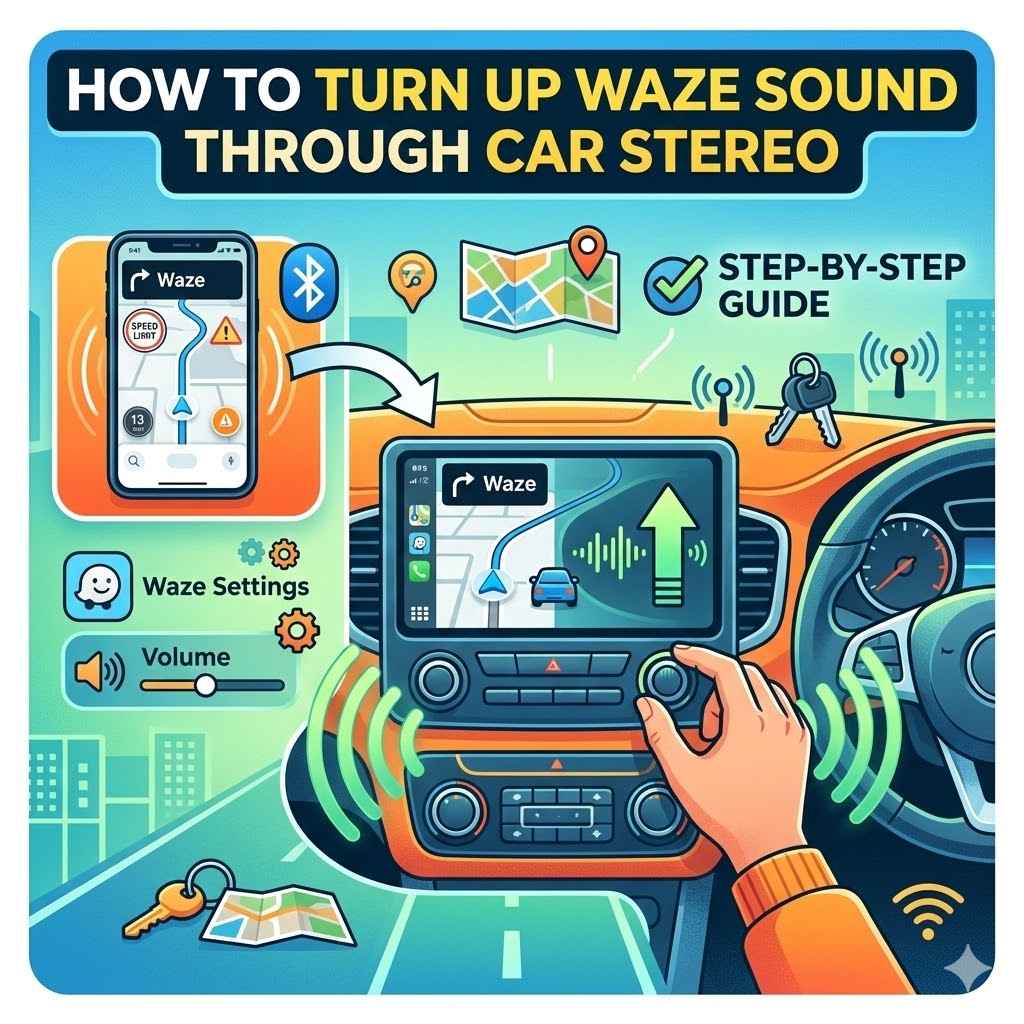
Many people love using Waze for driving directions, but sometimes its sound can be too quiet to hear over the car radio or engine noise. It can be a little tricky for beginners to figure out why the Waze voice isn’t loud enough. Don’t worry, though!
We’ll show you the easiest way to make sure you hear every turn and alert. Get ready to boost that Waze volume so you never miss a direction again.
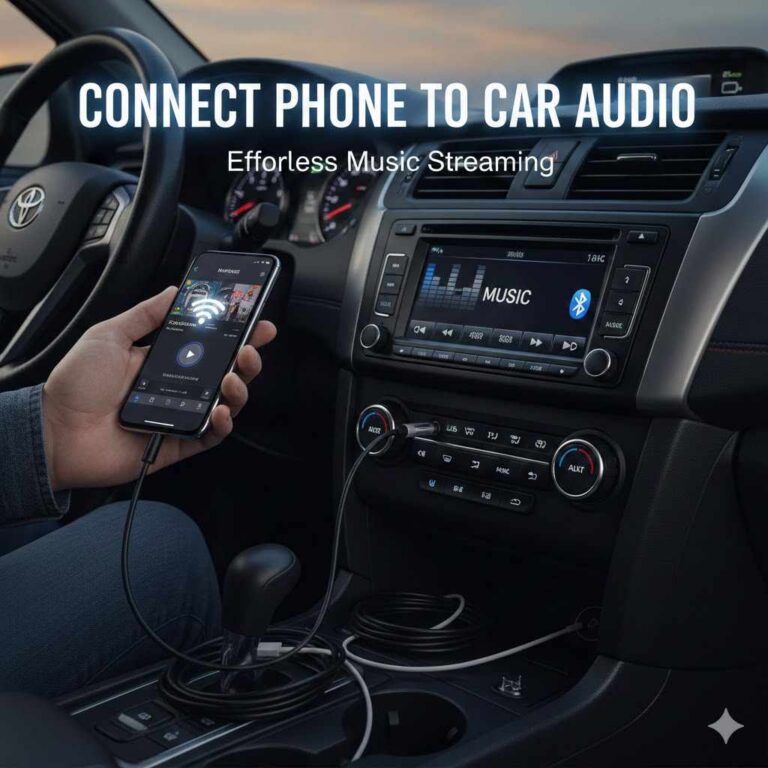
Connecting Your Phone To Your Car Stereo
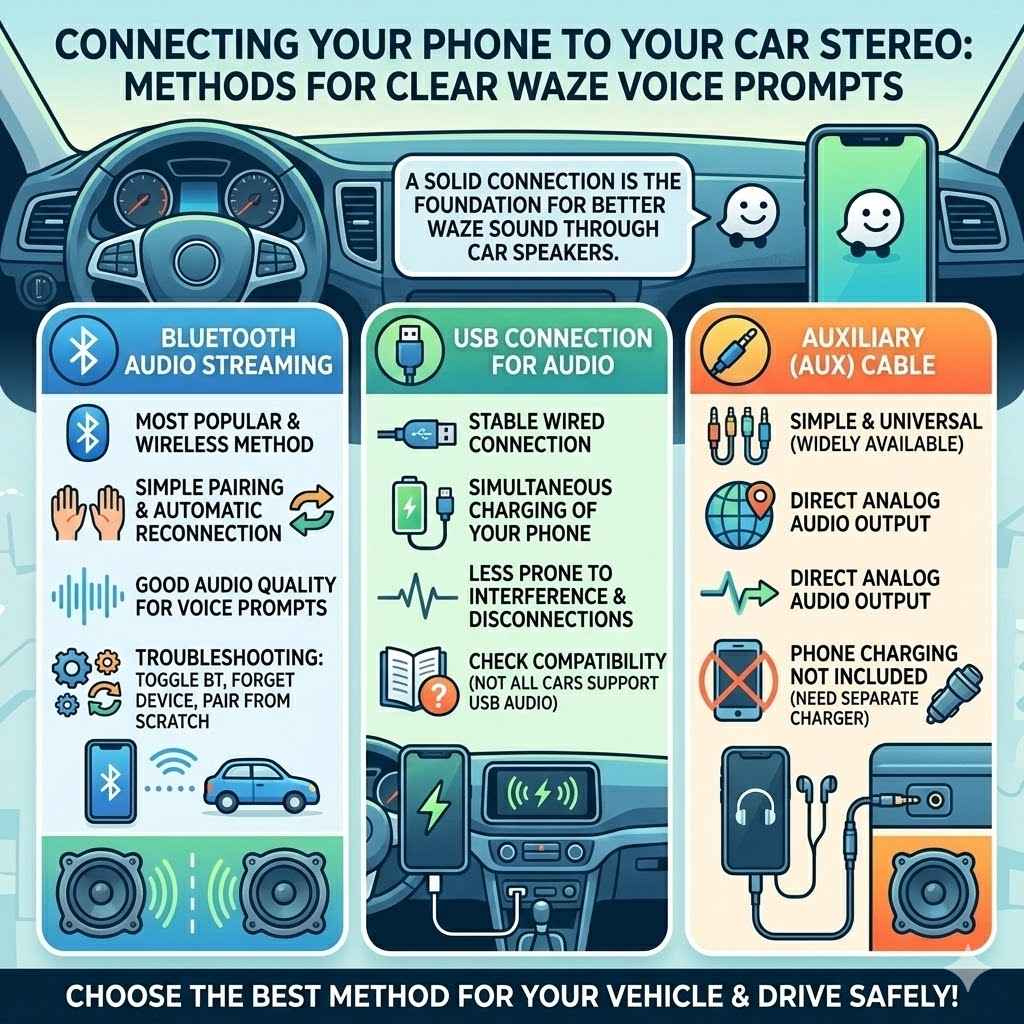
Getting your Waze voice prompts loud and clear through your car’s speakers is a common goal for many drivers. This section focuses on the initial step: establishing a solid connection between your smartphone and your car’s audio system. A good connection is the foundation for better sound.
Without it, even the loudest Waze settings will be useless. We will explore the most popular and reliable methods for this crucial link-up.
Using Bluetooth For Audio Streaming
Bluetooth is the most popular way to connect your phone to your car wirelessly. Most modern cars and smartphones have this feature. It lets you stream audio, including Waze’s voice directions, directly to your car’s speakers.
Pairing your devices is usually a simple process, often involving just a few steps on both your phone and your car’s infotainment system. Once paired, your phone’s audio should automatically play through your car’s speakers when you connect.
- Automatic Reconnection: Once you have paired your phone and car via Bluetooth, they will typically reconnect automatically each time you start your car and have Bluetooth enabled on your phone. This saves you the hassle of re-pairing every time you drive.
- Audio Quality: Bluetooth technology has improved over the years, offering good audio quality for voice prompts and music. While it’s not always as pristine as a wired connection, it’s more than adequate for Waze’s clear spoken directions.
- Troubleshooting Pairing Issues: If you have trouble pairing, try turning Bluetooth off and on again on both devices. You might also need to “forget” the device from your phone’s Bluetooth settings and your car’s paired devices list, then try pairing again from scratch. Ensure your phone and car are in pairing mode during the process.
USB Connection For Audio
A USB connection offers a stable and often higher-quality audio link between your phone and car. You simply plug your phone into a USB port in your car using a USB cable. Many cars will recognize the phone and allow audio playback through its speakers.
This method is great because it can also charge your phone simultaneously, which is a bonus for long trips.
- Stable Connection: Unlike Bluetooth, a USB connection is wired, meaning it’s less prone to interference and disconnections. This ensures a reliable audio stream for your Waze directions.
- Charging Capability: A major advantage of USB connections is that they typically provide power to your phone. This is incredibly useful for keeping your phone charged while using GPS and streaming audio, preventing battery drain.
- Compatibility Checks: Not all cars or phones are compatible with USB audio streaming. Some older car systems might only use USB for charging or for playing media from a USB drive. Always check your car’s manual to confirm USB audio support.
Auxiliary (AUX) Cable Connection
The auxiliary cable method is a straightforward, older but still effective way to get audio from your phone to your car. You’ll need a 3.5mm audio cable. One end plugs into your phone’s headphone jack (if it has one) or an adapter, and the other end plugs into your car’s AUX input port.
You then select “AUX” as your audio source on your car stereo.
- Simple and Universal: AUX cables are widely available and generally very affordable. The connection process is simple and doesn’t require any complex setup or pairing.
- Direct Audio Output: This method provides a direct analog audio signal from your phone to your car stereo, which can offer good sound quality if both your phone and car stereo are capable.
- Phone Charging Not Included: One drawback is that an AUX connection only transmits audio. It does not charge your phone, so you might need a separate charger if you plan on using your phone for extended periods.
Adjusting Waze App Settings For Louder Sound
How to Turn Up Waze Sound Through Your Car Stereo
Once your phone is successfully connected to your car’s audio system, the next step is to ensure Waze itself is set up to maximize its audio output. This section focuses on the in-app settings within Waze that directly control the volume and voice prompt behavior. Understanding these options is key to getting the clearest and loudest navigation instructions possible, ensuring you don’t miss any important cues while driving.
Waze Volume Settings
Waze has a dedicated volume control within its settings menu. This allows you to adjust the loudness of voice prompts relative to other audio playing through your phone. It’s important to find the right balance so Waze is audible but not so loud that it drowns out your music or conversations.
- Voice Prompt Volume: Within Waze’s settings, you can select “Voice & Sound” and then “Volume”. Here, you can choose from options like “Quieter,” “Normal,” “Louder,” or “Very Loud.” For maximum audibility, select “Very Loud.” This setting directly impacts the volume of Waze’s spoken directions.
- Mute During Calls: Waze also offers a setting to mute voice prompts when you are on a phone call. This is usually enabled by default but can be turned off if you wish to hear directions even while talking on the phone.
- Sound Effects Volume: In addition to voice prompts, Waze has sound effects for alerts like speed camera warnings or traffic jams. These also have their own volume control within the “Voice & Sound” settings, which can be adjusted independently.
Waze Speak Alerts Settings
Beyond just the general volume, Waze allows you to customize which alerts are spoken aloud and how they are announced. This ensures that you only hear the information that is most important to you, helping to reduce distractions.
- Alert Categories: Go to “Voice & Sound” in Waze settings, then “Alerts.” Here, you can toggle on or off various types of alerts such as traffic jams, police, hazards, speed cameras, and more. Only the alerts you enable will be announced.
- Speed Limit Alerts: You can choose to be alerted when you exceed the speed limit, and you can set the tolerance level. This feature is crucial for safe driving and helps keep you aware of your speed.
- “Speak Alerts” Option: Within the “Alerts” section, ensure that “Speak Alerts” is turned on. If this is off, Waze will not speak any of the selected alerts, regardless of the volume settings.
Optimizing Car Stereo Settings For Waze Audio
How to Turn Up Waze Sound Through Your Car Stereo
Even with Waze volume cranked up and your phone connected, your car’s stereo settings play a significant role in how loud and clear the Waze audio is. This part of the guide focuses on adjusting your car’s audio system to prioritize or enhance the sound coming from your Waze app. We’ll cover common settings that can be tweaked to achieve the best listening experience.
Car Stereo Volume Control
This is the most straightforward setting, but it’s essential to ensure it’s set correctly. The main volume knob or buttons on your car’s stereo control the overall sound output.
- Master Volume: This is the primary control. Make sure it’s turned up to a comfortable listening level. If your car stereo allows, set the Waze volume to be loud enough when your stereo volume is at a typical driving level.
- Volume Synchronization: Some car systems try to synchronize phone volume with the car stereo volume. If Waze is still too quiet, check if your car has a setting to disable volume synchronization, allowing your phone’s Waze volume to be controlled independently and potentially be louder.
- Source Volume Levels: Certain car stereos have different volume levels for different audio sources (e.g., radio, Bluetooth, AUX). Ensure that the volume level for your connected phone source is not set too low.
Equalizer (EQ) Settings
The equalizer on your car stereo allows you to adjust the bass, mid-range, and treble frequencies. Adjusting these can make Waze’s voice prompts clearer and more distinct.
- Boosting Mid-Frequencies: Human speech, like Waze’s voice, is primarily in the mid-frequency range. Try boosting the mid-range frequencies on your car’s EQ. This can make the voice stand out more from music or other sounds.
- Reducing Bass: High bass levels can sometimes muddle speech. If your music has heavy bass, try slightly reducing the bass EQ setting while Waze is speaking. You can always boost it back up afterward.
- Vocal Enhancements: Some car stereos have pre-set EQ modes like “Vocal” or “Speech.” If yours does, try selecting one of these settings to see if it improves the clarity of Waze’s voice.
Audio Output Source Selection
Your car stereo likely has multiple audio sources. Choosing the correct one ensures the sound from your phone is routed properly.
- Selecting the Right Source: Make sure your car stereo is set to the correct audio input source that your phone is connected to (e.g., Bluetooth Audio, USB, AUX). If you’re using Bluetooth, ensure your phone is selected as the audio source on your car stereo.
- Checking Bluetooth AVRCP Settings: AVRCP (Audio/Video Remote Control Profile) is a Bluetooth profile that allows your car stereo to control your phone’s media playback. Sometimes, specific AVRCP settings on your car stereo or phone can affect how audio streams are handled.
- Car’s Native Navigation vs. Phone Apps: Be aware if your car has its own built-in navigation system. If so, it might try to lower the volume of Waze when its own prompts are active. You may need to disable the car’s native navigation audio features if they interfere.
Advanced Car Audio Settings
Many modern car infotainment systems offer more advanced audio adjustments that can significantly impact app sound.
- Sound Processing Options: Look for settings like “Surround Sound,” “Dynamic Range Compression,” or “Audio Effects.” Sometimes, these can make speech less clear. Experiment with turning these off to see if it helps.
- Speed-Dependent Volume Control: Some cars automatically adjust the volume based on your speed. While useful for music, this can sometimes interfere with consistent Waze volume. Check if this feature can be adjusted or turned off.
- Software Updates: Ensure your car’s infotainment system has the latest software updates. Manufacturers often release updates that improve Bluetooth connectivity and audio handling for connected devices, which can resolve volume issues.
Troubleshooting Common Sound Problems
How to Turn Up Waze Sound Through Your Car Stereo
Even after following the previous steps, you might encounter persistent issues with Waze’s sound volume. This section is dedicated to troubleshooting those common problems. We will explore potential reasons why the sound might still be too low or not playing at all, and provide practical solutions to get everything working perfectly so you can rely on Waze for your travels.
Waze Sound Not Playing At All
If you hear absolutely no sound from Waze, it indicates a more fundamental connection or mute issue.
- Check Phone’s Sound Output: First, ensure your phone’s overall media volume is turned up, not just the Waze app volume. Try playing a music or video on your phone to confirm it produces sound.
- Verify Connection Method: Double-check that your phone is correctly connected to your car stereo via Bluetooth, USB, or AUX, and that your car stereo is set to that specific input source. Try disconnecting and reconnecting the device.
- Restart Devices: A simple restart can fix many temporary glitches. Turn off your phone completely, then turn it back on. Also, turn off your car’s ignition, open and close the driver’s door (to ensure all electronics reset), and then restart the car.
Intermittent Sound or Choppiness
If Waze’s voice cuts in and out or sounds choppy, the connection might be unstable.
- Bluetooth Interference: If using Bluetooth, other wireless devices nearby (like smartwatches or other phones) can sometimes cause interference. Try moving other Bluetooth devices away from your phone or car. Ensure your phone’s Bluetooth is not connected to multiple devices simultaneously if it causes issues.
- Poor Signal Strength: A weak Bluetooth signal between your phone and car can lead to choppy audio. Ensure your phone is relatively close to the car’s Bluetooth receiver, usually located in the dashboard.
- Background App Activity: Sometimes, too many apps running in the background on your phone can tax its processing power, leading to audio issues. Close any unnecessary apps to free up resources.
Waze Volume Too Low Even When Maxed Out
This is a common scenario where Waze’s volume is simply not loud enough despite all settings being on maximum.
- Car’s Gain Settings: Some car stereos have “gain” settings which are like an amplifier level. If the gain is set too low for the phone’s audio source, the output will be weak. Consult your car’s manual to check for such settings.
- App Permissions: Ensure Waze has the necessary permissions on your phone. Specifically, check that it has permission to “Play sound” or access audio hardware. This is usually granted during installation but can be reviewed in your phone’s app settings.
- Test With Another App: To isolate if the problem is with Waze or your car’s audio system, try playing audio from another navigation app (like Google Maps) or a music streaming app. If other apps also have low volume, the issue is likely with your car’s stereo or connection. If only Waze is quiet, focus on Waze-specific settings or a potential app bug.
Car’s Built-In Navigation Muting Waze
If your car has its own navigation system, it might be designed to lower the volume of other audio sources when its own prompts are active.
- Disable Car Navigation Audio: Look in your car’s infotainment system settings for options related to navigation audio prompts. You might find a setting to disable or reduce the volume of the car’s own navigation voice, which should then allow Waze to play at its set volume.
- Set Car Navigation to Mute: Alternatively, some systems allow you to set the car’s navigation volume to “Mute.” This way, the car’s system won’t actively try to lower other audio sources when it’s not providing directions.
- Prioritize Phone Audio: In your car’s audio settings, there might be an option to prioritize audio from your connected phone over the car’s internal audio systems. Enabling this can help ensure Waze gets adequate volume.
Real-Life Scenarios and Examples
How to Turn Up Waze Sound Through Your Car Stereo
To help illustrate the solutions, let’s look at a couple of common situations drivers face and how they can be resolved. These examples show how applying the steps discussed can lead to a much better driving experience. Seeing these scenarios play out can make the advice more practical and easier to implement in your own vehicle.
Scenario 1 A Busy Commute
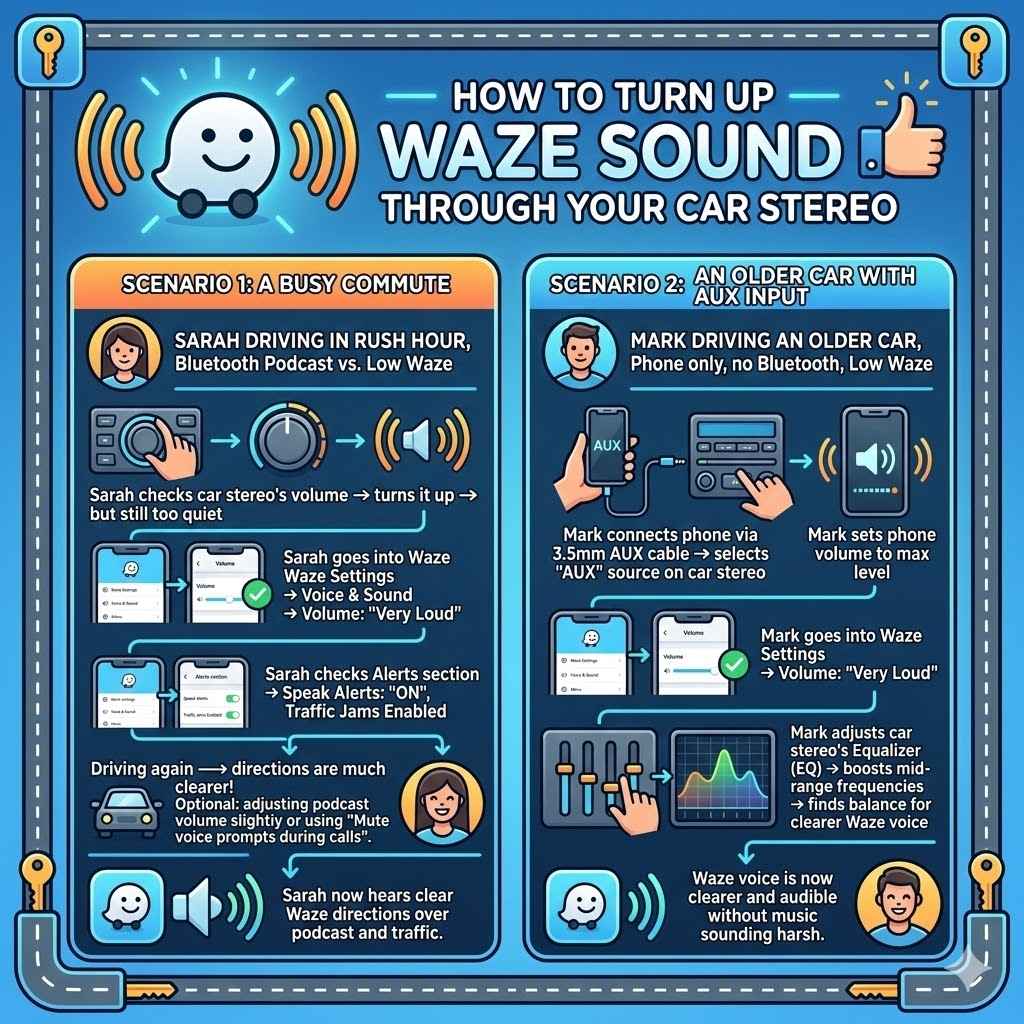
Sarah is driving during rush hour, listening to a podcast on her phone via Bluetooth to her car stereo. She starts using Waze for her commute, but the voice directions are barely audible over the podcast and traffic noise.
- Sarah first checks her car stereo’s volume and turns it up. This helps a little, but Waze is still too quiet.
- She then goes into her Waze app settings. She navigates to “Voice & Sound” and selects “Volume,” then chooses “Very Loud.”
- She also checks the “Alerts” section and ensures “Speak Alerts” is turned on and relevant alerts like traffic jams are enabled.
- When she starts driving again, Waze’s directions are much clearer, even over her podcast. If the podcast still seems too loud, she might adjust the podcast app’s volume slightly or use Waze’s “Mute voice prompts during calls” feature, which can sometimes also slightly lower other audio for directions.
Scenario 2 An Older Car With AUX Input
Mark drives an older car that only has an AUX input for audio. He uses his smartphone for Waze navigation, but he can only hear the directions if the phone’s volume is maxed out, and even then, it’s not very loud.
- Mark connects his phone to his car using a 3.5mm AUX cable. He selects “AUX” as the audio source on his car stereo.
- He sets the volume on his phone to its highest level.
- He then goes into his Waze settings and ensures the “Volume” is set to “Very Loud.”
- He also adjusts his car stereo’s equalizer. He finds that boosting the mid-range frequencies on his car’s EQ makes Waze’s voice much clearer and easier to understand. He finds a balance where Waze is audible without making the music sound harsh.
Frequently Asked Questions
Question: Can I adjust Waze volume and car stereo volume independently
Answer: Yes, you can. Waze has its own volume controls within the app, and your car stereo has its own master volume and source-specific volume settings. You need to adjust both to get the desired sound level.
Question: Does using a USB connection make Waze louder than Bluetooth
Answer: Not necessarily. While USB can sometimes offer a more stable connection, the actual volume is primarily determined by the Waze app settings and your car stereo’s settings, not just the connection type.
Question: Why are Waze alerts too quiet even when Waze volume is high
Answer: This could be due to your car’s equalizer settings reducing mid-range frequencies, or the car’s audio system might be lowering all incoming audio when it detects another sound source. Check both Waze and car stereo EQ settings.
Question: My car stereo automatically lowers Waze volume. How can I stop this
Answer: This is often a feature called “Speed-Dependent Volume Control” or a setting that lowers other audio when the car’s native navigation is active. Look for these settings in your car’s infotainment system menu and try disabling or adjusting them.
Question: Can I use Waze audio through my car speakers without connecting my phone
Answer: No, you need to connect your phone to your car stereo. This is done wirelessly via Bluetooth, or wired via USB or an AUX cable, to route the audio from your phone to your car’s speakers.
Wrap Up
Getting Waze sound to play clearly through your car stereo is achievable. By connecting your phone properly and adjusting settings on both Waze and your car stereo, you can ensure you hear every direction. Focus on connection type, Waze’s volume and alert settings, and your car’s EQ and source volume.
This guide provides the steps to enjoy louder, clearer Waze navigation.