How to Reset Pioneer Car Stereo Bluetooth (Plus Stutter Fix)
To reset Bluetooth on a Pioneer car stereo, open the Bluetooth menu, select “Clear Memory” or “Delete Device” to wipe old pairings, then re-pair your phone from scratch. If clearing memory doesn’t fix the problem, a full factory reset usually will. I’ve done this myself more than once — including a time my phone stopped connecting after an Android update, which a quick Bluetooth memory clear fixed in under two minutes. Below I’ll walk through the full reset process, plus what to do if your audio stutters or cuts in and out even after pairing works fine, since that’s a different problem than a failed connection.
Whether you’re a tech newbie or a seasoned driver, this article will help you get your Bluetooth back on track. Let’s dive in and make your car audio experience seamless again!
Quick Answer
Open your Pioneer stereo’s Bluetooth menu, select Clear Memory or Delete Device, then re-pair your phone. If audio stutters or cuts out rather than disconnecting outright, the cause is usually your phone’s OS, engine electrical noise, or outdated firmware — not the pairing itself.
Why You Might Need to Reset Your Pioneer Car Stereo Bluetooth
Let me tell you, there are plenty of reasons you might need to reset your Pioneer car stereo’s Bluetooth. I’ve run into a few of these issues myself, and it’s usually a quick fix once you know what’s going on. Maybe your phone isn’t pairing with the stereo anymore. Or perhaps the connection keeps dropping during your favorite playlist. Sometimes, the stereo might not even recognize your device, or you’re getting static and poor audio quality. These are all signs that a reset might be in order.
A reset is like giving your stereo a fresh start. It clears out any glitches, old pairing data, or software hiccups that might be causing trouble. I remember when my phone wouldn’t connect to my Pioneer stereo after a software update. A quick reset solved it in minutes. It’s also a good idea to reset if you’re selling your car or passing the stereo to someone else. You don’t want your old phone data lingering in the system, right? Whatever the reason, resetting the Bluetooth is a straightforward way to get things working again.
Best Replacement Pick (If the Module Is Truly Faulty)
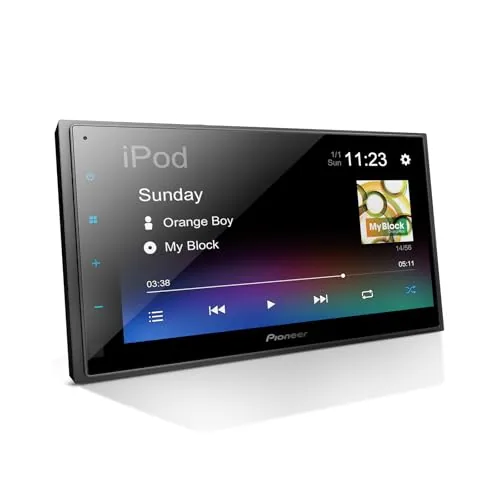
Pioneer DMH-130BT Touchscreen Receiver
A direct Pioneer replacement if a reset and firmware update don’t fix a hardware-level Bluetooth module failure.
- Best for: confirmed hardware failure, not a settings issue
- Why we picked it: same brand ecosystem, so paired presets and steering-wheel controls carry over easily
- Main drawback: full stereo cost vs. troubleshooting the existing unit first
Compare more troubleshooting essentials
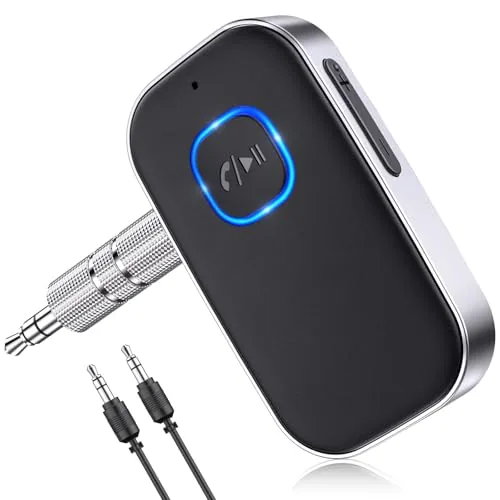 Option 1 COMSOON Bluetooth AUX Receiver
|
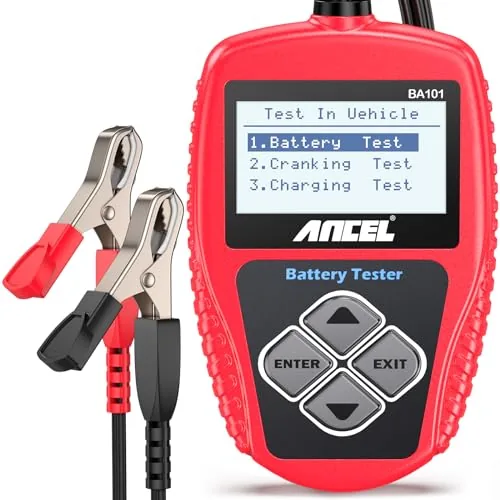 Option 2 ANCEL BA101 Battery Tester
|
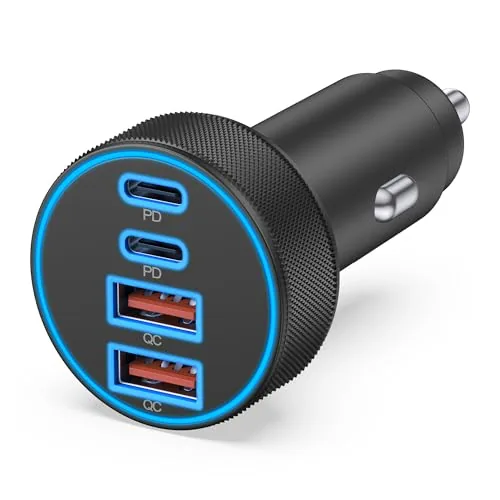 Option 3 Fast-Charge USB-C Car Charger
|
As an Amazon Associate we earn from qualifying purchases.
Preparing to Reset Your Pioneer Car Stereo Bluetooth
Before we jump into the reset process, let’s make sure you’re ready. I learned the hard way that a little prep goes a long way. First, park your car in a safe, quiet spot. You don’t want to be fiddling with your stereo while driving. Next, grab your Pioneer car stereo manual if you have it. I know, manuals can be a pain to dig out, but they often have model-specific info that’s super helpful. If you don’t have the manual, don’t worry—I’ve got you covered with general steps that work for most Pioneer models.
You’ll also need your phone or device handy. Make sure it’s charged and Bluetooth is turned on. I once tried resetting my stereo with my phone’s battery at 5%, and let’s just say it wasn’t fun when it died mid-process. Check that your car’s battery is in good shape too. A weak battery can mess with the stereo’s functions. Lastly, have a pen and paper ready to jot down any settings you want to save, like radio presets. Some resets might clear those, and trust me, it’s annoying to lose your favorite stations.
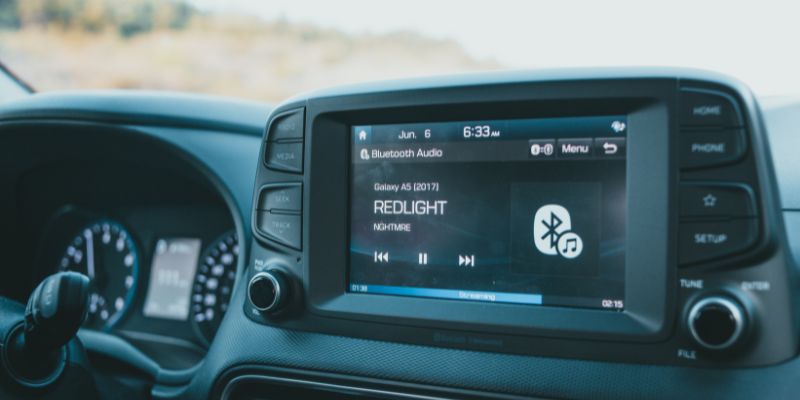
Step-by-Step Guide to Resetting Your Pioneer Car Stereo Bluetooth
Alright, let’s get to the good stuff—resetting that Bluetooth! I’ve done this a few times with my own Pioneer stereo, and I’ll break it down into easy steps. Follow along, and we’ll have your system back in action.
Step 1: Turn On Your Car Stereo
First things first, turn on your car stereo. Make sure your car is in the “on” or “accessory” mode. For most Pioneer models, you just press the power button or the source button until the display lights up. I usually double-check that the stereo is set to Bluetooth mode. You can do this by pressing the source button until you see “Bluetooth” or “BT Audio” on the screen.
Step 2: Access the Bluetooth Settings
Now, you need to find the Bluetooth settings. This part can vary depending on your Pioneer model, but it’s usually pretty intuitive. Look for a button labeled “Menu” or “Settings” on your stereo. On my unit, I press the menu button and scroll using the volume knob until I see “Bluetooth.” If your stereo has a touchscreen, it’s even easier—just tap the Bluetooth icon or settings menu. You’re looking for options like “Bluetooth Memory Clear” or “Device List.”
Step 3: Clear Paired Devices
Here’s where the reset magic happens. In the Bluetooth menu, look for an option to clear paired devices. On my Pioneer stereo, it’s called “Clear Memory” or “Delete Device.” Select this option to remove all previously paired phones or devices. This step wipes out any old connections that might be causing issues. You might need to confirm by pressing “OK” or a similar button. I remember feeling a bit nervous the first time I did this, but it’s totally safe and won’t mess up your stereo.
Step 4: Perform a Factory Reset (If Needed)
Sometimes, clearing the Bluetooth memory isn’t enough. If your stereo is still acting up, you might need to do a full factory reset. This resets all settings, not just Bluetooth, so be ready to reprogram things like your radio presets. To do this, go back to the main menu and look for “System Reset” or “Factory Reset.” On some models, you might need to press a combination of buttons, like holding down the source and volume buttons together. Check your manual for exact instructions. I did this once when my stereo kept freezing, and it was like getting a brand-new unit. If you have a specific model like the AVIC-FB40, check our AVIC-FB40 Bluetooth troubleshooting guide for model-specific menu locations.
“I did this once when my stereo kept freezing, and it was like getting a brand-new unit.”
Step 5: Re-Pair Your Device
After resetting, it’s time to reconnect your phone. Go to your phone’s Bluetooth settings and turn it on. Then, on your Pioneer stereo, select “Add Device” or “Pairing Mode.” Your stereo should pop up on your phone’s Bluetooth list—mine shows as “Pioneer DEH” or something similar. Tap it, enter any PIN if prompted (usually “0000” or “1234”), and wait for the connection. I always test it by playing a song to make sure the audio comes through clearly.
Step 6: Test the Connection
Once paired, give it a quick test. Play some music, make a call, or try streaming a podcast. I like to check both audio quality and call clarity to make sure everything’s working. If the connection drops or the sound is choppy, double-check that your phone is close to the stereo and there’s no interference from other devices. I had a rogue smartwatch once that kept messing with my connection until I turned its Bluetooth off.
Troubleshooting Common Bluetooth Reset Issues
Even with the best intentions, things can go wrong. I’ve hit a few snags myself, so let me share some common issues and how to fix them.
Bluetooth Won’t Clear
If the “Clear Memory” option isn’t working, try turning off the stereo and car, then restarting. Sometimes, a quick power cycle does the trick. If that fails, check if your stereo needs a firmware update. I once had to download an update from Pioneer’s website and install it via USB. It was a bit of a hassle, but it fixed the issue.
Phone Won’t Pair After Reset
If your phone isn’t connecting, make sure it’s not paired with another device, like wireless earbuds. Also, check that your stereo is in pairing mode. I made the mistake of rushing this step once and realized my stereo wasn’t discoverable. Restart both your phone and stereo if you’re still having trouble.
Poor Audio Quality
If the sound is crackly or weak after pairing, it could be interference. Keep your phone close to the stereo and avoid other Bluetooth devices nearby. I also found that cleaning the stereo’s antenna (if it has one) can help. A quick wipe with a dry cloth did wonders for my system.
Audio Stutters or Cuts In and Out (But Doesn’t Fully Disconnect)
This is a different problem than static or a dropped connection, and clearing the Bluetooth memory doesn’t always fix it. If the stutter only happens with the engine running and gets worse as the engine revs, that points to electrical noise on the power line rather than a Bluetooth setting — a loose ground connection or a dry solder joint in the stereo’s power supply can inject noise straight into the audio path. A mechanic or car audio shop can check this with a multimeter.
If the stutter started right after a phone software update, the phone side is the more likely culprit. Android updates (Android 12 and Samsung’s One UI 3 in particular) have caused reported Bluetooth audio stuttering on Pioneer head units for some users, even though pairing itself works fine. Checking for a newer Pioneer firmware update, and checking whether your phone has a pending update of its own, are both worth doing before assuming the stereo is broken.
Tips to Maintain Your Pioneer Car Stereo Bluetooth
Once your Bluetooth is reset and working, you’ll want to keep it that way. Here are some tips I’ve picked up to avoid future headaches:
- Limit Paired Devices: Try not to pair too many devices. I stick to two or three at most to keep things simple.
- Update Firmware: Check Pioneer’s website every few months for firmware updates. They can fix bugs and improve performance.
- Keep Devices Charged: A low battery on your phone or car can weaken the Bluetooth signal. I always make sure my phone is charged before long drives.
- Avoid Interference: Keep other Bluetooth devices, like smartwatches or tablets, turned off when not in use.
Here’s a quick table summarizing these maintenance tips:
| Tip | Why It Helps | How to Do It |
|---|---|---|
| Limit Paired Devices | Reduces connection conflicts | Delete unused devices from Bluetooth menu |
| Update Firmware | Fixes bugs and improves performance | Download updates from Pioneer’s website |
| Keep Devices Charged | Ensures strong Bluetooth signal | Charge phone and check car battery |
| Avoid Interference | Prevents signal disruptions | Turn off other Bluetooth devices |
When to Seek Professional Help
Sometimes, a reset doesn’t cut it. If you’ve tried everything and your Bluetooth still isn’t working, it might be time to call in the pros. I had a friend who spent hours troubleshooting only to find out her stereo’s Bluetooth module was faulty. A quick trip to an audio shop fixed it. If your stereo is under warranty, contact Pioneer’s customer support first. They might offer a free repair or replacement. Otherwise, a local car audio specialist can diagnose hardware issues. It’s worth the cost if it saves you from buying a new stereo.
Why Pioneer Car Stereos Are Worth the Effort
I’ve always been a fan of Pioneer car stereos. They’re reliable, have great sound quality, and their Bluetooth features make driving so much more enjoyable. Whether you’re streaming music, taking hands-free calls, or using navigation apps, a working Bluetooth system is a game-changer. Resetting it might seem like a chore, but it’s a small price to pay for the convenience. Plus, once you get the hang of it, it’s a quick fix you can do anytime.
Conclusion
There you go! We’ve walked through everything you need to know to reset your Pioneer car stereo Bluetooth. From prepping your system to troubleshooting pesky issues, I hope this guide makes the process as smooth as your favorite driving playlist. I know how annoying it is when your Bluetooth acts up, but with a little patience, you can get it working like new. Now, go fire up your stereo, connect your phone, and enjoy the ride with crystal-clear audio. If you run into any trouble, just revisit this guide or reach out to a professional. Happy driving, and keep rocking those tunes!
FAQs
Why does my Pioneer car stereo Bluetooth keep disconnecting?
Your Bluetooth might be disconnecting due to interference from other devices, a weak car battery, or outdated firmware. I’ve had this happen when my smartwatch was trying to connect at the same time. Turn off other Bluetooth devices, check your car’s battery, and update your stereo’s firmware from Pioneer’s website. If disconnects keep happening intermittently even after a full reset, our dedicated fix for a Pioneer radio losing Bluetooth covers a few causes specific to that pattern.
Do I need to reset my entire stereo to fix Bluetooth issues?
Not always. Start by clearing the Bluetooth memory to remove paired devices. I’ve found this fixes most issues. If that doesn’t work, a full factory reset might be needed, but it’ll clear other settings like radio presets, so be prepared to reprogram them.
What’s the default PIN for pairing my phone with a Pioneer stereo?
Most Pioneer stereos use “0000” or “1234” as the default PIN. I always try “0000” first since it’s the most common. Check your manual for your model’s specific PIN, or try resetting the Bluetooth if the PIN doesn’t work.
Can a reset fix poor Bluetooth audio quality?
Yes, a reset can help by clearing glitches or old pairing data. I had crackly audio once, and resetting fixed it. If the problem persists, check for interference from other devices or ensure your phone is close to the stereo.
How often should I reset my Pioneer car stereo Bluetooth?
You don’t need to reset regularly unless you’re having issues. I only reset mine when my phone stops connecting or the audio quality drops. To avoid frequent resets, keep your firmware updated and limit paired devices.
Products related to this article
Sponsored / affiliate links. As an Amazon Associate I earn from qualifying purchases. I may earn additional commission from eligible campaigns.
 UNITOPSCI Single Din Car Stereo Bluetooth 5.0 Multimedia Audio Receiver, Push to Talk Assistant, Hands-Free Call Voice Control, MP3/FM/AUX in/USB/TF Input APP Control LCD Digital Display
 Single Din Car Stereo Bluetooth Multimedia Car Audio Receivers with Digital LCD Display FM Car Radio Dual USB/SD/AUX-in MP3 Player Lossless Sound Quality Quick Charge+Remote Control