How to Use the Uber Car Service
Open the Uber app, type your destination, choose a ride type, confirm pickup and payment, then tap Request. Check the car, plate, and driver name before you get in. Wrong pickup spots, mismatched cars, or a poor app setup can waste time and money. This guide shows the first-ride workflow, the most common setup mistakes, and a quick pre-ride checklist.
Uber rider checklist
What you need before you request
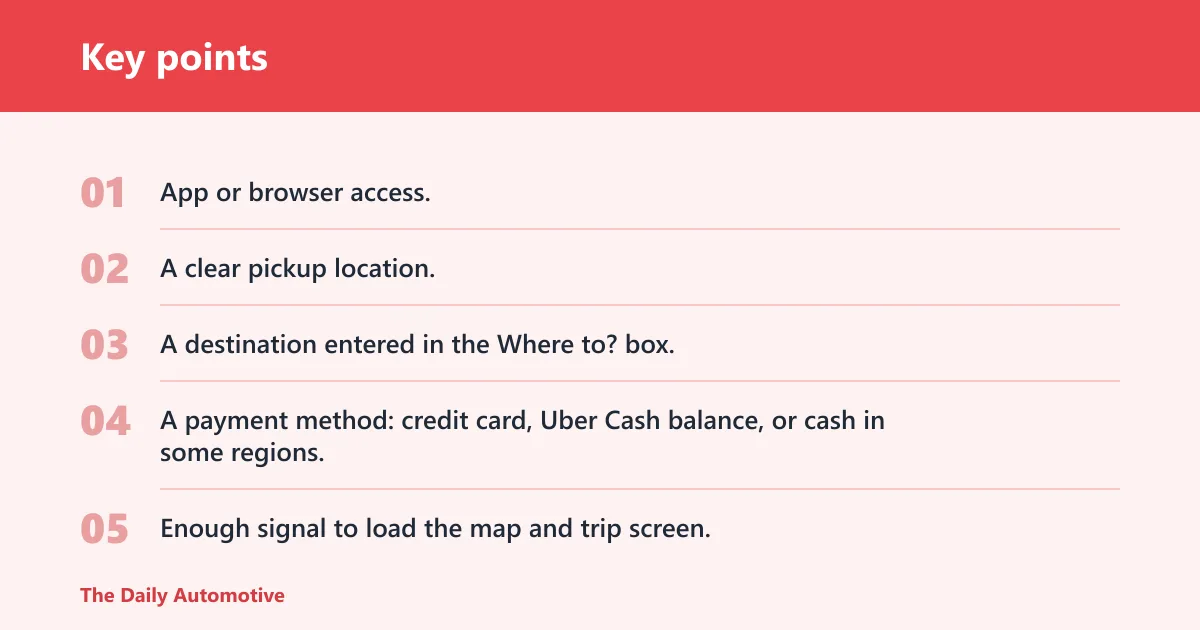
Have the Uber app ready from the App Store or Google Play, or use the browser option where Uber offers it. Create your account before you need a car. You also need a pickup point, a destination, and a payment method chosen in advance so you do not stall at the last screen.
- App or browser access.
- A clear pickup location.
- A destination entered in the Where to? box.
- A payment method: credit card, Uber Cash balance, or cash in some regions.
- Enough signal to load the map and trip screen.
Pickup and payment quick check
Confirm the pickup pin before you request. If the pin sits on the wrong side of a campus, airport curb, or apartment block, the driver may arrive where you are not standing. Pick the payment method now, because some regions allow cash and others do not.
Common trip blockers
The most common first-request failures are simple: no internet, a bad pin, no saved payment method, or a pickup point that is hard for the driver to reach. You can fix most of them before requesting. After the request is made, the app should show the driver, the vehicle, the ETA, and the map.
How do you book a ride?
Open the Uber app or, where available, the browser version, sign in, enter where you want to go, and confirm the pickup point before you request. Uber asks riders to type their destination in the Where to? box. After that, choose a ride type, review the price screen, and tap Request.
Open the app or web option
- Download the app from the App Store or Google Play if you do not already have it.
- Sign in or create an account.
- Open the ride screen.
Uber trips can be requested from a browser or from the Uber app. If you are on a phone, the app is usually the faster path because it keeps the map, trip tracking, and payment options in one place.
Enter pickup and destination
Set your pickup first, then type the destination. Uber uses the pickup location to match you with a nearby driver, so a wrong pin can send the car to the wrong block. If the pin is off, drag it to the right curb or entrance before you continue.
Choose ride type and request
Pick the ride option that fits the trip, review the estimate, then tap Request. Once the ride is accepted, the app should show the driver profile, the vehicle details, and a live map with arrival tracking. If nothing appears, treat it as an app or network problem and fix that before retrying.
Say your app pin drops on the back side of a hotel, but the driver can only stop at the front driveway. Move the pin to the front entrance before you request. That one change can save a canceled pickup and a fee you did not mean to pay.
How does Uber pricing work?
Uber pricing is based on time and distance, then adjusted by trip conditions such as surcharges, tolls, cancellation, and waiting time. That means the price can change if traffic slows the car, a toll road appears on the route, or the driver waits after arriving. You should treat the estimate as a starting point, not a fixed quote.
Time and distance
The core fare is built from how long the ride takes and how far it goes. A short trip in slow traffic can cost more than a longer trip on open roads because time matters, not just miles. A longer highway ride may also change if tolls are added.
Surcharges, tolls, and waiting time
Fare calculations may include surcharges, tolls, cancellation fees, and waiting time charges. Demand-related pricing can rise when more riders are requesting cars at the same time. Waiting time can also matter if the driver reaches the pickup point and then has to sit and wait for you.
Why the fare can change
Extra stops, a different route, traffic, and a delayed pickup can all move the final fare. If you add an extra stop after the ride starts, expect the trip total to change. If you want a tighter estimate, finish your stop plan before you request.
Picture a 6-mile airport run with one toll road and a 7-minute wait at pickup. The total can rise above the base estimate because the app may count the extra time, the toll, and the waiting period separately. That is normal pricing behavior, not a billing error.
How do you find the right car?
Before entering, match the number plate, car make and model, and driver photo in the app. Then check the driver name and the profile screen. The app should also show the car’s arrival on a map, so you can stand at the correct meeting point and avoid stepping into the wrong vehicle.
Check photo, plate, and car model
Use three checks together: the plate, the make and model, and the driver photo. Any one detail by itself can be copied or misread, but all three should line up. If the plate does not match, do not get in, even if the car is nearby.
Read the driver profile
The driver profile gives you another check before the door opens. Look for the driver name and photo in the app, then match them to the person arriving. Driver-side requirements may include a background check, a valid license, and insurance.
Match the map to the meeting point
Riders can track the driver’s arrival on a map. Use that map to stand at the pickup point the app confirmed, not just near the building. If the map shows the driver looping or pausing in the wrong place, the pickup pin may need to be adjusted.
How do pickup pins work?
The pickup pin tells the driver where to collect you, and that pin is confirmed inside the app before the ride starts. You can usually move it by dragging it when the default spot is wrong. If the pin sits on the wrong curb, the driver may stop where you are not waiting.
Confirm the pin before requesting
Check the map marker before you tap Request. This matters at airports, shopping centers, apartment complexes, and large office parks, where one address can hide several entrances. The right pin helps the driver choose the correct access point first.
Move the pin when needed
If the app drops the pin on the wrong side of the street, drag it to the better meeting point. A driver arriving at a busy pickup zone needs a clear spot, not a vague address. The app’s meeting point should match where the car can stop legally and safely.
Fix a bad pickup spot
If the driver cannot reach the spot, canceling is not always the first fix. Check whether the pin is off by a block, whether a second entrance is easier, or whether you need to step to a better curb. For accessibility needs, choose the spot that gives the easiest entry into the car and add a note if the app allows one.
Uber trip failure matrix
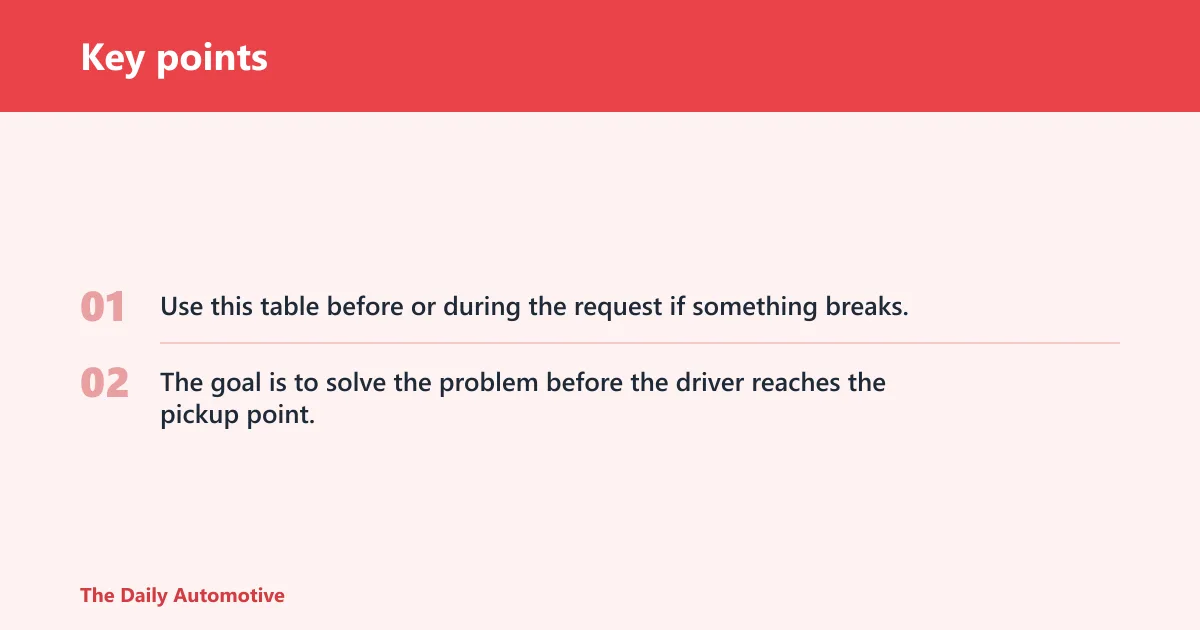
Use this table before or during the request if something breaks. The goal is to solve the problem before the driver reaches the pickup point, because most failures come from a bad pin, a missing connection, or an incompatible payment setup.
| Scenario | What to tap | What rider should see next | What can go wrong |
|---|---|---|---|
| Airport pickup | Move the pin to the correct terminal curb or rideshare area | Driver ETA on the map and a clear pickup point | Wrong terminal, terminal loop, or blocked curb access |
| Wrong pin | Drag the pin to the exact entrance | Updated address and new meeting point | Driver arrives at an address that is technically correct but operationally useless |
| No internet | Reconnect to Wi-Fi or cellular data, then reopen the app | Map loads, trip screen returns, or request button becomes active | Request will not send, payment screen may not load, trip status may freeze |
| Scheduled ride | Open the ride calendar and confirm the booking | Car-and-clock icon and scheduled-trip details | Wrong date, wrong time, or no notice that the ride was never saved |
| Ride for a friend | Use Switch rider and enter the friend’s trip details | Trip details sent by text, including car model, plate, driver name, contact info, and ETA | Friend waits at the wrong spot or does not recognize the arriving car |
| Extra stop | Add the stop before or during the trip | Route updates and fare may change | Fare rises, timing changes, or the driver cannot wait long enough |
| Cash payment | Select cash if the region supports it | Cash payment shows as an allowed option at checkout | Cash is not available in that region, so the request may not go through |
Can you schedule a ride or add stops?
Yes. Uber says you can schedule a trip up to 30 days in advance, and you can add up to 2 extra stops before or during a trip. Use the car-and-clock icon for scheduling, and expect the fare to change if the route gets longer or the ride takes more time.
Book ahead with the clock icon
Open the scheduled ride option, choose the date and time, and confirm the pickup spot. The car-and-clock icon typically indicates the scheduling flow. Review the trip before you save it, because a future ride is easy to set at the wrong hour by mistake.
Add up to 2 stops
Stops are useful for school drop-off, a pharmacy run, or picking up one extra passenger. Uber allows up to 2 extra stops before or during the trip. Add them carefully, because each stop can change the route and may change the fare.
Frequently asked questions
How do I use the Uber app to book a ride?
Open the app, sign in, enter your destination in the Where to? box, set the pickup point, choose a ride type, and tap Request. After the ride is accepted, the app should show the driver profile, car details, and the map so you can track arrival.
How does Uber car service work?
You enter where you are going, request a nearby driver, and watch the trip in the app until pickup and drop-off are complete. Payment is handled in-app or through regional cash options, and you can rate the trip afterward. The app also supports tips in many markets.
How do I sign up for the Uber car service?
Download the app from the App Store or Google Play, create an account, and add a payment method before you request a ride. Then set your pickup and destination. A complete profile reduces delays at the payment screen and makes your first request easier to finish.
Can I schedule an Uber ride in advance?
Yes. Uber says you can schedule a trip up to 30 days in advance. Use the scheduled ride flow with the car-and-clock icon, confirm the pickup point, and save the booking after checking the date and time. That matters for early flights and fixed appointments.
How do I request an Uber for someone else?
Use Switch rider if the app offers it in your region. For a ride requested for someone else, the person receiving the ride typically gets trip details by text, including the car model, plate, driver name, contact info, and ETA. That helps the rider match the right car without sharing your phone during pickup.
How is Uber pricing calculated?
Prices are calculated based on time and distance. The final fare may also include surcharges, tolls, cancellation, and waiting times. That is why two similar-looking rides can land at different totals if one involves traffic, a toll road, or a pickup delay.
How do I know I’m getting into the right car?
Check the number plate, car make and model, and driver photo before you enter. Then confirm the driver name in the app. If any detail does not match, do not get in. A correct profile, vehicle, and plate should all line up at the pickup point.
Products related to this article
Sponsored / affiliate links. As an Amazon Associate I earn from qualifying purchases. I may earn additional commission from eligible campaigns.