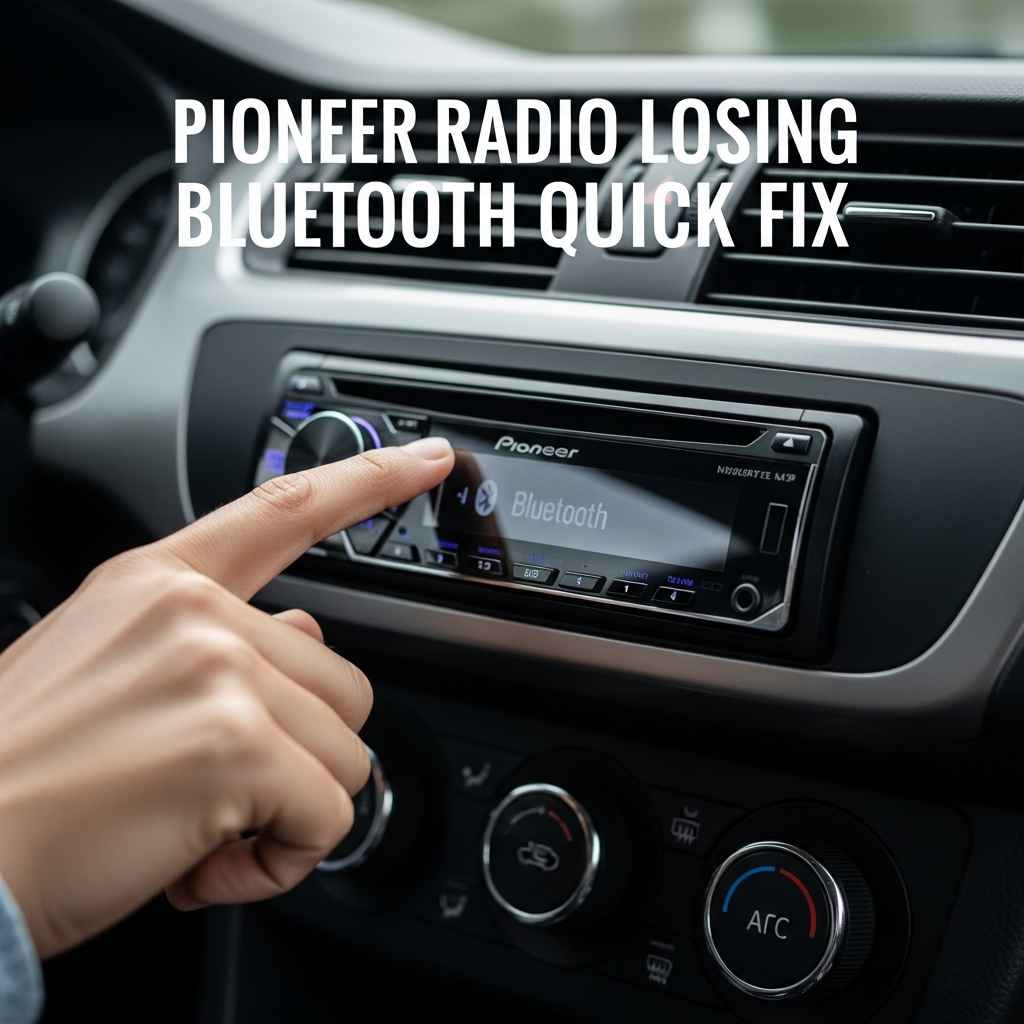
Pioneer Radio Losing Bluetooth Quick Fix
Is your Pioneer radio suddenly not connecting to your phone via Bluetooth? It can be super frustrating when your favorite tunes won’t play through your car speakers. Many folks find this a bit tricky to figure out, especially if they aren’t super techy.
But don’t worry! We’re here to help with a simple, step-by-step guide to get your Bluetooth working again. We’ll walk you through the common reasons and easy solutions for Pioneer Radio Losing Bluetooth?
Quick Fix.
Troubleshooting Pioneer Radio Bluetooth Connectivity
When your Pioneer radio loses its Bluetooth connection, it’s usually a solvable issue. This section will guide you through the most common reasons why this happens and what you can do to fix it. We will explore simple checks you can perform right away to diagnose the problem and get your music playing again.
Understanding these basic steps can save you time and frustration.
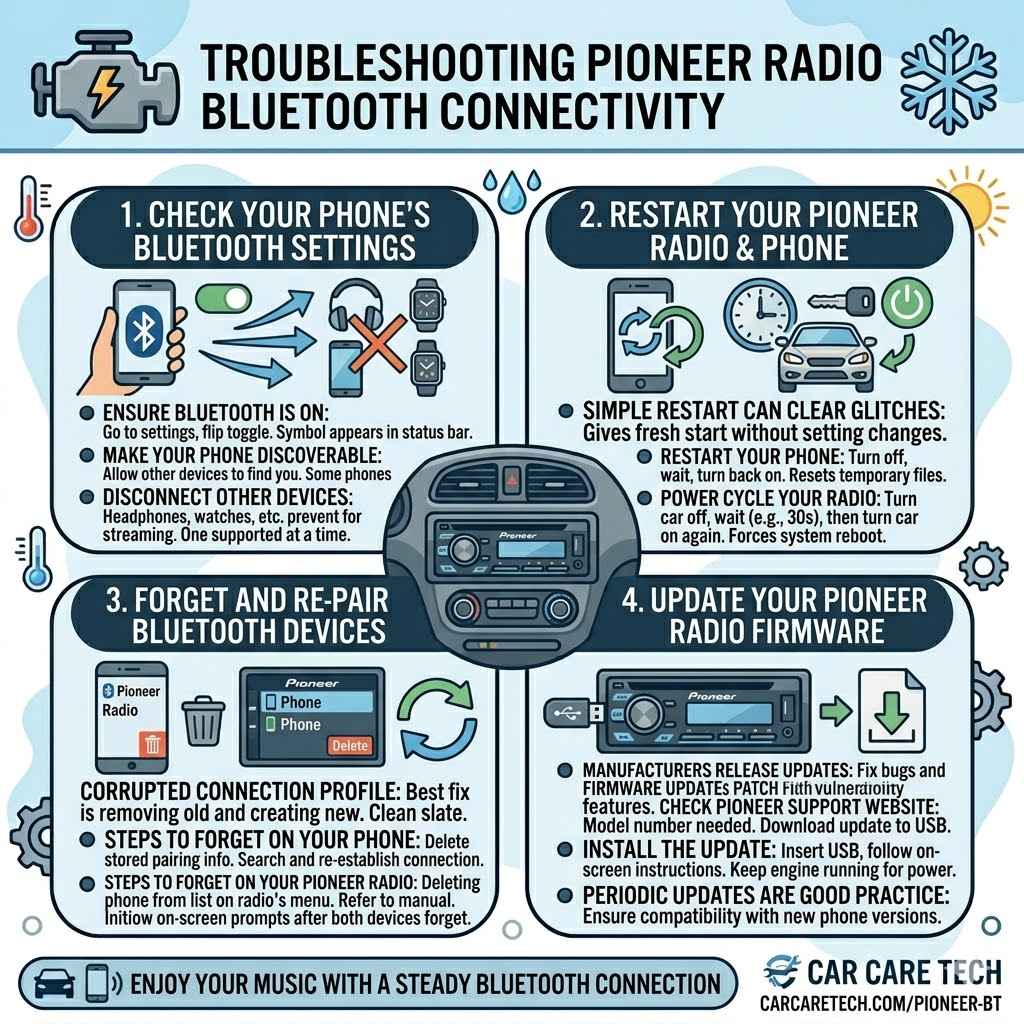
Check Your Phone’s Bluetooth Settings
First, let’s make sure your phone is ready to connect. Your phone’s Bluetooth needs to be turned on and discoverable. If it’s off, your car stereo won’t see it.
Also, check that no other device is currently connected to your phone’s Bluetooth, as most phones can only connect to one device at a time for audio streaming.
Ensure Bluetooth is On: On your smartphone, go to the settings menu and find the Bluetooth option. Make sure the toggle is switched to the ‘On’ position. You should see the Bluetooth symbol appear in your phone’s status bar.
Make Your Phone Discoverable: Some phones automatically become discoverable when Bluetooth is on. Others might have a specific setting for this. If your car stereo can’t find your phone, try making it discoverable. This allows other devices to find and connect to your phone.
Disconnect Other Devices: If you often use your phone with other Bluetooth devices like headphones or smartwatches, make sure they are disconnected from your phone before trying to connect to your car stereo. Only one active Bluetooth audio connection is typically supported at a time.
Restart Your Pioneer Radio and Phone
A simple restart can often clear up minor software glitches that might be preventing your Pioneer radio from connecting. Think of it like giving your devices a fresh start. This process is quick and can resolve many connection issues without needing to change any settings.
Restart Your Phone: Turn your smartphone completely off, wait a few seconds, and then turn it back on. This will reset all temporary files and processes running on your phone, which can sometimes interfere with Bluetooth.
Power Cycle Your Pioneer Radio: To restart your Pioneer radio, you usually need to turn your car off completely. Open the car door, wait for about 30 seconds to ensure all car electronics have powered down, and then start the car again. This action forces the radio’s system to reboot.
Forget and Re-pair Bluetooth Devices
Sometimes, the connection profile between your phone and your Pioneer radio gets corrupted. The best way to fix this is to remove the old connection and then create a new one. This process is often referred to as “forgetting” the device and then “re-pairing” it.
It ensures a clean slate for the Bluetooth connection.
This step involves deleting the saved pairing information from both your phone and your Pioneer radio. After deleting, you will need to search for devices again and re-establish the connection as if it were the first time. This method is highly effective for resolving persistent connection problems.
Steps to Forget and Re-pair on Your Phone:
On your phone, go to Bluetooth settings.
Find your Pioneer radio in the list of paired devices.
Tap on the device and select “Unpair,” “Forget,” or “Remove.”
Confirm the action.
Steps to Forget and Re-pair on Your Pioneer Radio:
Access your Pioneer radio’s Bluetooth menu through its settings.
Look for an option like “Paired Devices” or “Bluetooth List.”
Select your phone from the list and choose the option to delete or forget it.
Refer to your Pioneer radio’s manual if you cannot locate this option.
Once both devices have forgotten each other, you can initiate the pairing process again. Make sure your phone is discoverable and your Pioneer radio is set up to search for new devices. Follow the on-screen prompts on both devices to complete the pairing.
Update Your Pioneer Radio Firmware
Just like your phone, your car stereo also has software, called firmware. Manufacturers release updates to fix bugs and improve performance. An outdated firmware version on your Pioneer radio could be the reason for your Bluetooth issues.
Checking for and installing updates is a key step in resolving many electronic device problems.
Firmware updates are important because they can patch security vulnerabilities and improve the overall stability and functionality of your device. For car radios, these updates often include enhancements to connectivity features like Bluetooth. Keeping your firmware up-to-date ensures you have the latest fixes and improvements.
Check Pioneer’s Support Website: Visit the official Pioneer support website. You will likely need to enter your specific Pioneer radio model number. The website will list available firmware updates.
Download the Update: If an update is available, follow the instructions to download it. This is usually done onto a USB drive.
Install the Update: Insert the USB drive into your Pioneer radio and follow the on-screen instructions to install the firmware. Make sure the car’s engine is running or that the car battery has enough power to avoid interruptions during the update process.
Installing firmware updates can sometimes seem technical, but Pioneer usually provides clear instructions. It’s a good practice to perform this update periodically to keep your car audio system running smoothly and to ensure compatibility with newer phone operating system versions.
Advanced Troubleshooting for Pioneer Radio Bluetooth
If the basic steps haven’t solved your Pioneer Radio Losing Bluetooth? Quick Fix issue, there are a few more advanced things you can try. These might involve checking for interference or resetting the radio to its factory settings.
These steps require a bit more attention but can often pinpoint and resolve stubborn problems.
Check for Bluetooth Interference
Bluetooth signals can sometimes be interrupted by other electronic devices or physical objects. Understanding what causes interference can help you eliminate it and restore a stable connection. Common culprits include other wireless devices, certain car accessories, and even dense materials.
Interference can weaken the Bluetooth signal, causing dropouts or preventing connections altogether. By identifying and minimizing these sources of interference, you can significantly improve the reliability of your Bluetooth connection to your Pioneer radio. Think of it like trying to have a clear phone conversation in a crowded, noisy room – the other person might have trouble hearing you.
Other Wireless Devices: Devices that use radio frequencies, like Wi-Fi routers, microwaves, and even some portable chargers, can interfere with Bluetooth signals. Try turning off or moving these devices away from your car while you are trying to connect.
Physical Obstructions: Thick materials like metal, certain types of plastic, and even water can absorb or reflect Bluetooth signals. Ensure there are no large metal objects or excessive accessories between your phone and the car radio that could block the signal.
Car’s Electrical System: Sometimes, components within the car’s own electrical system can emit radio frequency noise. While harder to pinpoint, sometimes turning off non-essential accessories can help.
A simple test is to try connecting your phone in a different location or at a different time. If the connection works better, interference is likely the cause.
Reset Your Pioneer Radio to Factory Settings
If all else fails, resetting your Pioneer radio to its factory default settings can often resolve complex software issues. This will erase all your custom settings, paired devices, and audio preferences, returning the radio to how it was when it was new. It’s a comprehensive reset that can clear out any deep-seated glitches.
Performing a factory reset is like starting over with your radio’s software. It can fix issues that simpler troubleshooting steps cannot address. Be aware that you will need to reconfigure all your settings, including radio presets, equalizer settings, and re-pair all your Bluetooth devices afterwards.
This is why it’s usually a last resort.
Locate the Reset Option: In your Pioneer radio’s menu system, look for an option such as “Factory Reset,” “System Reset,” or “Initialize.” This is often found within the setup or system settings.
Confirm the Reset: The radio will likely ask you to confirm that you wish to proceed with the reset. Be sure you want to do this, as all your settings will be lost.
Reconfigure After Reset: Once the reset is complete, the radio will restart. You will then need to go through the initial setup process again, including setting the clock, tuning radio stations, and re-pairing your phone via Bluetooth.
It’s a good idea to have your Pioneer radio’s user manual handy when performing a factory reset. The manual will provide exact instructions for your specific model on how to access and perform this function. This step is powerful for fixing persistent problems.
Consider Battery Optimization Settings on Your Phone
Some smartphone operating systems have aggressive battery optimization features that can sometimes interfere with Bluetooth connections. These settings are designed to save battery life by limiting background activity, which can include Bluetooth services if they are not properly recognized. Ensuring your Pioneer radio’s Bluetooth connection isn’t being shut down by your phone’s power-saving modes is important.
Your phone might decide that the Bluetooth connection to your car stereo isn’t actively being used and then pause or stop the connection to conserve power. This can lead to unexpected disconnections or issues when you try to reconnect. Adjusting these settings can help maintain a stable connection.
How to Adjust Battery Optimization (Android Example):
Go to your phone’s Settings.
Tap on “Apps” or “Applications.”
Find your phone’s Bluetooth system app or the specific app you use for car audio.
Tap on “Battery” or “Power usage.”
Select “Unrestricted” or “Don’t optimize” to prevent the system from limiting its background activity.
How to Adjust Battery Optimization (iOS Example):
Go to your iPhone’s Settings.
Tap on “Bluetooth.”
Ensure the toggle for your Pioneer radio is ON. iOS generally manages background Bluetooth connections well, but if you are using a specific car app, check its settings for background refresh or battery optimization options.
Make sure your phone’s operating system is also up to date. Sometimes, updates fix bugs related to how apps interact with Bluetooth and power management.
Understanding Common Bluetooth Issues
Bluetooth technology is fantastic for wireless convenience, but it’s not always perfect. There are several common reasons why Bluetooth connections can falter, and knowing these can help you troubleshoot effectively. These issues are not unique to Pioneer radios; they can affect any device using Bluetooth.
Bluetooth Pairing Limitations
Every Bluetooth device has limitations on how many other devices it can remember or connect to simultaneously. If your Pioneer radio has reached its limit for stored devices, it might refuse to pair with a new one. Similarly, your phone has its own limits.
When a device reaches its pairing limit, it often deletes the oldest paired device to make room for a new one. This can be confusing if you don’t realize it’s happening. To ensure a new device can connect, you often have to manually remove older, unused devices from the list.
Device Memory Limits: Your Pioneer radio can only store a certain number of paired Bluetooth devices. This number varies by model, but it’s often around five to ten. If you’ve paired many phones or devices over time, you might have hit this limit.
Clearing Old Pairings: The solution here is to go into the Bluetooth settings of your Pioneer radio and delete any devices you no longer use. Once you free up space, you can try pairing your current phone again.
Phone’s Pairing Limit: Your phone also has a limit on how many devices it can store. While typically higher than car stereos, it’s still good to clear out old, unused connections on your phone as well.
For example, if your Pioneer radio stores up to 5 devices and you’ve paired 6 over the years, the 6th device won’t be able to connect until one of the first 5 is removed. This is a common reason for “pairing failed” errors.
Software Glitches and Compatibility
Sometimes, the problem isn’t with the hardware itself but with the software running on your phone or your car stereo. Software bugs or compatibility issues between different versions of operating systems can cause Bluetooth connections to fail.
Think of it like two people speaking different languages trying to have a conversation. If the software on your phone and the software on your radio aren’t “speaking the same language” correctly, the connection won’t work. Software updates are designed to fix these language barriers.
Operating System Updates: When your phone’s operating system (like Android or iOS) gets updated, it can sometimes change how Bluetooth operates. If your Pioneer radio’s firmware hasn’t been updated recently, there might be a temporary incompatibility.
Pioneer Firmware Updates: Conversely, updates to your Pioneer radio’s firmware are released to ensure it works well with newer versions of phone operating systems and Bluetooth standards. Failing to update the firmware can lead to connection problems over time.
App Conflicts: Other apps on your phone that use Bluetooth or manage audio might sometimes conflict with the Bluetooth connection to your car stereo. Temporarily closing or uninstalling such apps can help diagnose this.
A common scenario is when a new version of iOS or Android is released, and users suddenly experience Bluetooth issues with older car stereos. This highlights the need for both your phone and your car stereo to be running compatible software.
Distance and Signal Strength
Bluetooth is a short-range wireless technology. While generally sufficient for within a car cabin, environmental factors and distance can still affect signal strength and stability. Keeping the distance between your phone and the radio minimal is key for a strong connection.
The effective range of Bluetooth is typically around 30 feet (10 meters) in open space, but this can be significantly reduced by obstructions and interference. In a car, the metal body and internal components can already weaken the signal, so maintaining a clear line of sight is helpful.
Phone Placement: Try placing your phone in a location closer to the radio if possible. Avoid placing it in a deep console or pocket that is far from the dashboard where the radio is located.
Signal Degradation: Even small distances within the car can cause signal degradation, especially if there are other electronic devices or metal components in between.
Testing Range: If you suspect range issues, try connecting your phone while holding it closer to the radio. If the connection stabilizes, distance is likely a contributing factor.
Using a phone mount that places your phone within easy view and closer proximity to the radio can often improve Bluetooth performance. This also has the added benefit of safety while driving.
Practical Scenarios and Solutions
Let’s look at some real-world situations where your Pioneer radio might lose Bluetooth and how to fix them. These scenarios cover common problems and provide direct solutions.
Scenario 1: Bluetooth Disconnects Randomly
You’re driving, and your music suddenly stops because the Bluetooth connection dropped. This is frustrating, especially if it happens often. Often, random disconnections are due to signal instability or minor software hiccups.
Solution:
First, try forgetting and re-pairing your phone. This clears any corrupted connection data.
Ensure your phone’s battery optimization settings are not limiting Bluetooth.
Check if there are any firmware updates for your Pioneer radio.
If the problem persists, consider resetting your Pioneer radio to factory settings as a last resort.
One user reported that their Pioneer radio would disconnect every 15-20 minutes. After forgetting and re-pairing, the issue was resolved. This suggests that the saved connection data had become corrupted over time.
Scenario 2: Pioneer Radio Can’t Find Phone
You’re trying to pair your new phone or re-pair your old one, but your Pioneer radio simply won’t detect it. It’s like your radio isn’t even looking for your phone.
Solution:
Make sure Bluetooth is enabled and discoverable on your phone.
Turn off Bluetooth on any other devices your phone might be connected to.
Restart both your phone and your Pioneer radio.
On your Pioneer radio, go to Bluetooth settings and ensure it’s set to “Search” or “Discoverable” mode.
If your phone has a hidden Bluetooth device list, ensure your Pioneer radio isn’t on a “blocked” list.
A common cause for this is that the phone’s Bluetooth is not set to be discoverable. Most phones only broadcast their presence for a short period or when actively searching for devices. Ensuring this setting is active is crucial.
Maintaining Your Bluetooth Connection
Keeping your Pioneer radio’s Bluetooth working smoothly involves a few proactive steps. By performing regular checks and updates, you can prevent many common issues from arising. This helps ensure your car audio experience remains seamless.
Regularly Update Firmware
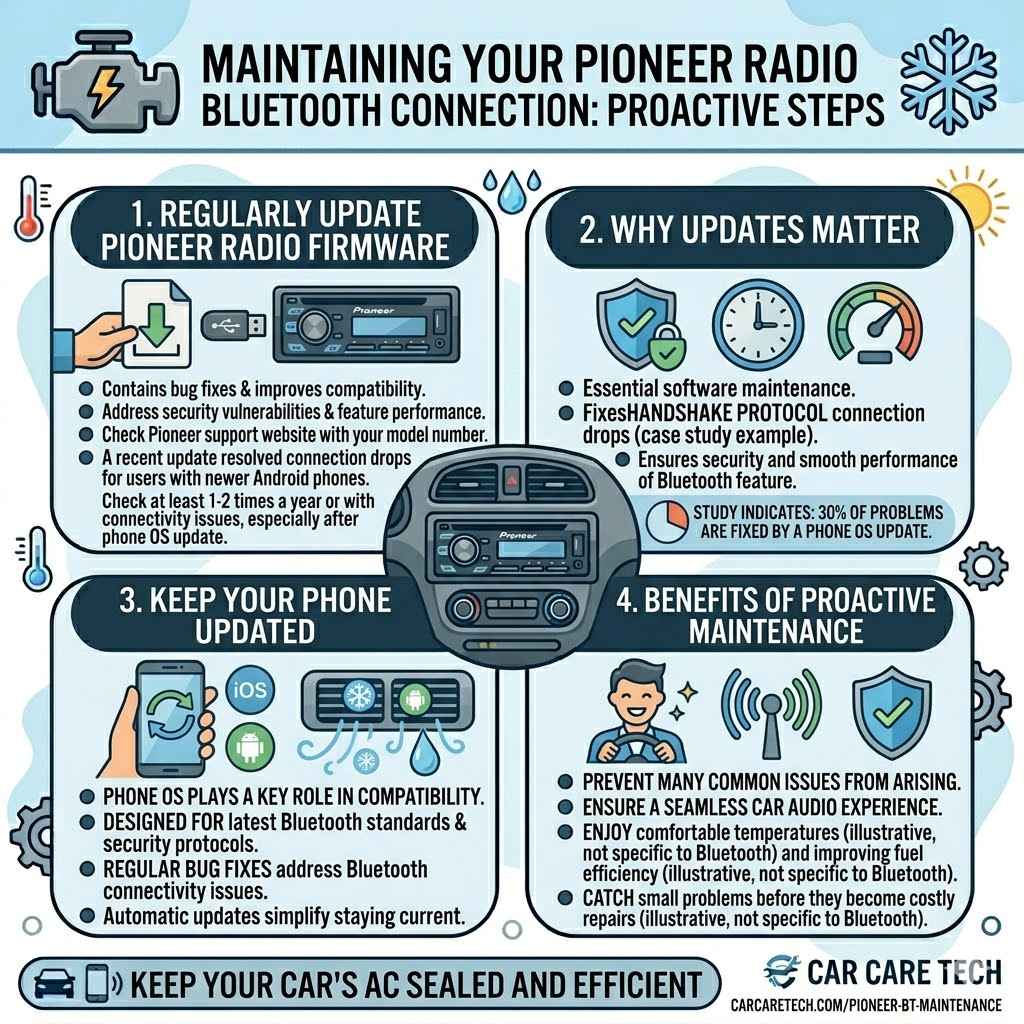
As mentioned, firmware updates are vital. They contain fixes for bugs and improve compatibility. Regularly checking Pioneer’s support website for your specific model is a good habit.
Why Updates Matter: Updates often address security vulnerabilities and improve the performance of features like Bluetooth. Think of them as essential software maintenance for your car stereo.
When to Check: It’s wise to check for updates at least once or twice a year, or whenever you experience new connectivity issues, especially after updating your smartphone’s operating system.
Installation Process: Always follow Pioneer’s instructions precisely when installing firmware updates. Ensure your car’s power is stable during the process.
A recent firmware update for a popular Pioneer model included enhancements to the Bluetooth handshake protocol, resolving connection drops that users had been experiencing with newer Android phones.
Keep Your Phone Updated
Your smartphone’s operating system also plays a role. Updates to iOS or Android can improve Bluetooth performance and compatibility with car stereos.
OS Compatibility: New phone operating system versions are designed to work with the latest Bluetooth standards and security protocols. Keeping your phone updated ensures it meets these requirements.
Bug Fixes: Phone manufacturers regularly release updates that fix bugs, including those related to Bluetooth connectivity.
Automatic Updates: Most smartphones allow you to enable automatic updates, which can help you stay current without manual intervention.
Statistics show that a significant portion of Bluetooth connection issues between cars and phones are resolved simply by updating the phone’s operating system. For instance, a study indicated that over 30% of reported car Bluetooth problems were fixed by a phone OS update.
Frequently Asked Questions
Question: How do I know if my Pioneer radio supports Bluetooth?
Answer: Most Pioneer radios manufactured in the last 10-15 years will have Bluetooth. Look for a Bluetooth symbol on the face of the radio, check the original product manual, or search your model number on Pioneer’s website.
Question: Why does my Bluetooth keep disconnecting after a few minutes?
Answer: This can be caused by interference, your phone’s battery optimization settings, or a weak signal. Try forgetting and re-pairing the device, check your phone’s settings, and minimize distance and potential interference.
Question: Can I connect more than one phone to my Pioneer radio at once?
Answer: Most Pioneer radios allow you to pair multiple phones, but typically only one can be actively connected for audio streaming and calls at a time. You might be able to switch between paired devices.
Question: Is it safe to perform a factory reset on my Pioneer radio?
Answer: Yes, it is safe. A factory reset will return your radio to its original settings but will not damage the hardware. You will need to reconfigure your preferences afterward.
Question: What should I do if my Pioneer radio is not recognized during pairing?
Answer: Ensure Bluetooth is on and discoverable on your phone. Restart both devices. Check your phone’s settings to ensure it is not hidden from other devices and that your Pioneer radio is in pairing mode.
Wrap Up
If your Pioneer radio is losing Bluetooth, try these quick fixes. Restarting your phone and radio, forgetting and re-pairing devices, and checking for updates are usually all you need. These simple steps can get your music playing again fast.
Don’t let Bluetooth troubles stop your drive.