Why Does My Bluetooth Keep Disconnecting in My Car? 8 Causes + Fixes
Car Bluetooth usually drops for a reason the carmakers’ own support pages name: a second device holding the connection, a phone tucked behind metal or in power-saving mode, an update that wiped the pairing, a lost encryption key, or a full device list. This guide matches common drop patterns to the cause each source states, gives the first fix for each, and sets out the order to try the rest.
Why Does My Bluetooth Keep Disconnecting in My Car?
Best Add-On Bluetooth Receiver Pick
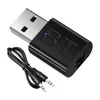 |
Bluetooth 5.4 Receiver for Car, USB and 3.5mm AUX Dual Output Mini Wireless Audio Adapter
|
As an Amazon Associate we earn from qualifying purchases. Spec-based pick from the listing, not a hands-on test.
There is no single cause, which is why generic advice to restart the phone fails so often. The useful question is when the drop happens. The pattern points to the cause, and the cause points to the first fix. If you are still at the pairing stage, start with our guide on how to connect Bluetooth to your car, which covers the pairing steps from Apple and Google. This page is about connections that pair fine and then keep dropping.
Menus differ by phone, Android maker, car brand and model year. The paths below are the ones the sources state for the named systems, so check your own manual for the exact wording.
What Your Drop Pattern Points To
Match the symptom you see to the cause a source states. Where a source does not state a cause for a symptom, the table says so instead of guessing.
| What you notice | Cause a source states | First fix | Source |
|---|---|---|---|
| Drops or will not connect in the first minute or two after starting the car | The system may not operate for 1 or 2 minutes after the ignition goes to ACC or ON, and Mazda says this is not a problem | Wait 2 minutes, confirm Bluetooth is on in the phone, then reconnect from the car side | Mazda MX-5 owner’s manual |
| Call drops and moves to the phone when the engine is switched off | The vehicle may time out of accessory mode to save the battery | Keep the engine running for the call, or accept the transfer to the phone | Buick Canada support page |
| Phone drops after a phone software update | When the OS of the device is updated, the pairing information may be deleted | Re-pair: clear the car from the phone first, then pair again | Mazda MX-5 owner’s manual |
| Phone unpairs on its own | An encryption key is generated at pairing; if the phone or the vehicle loses it, they may need to be paired again | Delete the pairing on both sides and pair again | Chevrolet and Buick support pages |
| Another phone takes over, or the car grabs an old phone | Most vehicles allow one active connection and default to the last paired device used, going down the list until it finds an active one | Delete phones you no longer use from the car list | Chevrolet and Buick support pages |
| Drop in the same spot in the cabin | Mazda lists a phone hidden behind or under a seat, in the glove box, or touching or covered by a metal object. Kia says storing a device in a different location may resolve interference | Move the phone to an open spot, away from metal | Mazda manual, Kia 2023 manual |
| Drops with the phone in power-saving mode | Mazda lists a device set to power-saving mode as a condition where connection may not be possible | Turn off the phone’s power-saving mode and test again | Mazda MX-5 owner’s manual |
Too Many Devices, or the Wrong One in Charge
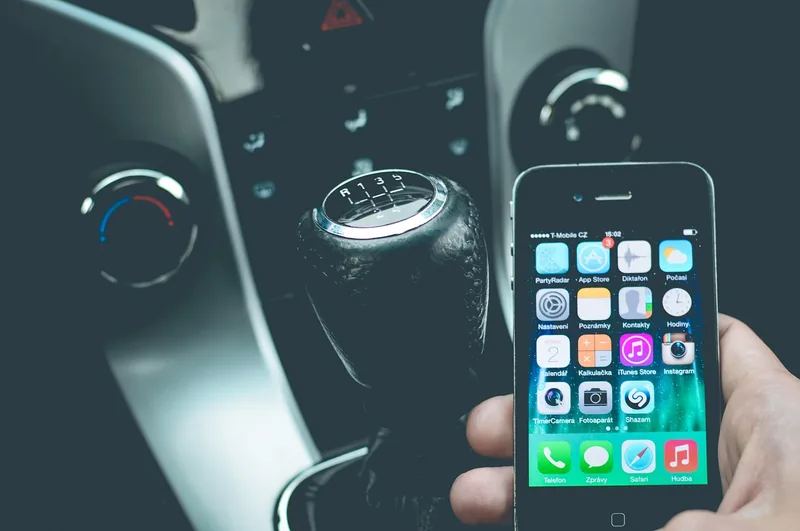
Complaints such as the car switching to another phone, or reconnecting to an old one, come from how the car manages its device list. The table collects what each page states.
| Maker page | Devices it can store | Active connections | What it says about the list |
|---|---|---|---|
| Mazda MX-5 owner’s manual | Maximum of seven, counting audio devices and hands-free phones | Not stated in the manual section cited | The unit links the device last paired; changing the link keeps its priority order after ignition off |
| Kia 2023 owner’s manual (audio system section) | Up to five | One device at a time | When the list is full, delete paired devices; deleting a device also deletes the call history and contacts stored in the system |
| Chevrolet support page | Not stated | In most vehicles, one active Bluetooth connection at a time | Defaults to the last paired device used; delete a phone that is no longer in use so the car stops trying to connect to it |
Apple’s car page says that if you have connected multiple phones to your car stereo, try renaming your device in Settings, General, About, Name, then connect again. Android Help adds: make sure other devices paired with your phone are not playing the music or taking your calls. Both pages come from Apple Support and Android Help.
For getting music from a phone to a car in general, see how to play music in the car.
Interference, Placement and Range
The Bluetooth SIG, the standards body for the technology, says on its range page that Bluetooth uses the 2.4 GHz ISM band, from 2400 to 2483.5 MHz, and that obstacles between transmitter and receiver can deteriorate the signal. It lists humidity and precipitation, plus walls, windows and other obstacles made of glass, wood, metal or concrete, including metal panels that reflect and scatter radio waves.
The same page notes that antenna location, package size and design can greatly affect how well a signal is sent and received, and that effective range can run from under a meter to more than a kilometer depending on the factors it lists. It does not discuss cars, so treat placement as something to test rather than a rule. The car makers’ guidance fits this picture:
- Mazda: connection may not be possible if the device is hidden from the center display, such as behind or under a seat or inside the glove compartment, or if it touches or is covered by a metal object.
- Kia: some Bluetooth devices may cause malfunctions or interference noises in the audio system, and storing the device in a different location may resolve the problem.
None of these pages name a specific household appliance or other interference source, so this guide does not either. If your drops come with crackle or a cut-out sound rather than a full disconnect, see our page on Bluetooth audio delay in the car.
Phone Settings That Cause Drops
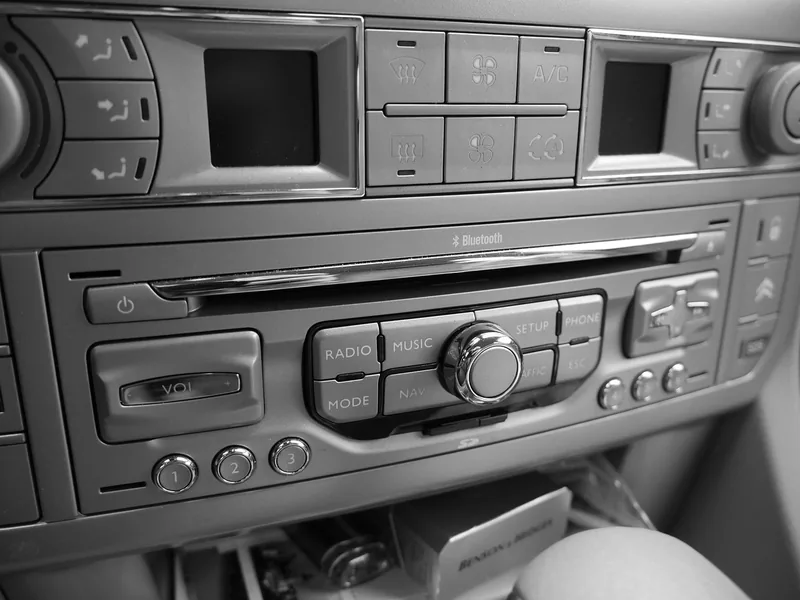
Two phone-side areas come up in the sources: power saving and the audio toggles.
Power saving and battery optimization
Mazda’s manual lists a device in power-saving mode as a condition where connection may not be possible. Google’s Pixel Help shows where the battery controls live on a Pixel: Settings, Apps, See all apps, the app, App battery usage, Allow background usage, then Optimized. It says turning off optimization lets an app run more while you are not using it, and that some steps need Android 14 or later.
The page does not say that battery optimization causes Bluetooth drops, and the Mazda manual does not say which power-saving modes it means. The sources support one narrow step: if drops start when the phone enters a power-saving mode, turn that mode off for a test drive and see whether the pattern changes.
Media audio and Phone audio on Android
Android Help says that if you cannot hear music, check that Media audio is on: Settings, Connected devices, Saved devices (or Bluetooth), then Settings next to the car, then Media audio. The matching switch for calls is Phone audio. It also notes that not all cars can play music or make calls by Bluetooth, so check the car’s manual.
After an Update: Lost Pairing and Stale Software
Drops that start right after a phone update are consistent with what Mazda says: when the device’s OS is updated, the pairing information may be deleted, and if that happens you reprogram the pairing on the Bluetooth unit. Chevrolet’s page adds that sometimes Bluetooth trouble comes from out-of-date phone software, and tells you to update the phone before anything else. Buick Canada’s page also says to ensure the vehicle’s software is up to date, if applicable.
A Fix Order for Drops
This order starts with the cheap checks that your pattern suggests and ends with the full re-pair, which is where the makers’ own pages converge. It differs from the pairing walk-through in our pairing guide because the goal here is to find what changed, not to set up a new connection.
| Step | Do this | Why | Source |
|---|---|---|---|
| 1 | Move the phone out of any glove box, seat pocket or spot touching metal, and turn off power saving | Mazda lists those locations and power-saving mode as conditions where connection may fail | Mazda MX-5 manual |
| 2 | Check both device lists. Delete phones and devices you no longer use, and disconnect other devices paired to your phone | Cars default to the last paired device and may try an old phone; Android Help says other paired devices may take music or calls | Chevrolet, Buick, Android Help |
| 3 | Turn Bluetooth off for about 5 seconds and back on, then restart the phone | The first fix on Apple, Android and Kia pages | Apple, Android Help, Kia |
| 4 | Update the phone software and check for car software or firmware updates | Several makers name outdated software as a cause | Chevrolet, Buick, Apple |
| 5 | Forget the car on the phone and delete the phone on the car. Turn the car off, open and close a door, wait two minutes, then pair again | Chevrolet’s sequence; Android Help also says to clear the phone on both sides | Chevrolet, Android Help |
| 6 | On an iPhone, consider Reset Network Settings as a late option | Apple lists what it removes, including saved networks and VPN settings; the car pages do not list it as a Bluetooth step | Apple Support |
| 7 | If it still drops, take your pattern notes to the phone maker or Apple Support and to the car maker or dealer | Android Help says custom Android versions may need the device maker; Apple says to contact Apple Support if an accessory still will not connect | Android Help, Apple Support |
Kia’s manual also says to unregister the pairing on both the system and the device before registering again, and Android Help says to clear any phones you are not using from the car’s memory by following the car’s manual.
Calls Breaking Up Versus Disconnecting
A call that stutters but stays connected is a different problem from a full disconnect. Buick Canada’s page lists three reasons calls may break up or sound distorted: a weak cellular signal, other Bluetooth devices in the vehicle paired with your phone, and Bluetooth activity running in the background on the phone, such as searching the phone book, downloading a message or having certain apps open in the foreground. If the problem persists with a strong signal and no other Bluetooth activity, it points to deleting and re-pairing.
Mistakes That Keep the Drops Coming
| Mistake | What the source says |
|---|---|
| Forgetting the pairing on only one side | Android Help: clear the car from the phone and the phone from the car. Mazda: when pairing is redone, first clear the car name on the phone |
| Re-pairing immediately after deleting | Chevrolet: turn the vehicle off, open and close the door, wait two minutes, then pair. Buick adds that opening the door may be needed to completely reset the infotainment system |
| Leaving old phones on the car list | Chevrolet: delete a phone no longer in use. Kia: delete devices when the list is full |
| Assuming every car does music and calls by Bluetooth | Android Help: not all cars can play music or make or get calls by Bluetooth, so check the manual |
When the Car, Not the Phone, Is the Weak Link
If a second phone, a clean re-pair and updated software all fail, and the car has a USB port or a 3.5 mm AUX input, an add-on receiver is one workaround for music playback. The pick above is a spec-based pick from its listing, not a hands-on test, and it cannot repair a phone-side cause. To clear a car’s Bluetooth memory and start over, see how to reset car Bluetooth. If the drops affect Android Auto or CarPlay, see why a car stops connecting to Android Auto and CarPlay keeps disconnecting. For an aftermarket radio, see losing Bluetooth on a Pioneer radio.
Frequently Asked Questions
How many phones can a car pair with?
It depends on the car. Mazda’s MX-5 manual says a maximum of seven devices, counting audio devices and hands-free phones. Kia’s 2023 manual says you can register up to five devices. Check the Bluetooth section of your own manual.
Can two phones stay connected to a car at once?
In most vehicles, no. Chevrolet and Buick both state that most vehicles allow only one active Bluetooth connection at a time, and Kia’s manual says its system can connect with only one device at a time. The car defaults to the last paired device used.
Why does Bluetooth disconnect when I turn the engine off during a call?
Buick Canada’s support page says that if you are on a call when the engine is off, the vehicle may time out of accessory mode to save the battery. The connection then drops and the call transfers back to the phone.
Scope
- What this guide does not cover: model-specific repair of a faulty head unit, aftermarket radio settings, or Bluetooth faults in a phone. For a fault in the car’s hardware, the dealer or an audio shop can diagnose it.
Conclusion
The sources agree on a short list of causes: other devices competing for the connection, a phone in a bad spot or in power-saving mode, a pairing wiped by an update, and out-of-date software. Match the pattern to the symptom table, clear the device lists, and finish with a clean re-pair on both sides after the two-minute wait Chevrolet describes.
Products related to this article
Sponsored / affiliate links. As an Amazon Associate I earn from qualifying purchases. I may earn additional commission from eligible campaigns.