How Do I Pair My Samsung Phone to My Car?
Hey there! If you’re like me, you love the idea of connecting your Samsung phone to your car for hands-free calls, music, or navigation. It’s super convenient, especially when you’re on the go. I remember the first time I tried pairing my Samsung Galaxy to my car—it felt like a small victory when it finally worked! But I also know it can be a bit tricky if you’re not sure where to start. Don’t worry, I’ve explored every angle of this process, from Bluetooth to Android Auto, and I’m here to walk you through it step by step. Whether you’re a tech newbie or just need a refresher, this guide will make pairing your Samsung phone to your car a breeze. Let’s dive in and get your phone connected so you can enjoy a seamless driving experience!
Why Pair Your Samsung Phone to Your Car?
Pairing your Samsung phone to your car isn’t just about looking cool—it’s about safety, convenience, and making your drive more enjoyable. When I first got my Samsung phone, I was thrilled to discover I could answer calls without taking my hands off the wheel or stream my favorite playlist through the car’s speakers. It’s like turning your car into an extension of your phone.
Here’s why it’s worth the effort:
- Hands-Free Safety: You can make calls or send texts using voice commands, keeping your eyes on the road.
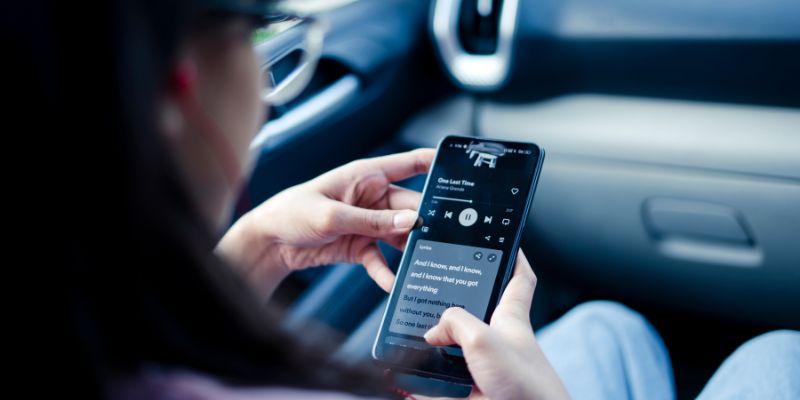
- Music and Entertainment: Play your Spotify or podcast apps directly through your car’s audio system.
- Navigation Made Easy: Use Google Maps or Waze on your car’s display for clear, distraction-free directions.
- Stay Connected: Sync your contacts and messages so you’re always reachable without fumbling for your phone.
I’ve found that pairing my phone makes long drives feel less stressful and more fun. Plus, it’s a game-changer for staying safe while staying connected.
Different Ways to Connect Your Samsung Phone to Your Car
There are a few ways to pair your Samsung phone to your car, and I’ve tried them all to see what works best. The method you choose depends on your car’s features and what you’re trying to do—like listening to music or using navigation. Let’s break down the main options.
Bluetooth Connection
Bluetooth is the most common way to pair your Samsung phone to your car. It’s wireless, easy to set up, and works with most modern vehicles. I use Bluetooth all the time because it’s reliable for calls and music.
Here’s how I do it:
- Turn on your car’s stereo and put it in pairing mode. Check your car’s manual if you’re not sure how—some cars have a Bluetooth button, while others require you to dig into the settings menu.
- On your Samsung phone, go to Settings > Connections > Bluetooth and toggle it on.
- Your phone will scan for devices. When your car’s name pops up under “Available Devices,” tap it.
- A pairing code might appear on both your phone and car’s display. Confirm they match, then tap Pair on your phone.
- Once connected, you should see a confirmation on your phone. Now you can stream music or make calls through your car’s speakers.
Pro Tip: If your car supports advanced Bluetooth features, you might also control media playback or access contacts. But some older cars only support basic functions like calls, so check your car’s manual for details.
Android Auto
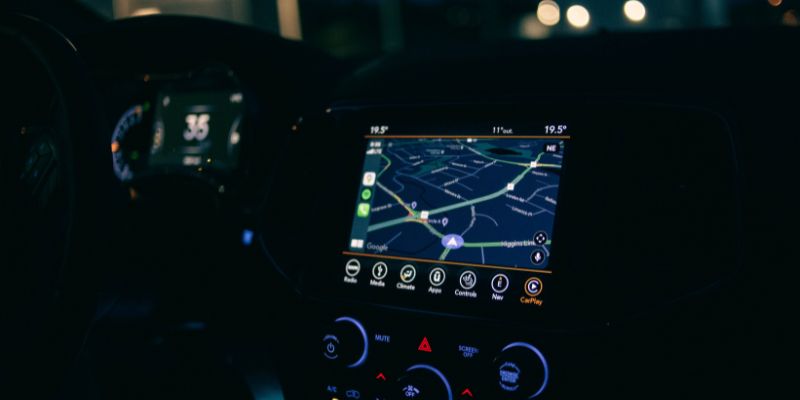
Android Auto is my go-to for a fully integrated experience. It lets you use apps like Google Maps, Spotify, or WhatsApp directly on your car’s touchscreen. I love how it mirrors my phone’s interface onto the car’s display—it feels like my phone and car are working as one.
Here’s how I set up Android Auto:
- Check if your car supports Android Auto. Most newer models (2016 and up) do, but you can confirm with your car’s manufacturer.
- If your phone runs Android 10 or higher, Android Auto is built-in. For older versions, download the Android Auto app from the Google Play Store.
- Connect your phone to your car using a high-quality USB cable (I use the one that came with my Samsung phone for best results). Some cars support wireless Android Auto, but you’ll need to pair via Bluetooth first.
- Follow the on-screen prompts on your car’s display. You might need to tap Android Auto to launch it.
- Once connected, your car’s screen will show a simplified interface with apps optimized for driving.
Note: For wireless Android Auto, ensure your phone’s Bluetooth, Wi-Fi, and Location Services are on during setup. Also, keep your car in park for the initial connection—it’s a safety thing.
USB Cable Connection
If Bluetooth isn’t an option, a USB cable is a solid backup. I’ve used this method in older cars that don’t have Bluetooth. It’s straightforward but requires a cable, so it’s not as sleek as wireless options.
Here’s what I do:
- Plug a USB cable into your car’s USB port and the other end into your Samsung phone.
- Your car’s stereo should detect the phone. Select the USB option on your car’s audio source menu.
- On your phone, swipe down to see the USB notification. Tap it and select File Transfer or Media Device (MTP) for audio playback.
- You can now play music stored on your phone through the car’s speakers.
Tip: Use a high-quality USB cable. Cheap ones can cause connection issues, which I learned the hard way when my music kept cutting out.
Auxiliary (AUX) Cable
For really old cars with no Bluetooth or USB, an AUX cable is your friend. I’ve used this in my friend’s vintage car, and it’s super simple.
Here’s how:
- Plug one end of a 3.5mm AUX cable into your phone’s headphone jack (or use a USB-C to 3.5mm adapter if your Samsung phone doesn’t have a jack).
- Plug the other end into your car’s AUX port.
- Set your car’s stereo to the AUX input.
- Play music or audio from your phone, and it’ll come through the car’s speakers.
Heads-Up: AUX cables only handle audio, so you won’t get hands-free calling or navigation features like with Bluetooth or Android Auto.
Cassette Adapter (Yes, Really!)
If your car has a cassette player, you can use a cassette adapter. I tried this in my dad’s old truck, and it felt like stepping back in time—but it worked!
Here’s the process:
- Insert the cassette adapter into your car’s cassette slot.
- Connect the adapter’s cable to your phone’s headphone jack or use a USB-C adapter.
- Set your car’s stereo to cassette mode.
- Play audio from your phone, and it’ll play through the car’s speakers.
Note: Cassette adapters are rare these days, but you can find them online if your car is a retro gem.
| Connection Method | Best For | Pros | Cons |
|---|---|---|---|
| Bluetooth | Calls, music, basic navigation | Wireless, easy to set up, widely supported | Limited features in older cars |
| Android Auto | Full app integration (maps, music, messaging) | Seamless interface, voice controls | Requires compatible car, setup can be tricky |
| USB Cable | Music playback | Reliable, no battery drain | Wired, limited to audio |
| AUX Cable | Older cars, music only | Simple, cheap | Audio-only, no hands-free features |
| Cassette Adapter | Vintage cars with cassette players | Works in old cars | Audio-only, adapters hard to find |
Troubleshooting Common Pairing Issues
I’ve hit a few snags when pairing my Samsung phone to my car, so let me share some fixes that saved me a lot of frustration.
Bluetooth Won’t Connect
If Bluetooth isn’t working:
- Check Compatibility: Ensure your car’s Bluetooth is compatible with your phone. Some older systems don’t play nice with newer Samsung models.
- Restart Everything: Turn off Bluetooth on both your phone and car, then turn them back on. I’ve fixed many issues just by restarting.
- Clear Paired Devices: Go to your phone’s Bluetooth settings and “Forget” your car. Then try pairing again from scratch.
- Update Software: Make sure your phone’s software is up to date. Go to Settings > Software Update and check for updates.
Android Auto Not Working
If Android Auto is acting up:
- Use a Good Cable: A low-quality USB cable can cause problems. Stick with Samsung’s cable or a trusted brand.
- Check Permissions: When you connect, your phone might ask for permissions. Allow data transfer and any Android Auto prompts.
- Update the App: Ensure Android Auto is updated via the Play Store. I once spent an hour troubleshooting, only to realize my app was outdated.
- Car Compatibility: Double-check your car supports Android Auto. If it’s wireless, confirm your phone supports wireless Android Auto (most Samsung Galaxy models do).
No Sound Through Car Speakers
If you’re connected but hear no sound:
- Check Audio Source: Make sure your car’s stereo is set to the right input (Bluetooth, USB, or AUX).
- Volume Settings: Ensure both your phone and car’s volume are turned up. I’ve made this mistake more times than I’d like to admit!
- Test Another App: Try playing audio from a different app (like YouTube or Spotify) to rule out app-specific issues.
Connection Keeps Dropping
If the connection is unstable:
- Reduce Interference: Bluetooth can be disrupted by other devices. Turn off nearby Wi-Fi or Bluetooth gadgets.
- Check Battery: A low phone battery can cause connection issues. Keep your phone charged or plug it in.
- Update Firmware: Check if your car’s infotainment system needs a firmware update. Contact your car dealer for help.
Tips for a Better Pairing Experience
After pairing my Samsung phone to multiple cars over the years, I’ve picked up some tricks to make the process smoother and more enjoyable.
Keep Your Phone Updated
Samsung regularly releases software updates that improve Bluetooth and Android Auto performance. I always check for updates before a long trip. Go to Settings > Software Update > Download and Install to stay current.
Use Quality Accessories
A cheap USB or AUX cable can ruin your experience. I learned this when a dollar-store cable kept disconnecting during a road trip. Stick with high-quality cables, preferably the one that came with your phone.
Organize Your Apps for Android Auto
With Android Auto, you can customize which apps appear on your car’s display. I like to keep only essentials like Google Maps, Spotify, and Messages to avoid clutter. Go to the Android Auto app on your phone and tweak the settings.
Test Before You Drive
Always test your connection before hitting the road. I once thought my Bluetooth was working, only to realize mid-drive that it wasn’t. A quick test in your driveway can save you hassle later.
Stay Safe
Pairing your phone is about safety, so don’t mess with settings while driving. If you need to troubleshoot, pull over or do it before you start. I always set up my navigation and music playlist before leaving the garage.
Advanced Features to Explore
Once your phone is paired, you can unlock some cool features to enhance your drive. Here are a few I’ve experimented with:
Voice Commands with Google Assistant
Android Auto integrates with Google Assistant, so you can use voice commands like “Hey Google, navigate to the nearest coffee shop” or “Play my road trip playlist.” It’s a lifesaver when I’m driving and don’t want to touch my phone.
Wireless Android Auto
If your car and phone support wireless Android Auto, it’s a game-changer. No cables, just seamless connectivity. I set this up in my new car, and it feels like magic. Just pair via Bluetooth first, and Android Auto should connect automatically afterward.
Customizing Your Car’s Display
Some cars let you tweak the Android Auto interface, like rearranging apps or changing themes. I spent an afternoon playing with my car’s settings to make the display feel just right.
Multi-Device Pairing
If you share your car with someone else, you can pair multiple phones via Bluetooth. I’ve set up both my phone and my spouse’s, so we can switch easily. Just make sure only one phone is connected at a time to avoid conflicts.
Common Mistakes to Avoid
I’ve made my share of mistakes when pairing my phone, so let me save you some trouble:
- Skipping the Manual: Every car is different. Check your car’s manual for specific Bluetooth or Android Auto instructions.
- Using Old Cables: A worn-out USB or AUX cable can cause issues. Invest in a good one.
- Forgetting to Update: Outdated phone or car software can break connectivity. Keep everything current.
- Overcomplicating It: Start with Bluetooth for simplicity. You don’t always need Android Auto for basic tasks like music or calls.
Why I Love Pairing My Samsung Phone to My Car
Pairing my Samsung phone to my car has transformed my driving experience. Whether I’m jamming to my favorite tunes, getting turn-by-turn directions, or chatting hands-free with friends, it makes every trip more enjoyable. I remember my first road trip after setting up Android Auto—I felt like I was driving a futuristic car with all my apps right on the dashboard. It’s not just about convenience; it’s about making driving safer and more fun.
If you’re hesitant, don’t be. Take it one step at a time, start with Bluetooth, and work your way up to Android Auto if your car supports it. You’ll wonder how you ever drove without it. Got any questions? I’ve got you covered with some FAQs below. Happy driving!
FAQs
How Do I Know If My Car Supports Android Auto?
Check your car’s manual or contact the manufacturer. Most cars made after 2016 with a touchscreen display support Android Auto. You can also look for the Android Auto logo on your car’s infotainment system.
Why Is My Bluetooth Not Finding My Car?
Ensure your car’s stereo is in pairing mode and Bluetooth is enabled on your phone. Restart both devices, clear any old paired devices, and try again. Interference from other devices can also cause issues, so turn off nearby Wi-Fi or Bluetooth gadgets.
Can I Use Android Auto Without a USB Cable?
Yes, if your car and phone support wireless Android Auto. You’ll need to pair via Bluetooth first, and keep Wi-Fi and Location Services on. Not all Samsung phones or cars support wireless, so check compatibility.
What If My Car Only Has an AUX Port?
Use a 3.5mm AUX cable or a USB-C to 3.5mm adapter if your phone lacks a headphone jack. Plug it into your car’s AUX port, select AUX as the audio source, and play music from your phone. It won’t support calls or navigation, though.
Why Does My Android Auto Keep Disconnecting?
This could be due to a low-quality USB cable, outdated software, or a loose connection. Use a high-quality cable, update your phone and the Android Auto app, and ensure the USB port is secure. If it’s wireless, check for Bluetooth interference.