How to Get SiriusXM in Your Car: App, CarPlay & Android Auto Setup
SiriusXM setup trips up plenty of new subscribers, especially anyone who assumes every plan works the same way in every car. Between Bluetooth pairing, Apple CarPlay, and Android Auto, the method that actually works depends on your phone, your dashboard, and — more than most people expect — your subscription tier. This guide walks through getting SiriusXM in your car through each connection method, how to link your vehicle to your account, and what to try when the app refuses to connect.
Quick Answer
To get SiriusXM in your car: download the SiriusXM app, log in to your account, then connect your phone via Bluetooth, USB, or aux cable. For Apple CarPlay, plug your iPhone into your car’s USB port and select SiriusXM from the dashboard. For Android Auto, you need a Platinum or All Access subscription — a streaming-only plan won’t work.
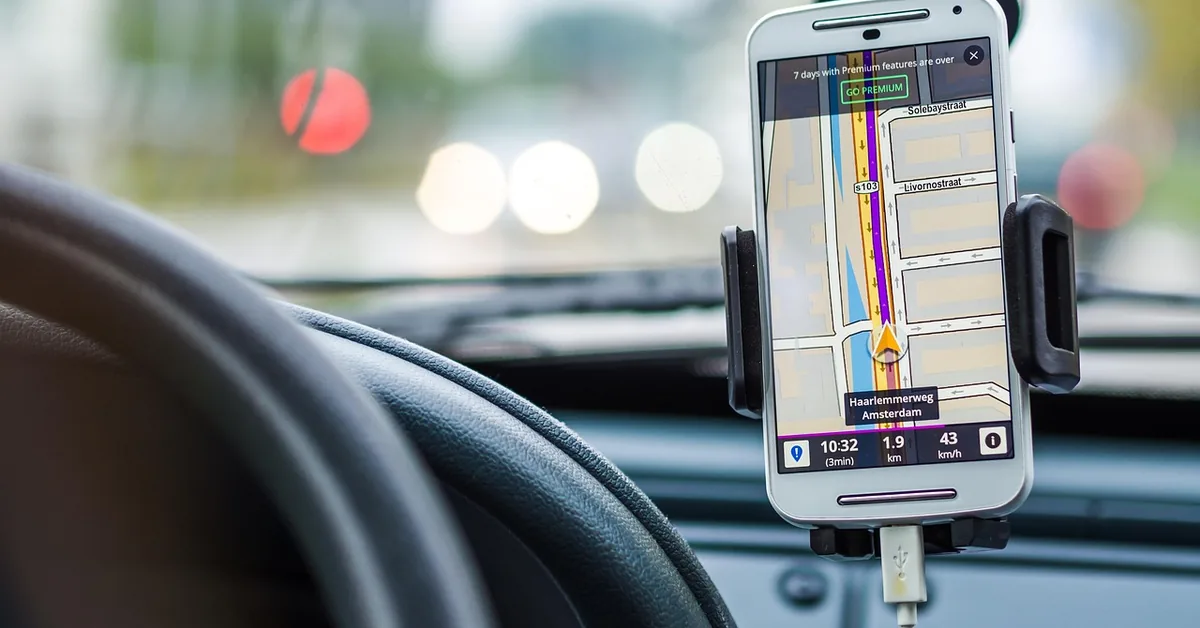
How to Get SiriusXM on Your Car
Getting SiriusXM in your car through the app takes five steps regardless of connection method. The key difference is Step 3 — how you physically connect your phone to your car’s audio system.
- Download the SiriusXM app: Search “SiriusXM” in the App Store (iOS) or Google Play Store (Android) and install the official app.
- Create or log in to your account: Open the app and sign in with your SiriusXM credentials. If you don’t have an account, visit siriusxm.com to subscribe — plans start with streaming-only options.
- Choose your connection method: Select Bluetooth (wireless), USB/aux cable (wired), Apple CarPlay, or Android Auto based on what your car supports. Each method is covered in detail below.
- Open the SiriusXM app on your phone: Once connected, your phone audio routes through your car speakers. Select a channel or station from within the app.
- Adjust audio source on your car stereo: Switch your car’s input to Bluetooth, USB, or auxiliary — whichever matches your connection. You should hear SiriusXM through your car’s speakers within seconds.
If you want to add a built-in satellite radio to your account instead of streaming through the app, skip to the “How to Add Your Vehicle” section below — that process uses your radio’s ESN/Radio ID instead of the app.
Connecting Your Mobile Device To Your Car Stereo
Connecting your mobile device to your car stereo is the foundation of app-based SiriusXM listening. There are three wired and wireless options, and Bluetooth is by far the most common since virtually every car made after 2012 supports it.
Using Bluetooth (Recommended for Most Cars)
Bluetooth streaming is wireless, requires no cables, and works with the SiriusXM app on both iOS and Android. Follow these steps to pair your phone:
- Enable Bluetooth on your phone: Go to Settings → Bluetooth and toggle it on.
- Put your car stereo in pairing mode: Most head units have a Bluetooth or Phone button. Hold it until the display shows “Pairing” or a flashing Bluetooth icon.
- Select your car on your phone: Your car’s name appears in the available devices list. Tap it to connect.
- Confirm the pairing code: Some stereos show a 4- or 6-digit code — confirm it matches on both devices.
- Set the car stereo source to Bluetooth: Press the source or input button until it shows BT Audio or Bluetooth.
- Open the SiriusXM app and play a channel: Audio streams from your phone through the car speakers.
If audio cuts out or skips, it’s usually a cellular data issue rather than Bluetooth — SiriusXM streams over your phone’s internet connection, not over the satellite signal when using the app. If you frequently lose signal, check out our guide on how to sync your phone to your car for troubleshooting Bluetooth pairing problems.
Using a USB or Auxiliary Cable
If your car doesn’t support Bluetooth or you want a more stable connection, a USB or 3.5mm aux cable works with any car stereo that has those inputs. Plug the cable from your phone’s headphone jack or USB port into the car’s aux-in or USB port, then set your stereo’s input to AUX or USB. The SiriusXM app plays through the speakers immediately — no pairing required.
Integration With Car Systems
SiriusXM integration with Apple CarPlay and Android Auto streams through your phone’s cellular data connection — it does not use the car’s built-in satellite antenna. This distinction matters because it means you need both the SiriusXM app and an active data plan, not just a satellite radio subscription.
How to Use SiriusXM with Apple CarPlay
Apple CarPlay works with any active SiriusXM streaming plan, including streaming-only subscriptions. You do not need a separate satellite radio subscription for CarPlay.
- Install the SiriusXM app on your iPhone: Download it from the App Store and log in to your account.
- Connect your iPhone to your car: For wired CarPlay, plug in using an Apple-certified Lightning or USB-C cable. For wireless CarPlay, go to your iPhone’s Settings → General → CarPlay and select your car from the list.
- Select SiriusXM from the CarPlay home screen: The SiriusXM icon appears on your car’s touchscreen. Tap it to open the app.
- Browse and play channels: Use the touchscreen or Siri voice commands to switch channels, pause, or access your favorites. SiriusXM streams through your iPhone’s data connection.
If SiriusXM doesn’t appear on the CarPlay home screen, check that CarPlay is enabled for the SiriusXM app by going to iPhone Settings → Screen Time → Content & Privacy Restrictions → Allowed Apps, and confirm CarPlay is not restricted.
How to Use SiriusXM with Android Auto
Android Auto has stricter subscription requirements than CarPlay. You need a SiriusXM trial or a paid plan that includes streaming — specifically: Platinum, Music & Entertainment, All Access (App Only), Streaming Music & Entertainment, Student All Access, or Streaming Music Showcase. A basic satellite-only subscription does not include streaming and won’t work with Android Auto.
- Confirm your subscription includes streaming: Log in at siriusxm.com and check your plan. If it doesn’t include app streaming, upgrade before proceeding.
- Download the SiriusXM app from Google Play: Install it on your Android phone and log in.
- Connect your phone to your car: Use a USB cable for wired Android Auto, or ensure wireless Android Auto is supported and enabled on both your phone and car.
- Select SiriusXM from the Android Auto interface: It appears in the media apps section. Tap to open and start streaming.
How to Add Your Vehicle to Your SiriusXM Account
If your car has a built-in SiriusXM satellite radio (most vehicles sold since 2013 include a trial subscription), you need to link it to your account separately from the app. Visit siriusxm.com/linkmyvehicle or use the steps below through the Online Account Center.
- Find your Radio ID (ESN): Tune your car’s built-in radio to Channel 0 or Channel 1. The Radio ID — an 8-character alphanumeric code — displays on screen. You can also find it in your car’s owner manual or on a sticker inside the glove box.
- Log in to your SiriusXM account: Go to siriusxm.com and sign in, or call (855) 236-9236 to add a vehicle by phone.
- Select “Add Car + Streaming” on your dashboard: This option links a new vehicle radio to your existing account and optionally adds streaming access.
- Enter your Radio ID when prompted: Type the exact code as shown on Channel 0/1. Confirm the vehicle information that appears.
- Choose your subscription plan: If your car came with a trial, you’ll see options to continue with a paid plan. If transferring from an old car, select “Transfer Service” to move your existing subscription to the new vehicle without losing your billing date.
After completing setup, tune your satellite radio to any SiriusXM channel — it may take up to 15 minutes for the activation signal to reach your vehicle’s satellite receiver. If it’s still not working after 30 minutes, call SiriusXM Listener Care at (855) 236-9236.
Troubleshooting Common Connection Issues
Most SiriusXM connection problems fall into one of three categories: app streaming issues (data/account related), Bluetooth audio problems (pairing or audio routing), or satellite radio activation failures. Here’s how to fix each.
SiriusXM App Won’t Play or Keeps Buffering
Buffering is almost always a cellular data issue, not a SiriusXM problem. Check that your phone has at least 2–3 bars of LTE or 5G signal. If signal is fine, force-close the SiriusXM app, turn airplane mode on for 10 seconds, then turn it off and reopen the app. This resets the network connection. If buffering continues, go to your phone’s Settings → Apps → SiriusXM → Storage and clear the cache.
Bluetooth Audio Sounds Low Quality or Cuts Out
Low-quality Bluetooth audio is often caused by codec mismatch between your phone and car stereo. On Android, enable the Developer Options and set the Bluetooth audio codec to aptX or LDAC if your car supports it. On iPhone, no codec settings are available — ensure your car stereo firmware is up to date. If audio cuts in and out, the issue is usually phone-to-car distance or interference; keep your phone within 3 feet of the head unit for best results.
SiriusXM Not Showing on CarPlay or Android Auto
If the SiriusXM app doesn’t appear in CarPlay or Android Auto, the fix is almost always the same: uninstall the SiriusXM app, restart your phone, reinstall the app, log back in, then reconnect to CarPlay/Android Auto. Also confirm the app has permissions for background data and media access in your phone settings. For Android Auto specifically, confirm your subscription includes streaming — satellite-only plans are not compatible.
For additional help, SiriusXM Listener Care is available 24/7 at (866) 635-2349 or via chat at siriusxm.com/contact.
Managing Your SiriusXM Subscription
To adjust your plan or add streaming to an existing satellite radio subscription, log in to your account at siriusxm.com and select “Manage My Account.” From there you can upgrade to a plan that includes app streaming, add a second vehicle, or transfer service from an old car to a new one. To add a new vehicle as a second radio, select “Add Another Subscription” under the Get Subscription tab and enter the new Radio ID.
Frequently Asked Questions
Can I use SiriusXM in my car without a subscription?
No — SiriusXM requires an active subscription to stream or receive satellite content. However, many new cars include a free trial (typically 3 months) when you buy the vehicle. You can also get a free trial through the SiriusXM app on your phone. After the trial, you need a paid plan to continue listening.
Does SiriusXM use my phone data when streaming in the car?
Yes. When you stream SiriusXM through the app via Bluetooth, CarPlay, or Android Auto, it uses your phone’s cellular data — not the car’s satellite receiver. SiriusXM typically uses about 64 kbps, which equals roughly 29 MB per hour of listening. If you have a built-in SiriusXM satellite radio in your car, that system uses the satellite signal and does not consume mobile data.
Why is my SiriusXM app not connecting to my car?
The most common causes are: Bluetooth not selected as the car stereo input, the SiriusXM app not running in the foreground, or a stale Bluetooth pairing. Fix: go to your car’s Bluetooth settings and forget the connection, then re-pair your phone from scratch. For CarPlay and Android Auto, try uninstalling and reinstalling the SiriusXM app, then reconnecting.
Can I have SiriusXM on my phone and in my car at the same time?
Yes — most SiriusXM plans allow streaming on the app (phone/tablet) and satellite radio in your car simultaneously under the same subscription. The satellite radio in your car and the app on your phone are treated as separate access points. For details on managing multiple vehicles or devices on one account, see our guide on having SiriusXM in 2 cars.
How do I use SiriusXM if my car doesn’t have Bluetooth or CarPlay?
If your car lacks Bluetooth and CarPlay, connect via a 3.5mm aux cable from your phone’s headphone jack to the car’s aux-in port. If your car has no aux-in either, an FM transmitter plugs into your phone’s charging port and broadcasts the SiriusXM audio on an unused FM frequency that you tune your car radio to — it’s not as clean as a direct connection, but works in older vehicles.
Conclusion
Getting SiriusXM in your car comes down to choosing the right connection method for your vehicle — Bluetooth for wireless simplicity, CarPlay or Android Auto for an integrated touchscreen experience, or a direct cable if you have an older stereo. For built-in satellite radios, the linkmyvehicle process takes about five minutes and activates within 15 minutes. If you run into connection problems, the fastest fix is usually reinstalling the app and re-pairing the Bluetooth connection from scratch.
Products related to this article
Sponsored / affiliate links. As an Amazon Associate I earn from qualifying purchases. I may earn additional commission from eligible campaigns.