How to Sync Your Phone to Your Car: Bluetooth, USB & CarPlay
To sync your phone to your car, pick the method your dashboard actually supports: Bluetooth pairing for calls and music, a USB cable for Apple CarPlay or Android Auto, or a wireless version of CarPlay or Android Auto that starts with a one-time Bluetooth pairing. The right choice depends on what ports and screens your car has, not on how new it is. Below you get each setup flow for iPhone and Android, plus a table that matches your car’s features to the best connection method.
Quick Answer
Park the car, turn on Bluetooth on your phone, put the car stereo in pairing mode, pick the car from the phone’s list and confirm the code on both screens. For CarPlay or Android Auto, plug into the USB port marked with a phone or CarPlay icon (or, for wireless, pair over Bluetooth first). Do all of it before you drive.
Ways to Sync Your Phone to Your Car
Best Wireless CarPlay + Android Auto Pick
|
fidesert Wireless CarPlay and Android Auto Adapter, 2-in-1 for Factory Wired CarPlay/Android Auto If your car already runs CarPlay or Android Auto over a USB cable, this dongle is meant to make the same connection wireless.
As an Amazon Associate we earn from qualifying purchases. We have not hands-on tested this adapter; claims come from the listing. Check the listing for price and availability. |
There are four common ways to connect a phone to a car, and many cars offer more than one. Bluetooth is the simplest: it carries calls and audio, and some cars show text messages and contacts too. A USB cable can charge the phone, play music and, if the port supports it, run CarPlay or Android Auto. Wireless CarPlay and wireless Android Auto give you the full phone-style screen without a cable. If your stereo is the problem, see our guide to the best Bluetooth adapters for cars.
Which Connection Method Fits Your Car? A Decision Table
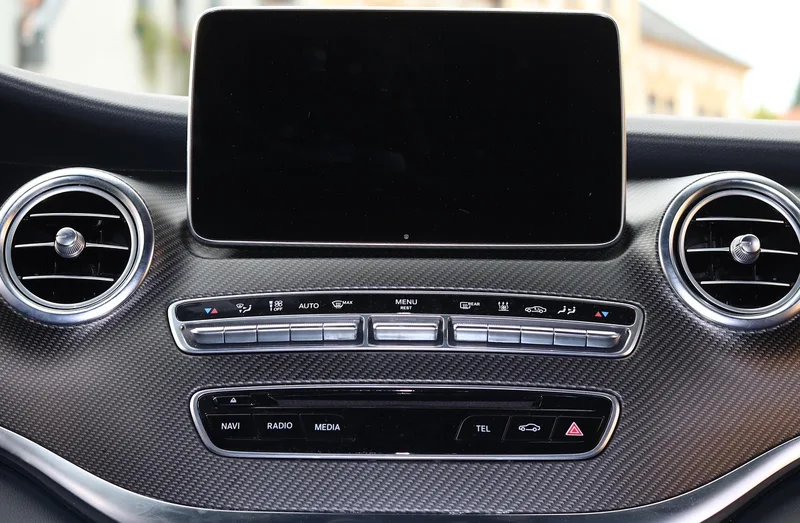
Start from what your car has, find the row, and use the method in the second column. If you are not sure which row you are in, look at your USB ports (is there a phone or CarPlay icon beside one?) and at the stereo menu (is there a Bluetooth or Phone entry?).
| Your car has… | Best method | What to do | Watch out for |
|---|---|---|---|
| Built-in Bluetooth, no CarPlay or Android Auto | Bluetooth pairing | Pair once in the Phone or Bluetooth menu; the car reconnects on later drives | Calls and audio only; apps and maps stay on the phone |
| USB port with a CarPlay or phone icon, wired CarPlay or Android Auto | USB cable | Plug in with a good data cable and accept the prompts on the phone | A charge-only cable or a charge-only USB port will not start it |
| USB-A ports only, newer phone with USB-C | USB cable with the right ends | Use a USB-C to USB-A data cable, or an adapter, in the data port | Cheap adapters and long cables are common causes of dropouts |
| USB-C port in the car | USB-C to USB-C cable | Use the port marked for phone connection if the car labels one | Not every USB-C port is a data port; some only charge |
| Factory wireless CarPlay or wireless Android Auto | Wireless, set up once | Pair over Bluetooth first, then follow the on-screen prompts and allow Wi-Fi | Keep Bluetooth, Wi-Fi and Location on during Android Auto setup (per Google) |
| Wired CarPlay or Android Auto only, but you want no cable | Wireless adapter | Plug a wireless adapter into the data port, pair once, follow its steps | Only works if the car already supports the wired version |
| Older stereo with AUX input only | AUX cable or Bluetooth receiver | Plug into AUX and pick AUX on the stereo, or add a Bluetooth receiver | Audio only; no hands-free calling without a receiver with a microphone |
| No Bluetooth, no AUX, no USB data | Bluetooth adapter or head unit upgrade | See the adapter guide linked above | FM transmitters add hiss and need a clear channel |
Two of those rows catch most people. First, a USB port that charges is not necessarily a USB port that connects: Apple’s CarPlay support page tells you to use the USB port marked with a CarPlay or smartphone icon. Second, wireless CarPlay and wireless Android Auto both depend on a Bluetooth pairing or a wireless-mode setup first, so a failed Bluetooth pairing can break the wireless setup too.
Syncing with Bluetooth
Pair your phone for the first time
Do this while parked. Exact menu names differ by car, so keep the owner’s manual handy, but the flow is nearly always the same.
- On the car stereo, open the Phone or Bluetooth menu and choose Add Device, Pair or Discoverable. Some cars start pairing when you press and hold the voice button on the steering wheel.
- On an iPhone, open Settings > Bluetooth and turn it on. On an Android phone, open Settings, find Bluetooth (often under Connected devices) and turn it on.
- Pick the car’s name from the phone’s list of nearby devices.
- Check that the code shown on the phone matches the code on the car screen, then accept on both. If the car asks for a PIN and none is shown, your manual lists the default.
- Allow the prompts to share contacts and messages if you want caller names and text read-outs. You can decline and still make calls.
- Make a test call and play a short audio clip before you pull away.
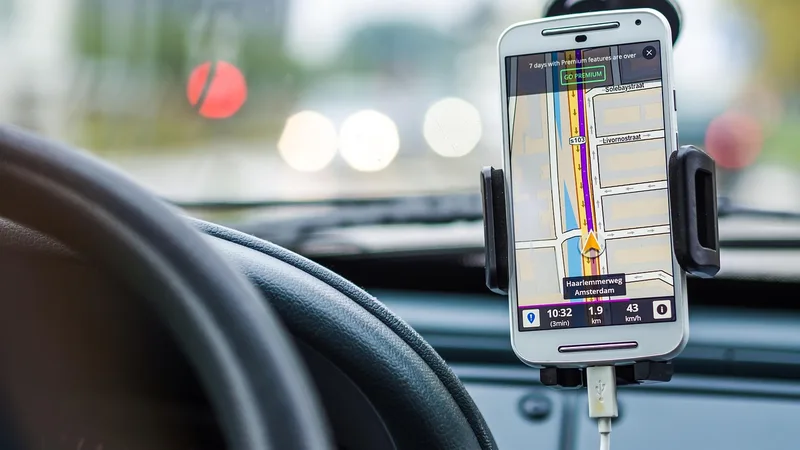
If pairing fails
Delete the car from the phone’s Bluetooth list and delete the phone from the car’s device list, then restart both and pair again from scratch. Most pairing failures come from a stale entry on one side. For a full fault-finding list, see why Bluetooth is not working in your car and the proven fixes.
Syncing with a USB Cable
USB is the right fallback when Bluetooth is flaky, and it is the base for wired CarPlay and wired Android Auto. It also charges the phone, which helps because streaming and navigation drain the battery.
- Start the car and unlock the phone.
- Plug the cable into the car port marked with a CarPlay or phone icon. If none is marked, try each USB port.
- Choose the USB or Phone source on the stereo if it does not switch by itself.
- Accept any prompts on the phone, such as allowing the car to access music or contacts.
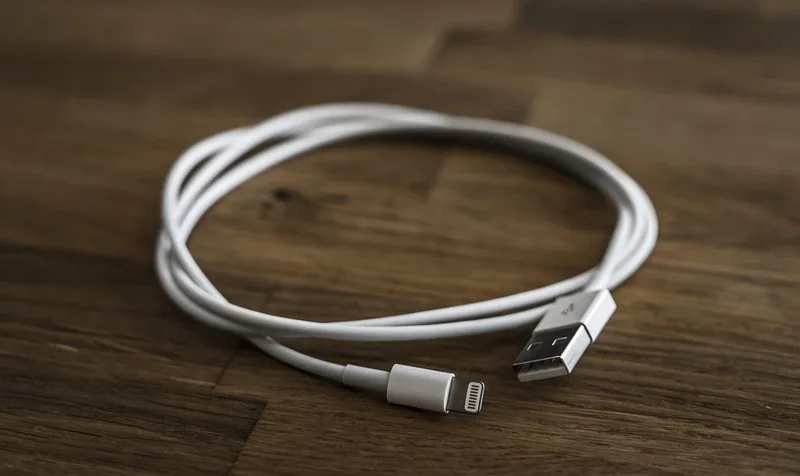
If nothing happens, swap the cable first. Apple’s CarPlay support page names a Lightning to USB cable for wired CarPlay on iPhones that use Lightning, and points to a USB-C adapter for cars with USB-C connectors. Cables that are very long, damaged or sold only for charging are the usual culprits.
Using Android Auto or Apple CarPlay
Both systems put a phone-style interface on the car screen: maps, calls, messages, music and voice control. They need a car, or an aftermarket stereo, that supports them. Check your manual or the screen menus before buying cables or adapters.
Apple CarPlay (iPhone)
Apple’s support page lists these requirements: your country must support CarPlay, your car must support it and Siri must be turned on.
- Wired: start the car, make sure Siri is on, then plug the iPhone into the USB port marked with a CarPlay or smartphone icon. If the car supports wireless, an alert on the iPhone can offer to connect wirelessly next time.
- Wireless: start the car and make sure Siri is on, press and hold the voice command button on the steering wheel, set the stereo to wireless or Bluetooth mode, then on the iPhone turn on Wi-Fi under Settings, turn on Auto-Join for the CarPlay network and finish under Settings > General > CarPlay by selecting your car. Check your manual for car-specific steps.
Android Auto
Google’s Android Auto help page says to park the car with the infotainment system on, that the phone must meet the minimum requirements and the car must be compatible, and that the phone needs mobile data service.
- Wired: with the car in park (P), plug a USB cable into the car’s USB port and the phone, then follow the on-screen prompts. You may be asked to update Android Auto first.
- Wireless: pair the phone with the car over Bluetooth the first time, keeping Bluetooth, Wi-Fi and Location on during setup. On many cars you press and hold the steering-wheel voice button to open the pairing menu. After pairing, Android Auto should start within a few seconds; if it does not, start it from the prompts or tap Android Auto on the car display.
CarPlay or Android Auto: Which Is Better?
Neither is better in general: CarPlay only works with iPhone and Android Auto is built for Android phones. The more useful question is whether your car supports wireless or only wired. If it is wired-only and the cable annoys you, a wireless adapter that states compatibility with factory wired CarPlay or Android Auto is the lower-cost route, as with the pick above. If music is the main reason you connect, our guide to playing music from your phone over Bluetooth in the car covers that side.
How to Optimize Your Phone for Hands-Free Car Usage
Syncing is only half the job. Set the phone up so you never need to touch it while driving. NHTSA counts talking or texting on a phone and adjusting the stereo, entertainment or navigation system as distractions, and it reports 3,208 people killed in crashes involving distracted drivers in 2024. Treat every step below as a parked task.
Enable Do Not Disturb (Driving Mode)
On an iPhone, the Driving Focus under Settings > Focus can silence notifications and send an automatic reply, and it can turn on automatically when the phone detects driving or connects to the car’s Bluetooth. On Android phones, look for a Driving mode or Do Not Disturb schedule in Settings; the name varies by maker. Set it to start automatically.
Set Up Voice Commands Before You Drive
Turn on Siri or Google Assistant and test a few commands while parked: call a contact, read my last message, navigate to an address, play a playlist. The steering-wheel voice button usually starts your phone’s assistant, but some cars use it for their own voice system instead.
Pre-Load Navigation and Music Before Driving
Enter the destination, download offline maps if your route has weak coverage, and pick the playlist before you shift out of park. If you want better audio once everything is synced, see our equalizer settings guide.
Why Will My Phone Not Connect to My Car?
If a pairing or cable swap does not fix it (stale pairing entry, wrong USB port, charge-only cable, Siri or Wi-Fi off), check the connection troubleshooting sections that Google and Apple publish for Android Auto and CarPlay, and your car maker’s manual. An infotainment software update at a dealer can also fix pairing bugs that cannot be solved on the phone. For a less technical walkthrough of the same task, see how do I sync my phone to my car, and for streaming apps see connecting the SiriusXM app to your car. To show your phone screen on the car display another way, see how to mirror your phone to the car screen.
Driving an older car with a cassette deck, an AUX jack only, or just a radio? See our guide to connecting your phone to a car stereo or radio for AUX, cassette adapter and FM transmitter options.
Safety: Set Up While Parked
Do all pairing, cable swaps, app settings and destination entry with the car in park. NHTSA lists fiddling with the stereo, entertainment or navigation system as a form of distraction, and notes that its figures are likely underreported. If a prompt appears while you are driving, ignore it until you stop. If the car refuses to let you add a device while moving, that is a deliberate lockout: pull over somewhere safe rather than looking for a workaround. See NHTSA’s distracted driving page for the official figures.
Frequently Asked Questions
How to sync my phone to my car with Bluetooth?
While parked, turn on Bluetooth on your phone, put the car stereo in pairing mode, select the car from the phone’s list, confirm the matching code on both screens and accept the prompts for contacts and audio. Your owner’s manual shows the exact stereo menu.
Can I sync my phone to my car without Bluetooth?
Yes. Use a USB cable if the port supports data or CarPlay and Android Auto, an AUX cable if the car has an AUX input, or add a Bluetooth adapter or FM transmitter to an older car.
Why won’t my phone connect to my car?
Common causes are a stale pairing entry, Bluetooth off, a charge-only cable or USB port, or a car that is not in pairing mode. Delete the pairing on both sides and start again, or swap to a data-rated cable.
Is Android Auto or Apple CarPlay better for syncing?
Neither is better overall. CarPlay is for iPhone and Android Auto is for Android phones. Check whether your car supports wired or wireless versions, because that matters more than the brand.
How do I know if my car supports syncing?
Look for a Phone or Bluetooth menu on the stereo, a CarPlay or Android Auto logo on the screen, or a USB port marked with a phone or CarPlay icon. The owner’s manual and the car maker’s site list supported features.
What should I do if syncing drains my phone battery?
Plug the phone into a car charger during navigation and wireless CarPlay or Android Auto, keep screen brightness reasonable and turn off features you do not need.
Are there safety tips for syncing my phone to my car?
Yes. Do all setup while parked, turn on Do Not Disturb or Driving mode, test voice commands before you start and enter destinations before you shift out of park.
Conclusion
Match the connection to your car: Bluetooth for basic calls and audio, a data cable for wired CarPlay or Android Auto, and a wireless setup if your car supports it or a compatible adapter if it only supports the wired version. Set it up while parked, test the voice commands and calls, and keep Driving mode on. Setup details come from the Apple Support and Google Android Auto Help pages named above; your owner’s manual covers anything model-specific.
Products related to this article
Sponsored / affiliate links. As an Amazon Associate I earn from qualifying purchases. I may earn additional commission from eligible campaigns.