How to Connect Your Phone Audio to Car Bluetooth
Connecting your phone’s audio to your car’s Bluetooth is something many people want to do. It makes listening to music, podcasts, or taking calls much easier while you drive. Sometimes, figuring out exactly how to make this happen can feel a bit tricky, especially if you’re not super tech-savvy.
Don’t worry, it’s usually quite simple once you know the steps. We’ll walk you through exactly what you need to do, step by step, so you can enjoy your audio wirelessly in your car.
Why Connect Phone Audio to Car Bluetooth
Linking your phone’s sound to your car’s speakers via Bluetooth is a popular goal for drivers. It dramatically improves your in-car entertainment and communication experience. This technology lets you stream music directly from your phone without messy wires.
You can also safely take hands-free phone calls. Many drivers find this connection frustrating if they haven’t done it before. This guide will make it clear and easy for everyone.
We will cover the basics and some common issues you might face.
What is Bluetooth Technology
Bluetooth is a short-range wireless technology. It lets devices talk to each other without cables. Think of it like a tiny invisible radio wave.
Your phone has a Bluetooth chip, and so does your car. When you turn on Bluetooth on both, they can find each other. They then create a secure link.
This link lets data, like audio, travel between them. It’s different from Wi-Fi, which is for internet. Bluetooth is mainly for connecting peripherals and transferring small amounts of data.
The technology uses radio waves in a specific frequency band. This band is shared with other devices, but Bluetooth has ways to avoid interference. It can hop between different frequencies very quickly.
This makes the connection stable and reliable for things like streaming audio. The range is typically around 30 feet, which is more than enough for your phone to stay connected to your car’s system. Bluetooth versions have improved over time, offering faster speeds and better security.
How Bluetooth Works for Audio Streaming
When you stream audio, your phone sends digital music files. These files go over the Bluetooth connection to your car’s stereo system. The car’s system then decodes these files.
It turns them into sound that comes out of your speakers. This process is called A2DP, or Advanced Audio Distribution Profile. It’s a standard for sending stereo audio wirelessly.
Your car’s Bluetooth receiver picks up this audio stream. It then passes it to its amplifier. The amplifier boosts the signal for the speakers.
The quality of the sound can depend on several factors. These include the Bluetooth version on both devices and the audio codec used. A codec is like a translator for digital audio.
It compresses and decompresses the sound. Common codecs include SBC (Subband Codec), AAC (Advanced Audio Coding), and aptX. Higher quality codecs can send more audio data.
This results in clearer, richer sound. Most modern phones and cars support SBC and AAC. Some higher-end systems also support aptX for better audio.
Understanding Your Car’s Infotainment System
Your car’s infotainment system is the central hub for entertainment and information. It often includes a touchscreen display, radio, navigation, and connectivity features. Bluetooth is a key part of this system.
It allows you to integrate your smartphone for various functions. This system is designed to be user-friendly, with menus and options to manage your connections. You’ll typically find Bluetooth settings within the ‘Phone’ or ‘Connectivity’ menu on your car’s display.
These systems vary greatly between car makes and models. Some are very advanced with voice commands. Others are simpler, with physical buttons.
Regardless of the complexity, the core process for connecting your phone remains similar. Learning where to find the Bluetooth settings in your car is the first major step. Most manuals explain this clearly.
If you don’t have your manual, you can often find it online for your specific car model.
Finding the Bluetooth Settings in Your Car
Locating the Bluetooth settings in your car is usually straightforward. Start your car and turn on the infotainment system. Look for buttons or menu options labeled ‘Phone,’ ‘Settings,’ ‘Setup,’ or ‘Connectivity.’ Within these menus, you should find a ‘Bluetooth’ option.
When you select this, your car will typically display its Bluetooth name and a status indicating if it’s discoverable or ready to pair.
Some cars will prompt you to add a new device. Others may show a list of previously paired devices. If your car is new to your phone, you’ll want to initiate the pairing process.
This might involve putting the car into ‘pairing mode.’ The car’s screen will often guide you through this. It might ask you to confirm a PIN code or a pairing request on both the car’s screen and your phone. This confirms you are intentionally connecting the two devices.
Pairing Your Phone with Your Car
Pairing is the process of establishing a secure connection between your phone and car for the first time. On your phone, go to your Bluetooth settings. Make sure Bluetooth is turned on.
Your phone will then scan for available Bluetooth devices. You should see your car’s Bluetooth name appear in the list of available devices. Select your car’s name.
Your phone will then try to connect.
Your car’s infotainment screen might display a PIN. You’ll need to confirm this PIN on your phone, or vice versa. Sometimes, a simple ‘Pair’ or ‘Connect’ button appears on both screens.
Once confirmed, the devices will pair. Your phone will likely ask for permission to access contacts and call history. Granting these permissions allows for a fuller hands-free experience.
Your car will then typically save your phone’s profile for future automatic connections.
How to Connect Your Phone Audio to Car Bluetooth Step-by-Step
Now let’s get down to the practical steps for connecting your phone’s audio to your car’s Bluetooth. This process is designed to be clear and easy to follow. We will break it down into simple actions.
You’ll be streaming music or taking calls wirelessly in no time. Remember to have both your phone and your car ready for this.
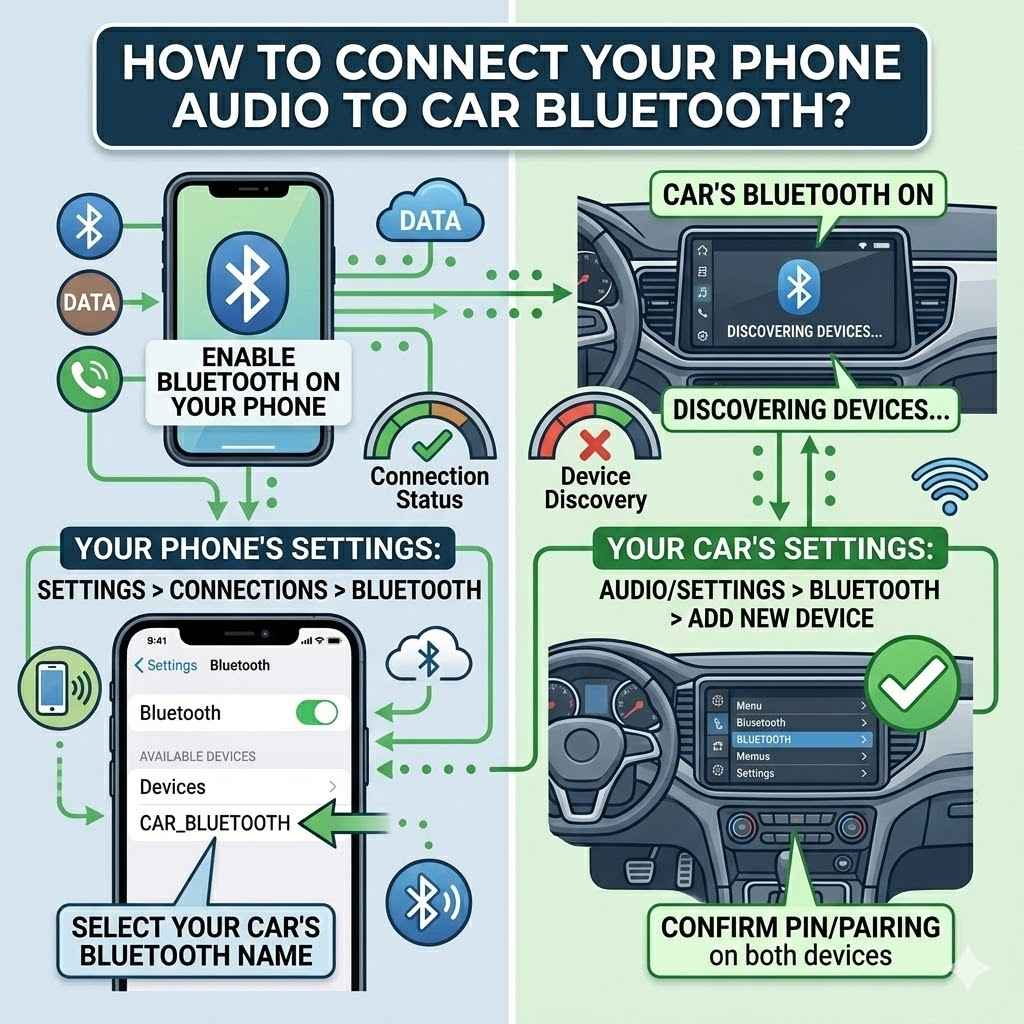
Step 1 Enable Bluetooth on Your Phone
The first crucial step is to ensure Bluetooth is turned on on your smartphone. This is usually found in your phone’s main settings menu. On most Android phones, you’ll go to Settings > Connected devices > Connection preferences > Bluetooth.
On iPhones, you’ll go to Settings > Bluetooth. Make sure the toggle switch is in the ‘On’ position. Your phone will then start searching for nearby Bluetooth devices.
You might see a list of devices that your phone already knows. You might also see a list of ‘Available Devices’ or ‘Other Devices.’ This is where your car’s Bluetooth system will appear once it’s discoverable. Keeping your phone’s Bluetooth on is essential throughout the entire pairing process.
It’s a small step, but it’s the foundation for everything that follows. Don’t forget this part.
Step 2 Make Your Car Discoverable
Next, you need to make your car’s Bluetooth system visible to your phone. Turn on your car’s ignition and ensure the infotainment system is active. Navigate to your car’s Bluetooth settings.
This is often under a menu like ‘Phone,’ ‘Connectivity,’ or ‘Settings.’ Once you’re in the Bluetooth menu, look for an option that says ‘Pair Device,’ ‘Add Device,’ or ‘Make Discoverable.’
Selecting this option will usually make your car’s Bluetooth system broadcast its presence. The car’s screen might display a message like “Searching for Devices” or show its own Bluetooth name. This name is often a combination of the car brand and model, or a generic name like “Car Audio.” Some cars might require you to press and hold a button for a few seconds to enter pairing mode.
The car’s manual will confirm the exact method if you are unsure.
Step 3 Pair Your Phone and Car
With both your phone and car ready, it’s time to establish the connection. On your phone, look at the list of available Bluetooth devices. You should see your car’s name appear.
Tap on your car’s name to initiate the pairing request. Your phone will then attempt to connect to your car.
At this stage, both your phone and your car’s screen will likely prompt you to confirm a pairing code. This code is a series of numbers that ensures you are intentionally connecting the correct devices. You might be asked to verify that the code displayed on your phone matches the code on your car’s screen.
If they match, confirm the pairing on both devices. Some cars might also ask for permission to access your phone’s contacts and call logs. It is recommended to allow this for full hands-free functionality.
Step 4 Select Audio Source on Your Car
Once pairing is successful, your car will usually remember your phone. For future connections, your phone should automatically connect when you start your car and have Bluetooth enabled. Now, you need to tell your car’s system that you want to play audio from your phone.
On your car’s infotainment screen, look for the ‘Audio’ or ‘Source’ options.
You will likely see a list of audio sources. This list typically includes AM/FM radio, Satellite Radio, CD Player (if applicable), USB, and importantly, ‘Bluetooth Audio’ or ‘BT Audio.’ Select ‘Bluetooth Audio’ as your source. This tells your car to stream audio from the connected phone.
The name of your phone might also appear in this list as the source.
Step 5 Play Audio from Your Phone
Now that your car is set to Bluetooth audio, you can play anything from your phone. Open your favorite music app, podcast player, or any app that produces sound on your smartphone. Start playing your content.
The sound should now come through your car’s speakers. You can control playback (play, pause, skip tracks) using your phone’s screen or, in many cases, using the controls on your car’s steering wheel or infotainment system.
If you don’t hear anything, double-check that ‘Bluetooth Audio’ is still selected as the source on your car. Also, ensure the volume on both your phone and your car is turned up. Sometimes, the volume settings are separate.
You might need to adjust both to get a clear sound. Experiment with different apps to ensure the connection works for all your audio needs.
Troubleshooting Common Bluetooth Connection Issues
Even with simple steps, sometimes Bluetooth connections don’t work perfectly the first time. This section helps you tackle those annoying hiccups. We will cover why these issues happen and how to fix them.
Knowing these common problems can save you a lot of frustration.
Phone Not Discoverable by Car
This happens when your phone isn’t showing up in your car’s list of devices.
- Check Phone’s Bluetooth: Make absolutely sure Bluetooth is turned on in your phone’s settings. Sometimes toggling it off and then back on can help reset the connection.
- Car’s Discoverability Mode: Ensure your car is in pairing or discoverable mode. This setting might time out after a few minutes, so you might need to reactivate it. Refer to your car’s manual for specific instructions.
- Distance and Interference: Keep your phone close to the car’s infotainment system. Other wireless devices, like Wi-Fi routers or microwaves, can sometimes cause interference. Try to minimize these nearby.
- Restart Devices: A simple restart can often fix temporary glitches. Turn off your phone and your car’s infotainment system. Wait a minute, then turn them back on and try pairing again.
Pairing Fails or Connection Drops
Sometimes the pairing process doesn’t complete, or the connection disconnects unexpectedly.
- Delete Old Pairings: If you’ve paired many devices to your phone or car before, there might be too many saved connections. Try deleting your phone from your car’s paired devices list and deleting your car from your phone’s paired devices list.Then, start the pairing process from scratch.
- Software Updates: Ensure both your phone’s operating system and your car’s infotainment system software are up to date. Manufacturers often release updates to improve Bluetooth connectivity and fix bugs.
- Device Limits: Some cars have a limit on the number of phones that can be paired. If you’ve reached this limit, you’ll need to remove an older device to make room for a new one.
- Check for Errors: If your car’s screen shows an error message during pairing, note it down.This specific error code can help you find more targeted solutions online or in your car’s manual.
No Audio Output from Phone
You’re connected, but no sound is coming through.
- Correct Audio Source: Double-check that ‘Bluetooth Audio’ is selected as the audio source on your car’s infotainment system. It’s easy to accidentally switch back to radio or another source.
- Volume Levels: Verify that the volume is turned up on both your phone and your car’s stereo. Sometimes, one is turned down low, making it seem like there’s no sound at all.
- App-Specific Issues: Test with different audio apps.If only one app has no sound, the issue might be with that specific app’s settings rather than the Bluetooth connection itself.
- Check Call vs. Media Audio: Some systems allow you to select whether Bluetooth is used for phone calls only, media only, or both.Ensure media audio is enabled. This setting is often found in your phone’s Bluetooth device settings for the car.
Audio Quality is Poor
Sound is coming through but it’s crackly, robotic, or muffled.
- Bluetooth Version Compatibility: Older Bluetooth versions might not handle high-quality audio as well as newer ones. Ensure both your phone and car support a recent Bluetooth standard (e.g., Bluetooth 4.0 or higher).
- Distance and Obstructions: Even small distances or obstructions can degrade audio quality. Try to keep your phone in a consistent location, like a phone holder or the center console.
- Audio Codec Support: Some cars and phones support advanced audio codecs like aptX or LDAC.If both devices support these, enabling them in the Bluetooth settings can significantly improve sound quality. If not, they will default to SBC or AAC, which are generally good but not as high-fidelity.
- Interference from Other Devices: As mentioned before, other wireless devices can cause interference.Try disconnecting other Bluetooth devices or moving away from potential sources of interference.
Maximizing Your Phone Audio to Car Bluetooth Experience
Once you have your phone connected, there are ways to make the most of it. These tips help you enjoy your audio and stay safe. It’s about using the technology to its full potential.
Using Your Car’s Controls
Many modern cars allow you to control your phone’s audio directly from the dashboard. This includes steering wheel buttons and the infotainment touchscreen. You can often play, pause, skip tracks, and adjust volume without touching your phone.
This is a great safety feature. It keeps your eyes on the road. Familiarize yourself with your car’s specific controls for Bluetooth audio.
Some systems even support voice commands for music playback. You might be able to say things like “Play by ” or “Next track.” This hands-free operation enhances convenience. Check your car’s manual to see which voice commands are available for Bluetooth audio.
This feature makes controlling your music effortless.
Managing Multiple Paired Devices
If you use multiple phones, like a personal and a work phone, or if other people frequently use your car, you’ll likely pair more than one device. Your car’s system can usually store multiple paired devices. However, it typically connects to only one at a time.
When you get in the car, it will usually connect to the last device that was used.
If your car doesn’t automatically connect to your preferred phone, you may need to manually select it from the Bluetooth menu on the car’s screen. Alternatively, on your phone, you might need to disable Bluetooth temporarily until the car connects to your primary device, then re-enable it. Some systems allow you to set a priority device.
This ensures the correct phone connects first.
Safety Considerations
While Bluetooth makes using your phone safer by enabling hands-free operation, it’s still important to be mindful. Never get so absorbed in managing your audio that you neglect driving. Set up your playlists or podcasts before you start driving.
Use voice commands whenever possible. Remember that taking your eyes off the road for even a few seconds can be dangerous.
Hands-free calling is a major benefit, but even phone conversations can be distracting. Try to limit conversations to essential matters while driving. If you need to have a longer chat, consider pulling over to a safe location.
Prioritize your safety and the safety of others on the road above all else.
Sample Scenarios
Here are a couple of common situations you might encounter:
-
Scenario 1: First-Time Setup
You just bought a new car and want to listen to your Spotify playlists. You turn on the car, go to the ‘Phone’ menu, select ‘Add Device,’ and then on your iPhone, you go to Settings > Bluetooth and tap your car’s name. You confirm the pairing code, and then select ‘Bluetooth Audio’ on your car’s screen.You press play on Spotify, and your music fills the car. -
Scenario 2: Connecting a Different Phone
Your friend is in your car and wants to play music from their Android phone. Your car is already paired with your phone.You go to your car’s Bluetooth menu and select your friend’s phone from the list of paired devices, or initiate a new pairing process if their phone isn’t listed. Once paired, your car switches audio output to your friend’s phone. Your phone’s Bluetooth connection is temporarily disconnected.
Statistics on Bluetooth Usage in Cars
Bluetooth connectivity in vehicles has become standard. A survey by Statista in 2023 indicated that over 90% of new cars sold globally come equipped with Bluetooth technology. This highlights how essential seamless phone integration has become for drivers.
The primary uses are for hands-free calling and audio streaming. Another report mentioned that around 75% of drivers regularly use their car’s Bluetooth for music streaming, with another 60% using it for hands-free calls. These numbers show a strong reliance on this technology for daily commuting and travel.
Frequently Asked Questions
Question: How do I know if my car has Bluetooth?
Answer: Most cars manufactured in the last 10-15 years have Bluetooth. Look for a Bluetooth symbol on your dashboard, steering wheel, or infotainment system. Check your car’s manual or the manufacturer’s website for specifications.
You can also check your phone’s Bluetooth settings to see if your car appears in the list of available devices.
Question: Can I connect my phone to my car without Bluetooth?
Answer: Yes, you can connect your phone to your car without Bluetooth using a USB cable or an auxiliary (AUX) cable. A USB connection often allows for both audio playback and charging, and sometimes even screen mirroring if your car supports it. An AUX cable is a simpler audio-only connection.
Question: Why does my phone disconnect from the car’s Bluetooth randomly?
Answer: Random disconnections can be caused by various factors. These include low battery on either device, signal interference from other wireless devices, software glitches, or issues with the car’s infotainment system. Try deleting the pairing and re-pairing the devices, updating software, or checking for interference.
Question: Can I play music and take calls using Bluetooth at the same time?
Answer: Yes, most modern Bluetooth systems support both audio streaming (A2DP profile) and hands-free calling (HFP profile) simultaneously. Your car’s system should automatically switch between media audio and call audio when a call comes in or is made. You might hear a brief interruption in music when a call starts.
Question: How far away can my phone be from the car and still be connected?
Answer: The typical range for Bluetooth is about 30 feet (10 meters) in open space. However, this can be reduced by physical obstructions like car doors, windows, and even the people inside the car. For a stable connection, it’s best to keep your phone relatively close to the car’s infotainment system.
Summary
Connecting your phone audio to car Bluetooth is a straightforward process. By enabling Bluetooth on your phone, making your car discoverable, and pairing the devices, you can easily stream music and take calls. Remember to select Bluetooth as your audio source in the car.
Troubleshooting common issues like failed pairing or no audio involves checking settings, restarting devices, and managing paired lists. Enjoying your favorite audio content wirelessly in your car is now within easy reach.
Products related to this article
Sponsored / affiliate links. As an Amazon Associate I earn from qualifying purchases. I may earn additional commission from eligible campaigns.