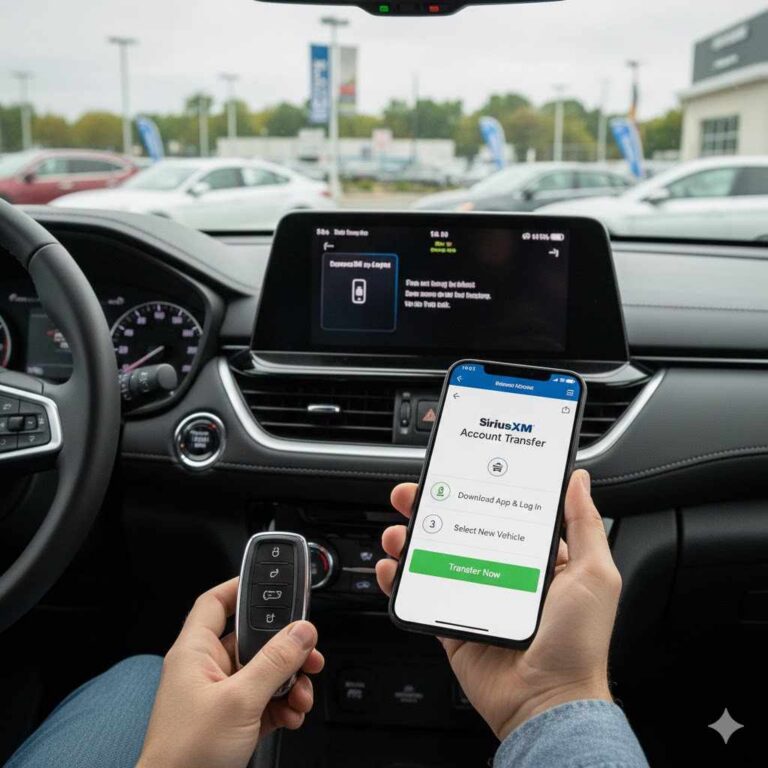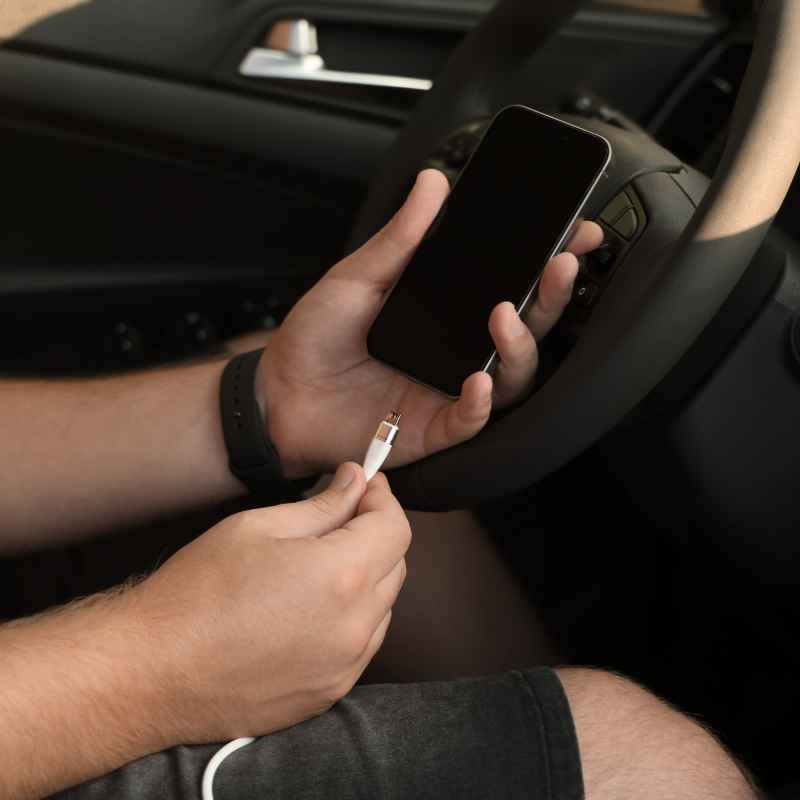
How to Connect Your Phone to a Car With USB (Quick Guide)
Connecting your phone to a car with USB gives you instant access to music, navigation, and hands-free calling while driving. This guide walks you through every step, from checking your car’s port to troubleshooting common issues.
Simply put, connecting your phone to a car with USB requires a compatible cable, the right port type, and correct infotainment settings. Most modern cars support Android Auto or Apple CarPlay over USB, but older models may only offer basic charging or audio playback.
Key Takeaways
- Connecting your phone to a car with USB works with most modern smartphones and vehicles, but cable quality and port type matter.
- Always use a high-quality, data-capable USB cable — cheap charging-only cables will not establish a connection.
- Car USB ports vary by type (USB-A, USB-C) and capability (data vs. charge-only), so check your vehicle’s manual first.
- Apple CarPlay and Android Auto require you to grant permissions on your phone and select the correct mode on the infotainment screen.
- If the connection fails, restarting your phone and car, or trying a different cable, usually resolves the issue.
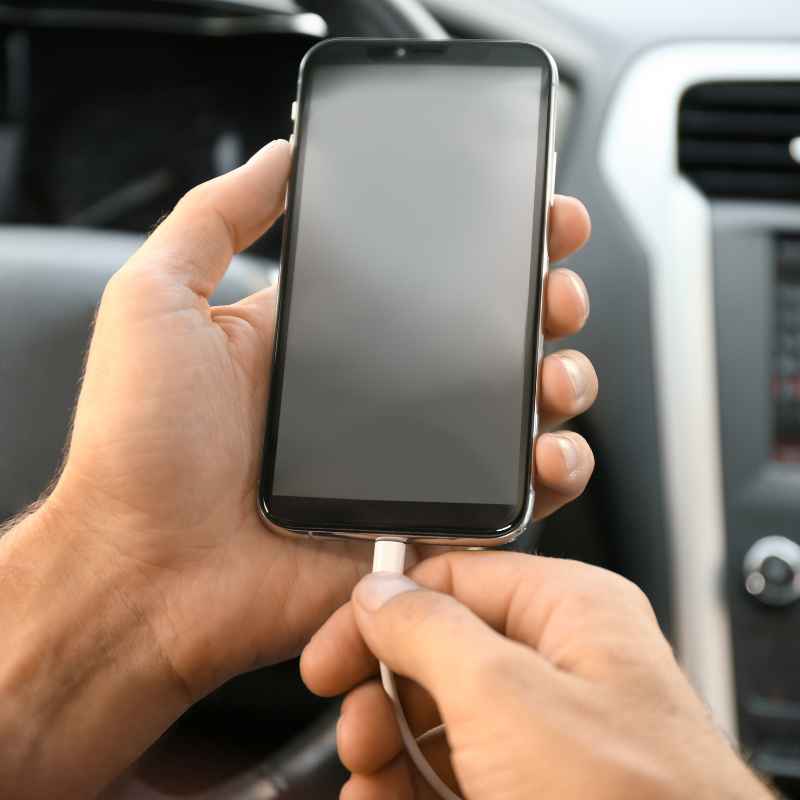
What You Need to Connect Your Phone to a Car With USB
Before you start, gather a few items to ensure a smooth setup. The most important piece is the USB cable. Not all cables support data transfer — many cheap cables only charge.
Look for a cable that explicitly says “data sync” or “USB-IF certified.”
Your phone must also run a compatible operating system. iPhones need iOS 7 or newer for CarPlay, while Android phones require Android 5.0 (Lollipop) or higher for Android Auto. Most phones sold in the last six years work fine.
Here is a quick checklist of everything you need:
- A smartphone with a USB port (Lightning, USB-C, or Micro-USB)
- A data-capable USB cable matching your phone’s connector
- A car with a USB port (check your owner’s manual to confirm it supports data)
- Your car’s engine running or ignition in accessory mode (some cars require this)
- Bluetooth turned on (some cars use USB + Bluetooth together for phone calls)
Tip: Keep a dedicated data cable in your glove box. Using the same cable every time reduces connection issues caused by worn or mismatched cables.
Step 1: Check Your Car’s USB Port Type
Not every USB port in a car works the same way. Some ports only supply power for charging, while others transfer data and support infotainment systems. Identifying your port type saves you time and frustration.
Look for a USB port with a data icon next to it — often a small smartphone or music note symbol. If you see no icon, check your car’s manual. Many vehicles label data ports in the center console or near the infotainment screen.
Charge-only ports are usually in the rear seats or glove box.
Here is a breakdown of common car USB port types and what they support:
| Port Type | Data Transfer | CarPlay / Android Auto | Typical Location |
|---|---|---|---|
| USB-A (standard rectangular) | Yes (if data-enabled) | Yes | Center console, dashboard |
| USB-C (oval, reversible) | Yes | Yes (faster) | Newer models, center stack |
| Charge-only USB-A | No | No | Rear seats, glove box |
If your car only has charge-only ports, you cannot connect your phone to a car with USB for data. In that case, use Bluetooth or an aftermarket adapter that plugs into a 12V outlet.
Step 2: Choose the Right USB Cable
The cable is the most common point of failure. Using a damaged, low-quality, or mismatched cable will stop the connection from working. You need a cable that supports both charging and data transfer at the same time.
Check the cable’s specifications before buying. Look for “USB-IF certified” or “data sync compatible” on the packaging. Cables designed only for charging lack the extra wires needed for data communication.
Here are the cable types you will encounter:
- Lightning to USB-A: Used for iPhones up to iPhone 14 series. Works with most cars.
- USB-C to USB-C: Used for newer Android phones and iPhone 15/16 series. Requires a car with a USB-C port.
- USB-C to USB-A: Used for newer Android phones in cars with standard USB-A ports. Very common adapter setup.
- Micro-USB to USB-A: Older Android phones and budget devices. Still found in some cars.
- Braided vs. rubber cables: Braided cables last longer and resist tangling inside the car.
Warning: Avoid cables longer than 3 feet (1 meter) for data connections. Longer cables introduce signal loss and can cause intermittent disconnects.
Cable length also matters. A 3-foot cable keeps the setup tidy without excess slack. If your phone sits in a cup holder or a mount, measure the distance first.
Step 3: Connect Your Phone to the Car’s USB Port
Now that you have the right port and cable, it is time to make the physical connection. Plug one end of the cable into your phone and the other into the car’s data USB port. Do this with the car’s ignition on or the engine running.
Many cars require the ignition to be in “Accessory” or “On” mode before the USB port activates. If nothing happens, try turning the key further or pressing the start button without your foot on the brake (for push-to-start vehicles).
Follow this sequence for the best results:
- Start the car or turn the ignition to accessory mode.
- Unlock your phone’s screen.
- Plug the USB cable into your phone first.
- Plug the other end into the car’s data USB port.
- Wait 5-10 seconds for the car to detect the device.
After plugging in, your phone should start charging immediately. The infotainment screen may prompt you to select a mode — this is normal. If you see a charging icon but no data connection, the cable or port may not support data.
Important: Some cars have multiple USB ports but only one supports data. Try each port one at a time if the first does not work. The data port is usually marked with a phone or music icon.
Step 4: Select the Correct Infotainment Mode
Once your phone is physically connected, the infotainment system needs to know what to do with it. Most modern systems automatically detect a smartphone and offer options like “Phone Projection,” “Apple CarPlay,” “Android Auto,” or “USB Audio.”
If the system does not switch automatically, press the “Media” or “Source” button on your car’s stereo. Then select USB as the input source. From there, the system should prompt you to enable CarPlay or Android Auto on your phone.
Here are the common modes and what they do:
- Apple CarPlay: Mirrors iPhone apps on the car screen. Requires iOS 7+. Works with wired USB connection.
- Android Auto: Mirrors Android apps on the car screen. Requires Android 5.0+. Wired connection is standard.
- USB Audio: Plays music files directly from the phone’s storage. No app mirroring. Works with almost any phone.
- Phone Projection: Generic mode for basic call and music control. Common in older or budget cars.
- Charge Only: The car treats the phone as a power source. No data transfer happens.
Select the mode that matches your phone type. If you pick the wrong mode, disconnect the cable, wait 10 seconds, and reconnect while the screen is still on.
Step 5: Grant Permissions and Complete Setup
Your phone will ask for permission to share data with the car. On an iPhone, you will see a pop-up saying “Allow CarPlay when phone is locked?” or “Use CarPlay with ?” Tap “Allow” to proceed. On Android, a prompt appears asking you to confirm Android Auto access.
You may also need to grant permissions for contacts, messages, and phone calls. These are required for hands-free calling and text message reading. If you deny them, some features will not work.
Here is what to expect on each phone type:
| Action | iPhone | Android |
|---|---|---|
| First connection pop-up | “Allow CarPlay?” | “Use Android Auto?” |
| Permissions needed | Contacts, notifications, Siri | Contacts, messages, phone, SMS |
| Wireless option | Some cars support wireless CarPlay | Some cars support wireless Android Auto |
Once permissions are granted, the car screen should show the CarPlay or Android Auto interface within 10-15 seconds. You can now use maps, music, calls, and messaging through the car’s controls.
Tip: If you use multiple phones in the same car, each phone must go through this setup once. After that, the car remembers them and connects faster.
Common Mistakes to Avoid When Connecting Via USB
Even with the right cable and port, small mistakes can block the connection. Knowing these pitfalls helps you connect your phone to a car with USB on the first try every time.
Here are the most frequent errors drivers make:
- Using a charge-only cable: The most common issue. Always use a data-capable cable labeled for sync or data transfer.
- Plugging into a charge-only port: Rear seats and glove box ports often lack data wires. Stick to the center console or dashboard port.
- Phone screen locked: Many cars require the phone screen to be unlocked for the first handshake. Unlock it before or right after plugging in.
- Outdated software: Old iOS or Android versions may not support CarPlay or Android Auto. Update your phone’s OS.
- Ignition off: Some car USB ports only power on when the engine runs or the key is in accessory mode.
- Dirty port: Pocket lint in your phone’s charging port can prevent a solid connection. Clean it gently with a toothpick.
- Using a USB hub or splitter: These often do not support data passthrough. Plug directly into the car’s port.
Avoiding these mistakes saves time. If you still cannot connect, move to the troubleshooting section below.
Warning: Using a cheap third-party cable can damage your phone’s charging port over time. Invest in a certified cable from your phone’s manufacturer or a reputable brand like Anker or Belkin.
Troubleshooting USB Connection Issues
Sometimes the connection fails even when you follow every step correctly. Do not worry — most problems have simple fixes. Start with the most common solutions and work your way down the list.
Try these steps in order:
- Unplug the cable from both ends and reconnect after 30 seconds.
- Restart your phone completely (power off, wait 10 seconds, power on).
- Turn the car off, open the driver’s door, wait 2 minutes, then restart the car.
- Test with a different USB cable that you know works for data transfer.
- Try a different USB port in the car (if available).
- Check your phone’s settings — make sure CarPlay or Android Auto is not disabled.
- Update your car’s infotainment firmware (check the manufacturer’s website).
If none of these work, your car may not support smartphone integration over USB. Some older models (pre-2016) only offer basic USB audio playback or charging. In that case, use Bluetooth for calls and music, or install an aftermarket head unit with CarPlay support.
According to a 2023 report by the Consumer Technology Association, over 85% of new cars sold in the U.S. include Apple CarPlay or Android Auto as standard or optional equipment. That number climbs each year, so compatibility is rarely an issue with newer vehicles.
Important: If your car has wireless CarPlay or Android Auto, you do not need a USB cable for data at all. Use Bluetooth and Wi-Fi instead. USB is only required for wired connections.
Frequently Asked Questions
Why does my phone charge but not connect to the car via USB?
This usually happens when you use a charge-only cable or plug into a power-only USB port. The cable lacks the data wires needed for communication, or the port does not support data. Swap the cable for one marked “data sync” and try a different port.
Can I connect my phone to a car with USB without using CarPlay or Android Auto?
Yes. If you only want to play music, select “USB Audio” mode on the infotainment system. The car treats your phone like a USB drive and plays audio files directly.
You will not get maps or messaging, but music works fine.
Do I need a special USB cable for Apple CarPlay?
No, any certified Lightning or USB-C cable that supports data transfer works with CarPlay. Apple’s official cables are reliable, but third-party MFi-certified cables also work. Avoid uncertified “fast charge only” cables.
Why does my car say “device not supported” when I plug in my phone?
This error usually means the car’s infotainment system does not recognize your phone’s operating system. Update your phone’s software and check if your car needs a firmware update. Some older cars only support iPhones or specific Android models.
How do I clean my phone’s USB port if it is not connecting?
Power off your phone, then use a wooden toothpick or plastic SIM eject tool to gently scrape lint from the bottom of the port. Do not use metal tools or compressed air, as they can damage the pins. Blow out dust carefully.
Final Thoughts
Connecting your phone to a car with USB is a straightforward process when you have the right cable and port. Check your car’s USB type, use a data-capable cable, and follow the on-screen prompts for CarPlay or Android Auto. Most issues come from charge-only cables or locked screens, so start there if you run into trouble.
With a little preparation, you can enjoy hands-free driving in under a minute.
Products related to this article
Sponsored / affiliate links. As an Amazon Associate I earn from qualifying purchases. I may earn additional commission from eligible campaigns.