
How to Connect Your Phone to Your Car (Any Model)
Match the connection method to your car’s equipment: Bluetooth for calls and audio, USB for wired CarPlay or Android Auto, and wireless CarPlay or Android Auto only if the head unit supports it. Choose the wrong path and you waste time, lose features, or run into repeated pairing failures.
What your car supports


Separate the built-in systems first
Your infotainment system is the car’s built-in screen and menu system. It may support Bluetooth, a data-capable USB port, wired CarPlay, wired Android Auto, wireless CarPlay, wireless Android Auto, or only basic audio input. Those are separate paths, and each one does a different job.
Bluetooth pairing is the basic wireless connection for calls, audio, and first-time setup in many cars. CarPlay is generally for iPhone devices only. Android Auto is generally for Android phones. A car can support one, several, or none of them.
Check the port before you touch the phone
Look at the USB port before you connect the phone. A port can charge only, or it can carry data. Some ports may be marked with a phone icon, a data symbol, or an infotainment label on the dash or console. If the port only charges, CarPlay and Android Auto usually will not start.
What you’ll need
Have the correct parts ready before you start. The wrong cable or the wrong port is one of the fastest ways to make setup fail.
- A phone with Bluetooth turned on
- The correct USB cable for the phone and car: USB-A, USB-C, or Lightning ends as needed
- A data-capable cable, not a charging-only cable
- Access to the car’s infotainment screen and setup menu
- The owner’s manual or the vehicle’s on-screen port labels, if the ports are not obvious
Start with the method your car actually supports, then approve every prompt on the phone and the infotainment screen. If the car uses Bluetooth, pair that first. If it supports wired CarPlay or Android Auto, plug into the correct data port with a data cable, then accept the permission prompts and confirmation code.
- Open the car’s Settings or Phone menu on the infotainment screen.
- Confirm which connection types appear: Bluetooth, USB, CarPlay, or Android Auto.
- Turn on Bluetooth on the phone if the car uses wireless pairing or first-time setup.
- Plug the phone into the correct USB data port if the car supports wired projection.
- Accept the permissions prompt on the phone and the infotainment screen.
- Confirm any pairing code that appears on both screens.
- Test calls, music, and navigation before you drive away.
For example, a 2020 car may show a phone icon beside one USB port and a plain charging symbol beside another. Use the phone icon port first. If the screen stays on the car’s native menu and never asks for CarPlay or Android Auto approval, the port is probably the wrong one or the cable cannot pass data.
Phone connection compatibility table
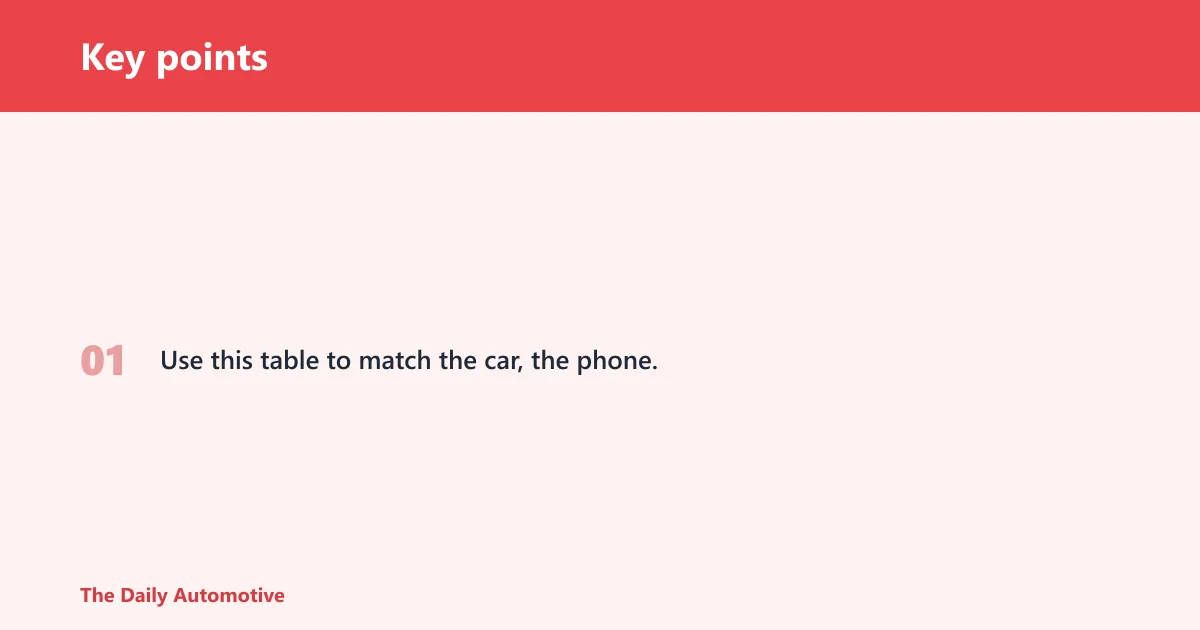
Use this table to match the car, the phone, and the connection method before you keep retrying the same setup.
| Car feature present | Phone OS | Best connection method | Common failure symptom | Troubleshooting |
|---|---|---|---|---|
| Bluetooth only | iPhone or Android | Bluetooth pairing | Phone sees the car, but calls do not route through the speakers | Clear old pairings, then re-pair from Settings > Bluetooth |
| USB audio only | iPhone or Android | USB for charging or music, if supported | No data handshake, so the screen never offers CarPlay or Android Auto | Try the port marked for data or infotainment, not the power-only port |
| Wired CarPlay | iPhone | USB with a data-capable cable | Car charges the phone but never launches CarPlay | Use the correct USB-A, USB-C, or Lightning ends and a different data port |
| Wired Android Auto | Android | USB with a data-capable cable | Android Auto prompt never appears on the screen | Check both the vehicle and stereo compatibility lists, then reconnect |
| Wireless CarPlay | iPhone | Wireless CarPlay | Bluetooth pairs, but the phone never switches to the wireless interface | Confirm the head unit supports wireless mode, not wired-only CarPlay |
| Wireless Android Auto | Android | Wireless Android Auto | Bluetooth connects, but navigation and app tiles never appear | Verify the vehicle model supports wireless Android Auto and restart setup |
| Wired CarPlay or wired Android Auto | iPhone or Android | Wireless adapter dongle | Dongle powers up, but the phone never completes the Bluetooth and Wi-Fi handoff | Use only with a car that already supports wired CarPlay or Android Auto |
How do you connect by Bluetooth?
Use Bluetooth when the car supports calls and audio, or when Bluetooth is the first step in a wireless setup. Turn it on in both places, select the car on the phone, and confirm the code. If the car only supports Bluetooth, that may be the whole connection.
- On the phone, open Settings > Bluetooth and turn Bluetooth on.
- On the car screen, open Settings > Bluetooth or Phone.
- Select the car name on the phone list.
- Confirm the pairing code on both screens.
- Allow contacts, calls, and audio access if the phone asks.
Say your phone pairs, but music still plays through the handset speaker. That usually means the car approved calls only, or the audio profile was not enabled. Reopen Settings > Bluetooth > Car name and turn on Media audio if the option appears.
How do you connect with USB, CarPlay, or Android Auto?
Use USB when the car supports wired projection. Pick the data-capable port, connect with the right cable, and approve the prompt on the infotainment screen. For Android Auto, Android Auto says to check both the vehicle and stereo list for compatibility, and it says no app download is needed to start using it.
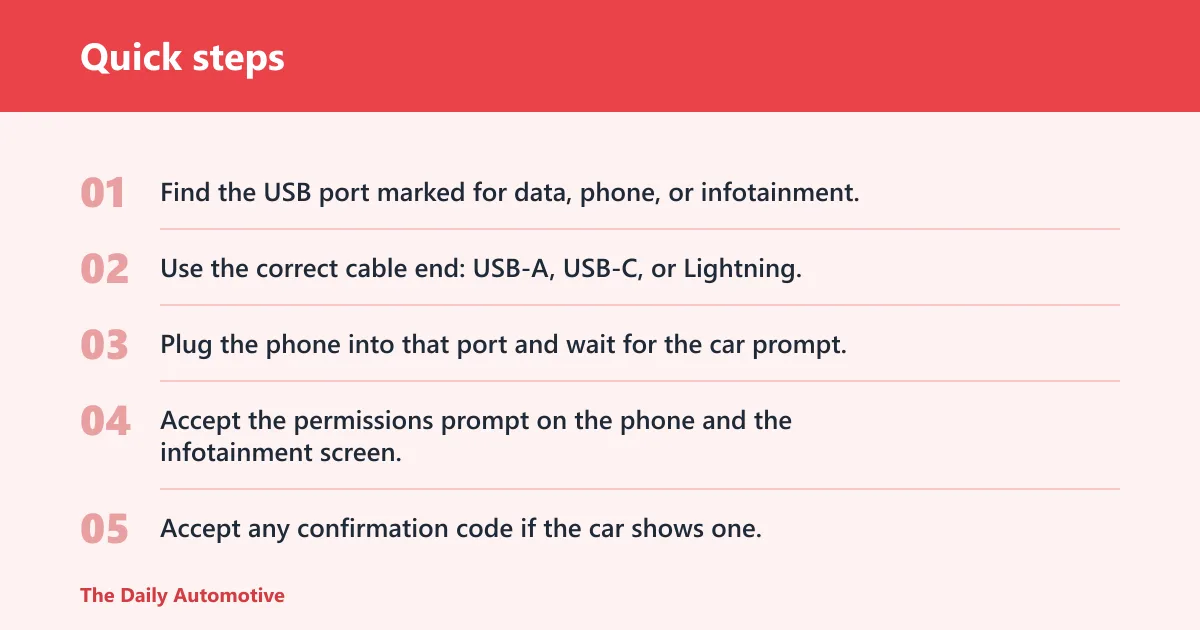
- Find the USB port marked for data, phone, or infotainment.
- Use the correct cable end: USB-A, USB-C, or Lightning.
- Plug the phone into that port and wait for the car prompt.
- Accept the permissions prompt on the phone and the infotainment screen.
- Accept any confirmation code if the car shows one.
- If the first port fails, move to the other USB port and try again.
Use the right cable for the right system
MotorTrend says CarPlay can be set up with a cable using USB-A, USB-C, or Lightning ends. The end that fits the phone is only half the job. The cable must also carry data. A charging-only cable can power the phone and still fail to start the interface.
For Android Auto on some supported vehicles, the first launch often begins as soon as you connect the phone. On supported wireless systems, Bluetooth may start the handoff before Wi-Fi takes over.
What if your car has USB but no Bluetooth?
Use the USB port if it is data-capable, even when the car has no Bluetooth. That setup often gives you charging and, in some models, music playback or full CarPlay or Android Auto. If the port only charges, it will not create the data handshake needed for phone integration.
- Look for a USB port with a phone or data icon.
- Plug in a data-capable cable.
- Watch for a CarPlay or Android Auto prompt on the screen.
- If nothing appears, switch to another USB port in the console or dash.
Picture an older car with one USB port in the center stack. The phone charges, but the screen stays on FM radio. That is the classic sign of a charge-only port or a cable that cannot pass data. Change the port first, then change the cable.
How do you connect your smartphone to your car wirelessly?
Wireless CarPlay and wireless Android Auto work only on supported head units. Wireless CarPlay uses Bluetooth instead of a physical connection. Wireless Android Auto also depends on vehicle support, and some systems use Bluetooth plus Wi-Fi to complete the link. (Motortrend)
- Turn on Bluetooth and Wi-Fi on the phone if the system requires both.
- Open the car’s Phone or Connectivity menu.
- Select Wireless CarPlay or Wireless Android Auto if those options appear.
- Approve the pairing prompt and any code on both screens.
- Wait for the interface to switch from the car menu to the phone interface.
Carsifi is described as using built-in Bluetooth and Wi-Fi to create a wireless Android Auto connection, and it is described as working on all cars with wired Android Auto. The product page lists $89.99 USD and a 30-day risk-free return policy.
Common mistakes
Most setup failures come from one of a few repeat problems. Fix the source, not the symptom.
- Using a charge-only USB port: the phone powers up, but the car never sees data.
- Using the wrong cable: a charging cable may light up the phone and still fail setup.
- Leaving an old Bluetooth pairing active: stale pairings can block a fresh connection.
- Expecting wireless mode in a wired-only car: wireless CarPlay and wireless Android Auto are not universal.
- Ignoring prompts: the car may wait for approval, and setup stops until you accept it.
If the first attempt fails, remove the car from Settings > Bluetooth on the phone, restart the infotainment system, and start again from the car’s phone menu. If the port and cable are right but the screen still shows no phone interface, the vehicle may support only charging or only basic Bluetooth audio.
Frequently asked questions
How do I connect my mobile phone to my car?
Turn on Bluetooth or plug into the correct USB data port, depending on the vehicle. If the car offers CarPlay or Android Auto, follow the screen prompt after connection. Use the exact port the car labels for data or phone use.
How do I connect my phone to vehicle Bluetooth?
Go to Settings > Bluetooth on the phone and the car’s Phone menu at the same time. Select the car name, compare the pairing code, and confirm it on both screens. Then allow calls and media access if the phone asks.
What do I do if my car has USB but no Bluetooth?
Use the USB port if it is data-capable. If the port only charges, it will not launch CarPlay or Android Auto. Try the other USB port, use a different data cable, and watch for a prompt on the infotainment screen.
What if my car doesn’t support Android Auto or CarPlay?
Use Bluetooth for calls and audio, or USB for charging and any basic media support the car offers. If the vehicle has wired projection but no wireless mode, a wireless adapter dongle only works when the car already supports wired Android Auto or CarPlay.
Which USB port in my car should I use for phone connection?
Use the port marked for data, phone, or infotainment, not the one that only charges. If the labels are unclear, try the port closest to the main screen first, then the other console port. The right port should trigger a setup prompt, not just charging.
Products related to this article
Sponsored / affiliate links. As an Amazon Associate I earn from qualifying purchases. I may earn additional commission from eligible campaigns.