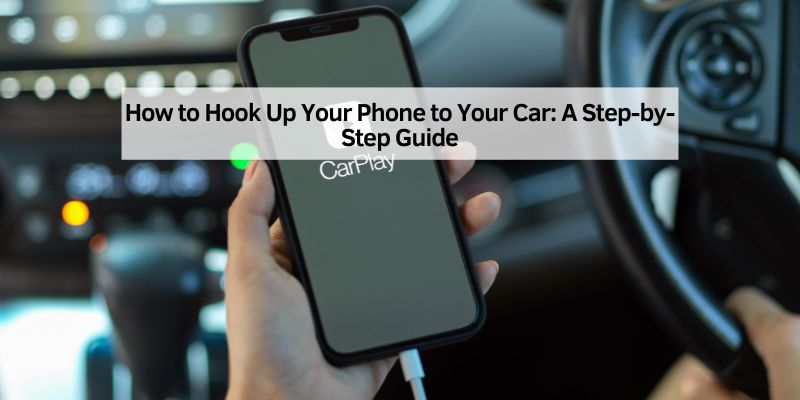
How to Hook Up Your Phone to Your Car (Bluetooth, USB & CarPlay Guide)
Every car from the last two decades connects to phones differently, and picking the wrong method for your vehicle is why some drivers end up with a setup that plays music but won’t take calls, or charges the phone but ignores voice commands. There’s more than one way to hook up your phone to your car, and the right choice depends on your car’s age, its ports, and whether you want hands-free calling or just audio. This guide walks through each option, getting CarPlay or Android Auto working wirelessly, and fixing Bluetooth that won’t pair.
Quick Answer
To hook up your phone to your car: use Bluetooth for wireless audio and calls (most cars 2010+), USB for CarPlay or Android Auto, or an AUX cable if your car has a 3.5mm port. For cars with no Bluetooth or AUX, an FM transmitter ($15–$30) broadcasts audio over your radio.
Why Connect Your Phone to Your Car?
★ Recommended product
Bluetooth Car Adapter (AUX or Cigarette Lighter)
Adds wireless Bluetooth to any car with an AUX port or 12V socket — pairs with your phone in seconds, reconnects automatically.
Check price on Amazon →As an Amazon Associate we earn from qualifying purchases.
★ Recommended product
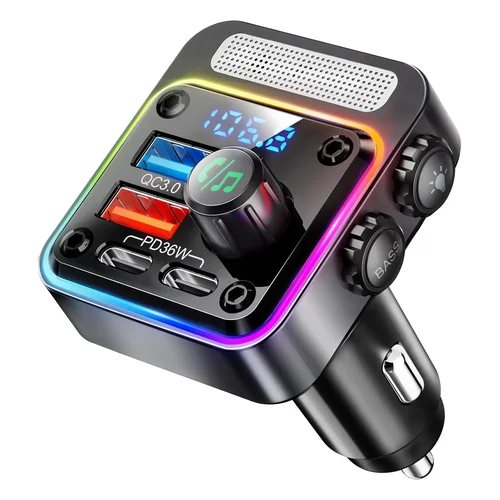
Bluetooth FM Transmitter for Car
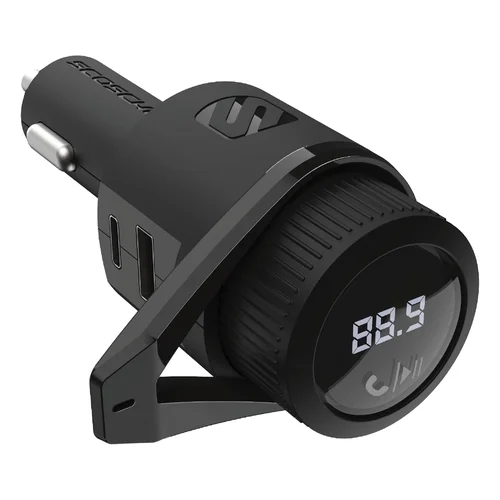
Plugs into your cigarette lighter, pairs via Bluetooth, broadcasts to your FM radio. Works on any car with a radio — no AUX or USB needed.
- Dual USB charging ports for phone + passenger device
- Hands-free call support via built-in mic
- Scans for clearest frequency automatically
As an Amazon Associate we earn from qualifying purchases.
Connecting your phone to your car lets you stream music, use GPS apps like Google Maps, and take calls without removing your hands from the wheel. Most modern cars have at least one built-in connection method, but even vehicles from the 1990s have workable options via FM transmitters or cassette adapters.
Checking Your Car’s Compatibility
Check your car’s owner manual or inspect the center console for ports before buying any cable or adapter. Most cars built after 2010 have USB ports, AUX jacks, or Bluetooth. Vehicles from 2016 onward typically include Apple CarPlay or Android Auto support. Here’s a quick compatibility table:
| Car Year | Common Connection Options |
|---|---|
| Pre-2000 | AUX, FM transmitter, cassette adapter |
| 2000–2010 | AUX, Bluetooth, USB (limited) |
| 2010–2016 | Bluetooth, USB, AUX |
| 2016–Present | Bluetooth, USB, Apple CarPlay, Android Auto |
Using Bluetooth to Connect Your Phone
Bluetooth is a short-range wireless protocol that pairs your phone with your car’s stereo system for audio streaming and hands-free calls — available on most cars built after 2010 and on any car with an aftermarket Bluetooth adapter ($15–$30). Once paired, your phone reconnects automatically every time you start the car.
Step-by-Step: How to Pair Your Phone via Bluetooth
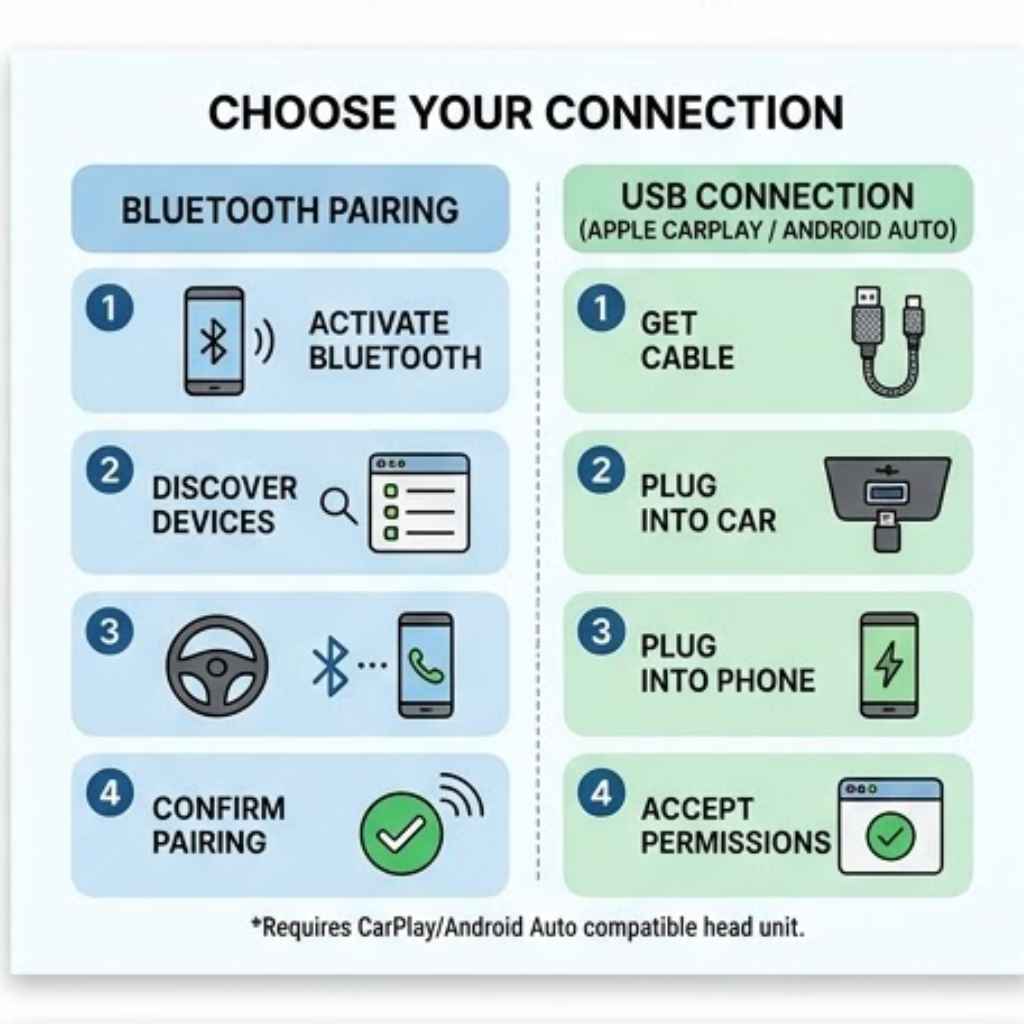
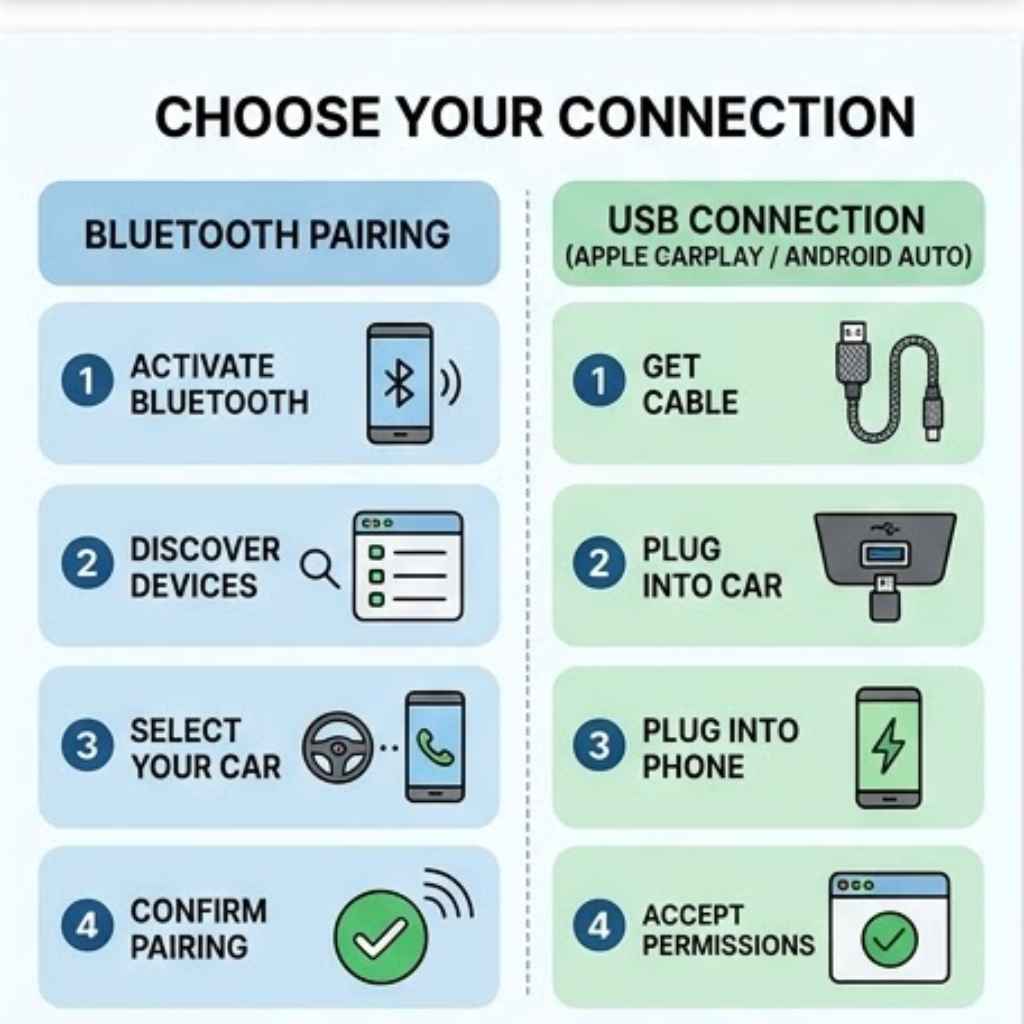
- Enable Bluetooth on your phone: iPhone — Settings > Bluetooth, toggle On. Android — Settings > Connections > Bluetooth, toggle On.
- Put your car stereo in pairing mode: Press the Bluetooth or Phone button on your dashboard, or navigate to Settings > Bluetooth on your infotainment screen. Look for “Pair New Device” or “Add Device.”
- Select your car on your phone: Your phone’s Bluetooth list will show the car’s name (e.g., “Honda BT” or “Toyota Audio”). Tap it.
- Confirm the pairing code: A 4–6 digit code appears on both screens. Confirm it matches and press Accept on both.
- Test audio output: Play a song or make a call. Your car’s speakers should output the sound. If not, set the car’s audio source to “Bluetooth” or “Phone.”
If your car doesn’t have built-in Bluetooth, a Bluetooth adapter that plugs into the AUX port or cigarette lighter adds wireless pairing for $15–$30.
Connecting via USB Cable
USB is the most reliable connection method — it charges your phone while driving and triggers Apple CarPlay or Android Auto on compatible cars. Use a USB-to-Lightning cable for iPhone or a USB-C cable for Android. The cable must support data transfer, not just charging — many budget cables are charge-only and will not activate CarPlay or media playback.
Once plugged in, your car’s screen will prompt you to enable CarPlay or Android Auto. If your car doesn’t support those systems, select “USB” as the audio source in your car’s audio menu instead.
Using an Auxiliary (AUX) Cable
An AUX cable is a 3.5mm analog audio cable that connects your phone’s headphone jack to your car’s AUX input — available on most cars from 2000 onward for under $5. AUX connections provide good audio quality but no phone control through the car’s system and no charging. Set your car’s audio source to “AUX” after plugging in.
If your phone lacks a headphone jack (most iPhones from 2016+, many modern Androids), use a Lightning-to-3.5mm or USB-C-to-3.5mm adapter. These cost $8–$15 and work reliably for audio output.
FM Transmitters for Older Cars
An FM transmitter broadcasts your phone’s audio to an unused FM radio frequency — the best option for cars built before 2000 that have no AUX port, USB, or Bluetooth. Transmitters plug into the cigarette lighter socket and connect to your phone via Bluetooth or a short AUX cable. Set your car’s radio to match the transmitter’s broadcast frequency (typically 87.9–88.1 FM in areas with fewer stations).
Sound quality is lower than direct AUX or Bluetooth because the signal travels through the FM band, but it works reliably for calls and music in most conditions. In dense urban areas with many stations, expect to adjust the frequency occasionally to avoid static.
Apple CarPlay and Android Auto
Apple CarPlay is a phone-mirroring system that displays iPhone apps — Maps, Spotify, Messages, Phone — on your car’s touchscreen, controlled by touch or voice via Siri. Android Auto does the same for Android phones using Google Assistant. Both systems require a compatible car (2016+ models from most major brands) and a data-capable USB cable or wireless connection.
CarPlay is compatible with iPhone 5 and later running iOS 7.1+. Android Auto requires Android 9.0 (Pie) or higher for wired connection, or Android 10+ for wireless. According to Apple, wireless CarPlay requires your car to support it natively — check your car manufacturer’s specs or the CarPlay-compatible vehicles list on Apple’s website.
How to Set Up Wireless CarPlay or Android Auto
Wireless CarPlay and Android Auto require both Bluetooth and Wi-Fi to be enabled on your phone simultaneously — Bluetooth handles the initial handshake and Wi-Fi carries the audio/video stream. To set it up:
- Enable both Bluetooth and Wi-Fi on your phone — both must be on even though no Wi-Fi network is needed.
- Connect via USB cable the first time — your car will prompt you to switch to wireless. Accept the prompt on both your phone and car screen.
- On subsequent starts, your phone will connect wirelessly and automatically within 10–15 seconds of entering the car.
- If your car doesn’t support wireless natively, a wireless CarPlay adapter ($50–$80) plugs into your car’s USB port and adds wireless capability to any wired-CarPlay car.
If your car doesn’t support CarPlay or Android Auto at all, an aftermarket head unit with CarPlay starts at around $150–$200 for installation-ready options.
How to Connect Your Phone to a Car Without Bluetooth
Connecting a phone to a car without Bluetooth is possible using three methods: an AUX cable ($5), an FM transmitter ($15–$30), or a cassette tape adapter ($10) for cars with a cassette deck. Each method routes audio from your phone to your car’s speakers without any wireless pairing.
| Method | Cost | Requires | Audio Quality |
|---|---|---|---|
| AUX Cable | $3–$8 | 3.5mm AUX port on car | Good |
| FM Transmitter | $15–$30 | FM radio + 12V socket | Fair |
| Cassette Adapter | $8–$12 | Cassette deck | Good |
| USB (CarPlay/Android Auto) | $5–$15 cable | USB port + compatible car | Excellent |
Troubleshooting Common Connection Issues
Most Bluetooth pairing failures are caused by one of three things: stale pairing data on either device, a firmware mismatch, or the car’s paired device limit being reached. Use this sequence to fix it:
Why Won’t My Phone Connect to My Car Bluetooth?
- Delete the pairing on both devices: On your phone, go to Bluetooth settings, tap the car’s name, and select “Forget.” On the car, delete your phone from the paired devices list.
- Restart both devices: Turn off your car’s infotainment system completely (not just Bluetooth). Restart your phone.
- Re-pair from scratch: Put the car in pairing mode first, then initiate the connection from your phone.
- Check the paired device limit: Most car stereos store a maximum of 5–8 paired devices. Delete old pairings to free up a slot.
- Update firmware: Check your car manufacturer’s app or website for infotainment system updates — firmware bugs frequently cause phone compatibility issues.
- Clear Bluetooth cache (Android only): Settings > Apps > Show System Apps > Bluetooth > Storage > Clear Cache.
For USB issues: always use an Apple-certified (MFi) or manufacturer-original cable. Non-certified cables frequently connect for charging but fail for data transfer, blocking CarPlay activation. See how to connect your phone to your car stereo for more detailed fixes.
Safety Tips for Using Your Phone in the Car
Set up your music or navigation app before starting to drive — not while moving. Use voice commands (Siri, Google Assistant, or your car’s built-in voice system) for all interactions while driving. Keep volume below the level where you can’t hear a car horn or emergency siren. According to NHTSA, visual-manual distraction tasks increase crash risk 3.4× compared to undistracted driving — hands-free systems reduce but do not eliminate this risk.
Choosing the Best Method for You
Bluetooth is the best everyday method for most drivers with a 2010+ car — wireless, automatic, and supports calls. USB with CarPlay or Android Auto is best if you want full app integration and phone charging simultaneously. AUX is the most reliable fallback for any car with a headphone jack. FM transmitter is the only option for older vehicles with none of those ports.
Upgrading Your Car’s Audio System
If your car’s audio system is outdated, an aftermarket head unit adds Bluetooth, USB, CarPlay, and Android Auto starting at $100–$150 for the unit, plus $50–$100 for professional installation. Confirm compatibility with your car’s make and model before purchasing — see what stereo fits my car for a full compatibility guide. Double-DIN units fit most cars from 2005 onward; single-DIN units fit older models.
Conclusion
Hooking up your phone to your car comes down to matching the right method to your car’s ports and year. Bluetooth works for most modern cars, USB with CarPlay or Android Auto gives you full integration, AUX is the reliable fallback, and FM transmitters cover cars with none of those options. Check your car’s compatibility first, use a data-capable cable for USB, and always set up your connection before driving.
Frequently Asked Questions
How do I know if my car has Bluetooth?
Look for a Bluetooth symbol (ʙ) on your dashboard or steering wheel controls, or check your car’s audio menu for a “Bluetooth” or “Phone” option. You can also go to your phone’s Bluetooth settings and scan for devices with your car running — if a device name matching your car appears, it has Bluetooth. Cars built from 2013 onward typically include Bluetooth as standard.
Can I connect my phone to a car without Bluetooth?
Yes. Use an AUX cable (3.5mm) if your car has an AUX input, a USB cable for CarPlay or Android Auto if your car has a compatible USB port, or an FM transmitter if your car only has a radio and 12V socket. For pre-2000 cars with a cassette deck, a cassette-to-3.5mm adapter ($10) routes phone audio through the tape mechanism.
Why won’t my phone connect to my car’s USB?
The most common cause is a charge-only cable — use a data-capable cable (Apple MFi-certified for iPhone, or the original cable that came with your Android). Also check whether your car’s USB port is labeled “Media” or “Data” versus “Charge Only” — some cars have both types. If the cable is correct, update your phone’s OS and your car’s firmware, as compatibility issues are frequently fixed in software updates.
Does wireless CarPlay need Wi-Fi?
Wireless CarPlay requires Wi-Fi to be enabled on your iPhone but does not use a Wi-Fi network — it creates a direct peer-to-peer connection between your phone and the car. Bluetooth handles the initial discovery and pairing; Wi-Fi carries the actual data stream. Both must be on simultaneously for wireless CarPlay to work. Disabling either one will break the wireless connection.
Is Apple CarPlay better than Android Auto?
Both systems do the same core job — showing navigation, music, and messaging apps on your car’s screen with voice control. CarPlay is exclusive to iPhones and uses Siri. Android Auto works with Android 9.0+ phones and uses Google Assistant. Neither is objectively better — the right choice is determined by which phone you own, not by the systems themselves.
Can I use an FM transmitter in a city with lots of radio stations?
Yes, but you’ll need to find a clear frequency. Use 87.9 MHz, 88.1 MHz, or any frequency that shows no station activity on your car’s radio. In dense cities like New York or LA, the FM band is often crowded — try the lower end of the dial (87.7–88.5 MHz) first, as fewer stations broadcast there. Some transmitters scan for the clearest available frequency automatically.
How do I put my car in Bluetooth pairing mode?
The process varies by manufacturer, but the most common methods are: press and hold the Phone or Bluetooth button on your stereo until the screen shows “Pairing” or “Discoverable”; navigate to Settings > Bluetooth > Add New Device on your infotainment screen; or press and hold the voice command button on the steering wheel for 5+ seconds. Check your owner’s manual for the exact sequence — search “[your car make and model] Bluetooth pairing mode” if you don’t have the manual.
Products related to this article
Sponsored / affiliate links. As an Amazon Associate I earn from qualifying purchases. I may earn additional commission from eligible campaigns.