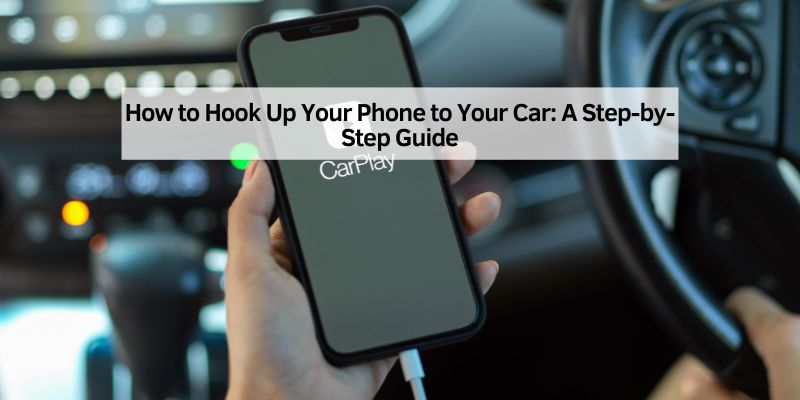
How to Hook Up Your Phone to Your Car: A Step-by-Step Guide
Hey there! If you’re like me, your phone is probably your go-to for music, navigation, and hands-free calls while driving. Connecting your phone to your car can make your drives safer and more enjoyable. I’ve spent a lot of time figuring out the best ways to hook up my phone to my car, and I’m excited to share what I’ve learned. Whether you’re tech-savvy or just getting started, this guide will walk you through every option to connect your phone to your car. Let’s dive in and explore how to hook up your phone to your car, step by step, so you can hit the road with ease.
Why Connect Your Phone to Your Car?
I remember the first time I tried to play my favorite playlist in my car without a proper connection—fumbling with my phone while driving was not fun. Connecting your phone to your car lets you stream music, use GPS apps like Google Maps, and take calls without taking your hands off the wheel. It’s all about safety and convenience. Most modern cars come with built-in systems to make this easy, but even older models have options. I’ve tried a few methods myself, and each has its perks depending on your car and phone. Let’s break down the main ways to do this.
Checking Your Car’s Compatibility
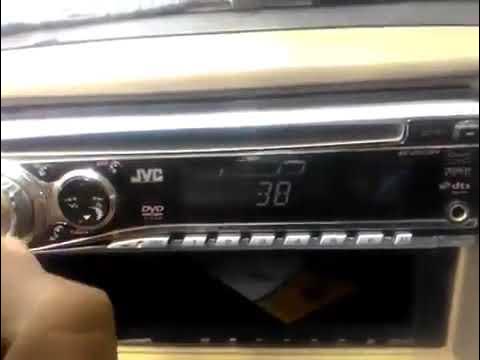
Before you start, you need to know what your car can handle. I learned this the hard way when I bought a fancy cable that my old car didn’t support. Check your car’s manual or look at the dashboard and ports. Most cars built after 2010 have USB ports, auxiliary (AUX) jacks, or Bluetooth. Newer models might even have Apple CarPlay or Android Auto. If you drive an older car, don’t worry—there are still ways to connect. Here’s a quick table to help you figure out what your car might have:
| Car Year | Common Connection Options |
|---|---|
| Pre-2000 | AUX, FM transmitter, cassette adapter |
| 2000–2010 | AUX, Bluetooth, USB (limited) |
| 2010–2016 | Bluetooth, USB, AUX |
| 2016–Present | Bluetooth, USB, Apple CarPlay, Android Auto |
Take a peek at your car’s dashboard or center console. If you see a USB port or a screen that mentions Bluetooth, you’re in good shape. If not, we’ll cover options for older cars too.
Using Bluetooth to Connect Your Phone
Bluetooth is my favorite way to connect because it’s wireless and super convenient. I can hop in my car, and my phone automatically pairs with the stereo. Here’s how you can set it up.
First, turn on Bluetooth on your phone. On an iPhone, go to Settings > Bluetooth and toggle it on. For Android, it’s usually in Settings > Connections > Bluetooth. Next, check your car’s manual to put the stereo in pairing mode. In my car, I press a “Pair” or “Connect” button on the dashboard screen. Your car’s display will show a code or prompt you to confirm a connection. Select your car’s name on your phone’s Bluetooth list, and if it asks for a code, it’s usually something simple like “0000” or “1234.” Once paired, you’re ready to stream music or take calls.
If your car doesn’t have Bluetooth, don’t worry. I’ve used a Bluetooth adapter in my old sedan, and it worked like a charm. These adapters plug into your car’s AUX port or cigarette lighter and cost about $15–$30. Just follow the adapter’s instructions to pair it with your phone.
Connecting via USB Cable
Sometimes, I prefer a wired connection because it charges my phone while I drive. Most cars have a USB port, and connecting is as simple as plugging in your phone. I use a USB-to-Lightning cable for my iPhone, but Android users might need a USB-C cable. When I plug in my phone, my car’s screen usually asks if I want to enable Apple CarPlay or Android Auto. These systems are awesome—they mirror your phone’s apps like Spotify or Maps right on your car’s display.
If your car doesn’t support CarPlay or Android Auto, the USB might still let you play music. Open your car’s audio menu and select “USB” as the source. If it doesn’t work, check that your cable is data-compatible—some cheap cables only charge. I made that mistake once and spent an hour troubleshooting before realizing my cable was the issue.
For older cars without USB ports, you might need a cigarette lighter USB adapter. I got one for $10, and it added a USB port to my 2005 Honda. Plug your phone into the adapter, and you’re good to go.
Using an Auxiliary (AUX) Cable
An AUX cable is a solid option if your car has a 3.5mm headphone jack. I used this method for years in my first car. You just need a 3.5mm AUX cable, which you can find for under $5. Plug one end into your phone’s headphone jack (or use a dongle if your phone doesn’t have one) and the other into your car’s AUX port. Then, set your car’s audio source to “AUX.”
The sound quality is great, but you can’t control your phone through the car’s system like with Bluetooth or USB. You’ll need to pick songs or answer calls directly on your phone. Also, AUX cables don’t charge your phone, so I always kept a separate charger handy. If your phone doesn’t have a headphone jack, adapters like USB-C-to-3.5mm or Lightning-to-3.5mm work well—I’ve used both.
FM Transmitters for Older Cars
If your car is a bit older, like my dad’s 1998 pickup, an FM transmitter is a lifesaver. These devices plug into your car’s cigarette lighter and broadcast your phone’s audio to an FM radio frequency. I bought one for $20, and it’s been a game-changer for cars without Bluetooth or AUX.
Here’s how it works: plug the transmitter into the cigarette lighter, connect it to your phone (usually via Bluetooth or AUX), and tune your car’s radio to an unused FM frequency. The transmitter’s manual will suggest a frequency, like 88.1 FM. Then, play music or calls through your phone, and it’ll come through your car’s speakers. The sound quality isn’t as crisp as Bluetooth or AUX, but it’s good enough for casual listening. Just make sure to pick a frequency with no local radio stations to avoid static.
Apple CarPlay and Android Auto
If your car supports Apple CarPlay or Android Auto, you’re in for a treat. I got a new car last year, and CarPlay has made my drives so much better. These systems let you use your phone’s apps on your car’s touchscreen. You can pull up Google Maps, Spotify, or even text messages without touching your phone.
To set up CarPlay, plug your iPhone into the car’s USB port or connect wirelessly if your car supports it. A CarPlay icon should pop up on your car’s screen. Tap it, and your phone’s interface will appear. Android Auto works the same way for Android phones. You can use voice commands like “Hey Siri” or “OK Google” to control apps, which is great for staying focused on the road.
If your car doesn’t have these systems, you can buy an aftermarket stereo with CarPlay or Android Auto for $200–$500. I helped a friend install one, and it was worth every penny for the upgrade.
Troubleshooting Common Connection Issues
I’ve hit a few bumps while connecting my phone to my car, so let me share some fixes. If Bluetooth won’t pair, try restarting your phone and car stereo. Sometimes, I’ve had to “forget” the device on my phone and re-pair it. For USB connections, double-check that your cable supports data transfer. If your car doesn’t recognize your phone, update your car’s firmware or your phone’s software—my car needed a quick update to work with my new iPhone.
For AUX connections, static or low volume usually means a loose cable or a dirty port. I cleaned my car’s AUX port with a cotton swab, and it fixed the issue. With FM transmitters, static often comes from a bad frequency. Try a different one, like 87.9 or 89.1 FM. If all else fails, your car’s manual or a quick call to the manufacturer can help.
Safety Tips for Using Your Phone in the Car
Connecting your phone is great, but safety comes first. I’ve learned to set up my music or navigation before I start driving. If you need to change something, pull over or use voice commands. CarPlay and Android Auto make this easy with Siri or Google Assistant. Also, keep your phone’s volume low enough to hear traffic sounds—I once missed a siren because my music was too loud. If your car doesn’t have hands-free options, consider a phone mount for easy access without taking your eyes off the road.
Choosing the Best Method for You
So, which method should you pick? It depends on your car and preferences. I love Bluetooth for its wireless convenience, but USB is great for charging and CarPlay. AUX is reliable for older cars, and FM transmitters are a budget-friendly fix for vintage models. Think about what you value—sound quality, ease of use, or cost—and choose from there. I’ve used all these methods at different times, and they all get the job done.
Upgrading Your Car’s Audio System
If your car’s audio system is outdated, you might want to upgrade. I helped my brother install a new stereo with Bluetooth and CarPlay, and it transformed his driving experience. Aftermarket stereos start at $100, and professional installation costs about $50–$100. If you’re handy, you can install one yourself with online tutorials. Just make sure the stereo fits your car’s make and model.
Conclusion
Hooking up your phone to your car doesn’t have to be complicated. Whether you’re using Bluetooth, a USB cable, an AUX cord, or an FM transmitter, there’s a solution for every car and budget. I’ve tried all these methods, and each one has made my drives more enjoyable. From streaming my favorite playlists to navigating with Google Maps, connecting my phone has been a game-changer. Take a few minutes to figure out what your car supports, and you’ll be cruising with your phone’s features in no time. Stay safe, have fun, and enjoy the ride!
Frequently Asked Questions
How do I know if my car has Bluetooth?
Check your car’s manual or look for a Bluetooth symbol on your stereo. You can also try going to your phone’s Bluetooth settings and see if your car’s name pops up. If you’re still unsure, contact your car’s manufacturer.
Can I connect my phone to a car without Bluetooth?
Yes! You can use an AUX cable, USB cable, or FM transmitter. For older cars, FM transmitters or cassette adapters work well if there’s no AUX or USB port.
Why won’t my phone connect to my car’s USB?
It could be a faulty cable—make sure it supports data transfer, not just charging. Also, check if your car’s USB port is for media or just power. Updating your phone or car’s software might help too.
Is Apple CarPlay better than Android Auto?
Both are great and do similar things, like showing your apps on the car’s screen. It depends on whether you use an iPhone or Android. I find CarPlay smoother with Siri, but Android Auto is just as good with Google Assistant.
Can I use an FM transmitter in a city with lots of radio stations?
Yes, but it’s trickier. You’ll need to find an unused frequency, like 87.9 or 88.1 FM. It might take some trial and error to avoid static from local stations.