How to Play Music from Phone to Car Bluetooth
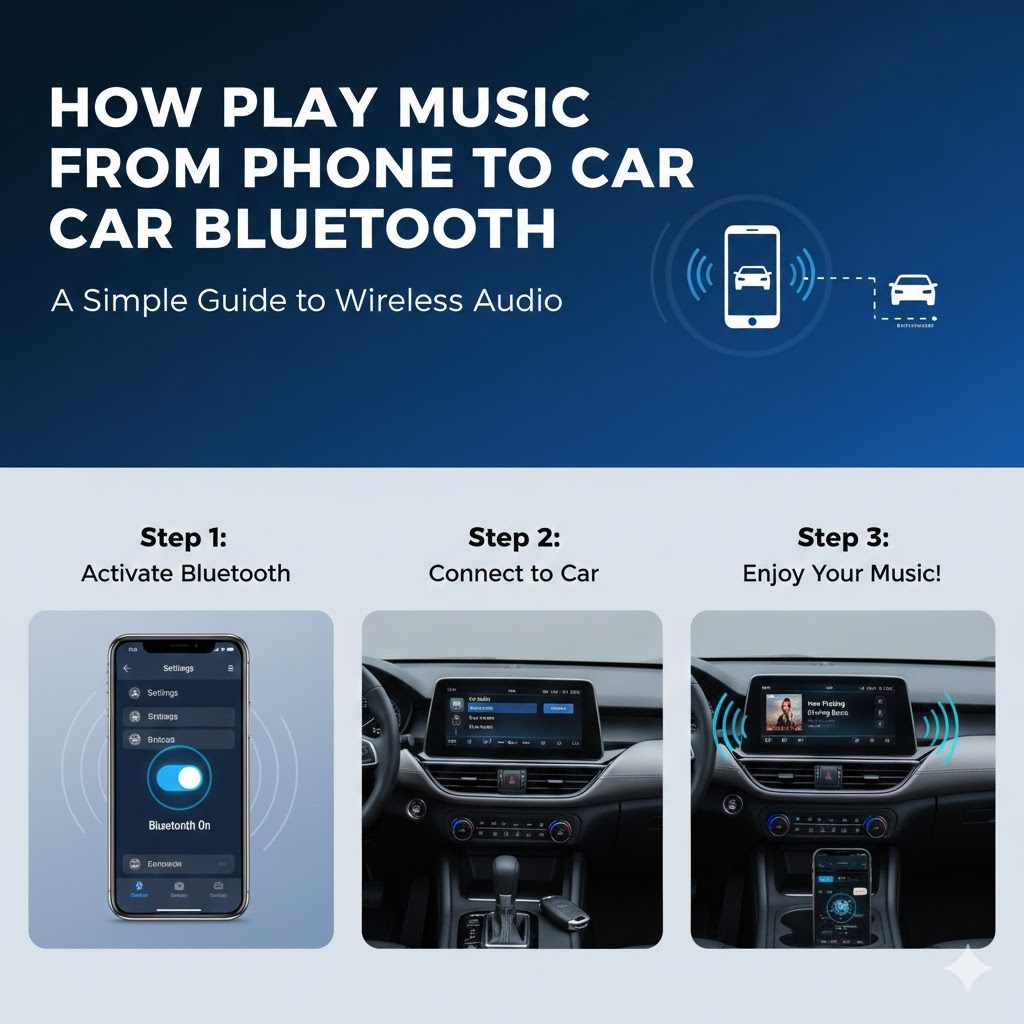
Many people wonder How to Play Music from Phone to Car Bluetooth. It seems simple, but sometimes getting your phone to connect to your car’s speakers can be a puzzle. Don’t worry, it’s easier than you think!
We’ll walk through it step by step. Get ready to enjoy your favorite tunes on the go without any fuss.
Connecting Your Phone Via Bluetooth
This section is all about getting your phone and car to talk to each other wirelessly. We will cover how to make your phone discoverable and how to find your car’s Bluetooth signal. This is the first big step to playing your music.
Once they are paired, your phone can send audio to your car speakers. It’s like magic, but it’s just technology working for you.
Making Your Phone Discoverable
To connect your phone to your car, your phone needs to be seen by your car’s system. This is called making your phone discoverable. Think of it like turning on your phone’s “finder” mode.
Most phones have this setting in their Bluetooth menu. You just need to tap a button, and your phone will broadcast its presence to nearby devices.
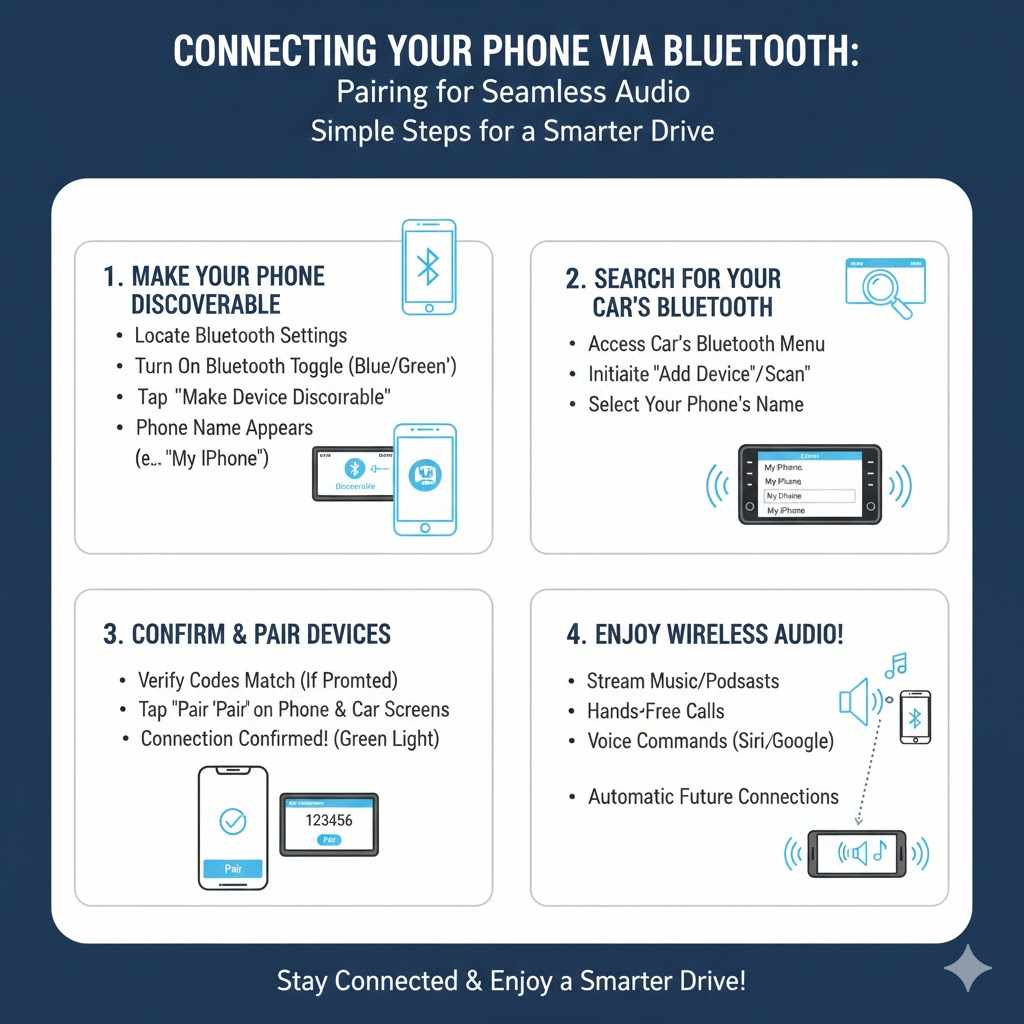
- Locate the Bluetooth Settings: On your smartphone, go to the main settings app. Look for the “Bluetooth” option. This is usually near “Wi-Fi” and “Mobile Data” settings.
- Turn On Bluetooth: Make sure the Bluetooth toggle is switched to the “On” position. You’ll usually see a blue or green indicator when it’s active.
- Make Your Device Discoverable: Within the Bluetooth settings, you should see an option like “Make device discoverable” or “Pair new device.” Tap this. Your phone’s name will appear so other devices can find it.
This process ensures that your car’s infotainment system can see your phone when it searches for available Bluetooth connections. The exact wording may differ slightly depending on whether you use an iPhone or an Android device, but the general steps remain the same. It’s important to keep this setting active while you are trying to pair your devices.
Searching for Your Car’s Bluetooth
Once your phone is ready to be seen, you need to make your car look for your phone. Your car’s audio system or infotainment screen has its own Bluetooth menu. You’ll use this menu to scan for available devices.
When your phone’s name pops up on the car’s screen, you know you’re on the right track to linking them up.
- Access Your Car’s Bluetooth Menu: This is usually found within the “Settings,” “Audio,” “Phone,” or “Infotainment” section of your car’s dashboard display. Consult your car’s owner’s manual if you’re unsure where to find it.
- Initiate a Device Scan: Look for an option like “Add Device,” “Scan for Devices,” or “Pair Phone.” Select this to start the search for nearby Bluetooth signals.
- Select Your Phone from the List: Your phone’s name (e.g., “My iPhone,” “Galaxy S23”) should appear on your car’s display. Tap on your phone’s name to begin the pairing process.
This step requires active engagement from your car’s system. The car acts as the host, and your phone is the guest trying to connect. Finding the right menu in your car can sometimes be tricky, as different car manufacturers design their interfaces uniquely.
Taking a moment to explore your car’s infotainment options is key to a successful connection.
Pairing Your Phone and Car
This part is where your phone and car officially become friends. It involves confirming codes and granting permission. Once paired, they’ll remember each other for future drives.
This makes connecting much faster next time. We’ll go over the confirmation steps to make sure it’s a secure link.
Confirming the Connection
After your car finds your phone, both devices will likely show a pairing request. This request usually includes a confirmation code, often a four or six-digit number. You need to check that the code on your phone matches the code on your car’s screen.
This is a security measure to ensure you’re connecting to the correct device and not a neighbor’s phone.
- Verify the Pairing Code: Both your phone and your car’s display will show a numeric code. Ensure these codes are identical. This is a crucial step for security.
- Accept the Pairing Request: On both your phone and your car’s screen, you will see an option to “Pair,” “Accept,” or “Confirm.” Tap these prompts to finalize the connection.
If the codes do not match, you should cancel the pairing and try again. Mismatched codes indicate a potential issue, and proceeding could lead to unintended connections or failed pairing. It’s always better to be safe and ensure the codes are exactly the same before accepting.
Granting Permissions
Once paired, your phone and car will ask for permission to share certain information. This might include access to your contacts, call history, and messages. Allowing these permissions enables features like making calls through your car’s system and seeing who’s calling on the car’s screen.
You can usually manage these permissions later in your phone’s Bluetooth settings.
- Allow Access to Contacts and Call History: Your car may ask for permission to access your phone’s contact list and recent calls. This allows you to make and receive calls using your car’s controls.
- Enable Message Notifications: Some systems can read text messages aloud or display them on the screen. You can choose whether to allow this feature for convenience.
These permissions are optional but greatly enhance the hands-free experience. For example, if you grant access to your contacts, you can simply say “Call Mom” and your car will dial the number. This is much safer than fumbling with your phone while driving.
Always review the permissions requested and only grant what you are comfortable with.
Playing Music from Your Phone
With your devices successfully paired, you’re ready for the fun part: playing your music! This involves selecting the correct audio source on your car’s stereo. Once that’s done, your phone’s music player becomes your car’s soundtrack selector.
It’s incredibly convenient for road trips and daily commutes.
Selecting the Bluetooth Audio Source
Your car’s stereo system usually has multiple audio sources, like AM/FM radio, CD player, USB, and Bluetooth. You need to switch to the Bluetooth input to hear your phone’s audio. This is typically done using a “Source” or “Mode” button on your car’s radio or steering wheel controls.
- Locate the Source/Mode Button: Find the button on your car’s dashboard or steering wheel that cycles through the audio inputs. It might be labeled “Source,” “Mode,” “Audio,” or have an icon representing a sound wave.
- Cycle Through Sources: Press this button repeatedly until “Bluetooth Audio,” “BT Audio,” or a similar option appears on your car’s display. This tells your car to listen to the audio coming from your paired phone.
Some cars may have a dedicated button or menu option for Bluetooth audio. If you have an Android phone, you might also see a “Media Audio” option within your phone’s Bluetooth settings for the paired car, which you can toggle on to ensure music playback.
Using Your Music App
Once Bluetooth audio is selected, open your preferred music app on your phone. This could be Spotify, Apple Music, Pandora, YouTube Music, or any other app that plays audio. Start playing a song or playlist.
The sound should now come through your car’s speakers.
- Open Your Music Application: Launch the music player app of your choice on your smartphone. This is where all your songs and playlists are stored.
- Play Your Music: Select a song, album, or playlist and press the play button. You should immediately hear the music through your car’s speakers.
The playback controls on your car’s stereo (play, pause, skip forward, skip backward) might also work with your phone’s music app once connected via Bluetooth. This allows you to manage your music without having to reach for your phone, which is safer while driving. Experiment with these controls to see what works with your setup.
Troubleshooting Common Bluetooth Issues
Sometimes, things don’t connect perfectly the first time. Don’t get discouraged! Many common problems have simple fixes.
This section will help you get back to enjoying your music if you run into any snags. We’ll cover what to do if your devices won’t pair or if the audio is choppy.
When Devices Won’t Pair
If your phone and car aren’t pairing, the first thing to try is restarting both devices. Turn off Bluetooth on your phone, then turn it back on. Do the same for your car’s system if possible, or simply turn the car off and then on again.
Sometimes, a simple refresh is all that’s needed to clear any temporary glitches.
- Restart Both Devices: Turn off Bluetooth on your phone and then turn it back on. Also, turn your car’s ignition off and then back on. This can often resolve temporary connection issues.
- Forget and Re-pair: On your phone, go to Bluetooth settings, find your car’s name in the list of paired devices, and select “Forget” or “Unpair.” Do the same on your car’s system if it allows you to remove devices. Then, try the pairing process again from the beginning.
Ensure that no other device is actively connected to your car’s Bluetooth system. Many cars can only connect to one phone at a time. If your partner’s phone is still connected from a previous trip, it might prevent yours from pairing.
Disconnecting any other active phones is a quick fix.
- Check for Software Updates: Ensure your phone’s operating system and your car’s infotainment system are up to date. Manufacturers often release updates to improve Bluetooth connectivity and fix bugs.
Audio Problems
If the audio is cutting out, crackling, or not playing at all, check the distance between your phone and the car’s Bluetooth receiver. While Bluetooth is wireless, a strong signal is still important. Obstructions like metal objects or even dense electronics can interfere.
Also, make sure your phone’s volume is turned up.
- Check Phone and Car Volume Levels: Ensure that the volume on both your phone and your car’s stereo system is turned up to an audible level. Sometimes, one of them might be accidentally muted or set very low.
- Reduce Distance and Obstructions: Keep your phone relatively close to the car’s Bluetooth module. Avoid placing it in a deep console or pocket that might block the signal. A clear line of sight, or at least minimal interference, is best.
If the audio quality is poor, it could also be due to interference from other wireless devices. Try turning off Wi-Fi or other Bluetooth devices nearby temporarily to see if that improves the sound. Bluetooth uses specific frequencies, and other devices operating on similar frequencies can cause interference.
- Test with a Different App or Phone: To determine if the issue is with your phone, a specific app, or the car’s Bluetooth, try playing audio from a different music app or connect a different phone. This can help isolate the problem.
Bluetooth Connection Drops
If your Bluetooth connection keeps dropping, it’s often a sign of interference or an overloaded Bluetooth profile. This means too much data is trying to be sent at once, or there are too many signals competing. Sometimes, simply switching off other Bluetooth devices you aren’t using can help.
For example, if you have a smartwatch and wireless earbuds connected, try disconnecting one of them.
- Disconnect Unused Bluetooth Devices: Turn off Bluetooth on other nearby devices like smartwatches, tablets, or headphones that are not currently in use. This reduces potential interference and frees up bandwidth.
- Ensure Sufficient Battery Charge: Low battery levels on either your phone or your car’s Bluetooth module can sometimes cause unstable connections. Make sure both are adequately charged.
- If the problem persists, it might be worth investigating if your car’s infotainment system has a “reset Bluetooth” option. Some systems allow you to clear all paired devices and start fresh, which can resolve persistent connection drop issues. This is similar to forgetting and re-pairing but can sometimes clear deeper configuration errors.
- Check for Interference Sources: Electrical components in your car, such as charging ports or dashcams, can sometimes emit radio frequencies that interfere with Bluetooth. Try to move your phone away from these devices or turn them off temporarily to test.
Advanced Tips and Features
Once you’ve mastered the basics of How to Play Music from Phone to Car Bluetooth, you can explore some more advanced features. Many modern car systems offer more than just basic audio playback. These can include voice commands, automatic reconnection, and even text-to-speech for notifications.
Let’s look at how to get the most out of your Bluetooth connection.
Automatic Reconnection
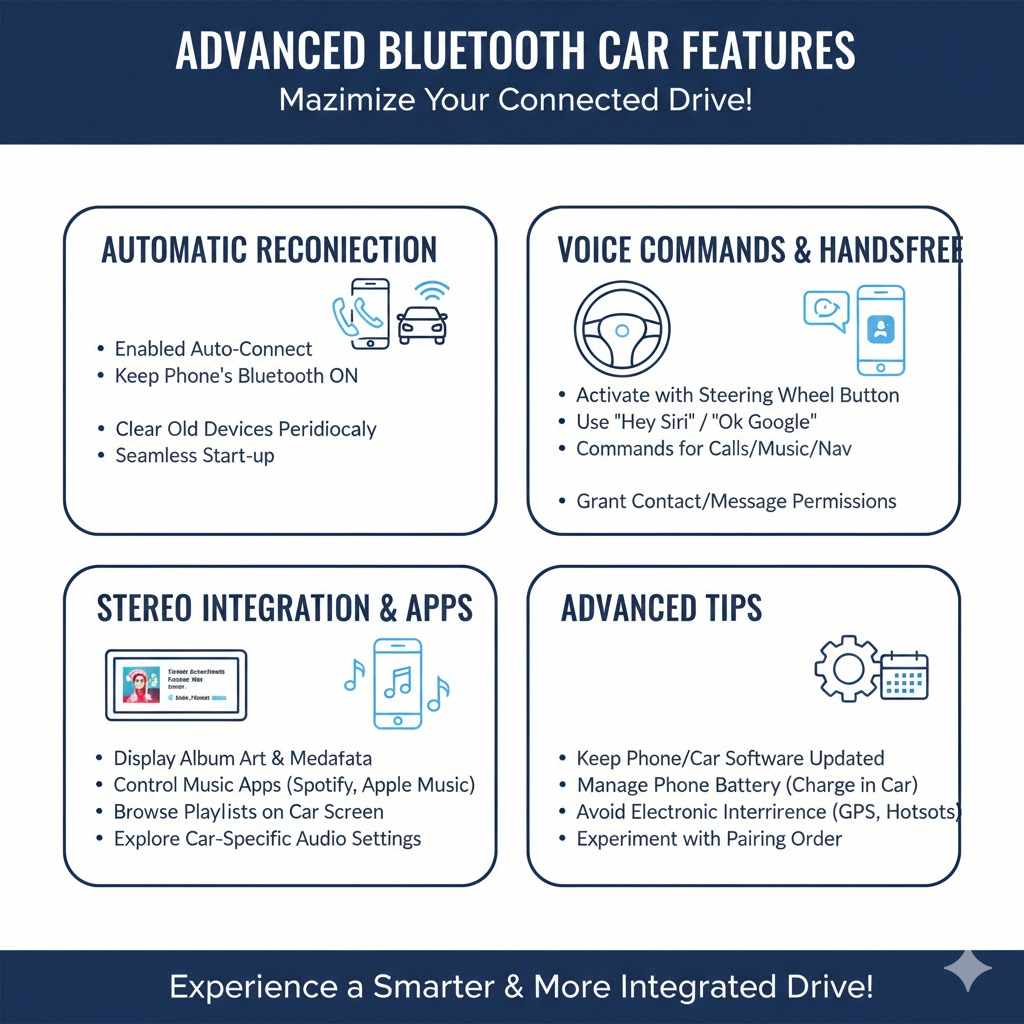
Once your phone and car are paired successfully, they should automatically reconnect each time you start your car and your phone’s Bluetooth is on. This makes connecting seamless. If this isn’t happening, ensure that Bluetooth is enabled on your phone before you turn on the car.
Also, check your car’s Bluetooth settings for an option like “Auto-connect” or “Remember Device.”
- Enable Auto-Connect Settings: In your car’s Bluetooth menu, look for settings related to automatic connections. Make sure your phone is set to connect automatically when in range.
- Keep Phone’s Bluetooth On: Ensure your phone’s Bluetooth is enabled at all times when you plan to drive. Many users forget to turn it on after turning it off for battery saving, which prevents automatic reconnection.
- Sometimes, a specific order of operations can help. For instance, starting the car first and then turning on your phone’s Bluetooth might work better than the other way around. Experimenting with the timing can reveal the most reliable method for your car and phone combination.
- Regularly Clear Paired Devices: If your car has been paired with many phones over time, it might get confused. Periodically clearing the list of paired devices on your car’s system and re-pairing your primary phone can improve auto-connection reliability.
Voice Commands and Hands-Free Calling
Most modern cars with Bluetooth support voice commands. You can usually activate your car’s voice assistant or your phone’s assistant (like Siri or Google Assistant) by pressing a button on your steering wheel or dashboard. This allows you to make calls, send texts, play music, or get directions without taking your hands off the wheel.
- Initiate Voice Commands: Press the voice command button on your steering wheel. You may need to say “Hey Siri” or “Hey Google” depending on your phone’s setup, or your car’s system may have its own wake word.
- Use Commands for Calls and Music: Once the assistant is active, you can issue commands like “Call ,” “Play ,” or “Text .” The system will confirm your request before proceeding.
- The effectiveness of voice commands relies heavily on granting the necessary permissions to your phone’s assistant. Ensure that your voice assistant has access to your contacts, messages, and media apps. This allows it to perform actions on your behalf directly through the car’s integrated system.
- Explore Car-Specific Voice Features: Some cars have unique voice command sets that can control car functions like climate control or navigation. Familiarize yourself with your car’s manual to discover these capabilities.
Stereo System Integration and Music Apps
Beyond just playing audio, Bluetooth can integrate with your car’s stereo system in advanced ways. Some systems can display album art on your car’s screen. Others offer enhanced control over music apps, allowing you to browse playlists and artists directly from your car’s interface.
This level of integration makes the driving experience much more enjoyable and interactive.
- Display Album Art and Metadata: When playing music, your car’s display might show the song title, artist, and album cover. This feature relies on your phone sending this information over Bluetooth.
- Control Music Apps via Car Interface: For compatible music apps and car systems, you can navigate through your music library using your car’s touchscreen or physical controls. This provides a more integrated experience than just basic playback.
- The compatibility for these advanced features can vary significantly between phone models, car manufacturers, and specific music applications. It’s always a good idea to check your car’s infotainment system manual and your phone’s app descriptions for details on Bluetooth integration capabilities. Some apps might require specific settings to be enabled for this advanced functionality.
- Utilize Car-Specific Audio Settings: Your car’s stereo system may have equalizer settings or sound profiles that can be adjusted for Bluetooth audio. Experiment with these to find the audio quality that best suits your preferences.
Frequently Asked Questions
Question: How do I know if my car supports Bluetooth audio?
Answer: Most cars made after 2010 have Bluetooth. Look for a Bluetooth symbol on your dashboard, radio controls, or in your car’s manual. You can also check your car manufacturer’s website for specifications.
Question: Do I need a special app to play music from my phone to my car?
Answer: No, you don’t need a special app. You can use any music player app on your phone that plays audio, like Spotify, Apple Music, or YouTube Music. Your car just needs to be paired via Bluetooth.
Question: Why does my music sound choppy when playing through Bluetooth?
Answer: Choppy audio can be caused by interference from other devices, a weak signal, or your phone being too far from the car. Try moving your phone closer or turning off other Bluetooth devices nearby.
Question: Can I control my music playback using my car’s buttons?
Answer: Yes, often you can. Once paired, your car’s play, pause, skip, and rewind buttons may control the music playing from your phone’s app. This varies depending on the car and phone model.
Question: How do I disconnect my phone from my car’s Bluetooth?
Answer: You can turn off Bluetooth on your phone, or go into your car’s Bluetooth settings and select the option to disconnect or forget the device. You can also simply turn off your car.
Wrap Up
Connecting your phone to your car’s Bluetooth is straightforward. By following these steps, you can easily play music from your phone to your car speakers. Enjoy your tunes wirelessly on every drive.
It’s a simple way to enhance your daily commutes and road trips with your favorite sounds.