How to Transfer Your SiriusXM Account to a New Car Easily
Many people wonder How to Transfer Your SiriusXM Account to a New Car Easily. It might seem a bit tricky when you get a new ride and want your favorite music channels with you. But don’t worry, it’s simpler than you think!
We’ll walk you through each step so you can enjoy your SiriusXM without any hassle. Get ready for a smooth transfer process.
Transferring Your SiriusXM Account to a New Vehicle
Moving your SiriusXM subscription to a new car is a common need for many subscribers. Whether you’ve bought a new car, leased a different one, or are helping a family member, knowing the process saves time and ensures your music isn’t interrupted. This guide breaks down all the steps involved, making it straightforward for anyone, even those new to the service.
We’ll cover everything from gathering your account details to activating your service in the new vehicle.
Checking Your Eligibility for Transfer
Before you start the transfer, it’s important to ensure your SiriusXM subscription is eligible. Most subscriptions can be transferred. However, some promotional offers or specific trial periods might have restrictions.
Generally, if you have a paid subscription, you should be good to go. SiriusXM wants you to keep enjoying their service, so they make it pretty easy to move it with you.
To check your eligibility, you’ll need to log into your SiriusXM account online. Once logged in, you can usually find a section dedicated to managing your subscription or account details. Look for any information related to transferring your service or updating your vehicle information.
If you’re unsure, contacting SiriusXM customer support is always a good option. They can quickly tell you if your specific subscription plan allows for a transfer.
What You Need Before You Start
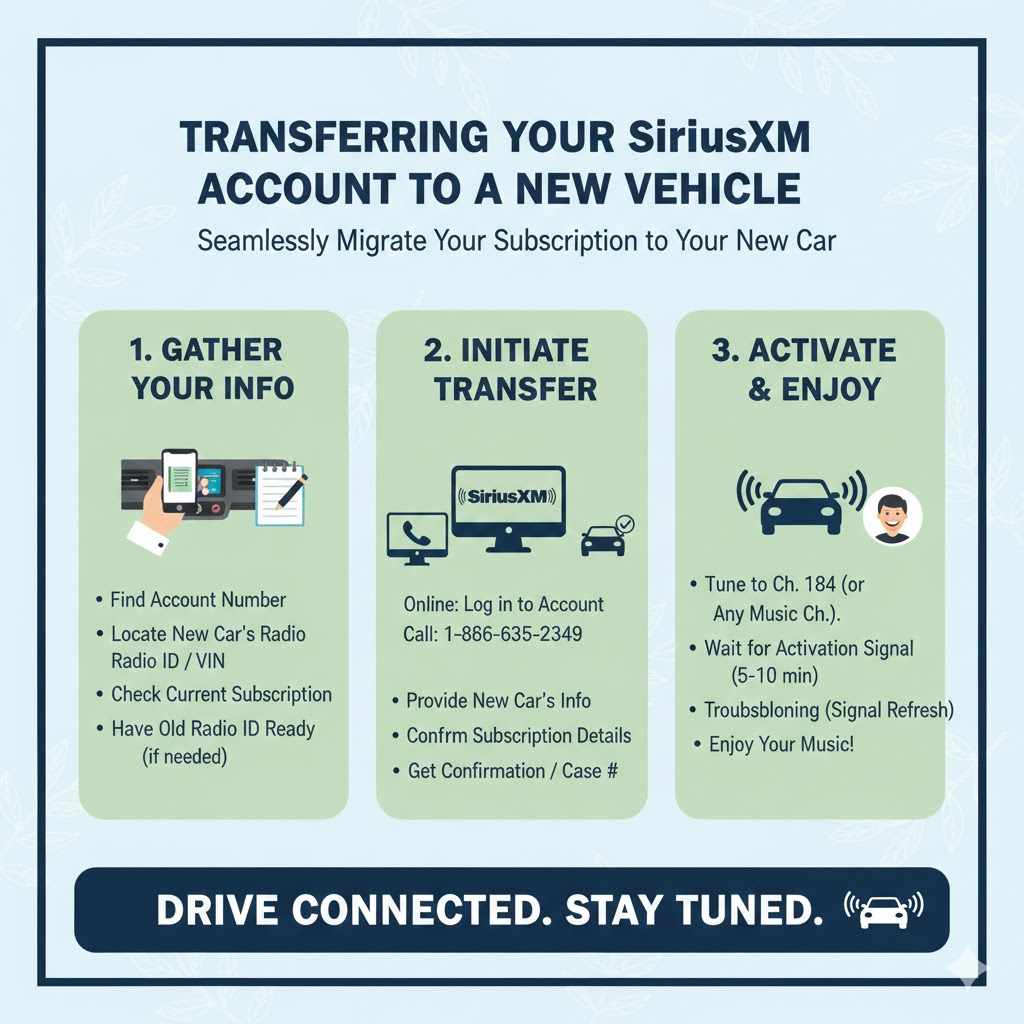
Gathering the right information beforehand makes the entire process much smoother. You’ll need your SiriusXM account number and your login credentials for the SiriusXM website. It’s also helpful to have the Vehicle Identification Number (VIN) of your new car ready.
Knowing these details upfront will save you time when you call SiriusXM or when you’re filling out online forms.
Your SiriusXM account number is crucial. You can usually find it on your monthly bills or by logging into your online account. The VIN is a unique identifier for your car, and SiriusXM uses it to link your subscription to your new vehicle’s radio.
Having the VIN ensures that your service is correctly activated for the specific car you’re driving.
Methods for Transferring Your SiriusXM Account
SiriusXM offers a few convenient ways to transfer your account. The most common methods include doing it online through their website or by calling their customer service department. Both methods are designed to be user-friendly and efficient, aiming to get you back to listening to your favorite channels as quickly as possible.
The online method is often preferred for its speed and convenience, allowing you to manage your account at any time. However, some people prefer speaking with a representative directly. This can be helpful if you have any unique circumstances or specific questions about your subscription that aren’t easily answered online.
Online Transfer Process
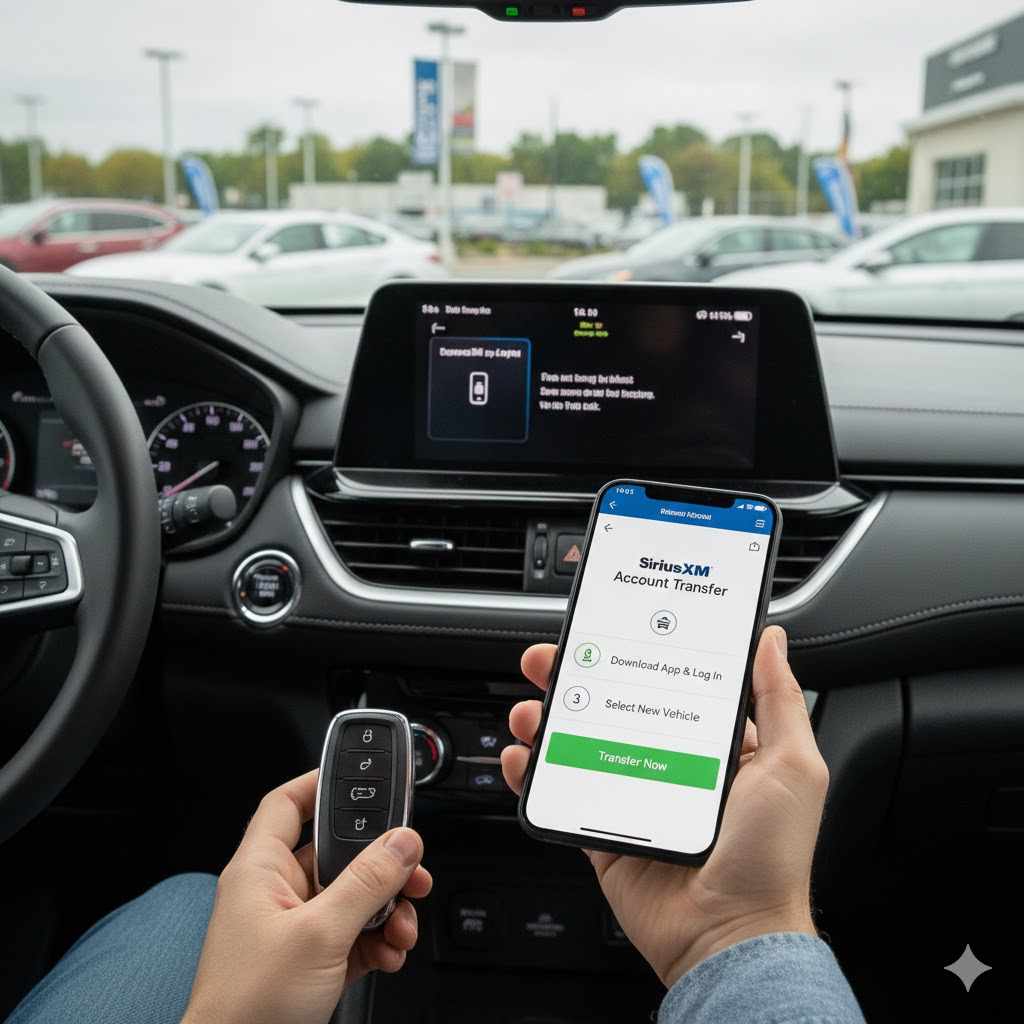
Transferring your SiriusXM account online is quite simple. First, visit the official SiriusXM website and log in to your account. Look for an option like “Transfer Radio” or “Update Vehicle.” You will likely be prompted to enter the Radio ID or VIN of your new car.
The system will then guide you through the remaining steps.
The online portal is designed to be intuitive. You’ll see clear instructions at each step. After you submit the new vehicle information, SiriusXM will process the transfer.
This usually takes a short amount of time. You might need to refresh your radio or wait a few minutes for the channels to appear in your new car. Many users find this method to be the quickest way to get their service active.
For example, Sarah bought a used car and wanted to keep her SiriusXM subscription. She went to the SiriusXM website, logged into her account, and found the “Transfer Radio” option. She entered the VIN of her new car, and within ten minutes, her channels were working perfectly.
She didn’t even have to make a phone call.
Transferring via Phone Support
If you prefer a more personal touch, you can call SiriusXM customer support. The phone number is usually found on their website or on your billing statements. When you call, be prepared to provide your account information and the details of your new vehicle, including the VIN and Radio ID.
A customer service representative will guide you through the transfer process step-by-step. They can answer any specific questions you might have about your subscription or the transfer. This method is excellent for ensuring everything is handled correctly, especially if you’re not comfortable with online processes.
The representative will confirm the transfer and let you know when your service will be active in the new car.
Let’s say John upgraded to a new truck. He called SiriusXM, and a friendly agent helped him immediately. The agent confirmed his account details and asked for the Radio ID of his new truck.
Within five minutes, the agent confirmed the transfer was complete and John could start listening to his favorite shows on the road.
Activating Your SiriusXM Radio in the New Car
Once the transfer is initiated, you need to ensure your new car’s radio is ready to receive the SiriusXM signal. This step is crucial to get your channels working. The process of activation can vary slightly depending on the make and model of your new car.
Most modern car radios are designed to automatically detect and activate satellite radio services after the account transfer is processed by SiriusXM. However, sometimes a manual refresh or reset of the radio might be necessary. Following the steps provided by SiriusXM, either online or through their phone support, will guide you on the best way to activate the service for your specific vehicle.
Finding Your New Car’s Radio ID
Every SiriusXM-ready radio has a unique identifier called a Radio ID. This is essential for activating your service. You can typically find your Radio ID in a few ways.
One common method is to tune your new car’s radio to channel 0. The Radio ID should then appear on the screen.
Another way to find it is by checking your car’s owner’s manual. Many manuals include a section on the audio system that details how to find the Radio ID. If these methods don’t work, you might need to contact your car dealership for assistance.
They can help you locate this important piece of information.
It’s important to note that there are two types of Radio IDs: a longer alphanumeric one for satellite radios, and sometimes a shorter one for streaming. Make sure you are providing the correct one for your satellite subscription transfer.
The Activation Process for Satellite Radios
After you’ve provided SiriusXM with your new Radio ID or VIN, they will send an activation signal to your radio. This signal essentially “unlocks” your subscription for the new device. The time it takes for this signal to be received can vary.
Sometimes it’s almost instant, while other times it might take a few minutes or even up to an hour.
If you’ve followed the transfer steps and your channels aren’t appearing, try turning your car off and then on again. You can also try tuning to channel 0 again, as this sometimes prompts the radio to search for the activation signal. If problems persist, contacting SiriusXM support is the best next step.
They can check the status of the activation signal.
Consider the case of Mark, who transferred his SiriusXM to a new car. He followed the online steps and entered his new car’s Radio ID. After about 15 minutes, his favorite music channel still wasn’t playing.
He called SiriusXM, and the representative saw that the signal hadn’t fully registered. The rep sent a manual refresh signal, and all channels were available immediately.
Troubleshooting Common Transfer Issues
While the transfer process is generally smooth, sometimes you might run into a few hiccups. Don’t let these minor issues discourage you. Most common problems have simple solutions.
Being aware of them beforehand can save you a lot of frustration.
Common issues include not receiving the activation signal, incorrect account information being used, or the radio not being compatible. SiriusXM’s support team is well-equipped to handle these situations and guide you toward a resolution. Having your account details and new car’s Radio ID handy will make troubleshooting much faster.
When Channels Don’t Appear
If you’ve completed the transfer and your SiriusXM channels are still not showing up, the first thing to do is ensure your new car’s radio is properly set up for satellite radio. Check that the antenna is connected and that you are in an area with a clear view of the sky, as satellite signals need unobstructed access.
Sometimes, simply turning the car off for a few minutes and then turning it back on can resolve the issue. This allows the radio to reset and try to reacquire the signal and activation. If the problem continues, it might be a delay in SiriusXM’s system processing your transfer or sending the activation signal.
In such cases, a call to their support can speed things up.
Incorrect Account Information
Using the wrong account number or login credentials is a frequent cause of transfer problems. Double-check that you are using the correct SiriusXM account number associated with your subscription. If you’ve forgotten your password, use the “Forgot Password” option on the SiriusXM website.
Ensure that the name and address associated with your SiriusXM account match the information you provide. Any discrepancies can cause the system to flag your account, preventing a successful transfer. If you’re unsure about your account details, contacting SiriusXM customer service is the best way to confirm them.
Keeping Your Subscription Active
It’s vital to ensure your SiriusXM subscription is active and paid up. If your subscription has expired or is about to expire, this can cause issues with the transfer. Make sure your payment information is up-to-date in your SiriusXM account.
Sometimes, promotional periods or free trials might have specific rules about transfers. If you are on a trial, it’s best to confirm with SiriusXM if you can transfer it to a new vehicle or if you need to purchase a new subscription. Keeping your account in good standing is key to a seamless transfer experience.
Example of a Troubleshooting Scenario
David transferred his SiriusXM to a new car but only got a few channels. He checked his account online and confirmed it was active. He then noticed that his new car’s radio had a slightly different model number than his old one.
He called SiriusXM support and explained the situation. The representative guided him to a specific setting in his new car’s infotainment system that needed to be adjusted for full SiriusXM functionality. After this adjustment and a quick radio reset, all channels worked perfectly.
Tips for a Smooth Transition
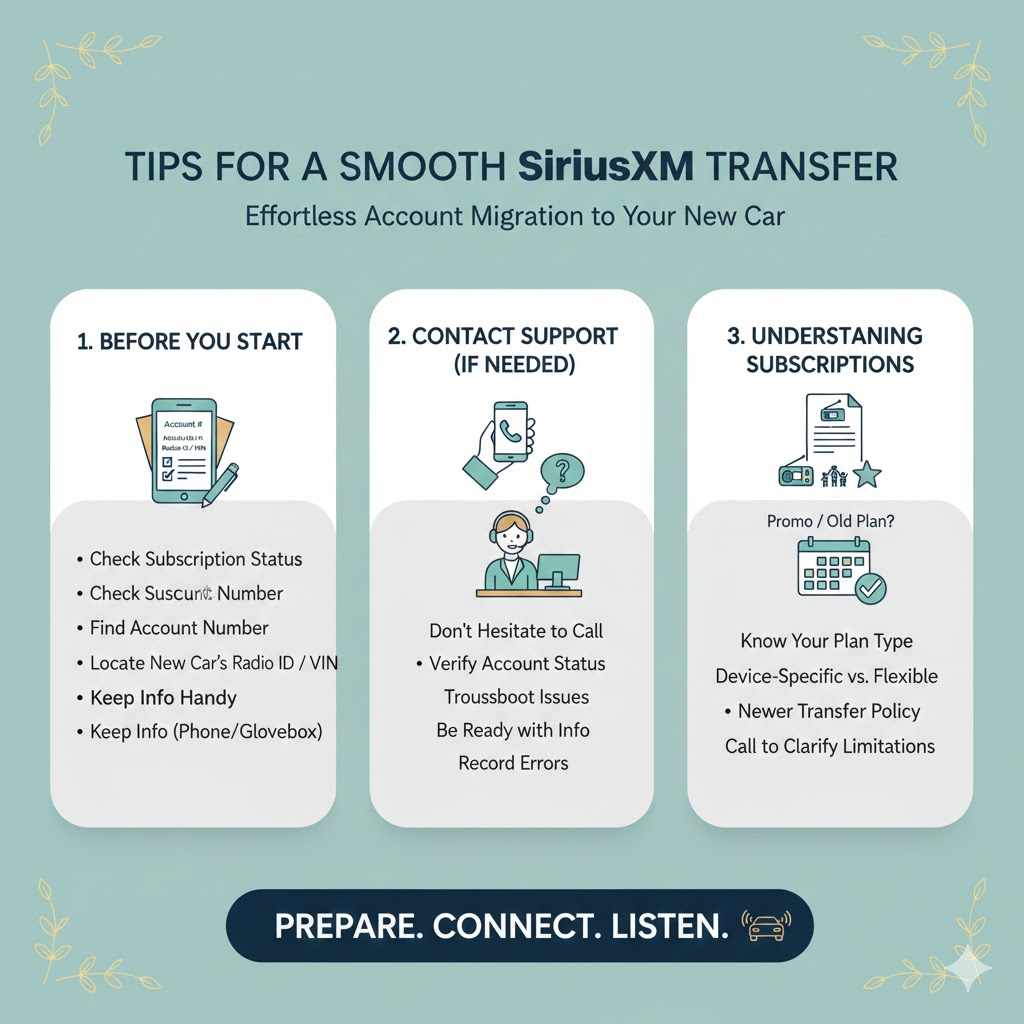
To make your SiriusXM account transfer as easy as possible, a little preparation goes a long way. Following a few simple tips can prevent common issues and ensure you’re back to listening to your favorite shows without delay.
Always confirm that your SiriusXM subscription is current before initiating the transfer. Ensure you have all necessary account details and your new car’s Radio ID or VIN readily available. This proactive approach minimizes the chances of encountering problems during the process.
Record Your Radio ID and Account Number
It’s a good practice to keep a record of your SiriusXM account number and your car’s Radio ID in a safe place. This information is essential for managing your account, including transfers and troubleshooting. You can store this in a notes app on your phone or keep a physical copy in your car’s glove compartment.
Having these details handy means you won’t have to search for them when you need them most, especially if you’re calling customer support or making changes online. This simple step ensures efficiency and reduces potential delays during the transfer process.
Contacting SiriusXM Support
If you encounter any difficulties or have questions during the transfer, don’t hesitate to contact SiriusXM customer support. Their representatives are trained to assist with account transfers and can provide personalized help. They can verify your account status, troubleshoot technical issues, and guide you through any complex steps.
Make sure to have your account number, the Radio ID or VIN of your new vehicle, and any error messages you might be seeing ready before you call. This will help the support agent assist you more effectively and quickly.
Understanding Different Subscription Types
SiriusXM offers various subscription plans. Some plans are tied to a specific radio device, while others are more flexible and can be easily transferred. If you have a newer subscription or a plan that specifically mentions transferability, the process will likely be very straightforward.
For older or promotional subscriptions, it’s always best to verify the transfer policy with SiriusXM directly. They can clarify if there are any limitations or additional steps required based on your specific plan. This knowledge ensures you know what to expect.
Real-Life Example: The Miller Family Transfer
The Miller family recently bought a new minivan. They had an active SiriusXM subscription in their old car. Mr.
Miller logged into his SiriusXM account and found the “Transfer Radio” option. He entered the VIN of the new minivan and his current Radio ID. Within an hour, all their favorite channels were available in the new car.
The process was so smooth that they didn’t even need to call customer service, saving them valuable time.
Frequently Asked Questions
Question: Can I transfer my SiriusXM account to multiple new cars?
Answer: Generally, a SiriusXM subscription is tied to one active vehicle at a time. If you have multiple cars, you would typically need separate subscriptions for each if you want SiriusXM in all of them simultaneously. However, you can transfer your existing subscription from one car to another when you switch vehicles.
Question: How long does it take to transfer my SiriusXM account?
Answer: The transfer process is usually quite fast. Online transfers can often be completed within minutes to an hour. Phone transfers may take a similar amount of time, depending on call volume and the agent’s process.
Activation signals are generally sent quickly.
Question: What if my new car doesn’t have a SiriusXM-ready radio?
Answer: If your new car’s radio is not equipped for SiriusXM satellite radio, you cannot transfer your satellite subscription directly to it. However, you can still enjoy SiriusXM through their streaming app on your smartphone or other devices, or by purchasing a SiriusXM portable satellite radio receiver.
Question: Do I need to cancel my old subscription before transferring?
Answer: No, you do not need to cancel your old subscription. The transfer process automatically deactivates the service in your old vehicle and activates it in your new one. SiriusXM handles the deactivation and reactivation for you as part of the transfer.
Question: What happens to my presets or saved channels during a transfer?
Answer: Your presets or saved channels are typically tied to the specific radio in your car, not your SiriusXM account itself. When you transfer your account to a new car, you will need to re-save your favorite channels as presets on the new car’s radio system.
Summary
Transferring your SiriusXM account to a new car is a straightforward process. By gathering your account details and your new car’s information, you can easily complete the transfer online or by phone. Follow these steps, and you’ll be enjoying your favorite channels in your new ride in no time.