How to Turn Up Waze Sound on Your Car Stereo
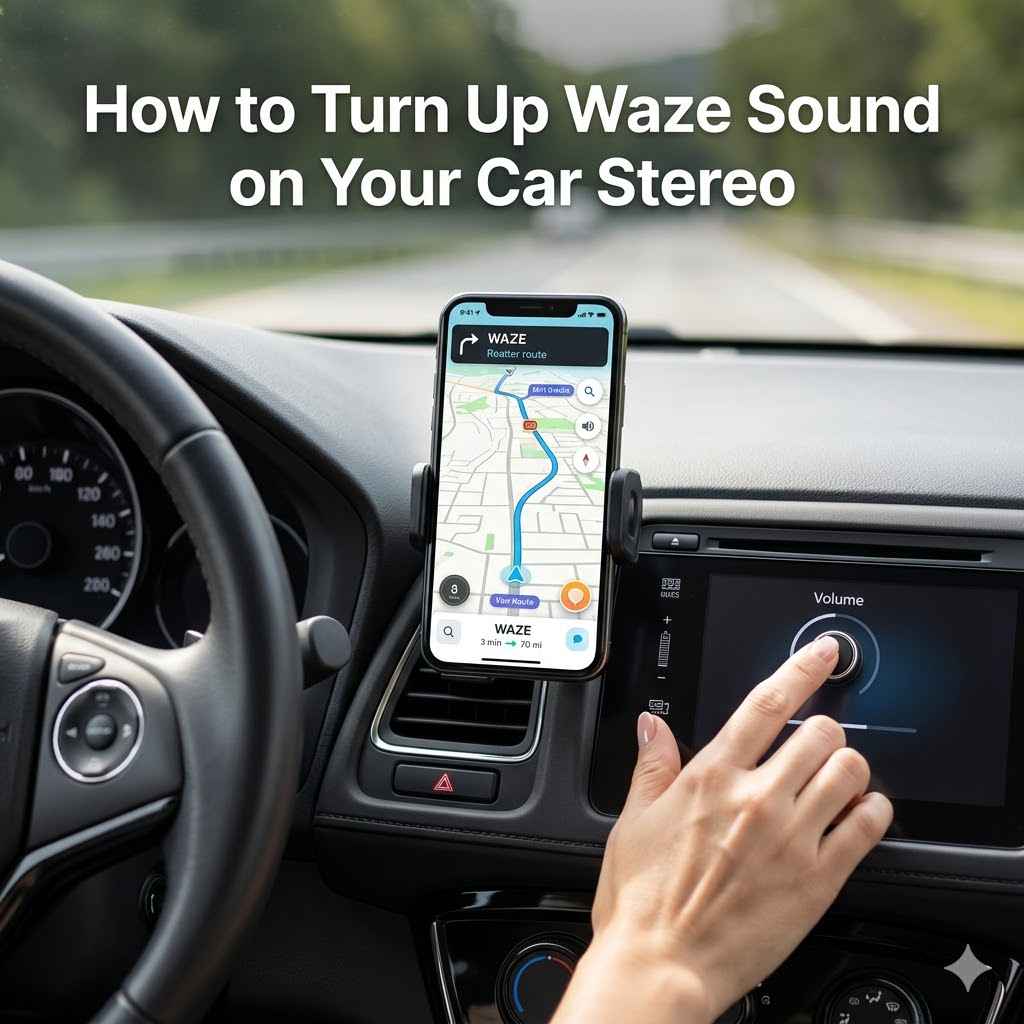
Many folks find it tricky to make Waze voice directions loud enough in their car, especially when the radio is on. It can be frustrating when you miss a turn because you couldn’t hear the instructions clearly. This guide is here to make that easy.
We will walk you through simple steps to get those Waze sounds booming through your car speakers. Let’s get your navigation voice heard loud and clear without any fuss.
Adjusting Waze Volume Settings
This section covers the primary way to control how loud Waze sounds are. You’ll learn about the in-app settings that directly affect the volume of Waze’s voice guidance and alerts. Making these adjustments is usually the first and most effective step for most users.
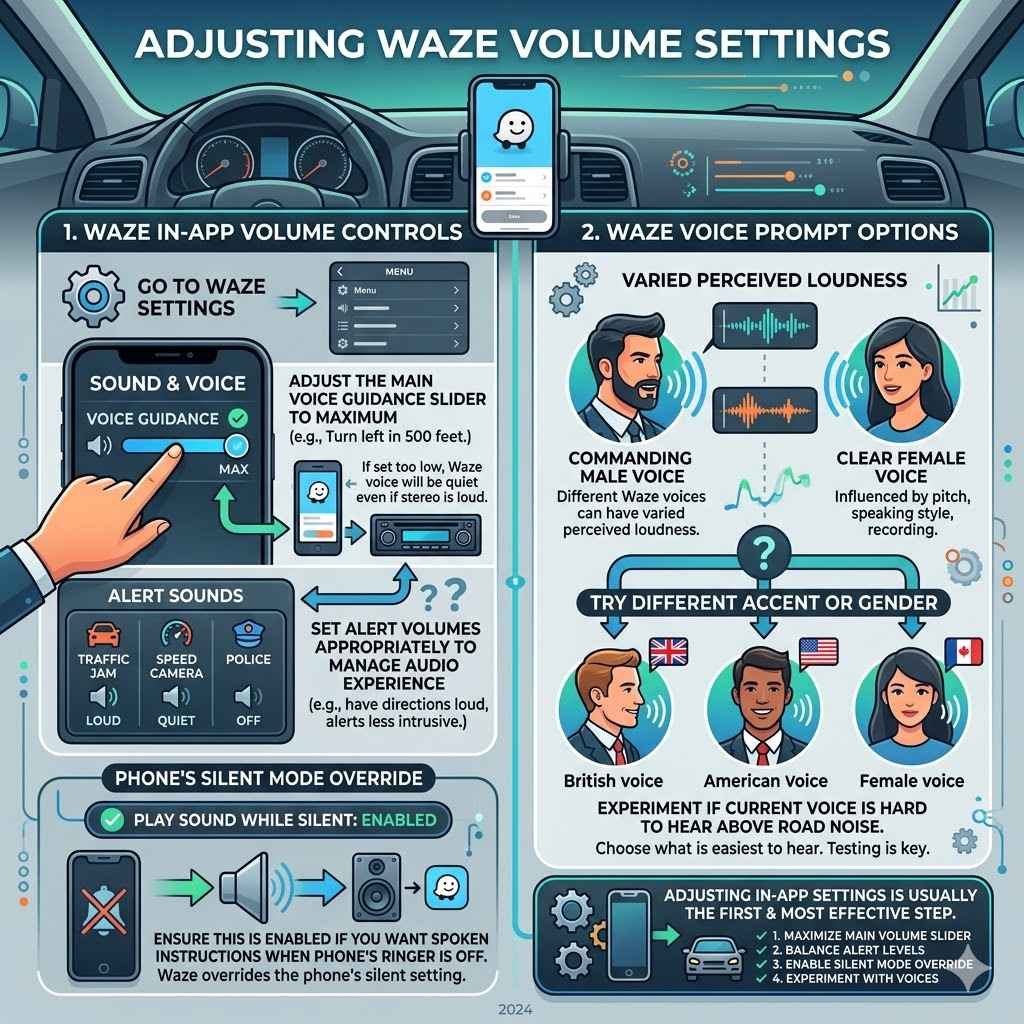
Waze In-App Volume Controls
Inside the Waze app itself, there are specific settings to manage sound. These controls let you choose how loud the voice prompts are compared to other app sounds like alerts. Adjusting these is key to ensuring Waze’s voice is audible over your car’s audio system.
The Waze app has a volume slider for voice guidance. You can find this by going into the app’s settings menu. Look for options related to “Sound and Voice” or similar.
Within this menu, you will see a slider that you can move to increase or decrease the volume of the navigation instructions. Setting this to the maximum is often the best starting point.
Beyond the general volume, Waze also allows you to adjust the loudness of specific alert sounds. These include warnings about traffic jams, speed cameras, or police. You can often set these to be quieter, louder, or even turn them off if you prefer.
Balancing these alert volumes with the voice guidance can help you prioritize what you hear while driving.
Adjusting the main voice guidance slider to maximum is the most direct way to increase Waze sound.
This setting directly controls the volume of spoken directions like “Turn left in 500 feet.” If this is set too low, even if your car’s stereo is loud, Waze’s voice will be quiet.
Setting alert volumes appropriately helps manage your audio experience.
You can often choose different volume levels for alerts versus navigation prompts. This means you can have Waze’s voice loud enough to hear directions but perhaps have speed camera alerts at a slightly lower, less intrusive volume.
Ensure that “Play sound while silent” is enabled if you want spoken instructions even when your phone’s ringer is off.
This feature is crucial for ensuring you don’t miss directions due to your phone being in silent mode. It tells Waze to override the phone’s silent setting for navigation prompts.
Waze Voice Prompt Options
Waze offers different voice options, and some may be perceived as louder or clearer than others. While not a direct volume control, choosing a different voice can sometimes improve audibility.
The app allows you to select from various voices for your navigation prompts. These voices can have different inflections and speaking speeds. While Waze aims for clarity with all its voices, some users report that certain voices are easier to hear over road noise.
Experimenting with different voices is a simple way to see if it makes a difference for your car’s acoustics.
Different Waze voices can have varied perceived loudness.
The way a voice is recorded, its pitch, and its speaking style can all influence how easily you can hear it above other noises. Some voices might sound naturally more commanding or clear.
Consider trying a different accent or gender if current voice is hard to hear.
This is purely subjective, but a change might bring better results. What one person finds easy to hear, another might struggle with, so testing is key.
Connecting Waze to Your Car Stereo
Once Waze’s app settings are dialed in, the next crucial step is how the sound gets from your phone to your car’s speakers. This connection method significantly impacts the overall volume you experience.
There are several common ways to connect your smartphone to your car stereo for audio playback. Each method has its own advantages and potential limitations regarding sound quality and volume. Understanding these options will help you choose the best one for your vehicle and your needs.
Bluetooth Connection
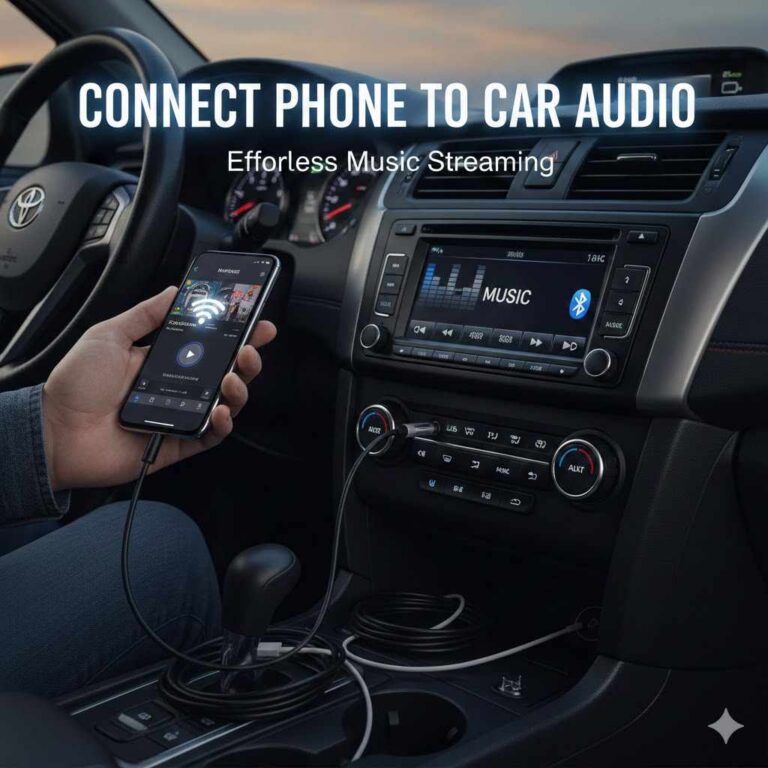
Bluetooth is a popular wireless method for connecting your phone to your car’s infotainment system. When connected via Bluetooth, Waze audio, along with music and calls, can play through your car’s speakers.
To connect via Bluetooth, first, ensure Bluetooth is enabled on both your phone and your car stereo. Then, go into your phone’s Bluetooth settings and search for available devices. Your car stereo should appear in the list.
Select it and follow the on-screen prompts to pair the devices. Once paired, your phone’s audio will typically route through the car’s speakers.
With Bluetooth, it’s important to note that the volume is controlled by two separate systems: your phone’s volume and your car stereo’s volume. Both need to be set to an appropriate level. Sometimes, the Bluetooth connection itself might default to a lower volume, requiring you to turn up both your phone and car stereo.
Ensure your phone and car stereo are paired correctly.
A stable Bluetooth connection is fundamental. If the pairing is weak or drops, audio quality and volume can be affected. Re-pairing the devices is a common fix for connectivity issues.
Check both your phone’s media volume and your car stereo’s volume.
This is a common pitfall. You might have your car stereo turned up, but if your phone’s media volume is low, the Waze sound will still be quiet. Ensure both are set to a satisfactory level.
Some cars have specific Bluetooth audio profiles that affect volume.
Different Bluetooth profiles exist for different types of audio transmission. Your car stereo’s system might prioritize certain profiles that have built-in volume limitations. Checking your car’s manual can sometimes offer insights.
Auxiliary (AUX) Cable Connection
An AUX cable provides a direct wired connection from your phone’s headphone jack (or adapter) to your car stereo’s AUX input. This method often provides the cleanest audio signal.
To use an AUX cable, you’ll need a 3.5mm audio cable. Plug one end into your phone’s audio port and the other into the car stereo’s AUX-in port. Then, select “AUX” as the audio source on your car stereo.
The sound from your phone, including Waze, will then play through the car speakers.
With an AUX connection, the volume is primarily controlled by your car stereo and your phone’s headphone output volume. You generally don’t have the dual control scenario as with Bluetooth, making it slightly simpler to manage. However, ensure your phone’s headphone volume is not set too low.
Use a good quality 3.5mm audio cable.
A cheap or damaged AUX cable can result in lower volume or distorted sound. Investing in a reliable cable ensures the best possible audio transmission.
Ensure your phone’s headphone volume is turned up.
Just like with Bluetooth, if your phone’s audio output volume is low, the sound that reaches the car stereo will also be low. Maximize your phone’s headphone volume before adjusting the car stereo.
Select the AUX input on your car stereo.
This seems obvious, but sometimes people forget to switch their car’s audio source to AUX. If it’s on radio or CD, you won’t hear your phone’s audio.
USB Connection
Connecting your phone to your car stereo via USB can also route Waze audio. This method often doubles as a charging solution and can offer high-quality audio playback.
Plug your phone into a USB port in your car using a USB cable. Your car stereo might automatically detect the phone and offer options for media playback. You may need to select your phone as the audio source or choose a specific app (like Android Auto or Apple CarPlay) to handle the audio.
If using Android Auto or Apple CarPlay, Waze will appear on your car’s display, and its audio will play through the car speakers.
When using USB, especially with Android Auto or Apple CarPlay, the volume control is often managed through the car’s infotainment system. This means adjusting the volume using your car’s knobs or buttons. However, it’s still wise to check your phone’s media volume as a baseline.
Some USB connections can also have a digital volume limiter that might need to be adjusted.
Ensure your phone is set up for media audio transfer via USB.
When you connect your phone via USB, you might get a prompt asking how you want to use the USB connection. Make sure you select an option that allows for media audio, not just charging or file transfer.
Check for Android Auto or Apple CarPlay integration.
These systems are designed to seamlessly integrate phone apps, including Waze, with your car’s display and audio. If your car supports them, this is often the best way to manage Waze audio.
Verify your car stereo’s USB settings for audio playback.
Some car stereos have specific settings related to how they handle USB audio. You might need to explore your car’s menu to ensure it’s configured to play audio from a connected phone.
FM Transmitter
An FM transmitter is a small device that connects to your phone (usually via Bluetooth or AUX) and broadcasts audio signals to a chosen FM radio frequency in your car. This is a common solution for older cars without modern connectivity options.
To use an FM transmitter, plug it into your car’s power outlet. Pair your phone to the transmitter via Bluetooth or connect with an AUX cable. Then, select an unused FM frequency on your car stereo and set the FM transmitter to broadcast on the same frequency.
Waze’s audio will then be transmitted to your car’s speakers through that FM station.
The volume with an FM transmitter can be inconsistent. It depends on the quality of the transmitter, the strength of the FM signal, and any interference. You’ll need to adjust both the transmitter’s volume and your car stereo’s volume.
Sometimes, finding a clear FM frequency is the biggest challenge.
Find a clear, unused FM frequency.
Interference from local radio stations can significantly reduce sound quality and volume. Try tuning your car radio to a static-filled frequency and then setting the transmitter to match it.
Adjust the volume on both the transmitter and your car stereo.
FM transmitters often have their own volume controls. You will need to find a balance between the transmitter’s output volume and your car’s stereo volume for optimal loudness.
Consider the quality of the FM transmitter.
Cheaper transmitters may not output a strong enough signal or may have built-in volume limits. Higher-quality transmitters generally provide better sound and volume.
Car Stereo Volume Settings
Even with Waze and your phone settings optimized, the final volume is heavily dependent on your car’s stereo system. Understanding how to adjust these settings is crucial.
Your car stereo has its own amplifier and volume controls. These are what ultimately push the sound through your speakers. If your car stereo’s volume is set low, even the loudest signal from your phone will sound quiet.
Most car stereos have a physical knob or buttons to control the volume. There might also be equalizer (EQ) settings that can affect the perceived loudness of different sound frequencies. Sometimes, certain EQ presets can make speech sound clearer and more prominent.
Turn up your car stereo’s master volume.
This is the most straightforward step. Ensure your car’s volume dial or buttons are set to a level that is audible over road noise. Test this with your phone connected and playing audio.
Explore your car stereo’s equalizer (EQ) settings.
Many car stereos have graphic equalizers or preset EQ modes. Boosting mid-range frequencies (where human speech sits) can make Waze’s voice clearer and seem louder, even if the overall decibel level isn’t drastically increased.
Check for any speed-sensitive volume controls.
Some vehicles have features that automatically increase stereo volume as your speed increases. Make sure this feature is enabled and set appropriately if you want consistent Waze sound at different speeds.
Understand your car’s audio source volume levels.
Some car stereos allow you to set specific volume levels for each audio source (e.g., Radio, Bluetooth, AUX). You might find that the volume for your connected phone source is set lower than other sources, and you can adjust it to match.
Factory Resetting Car Stereo Settings
If you’ve tried various adjustments and still can’t get enough volume, resetting your car stereo to its factory defaults can sometimes resolve underlying software glitches that might be limiting volume.
A factory reset will revert all custom settings on your car stereo back to how they were when the car was new. This includes audio settings, display preferences, and any paired devices. It’s a good troubleshooting step if you suspect a software issue is affecting your audio output.
Before performing a factory reset, ensure you have any necessary codes to re-enter your stereo if it’s an aftermarket unit that requires it. Consult your car’s owner’s manual for the specific procedure to reset your car’s infotainment system or stereo to factory settings. After resetting, you’ll need to re-pair your phone and reconfigure any Waze settings.
Consult your car’s owner’s manual for the reset procedure.
Each car model and stereo system has a unique way to perform a factory reset. The manual is the most reliable source for these instructions, often involving holding down specific buttons or navigating through a hidden menu.
Be prepared to re-pair your phone and reconfigure settings.
A factory reset will erase all paired devices and custom configurations. You will need to go through the pairing process for your phone again and re-setup any personalized audio or Waze preferences.
This step should be a last resort after trying all other volume adjustments.
Resetting can be time-consuming. Only resort to this if you’ve exhausted simpler solutions, as it can sometimes introduce new setup steps.
Troubleshooting Common Waze Sound Issues
Sometimes, even with all settings correct, you might face issues. This section addresses common problems and how to fix them.
When Waze audio isn’t loud, it could be due to a combination of factors, including app settings, phone volume, connection type, or car stereo limitations. Identifying the specific point of failure is key to resolving the problem.
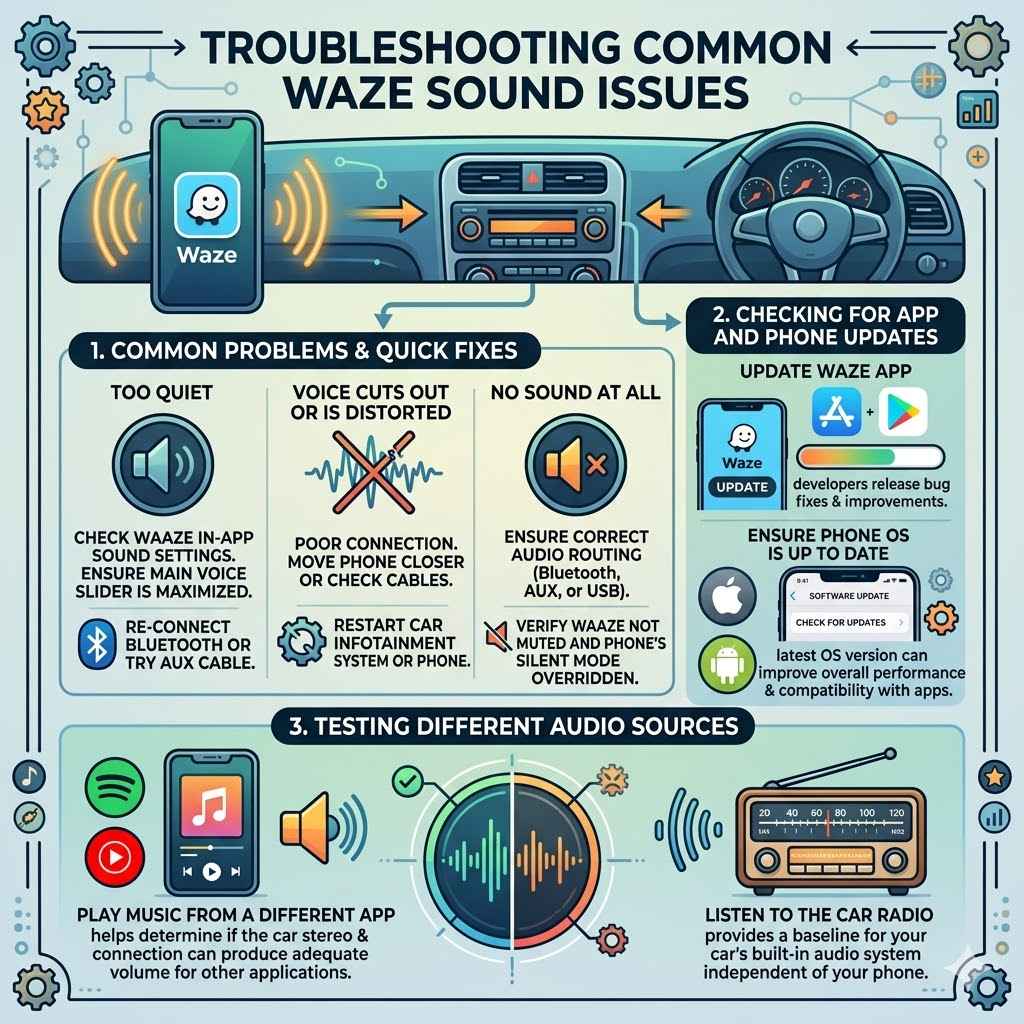
Waze voice prompts are too quiet even when phone and car stereo volume are high.
This is the most common scenario. It often points to the Waze app’s internal sound settings or a limitation in how the phone’s audio is being transmitted to the car. Re-checking the Waze app’s “Sound and Voice” settings and ensuring the main voice guidance slider is maximized is the first step.
If using Bluetooth, try disconnecting and reconnecting your phone, or even try an AUX cable if available to see if the connection type is the bottleneck.
Waze voice cuts out or is distorted.
Distorted or cutting out audio often indicates a poor connection. If using Bluetooth, try moving your phone closer to the car’s Bluetooth receiver or ensure there are no large metal objects between them. For AUX or USB, check the cables for damage.
Sometimes, a software glitch in the car’s infotainment system can also cause this; a restart of the car’s system or phone may help.
No sound at all from Waze.
This is usually an indication that the audio is not being routed correctly. Double-check that your phone’s audio output is set to your car stereo (e.g., correct Bluetooth device selected, AUX input chosen on the car stereo, or USB connection is set for media). Also, verify that Waze is not muted within the app’s settings and that your phone is not in “silent” mode without the necessary Waze setting to override it.
Checking for App and Phone Updates
Software bugs can sometimes affect audio performance. Keeping your Waze app and your phone’s operating system up-to-date can resolve these issues.
Developers frequently release updates to fix bugs and improve performance. An outdated Waze app might have a known issue with sound levels that has since been patched. Similarly, your phone’s operating system (iOS or Android) manages how apps interact with hardware, including audio output.
Ensuring both are current is a good practice.
Update Waze through your phone’s app store.
Open the App Store (iOS) or Google Play Store (Android), search for Waze, and tap “Update” if an update is available. This ensures you have the latest bug fixes and features.
Ensure your phone’s operating system is up to date.
Go to your phone’s Settings, then “Software Update” (or similar), and check for available updates. Installing the latest OS version can improve overall performance and compatibility with apps.
Testing Different Audio Sources
To pinpoint if the issue is with Waze specifically or your car’s audio system, test other audio sources.
Play music from another app (like Spotify or YouTube Music) or listen to the car radio. If these other sources sound loud and clear through your car stereo, the problem is likely specific to Waze or how its audio is being processed. If other sources also have low volume or sound poor, the issue is more likely with your car’s stereo system or connection method.
Play music from a different app.
Use a popular music streaming service or play local music files. This helps determine if the car stereo and connection can produce adequate volume for other applications.
Listen to the car radio.
This provides a baseline for your car’s built-in audio system independent of your phone. If the radio is loud, the issue is almost certainly with your phone, Waze, or the connection between them.
Frequently Asked Questions
Question: Why is Waze sound so quiet in my car?
Answer: Waze sound can be quiet due to low volume settings within the Waze app itself, your phone’s media volume being too low, or issues with how your phone is connected to your car stereo (Bluetooth, AUX, USB). Sometimes, your car stereo’s volume might also be set too low, or there could be interference on an FM transmitter.
Question: How do I make Waze voice louder than music?
Answer: You can adjust this in Waze’s settings under “Sound and Voice.” Look for options that control the balance between navigation prompts and music or other audio. Some settings allow Waze’s voice to temporarily lower the music volume when giving instructions, which can make it more audible.
Question: Can I increase Waze volume on my iPhone or Android?
Answer: Yes, you can increase Waze volume on your phone by adjusting the main Waze app volume in its settings. Also, ensure your phone’s general media volume is turned up high. For iPhone, check Settings > Waze > Sound & Voice.
For Android, it’s typically Settings > Apps > Waze > Notifications > and then checking the specific notification sound categories or in-app settings.
Question: My car stereo has a low volume for Waze via Bluetooth. What should I do?
Answer: Make sure both your phone’s media volume and your car stereo’s volume are turned up. Sometimes, re-pairing your phone to the car’s Bluetooth system can resolve volume issues. You might also check your car stereo’s specific audio source settings for Bluetooth to ensure its volume level isn’t set too low.
Question: Is there a way to boost Waze sound if my car stereo is old?
Answer: For older cars without Bluetooth or AUX inputs, an FM transmitter can help. You connect your phone to the transmitter, and the transmitter broadcasts to a specific FM frequency on your car radio. You’ll need to find a clear frequency and adjust volume on both the transmitter and car stereo.
Ensure the transmitter quality is good for better sound.
Conclusion
Getting loud and clear Waze directions in your car is achievable. Start by maximizing volume settings within the Waze app and on your phone. Then, ensure your connection to the car stereo, whether Bluetooth, AUX, or USB, is stable and has its volume turned up.
Don’t forget to adjust your car stereo’s volume and consider its equalizer settings. With these simple steps, you can easily turn up Waze sound for stress-free driving.