BMW INPA: E-Series Diagnostic Software Explained for Owners
BMW INPA is an older Windows-based diagnostic tool for E-series cars. It works best with K-line or DCAN interfaces when you need BMW-specific module access, live data, service resets, or coding jobs generic scanners miss. The wrong tool wastes time, skips faults, or leaves a car half-diagnosed. This guide explains what INPA does, the hardware and Windows setup it needs, and when ISTA, NCS Expert, WinKFP, E-Sys, or a generic scan tool is the better choice.
What is BMW INPA?


BMW INPA is a diagnostic component in BMW Standard Tools, the older BMW software stack built for classic E-series cars. It talks directly to control modules, so you can read faults, view live data, and reach functions many generic OBD scanners never expose.
It is not BMW’s modern all-purpose workshop platform. ProDiagTools lists INPA under BMW Standard Tools for classic E-series diagnostics, and that is the right mental model: narrow, BMW-specific, and useful when a newer workflow is unnecessary or less practical.
Where INPA sits in BMW Standard Tools
BMW Standard Tools usually refers to a classic toolkit that includes INPA, NCS Expert, and WinKFP. Each part has a separate job. INPA is the diagnostic front end. NCS Expert handles coding. WinKFP handles programming and flash-related work.
That separation matters. A car may connect in INPA for fault reading but still need NCS Expert for a coding change or WinKFP for a module update. Treating them as one program causes a lot of avoidable confusion.
Does INPA work on all BMW models?
No. INPA is mainly a tool for BMW E-series cars, the older platform family that includes many pre-F and pre-G models. It is the wrong first choice for newer BMW workflows, especially when the car expects ENET-based connections, modern data sets, or ISTA-guided service logic.
The key split is chassis generation. If the car is from the classic BMW diagnostic era, INPA may fit. If it is newer, ISTA+, E-Sys, or another current tool is usually the better route.
Why the chassis cutoff matters
Older BMWs often communicate through K-line or CAN-style interfaces that INPA can handle through a K+DCAN cable. Newer platforms move toward different interfaces and software expectations. That is why a cable that works for one chassis family may be useless for another.
Say your car is an E46 or E90 and you want module-level fault reading. INPA is often a sensible first step. Suppose the car is an F-series with newer electronic architecture. ISTA+ or another modern workflow is a better starting point.
What can BMW INPA actually do?
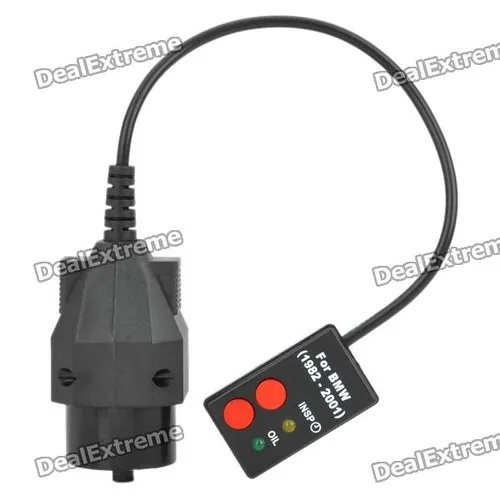
INPA can read and clear BMW fault codes, show live data from modules and sensors, and access control modules for some diagnostic or utility tasks. That is enough for a lot of older-car troubleshooting, but it is not a full substitute for BMW’s newer diagnostic systems.
Its value is direct access. It can pull BMW-specific details that generic OBD readers often flatten into generic descriptions, which helps when you are chasing an intermittent module fault or checking a sensor value in real time.
Fault-code reading and clearing
INPA’s most common job is reading BMW fault memory and clearing it after a repair. It can also help confirm whether a fault is current, stored, or returning after a reset. ProDiagTools lists ISTA+ as able to read and clear faults too, so this is not exclusive to INPA.
Live data and module access
Live data is where INPA stays useful. You can view sensor and module values without guessing from a generic scan label. That makes it practical for diagnosing issues that only show up under certain ignition states, temperatures, or load conditions.
Where coding and utility work fit
INPA can open some control-module and utility functions, but it is not the main coding tool in BMW Standard Tools. For coding, NCS Expert is the classic choice. For programming and flashing, WinKFP is the dedicated utility. Keep those jobs separate.
INPA vs ISTA, NCS Expert, and WinKFP
INPA is a legacy diagnostic tool for older BMWs. ISTA+ is the broader modern diagnostic and service platform, and ProDiagTools says it is best for most BMW owners and workshops. NCS Expert and WinKFP are not replacements for INPA; they fill coding and programming roles that INPA does not fully cover.
Use the tool that fits the task. That is the cleanest way to avoid broken workflows and wasted setup time.
When ISTA+ is the better diagnostic choice
ISTA+ is usually the better pick when you want a guided, modern diagnostic session, service functions, or broader vehicle coverage. ProDiagTools says ISTA+ can read and clear faults and run service functions. It is the better default if the vehicle is newer or if you need a workshop-style workflow.
What NCS Expert does that INPA does not
NCS Expert is the classic BMW coding tool. If the task is changing a module setting rather than reading live data or clearing faults, NCS Expert is usually the correct app. INPA can access modules, but that does not make it the primary coding environment.
What WinKFP is for
WinKFP is for programming and flashing modules. That is a different job from diagnostics. If a module update is needed, WinKFP matters; if you are simply reading faults or checking a sensor value, INPA is the more direct tool.
Where E-Sys and PSdZData fit
E-Sys is associated with newer BMW coding workflows, especially outside classic E-series use. PSdZData is the data package many newer coding and programming tasks depend on, and that dependency is tied to setup and software version. It is not something INPA alone replaces.
What cable and Windows setup do you need for INPA?
For many E-series setups, a K+DCAN cable is a common option. ProDiagTools lists K+DCAN as a common interface option and notes K-DCAN as the cable used to connect ISTA+ to BMW E Series. Windows compatibility matters too: ProDiagTools notes Windows 10 and Windows 11 support for its BMW software package.
Interface choice affects whether the car connects at all. Driver setup, USB behavior, and the chassis family matter as much as the software name on the screen.
K+DCAN cable basics
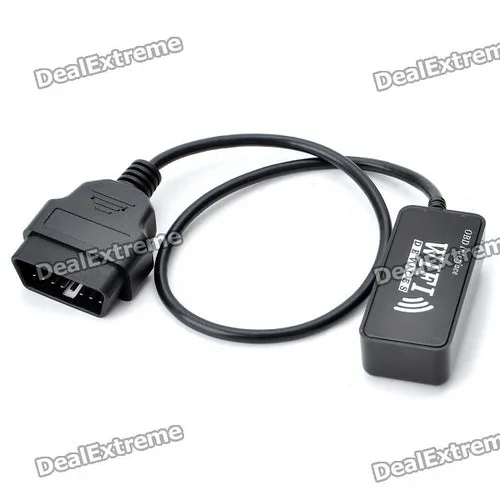
K+DCAN is an OBD-based adapter commonly used for E-series BMW diagnostics. It is the normal starting point for INPA on older BMWs because it matches the communication style those cars expect. A random OBD cable is not enough if the drivers or pin configuration are wrong.
ICOM and ENET in BMW workflows
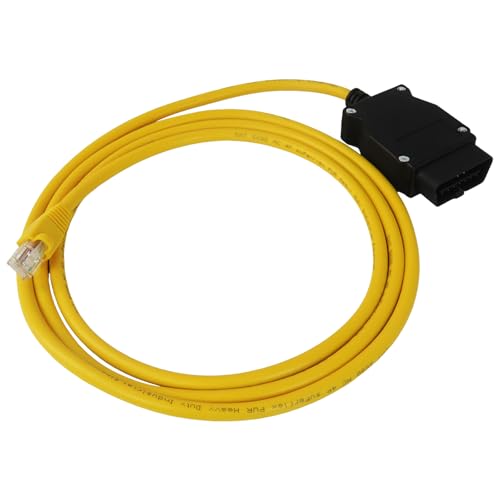
ICOM is BMW’s diagnostic interface for certain BMW generation and task combinations, especially in more modern dealership-style workflows. ENET is used for BMW F and G series connectivity, according to ProDiagTools. Neither is the usual first choice for classic INPA on E-series cars.
Windows and driver expectations
Classic BMW software is sensitive to drivers, USB port behavior, and COM-port mapping. Windows 10 and Windows 11 can work in many packages, but the interface driver has to be installed correctly. A cable that is recognized as a generic USB device is not enough.
- Match the chassis family first: E-series, F-series, or G-series.
- Pick the interface that fits that chassis: K+DCAN for most E-series, ENET for many F/G workflows, ICOM for broader BMW diagnostic setups.
- Install the correct drivers before opening INPA.
- Confirm the car’s ignition state and the laptop’s USB port mapping.
- Use INPA for diagnosis, NCS Expert for coding, and WinKFP for programming.
Practical E-series compatibility matrix
This matrix gives a practical first-pass setup plan. It is not a promise that every car in a chassis family behaves identically, but it is the right starting point for choosing the software stack and cable.
| BMW chassis family | Typical interface | Windows version | INPA task fit | Better companion tool |
|---|---|---|---|---|
| E46, E39, E53 | K+DCAN or K-line-capable cable | Windows 10 or Windows 11 | Fault reading, clearing, live data, limited module access | NCS Expert for coding, WinKFP for programming |
| E60, E61, E90, E91, E92, E93 | K+DCAN cable | Windows 10 or Windows 11 | Strong fit for diagnostics and selected utility work | NCS Expert for coding, ISTA+ for guided service functions |
| Late E-series with more mixed module behavior | K+DCAN or ICOM, depending on task | Windows 10 or Windows 11 | Diagnostics first, coding only where the setup is confirmed | ISTA+ or NCS Expert depending on the task |
| F-series | ENET or ICOM | Windows 10 or Windows 11 | Usually not the right primary tool | ISTA+, E-Sys, PSdZData-dependent workflows |
| G-series | ENET or ICOM | Windows 10 or Windows 11 | Usually not the right primary tool | ISTA+, newer BMW programming and coding workflows |
This is where PSdZData matters. If the job is tied to newer BMW coding or programming workflows, PSdZData becomes part of the setup discussion. If the job is plain INPA diagnostics on an E-series car, PSdZData is not the center of the plan.
Why does INPA fail to connect to the car?
Connection failures usually come from hardware or setup mismatches, not from a bad fault code. The most common causes are the wrong cable, driver problems, COM-port or USB mapping issues, ignition state errors, and using INPA on a chassis that needs a different tool.
One app may connect while another fails because the interface and protocol fit only part of the workflow. That does not mean the car is broken. It usually means the software stack and hardware stack are not aligned.
Common failure modes to check
First, confirm the interface type. A generic OBD cable may light up but still fail BMW-specific communication. Next, check drivers and USB recognition. Then verify ignition position, since some BMW modules wake only in a specific key state.
Also check the chassis family. If the car is an F-series and you are forcing an E-series INPA workflow, connection problems are expected. That is not a software bug; it is a task mismatch.
A common first-timer mistake is…
A common first-timer mistake is buying a K+DCAN cable, installing INPA, and then trying to use it on a newer BMW that really wants ENET or ISTA+. The software may open, but the car will not answer the way an E-series does. The result looks like a failure, but the setup is simply wrong.
Is BMW INPA still worth using in 2026?
Yes, but only for the right cars and the right jobs. INPA still makes sense for E-series diagnostics, module-level fault work, live data, and some utility tasks when a classic BMW-specific tool is faster or simpler than a broader modern package.
It is not the right answer for every BMW, and it is not a replacement for ISTA on newer platforms. For many owners, the best setup is INPA for older cars, ISTA+ for broader service work, and NCS Expert or WinKFP only when the task actually calls for them.
When INPA is enough
INPA is enough when you need to read and clear faults, inspect live data, or confirm module behavior on a classic E-series car. It is also a sensible choice when the task is narrow and the car is already known to be compatible with K+DCAN-based communication.
When you should use something else
Use ISTA+ when you want broader diagnostics, service functions, or a more current BMW workflow. Use NCS Expert for coding. Use WinKFP for programming. Use ENET or ICOM when the vehicle family or task requires them. That split keeps the job cleaner and the setup more predictable.
Frequently asked questions
What is BMW INPA used for?
BMW INPA is used for diagnostics on older BMW E-series cars. It reads and clears fault codes, shows live data, and reaches selected module functions. It is most useful when you need BMW-specific information that a generic OBD scanner does not provide.
What cable do I need for BMW INPA?
For most E-series setups, a K+DCAN cable is the common choice. It is an OBD-based adapter used for BMW-specific communication on older cars. The wrong cable, or a cable with bad drivers, is one of the most common reasons INPA will not connect.
Can INPA read and clear BMW fault codes?
Yes. Reading and clearing fault codes is one of INPA’s core jobs. It can also help confirm whether a fault is active or stored. For many older BMWs, that alone makes INPA worth keeping on a laptop.
Is BMW INPA better than ISTA for BMW diagnostics?
Not in general. ISTA+ is usually the better all-around diagnostic choice, and ProDiagTools says it is best for most BMW owners and workshops. INPA is narrower, but it can be a better fit for older E-series cars and specific BMW-only module work.
What is the difference between INPA, NCS Expert, and WinKFP?
INPA is for diagnostics and live data. NCS Expert is for coding. WinKFP is for programming and flashing. They belong to the same classic BMW Standard Tools family, but they are not interchangeable, and using the wrong one can create unnecessary risk or confusion.
Products related to this article
Sponsored / affiliate links. As an Amazon Associate I earn from qualifying purchases. I may earn additional commission from eligible campaigns.