How to Pair Samsung Phone to Car: Bluetooth & Android Auto
Most Samsung Galaxy phones pair with a car in about a minute: switch Bluetooth on under Settings > Connections, put the car stereo in pairing mode and tap the car’s name. That gets you hands-free calls and music. If you want Google Maps, Spotify and messages on the dashboard screen, that is a separate feature, Android Auto, and it has its own requirements. This guide is written for Galaxy phones specifically: the One UI menu paths, how Android Auto fits in, why a Samsung is not a CarPlay phone, and a fix table for the pairing problems Samsung and Google document.
Menu names below follow Samsung and Google support pages and can differ by Galaxy model, region and One UI version. If a menu does not match your phone, use the Settings search bar.
How to Pair a Samsung Phone to Your Car (Bluetooth)
Best Short USB Cable Pick for Wired Android Auto |
|
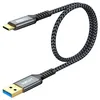 |
SUNGUY 1.5ft USB-A to USB-C Cable (10Gbps, 3A) Google advises a short, high-quality cable for Android Auto. This one is a braided 1.5 ft cable that the listing says carries data as well as charge.
|
As an Amazon Associate we earn from qualifying purchases. This is a spec-based pick from the listing, not a hands-on test.
Quick Answer
To pair a Samsung phone to a car: park, put the car stereo in Bluetooth pairing mode, open Settings > Connections > Bluetooth on the phone, tap the car in the list and confirm the code on both screens. For Maps and messaging on the car screen, use Android Auto instead: Google lists Android 9.0 or higher for wired and Android 11 plus 5 GHz Wi-Fi support for wireless. Menu names can differ slightly by One UI version.
Bluetooth is the quickest route and works for calls and audio streaming. For a version that covers every phone brand and head unit, see our guide to syncing any phone to your car; the steps here are the Galaxy side of the process.
Step by step on a Galaxy phone
- Park and wake the stereo. Do the first pairing while stopped. Google says the same for Android Auto setup: park with the infotainment system on.
- Start pairing mode on the car. The exact button or menu is brand-specific, so check the owner’s manual under Bluetooth or Phone. Samsung also notes that pairing-mode instructions vary by manufacturer and model.
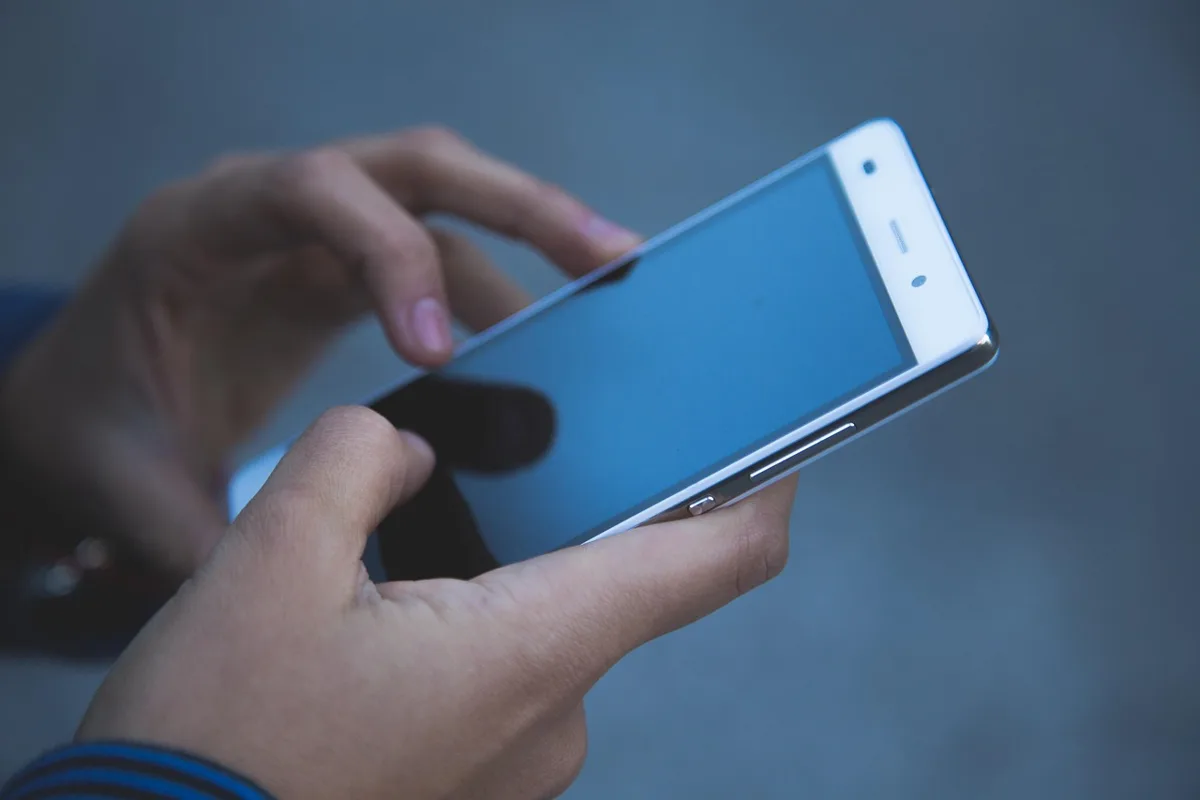
- Open Bluetooth on the Galaxy. Go to Settings > Connections > Bluetooth and switch it on. A shortcut: swipe down with two fingers for Quick settings and touch and hold the Bluetooth icon.
- Scan and pick the car. Tap Scan if the car does not show up, then select it from the list. Keep the phone within 30 feet of the car, as Samsung recommends.
- Confirm the request. A pairing request appears on both the phone and the car display. Accept on both. If the car asks for a PIN and you do not have the manual, Samsung suggests trying 0000.
- Test it. Play a song and place a short test call, still parked, to confirm audio and the microphone work.
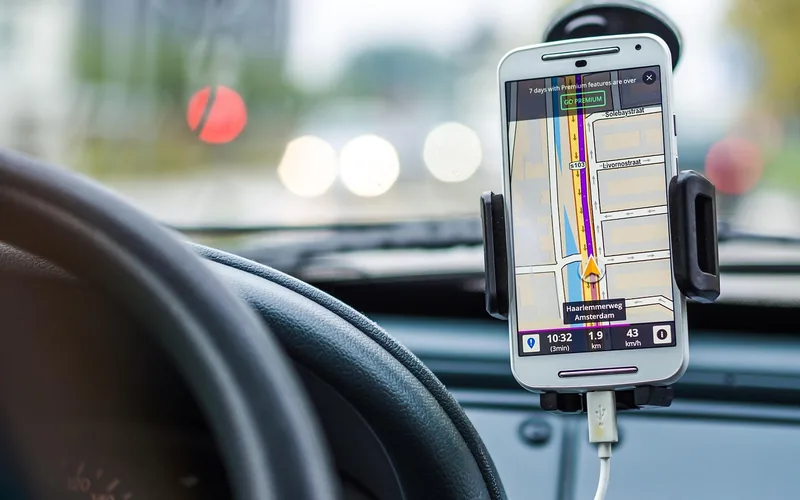
Samsung Phone and Car: Which Connection Do You Need?
People often use “pair” for three different things. Here is how they differ for a Galaxy phone, using the requirements Google publishes for Android Auto.
| Connection | What you get | Phone requirement | Car requirement |
|---|---|---|---|
| Bluetooth | Hands-free calls and audio streaming | Galaxy with Bluetooth on | Bluetooth stereo or hands-free system |
| Wired Android Auto | Maps, music and messaging apps on the car screen | Android 9.0 (Pie) or higher and a data plan, per Google | A compatible car or stereo and a high-quality USB cable |
| Wireless Android Auto | Same apps, no cable | Android 11.0 and a data plan, plus 5 GHz Wi-Fi support, per Google | A car or stereo that supports wireless Android Auto |
| Apple CarPlay | Apple’s equivalent | Not for Galaxy phones: Apple lists iPhone models as compatible | Not applicable |
A myth worth correcting: pairing over Bluetooth does not turn on Android Auto by itself. Bluetooth handles calls and audio. Android Auto is the app that projects Maps and messaging, and Google notes phones on Android 10 and above do not need a separate app to run it. On older versions you install it from Google Play. If you searched “Samsung CarPlay”, the answer is that CarPlay is Apple’s system; Galaxy phones use Android Auto instead.
Setting Up Android Auto on a Galaxy Phone
Wired Android Auto
- Check the basics. Per Google, you need Android 9.0 or higher, a data plan and a compatible car.
- Park with the infotainment system on. Allow time for setup before you drive.
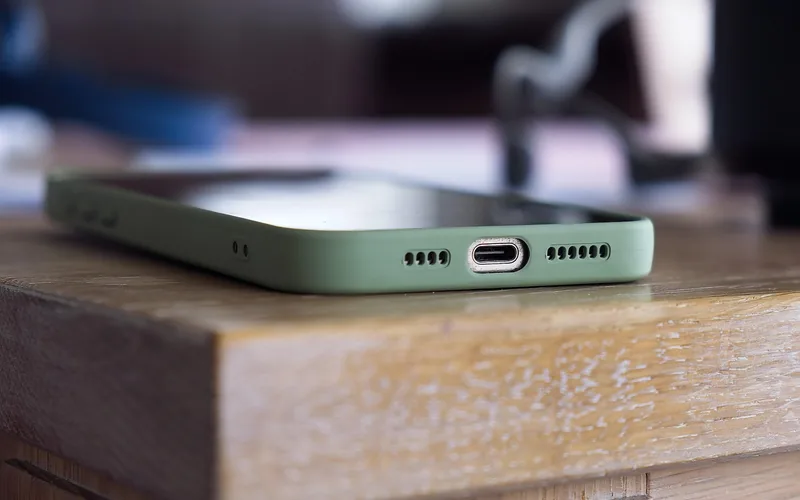
- Plug in. Connect a USB cable from the car’s USB port to the phone.
- Follow the prompts. You may be asked to update Android Auto first. Your vehicle manual or manufacturer can help if the car does not respond.
Wireless Android Auto
Google’s wireless steps start with a one-time Bluetooth pairing. Before you begin, keep Bluetooth, Wi-Fi and Location Services on, park with the infotainment system on, and make sure the phone has mobile data service. Then open Bluetooth settings on the phone and, on the steering wheel, press and hold the voice command button to open the pairing menu and follow the prompts. Android Auto should start within a few seconds of pairing; if it does not, follow the on-screen prompts or tap Android Auto on the car display. Whether your car supports wireless Android Auto is a question for the car maker, as Google points out.
Bluetooth speaker or adapter instead of a car head unit?
One of the most common searches that lands on this page mixes a Bluetooth speaker with wireless Android Auto. Google’s requirements list a compatible car or stereo, not a speaker, so a plain Bluetooth speaker only plays audio. If your car is older and has no Bluetooth, our car stereo connection guide covers AUX, USB and adapter options.
Samsung Pairing Problems and Fixes
This table collects the fixes from Samsung’s Bluetooth troubleshooting pages and Google’s Android Auto help. Work from the top, because the early items take seconds.
| Symptom | Likely cause | What to do |
|---|---|---|
| Car not in the scan list | Car not in pairing mode, phone too far away, or the car’s Bluetooth is still connected to another phone | Start pairing mode on the car, stay within 30 feet, disconnect the car from other devices, then tap Scan under Settings > Connections > Bluetooth |
| Car asks for a PIN | Older stereos use a fixed code | Check the manual; Samsung suggests 0000 if you do not have it |
| Paired before, now will not reconnect | Stale pairing record | Settings > Connections > Bluetooth, tap the settings icon next to the car, tap Unpair, then pair again (also remove the old phone entry on the car if the manual shows how) |
| Still failing after re-pairing | Corrupt Bluetooth or Wi-Fi settings | Restart the phone, then Settings > General management > Reset > Reset Wi-Fi and Bluetooth settings (this erases saved Wi-Fi and Bluetooth connections) |
| Problem started after an update, or never worked | Software or accessory firmware | Settings > Software update > Check for updates; Samsung also says car stereos and receivers can need a firmware update from their maker |
| Want a diagnosis | Unknown | Samsung Members > Support > Get started > Bluetooth runs the phone’s Bluetooth diagnostics |
| Android Auto will not start or keeps dropping on USB | Cable quality or length | Use a cable under 1 meter (3 feet), skip hubs and extensions, try the cable that came with the phone; if it worked before, replace the cable (Google) |
| Android Auto confused after switching cars | Old car entries | Unplug, then in Android Settings open Connected devices > Connection preferences > Android Auto > Previously connected cars and choose Forget all cars (Google); Samsung labels can differ |
| Wireless Android Auto will not start after pairing | A required setting is off, or the car lacks wireless support | Keep Bluetooth, Wi-Fi and Location Services on during setup and confirm wireless support with the car maker |
| Aftermarket stereo misbehaves | Outdated receiver software | Check the receiver maker’s site for a firmware update (Google) |
If Bluetooth still fails after all of these, Samsung’s own last steps are to contact Samsung Support or visit a service center, and to ask the car maker to check the vehicle side. Do not fiddle with the phone while driving: pull over before working through any fix.
Samsung-Specific Tips
- One UI wording changes. Samsung’s pages note that settings and steps vary by Galaxy model and Android version, so the Settings search bar is the fastest way to find a menu that has moved.
- Test with another accessory. Samsung suggests pairing a different Bluetooth device. If that works, the problem is on the car or accessory side, not your Galaxy.
- Remove interfering cases or covers. Samsung lists third-party cases as a possible cause of weak Bluetooth connections.
- Keep a short data cable in the car. A cable that charges is not always one that carries data well; a spare short cable removes one variable when Android Auto acts up.
For more on the Bluetooth side, our Samsung Bluetooth connection guide goes deeper, and playing music over Bluetooth in the car covers audio problems once you are connected.
Frequently Asked Questions
Does a Samsung phone work with Apple CarPlay?
No. Apple lists iPhone models as CarPlay-compatible, so a Galaxy phone uses Android Auto instead, which gives similar Maps, music and messaging on the car screen.
How do I pair my Samsung phone to my car?
Park, put the car in Bluetooth pairing mode, then go to Settings > Connections > Bluetooth on the Galaxy, scan, tap the car and accept the pairing request on both the phone and the car display.
Do I need to download Android Auto on my Samsung?
Google says phones with Android 10 and above do not need the app to run Android Auto. On older Android versions, install it from Google Play.
What does wireless Android Auto need?
Per Google, an Android phone on Android 11.0 with a data plan and 5 GHz Wi-Fi support, plus a car or stereo that supports wireless Android Auto. Contact the car maker to confirm car compatibility.
Why will my Samsung not connect to my car?
The usual causes are a car that is not in pairing mode, a stale pairing record or outdated software. Unpair and re-pair, update the phone, and if needed use Reset Wi-Fi and Bluetooth settings under General management.
Why does Android Auto keep disconnecting over USB?
Google points first to the cable: use one under 1 meter, avoid hubs and extensions, and replace the cable if a working setup stops. Also check that Android Auto is enabled on the car and restart the infotainment system.
The short version for a Galaxy phone: use Bluetooth for calls and music, add Android Auto when you want Maps and messaging on the car screen, and go through the fix table in order when something fails. Pair parked, never while driving.
Products related to this article
Sponsored / affiliate links. As an Amazon Associate I earn from qualifying purchases. I may earn additional commission from eligible campaigns.