How Do I Pair My Phone To My Car? (Quick & Easy Steps)
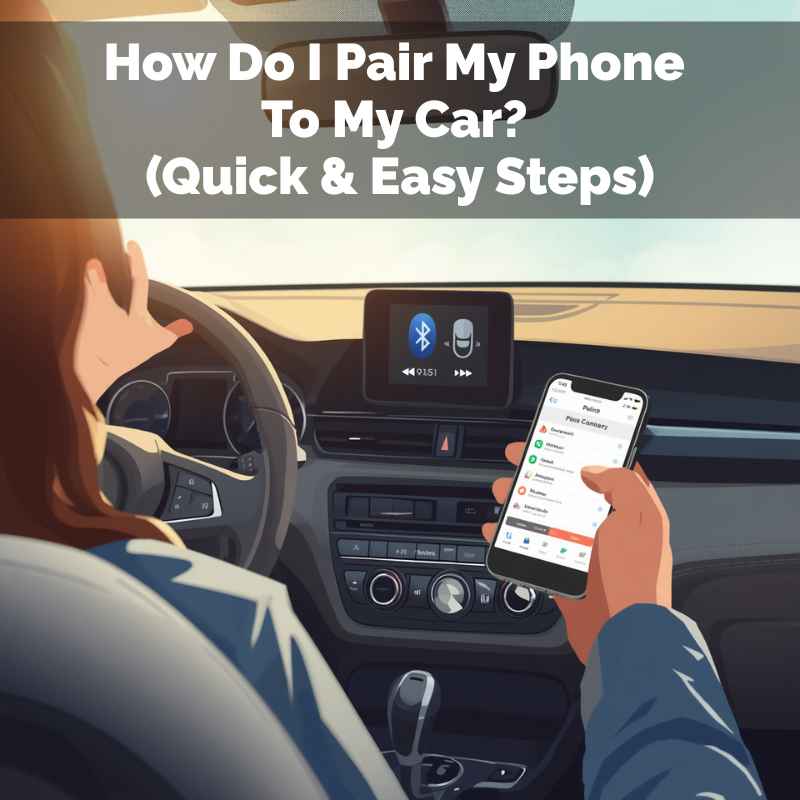
Pairing your phone to your car is a straightforward process using Bluetooth, a feature that has been standard in most vehicles since it first arrived in cars back in 2002. Most cars and phones allow you to connect wirelessly. You’ll typically need to enable Bluetooth on both devices, make your car’s system discoverable, and then select your car from your phone’s list of available devices.
Confirm any pairing codes shown.
Understanding How Your Car and Phone Connect
Your car’s system and your phone are like two separate brains. They need a way to talk to each other. The most common way they do this is through something called Bluetooth.
Think of Bluetooth as a tiny, invisible wire. It lets devices send information back and forth over short distances without any cables.
This connection is super useful. It lets you stream music from your phone through your car’s speakers. It also lets you take phone calls safely using your car’s microphone and speakers.
No more holding your phone while you drive! That’s much safer for everyone on the road.
Most cars made in the last 10 to 15 years have this Bluetooth tech built-in. Your smartphone, of course, has it too. The pairing process is like introducing two friends.
Once they know each other, they can share things easily.
My Own Bluetooth Blunder
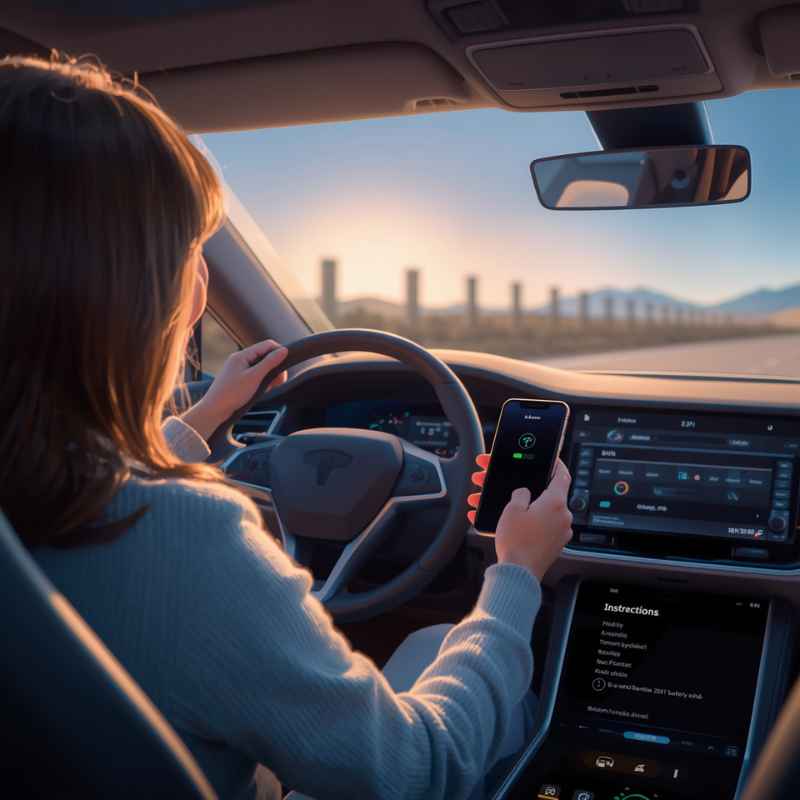
I remember this one time, I bought a used car. It looked great, sounded great, but the stereo system seemed like something from outer space. The manual was thick, and I just wanted to play my podcast.
I spent a good hour in the parking lot, trying to get my phone to connect. I tapped every button, scrolled through every menu. Nothing worked.
I even tried turning the car off and on again. That didn’t help.
I started to feel a little silly, and honestly, a bit frustrated. Was my phone too old? Was the car system broken?
I even considered buying one of those old FM transmitter things. Then, my friend, who’s a bit of a tech whiz, hopped in. She took one look and said, “You just need to put the car’s system in pairing mode.
Most people miss that step.” She showed me a tiny button on the steering wheel I’d completely overlooked. Five minutes later, I was streaming my podcast. It was such a relief, and I learned that sometimes, the simplest step is the one we overlook the most.
Step 1: Get Your Phone Ready
Turn on Bluetooth: Go into your phone’s settings. Look for “Bluetooth.” Make sure it’s switched on. On an iPhone, it’s usually in Settings > Bluetooth.
On Android, it’s often in Settings > Connections > Bluetooth. Your phone will then start looking for other Bluetooth devices nearby. You might see a list of devices already paired.
Make it Discoverable (Sometimes): Most phones are automatically discoverable when you open the Bluetooth menu. You don’t usually need to do anything extra here. Just having the Bluetooth screen open is often enough for the car to find it.
Getting Your Car Ready to Pair
This is often the part that trips people up. Your car’s system needs to be told, “Hey, I’m ready to connect to a new phone!” Different cars have different ways of doing this. But the general idea is the same.
You usually start by finding the “Phone” or “Bluetooth” menu on your car’s infotainment screen. This screen might be in the center of your dashboard. Sometimes, there are physical buttons for this.
Look for buttons that have a phone icon or say “Phone,” “Setup,” or “Settings.”
Once you’re in the phone or Bluetooth menu, you’ll want to find an option like “Add Device,” “Pair Phone,” “Connect New Device,” or “Bluetooth Setup.” Select that option. Your car’s system will then start searching for phones. It might also say something like “Searching for Devices” or “Ready to Pair.”
Step 2: Make Your Car Discoverable
Navigate Your Car’s System: On your car’s touchscreen or using buttons, find the “Phone” or “Bluetooth” settings. This can vary a lot by car brand. Look for options like “Settings,” “Setup,” or “Pair Device.”
Initiate Pairing: Select the option to add a new phone. Your car will then likely show a message saying it’s “Searching” or “Ready to Pair.” It might also show a list of phones it has found.
Finding Your Car on Your Phone
Now that both your phone and your car are looking for each other, it’s time to make the actual connection. On your phone, you should see a list of available Bluetooth devices. This list might refresh.
Look for the name of your car’s system.
The name is often something like “My Car,” “Car Multimedia,” or the brand name of the car. Sometimes, it’s a model name. If you’re not sure, check your car’s manual.
It will tell you the default Bluetooth name for the system.
Tap on your car’s name in the list on your phone. This tells your phone, “I want to connect to this device.”
Step 3: Select Your Car on Your Phone
Scan for Devices: On your phone’s Bluetooth screen, you should see a list of nearby devices. Look for the name of your car’s infotainment system.
Tap to Connect: Once you see your car’s name, tap on it. Your phone will then attempt to connect to the car. This might take a few seconds.
Confirming the Connection (The Pairing Code)
This is a critical step. After you tap your car’s name on your phone, both devices will usually show a pairing code. This code is a series of numbers.
It’s like a secret handshake to make sure you’re connecting to the right device.
You’ll see the same code on your phone’s screen and on your car’s screen. You just need to confirm that they match. On your phone, you might see a button that says “Pair,” “Connect,” or “OK.” On your car’s screen, you might also need to press a confirmation button.
Sometimes, instead of showing a code, the car might ask you to enter a PIN. The default PIN is often “0000” or “1234.” Again, your car’s manual will tell you if this is the case. If the codes match, or you enter the correct PIN, the devices will pair successfully.
Step 4: Confirm Pairing Code
Verify the Code: Your phone and car screen will likely display a matching six-digit code. Ensure the numbers are identical.
Approve the Connection: On your phone, tap “Pair” or “Connect.” On your car’s screen, you may also need to confirm. This completes the handshake and establishes the connection.
What Happens Next?
Once the pairing is successful, you’ll usually get a confirmation message. Your phone might say “Connected to ” or show the car’s name with a checkmark. Your car’s screen will likely update to show your phone is connected.
It might display your phone’s signal strength and battery level.
Now, you can start using the features. Try playing some music. Your phone’s audio should now come through the car’s speakers.
If you get a call, the car’s system should ring. You can usually answer it by pressing a button on your steering wheel or the car’s dash.
Your car’s system may also ask for permission to access your phone’s contacts and call history. This allows you to make calls using your car’s interface and see recent calls. It’s usually a good idea to allow this for full functionality.
Just make sure you trust your car’s system, which is generally safe for mainstream vehicles.
Step 5: Test the Connection
Play Audio: Start playing music or a podcast from your phone. The sound should now come from your car’s speakers.
Make a Call: Try making a test call to a friend or family member. You should be able to hear them through the car’s speakers and talk using the car’s microphone.
Common Issues and How to Solve Them
Even with clear steps, sometimes things don’t connect right away. Don’t worry, this is normal! Most problems are easy to fix.
Issue 1: Phone doesn’t see the car. Make sure Bluetooth is on your phone. Also, double-check that your car is in “pairing mode” or “discoverable mode.” Sometimes, you need to go back into the car’s Bluetooth menu and restart the search for devices.
Issue 2: Car doesn’t see the phone. Ensure your phone’s Bluetooth is on and that the Bluetooth menu is open on your phone. Try turning your phone’s Bluetooth off and then on again. This can sometimes reset the connection.
Issue 3: Pairing fails or connection drops. Try forgetting the device on both your phone and your car. On your phone, go to Bluetooth settings and “forget” or “unpair” your car. On your car’s system, go to paired devices and remove your phone.
Then, try the whole pairing process again from the start. This is like giving both devices a fresh start.
Issue 4: Audio quality is bad or choppy. Ensure there aren’t too many other Bluetooth devices trying to connect at once. Sometimes, other devices can interfere. Also, make sure your phone is not too far from the car’s system.
While Bluetooth is wireless, it has a limited range.
Issue 5: Can’t access contacts. Check your phone’s Bluetooth settings for your car. You might need to grant “Contact Access” or “Message Access” permissions. Your car’s system might have prompted you for this during pairing, and you may have accidentally denied it.
Troubleshooting Common Problems
No Devices Found: Ensure Bluetooth is ON for both phone and car. Try restarting the pairing process from your car’s menu.
Connection Errors: “Forget” your car from your phone’s Bluetooth list and your phone from the car’s list. Then, re-pair them like new devices.
Poor Audio: Close unnecessary Bluetooth apps on your phone. Ensure your phone is close to the car’s system. Check for software updates for your car’s infotainment system.
Understanding Your Car’s Bluetooth System
Every car is a little different. The way you access Bluetooth settings can vary a lot. Some cars have simple, straightforward menus.
Others can feel a bit complex, with many options hidden away.
Infotainment Systems: Most modern cars have a central screen. This is your infotainment system. It controls radio, navigation, phone, and more.
You’ll do most of your Bluetooth setup here. Look for icons that show a phone, gear (for settings), or the Bluetooth symbol.
Voice Commands: Some cars let you control Bluetooth using your voice. You might be able to say, “Call Mom,” or “Play my driving playlist.” You’ll need to activate the voice command feature first, often by pressing a button on your steering wheel.
Steering Wheel Controls: Many cars have buttons on the steering wheel. These often control answering/ending calls, volume, and sometimes navigating through menus. Familiarize yourself with these buttons; they can make using Bluetooth much easier while driving.
The Manual is Your Friend: If you’re ever stuck, the car’s owner’s manual is the best resource. It will have specific instructions for your exact car model. Many manuals are available online as PDFs if you’ve lost the physical copy.
Tips for Different Car Systems
Touchscreen Navigation: Focus on finding the “Phone” or “Bluetooth” icon on your main screen. Navigate through menus by tapping options.
Physical Button Control: Look for dedicated phone or setup buttons. You might need to use a dial or arrow keys to select options.
Voice Control: If your car has voice commands, learn the activation phrase (e.g., “Hey Car,” “OK, Voice”). Practice simple commands like “Call ” or “Connect Phone.”
Advanced Bluetooth Features
Once you’re successfully paired, you can explore more features. It’s not just about calls and music!
Message Access: Some systems can read text messages aloud. You can often reply using voice commands. This is a great safety feature so you don’t have to look at your phone.
Contact Sync: As mentioned, syncing your contacts allows you to search for and call people directly from your car’s interface. This is very convenient.
App Integration: Many modern cars support Apple CarPlay or Android Auto. These systems mirror your phone’s apps onto your car’s screen. You can use apps like Waze, Google Maps, Spotify, and more directly through the car’s interface.
You usually need to connect your phone via a USB cable for these, but sometimes they work wirelessly too.
Software Updates: Car manufacturers sometimes release software updates for their infotainment systems. These updates can improve Bluetooth performance, fix bugs, and add new features. Check your car dealership or the manufacturer’s website for information on updates for your model.
When is it Normal for Pairing to Take Time?
It’s perfectly normal for the initial pairing process to take anywhere from 30 seconds to a few minutes. Especially if it’s the very first time you’re connecting your phone to that specific car, or vice versa. The devices are exchanging a lot of information to set up a secure and stable connection.
If your car’s system is brand new and you’re pairing your phone for the first time, it might take a little longer. Likewise, if your phone has recently updated its operating system, it might need a moment to re-establish connections with all its paired devices. A little patience goes a long way here.
What’s also normal is that once paired, subsequent connections are much faster. When you start your car and your phone is nearby with Bluetooth on, the connection should happen almost instantly. You might hear a little chime or see a notification confirming the connection.
When Should You Worry About Pairing Issues?
You should start to worry if the pairing process consistently fails after multiple attempts. If you’ve followed all the steps, tried re-pairing, and your phone and car still won’t connect, there might be a deeper issue. This could be a problem with the Bluetooth hardware in your phone or car.
Another sign to watch out for is if the connection is extremely unstable. If it drops every few minutes, or if audio constantly cuts out despite being close to the car, this isn’t normal. It suggests something is wrong with the signal or the device’s ability to maintain a stable link.
If you’re experiencing persistent Bluetooth problems, it’s a good idea to consult your car’s owner’s manual for specific troubleshooting steps for your model. If the issues continue, contacting your car dealership or a qualified auto technician is the next best step. They can diagnose potential hardware problems.
Quick Checks for Pairing Problems
Is Bluetooth On? Double-check that Bluetooth is enabled on both your phone and in your car’s settings.
Restart Devices: Turn Bluetooth off and on again on your phone. Try restarting your car’s infotainment system if possible (often by turning the car off and on again).
Forget and Re-Pair: Remove the existing pairing from both devices and go through the entire connection process again.
Check for Interference: If you have many other Bluetooth devices active, try turning them off temporarily.
Making Your First Call
Making your first call is a great way to test everything. Once your phone is paired, look at your car’s screen. You should see an option to “Dial” or “Phonebook.”
If you see your contacts, great! You can select a contact and press the call button. If you don’t see contacts yet, you might need to grant permission for your car to access them.
Your phone should prompt you for this during or right after pairing.
If you don’t see a contact list, you can usually dial a number directly. Look for a “Keypad” or “Dial” option on your car’s screen. Enter the phone number just like you would on your phone and press the call button.
During the call, you can usually adjust the volume using your car’s volume controls. To end the call, look for an “End Call” button on the screen or use the physical button on your steering wheel.
Streaming Your Favorite Music
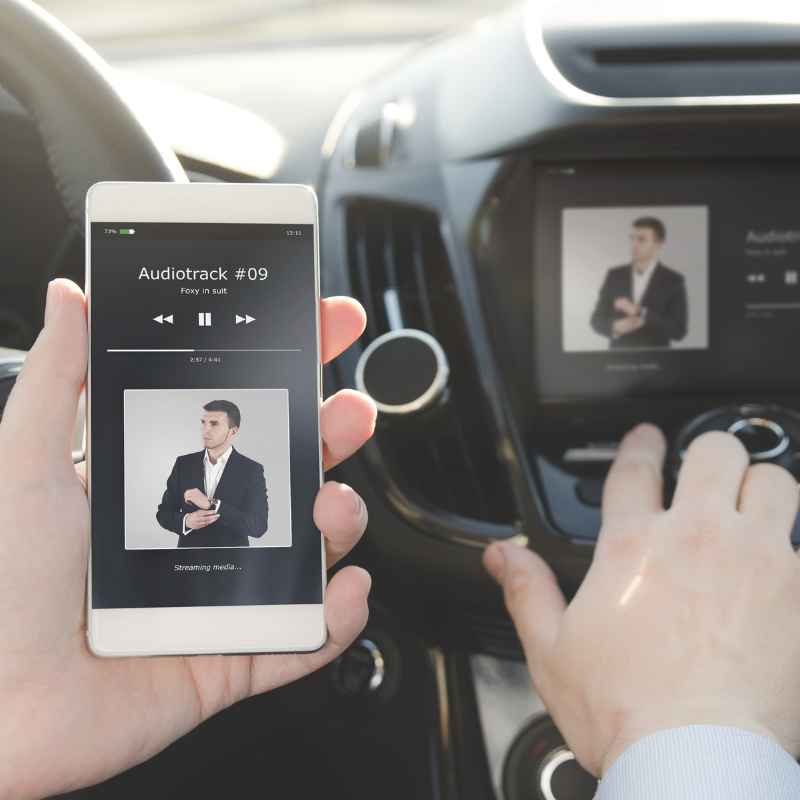
This is what many people look forward to most! Once your phone is paired, you can stream music from any app on your phone. Open your preferred music app, like Spotify, Apple Music, or Pandora.
You might need to select your car’s Bluetooth system as the audio output on your phone. However, most of the time, when your phone connects to the car via Bluetooth, it automatically directs audio through the car’s speakers.
Control your music playback using your phone or your car’s controls. You can play, pause, skip tracks, and adjust volume. Some car systems even display song information like the artist and song title on the screen.
Setting Up for Music Streaming
Connect via Bluetooth: Ensure your phone is paired and connected to your car’s system.
Open Music App: Launch your favorite music streaming app on your phone.
Select Audio Output: Most phones will automatically send audio to the connected car. If not, check your phone’s audio settings to ensure the car’s Bluetooth is selected.
Control Playback: Use your car’s media controls or your phone to play, pause, and skip songs.
Frequently Asked Questions
Why won’t my phone connect to my car’s Bluetooth?
There are a few common reasons. First, ensure Bluetooth is turned on for both your phone and your car. Make sure your car is in pairing mode.
Try restarting both devices and then attempt to pair them again. If problems persist, try deleting the existing pairing from both devices and start the process fresh.
How do I make my car discoverable for Bluetooth pairing?
This varies by car model. Generally, you’ll need to go into your car’s infotainment system settings and find the “Bluetooth” or “Phone” menu. Look for an option like “Add Device,” “Pair Phone,” or “Make Discoverable.” Your car’s owner’s manual will have the exact steps for your vehicle.
Can I connect more than one phone to my car’s Bluetooth?
Yes, most modern car systems allow you to pair multiple phones. However, usually, only one phone can be actively connected at a time for calls and audio streaming. You might be able to select which phone is the primary connection if multiple are paired and present.
What is a Bluetooth pairing code or PIN?
A pairing code or PIN is a security measure. When you connect two Bluetooth devices, they often display a matching code (e.g., six digits). You need to confirm that the codes match on both devices, or enter a specific PIN (often 0000 or 1234) to verify that you are intentionally connecting the correct devices.
Why is my Bluetooth audio choppy or cutting out?
This can happen if there’s interference from other electronic devices, or if the distance between your phone and the car’s system is too great. Ensure your phone’s Bluetooth is up-to-date and try closing other Bluetooth apps on your phone. Sometimes, restarting both the phone and the car’s system can help.
Do I need to re-pair my phone every time I get in the car?
No, once your phone is successfully paired with your car’s Bluetooth, it should automatically reconnect each time you start your car, as long as your phone’s Bluetooth is on and your phone is within range. You only need to go through the full pairing process again if you “forget” the device or encounter persistent connection issues.
Conclusion
Connecting your phone to your car might seem tricky at first, but it’s usually quite simple. By following these steps, you can get your music and calls flowing wirelessly. Remember to check your car’s manual if you get stuck, and don’t be afraid to try restarting the process.
Happy driving!
Have a Samsung Galaxy specifically? See our Samsung-specific pairing guide for wireless Android Auto setup and One UI Bluetooth quirks not covered here.
Sponsored / affiliate links. As an Amazon Associate I earn from qualifying purchases. I may earn additional commission from eligible campaigns.
Products related to this article