How to Connect iPhone to Car Stereo: Easy Steps
Connecting your iPhone to your car stereo is easy. It enhances your driving experience.
Whether you want to play music or use navigation apps, this guide helps you connect seamlessly. Many drivers face challenges when trying to connect their iPhones to car stereos. It might seem tricky, but it’s straightforward once you know the steps.
This guide will walk you through different methods to link your iPhone to your car’s sound system. From Bluetooth connections to using USB cables, you will find a method that suits your needs. Enjoy your favorite playlists and make hands-free calls with ease. Let’s dive in and make your car rides more enjoyable and connected.
Credit: www.businessinsider.com
Choose Connection Method
Bluetooth lets you connect wirelessly. Check if your car has Bluetooth. Turn on Bluetooth in your iPhone settings. Pair your iPhone with the car stereo. Follow the on-screen instructions. Sometimes, you need to enter a code. This code is usually shown on the car display. Once connected, you can play music. You can also make calls. Bluetooth is easy and fast. It saves you from tangled wires. Enjoy your favorite tunes as you drive!
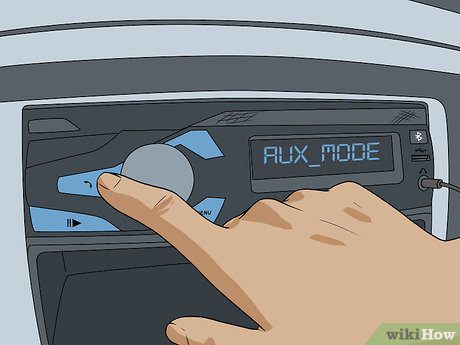
An auxiliary cable connects your iPhone to the car stereo. Plug one end into the iPhone headphone jack. Plug the other end into the car’s AUX port. Usually found near the radio. Ensure the car stereo is set to AUX mode. This method is simple. No need for wireless pairing. The sound quality is good. This option is reliable. It works with older car models. The cable should be long enough. Keep it neat to avoid distractions. Now, enjoy your drive with music!
Enable Bluetooth On Iphone
First, find the Settings app on your iPhone. It looks like a gray gear. Tap the app to open it. You will see many options inside. Look for the one that says Bluetooth. It’s usually near the top. Tap on Bluetooth to get to the next step.
Once you are in the Bluetooth menu, find the switch at the top. It will be gray if it’s off. Tap the switch to turn it on. The switch turns green when it’s active. Now, your iPhone is ready to connect with other devices. Make sure your car stereo is also ready to pair.
Pair Iphone With Car Stereo
First, make sure your car’s Bluetooth is on. Look for a button or menu in your car. It might have a Bluetooth symbol. Press the button to activate Bluetooth. The car will be ready to pair. Check your car’s manual if you need help.
Go to your iPhone’s settings. Tap on Bluetooth. Make sure Bluetooth is turned on. Your phone will start searching for devices. Look for your car’s name in the list. Tap on it to connect. A code might appear on your car’s screen. Confirm the code on your iPhone. Now, your phone is paired with the car stereo. Enjoy your music and calls!
Connect Via Auxiliary Cable
Find the auxiliary port in your car stereo. It usually looks like a small, round hole. It’s often labeled with “AUX” or a headphone symbol. Check your car’s manual if you’re unsure. The port might be on the front or side of the stereo.
Take the auxiliary cable and insert one end into your iPhone’s headphone jack. Connect the other end to the car stereo’s auxiliary port. Make sure both ends are secure. Turn on your car stereo. Select “AUX” mode to switch the input. Play music on your phone. Sound should come from the car speakers. Adjust the volume to your liking.
Use Usb Connection
First, find the USB port in your car. It is usually near the dashboard or console. Make sure the USB port is clean and not damaged. A clean port helps in a better connection. Check if your car stereo supports a USB connection. Some older models might not have this feature.
Use a USB cable that fits your iPhone. Plug one end into your iPhone and the other into the car’s USB port. Your car stereo should recognize the iPhone. You might see a prompt on your phone. Follow any on-screen instructions. This connection allows you to play music from your iPhone. You can also charge your phone while connected.

Credit: www.youtube.com
Set Up Carplay
Not all cars have CarPlay. Check your car’s manual for CarPlay support. Most modern cars have CarPlay. A few older models might not. Apple’s website has a list of compatible cars. Make sure your iPhone is updated. Only iPhone 5 and newer work with CarPlay.
Connect your iPhone to the car. Use a USB cable. Some cars use Bluetooth instead. Look for the CarPlay icon on your car’s screen. Tap it to start. Follow the screen prompts. CarPlay should now be ready. You can use apps and maps. Make calls and send texts. Listen to music.
Troubleshoot Connection Issues
Make sure your iPhone has Bluetooth turned on. Check your car stereo’s Bluetooth settings too. Both devices need to be discoverable. Sometimes, pairing fails because of incompatible settings. Go to the settings on your iPhone. Select Bluetooth. Tap on your car stereo name. If it doesn’t connect, forget the device and try again.
Sometimes, a cable might be loose. Check your USB cable or AUX cable. Make sure it’s plugged in firmly on both ends. Look for any damage on the cable. A broken cable won’t work well. Try a different cable if needed. Also, check the car stereo’s port. Dust or dirt can block a good connection.

Credit: www.wikihow.com
Optimize Audio Settings
Start by checking the volume settings on your iPhone. Make sure it is not too loud. Set the car stereo volume to a comfortable level. Both devices must be balanced. This helps to avoid distortion. Listen carefully to the sound. Adjust as needed.
Use the equalizer settings on your iPhone. Choose a preset that fits your music style. Try “Rock” for strong bass. “Classical” is good for clear tones. Experiment with the settings. Test different options to find the best sound. Always aim for a clear and crisp audio experience.
Frequently Asked Questions
How Do I Pair My Iphone To My Car Stereo?
Enable Bluetooth on your iPhone. Access the car stereo’s Bluetooth settings. Select your car from available devices list. Confirm pairing by entering any requested codes. Enjoy connected audio.
How Do I Get My Phone To Play Through My Car Stereo?
Use Bluetooth or an aux cable to connect your phone to the car stereo. Ensure your car’s audio system is compatible. For USB connections, plug your phone into the car’s USB port. Select the correct input source on the stereo, and start playing your music or audio.
Why Isn’t My Iphone Connecting To My Car Bluetooth?
Ensure Bluetooth is enabled on your iPhone and car. Restart both devices. Delete and re-pair them. Update your iPhone’s iOS. Check for car system updates. Ensure no other devices are interfering. If problems persist, consult your car’s manual or contact support.
How Do I Get My Iphone To Play Sound Through My Car?
Use Bluetooth or a USB cable to connect your iPhone to your car’s audio system for sound playback. Check your car’s manual for compatibility. Enable Bluetooth on your iPhone, pair it with the car’s system, or plug in via USB to play audio.
Conclusion
Connecting your iPhone to your car stereo enhances your driving experience. Enjoy your favorite tunes and stay connected safely. Follow the steps we discussed. Use Bluetooth, USB cable, or auxiliary input. Each method offers clear sound quality. Check compatibility with your car stereo.
Make sure your iPhone settings are correct. Regular updates can help avoid connection issues. You now have the tools to enjoy your music on the go. Experience better sound. Make each drive more enjoyable. Stay safe while keeping entertained. Happy driving!