How to Reset Sirius Radio: Essential Guide
Resetting your Sirius radio is usually straightforward and involves a simple reboot or update process. Depending on your model, it might be a button press or a quick online tune-in. This guide will walk you through the easiest ways to get your satellite radio working perfectly again.
We’ve all been there. You’re enjoying your favorite tunes on SiriusXM, and suddenly, the music cuts out, or you get a strange error message. It can be frustrating, especially when you’re on a long drive. But don’t worry! Most of the time, a Sirius radio reset is a simple fix that you can do yourself. As your go-to source for all things automotive, I’m here to break down exactly how to reset your Sirius radio, so you can get back to enjoying your favorite channels without missing a beat.
Whether your radio is acting glitchy, not receiving channels, or displaying an error code, a reset can often solve the problem. We’ll cover different methods, from quick reboots to getting your radio’s activation updated. This guide is designed to be super easy for anyone to follow, no matter your tech comfort level. Let’s get your satellite radio back in top shape!
Why Would You Need to Reset Your Sirius Radio?
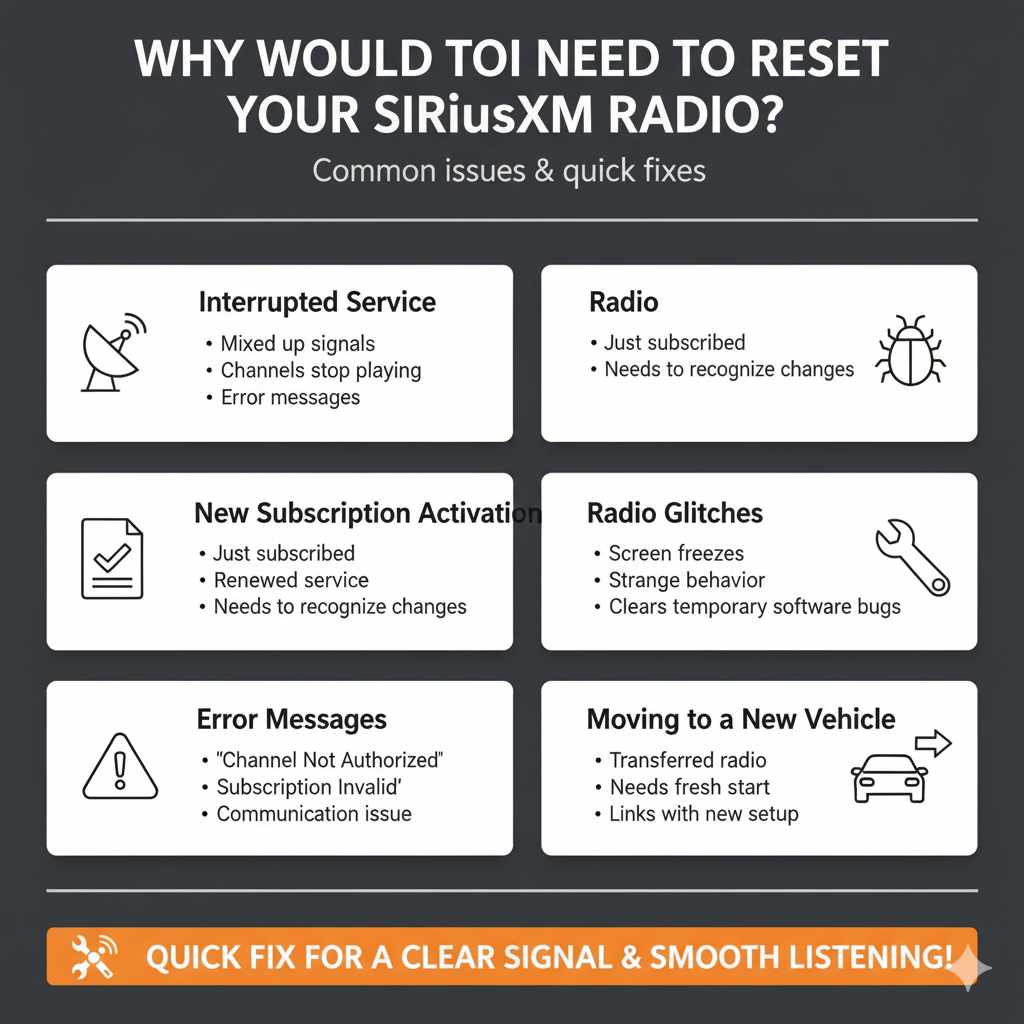
There are several common reasons why your SiriusXM radio might need a reset. Understanding these can help you pinpoint the issue and know when a reset is the right solution.
- Interrupted Service: Sometimes, signals can get a little mixed up, causing channels to stop playing or show an error.
- New Subscription Activation: If you’ve just subscribed or renewed your service, the radio might need a little nudge to recognize the changes.
- Radio Glitches: Like any electronic device, radios can sometimes freeze or act strangely. A reset clears temporary software bugs.
- Error Messages: Seeing codes like “Channel Not Authorized” or “Subscription Invalid” often means the radio isn’t communicating correctly with the SiriusXM servers.
- Moving to a New Vehicle: If you’ve transferred your radio to a new car, it might need a fresh start to link with the new vehicle’s setup.
Understanding Your SiriusXM Radio Model
The exact way to reset your Sirius radio can vary slightly depending on the type you have. Most commonly, people have either a portable satellite radio receiver (like a SiriusXM Onyx or a portable model) listened to in a car, or a satellite radio that is built directly into their vehicle’s dashboard. Knowing which type you have is the first step.
For radios built into your car, the reset process is often managed by the car’s infotainment system. Portable receivers, on the other hand, usually have dedicated buttons or require a specific sequence to trigger a reset or update. We’ll cover common methods for both.
How to Reset Sirius Radio: Step-by-Step Guides
Ready to get your SiriusXM back up and running? Here are the most common ways to perform a reset. We’ll start with the simplest methods.
Method 1: The Simple Power Cycle (For Most Radios)
This is the easiest first step and often solves many temporary issues. It’s like restarting your computer when it acts up.
- Turn Off the Radio: Completely power down your SiriusXM radio. If it’s part of your car’s system, turn off the car’s ignition. If it’s a portable unit, press the power button until it shuts off.
- Wait a Few Minutes: Let the radio sit powered off for about 3 to 5 minutes. This allows any residual power to drain and the system to fully reset.
- Turn the Radio Back On: Power up your radio or start your car’s ignition.
- Check for Service: Give it a minute or two to re-establish a connection. See if your favorite channels are playing again.
Method 2: The “Re-Acquiring Signal” or “Refresh Signal” (Common for Activation Issues)
This method is particularly useful if your subscription seems active but the radio isn’t playing certain channels or is showing activation error messages. SiriusXM has a system to send a refresh signal to your radio.
What You’ll Need:
- Your Radio’s Electronic Serial Number (ESN) or Radio ID.
- Access to the internet or a phone.
How to Find Your Radio ID (ESN):
- On the Radio Display: Most radios will show their ID when you navigate through the menu. Look for options like “Help,” “Settings,” “Radio ID,” or “ESN.”
- On a Portable Receiver: Often, the ID is printed on the back or bottom of the unit.
- In Vehicle Dashboards: Check your car’s infotainment screen. Sometimes it’s under the SiriusXM app or settings.
- Contact SiriusXM: If all else fails, customer service can help you find it.
Performing the Refresh Signal:
There are two primary ways to get this signal sent:
-
Online Through the SiriusXM Website:
- Visit the official SiriusXM website.
- Look for a section related to “Subscriptions,” “My Account,” or “Activate Radio.”
- You’ll likely need to log in to your account.
- Find the option to “Refresh Subscription” or “Send Activation URL.”
- Enter your Radio ID and follow the prompts.
- The SiriusXM system will send a signal to your radio. This can take a few minutes to an hour, depending on signal strength and your location. Ensure your radio is powered on and has a clear view of the sky (if it’s a portable unit or has an external antenna).
-
By Phone to SiriusXM Customer Service:
- Call SiriusXM at 1-866-603-5033.
- Have your Radio ID ready.
- Explain that you need a “subscription refresh” or “activation signal” for your radio.
- The representative will guide you through the process and send the signal.
- Again, keep your radio powered on with a clear view of the sky for best results.
It’s a good idea to tune into Channel 1 (the SiriusXM preview channel) after requesting the refresh. This channel is often used to confirm the signal has been received.
Method 3: Resetting a Specific Portable SiriusXM Receiver Model
Some portable SiriusXM radios have a more direct reset function. This is often used when the radio is frozen or not responding to controls.
SiriusXM Onyx Plus / Edge / Stratus 7 (Examples)
These models might have a dedicated reset button, or a specific button combination. Always check your owner’s manual for the exact procedure for your specific model. However, a common approach involves:
- Locate the Reset Button: On many portable units, there’s a small, recessed button that requires a paperclip to press. It might be on the back, side, or bottom of the device.
- Press and Hold: Gently press and hold this button for about 5-10 seconds.
- Release and Restart: Release the button and then attempt to power on your receiver as you normally would.
- Check for Updates: After a reset, you might want to perform a signal refresh (Method 2) to ensure all your subscription information is up-to-date.
Important Note: Performing a factory reset on some devices might erase user settings, presets, or personalized information. Again, consult your specific receiver’s manual before proceeding.
Method 4: Resetting Built-in Car Radios
If your SiriusXM radio is integrated into your car’s dashboard, the reset process is usually managed through your vehicle’s infotainment system, and sometimes by the car’s own electrical system.
Options for Built-in Systems:
-
Infotainment System Reboot:
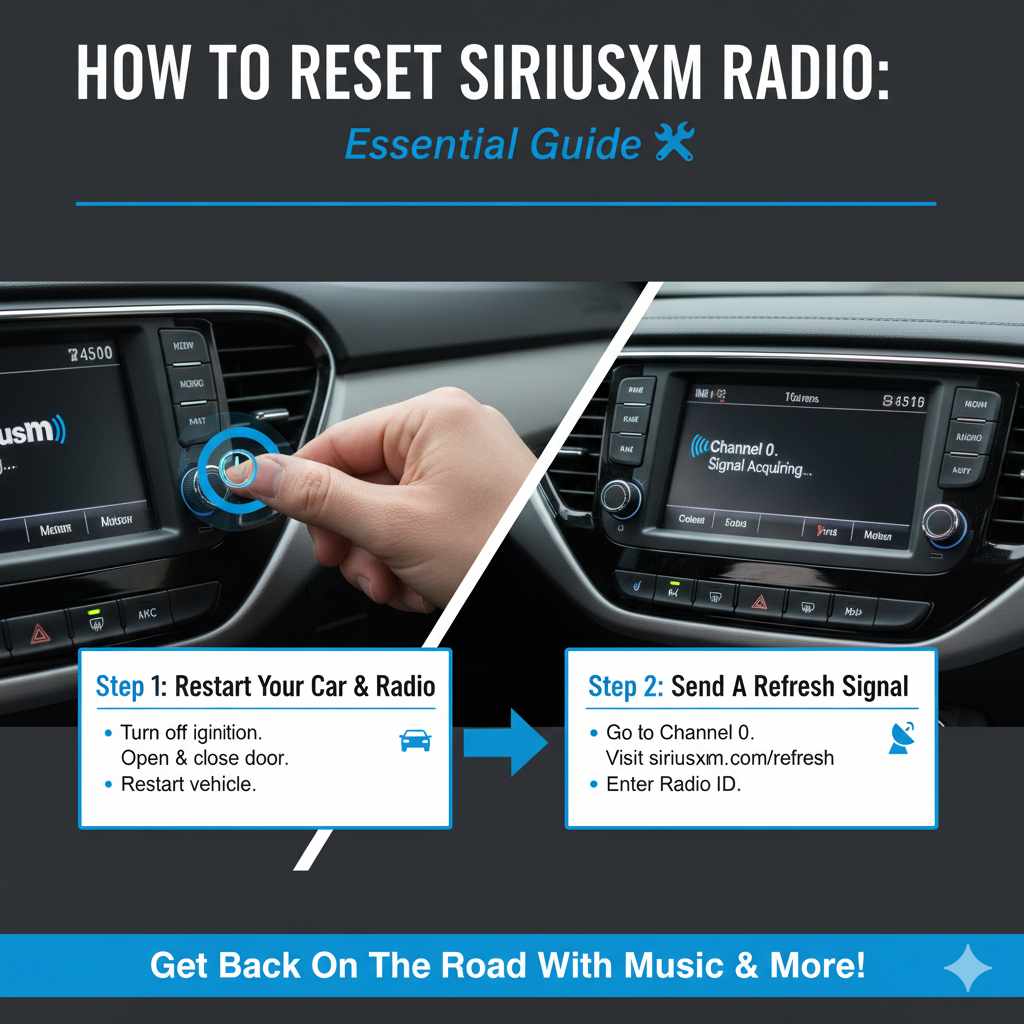
- Turn off your car’s engine and remove the key (or press the start/stop button to accessory mode).
- Open and close the driver’s side door. This often helps ensure the car’s systems fully power down.
- Wait about 10-15 minutes.
- Restart the car. The infotainment system, including SiriusXM, should reboot.
- Checking Fuses: In rare cases, a specific fuse might be dedicated to the satellite radio. You could try disconnecting and reconnecting this fuse after a few minutes. However, this is a more involved step and you should always consult your car’s owner’s manual. Incorrectly handling fuses can affect other systems. For this, you can find helpful diagrams on manufacturer websites or automotive forums. For example, NHTSA provides general guidance on understanding car fuses.
- Dealer/Mechanic Assistance: If none of the above work, the issue might be more complex, involving the car’s computer system or the satellite radio tuner itself. In such cases, it’s best to consult your vehicle’s manual or schedule an appointment with a qualified mechanic or your car dealership.
Troubleshooting Common SiriusXM Error Codes
When your SiriusXM radio encounters an issue, it might display a specific error code. Knowing what these mean can help you choose the right reset or troubleshooting step.
Here are some common codes and what they generally indicate:
| Error Code / Message | What it Usually Means | Recommended Action |
|---|---|---|
| “Channel Not Authorized” / “Subscription Invalid” | Your radio isn’t recognizing your active subscription. | Perform a subscription refresh signal (Method 2). Double-check your subscription status with SiriusXM. |
| “No Signal” / “Searching for Signal” | The radio cannot detect the satellite signal. | Ensure the antenna has a clear view of the sky. Try a power cycle (Method 1). Check for physical antenna damage. |
| “Radio ID Not Found” | The radio isn’t communicating its ID correctly. | Try a power cycle. If the ID is still not found, a factory reset or professional help may be needed. |
| “Buffering” / “Playback Error” | Temporary data interruption. | Perform a power cycle (Method 1). Try tuning to a different channel. Ensure good signal reception. |
| Screen Frozen / Unresponsive Buttons | The radio’s software may have crashed. | Attempt a power cycle (Method 1). For portable units, try the direct reset button (Method 3). |
Remember, signal strength can be affected by weather, tunnels, solid structures, and even the angle of your vehicle. If you’re in an area known for these issues, try resetting once you’re back in an open environment.
When to Contact SiriusXM Support
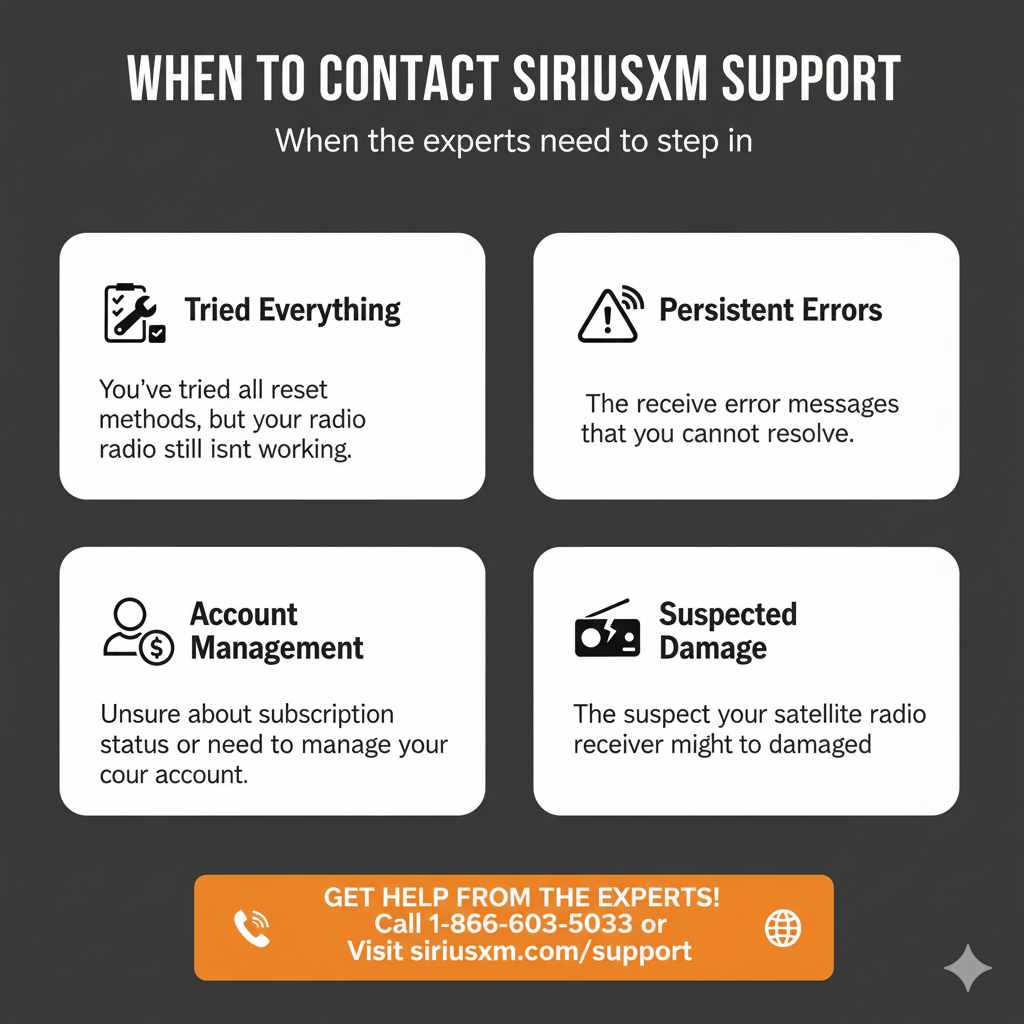
While many issues can be resolved with a simple reset, there are times when you’ll need to reach out to the experts at SiriusXM. Don’t hesitate to contact them if:
- You’ve tried all the relevant reset methods and your radio still isn’t working.
- You receive persistent error messages that you cannot resolve.
- You are unsure about your subscription status or need to manage your account.
- You suspect your satellite radio receiver might be damaged.
SiriusXM’s customer service is available to help you troubleshoot unique problems, assist with account management, and guide you through any specific procedures for your radio model. You can reach them at 1-866-603-5033 or through their website.
FAQ: Your Sirius Radio Reset Questions Answered
Got more questions about resetting your Sirius radio? Here are some common ones:
Will resetting my Sirius radio erase my presets?
A simple power cycle or a signal refresh typically will not erase your presets. However, a factory reset on some portable SiriusXM receivers or deep system resets in integrated car units might reset your preferences and saved channels. Always check your radio’s manual if you’re concerned about losing presets.
How long does it take for a Sirius radio refresh to work?
After you request a subscription refresh signal, it can take anywhere from a few minutes to up to an hour, sometimes even longer, to be fully received by your radio. The best results are achieved when the radio is powered on and has a clear line of sight to the sky when the signal is sent.
Can I reset my Sirius radio if I don’t have a subscription?
Yes, you can perform a power cycle or a factory reset on the hardware itself. However, if the issue is related to subscription activation (like seeing “Invalid Subscription”), then a refresh signal from SiriusXM is required, and this service is tied to an active subscription.
My car’s infotainment system is frozen. How do I reset just the Sirius radio part?
Often, the Sirius radio is part of the larger infotainment system. A full reboot of the car’s system (turning the car off, opening and closing a door, waiting 10-15 minutes, and restarting) is usually the best way to reset the entire unit, including the SiriusXM function. Isolated resets for just one application within a car’s infotainment system are uncommon.
What if my Sirius radio is still under warranty?
If your radio is still under warranty (especially if it’s a built-in car radio purchased recently), and a reset doesn’t fix the problem, it’s best to contact the manufacturer of your car or the radio. Attempting complex resets or repairs might void your warranty. Consult your warranty documentation or the manufacturer’s support.
Can I hard reset my SiriusXM portable radio using a paperclip?
Yes, many portable SiriusXM receivers, such as those in the Onyx or Stratus lines, have a small, recessed reset button on the device that can be pressed using a paperclip. This is a hardware-level reset. Refer to your specific model’s manual for precise instructions on how to locate and use this button.
How often should I reset my Sirius radio?
You generally don’t need to reset your Sirius radio unless you encounter a problem. It’s not a routine maintenance task. It’s only recommended when troubleshooting issues like poor reception, error messages, or unresponsiveness.
Conclusion
Dealing with a radio that’s not cooperating can be a real buzzkill, but as we’ve seen, resetting your SiriusXM radio is often a simple and effective solution. We’ve covered everything from a quick power cycle to sending refresh signals and even what to do if your radio is built into your car. Remember to always check your specific radio model’s manual if you can, as it might have unique instructions.
By following these steps, you should be able to quickly resolve most common SiriusXM issues and get back to enjoying your favorite music, sports, and talk shows. Don’t let a minor glitch interrupt your drive; a little troubleshooting goes a long way. Keep these tips handy, and you’ll be a SiriusXM reset pro in no time!