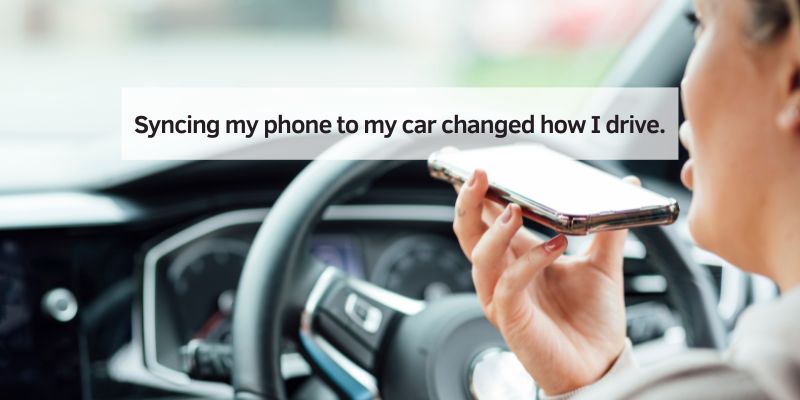
Syncing my phone to my car changed how I drive.
I remember my first road trip, fumbling with my phone to play music. It was messy! Then I learned how to sync my phone to my car, and everything got easier—music, calls, and navigation, all hands-free. This guide will show you simple steps to connect your phone to your car. Whether you’re a beginner or a tech pro, I’ll share clear tips, tricks, and examples to make syncing a breeze. Let’s dive in and get your phone and car working together!
What Is Phone-to-Car Syncing?
Syncing your phone to your car means connecting them to share features. It lets you play music, make calls, or use maps through your car’s system.
Your car’s screen or speakers can show or play what’s on your phone. This keeps you safe by reducing distractions while driving.
Why Syncing Matters
Syncing makes driving fun and safe. You can listen to playlists, answer calls hands-free, or follow GPS without touching your phone.
It’s like having a smart helper in your car. Plus, it’s easy to set up, even if you’re not tech-savvy.
Ways to Sync Your Phone to Your Car
You can sync using Bluetooth, USB, or apps like Android Auto or Apple CarPlay. Each method has its own steps and tools.
I’ll explain each one clearly. You’ll also get tips to avoid common mistakes.
Syncing with Bluetooth
Bluetooth is the most popular way to sync. It’s wireless and works with most phones and cars.
Here’s how I sync my phone using Bluetooth. It’s super simple!
Steps to Sync with Bluetooth
- Turn on Bluetooth. Go to your phone’s settings and enable Bluetooth. Do the same on your car’s infotainment screen.
- Pair your phone. On your car’s screen, select “Pair Device.” Your phone will show a list of devices—pick your car’s name.
- Enter the code. A code might pop up on both screens. Confirm it matches, then hit “Pair.”
- Test the connection. Play music or make a call to check if it works through your car.
Pro tip: Keep your phone close to the car for a strong connection. I once had a weak signal because my phone was in my bag!
Tools You Need
- A phone with Bluetooth (most have it).
- A car with Bluetooth (check your manual).
- No cables needed—wireless is the perk!
Syncing with a USB Cable
A USB cable is another easy way to sync. It’s great for charging your phone while syncing.
I use this when Bluetooth acts up. It’s reliable and simple.
Steps to Sync with USB
- Get the right cable. Use a USB cable that fits your phone (e.g., USB-C for Android, Lightning for iPhone).
- Plug it in. Connect one end to your phone and the other to your car’s USB port.
- Select USB mode. Your car’s screen might ask you to choose “Media” or “Phone.” Pick the right one.
- Test it. Try playing music or using maps to confirm it’s working.
Safety tip: Don’t use a damaged cable. It can cause connection issues or even harm your phone.
Tools You Need
- A compatible USB cable (check your phone type).
- A car with a USB port (most modern cars have one).
Using Android Auto or Apple CarPlay
Apps like Android Auto or Apple CarPlay make syncing super smart. They show your phone’s apps on your car’s screen.
I love using Apple CarPlay for navigation. It’s like having a mini smartphone in my car!
Steps to Set Up Android Auto or Apple CarPlay
- Check compatibility. Ensure your car supports Android Auto or Apple CarPlay (check your car’s manual or manufacturer’s site).
- Download the app. For Android Auto, get it from the Google Play Store. Apple CarPlay is built into iPhones.
- Connect your phone. Use a USB cable or wireless connection (if your car supports it).
- Follow prompts. Your car’s screen will guide you to set up the app. Grant permissions on your phone.
- Use it. Open maps, music, or calls through your car’s screen.
Cost-saving tip: Use a free navigation app like Google Maps instead of paying for a car’s built-in GPS.
Tools You Need
- A compatible car (check Apple’s CarPlay page or Android Auto’s site).
- A phone (iPhone for CarPlay, Android for Android Auto).
- A USB cable or wireless setup (newer cars only).
Benefits and Drawbacks of Syncing
Syncing your phone to your car has awesome perks. But there are some downsides to know about.
Benefits
- Hands-free safety. Make calls or use maps without touching your phone.
- Better audio. Play music through your car’s speakers for great sound.
- Easy navigation. See directions on your car’s big screen.
Drawbacks
- Connection issues. Bluetooth can drop if the signal is weak.
- Battery drain. Wireless syncing might use more phone battery.
- Compatibility. Not all cars support all syncing methods.
Personal insight: I once lost my Bluetooth connection mid-call. Now I always keep a USB cable handy as a backup.
Comparison of Syncing Methods
Here’s a table to help you choose the best syncing method:
| Method | Pros | Cons | Best For |
|---|---|---|---|
| Bluetooth | Wireless, easy to set up | Can drop, battery drain | Quick music or call syncing |
| USB Cable | Reliable, charges phone | Needs a cable, less flexible | Stable connections, charging |
| Android Auto/CarPlay | Smart features, big screen | Needs compatible car, setup time | Navigation, app lovers |
Caption: This table compares syncing methods to help you pick the easiest one.
Troubleshooting Common Syncing Problems
Sometimes, syncing doesn’t work right. Here are common issues and fixes.
Common Issues and Fixes
| Issue | Fix |
|---|---|
| Phone won’t pair with car | Restart Bluetooth on both devices. |
| Music or calls won’t play | Check car’s audio settings. |
| App doesn’t show on car screen | Update app or check cable. |
Caption: This table shows quick fixes for syncing problems.

My Top Troubleshooting Tips
- Restart everything. Turn off Bluetooth, then turn it back on.
- Update software. Keep your phone and car system updated.
- Check compatibility. Visit your car manufacturer’s site (e.g., Ford’s support page) to confirm settings.
Visual idea: A diagram showing where to find Bluetooth settings on a phone and car screen would be super helpful.
My Personal Tips for Easy Syncing
After years of syncing my phone to different cars, here are my best tips:
- Keep it simple. Start with Bluetooth—it’s the easiest for beginners.
- Test before driving. Try syncing at home to avoid road distractions.
- Use a phone mount. It keeps your phone visible if your car’s screen is small.
Visual idea: A photo of a phone mount in a car would show a safe setup.
Frequently Asked Questions
How to Sync My Phone to My Car with Bluetooth?
Turn on Bluetooth on your phone and car. Select “Pair Device” on your car’s screen, find your car on your phone, and confirm the pairing code. Test by playing music. If it doesn’t work, restart both devices. Check your car’s manual for specific steps. It’s easy and wireless, perfect for quick syncing.
Can I Sync My Phone to My Car Without Bluetooth?
Yes, use a USB cable. Plug your phone into your car’s USB port. Choose “Media” or “Phone” on your car’s screen. This method is reliable and charges your phone. Make sure you have the right cable (USB-C or Lightning) for your phone.
Why Won’t My Phone Connect to My Car?
Your phone might not connect if Bluetooth is off or the devices aren’t paired. Restart Bluetooth on both. Check if your car’s system needs an update. If using a cable, try a different one. Visit your car’s manufacturer site for troubleshooting tips.
Is Android Auto or Apple CarPlay Better for Syncing?
Both are great but depend on your phone. Android Auto works with Android phones, and Apple CarPlay works with iPhones. They show apps like maps on your car’s screen. CarPlay feels smoother for iPhone users, while Android Auto has more app options.
How Do I Know If My Car Supports Syncing?
Check your car’s manual or infotainment screen for Bluetooth, USB, or Android Auto/CarPlay options. Visit your car maker’s website (like Toyota’s support page) to confirm compatibility. Most cars from 2015 or newer support syncing.
What Should I Do If Syncing Drains My Phone Battery?
Wireless syncing like Bluetooth can drain your battery. Use a USB cable to sync and charge at the same time. Turn off Bluetooth when not in use. A car charger is a cheap way to keep your phone powered during long drives.
Are There Safety Tips for Syncing My Phone?
Always sync your phone before driving to avoid distractions. Use hands-free features for calls and navigation. Keep your phone in a mount for easy access. Don’t fiddle with settings while driving—pull over if you need to troubleshoot.
Conclusion
Syncing your phone to your car is easy and fun. You can play music, make calls, or use maps safely. Try Bluetooth for a quick setup or USB for reliability. Apps like Android Auto or Apple CarPlay add smart features. Use my tips to avoid issues and enjoy your drive. Ready to sync? Try it today and share your experience with friends!