How to Link Your iPhone to a Car Phone System
Connecting your iPhone to your carâs phone system might seem tricky for some people. You want to use your phone safely while driving, but figuring out the steps can be confusing. Donât worry, itâs actually quite simple.
This guide will show you exactly how to link your iPhone to a car phone system step by step. Weâll cover everything you need to know so you can get back on the road with your phone connected.
Connecting Your iPhone to Car Bluetooth
This section explains the primary method for linking your iPhone to most modern car phone systems: Bluetooth. We will cover the initial setup, pairing process, and common troubleshooting steps. Understanding how Bluetooth works in this context will make the process much clearer.
This is the most common way people connect their phones for hands-free calls and music streaming.
What Is Bluetooth and How Does It Work for Cars
Bluetooth is a short-range wireless technology. It lets devices communicate with each other without cables. Think of it like a tiny invisible radio wave.
Your iPhone has a Bluetooth chip, and so does your carâs infotainment system. When you turn on Bluetooth on both devices and put them in pairing mode, they can find each other. Once paired, they remember each other and connect automatically whenever they are close and both have Bluetooth on.
This is perfect for your car because you donât want to plug in cables every time you get in.
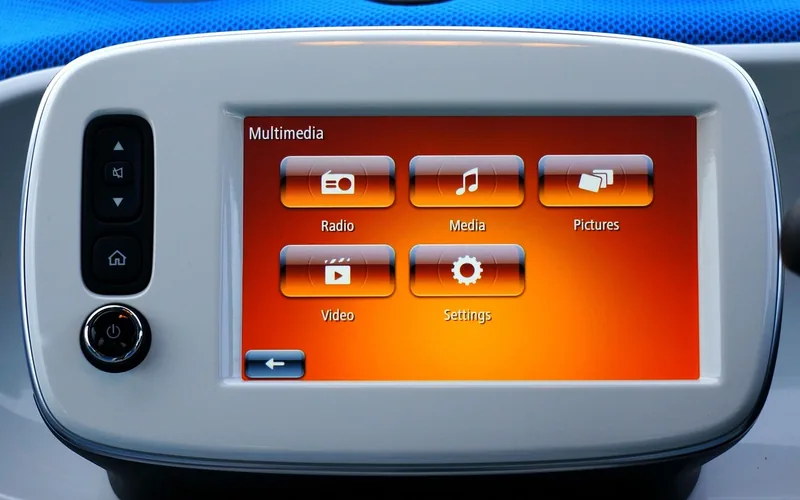
This connection allows your car to act as a speaker and microphone for your iPhone. You can make and receive calls using buttons on your steering wheel or dashboard. You can also stream music, podcasts, or audio from navigation apps directly through your carâs speakers.
The audio quality is usually quite good, and it helps you keep your phone safely stored away while you drive.
Many modern cars come with Bluetooth as a standard feature. Even older cars might have it added as an aftermarket stereo system. If your car doesnât have Bluetooth, there are still ways to connect, but Bluetooth is the most seamless option for most drivers.
The Pairing Process Explained
Pairing your iPhone with your car is like introducing two friends for the first time. You need to tell them who each other are. First, youâll typically turn on your carâs ignition.
Then, youâll go into your carâs infotainment system settings. Look for a menu option related to Bluetooth or Phone. Youâll want to select the option to âAdd Deviceâ or âPair Device.â
Next, on your iPhone, youâll go to Settings, then Bluetooth. Make sure Bluetooth is switched on. Your iPhone will start searching for nearby Bluetooth devices.
You should see your carâs name appear in the list of available devices. Tap on your carâs name. Your carâs screen might then ask you to confirm a passcode that appears on both screens.
This ensures youâre pairing with the correct car. Once confirmed, they are linked!
Sometimes, the car might require a specific PIN code. This is usually found in your carâs ownerâs manual. If you donât see a passcode, you might just need to press âPairâ or âConnectâ on both devices.
After the initial pairing, your iPhone and car should automatically reconnect each time you start your car and have Bluetooth enabled on your phone.
Common Bluetooth Issues and Solutions
Occasionally, Bluetooth might not connect right away, which can be frustrating. One common issue is that Bluetooth might not be turned on for either device. Double-check that itâs active on both your iPhone and your carâs system.
Another frequent problem is when devices have been paired before but are not connecting now. Sometimes, simply turning Bluetooth off and then back on on your iPhone can fix this.
If that doesnât work, try âforgettingâ the car from your iPhoneâs Bluetooth list and then re-pairing the devices from scratch. To do this on your iPhone, go to Settings, then Bluetooth. Tap the âiâ icon next to your carâs name and select âForget This Device.â Then, start the pairing process over.
You might also need to remove your iPhone from your carâs list of paired devices and pair it again.
Interference can also cause problems. Other wireless devices operating on the same frequency, like some Wi-Fi routers or other Bluetooth devices, can sometimes disrupt the connection. Moving your iPhone closer to the carâs Bluetooth receiver, which is often in the dashboard, can help.
Lastly, a simple restart of both your iPhone and your carâs infotainment system can resolve many temporary glitches.
Using Apple CarPlay for a Seamless Experience
Apple CarPlay is a more advanced way to link your iPhone to your car. It mirrors many of your iPhoneâs apps onto your carâs display. This makes it super easy to use navigation, play music, send messages, and make calls with a familiar interface.
For this to work, your car must support CarPlay. Many newer cars do, and some older models can have it added with an aftermarket head unit.
CarPlay offers a much more integrated experience than basic Bluetooth. Itâs designed to minimize distractions while driving. The icons are larger, and the controls are simplified.
You can also use Siri, Appleâs voice assistant, to control almost everything. This means you can keep your hands on the wheel and your eyes on the road while still managing your phoneâs functions.
Connecting to CarPlay usually involves either a USB cable or a wireless connection, depending on your car. Once set up, CarPlay launches automatically when you connect your iPhone. This makes accessing your essential phone features in the car incredibly straightforward and safe.
Itâs the top choice for many iPhone users looking for the best car integration.
Requirements for Apple CarPlay
To use Apple CarPlay, youâll need a few things. First, you must have an iPhone that supports CarPlay. This includes iPhone 5 and later models running iOS 7.1 or newer.
Your car must also be equipped with CarPlay. You can check your carâs manual or the manufacturerâs website to see if itâs compatible. Some cars require you to plug in your iPhone with a USB cable, while others support wireless CarPlay, meaning you can connect without any wires.
If your car supports wireless CarPlay, youâll also need to have Wi-Fi and Bluetooth enabled on your iPhone. The car uses these connections to establish the wireless link. For wired CarPlay, a good quality USB cable is important.
Sometimes, a faulty or cheap cable can cause connection issues or prevent CarPlay from launching at all. Using the original Apple cable or a certified MFi (Made for iPhone) cable is highly recommended.
Ensure that CarPlay is enabled in your iPhoneâs settings. Go to Settings > General > CarPlay. You might need to tap âCustomizeâ to arrange your apps.
Also, make sure your car is in park or that the parking brake is engaged when you first set up the connection. This is a safety feature to prevent distractions during initial setup.
Setting Up CarPlay Connection
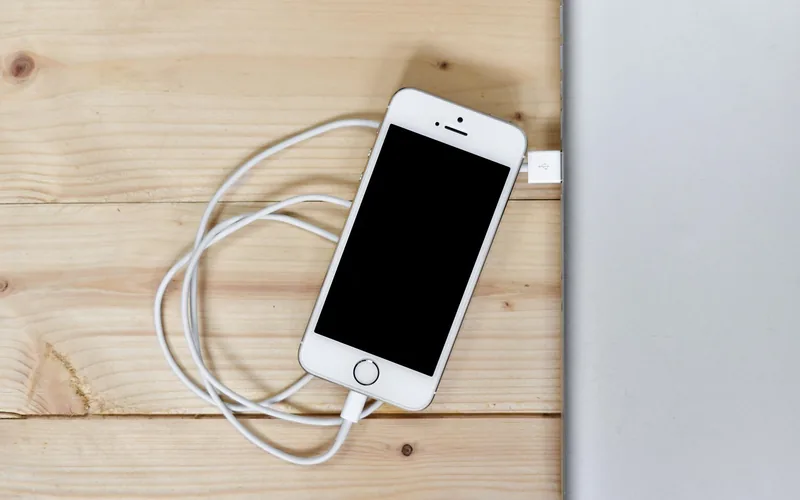
For cars that use a USB cable, the setup is simple. Make sure your iPhone is unlocked. Plug one end of the USB cable into your iPhone and the other end into the designated USB port in your car.
Your carâs display should prompt you to enable CarPlay. You might see a message asking âUse CarPlay?â on your iPhone screen. Tap âAllowâ or âConnect.â
Your carâs infotainment screen will then display the CarPlay interface, showing your iPhoneâs apps in a car-friendly format. If this is your first time, your car might ask you to confirm the connection. Follow any on-screen prompts.
Once connected, your iPhone will remember the car, and CarPlay should launch automatically each time you connect the cable. You can then use touch or voice commands with Siri to interact with CarPlay.
For wireless CarPlay, the process is similar but without the cable. Ensure Wi-Fi and Bluetooth are on your iPhone and your car. Go to your carâs CarPlay settings and select âAdd New Carâ or a similar option.
On your iPhone, go to Settings > General > CarPlay and tap âAvailable Cars.â Select your carâs name when it appears. You may need to confirm a passcode or allow access. Once paired, your iPhone will connect wirelessly whenever youâre in the car.
Connecting via Android Auto for Android Users
While this guide focuses on iPhones, itâs worth noting that for Android users, a similar system called Android Auto exists. Android Auto also mirrors your smartphoneâs interface onto your carâs display. It offers similar features for navigation, music, and communication, but itâs designed for Android phones.
The setup process and connectivity methods are generally comparable to Apple CarPlay, often using USB or wireless connections.
The main difference lies in the operating system and the available apps. Android Auto uses Googleâs services more extensively, like Google Maps and Google Assistant. The user interface also has a distinct look and feel compared to CarPlay.
However, the core goal remains the same: to provide a safer and more convenient way to use your phoneâs functions while driving.
Understanding how to link your iPhone to a car phone system is crucial for iPhone users. The principles of wireless connectivity, device pairing, and user interface integration are common across different smartphone platforms. This knowledge helps in appreciating the technology and troubleshooting any issues that might arise, ensuring a smooth driving experience.
Android Auto vs. Apple CarPlay
While both systems serve a similar purpose, there are key differences between Android Auto and Apple CarPlay. CarPlay is exclusive to iPhones and integrates tightly with Appleâs ecosystem, emphasizing apps like Apple Maps, Apple Music, and iMessage. Itâs known for its intuitive and user-friendly interface, making it easy for iPhone users to adapt quickly.
Android Auto, on the other hand, is for Android smartphones and leans into Googleâs services, featuring Google Maps, YouTube Music, and Google Assistant. It offers a highly customizable interface, allowing users to arrange apps according to their preferences. Both systems prioritize safety with large icons and voice control integration, but the specific apps and functionalities can vary.
The choice between them is dictated by your smartphone. If you have an iPhone, CarPlay is your option. If you use an Android device, Android Auto is the way to go.
Most modern cars offer support for both systems, allowing drivers to choose the one that matches their phone.
Connecting an Android Phone
Connecting an Android phone to a car system usually involves similar steps to CarPlay. For wired connections, youâll need a USB cable. Unlock your Android phone and plug it into the carâs USB port.
You should see a prompt on your phone asking to use Android Auto. Accept the terms and conditions. Your carâs screen will then display the Android Auto interface.
For wireless Android Auto, both your phone and car need to support it. Ensure Bluetooth and Wi-Fi are enabled on your phone. Go to your carâs infotainment system and find the Android Auto settings.
Youâll likely need to initiate a new device connection. On your Android phone, open the Android Auto app (or it might be built into the phoneâs settings) and look for an option to âConnect a car.â Follow the on-screen instructions to pair your phone wirelessly. Once connected, Android Auto will typically launch automatically when you start your car.
Just like with CarPlay, ensure you have the latest version of the Android Auto app installed on your phone. Regular updates often bring new features and fix bugs. Also, check your carâs manual for specific instructions, as some car manufacturers have unique ways of setting up Android Auto.

Troubleshooting Common iPhone Car Connectivity Problems
Sometimes, even with clear instructions, devices donât connect as expected. This section addresses those frustrating moments when your iPhone wonât link up with your carâs system. Weâll explore a range of issues, from simple fixes to more technical solutions, to help you get connected smoothly.
Dealing with connectivity problems can be a common hurdle for many users.
Ensuring iPhone Software is Up-to-Date
One of the most common reasons for connectivity problems is outdated software. Apple frequently releases iOS updates, and these often include improvements and fixes for Bluetooth and CarPlay functionality. If your iPhoneâs operating system is not current, it might not be communicating correctly with your carâs system, which may have also received software updates.
To check for updates, go to Settings > General > Software Update on your iPhone. If an update is available, download and install it. Make sure your iPhone is connected to Wi-Fi and has at least 50% battery charge before starting the update.
Itâs also a good idea to restart your iPhone after the update is complete. This simple step can resolve many hidden bugs that might be interfering with your car connection.
Keeping your iPhoneâs software current is not just for connectivity. It also brings new features, security patches, and performance enhancements. For the best experience with your carâs phone system, always ensure youâre running the latest version of iOS.
This proactive approach can prevent many potential connection issues before they even arise.
The Role of Car System Software Updates
Just like your iPhone, your carâs infotainment system also runs on software. Manufacturers periodically release updates for these systems to improve performance, add new features, and fix bugs. If your carâs software is outdated, it might have compatibility issues with newer iPhone models or iOS versions, leading to connection problems.
Checking for car system updates can be a bit more involved. Some cars can update their software wirelessly via Wi-Fi, similar to a smartphone. Others might require you to visit a dealership or download an update to a USB drive from the manufacturerâs website and then install it in your car.
Consult your carâs ownerâs manual or the manufacturerâs website for specific instructions on how to check for and install software updates for your vehicleâs infotainment system.
When both your iPhone and your carâs system are running the latest software, they are more likely to communicate effectively and without errors. This compatibility is key to a stable and reliable connection, whether youâre using Bluetooth or CarPlay. Always prioritize keeping both devices updated.
Resetting Network Settings
If youâre experiencing persistent Bluetooth or CarPlay connection issues, resetting your iPhoneâs network settings can often help. This process erases all saved Wi-Fi networks and passwords, cellular settings, and VPN configurations. It essentially gives your iPhoneâs network connections a fresh start, which can clear out any corrupted data or settings that might be causing the problem.
To reset your network settings, go to Settings > General > Transfer or Reset iPhone > Reset. Then, tap âReset Network Settings.â You will need to enter your iPhoneâs passcode. After the reset, your iPhone will restart.
Youâll then need to reconnect to your Wi-Fi networks and re-pair your Bluetooth devices, including your car. While it seems like a lot of steps, itâs a powerful troubleshooting tool.
This method is particularly effective if you suspect a problem with how your iPhone is managing its wireless connections. Itâs a more drastic step than simply toggling Bluetooth on and off, but it often resolves stubborn issues that other simple fixes cannot. Remember to have your Wi-Fi passwords handy after performing the reset.
When to Reset Network Settings
You should consider resetting network settings when youâve tried other basic troubleshooting steps without success. This includes toggling Bluetooth on and off, restarting your iPhone, and forgetting and re-pairing your car. If your iPhone is having trouble connecting to multiple Bluetooth devices, not just your car, then a network settings reset is a strong candidate for a fix.
Another indicator is if your iPhone has been behaving erratically with Wi-Fi connections or cellular data. Sometimes, corrupted network configurations can affect more than just Bluetooth. If youâve recently made changes to your iPhoneâs network settings, like installing a new VPN profile or manually configuring network settings, and are now experiencing issues, resetting them can revert those changes and resolve the problem.
Itâs also a good step to take if youâre moving between different vehicles and experiencing connectivity issues with multiple car systems. A clean slate for your iPhoneâs network connections ensures itâs trying to establish new, uncorrupted links with each vehicle. Itâs a reliable way to address underlying software glitches related to network management.
Using a High-Quality USB Cable
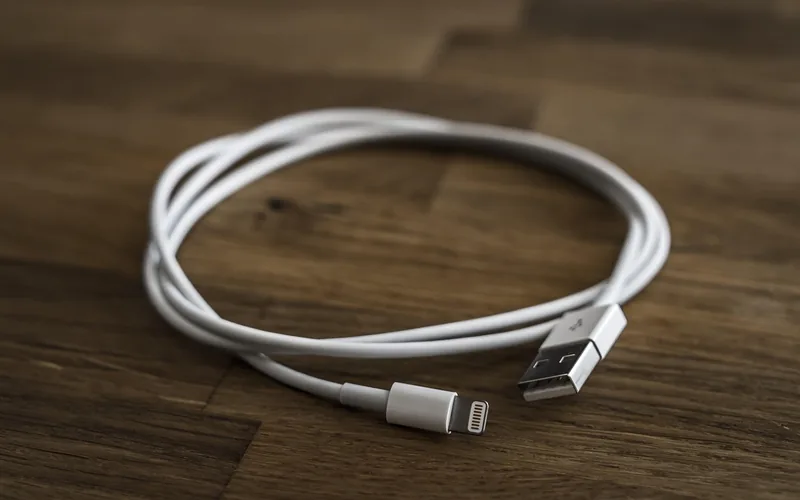
For wired CarPlay or Android Auto connections, the quality of your USB cable is paramount. Not all USB cables are created equal. Some cheaper cables are designed only for charging and donât have the necessary data transfer capabilities required for these systems.
If your cable canât handle the data speed, it will lead to connection dropouts, errors, or it wonât work at all.
Always use the original Apple USB cable that came with your iPhone, or a certified MFi (Made for iPhone) cable from a reputable brand. These cables are tested to meet Appleâs standards for data transfer and durability. Similarly, for Android devices, use a high-quality USB cable that supports data transfer, not just charging.
The length of the cable can also sometimes play a role. Very long cables might experience signal degradation. Try using a shorter, high-quality cable if youâre experiencing issues.
Inspect your cable for any visible damage, like kinks or fraying wires, as this can also compromise its performance and lead to connection problems.
Why Cable Quality Matters
CarPlay and Android Auto transmit a significant amount of data between your iPhone/Android phone and your carâs infotainment system. This data includes audio, video feeds (for screen mirroring), touch commands, and voice commands from Siri or Google Assistant. For these complex interactions to happen smoothly and reliably, the USB cable needs to be able to handle high data transfer speeds and maintain a stable connection.
Cheaper, uncertified cables might use thinner wires or have less sophisticated shielding, which can lead to data errors. These errors can manifest as flickering screens, audio glitches, dropped connections, or the system simply failing to recognize your phone. Itâs like trying to drink a thick milkshake through a very thin straw â the flow is restricted.
Using a certified cable ensures that the wiring and connectors are properly manufactured to support the required bandwidth. It also means the cable has passed rigorous testing for performance and safety. Investing in a good cable is a small price to pay for a frustration-free experience when connecting your phone to your car.
Checking Car Compatibility
Not all cars are equipped with the technology to connect with your iPhone. If your car is older, it might not have Bluetooth or support for Apple CarPlay. For newer cars, even if they have Bluetooth, they might not support CarPlay, or they might require a specific type of connection (e.g., only wired CarPlay).
Itâs essential to verify your carâs compatibility before attempting to connect.
The best way to check compatibility is to refer to your carâs ownerâs manual. This document will detail all the features of your carâs infotainment system, including whether it supports Bluetooth, CarPlay, or Android Auto. You can also usually find this information on the car manufacturerâs official website by looking up your specific model and year.
Dealerships can also provide this information.
If your car doesnât have the built-in technology you want, you might consider an aftermarket solution. For example, you could
Verifying Bluetooth and CarPlay Support
To verify Bluetooth support in your car, look for the Bluetooth symbol on your carâs radio, dashboard, or steering wheel controls. You can also check your carâs infotainment system settings for a Bluetooth menu. If you find these, your car likely has Bluetooth connectivity.
For Apple CarPlay, the verification process is similar. Look for a CarPlay logo on your carâs display or steering wheel controls. Many cars that support CarPlay will have a dedicated CarPlay option in their menu system.
If you donât see any mention of CarPlay in your carâs manual or settings, itâs probable that it doesnât support the feature. Remember that some cars might require a specific trim level or optional package to include CarPlay.
If youâre unsure, contacting your car dealership with your carâs Vehicle Identification Number (VIN) is the most definitive way to confirm its features. They can access your carâs original build specifications and tell you exactly what connectivity options it has.
Maximizing Your iPhone Car Connection Experience
Once your iPhone is successfully linked to your car phone system, youâll want to make the most of it. This section covers tips and best practices to ensure youâre using the connection safely and efficiently. Weâll look at how to optimize audio, use voice commands effectively, and manage your apps for a better driving experience.
Getting the most out of your connected car is key.
Optimizing Audio Settings
Getting the best audio quality from your iPhone through your carâs speakers involves a few steps. First, ensure that your iPhoneâs volume is turned up to a comfortable level, but not so high that it causes distortion. Then, adjust your carâs volume accordingly.
Many car audio systems have equalizer (EQ) settings that can be adjusted to tailor the sound to your preferences. Experiment with these settings to find a balance that suits you, whether you prefer more bass for music or clearer mids for podcasts.
If youâre using Bluetooth, the audio quality can sometimes be slightly lower than with a wired CarPlay connection. This is because Bluetooth uses compression to transmit audio wirelessly. If audio quality is a top priority, using CarPlay via a USB cable will generally provide superior sound.
Also, ensure that your carâs audio settings are not overly aggressive with bass or treble, as this can make voices or music sound unnatural.
Some cars offer specific audio profiles for phone calls versus media playback. Check your carâs audio settings to see if you can adjust these independently. For example, you might want phone calls to be clearer and louder, while music can be set for a richer sound.
Fine-tuning these settings can significantly improve your listening experience on the road.
Managing Calls and Music Playback
When connected via Bluetooth or CarPlay, your carâs controls can often manage your calls and music. To make a call, you can either use your carâs touchscreen to access your contacts or dial a number, or you can use Siri. Saying âHey Siri, call â or âHey Siri, dial â is a safe and efficient way to initiate calls.
Your carâs system will then handle the connection, and youâll hear the call through the car speakers.
For music, you can control playback using your carâs controls or Siri. Saying âHey Siri, play by â or âHey Siri, play my â will start the music. You can also use the steering wheel buttons or dashboard controls to play, pause, skip tracks, or adjust the volume.
If youâre using CarPlay, the music app will be displayed on your carâs screen, allowing for touch control as well.
Remember to set your preferred music app in your iPhoneâs settings for CarPlay to default to that app when you start playing music. This ensures a seamless experience when you want to listen to your favorite tunes. Managing these functions through your carâs interface or voice commands is far safer than fiddling with your phone while driving.
Utilizing Voice Commands with Siri
Siri, Appleâs intelligent voice assistant, is a powerful tool when your iPhone is linked to your car. You can activate Siri by saying âHey Siriâ (if your iPhone is set up for it and the car supports âHey Siriâ detection) or by pressing and holding the voice command button on your steering wheel. Once activated, you can ask Siri to perform a wide range of tasks.
You can use Siri to send text messages, make phone calls, set reminders, get directions, check the weather, play music, control smart home devices, and much more. For example, you can say, âHey Siri, send a text to Mom saying Iâm on my wayâ or âHey Siri, navigate to the nearest gas station.â The carâs microphone will pick up your voice, and Siri will execute your command.
Itâs important to speak clearly and enunciate your words when using Siri, especially in a noisy car environment. If Siri doesnât understand you, try rephrasing your request. Practicing with Siri while youâre parked can help you become more familiar with its capabilities and how to phrase commands effectively.
This hands-free interaction is a significant safety feature that allows you to stay focused on the road.
Examples of Siri Commands for Driving
Here are some practical examples of Siri commands you can use while driving:
- âHey Siri, call .â This initiates a phone call to the specified person.
- âHey Siri, text and say .â This sends a text message without you having to type.
- âHey Siri, navigate to .â This starts turn-by-turn navigation using Apple Maps or your preferred navigation app if set up.
- âHey Siri, whatâs the weather like today?â This provides a weather update for your current location.
- âHey Siri, play my workout playlist.â This starts your designated music playlist.
- âHey Siri, whatâs the traffic like on my route?â This gives you an update on traffic conditions.
- âHey Siri, set a reminder to pick up dry cleaning at 5 PM.â This creates a reminder for a specific time.
Using these commands can greatly enhance your driving experience by keeping your hands free and your attention on the road. The more you use Siri, the more comfortable youâll become with its functionality and the easier it will be to integrate into your driving routine.
Managing Notifications
When your iPhone is connected to your car, you have options for how notifications are handled. By default, many car systems will display incoming calls and message alerts on the carâs screen. For other app notifications, you might be able to choose whether they are displayed, announced by Siri, or silenced entirely.
This is crucial for minimizing distractions.
Within your iPhoneâs Settings, go to Notifications and then look for settings related to CarPlay or your specific apps. You can often set apps to âDeliver Quietlyâ or disable their notifications when connected to CarPlay. This means they wonât interrupt your driving with pop-ups or sounds.
You can also set up âDo Not Disturb While Drivingâ modes that are automatically activated when your iPhone is connected to your car.
Itâs a good practice to review your notification settings periodically, especially after an iOS update, as settings can sometimes reset. Prioritize notifications from essential apps like messaging or navigation, and silence or defer less critical alerts to maintain focus on the road. A distraction-free driving environment is paramount for safety.
Setting Up âDo Not Disturb While Drivingâ
The âDo Not Disturb While Drivingâ feature on your iPhone is designed to help you stay focused on the road. When activated, it silences notifications, calls, and alerts. You can configure it to automatically turn on when your iPhone connects to your carâs Bluetooth system or when the phone detects you are driving.
This is a highly recommended safety feature.
To set this up, go to Settings > Focus. Tap the â+â button to create a new Focus profile and select âDriving.â You can then choose which people and apps are allowed to notify you during this Focus. For example, you might allow calls from Favorites or alerts from your navigation app.
You can also set an auto-activate trigger, such as âWhen Connected to Bluetoothâ and select your carâs Bluetooth system.
Once set up, when youâre driving and connected to your car, your iPhone will automatically enter this Focus mode. You wonât be disturbed by incoming notifications. If someone calls, they might receive an automatic reply that you are driving.
This feature significantly reduces the temptation to pick up your phone while youâre behind the wheel.

Frequently Asked Questions
Question: How do I know if my car supports Apple CarPlay
Answer: Check your carâs ownerâs manual or the manufacturerâs website for your specific model. You can also look for a CarPlay logo on your carâs dashboard or infotainment system screen.
Question: Can I use my iPhone for navigation in my car without CarPlay
Answer: Yes, you can use Bluetooth to stream audio from navigation apps like Google Maps or Waze through your carâs speakers. However, you wonât see the map display on your carâs screen.
Question: What is the difference between Bluetooth and CarPlay
Answer: Bluetooth primarily handles calls and audio streaming. CarPlay mirrors your iPhoneâs interface, allowing you to use navigation, messaging, music apps, and more directly on your carâs display with an optimized interface.
Question: My iPhone wonât connect to my carâs Bluetooth, what should I do
Answer: Try turning Bluetooth off and on again on both your iPhone and car. You can also try âforgettingâ the car from your iPhoneâs Bluetooth settings and re-pairing them.
Question: Do I need a special cable for CarPlay
Answer: Yes, itâs highly recommended to use the original Apple USB cable or a certified MFi (Made for iPhone) cable. Cheaper cables may not support the necessary data transfer for CarPlay.
Conclusion
Linking your iPhone to your car phone system is straightforward with these steps. You can use Bluetooth for basic calls and audio, or opt for the richer experience of Apple CarPlay. Always ensure your iPhone and car software are updated and use a high-quality USB cable for wired connections.
By following this guide, you can easily connect your iPhone for safer and more convenient driving.