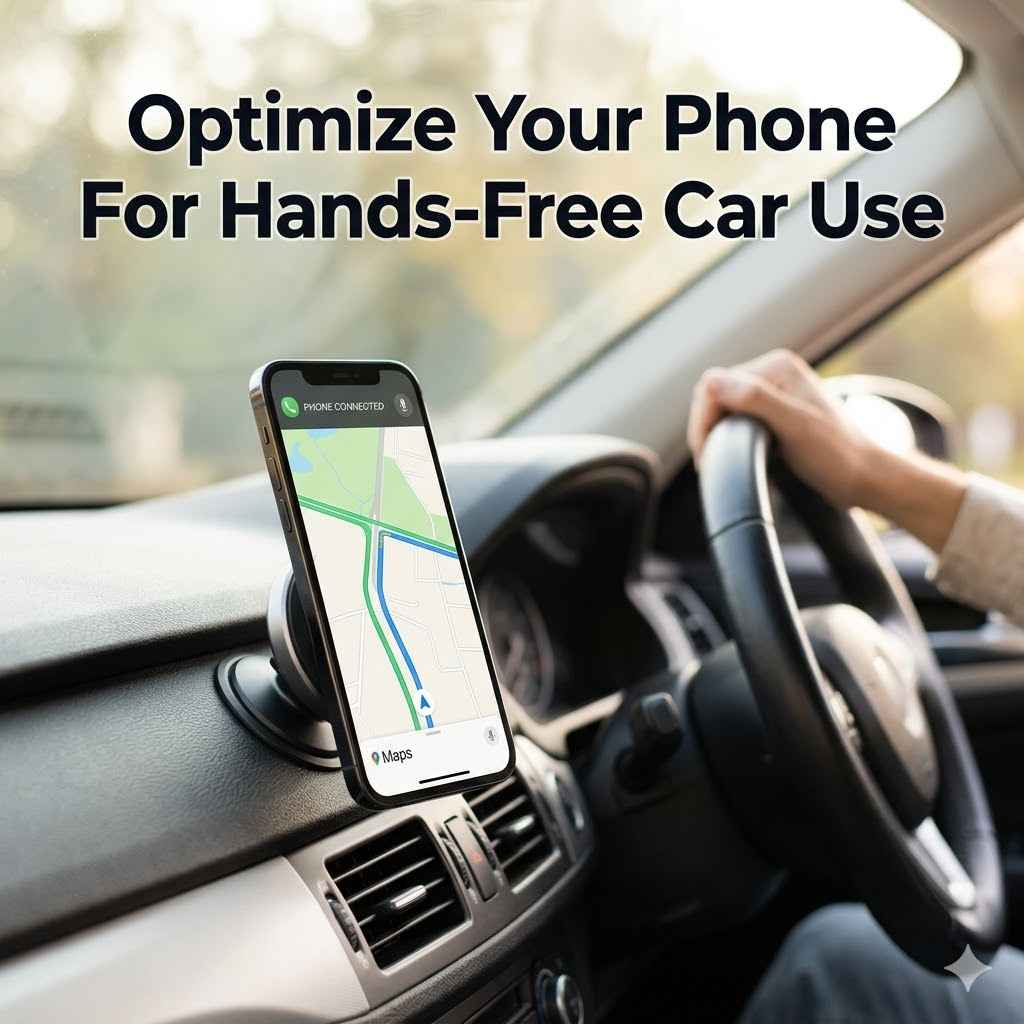
Optimize Your Phone For Hands-Free Car Use
Many people want to Optimize Your Phone for Hands-Free Car Use, but it can seem tricky at first. You might wonder where to begin with all the settings and apps. Don’t worry, it’s simpler than you think!
We’ll walk you through each step so you can safely use your phone while driving. Get ready to make your car rides much easier and safer.
Making your phone work easily and safely while you’re driving is super important. It helps you focus on the road instead of fiddling with your device. This section will cover the main ways to get your phone ready for the car.
We will look at settings on your phone, what accessories can help, and how to use voice commands. It’s all about making your drive smoother and safer by using your phone without taking your hands off the wheel.
Phone Settings For Safer Driving
Your smartphone has many built-in features that can help you drive safer. Adjusting these settings before you hit the road makes a big difference. It’s like prepping your car for a long trip.
We’ll go over the best settings to tweak.
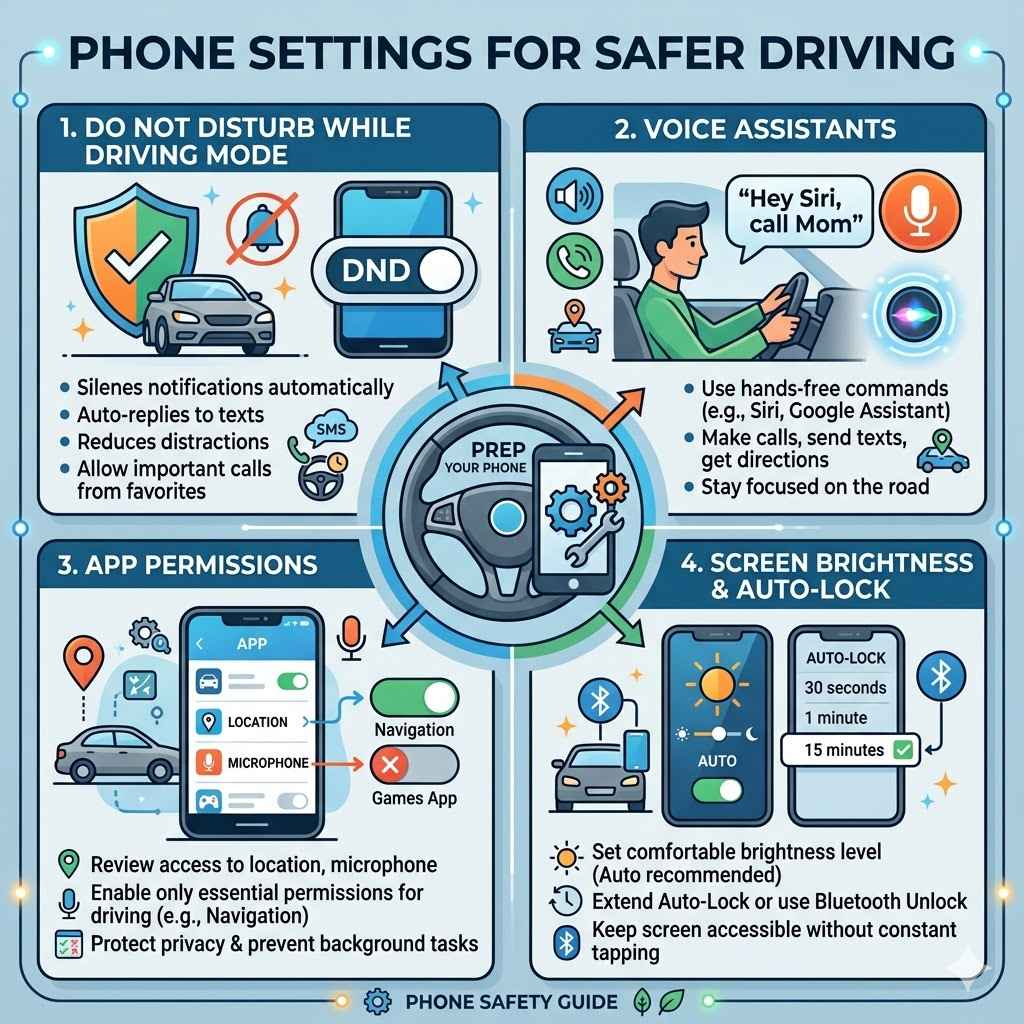
Do Not Disturb While Driving Mode
Most smartphones have a “Do Not Disturb While Driving” mode. This is a lifesaver. When your phone detects you’re driving, it can automatically silence notifications.
You can even set it to send auto-replies to texts so people know you’re on the road. This stops distracting pings and alerts. It ensures you get important calls without being tempted to look at every single message.
This feature is great because it reduces the number of things that pull your attention away from driving. You can customize it to allow calls from favorites or repeat callers, so you don’t miss emergencies. It’s a simple switch that makes a huge impact on your safety.
Voice Assistants
Your phone’s voice assistant, like Siri or Google Assistant, is your best friend for hands-free operation. You can use it to make calls, send texts, get directions, and even play music, all by just speaking. Make sure your voice assistant is set up and ready to go.
You’ll want to learn the basic commands so you can use it without thinking. This is the core of truly hands-free use.
For example, you can say “Hey Siri, call Mom” or “Okay Google, text John I’m five minutes away.” These commands are natural and easy to remember. Practicing these commands before you drive will make them feel second nature. It helps you stay connected without compromising your focus on the road.
App Permissions
Some apps might request access to your location or microphone. When you’re driving, you want to be careful about which apps have these permissions. For navigation apps, location access is essential.
For other apps, you might want to turn off these permissions when you’re not actively using them in the car. This helps protect your privacy and prevents apps from running in the background unnecessarily.
Think about what an app really needs to do while you’re driving. Does a game need your location? Probably not.
Does your music app need to listen to you? Only when you tell it to. Reviewing these permissions regularly can help keep your phone focused on what’s important while you’re driving.
Screen Brightness and Auto-Lock
Setting your screen brightness to auto or a comfortable level is key. You don’t want it too dim to see or too bright to be blinding, especially at night. Also, consider adjusting your auto-lock settings.
You might want your phone to stay unlocked for a longer period or even stay unlocked while connected to your car’s Bluetooth. This reduces the need to tap the screen to wake it up.
Keeping the screen accessible without constant interaction is vital. If your phone locks too quickly, you might be tempted to press the screen to unlock it. This is a distraction.
Extending the auto-lock timer or using Bluetooth pairing can solve this problem.
Essential Accessories For Hands-Free Driving
Beyond your phone’s settings, a few simple accessories can make a huge difference in how well you can use your phone hands-free. These tools help position your phone correctly and make it easier to interact with. They are designed to keep your phone visible and accessible without cluttering your car.
Car Phone Mounts
A good phone mount is perhaps the most crucial accessory. It keeps your phone visible at eye level, so you can see navigation or caller ID without looking down. There are many types, including vent mounts, dashboard mounts, and windshield mounts.
Choose one that fits your car and your preference.
The best mount is one that is stable and doesn’t vibrate too much. A wobbly phone screen is just as distracting as looking down. Some mounts also include charging capabilities, which is a bonus.
Having your phone secured and in a good viewing spot means you can glance at it safely.
Bluetooth Car Kits and Adapters
If your car doesn’t have built-in Bluetooth, a Bluetooth car kit is a fantastic solution. These kits often plug into your car’s cigarette lighter or aux port. They allow you to make calls and stream music wirelessly through your car’s speakers.
This provides a much better audio experience than just holding your phone.
Many modern Bluetooth kits also offer voice command integration. They can pair with your phone’s assistant, further enhancing the hands-free experience. This technology bridges the gap for older cars, bringing them up to speed with modern connectivity needs.
Car Chargers and Power Banks
Using your phone for navigation and calls can drain the battery quickly. A reliable car charger is essential. You can get chargers that plug into the cigarette lighter port or ones that connect to USB ports if your car has them.
Fast chargers are even better, ensuring your phone stays powered up.
If you frequently drive long distances or don’t have a charger, a portable power bank can be a lifesaver. Keep it charged and handy. This ensures your phone stays on for important calls or navigation when you’re away from a power source.
Dash Cams with Voice Control
While not directly for phone interaction, some advanced dash cams offer voice control for their own functions. This means you can operate the dash cam without touching it. This adds another layer of convenience and safety.
Some dash cams can even integrate with your phone for data transfer, but the key is their independent hands-free operation.
These devices are becoming more common and can enhance overall driving safety. They record your journey and can be operated by voice. This keeps your hands free for steering and other essential driving tasks.
Mastering Voice Commands for Hands-Free Control
Voice commands are the heart of hands-free operation. They let you control your phone without ever touching it. The better you are at using them, the safer and more convenient your driving will be.
This section focuses on how to get the most out of your phone’s voice assistant.
Basic Voice Commands to Learn
There are several core commands that every driver should know. These are the ones you’ll use most often. They cover calls, messages, navigation, and music.
Getting these down makes a huge difference.
- Making and Receiving Calls: You can say things like “Call ” or “Dial .” For incoming calls, you can often say “Answer” or “Ignore.”
- Sending Text Messages: Commands like “Text to say ” are very useful. Your assistant will usually ask you to confirm before sending.
- Getting Directions: “Navigate to ” or “Get directions to ” will start your navigation app. You can also ask “What’s my ETA?”
- Playing Music: “Play by ” or “Play my playlist” will get your music going.
These commands are designed to be intuitive. The more you use them, the faster you’ll become. It’s like learning a new language, but this one is for your car.
Customizing Voice Assistant Settings
Your voice assistant can be set up to better understand you and your preferences. This customization is key to a smooth experience. You can usually find these settings in your phone’s main settings menu under “Google Assistant” or “Siri.”
- Voice Recognition Training: Many assistants allow you to train them to recognize your voice more accurately. This helps prevent them from activating accidentally or misinterpreting your commands.
- Personal Results: You can choose whether your assistant can read out personal results, like calendar events or messages, when you’re driving.
- Voice Match or “Hey Siri” Sensitivity: Adjust how sensitive the wake word is. You don’t want it to trigger with every little sound, but you also don’t want to have to shout to get its attention.
Taking a few minutes to adjust these settings can vastly improve how well your voice assistant works for you in the car. It makes the whole hands-free system feel much more natural.
Best Practices for Using Voice Commands
To make voice commands work their best, there are a few tips. Speak clearly and at a normal pace. Try to minimize background noise if possible, though modern assistants are good at filtering it out.
Be patient. Sometimes, the assistant might not understand you the first time. Don’t get frustrated; just try again.
For longer messages, it’s often easier to dictate them. If you need to send a complex email, it might be better to pull over safely and type it. The goal is safety, not perfection.
Consider using the “read aloud” feature for messages and notifications. This way, you can hear what’s coming without looking at your screen. It’s a small setting that adds significant safety.
Integrating Your Phone with Your Car’s System
Many newer cars come with sophisticated infotainment systems that can connect with your smartphone. This integration takes hands-free use to the next level, offering seamless control and a unified experience. We’ll explore how these systems work and how to best use them.
Apple CarPlay and Android Auto
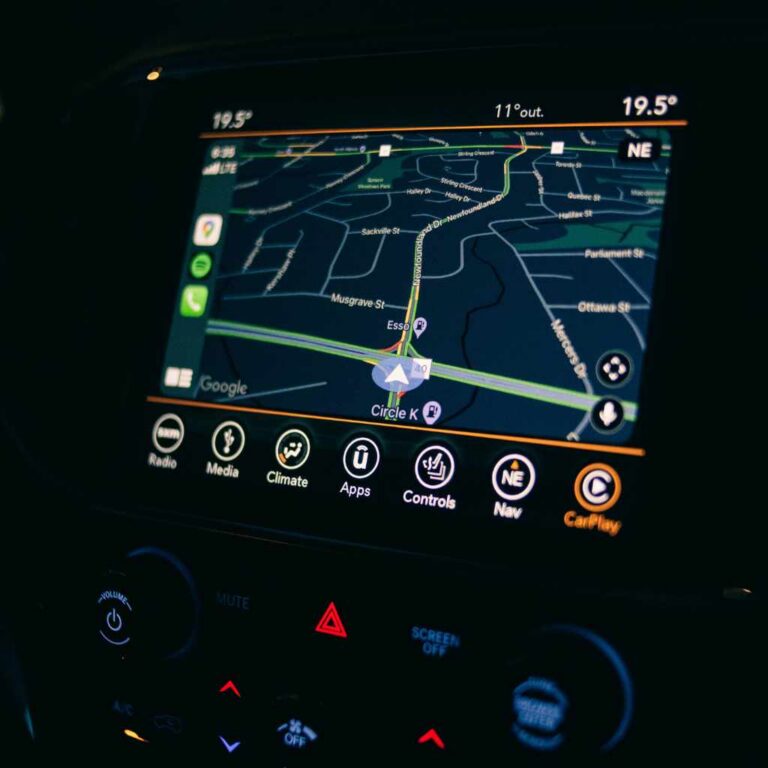
Apple CarPlay and Android Auto are powerful platforms that mirror essential smartphone features onto your car’s display. They offer a simplified interface designed for driving, with large icons and easy-to-use navigation. Connecting your phone via USB or wirelessly makes these systems accessible.
With CarPlay or Android Auto, you can use your favorite navigation apps like Google Maps or Waze, make calls, send texts, and play music using your car’s touchscreen or voice commands. This provides a familiar and safe environment for your phone’s functions. It’s designed to keep your attention on the road.
A study by the National Highway Traffic Safety Administration (NHTSA) found that driver distraction is a factor in thousands of crashes each year. Systems like CarPlay and Android Auto aim to reduce this by providing a dedicated, distraction-minimized interface.
Bluetooth Connectivity Best Practices
Even if your car doesn’t support CarPlay or Android Auto, Bluetooth is a standard feature in most modern vehicles. Proper Bluetooth setup is key to hands-free operation. Ensure your phone is paired with your car’s system correctly.
Once paired, you can usually control your phone’s calls and audio playback directly from your car’s steering wheel controls or dashboard. This is incredibly convenient. It allows you to switch songs or answer calls without reaching for your phone.
Make sure your car’s Bluetooth is set to auto-connect to your phone for the best experience.
One common issue is pairing conflicts if multiple phones are connected. It’s often best to keep only your primary driving phone paired. You can also re-pair your device if you encounter connection problems.
Using Your Car’s Built-in Voice Control
Many car infotainment systems have their own voice control capabilities. These can often be used in conjunction with or instead of your phone’s voice assistant. You might use your car’s voice control to adjust climate settings, change radio stations, or even send preset text messages.
Familiarize yourself with your car’s specific voice commands. They can differ significantly from one car manufacturer to another. Some systems integrate deeply with phone assistants, allowing you to say “Hey Google, start my car’s navigation” or “Siri, play music through my car stereo.” This level of integration makes the entire experience very fluid.
Data Usage Considerations
When using navigation apps, streaming music, or making calls over Bluetooth, your phone uses data. Be mindful of your mobile data plan. Some apps, like Google Maps and Waze, allow you to download maps for offline use, which can save data.
If you have an unlimited data plan or a generous data allowance, this might not be a major concern. However, for those with limited data, it’s wise to monitor usage. Using Wi-Fi for downloads and updates when you’re not driving can also help.
Statistics show that mobile data usage is steadily increasing. For drivers, this means ensuring their plan can handle the demands of navigation and streaming without incurring extra charges.
Safety and Legal Aspects of Phone Use While Driving
It is essential to be aware of the rules and risks involved when using your phone in the car. Laws vary by location, but the primary goal is always to keep drivers and others safe. Understanding these aspects is part of how to truly Optimize Your Phone for Hands-Free Car Use.
Understanding Distracted Driving Laws
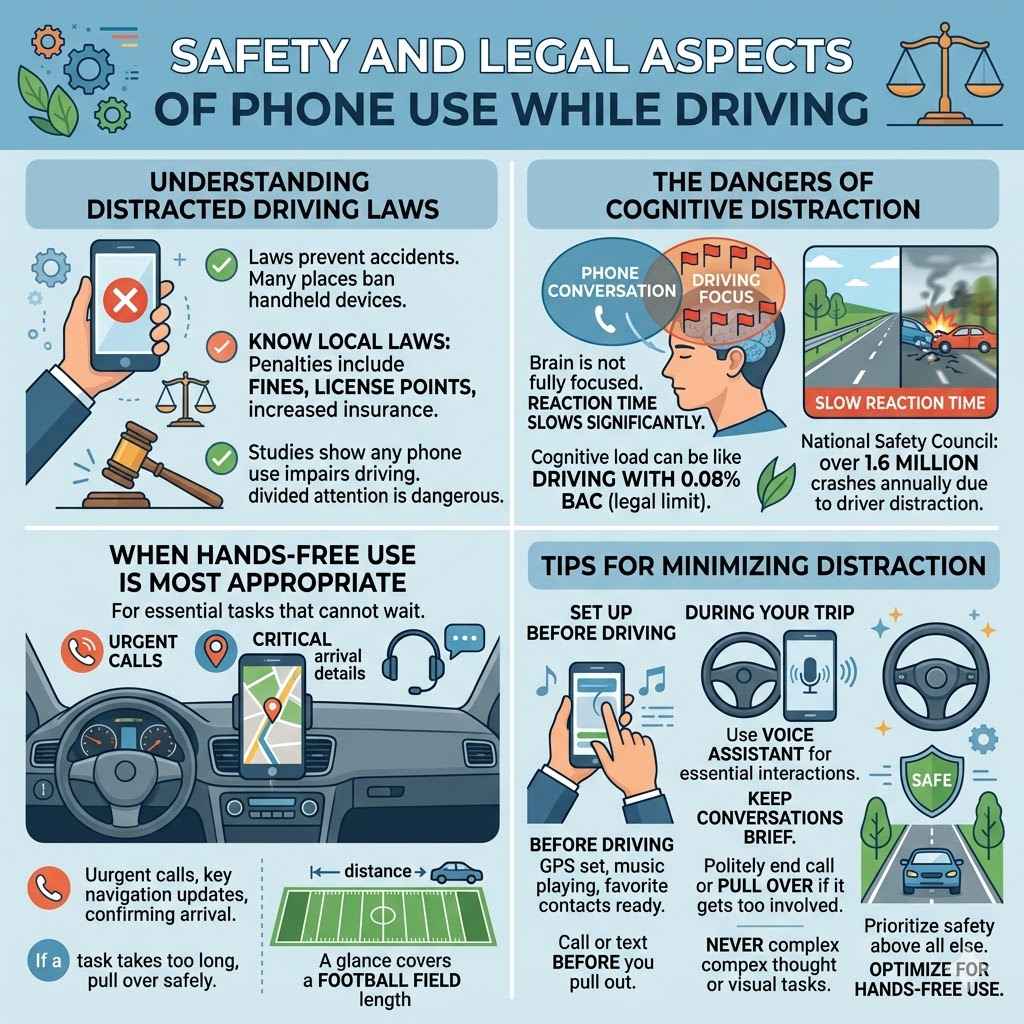
Distracted driving laws are in place to prevent accidents. Many places have laws against using handheld devices while driving. Some states or countries ban all phone use, including hands-free, for certain drivers like teens.
Always know the laws in your area.
The penalties for violating these laws can be severe, including fines, license points, and increased insurance rates. These laws exist because studies consistently show that any phone interaction, even hands-free, can impair driving ability. Your attention is divided, which is dangerous.
The Dangers of Cognitive Distraction
Even when using hands-free devices, your mind can still be distracted. This is known as cognitive distraction. When you’re engaged in a phone conversation or listening intently to directions, your brain is not fully focused on driving.
Your reaction time can slow down significantly.
Studies have shown that the cognitive load of a phone conversation can be equivalent to driving with a blood alcohol content of 0.08%, the legal limit in many places. This highlights that “hands-free” doesn’t mean “risk-free.” It’s crucial to use these features minimally and only when absolutely necessary.
According to the National Safety Council, driver distraction is responsible for over 1.6 million crashes annually in the U.S. This staggering number underscores the importance of minimizing all forms of distraction.
When Hands-Free Use Is Most Appropriate
Hands-free technology is most appropriate for essential tasks that cannot wait until you reach your destination. This includes urgent calls, critical navigation updates, or quickly confirming arrival details. For anything else, it’s best to pull over safely.
Think of it this way: if a task requires your focused attention for more than a few seconds, it’s probably not suitable for driving. Even a quick glance at a text message can mean covering the length of a football field without looking at the road. Prioritize safety above all else.
A 2023 report indicated that while hands-free technologies are improving, the risk of distraction persists. The report advised drivers to limit phone use to brief, essential interactions.
Tips for Minimizing Distraction
To minimize distractions, set up your phone before you start driving. Make sure your music is playing, your GPS is set, and your favorite contacts are easily accessible. If you need to make a call or send a text, do it before you pull out into traffic.
If you receive an important call or text, and you cannot pull over, use your voice assistant. However, keep the conversation brief. If you find yourself getting too involved in the call, politely end it and pull over at the next safe opportunity.
Never use your phone for tasks that require complex thought or visual attention.
Frequently Asked Questions
Question: How do I set up Do Not Disturb While Driving?
Answer: On most smartphones, go to Settings, then find “Focus” or “Do Not Disturb.” Look for a driving-specific mode. You can often set it to turn on automatically when it detects motion or connects to your car’s Bluetooth.
Question: Can I use my phone for social media while driving?
Answer: No, it is never safe to use social media while driving, even with hands-free options. These apps require visual attention and are highly distracting. Always pull over to use social media.
Question: What is the difference between hands-free and distraction-free?
Answer: Hands-free means you are not holding the phone. Distraction-free means your attention is fully on driving. Even hands-free use can be distracting because it occupies your mental focus.
Question: My car is old and doesn’t have Bluetooth. What can I do?
Answer: You can purchase an aftermarket Bluetooth car kit that plugs into your car’s aux port or cigarette lighter. This will allow you to make calls and stream audio wirelessly.
Question: How can I make sure my phone charges in the car?
Answer: Use a reliable car charger that plugs into your car’s power outlet or USB port. Ensure the charger is compatible with your phone and provides sufficient power, especially for fast charging.
Wrap Up
You can easily Optimize Your Phone for Hands-Free Car Use. By adjusting phone settings, using smart accessories, and mastering voice commands, you create a safer driving experience. Always remember that “hands-free” is not the same as “distraction-free.” Prioritize your full attention on the road, using your phone only for essential, quick tasks.