Why Can’t I Hear Waze in My Car? Fixes for No Sound or Voice
If you cannot hear Waze in your car, check four things in this order: the sound mode (Off or Alerts only silences directions), the Guidance volume slider, the route the audio takes (phone speaker versus Bluetooth), and, with CarPlay or Android Auto, the volume on the phone itself. Most no-sound problems come down to one of those settings, not a broken phone or stereo.
Menu names below follow Waze’s official help pages as read in October 2026. Waze, iOS and Android Auto update often, so a label on your screen may differ slightly. Adjust settings while parked: NHTSA lists adjusting the stereo or navigation system among the activities that divert attention from driving.
Why Can’t I Hear Waze In My Car? The Common Culprits
Best AUX-Jack Bluetooth Fix
|
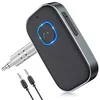
COMSOON 3.5mm AUX Bluetooth Car Adapter, $17.49 If your car has no Bluetooth or CarPlay and Waze only ever plays from the phone speaker, a Bluetooth receiver on the AUX jack gives Waze a path into the car speakers.
|
As an Amazon Associate we earn from qualifying purchases. This is a spec-based pick from the listing, not a hands-on test.
Waze goes quiet for different reasons depending on how the phone reaches the car. The table matches what you hear (or do not hear) to the most likely cause and the fix.
| What you notice | Likely cause | Fix |
|---|---|---|
| No voice at all, map works | Sound mode is Off, or guidance volume is at the bottom | Tap the sound icon and pick Normal (Android) or Sound On (iPhone), then raise Guidance volume under Settings > Voice and sound |
| You hear hazard alerts but no turn directions | Sound mode is Alerts only | Switch the sound icon back to Normal or Sound On |
| Voice comes from the phone, not the car speakers | Android: “Play sound to phone speaker” is on. iPhone: Play sound via is not set to Play as Bluetooth phone call | Turn the Android option off, or set the iPhone option as described in Step 3 |
| Silent only with CarPlay or Android Auto | Volume and sound mode are set on the phone, and the car does not change them | Disconnect the phone from the car, set sound and volume on the phone, reconnect |
| Silent during phone calls only | “Mute Waze during calls” is on | Turn it off under Voice and sound if you want guidance during calls |
| Silent after an update or voice change | Voice data or cache problem | Reset the voice, then clear the cache with the ##@cctts search entry (Step 7) |
| Cuts out or drops over a cable | Cable or port issue with a wired connection | Try a short, high-quality cable and another port (Step 4) |
The causes are not equally likely. Start with the sound mode and the guidance slider: they take under a minute and cover the cases where the app itself is muted.
Step-by-Step Troubleshooting: Getting Waze Talking Again
Work through these in order. The first three fix most cases.
Step 1: Check the Waze Sound Mode
Waze has more than one sound level, and the middle ones can mislead. Per Waze help, Android offers Normal, Less chatty, Only alerts and Off. On iPhone and CarPlay the choices are Sound On, Alerts only and Sound Off. Tap the sound icon next to your ETA to change it while navigating.
- Android: tap the sound icon, then choose “Normal” for all guidance and alerts.
- iPhone: open Settings, then Voice and sound, and set “Sounds” to On. Or tap the sound icon and pick Sound On.
- Android Automotive and CarPlay: the icon offers Sound on, Alerts only and Sound off.
Step 2: Raise the Guidance Volume and the Phone Volume
In Waze, open Settings, then Voice and sound, and move the “Guidance volume” slider up. Waze’s slider is separate from the main volume, so also raise the phone volume while a prompt plays, and turn up the car stereo.
Step 3: Check Where the Audio Is Being Sent
This is the step most guides get wrong. There is no single “Play audio over Bluetooth” switch. The setting depends on the phone:
- Android: turn on Bluetooth in the phone settings, then in Waze open Settings, then Voice and sound, and make sure “Play sound to phone speaker” is turned off. If it is on, Waze plays through the phone speaker instead of the connected Bluetooth device.
- iPhone: turn on Bluetooth, then in Waze open Settings, then Voice and sound, tap Play sound via, and choose Play as Bluetooth phone call. Waze says that with this on, directions and alerts play through the Bluetooth device and the phone screen looks like a call in progress.
On iPhone that call-style routing means the car may treat Waze prompts like call audio (our reading of the Waze description, not a Waze statement). If prompts are faint, try raising the car volume while a prompt is playing, and check the owner’s manual for a separate phone or navigation volume. If the phone will not stay paired at all, see how to pair a Samsung phone to your car, which also covers the Android side of pairing.
Step 4: Fix CarPlay and Android Auto Audio
With CarPlay or Android Auto, Waze’s sound settings live on the phone and cannot be changed from the car. Per Waze help, for both CarPlay and Android Auto you disconnect the phone from the in-car system, set the sound mode and volume on the phone, and the changes apply the next time you use Waze in the car.
- Wired CarPlay: per Apple Support, try a different USB cable and another USB port, restart the iPhone and the car, and keep iOS updated.
- Wireless CarPlay: Apple says to turn on Bluetooth and Wi-Fi and make sure the stereo is in wireless or Bluetooth mode. If it keeps failing, go to Settings > General > CarPlay, tap your car, tap Forget This Car, and set it up again.
- Android Auto: Google recommends a high-quality USB cable under about 3 feet (1 meter) with no hub or extension, and the cable that came with the phone if possible. If it worked before and stopped, replace the cable. Restarting the car infotainment system can also help.
Setting up either system from scratch is covered in how to sync your phone to your car.
Step 5: Check the Car’s Own Source and Volume
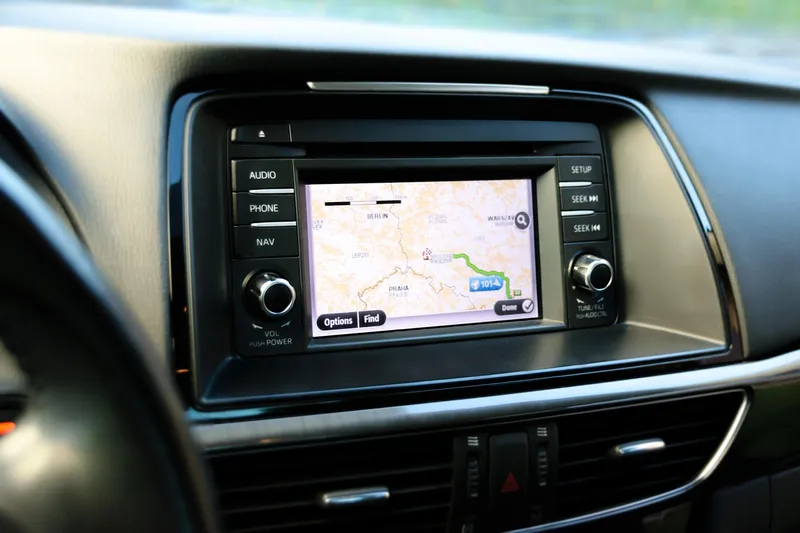
The car must be listening to the right source. For Bluetooth, set the stereo source to Bluetooth audio. For CarPlay or Android Auto, the stereo normally switches to that source by itself. If you hear radio or nothing, press the Source or Media button and pick it.
Some cars also have a separate navigation or voice prompt volume in the audio menu. That is a car-specific setting, so use the owner’s manual for your model rather than a generic guess.
Step 6: Turn Off “Mute Waze During Calls” if You Need It
Waze includes the option “Mute Waze during calls” under Voice and sound. With it on, Waze is silent whenever a call is active, including a call that is still connected to the car. Turn it off if guidance goes quiet during hands-free calls.
Step 7: Reset the Voice and Clear the Cache
If sound is on, volume is up and the route is right, reset the voice data. Waze help gives two steps:
- Type ##@cctts (all lowercase) in the Waze search bar and press search. This clears the cache.
- Tap the sound icon, tap the current voice, and select a different voice (or reselect your own) so Waze reloads it.
Step 8: Update, Restart, and Reinstall if Needed
Update Waze from Google Play or the App Store, install pending phone updates, and restart the phone and car. If nothing works, uninstall and reinstall Waze, after confirming you know your sign-in details.
Step 9: Test Without the Car
Disconnect Bluetooth, start a route and listen to the phone speaker. If you hear guidance there, the app is fine and the problem is the Bluetooth or CarPlay path (Steps 3 to 5). If you hear nothing, go back to Steps 1, 2 and 7. If the car radio also hisses or crackles, that is a different fault, covered in why your car radio has static.
Waze Audio Settings Explained
Where each control lives helps you find the break in the audio chain:
| Setting | What it does | Where to find it |
|---|---|---|
| Sound mode | Chooses all guidance, fewer prompts, alerts only, or nothing | Sound icon next to the ETA; also Settings > Voice and sound |
| Guidance volume | Waze’s own voice level, separate from the phone volume | Settings > Voice and sound |
| Play sound to phone speaker (Android) | When on, audio stays on the phone speaker instead of Bluetooth | Settings > Voice and sound |
| Play sound via (iPhone) | Play as Bluetooth phone call routes guidance to the Bluetooth device | Settings > Voice and sound |
| Mute Waze during calls | Silences guidance while a call is active | Settings > Voice and sound |
| Current voice | Resets voice data when sound is missing | Sound icon, or Settings > Voice and sound |
| Phone and car volume | Final loudness at the speakers | Phone buttons and the car stereo |
Troubleshooting Specific Scenarios
Scenario 1: Waze is silent, but music plays fine through Bluetooth.
Likely cause: Waze is set to the phone speaker (Android) or not set to Play as Bluetooth phone call (iPhone). Fix: Step 3.
Scenario 2: Waze used to work, but suddenly stopped.
Likely cause: a changed sound mode, a cleared voice, a new phone, or a new cable. Fix: repeat Steps 1, 2 and 7, then replace the cable if you connect by wire.
Scenario 3: I hear alerts but no turn directions.
Likely cause: the sound mode is Alerts only. Fix: tap the sound icon and choose Normal (Android) or Sound On (iPhone and CarPlay).
Scenario 4: Waze is very quiet even with the volume up.
Likely cause: the Guidance volume slider is low, or the car lowers navigation prompts relative to other audio. Fix: raise the slider, raise the phone volume while a prompt plays, and look in the owner’s manual for a navigation or voice volume setting.
No Bluetooth, CarPlay or Android Auto in Your Car?
Older cars often lack all three but have a 3.5mm AUX input. A Bluetooth receiver that plugs into that jack lets the phone send Waze audio to the speakers. Our pick is in the box above, and the wider choice of adapters is in our guide to Bluetooth adapters for car audio. If your AUX input itself is silent, see why your car AUX is not working.
Frequently Asked Questions About Waze Audio
Why does Waze stop talking when I get a phone call?
Waze has a setting for it. In Settings, under Voice and sound, the option “Mute Waze during calls” silences guidance while a call is active. If you want guidance during calls, turn that option off.
Can I use Waze with my car’s built-in navigation system?
Not as a replacement. Waze runs on your phone. If your car supports Apple CarPlay or Android Auto, Waze appears on the car screen and plays through the car speakers while the app keeps running on the phone. Without either, you can use Bluetooth or an AUX cable.
My phone is connected to car Bluetooth, but Waze audio still comes from my phone. What is wrong?
On Android, open Waze Settings, then Voice and sound, and make sure “Play sound to phone speaker” is turned off. On iPhone, open Voice and sound, tap Play sound via, then Play as Bluetooth phone call. Per Waze help, those are the settings that send directions to a connected Bluetooth device.
Does Waze work with Bluetooth?
Yes. Waze can play directions and alerts through a connected Bluetooth device. The setting is different on each platform: on Android the phone speaker option must be off, and on iPhone you choose Play as Bluetooth phone call, which makes the phone look like it is on a call.
How do I make Waze louder?
Open Waze, go to Settings, then Voice and sound, and drag the Guidance volume slider up. Then raise the phone volume and the car’s own volume. With CarPlay or Android Auto, disconnect the phone from the car first to change Waze’s volume on the phone, as Waze help instructs.
Why do I hear Waze alerts but no turn directions?
The sound mode is probably set to Alerts only, which plays alerts and no navigation guidance. Tap the sound icon in Waze and choose Normal on Android, or Sound On on iPhone and CarPlay.
Products related to this article
Sponsored / affiliate links. As an Amazon Associate I earn from qualifying purchases. I may earn additional commission from eligible campaigns.